This week assignment is to make something big using shopbot
My goal for this week is to make rocker bed for my nephew.
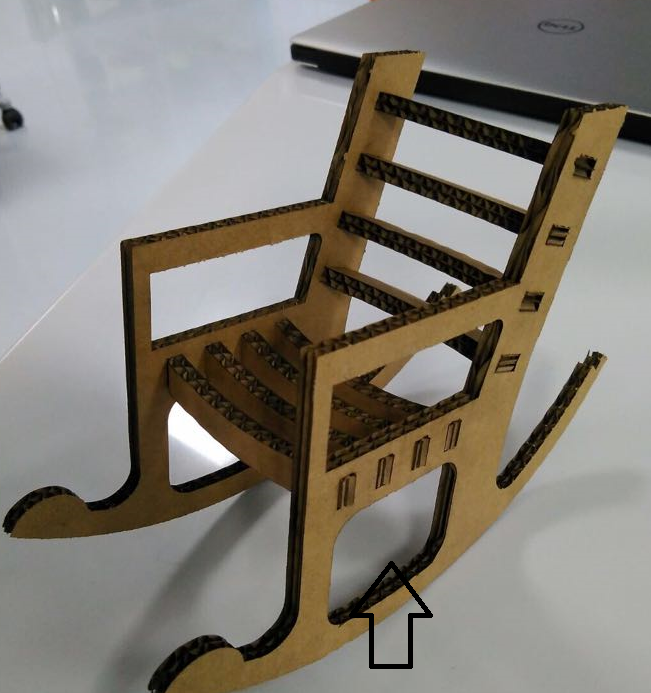
In the beginning, I thought of making a Rocker chair.
I looked in youtube and this video helped me. I started to design the chair I didn't find any troubles in making the design it was simple. In the video, he didn't take the material from here (look at the arrow below) I think to make the chair stronger, but I took it.
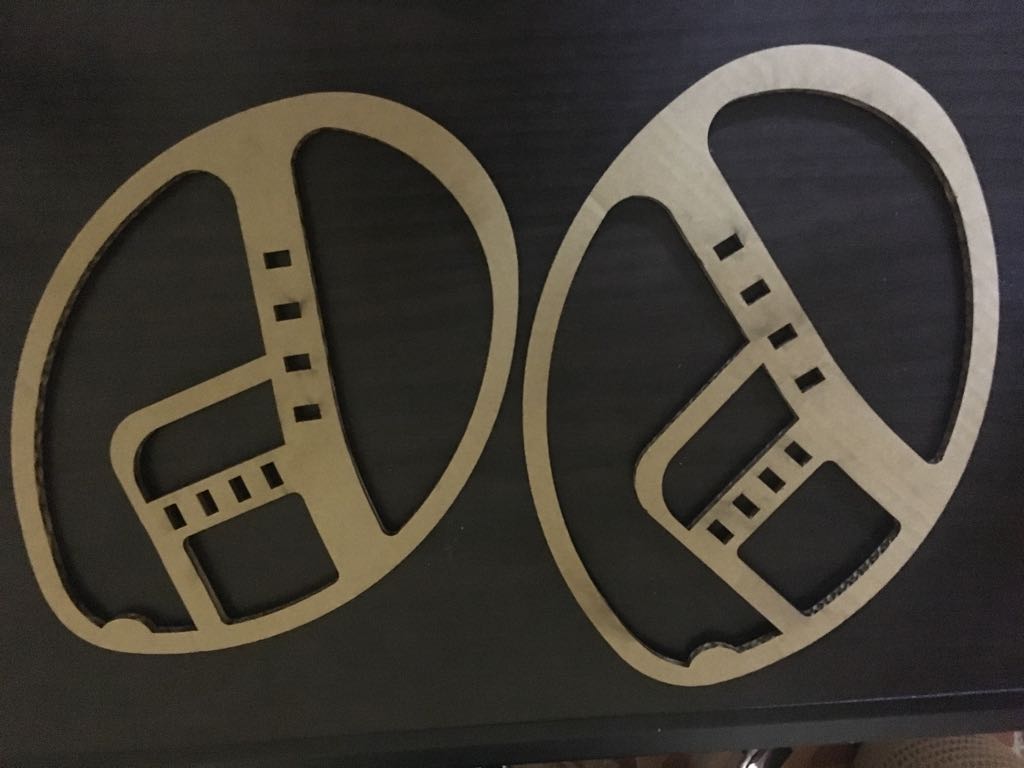
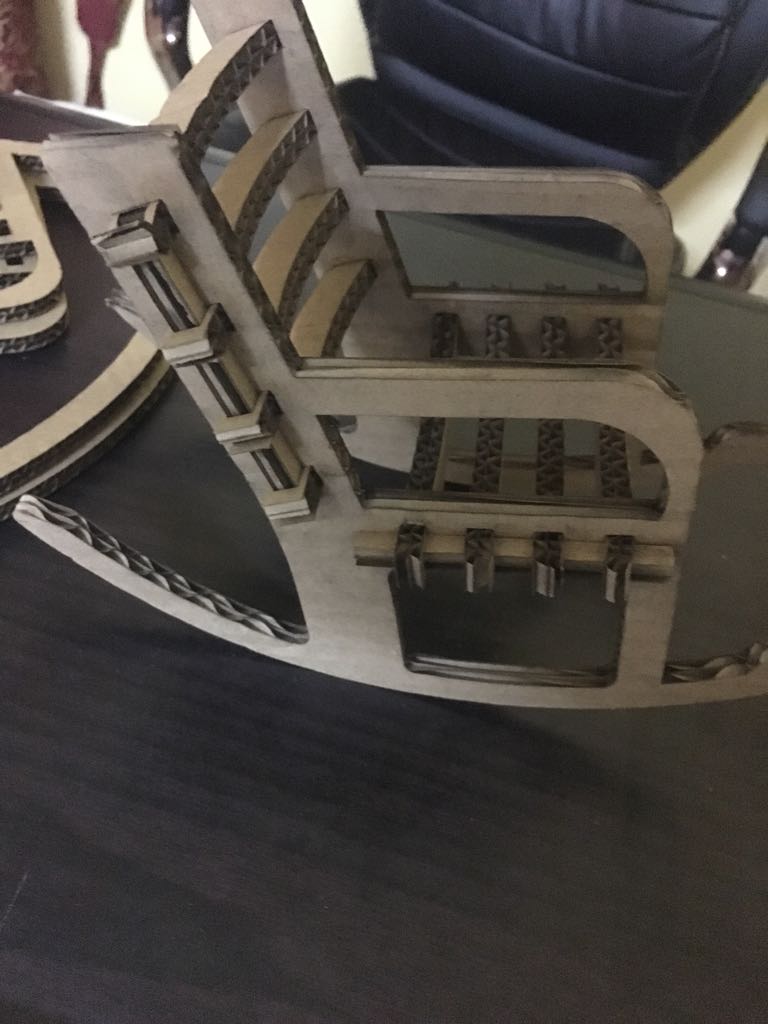
I made the design and I test many versions. Wendy helped me on improving the design till I decided the final design. Here is the first version.
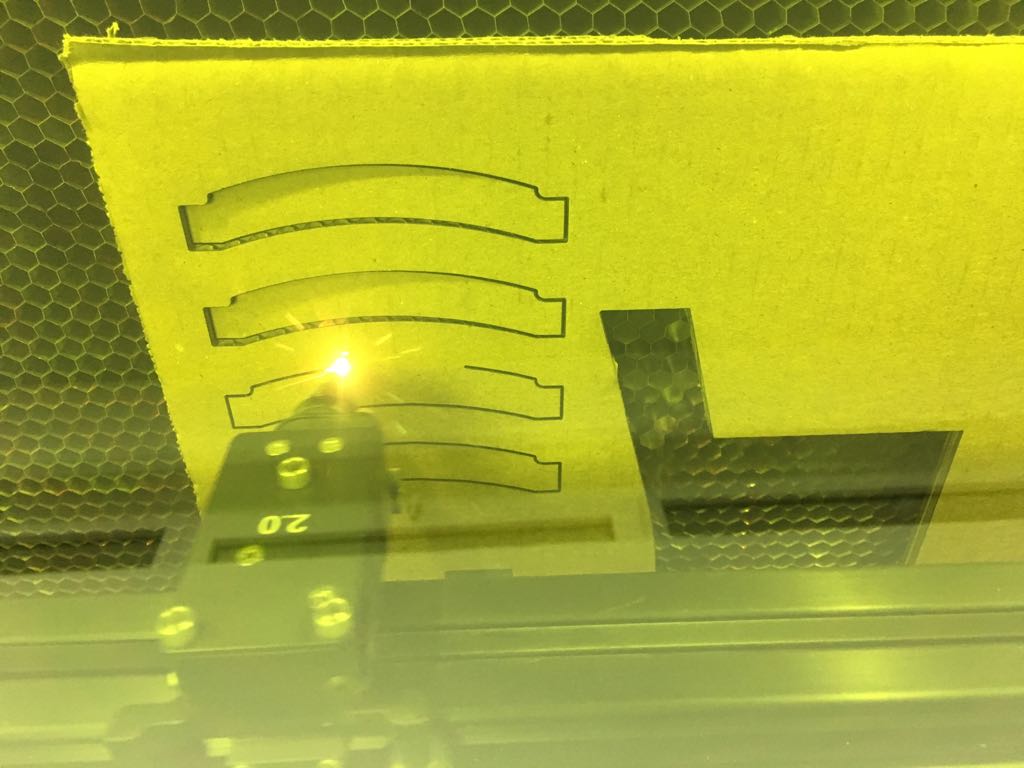
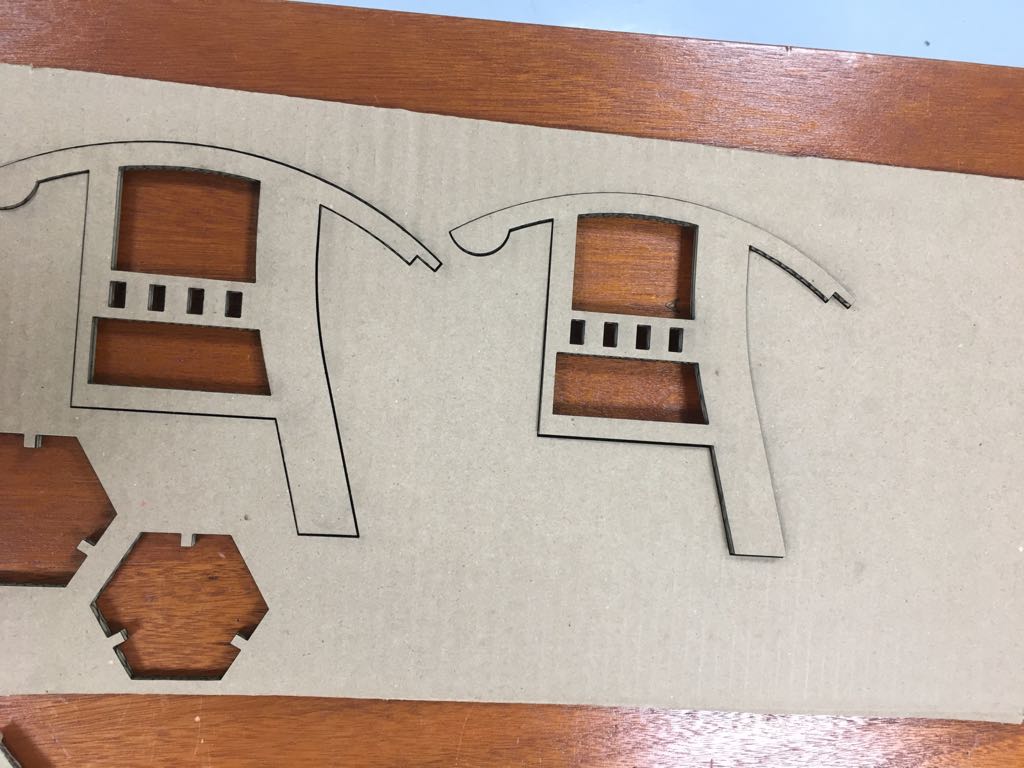
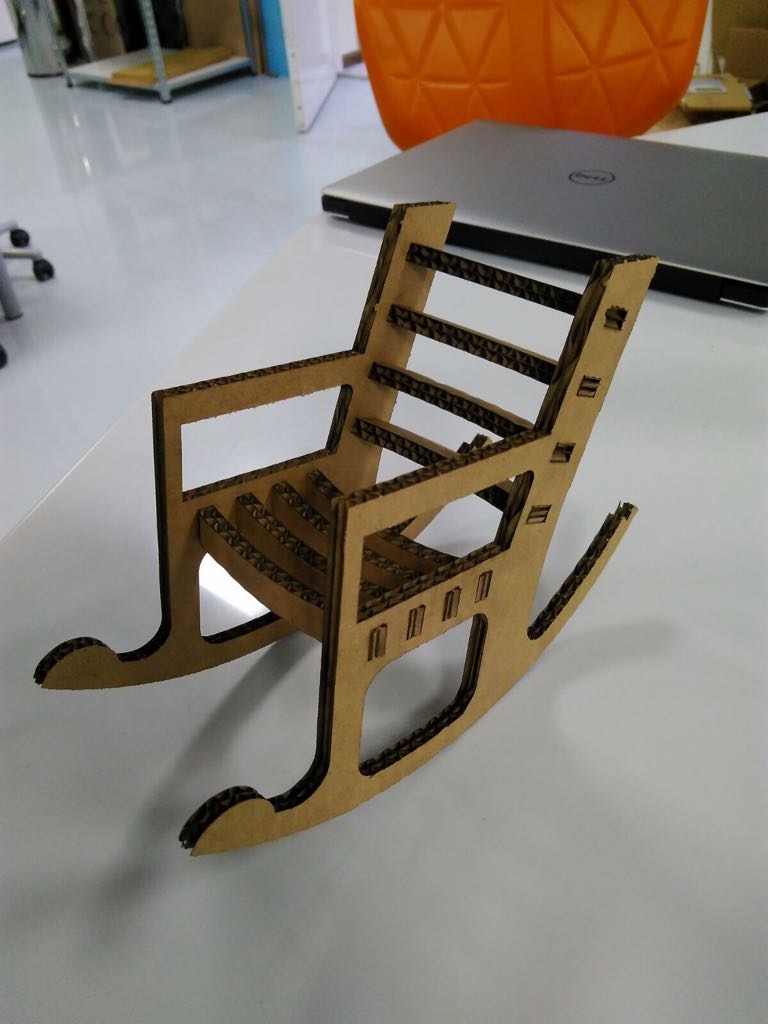
I used cardboard 6 mm to test my design. I didn't make it near the actual size and this was a mistake I should at least make it to the half of the actual size.
In the second version I thought with Carl to connect the chair legs together to make it circular but then I canceled the idea because it will not be safe and will not fit me so I changed it back to the previous design and I made the slat longer to put the lock also I change all sharp angels and make them flat.
Here is the Fusion360 file
I changed my mind since I didn't start with the shopbot. I thought of making something for my newborn nephew also I didn't want to let go the idea of rocker chair. So I decided on making rocker bed for him. I changed the design a little bit. I didn't do the same mistake I made it the same size that I want as a test. Also, something helped me was the user parameter it really helped me with joint because I had a lot and I can change all of them with one click.
I used MDF 3mm to test the first version I made it as the actual size. I make it swinging bed for the baby. After I cut the first face I remembered the kerf. So I went back to the laptop and chnge the width to 2.65mm to make it fit.
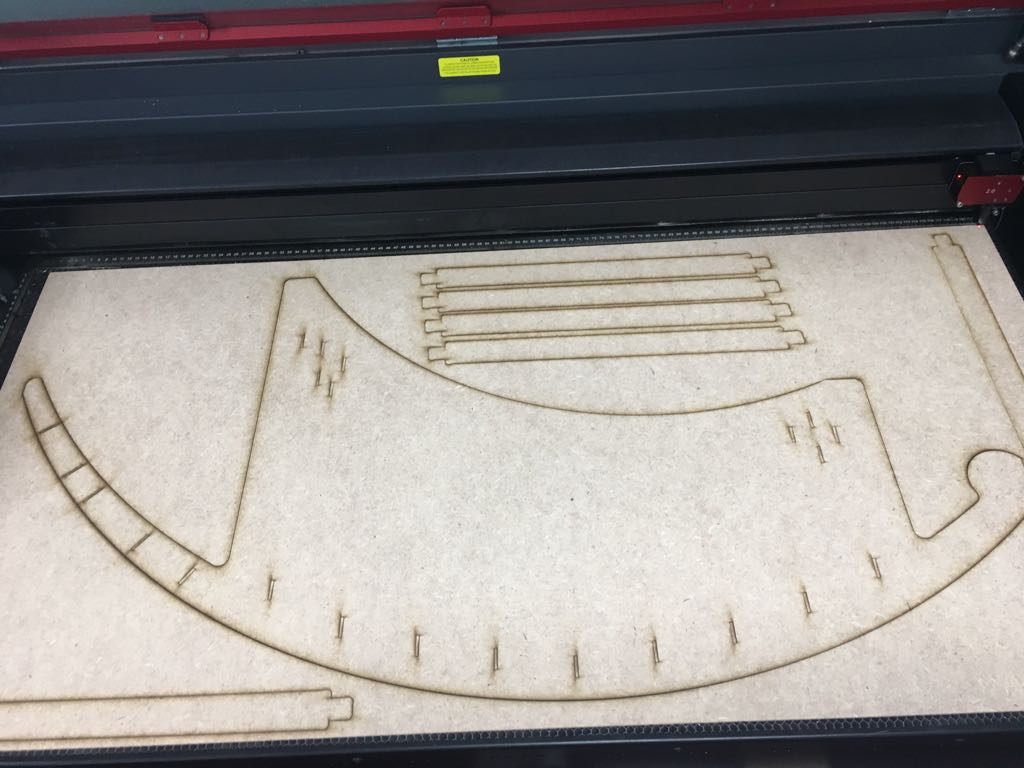
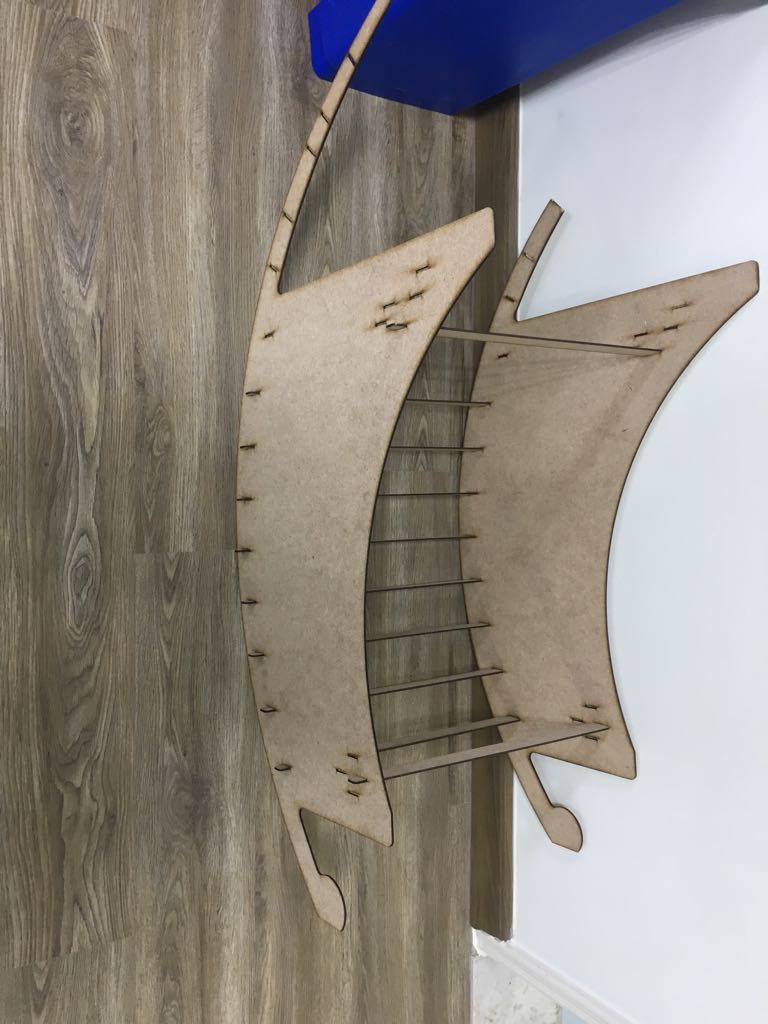
I improve the design I thought of moving the slots up and use them as a bed. which turned out to a better design than the previous.
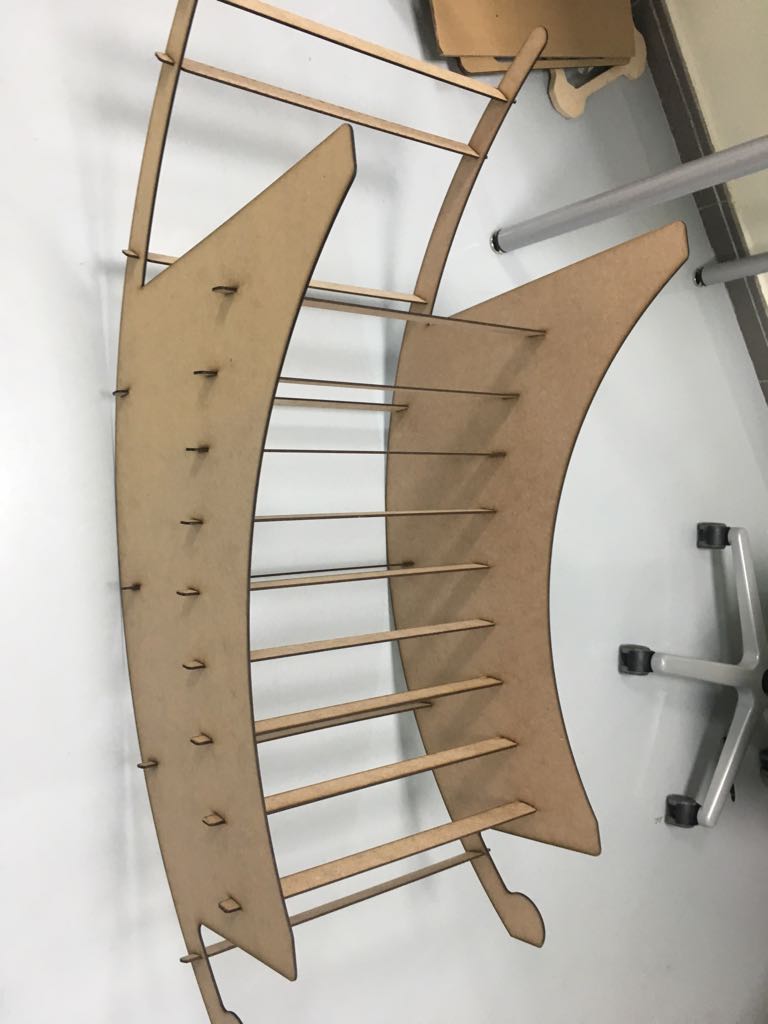
After that, I went to Wendy to show her the last version before going to the shopbot and she gave me good advice like increasing the fillet and to change the direction of the slots from vertical to horizontal below also to add a lock for all the slats. Its really good to show someone with an experience your final work, cause he will give you golden tips to make your product better and better. So yeah I change it in the software but I didn't cut it cause its minor details.
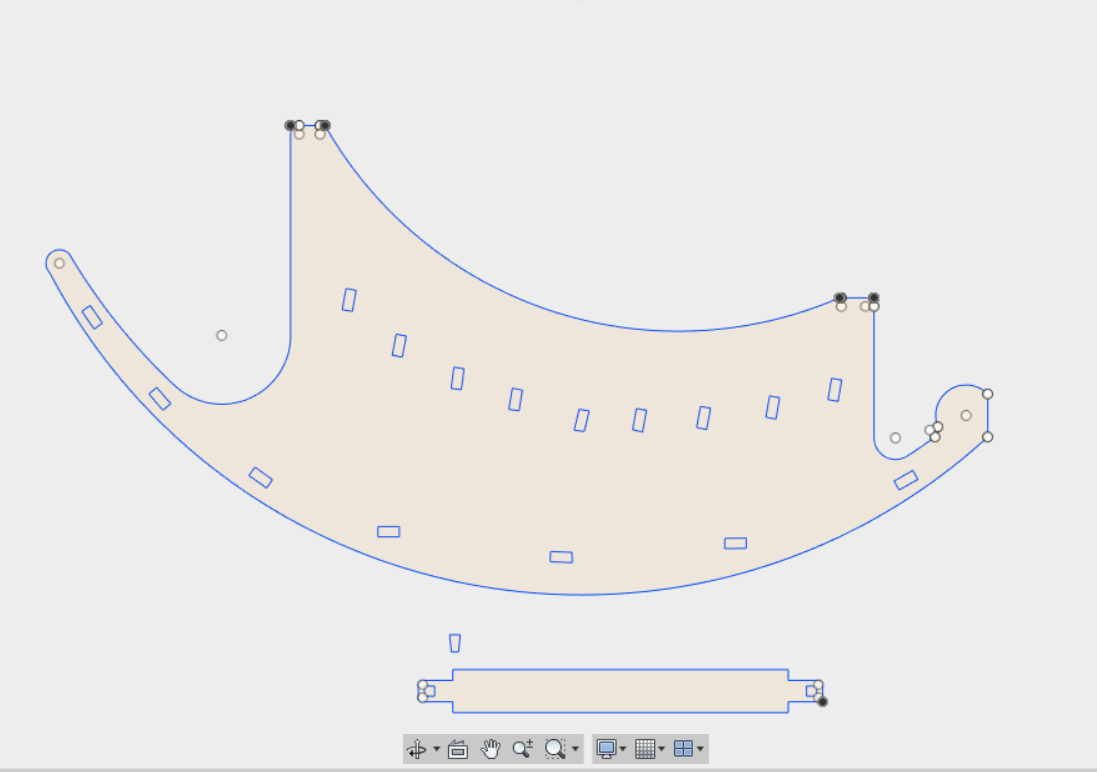
After trying on MDF and choosing the best design. I downloaded Vcarve from Hashim he gave me the software and the user and serial code on flash because the shopbot work on Vcarve version 9 and its not free.
Vcarve is a software for CNC like shopbot. There are a lot of uses for calculating the toolpath, simulation the cutting and milling, making pockets, engraving.
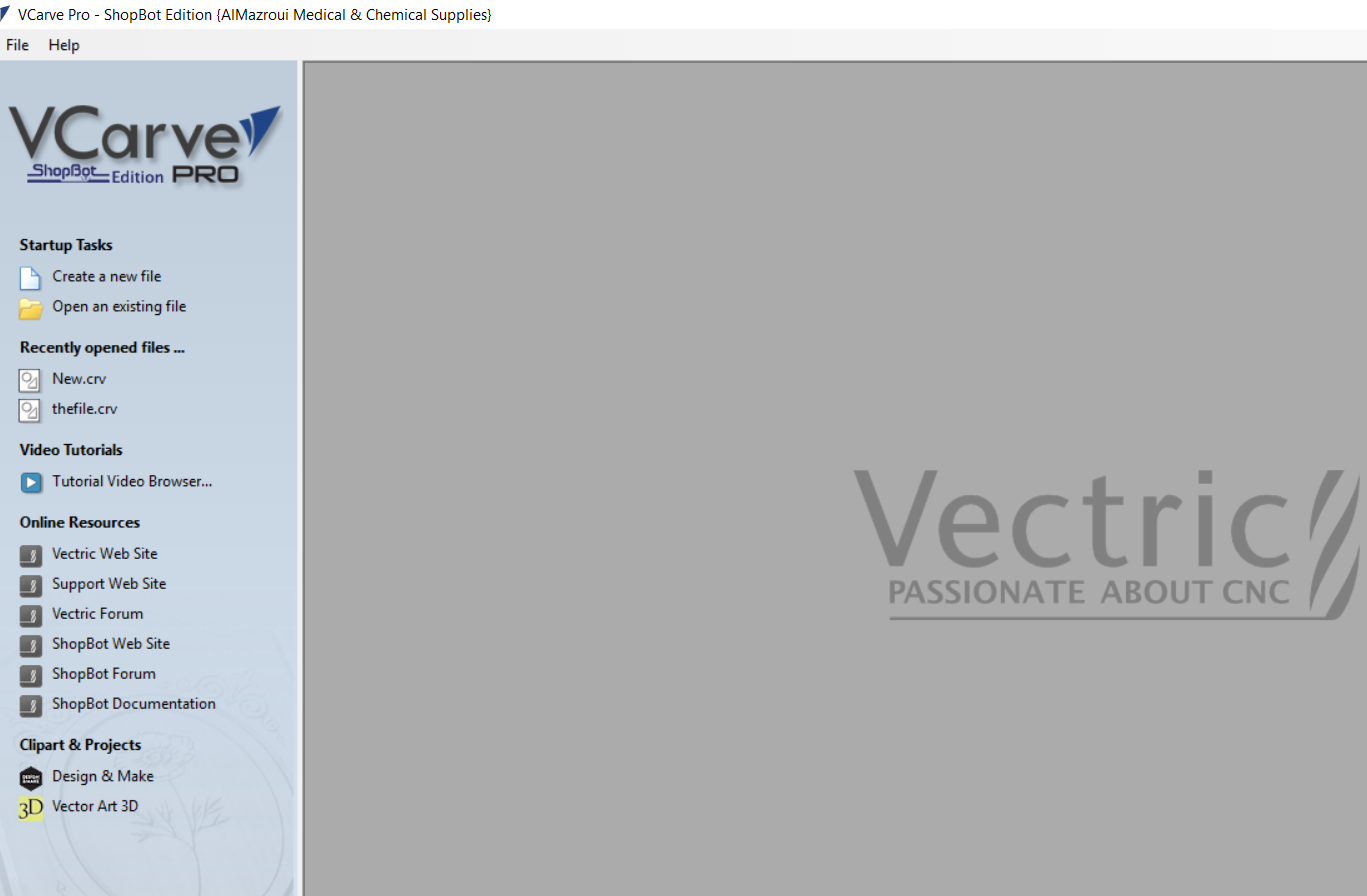
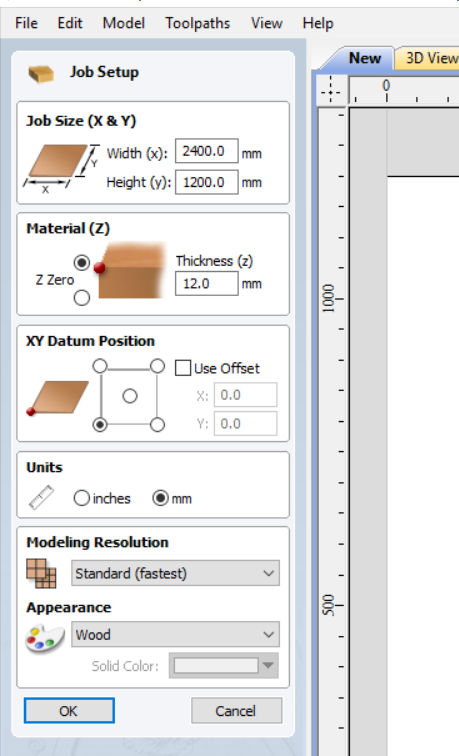
In the beginning, I didn't really try to use the software I headed directly to Ahmed to show me how I can use cause I don't want to waste time. Thanks to Ahmed I understand how to make my design ready for the shopbot. Also, Thanks to my genius mind, cause I record a video when he was explaining, I knew I will forget the moment he will leave. I will the process in steps to make it easy to remember for me. When I opened the software I created a new file then I set up the file which means what kind of material you will cut also what is the dimension then I clicked OK.
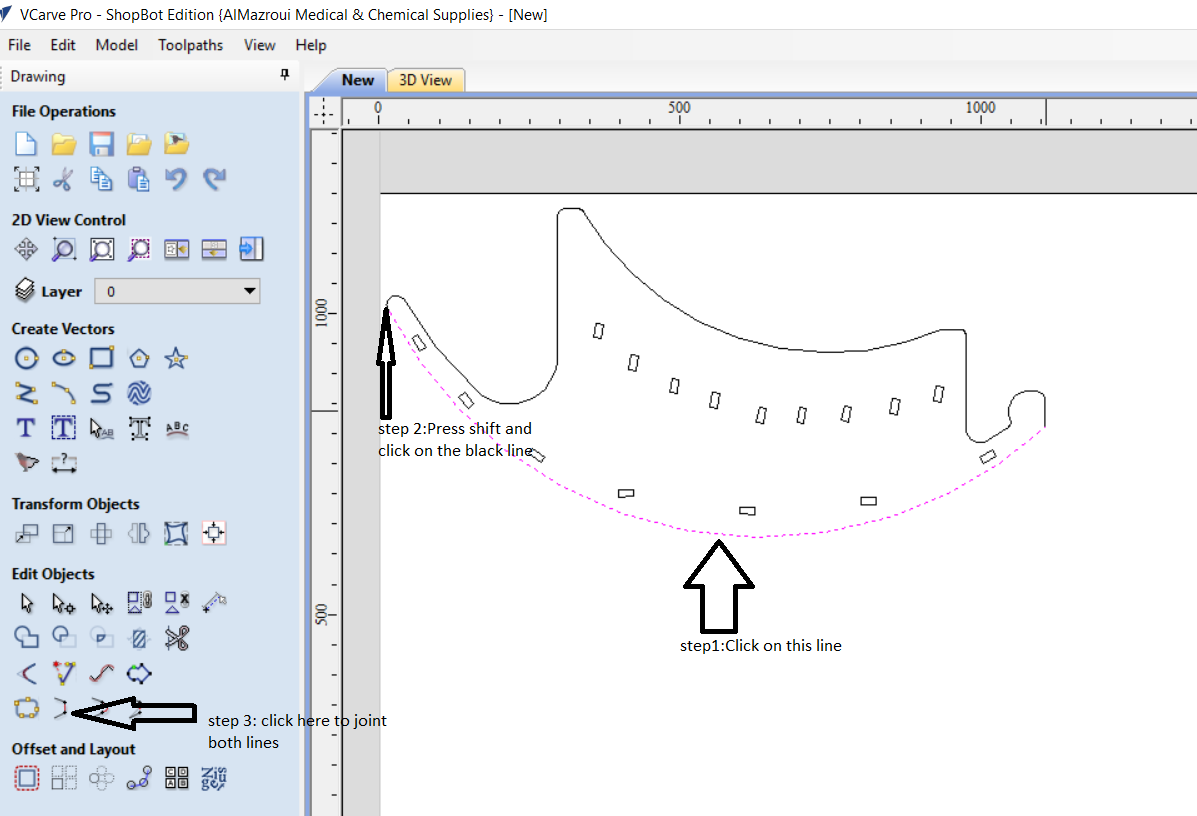
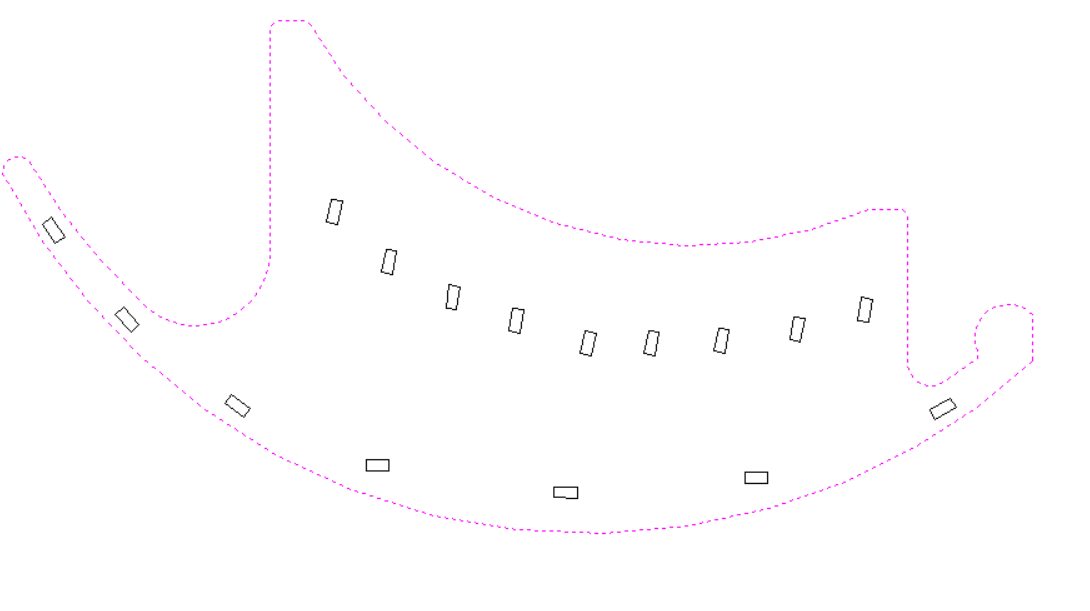
I Imported the design from file then import vector. After that I checked if the file is all as one piece I mean I must make sure that the design is closed and joint as one line. So I clicked on the design and it was not joint so I clicked on the first line then pressed shift and clicked on the next line then I click joint I repeated the process until it was done.
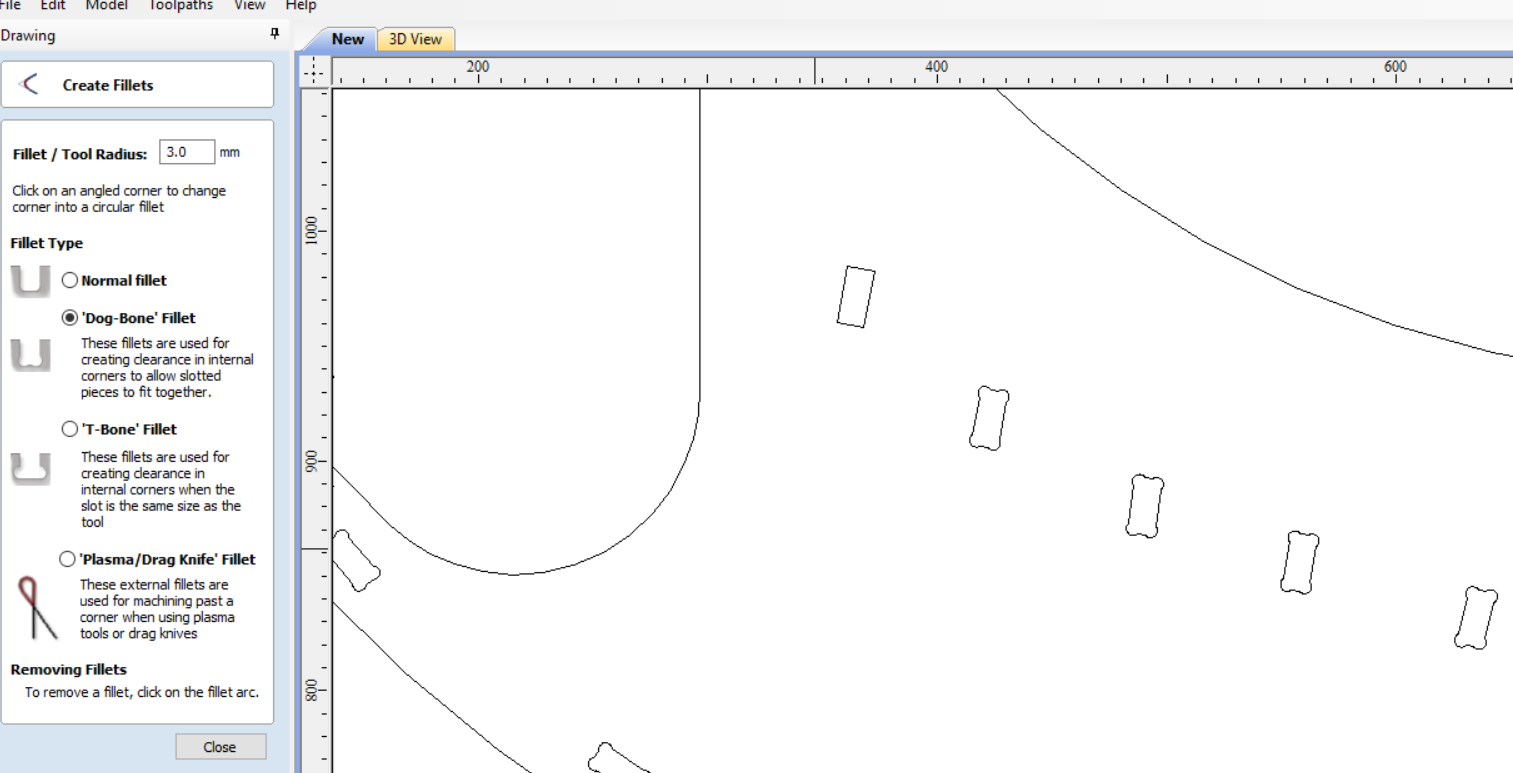
After that, I made fillet to all the holes in the bed. this fillet called dogbone because it gives the shape of a bone and it helps to fit two-piece inside each other. To make all the joints with dogbone I clicked on fillet and choose dogbone then I decided the diameter of the circle I make it 3mm. After that, I clicked on close.
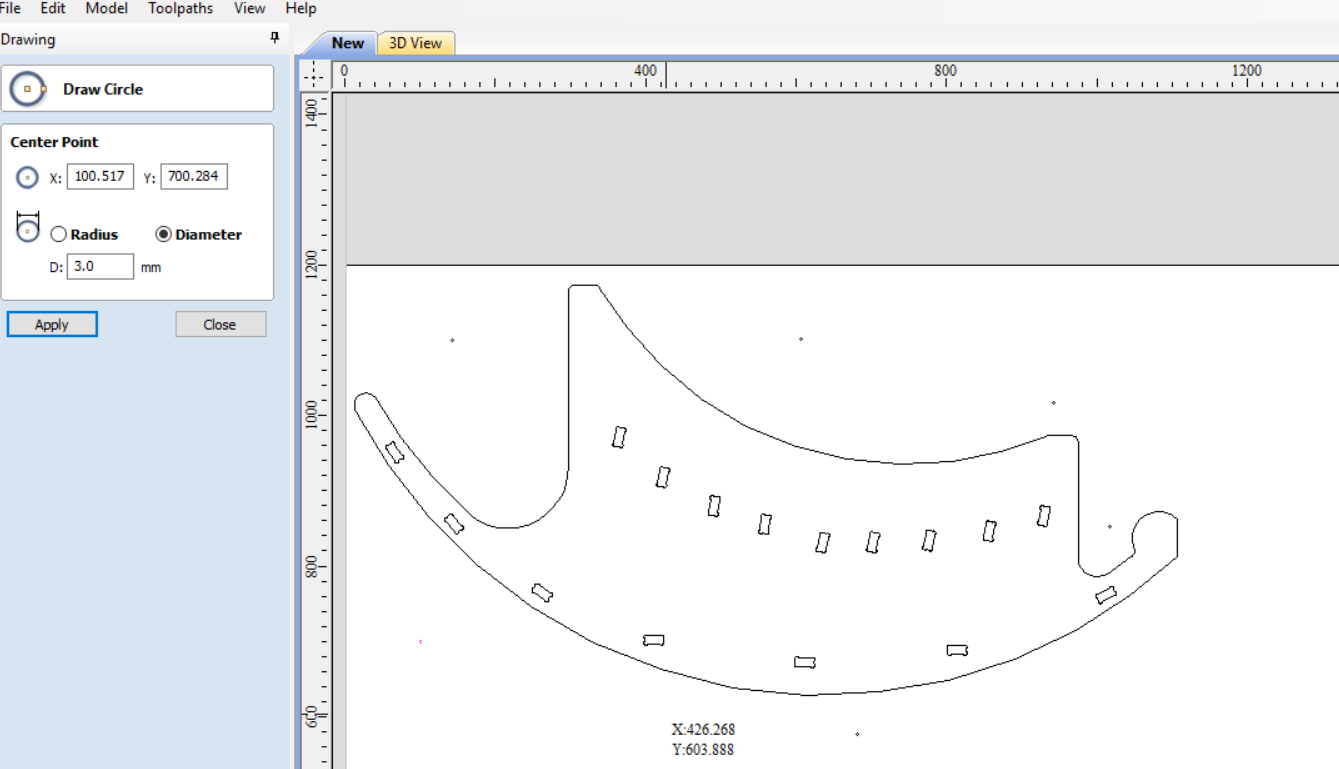
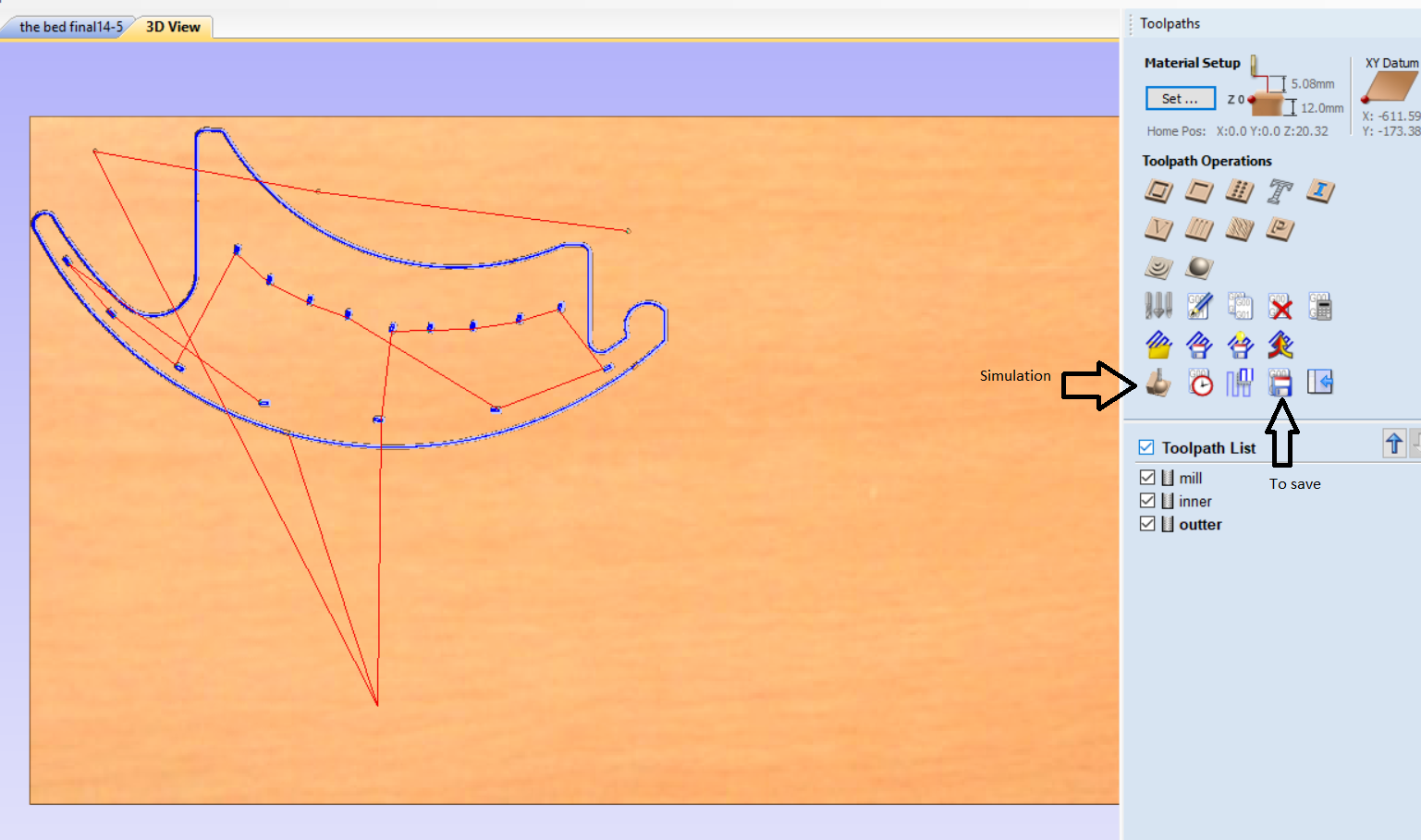
Then I added a layer and call it mill to add the screws which will fix the plate. Then I put few circles in random places to fix the plate. The circles hade a diameter of 3mm which is the diameter of the screw we have. I can put screws in the empty space inside the bed but I don't want. After that, I hide the 0 layer which had the bed and selected all of the circles and clicked on toolpath in the right of the screen.
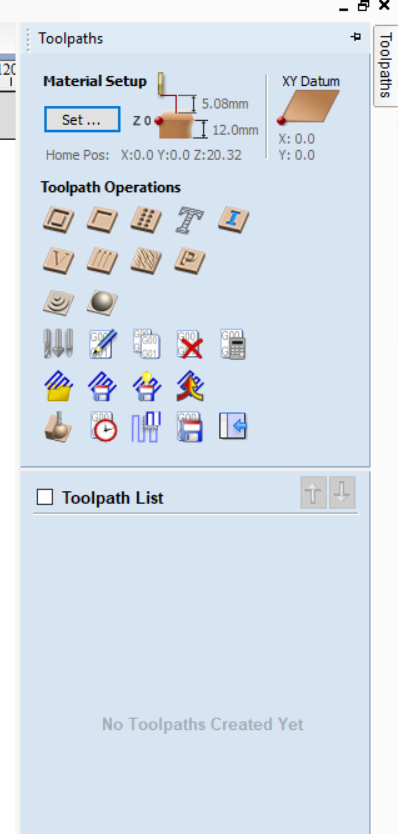
After clicking on the toolpath I clicked on drill then I put the cut depth 3mm the purpose only to make it clear to drill it. Regarding the tool and the setting, the tool in the machine was 6mm end mill flat end and the setting were Pass Depth 3mm, Feed Rate 30, the speed of the spindle 12000 R.P.M, Stepover is 4mm and Plunge Rate is 15
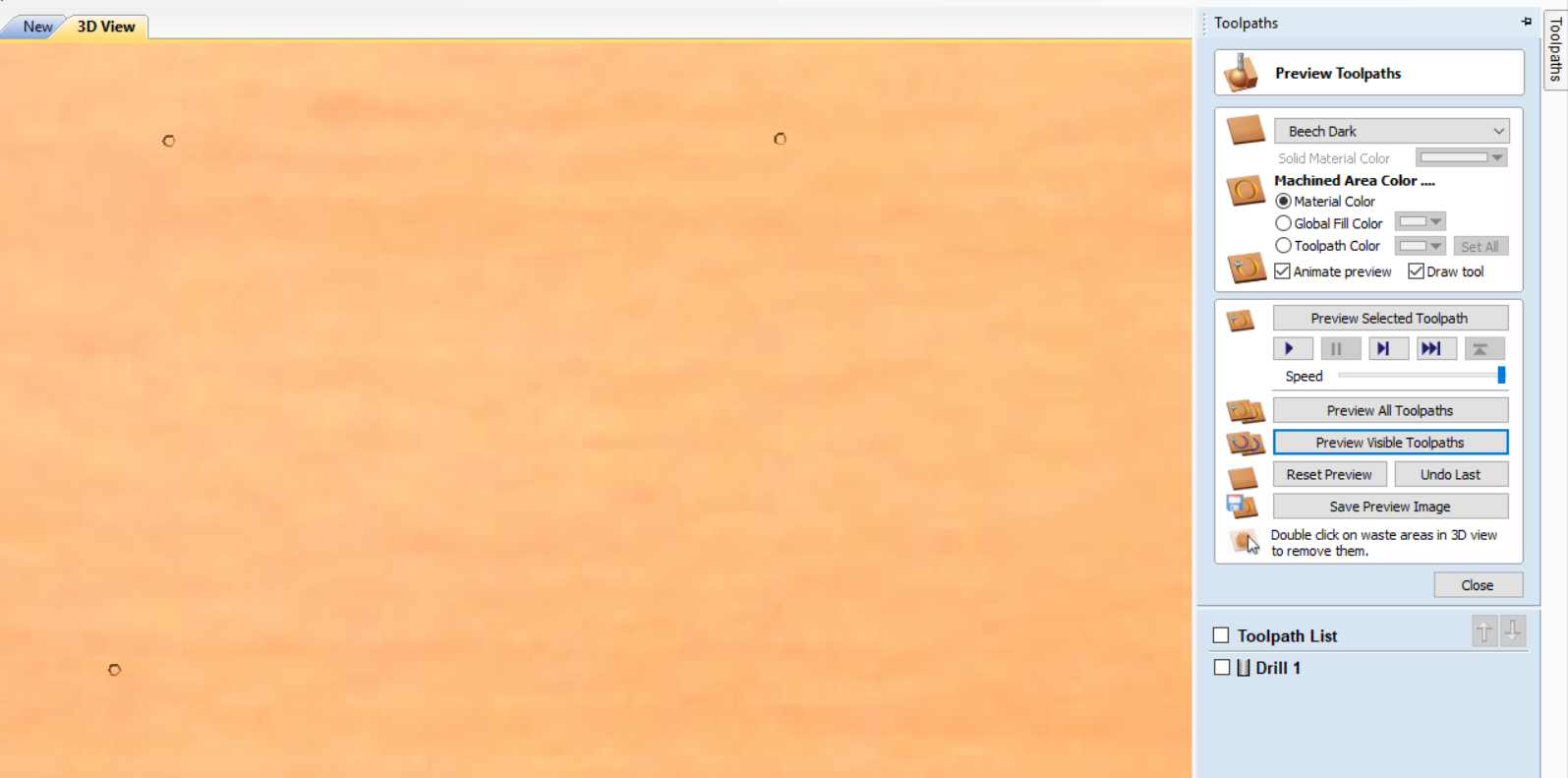
. I used mill bit not drill bit because the process I want is milling which means taking the material layer by layer horizontally and I wanted a flat end to make the product perfectly flat and take out all the material I don't want especially in the last layer. After I chosen the mill bit I clicked in the bottom -Calculate- then- Reset preview- then -preview visible toolpath- to see the simulation of drilling the screws.
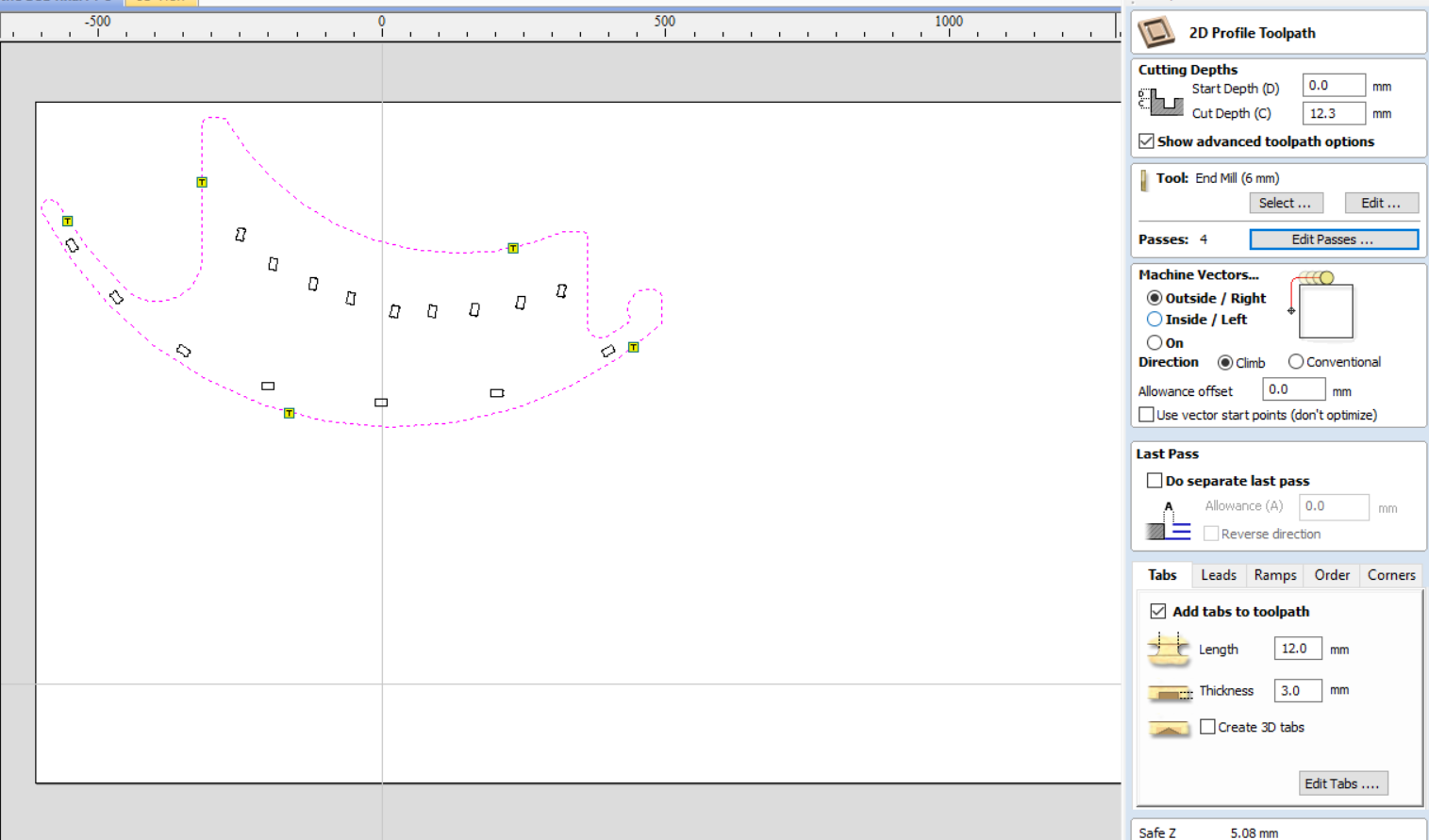
Then I hide mill layer and show 0 layers. Then I clicked the outer border of the bed and went to toolpath and choose -Profile-. Then I made these sets the depth 12.3mm to make sure it cut all material down also because when we set Z-axis we use a metal plate which has a thickness, so 12.3 mm covers that thickness. Then I choose machine vector outside because this profile is the outer profile (border) also if I choose inside I will take out more material and the dimension will be less cause it takes from it. So the best thing is to make the outer or the border outside and the holes inside because I want to remove the material inside the border. The mill bit is the same actually will be the same for all. Regarding passes, I make it 4 passes which mean it will take 3 mm every pass. Then I added tabs it helps a lot because it holds the component while the machine is milling because if there is no tabs and it's on the last pass of the tool path, the component will not be fixed because of the rotation of the bit and will move. The mill might break and the component will be damaged. This is also why we wear safety goggle.
Then I named outter and calculate to see the simulation. Note: After I clicked calculate error window showed because I put cutting depth 12.3mm and in the set up the thickness of the material is 12mm. I clicked ok.
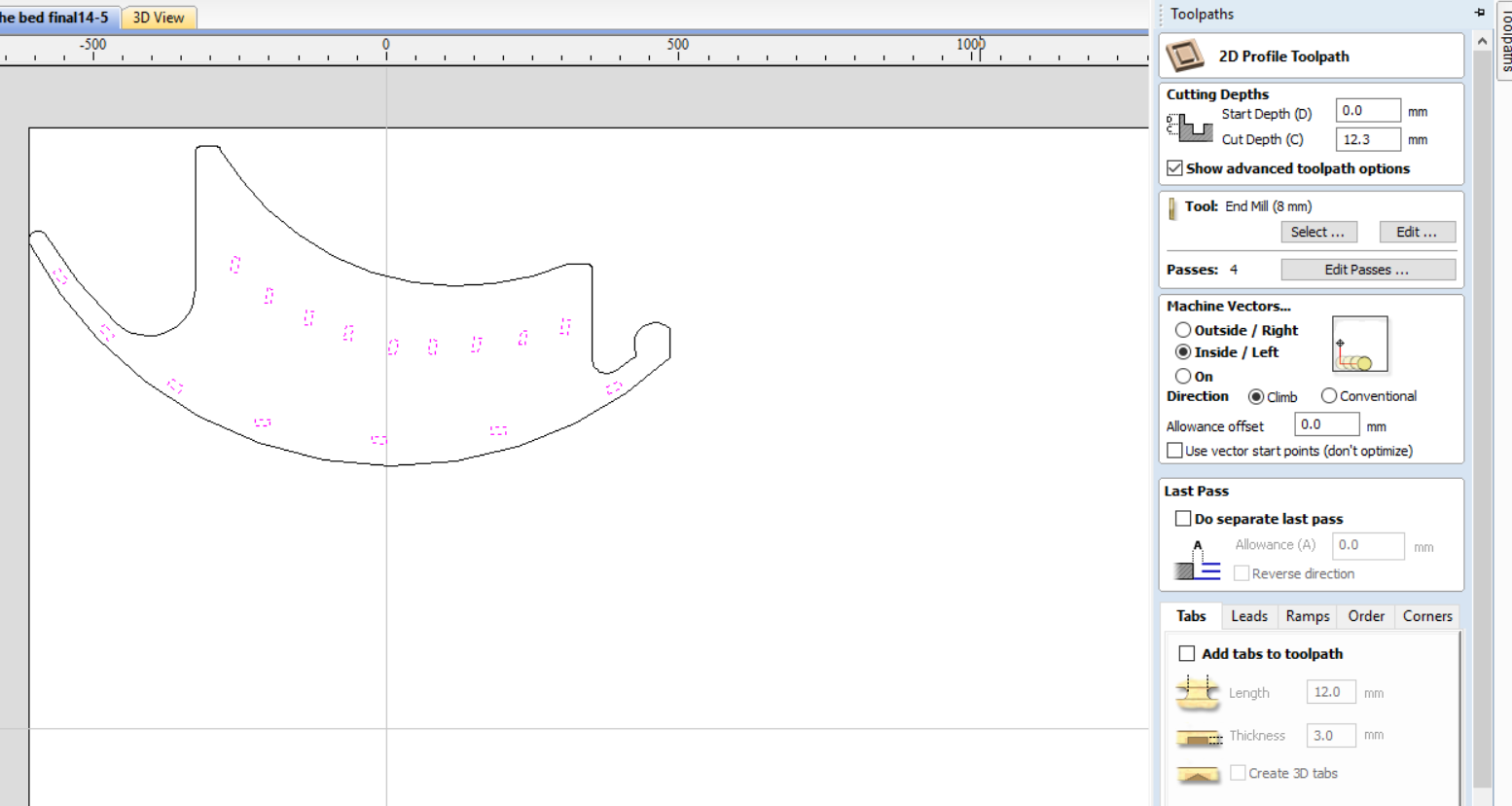
After I finished the outer profile I selected all slots and I did the same process like the outer profile but I chose inside in machine vector and then I clicked name it inner and calculate.
I save inner and outer profiles in one file and the mill in another file from toolpath. Also, you must make sure that inner is above outer to cut the inner first then outer file. Because when you start with outer first and then inner maybe the tabs will not bear and break then your product will move and hit the mill bit. If you are confused and don't know which file will start. Just select all files and run the simulation to see which one will appear the first.
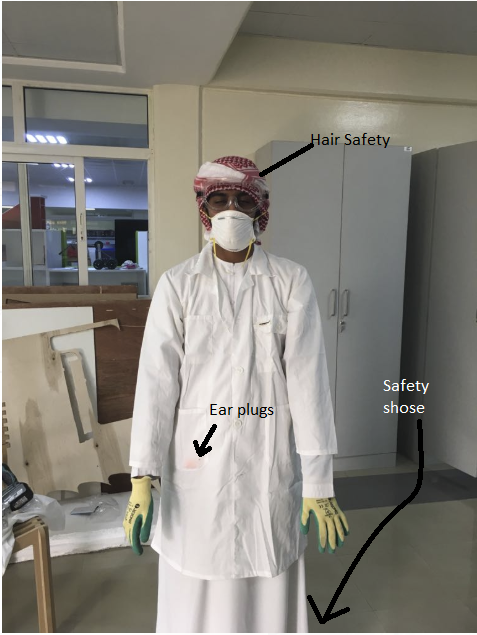
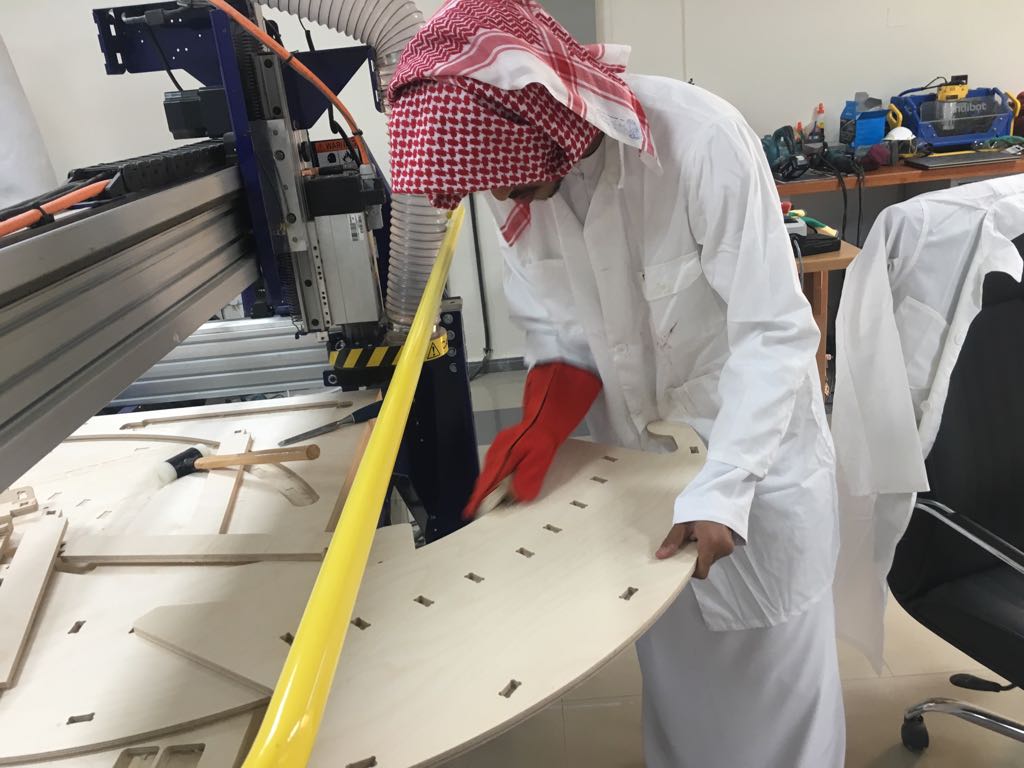
I went with Ahmed to cut the bed. First thing I learned is safety. Wendy teaches us about how much important is safety, especially when working with the shopbot. I must wear eye protection also overall and earplugs. I wore gloves then wendy advices me to choose closly fitting gloves even though she dont advise to wear them.
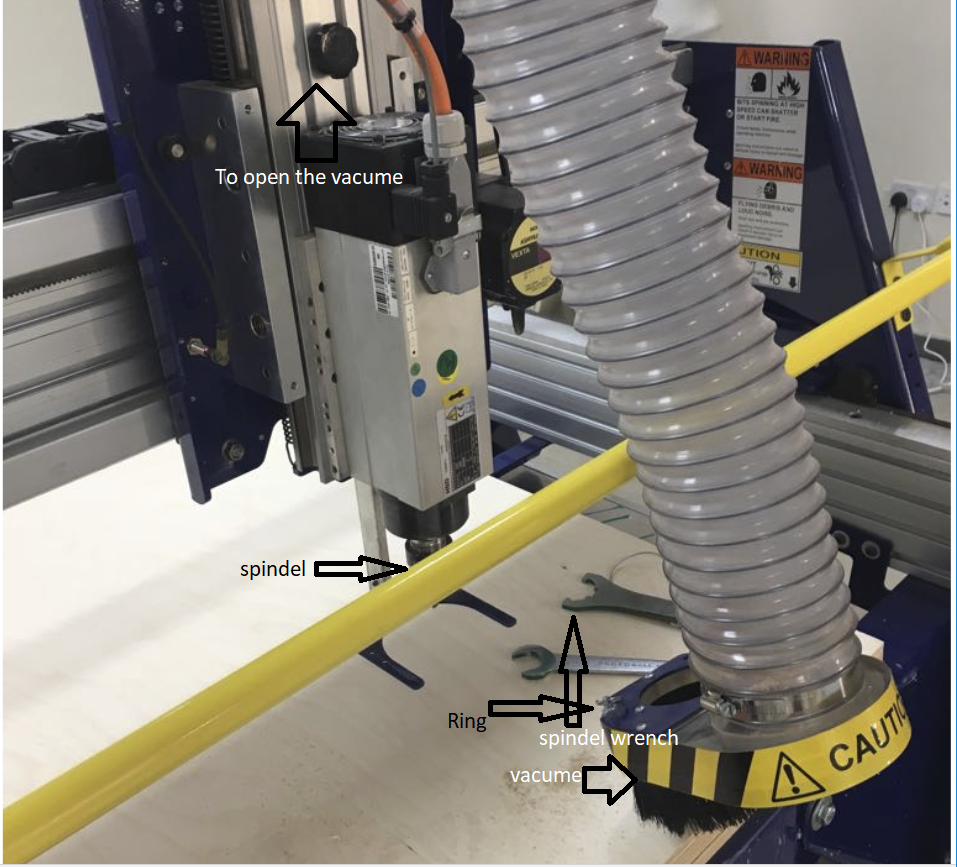
After that, I turned ON the shopbot by first switch the engage switch then turning ON the red switch. I went to check the mill bit and to clean the colet. Ahmed moves the Z-axis up then I opened the spindle to remove the vacuum brush and I pulled up the ring to remove the brush. Then I used a special wrench for the spindle of the mill bit. I used two wrenches to unscrew the spindle. Then the mill bit falls down I took the spindle and took from it the collet. I learned that I must clean it and see if there is anything wrong with it. after that, I fix them back in the shopbot.
Then I wanted to test first to check the kerf of the shopbot. Salama and Abdullah told me that the kerf is 0.1mm so I make two slots one is 12mm and the other 11.9mm and a 12mm slat. I have been through all the process of Vcerf.
Then I turned on the shopbot.
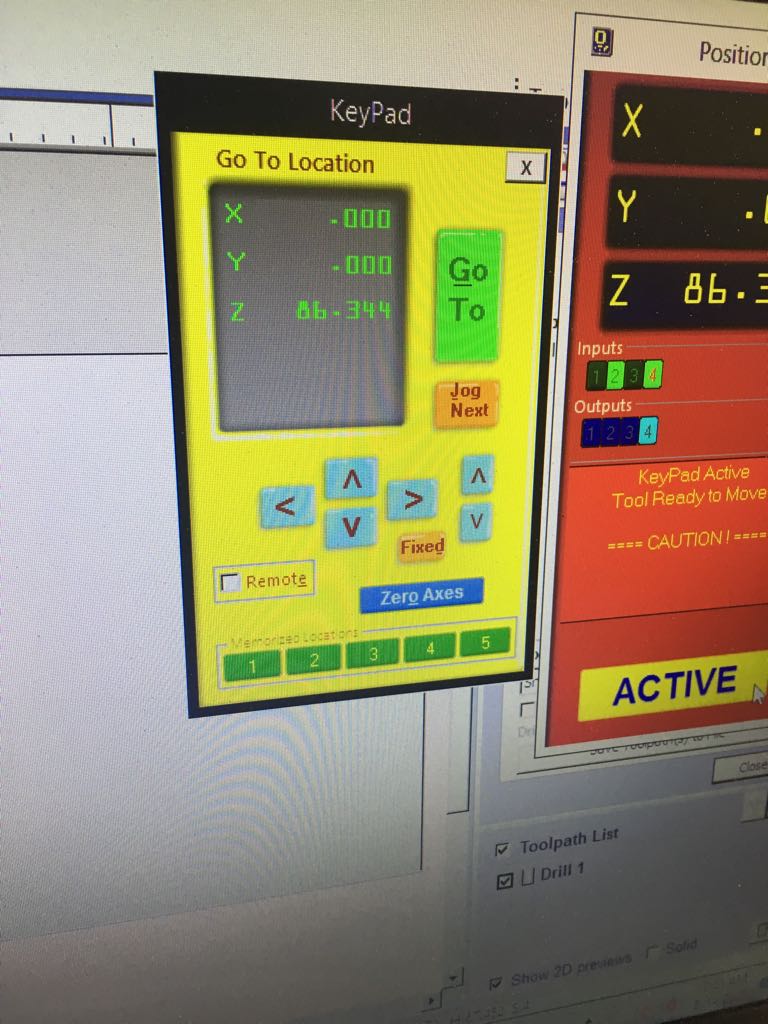
Then Ahmed told me how to set zero for the three axes. X and Y by moving the shopbot with its software which is in the yellow box then click zero axes. To zero the Z I must take out the metal plate which has a clip in the end. I connected the clip to any metal and place the plate under the mill I did this because when the mill touches the plate which is connected to GND, the shopbot will stop. Then I move down the z-axis until it touches it. By this step, I zero the z-axis.
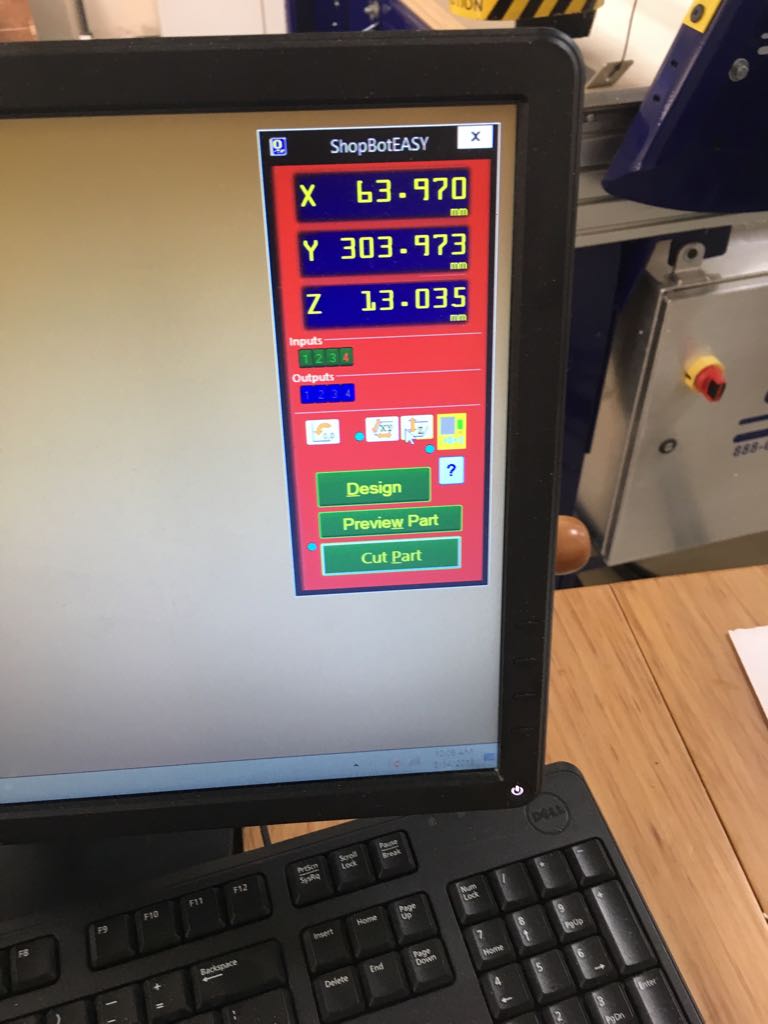
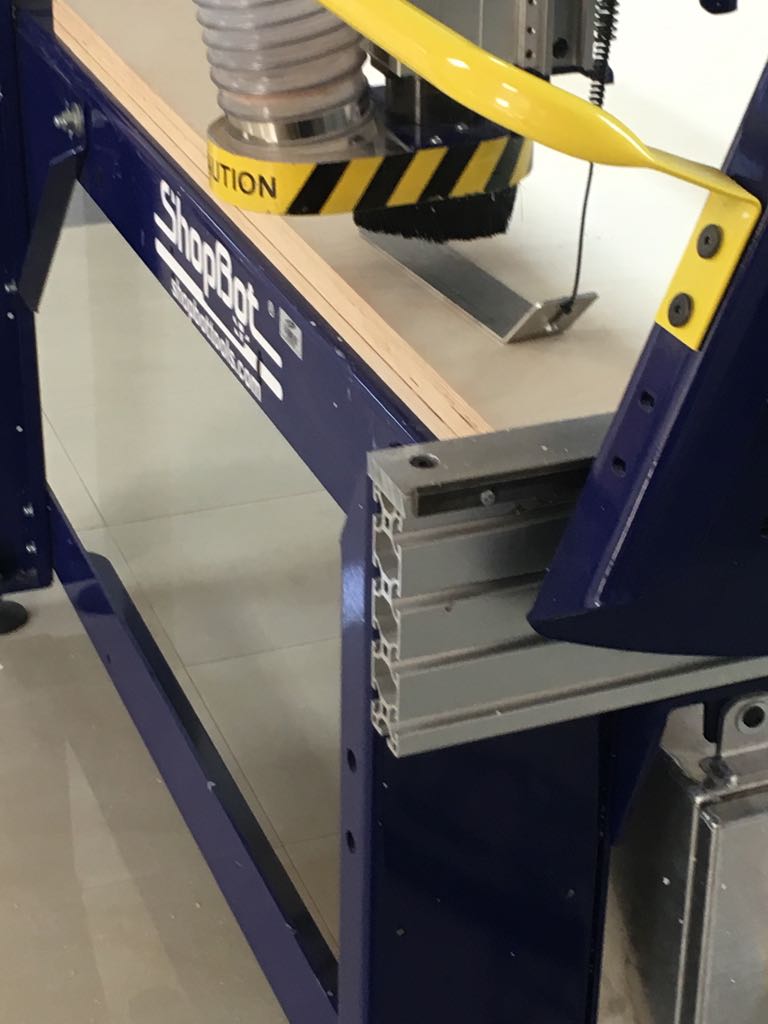
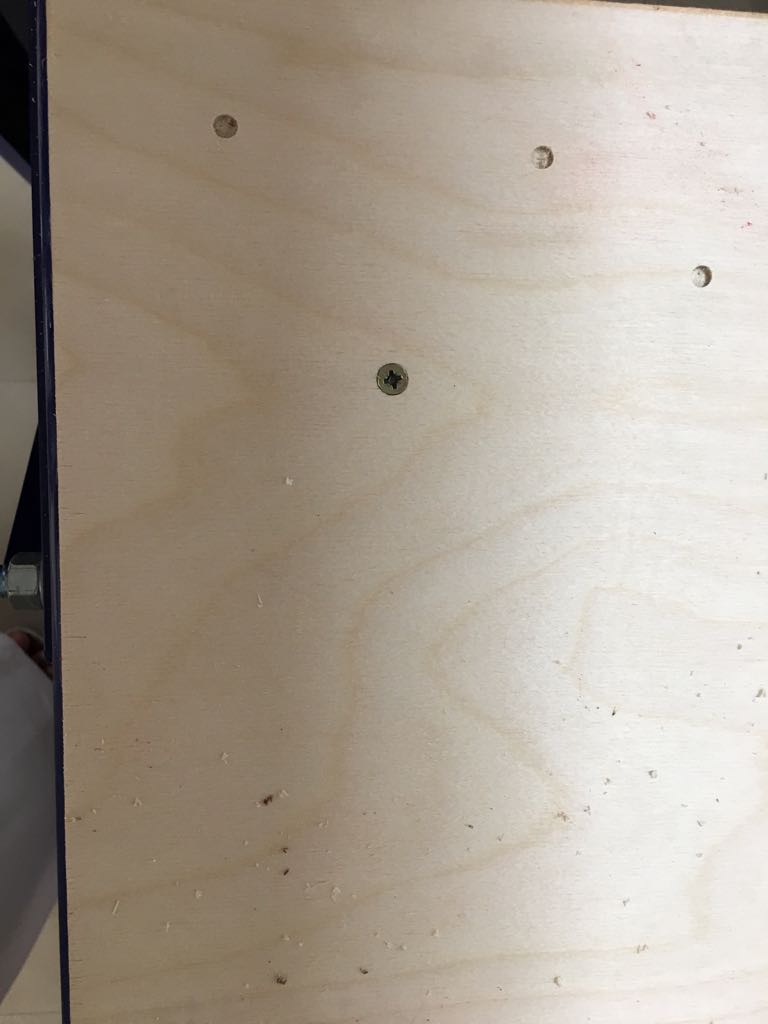
I uploaded the mill from the test file to the shopbot by clicking on -cut part- then a window showed and I clicked -ACTIVE- then warning window shown and I clicked start and then ok. I must hold the box which has a start,reset, and emergency buttons in case something wrong happen then I can press the emergency button. I turn ON the vacuum from the main switch to clean the cut wood. After the shopbot finished milling the locations of the screws I took few screws and drilled them using a drill the purpose of this is to fix the ply wood with the screws.
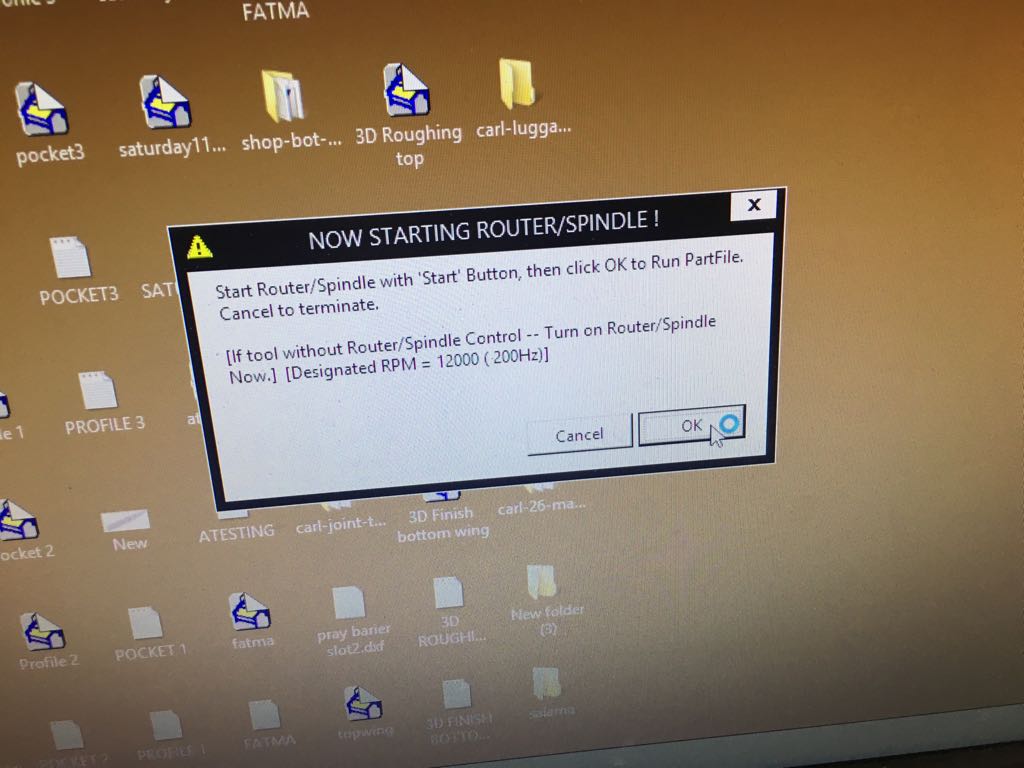
After that, I uploaded the text file. But it field when I took off the part it was missing some layers. So I discovered that by mistake I didn't make the cutting depth more than 12mm.
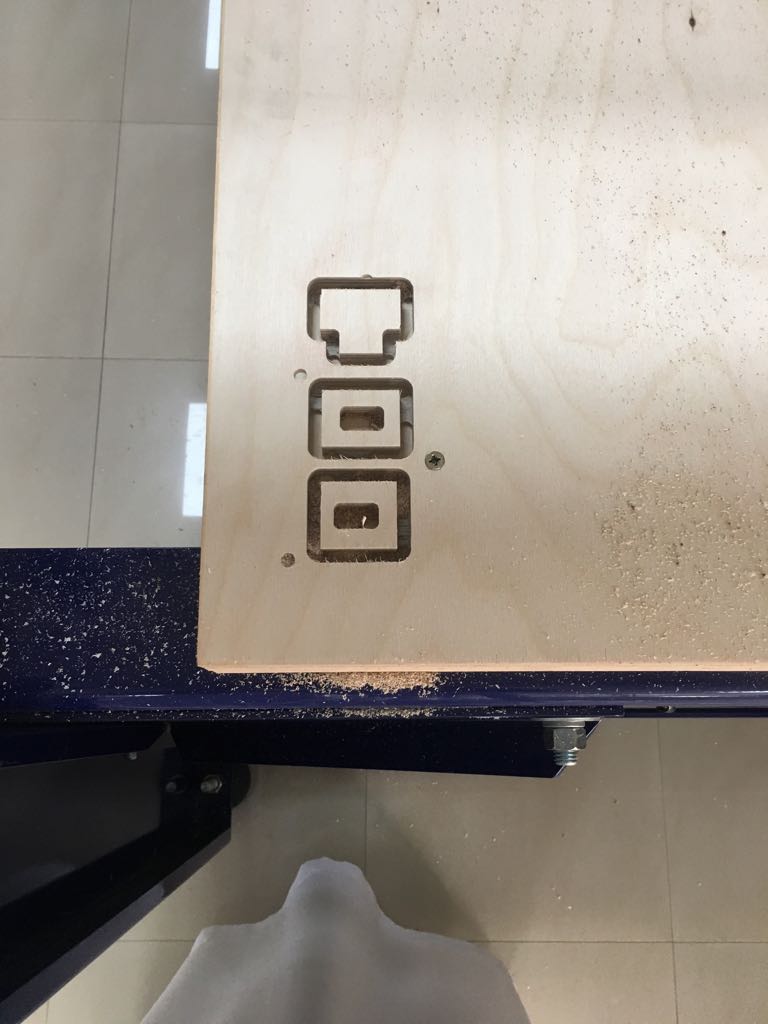
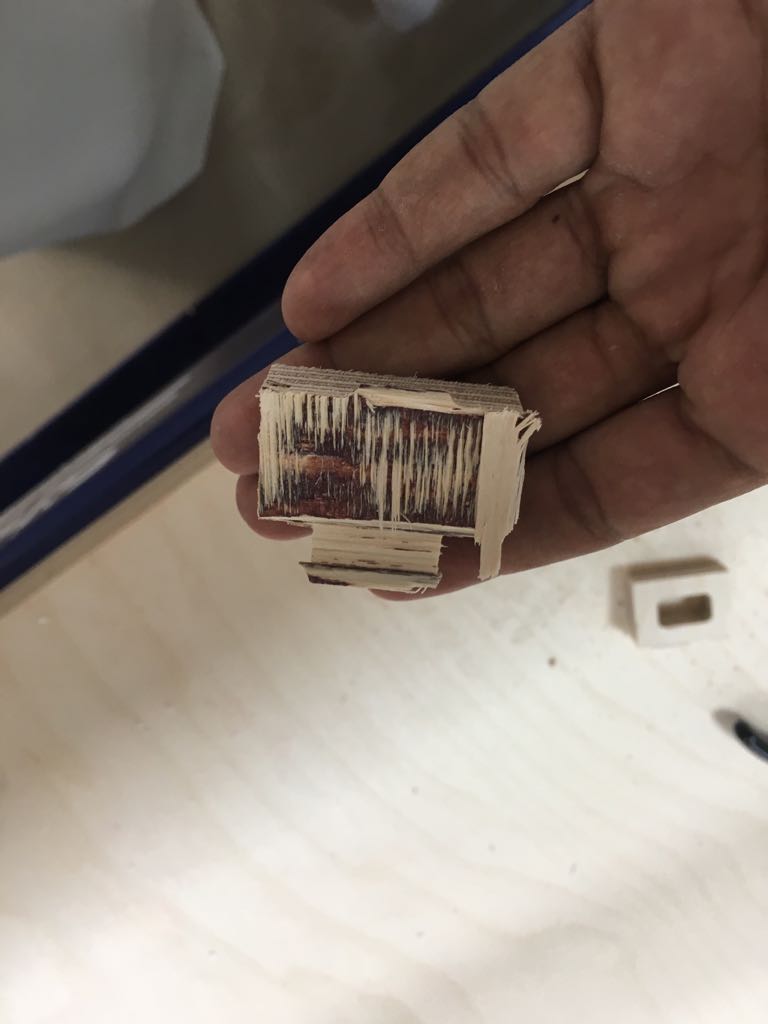
Then I fix the problem and repeat it again and I succeed on that and I tested wither it fit or not. Like I said I tried 11.9mm and 12mm and I realize that I forget to put dogbone it's all because I working quickly. I did the third one and Wendy asked me to test the real slat instead of making a small one. I cut them and tried them thank God this time I didn't forget anything. So I found out that the 0.2 as a kerf is the best for me so all slots are 11.8mm and all the slats 12mm.
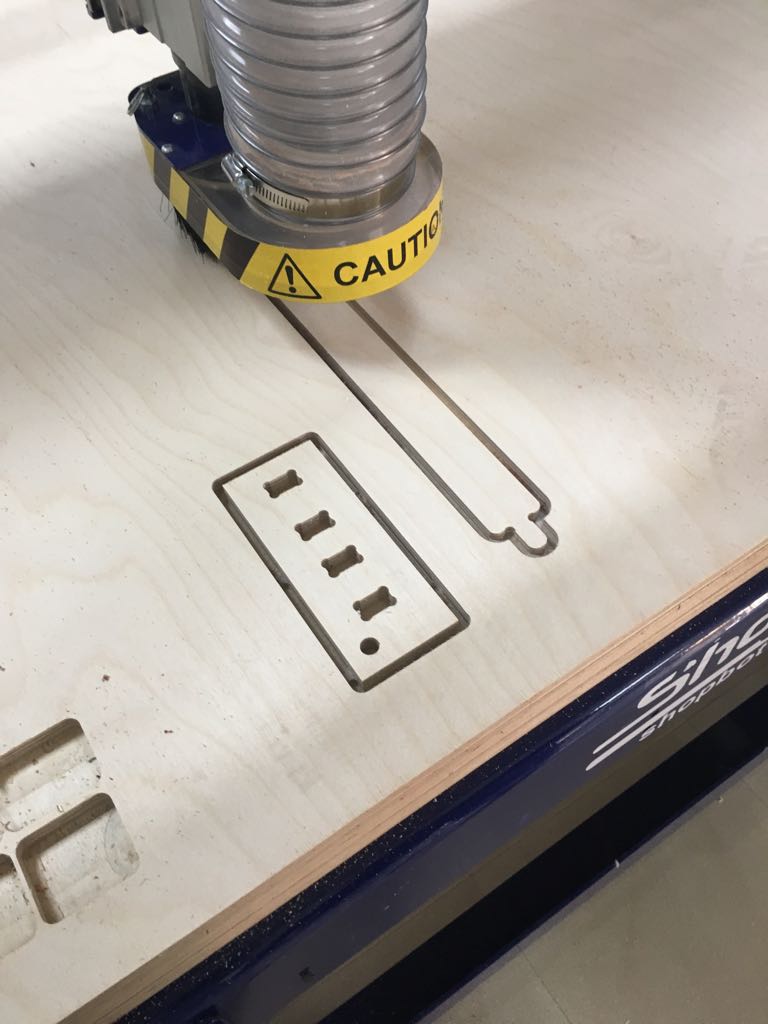
I went to make a lock for the slat wendy told mo to use acrylics for that and to make the shape small. I cut 12mm acrylic and I use it also I fillet the edges and it was good.
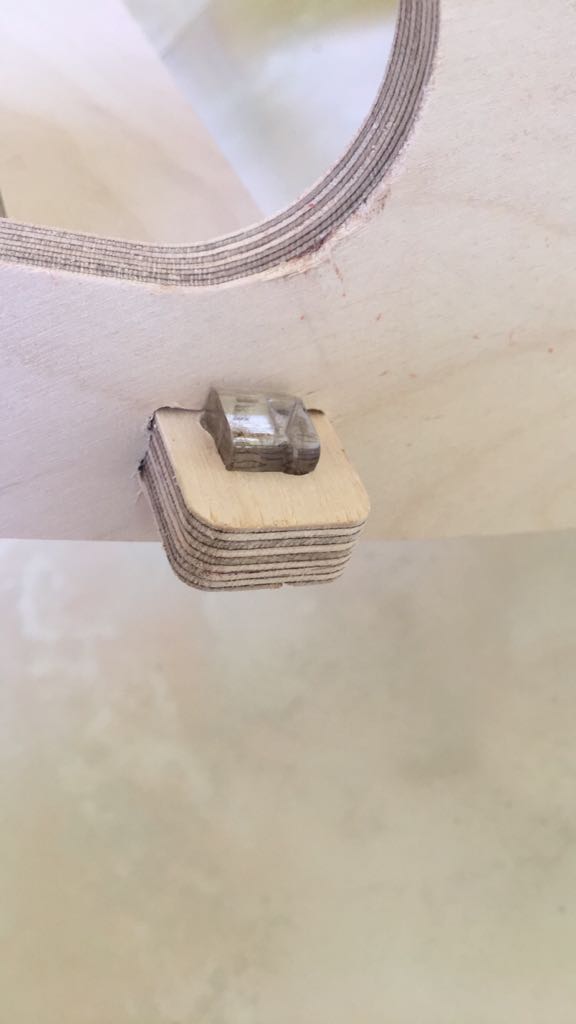
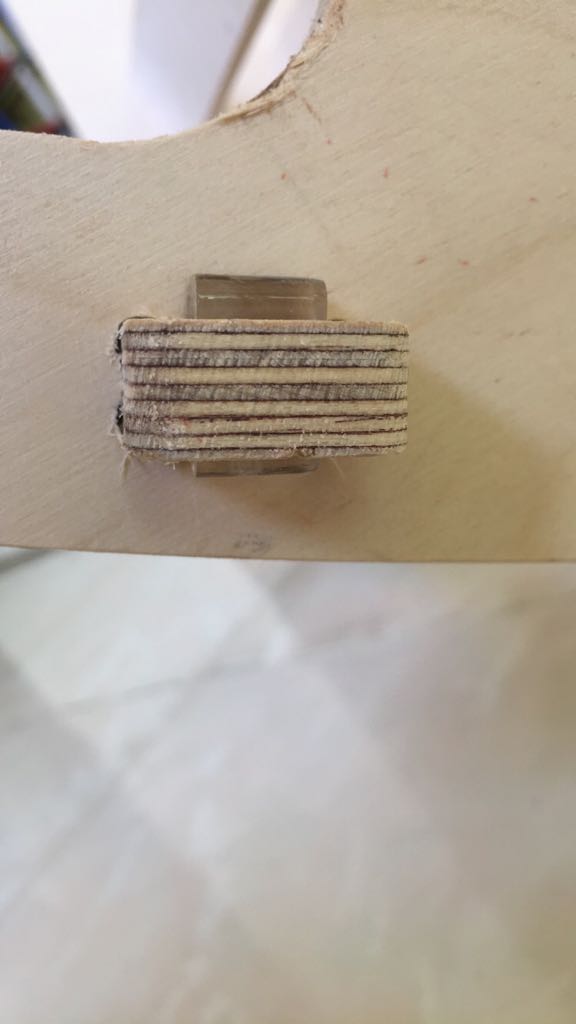
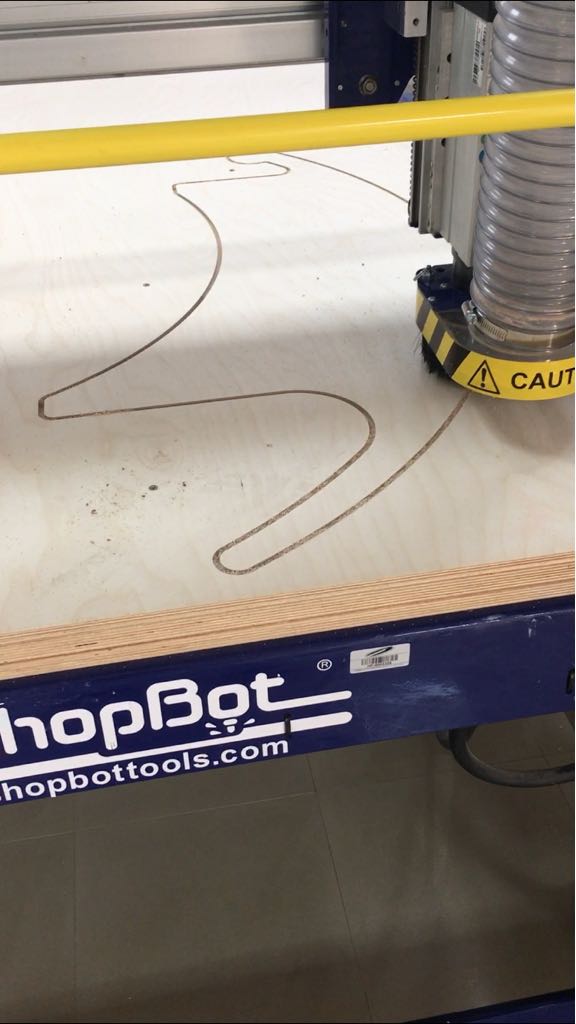
I couldn't finish all the design because I got busy and it was Ramadan. So After two weeks I went with Ahmed to complete it. I opened vcarve and followed the same process then the shopbot continued working until we finish then I closed the vacuum.
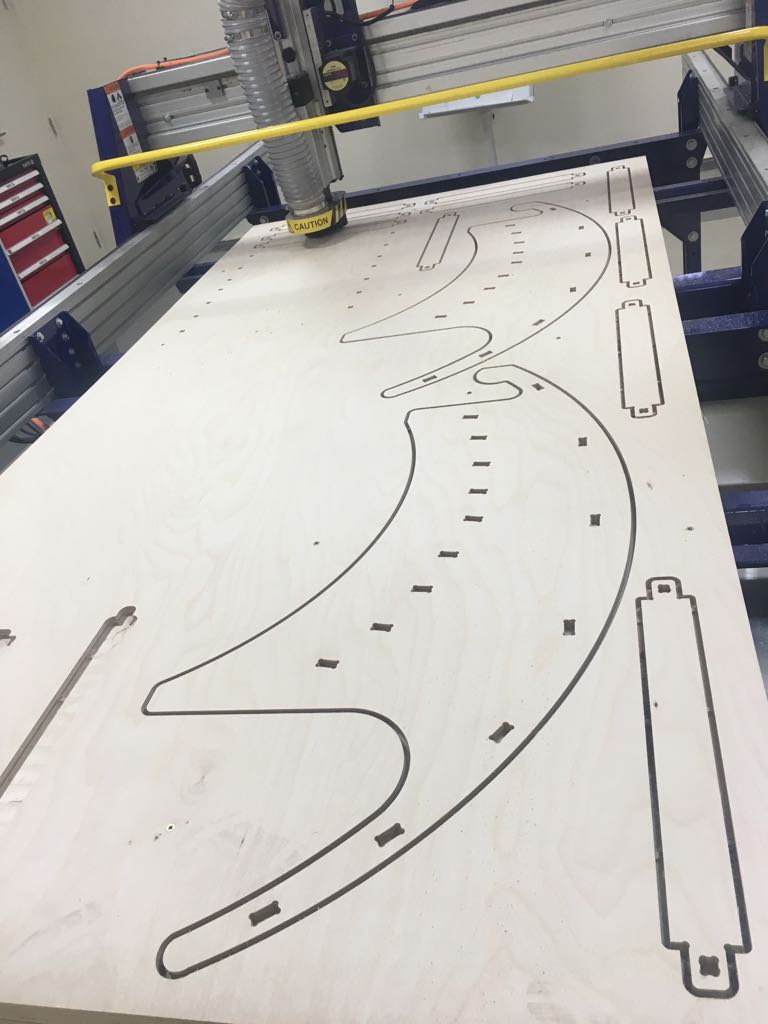
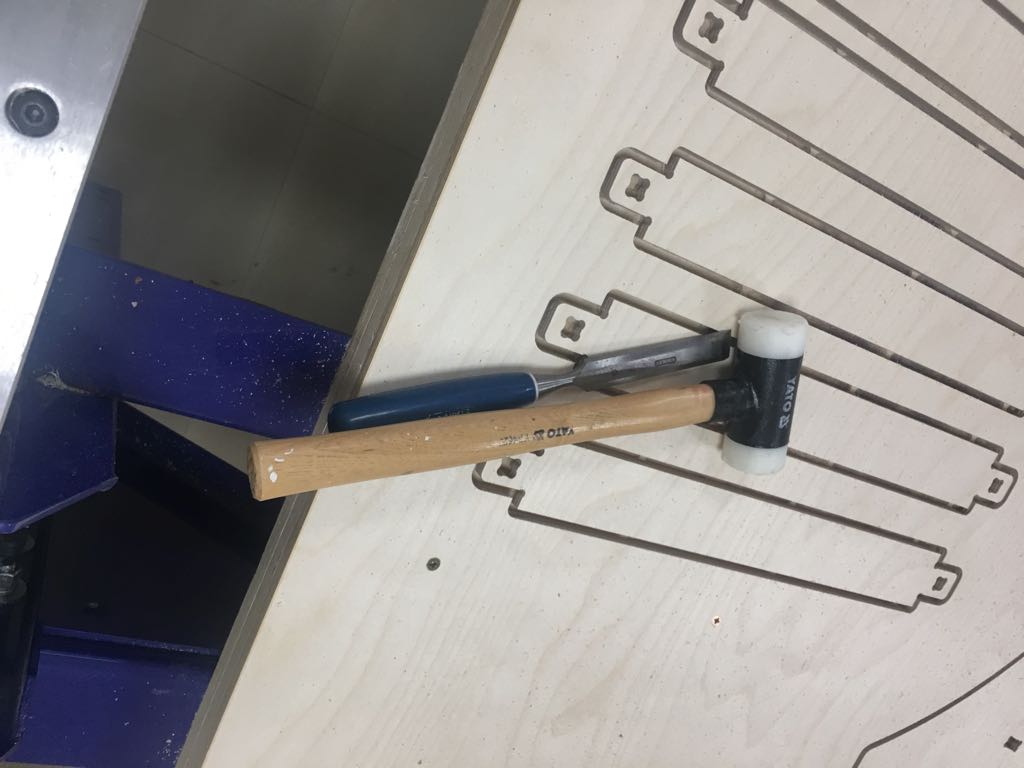
Then I used these tools to remove the tabs.
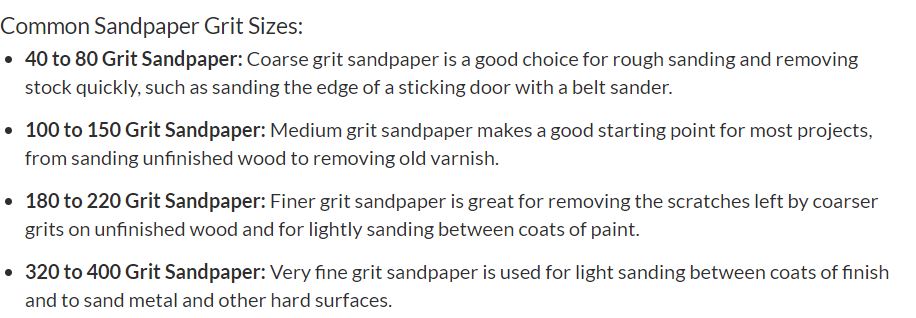
After that Wendy gave me a sandpaper to sand the bed. I learned from her that on the sandpaper there is a number indicating the roughness so 150 is rougher than 200. I searched to know more then I found this website which explain it to me. I will put a schedule below from his website. Yes, I learned that sanding will affect the dimension because it removes material so make sure to use it wisely don't use it a lot.
Finally I took it home then and I showed my familly the bed. They all like it even my nephew.
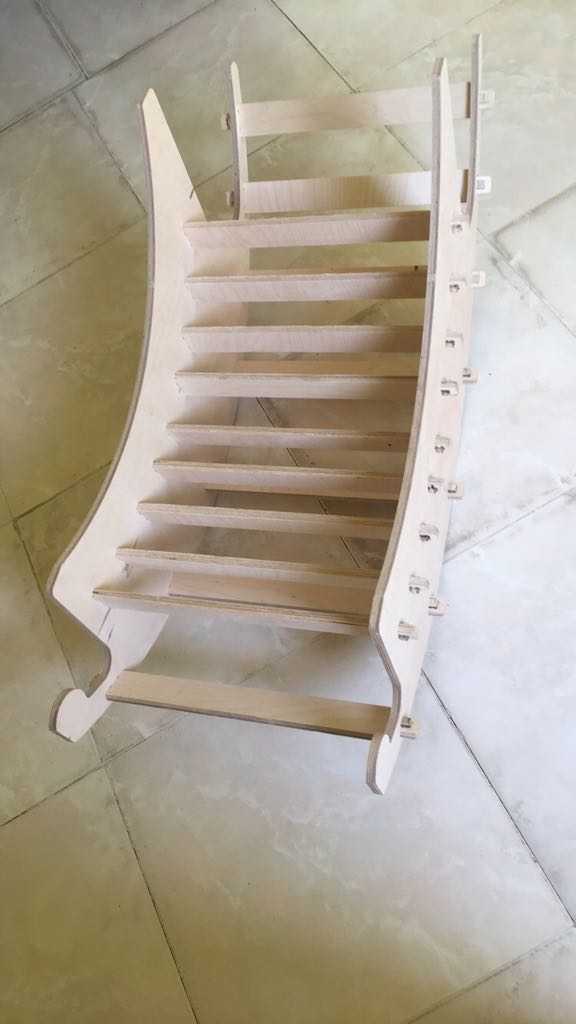
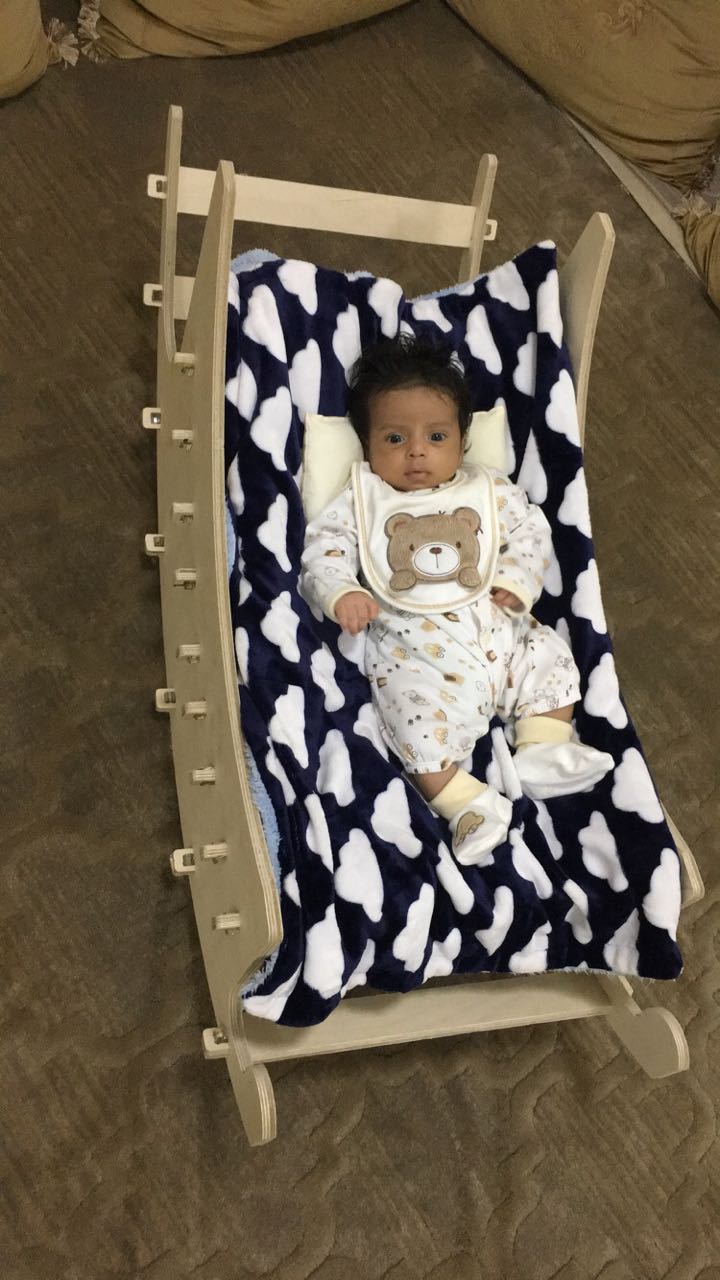
Here is the file for rocker bed(f3d)
Here is the file for rocker bed(DXF)
I want to Thank Wendy for helping this week and each week also thanks to Ahmed and Moath for their big help. I'm very happy that I did this design for my nephew. I didn't really imagine that I will come to this idea. I'm also happy that I learned a lot of things I'm writing now with a knowledge that allows me to make almost anything on the shopbot. I faced little problems but it was because of working quickly. I'm satisfied with what I did. I hope to make future designs alone:).