Computer-Controlled Cutting

What is the assignment?

This week we had two assignments. The first one is a group assignment and its the first group assignment we had since the beginning, Is to understand the nature and feature of our laser cutting system that we used also make a test part with different settings and dimensions. The second assignment is to cut anything on the vinyl cutter. Then I must design and cut using laser cutting system a parametric press-fit construction kit and document all my work.

The goal’s

My goal for this week is to learn how to design anything and cut it using the laser cutter. I’m very excited to learn it and to use without any help. Also, I want to design a sticker on my laptop using the vinyl cutter.

In this Page you will find:-

Laser Cutter

Vinyl Cutter

My experince

Laser Cutter

Introduction to the laser cutter

In this week we were introduced to the laser cutter. its the first time I used it, I didn’t imagine it will be that easy, also it expands my imagination in creating and building new things I didn’t know there were different uses for cardboard like I can build my full project using cardboard only. In the lab they have Universal Laser Systems ILS 12.75 its 48" x 24" Work Area / 75W Single Laser. They also have different types that have defferent features, you will find them here. This laser cutter can cut many types of material such as Composites, Elastomers, Foams, Glass & Ceramics, Metals, Natural (Inorganic), Natural (Organic), Paper-Based, Plastics, and Textiles & Fabric.
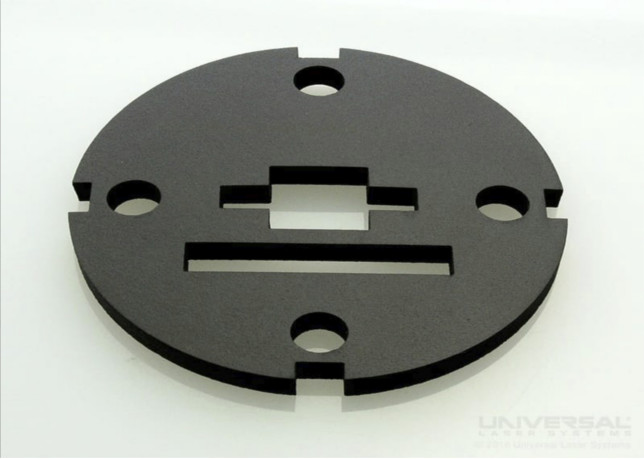
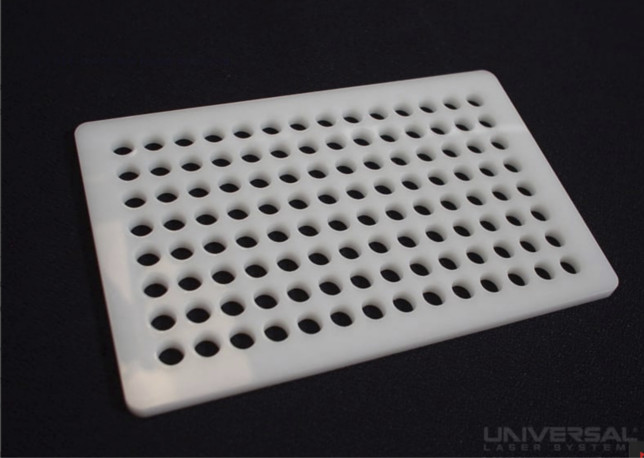


In this week we used cardboard for our test part, I’m thinking to use another materials in the future. After researching I found that there are few softwares can create the design file for the laser cutter such as Illustrator, CorelDRAW, SOLIDWORKS, and AutoCAD. Also to avoid our problem (we couldn't open our files), I advise use this file extension (DXF compatible with AutoCAD version 2011 or earlier, DWG compatible with AutoCAD version 2011 or earlier, CDR (CorelDRAW), AI (Adobe Illustrator), EPS (Adobe Illustrator), SVG, PDF you can find more about this here. Also we can't put any material in the cutter so I highly recomend to read this list before using the cutter. Because the laser cutter cuts many materials I learned that every material has it's own setting also when you change the thickness the settings change you can find the setting for some material from here

Group assignment

In this assignment Wendy ask us to be in two group, one will take the 3mm cardboard and the other will take the 6mm cardboard to find out the kerf of each thickness. We took the 3mm. you can see it here

The group assignment helped me more to know the machine. I learned that increasing the power will lead to increasing the depth of cut and you cant make it 100% power when you want to cut a paper. Also, the speed affects a lot because when you make the speed slow you increase the time that material will expose to the laser. The last thing is PPI (pulses per inch) for example if I want to make the edge of a plastic more smother I must increase the PPI which mean the temperature will increase. There are more features that effect. Also, I learned that the machine depends on the color to know the process. For example, the color red here at Fab Lab UAE represents Vector if you make your design all red line the machine will follow the borders of your design and cut them through. The color blue represents also Vector but it we set it to not cut through it will engrave. The color black represents raster which means like the blue it will engrave blocks of color, like a color printer.

Individual assignment

After we finish the group assignment Wendy ask us to try different joint possibilities. I decided to keep the same setting we found the best which is power 30%, speed 12, PPI 300, and the kerf is from 0.04mm to 0.05 mm also I will use the side of the cardboard as the slat for the slot.

I used fusio360 to design my press fit kit you can see my review about this software on week 3. The first try is three joints in one piece. The first one is an arrow but it’s not attached to the body and the second and third are the same a chamfer then half circle coming out but the difference is the location of the circle, the second is immediately after the chamfer and the other is in the middle.
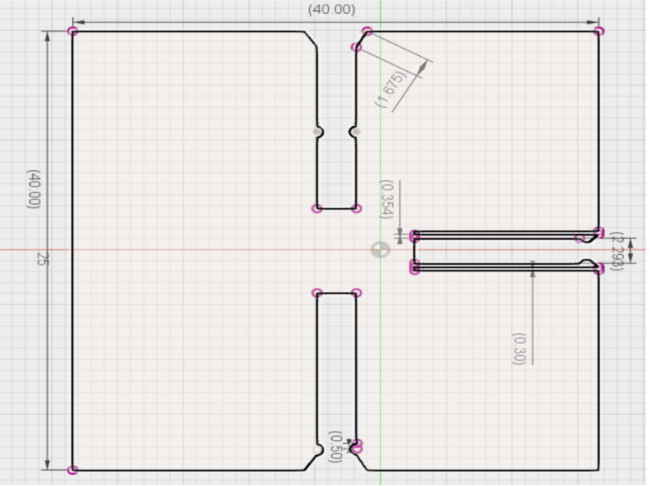


The arrow burned because it was thin so I went to make it thicker It was not good type and I don’t advise to use it, maybe because I use the thin material so the arrow is very weak. I liked the idea of the half circle and the chamfer cause it aligns the slat to the slot so I will keep them.

Then I made joint number one cause the half circle was good so I decided to make more. In joint number two I stick the arrows to the design and in the middle, I thought of decreasing the width by using rectangular shape to make the width 1.89mm. When I stick the slot it will squeeze and the arrow in the entrance will hold it to not go out.
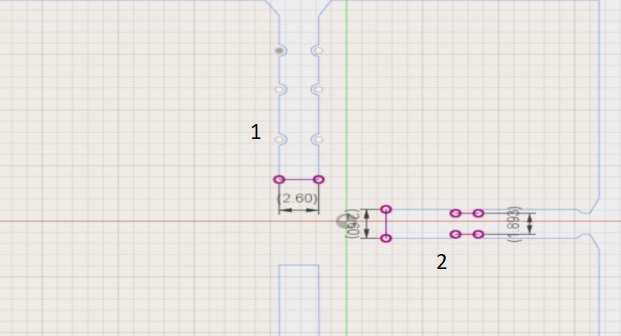


I tried them all and the best type was the slot with more circle shapes because it holds to the other piece and stuck to it, although it will not hold it strongly but its the best among them. For my project, I thought of using 6.5mm cardboard because its stronger than the 3 mm. First I made this shape.
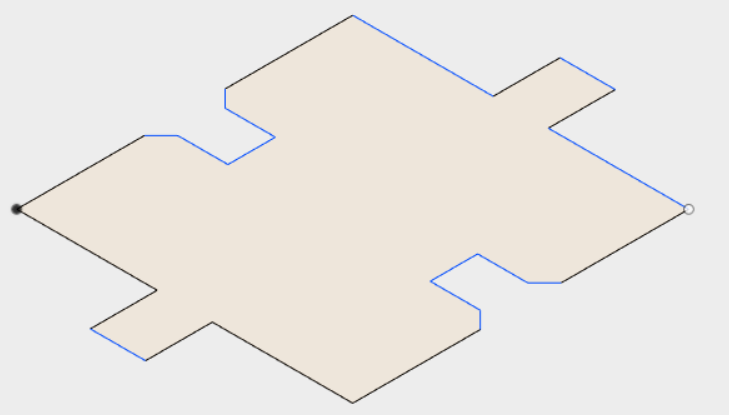
But It wasn't good because I couldn't make a good shape so I saw Hashim pris-kit fit and it was similar to the previous one I made, but with little difference. I redesign The file I make a squer with 40.2mm length. Then I made a small aquere in the middel to be the joint. The width is 5.67mm and th length 6mm.
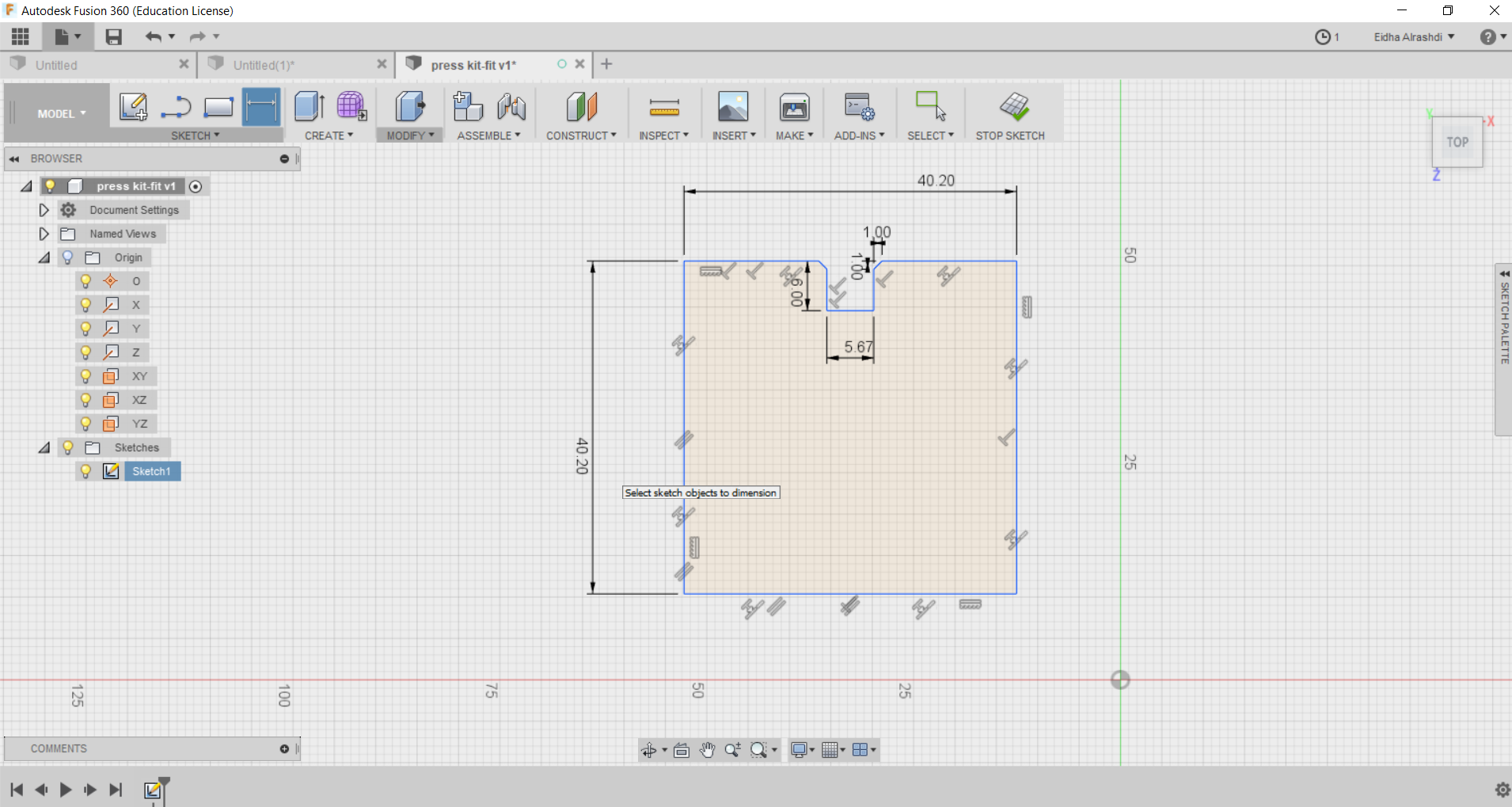
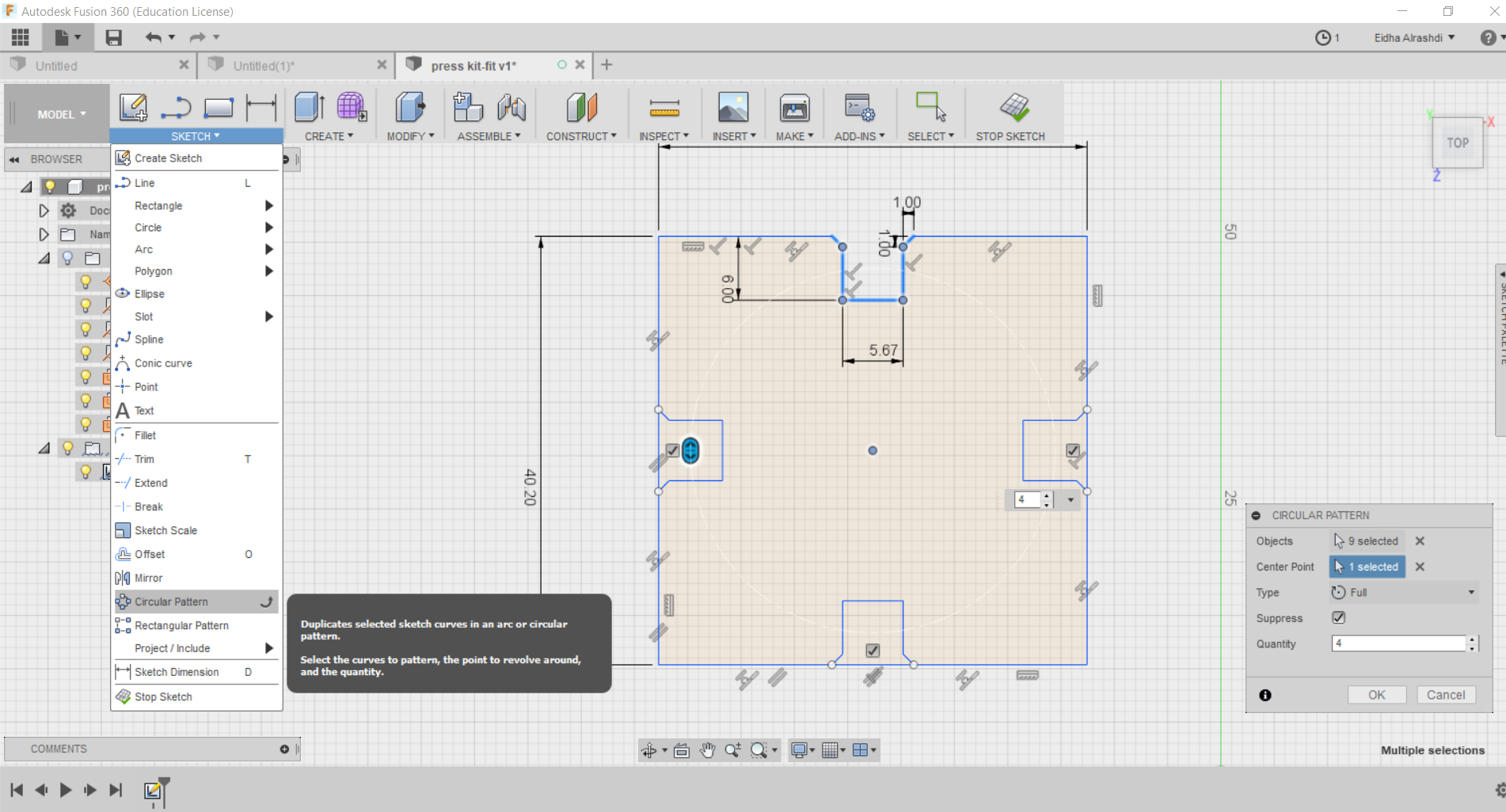


Then from sketch I clicked on circular Pattern because I have a square shape this feature helps me to put them on 4 sides at the same location. I first put a point in the middle to make them rotate at this point and then I select the shapes I want to copy the software called them (objects). Then I clicked on center point from the window at the right then I clicked on the point that I put in the middle of the square by doing this I have four joints at four sides.
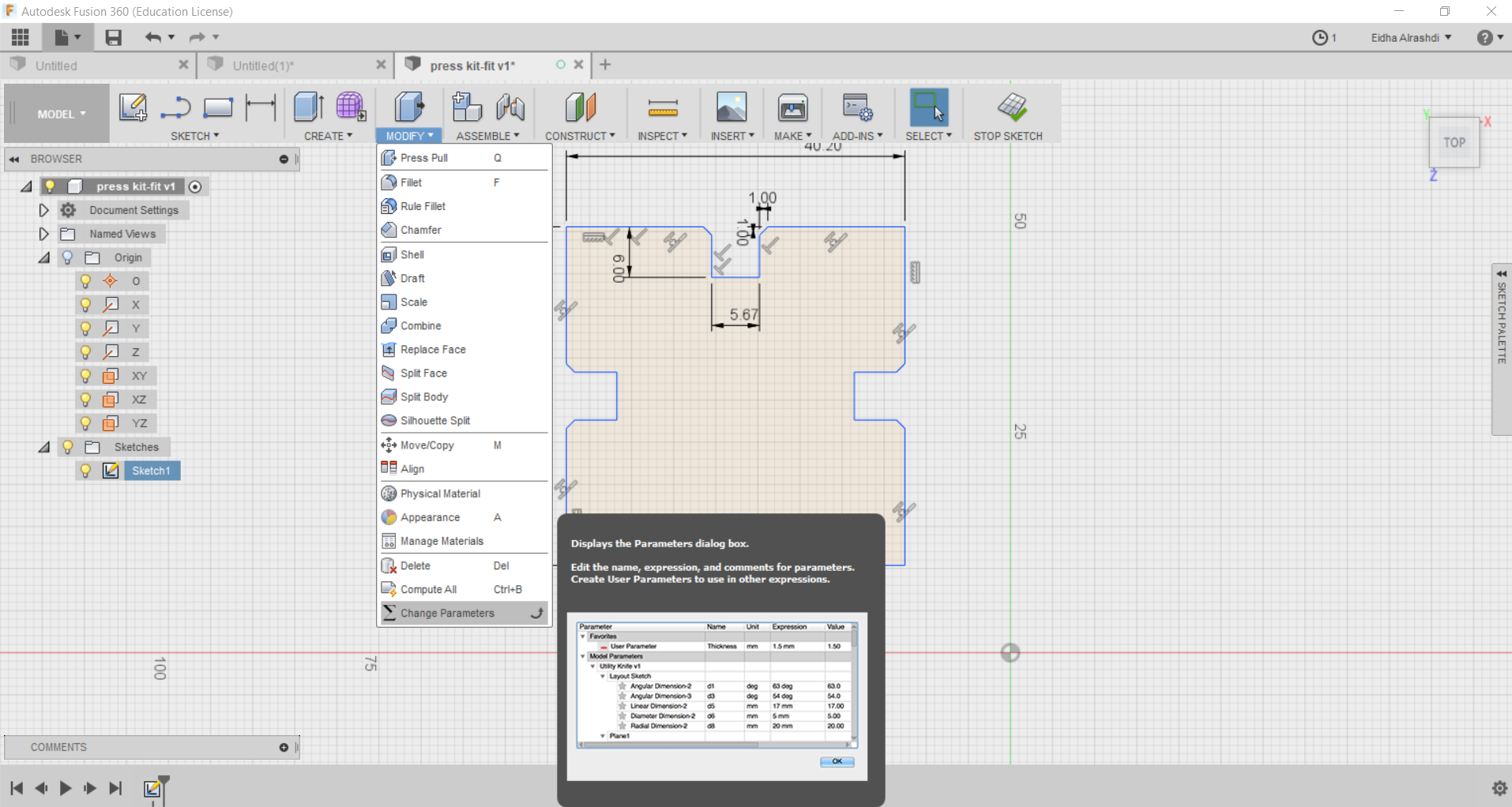
After that I clickd on Modify-->change parameter I make my user parameter I first add one and call it thickness this is the thickness of the cardboard and then I named the jw which means joint width and jl which is joint length and ch which is chamfer I made the equation to make it work with thickness 3mm and 6 mm.
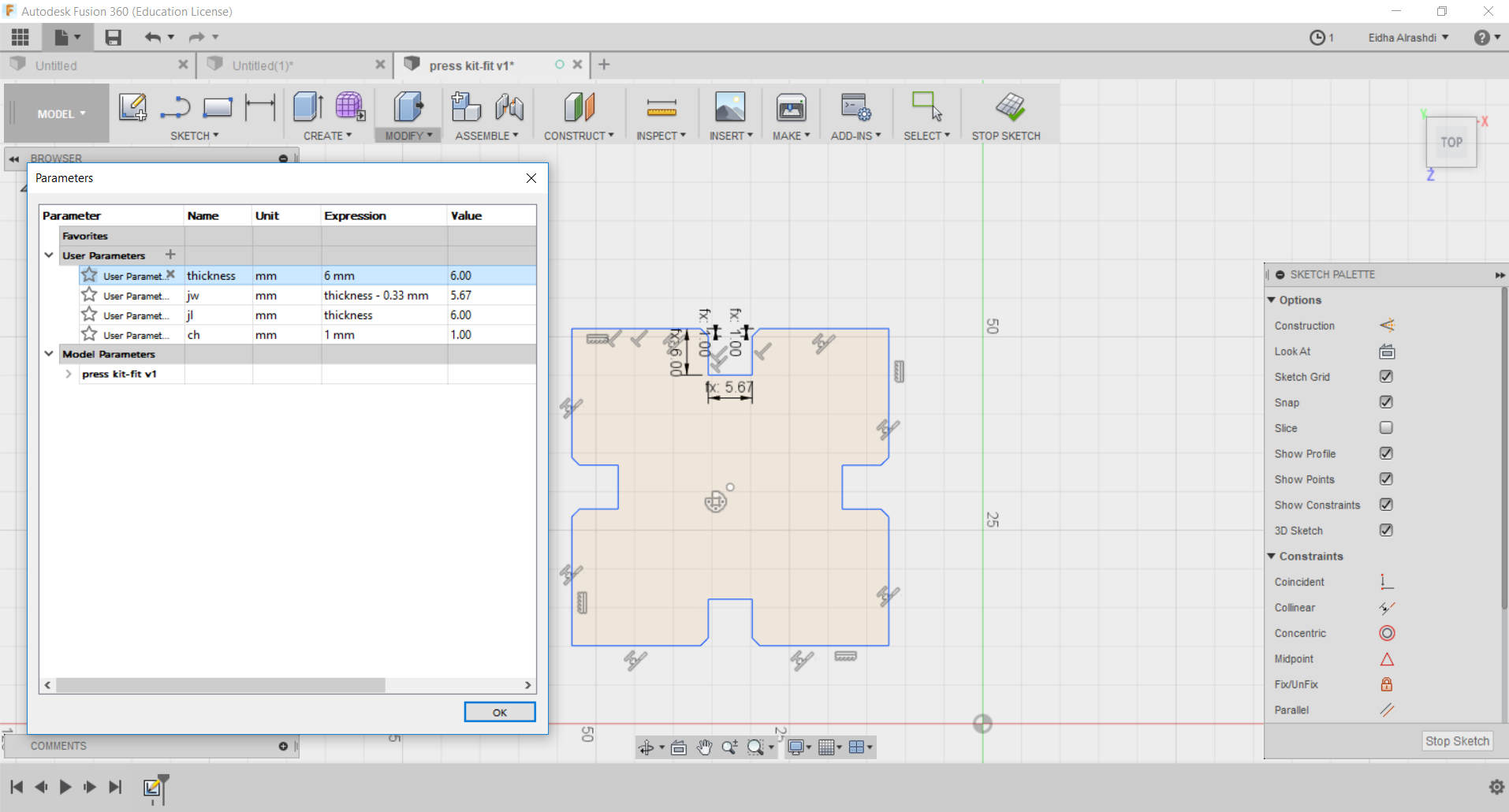
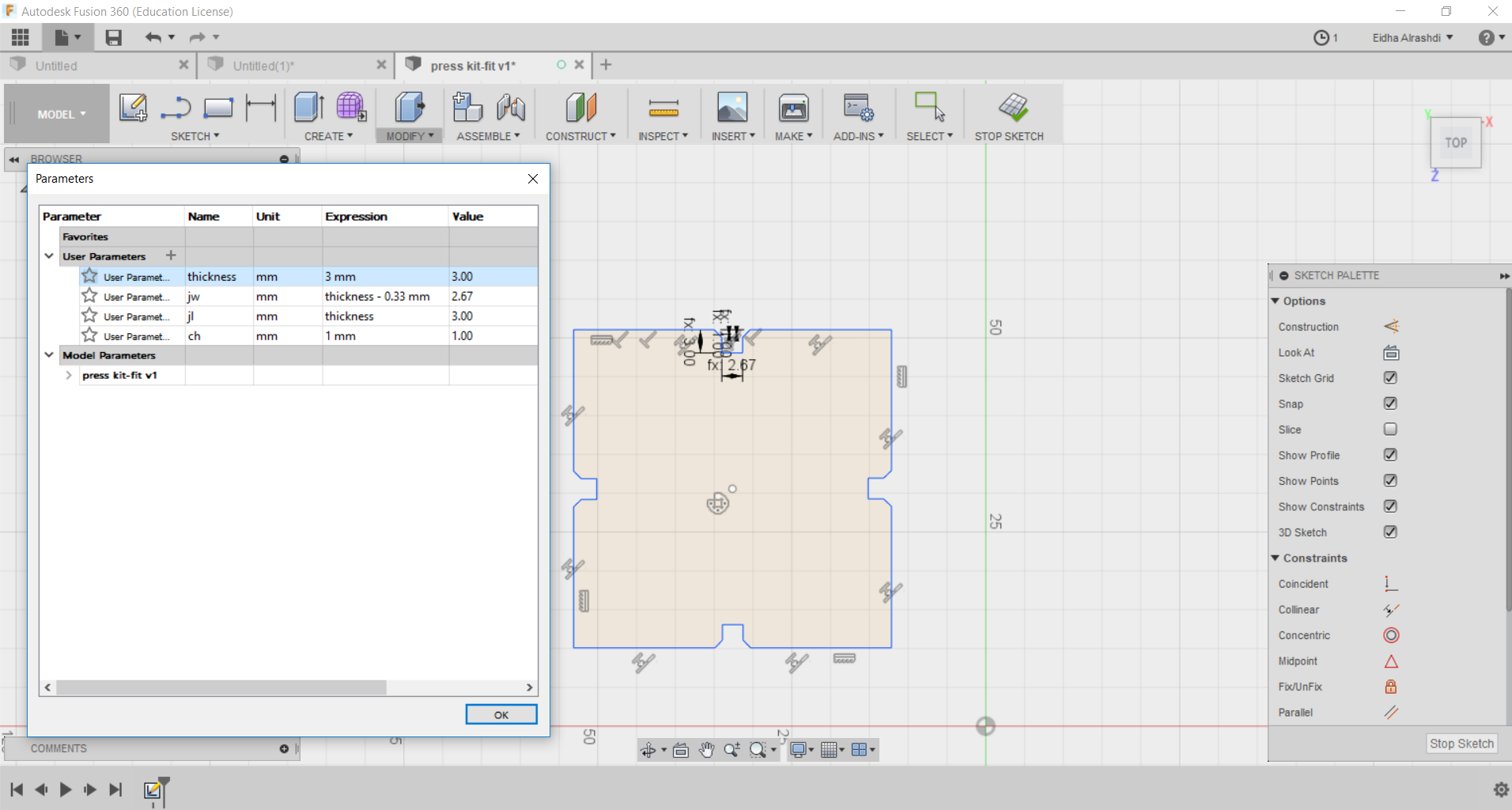

I design the same and start to make a lot of shapes.
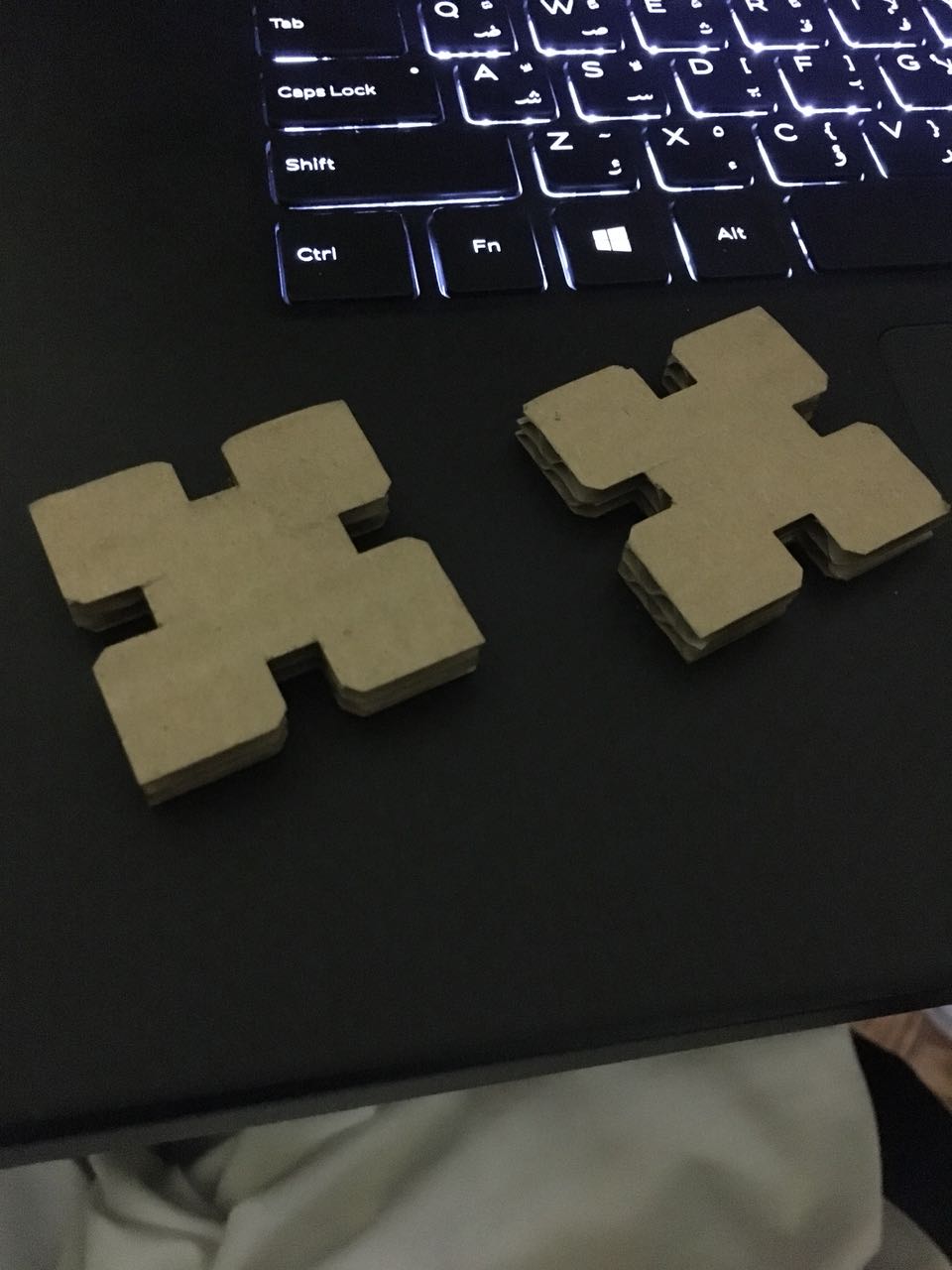
I liked this shape because it's very strong. I actually tested the strength of this shape by putting two laptops on it and it carries them without any change in the shape.
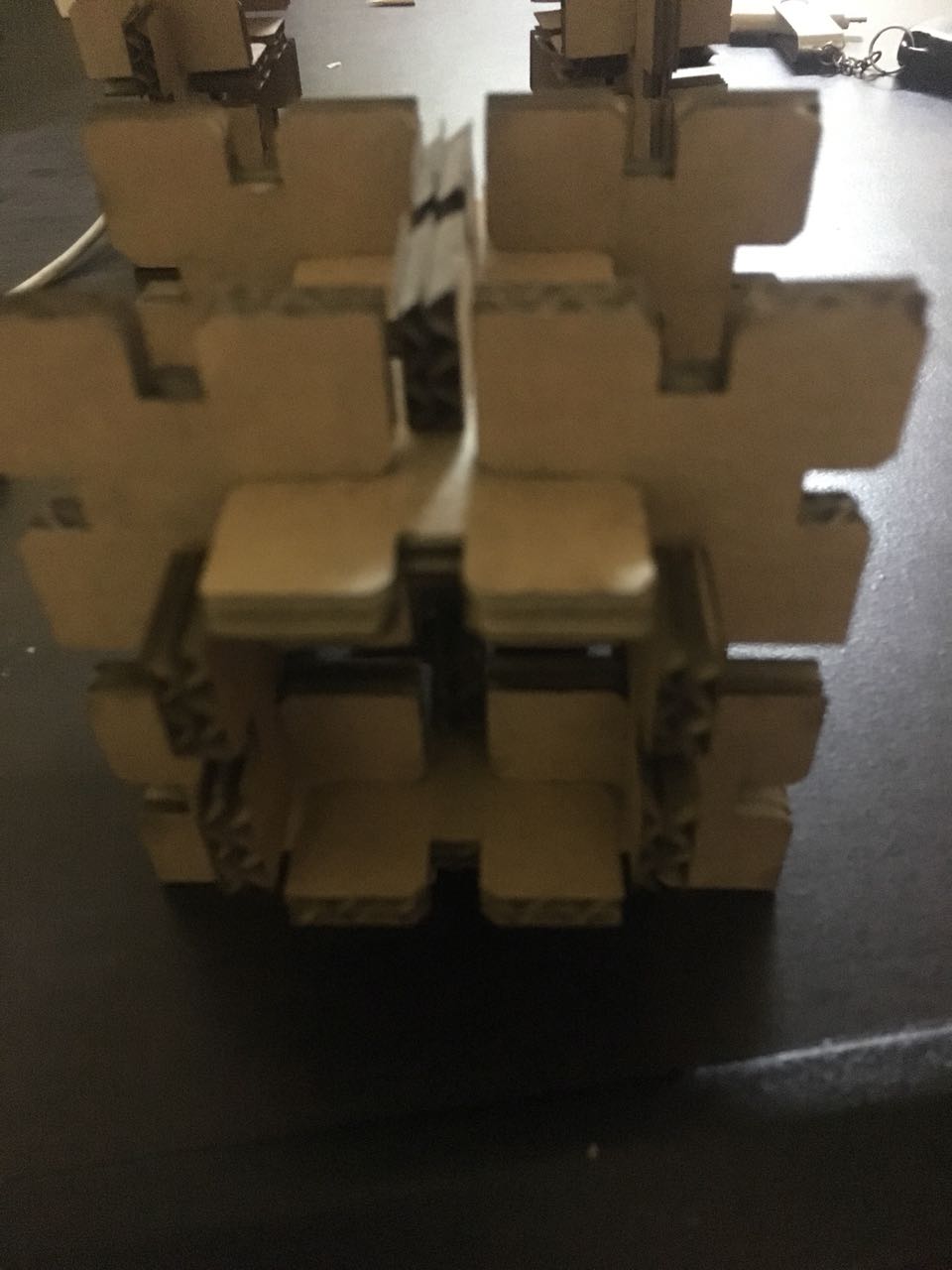
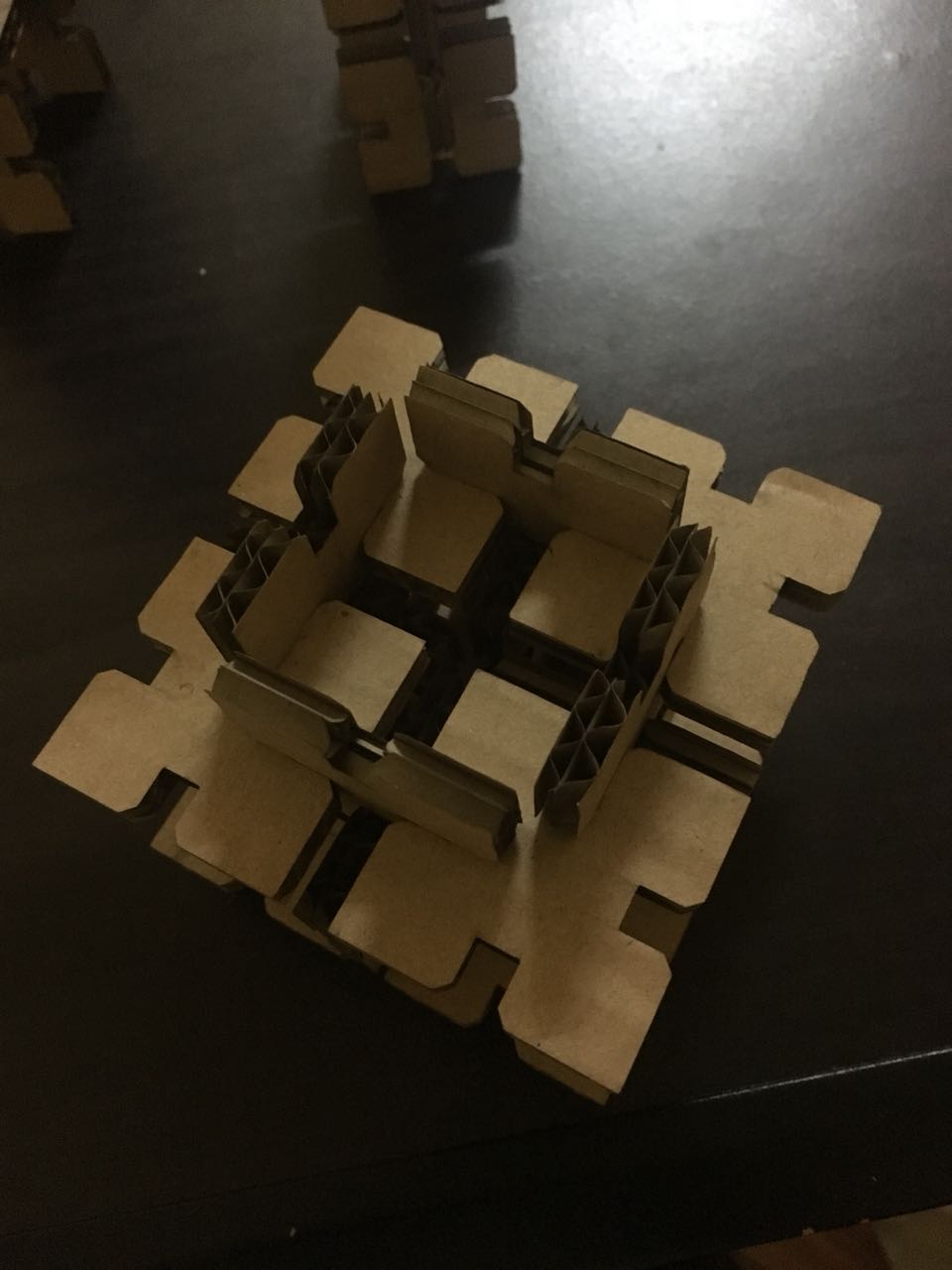
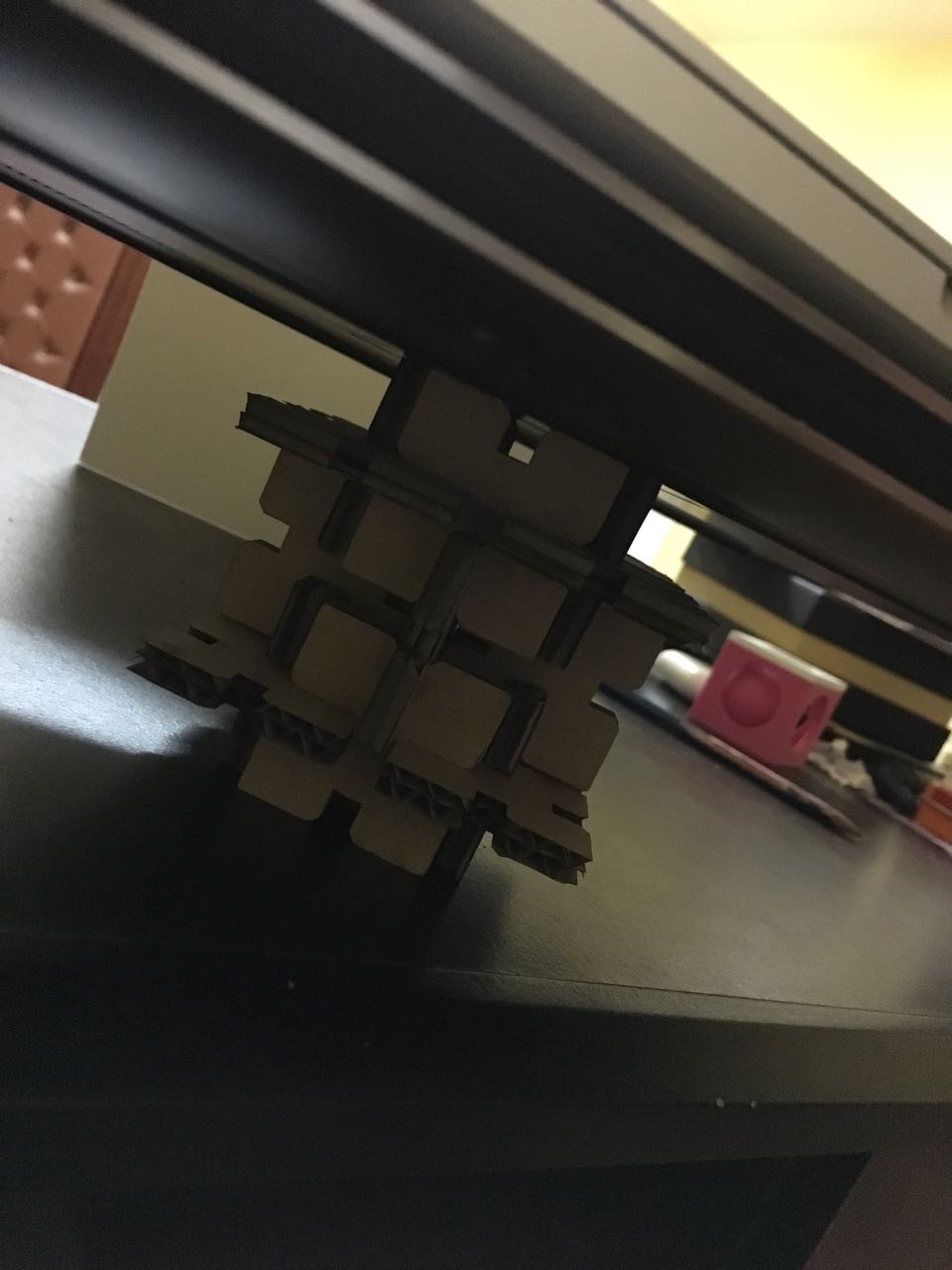
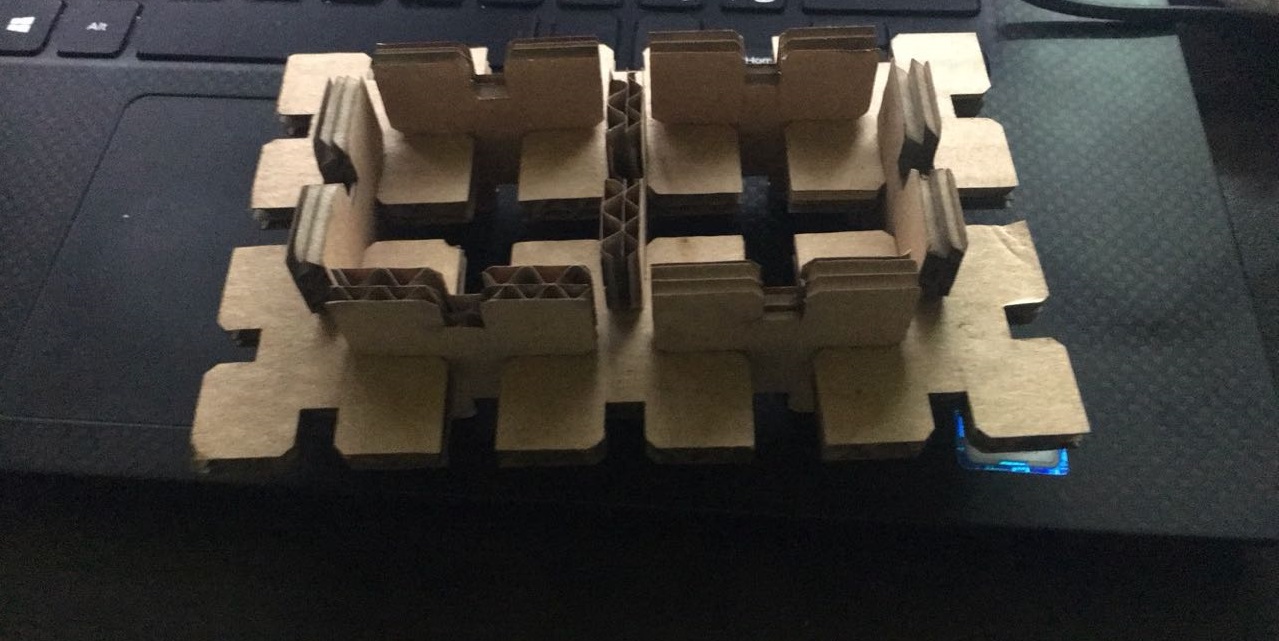


The press-fit kit(f3d)
The press-fit kit(DXF)
Vinyl Cutter

I remember the first day in the fab academy, Wendy teach us how to make a sticker for our Laptops. I made this which stand for (Eidha Omair Rashdi) It was the first time for me to make a sticker. I still have it tell now it's cool to make your own sticker not to ask for someone in stores.

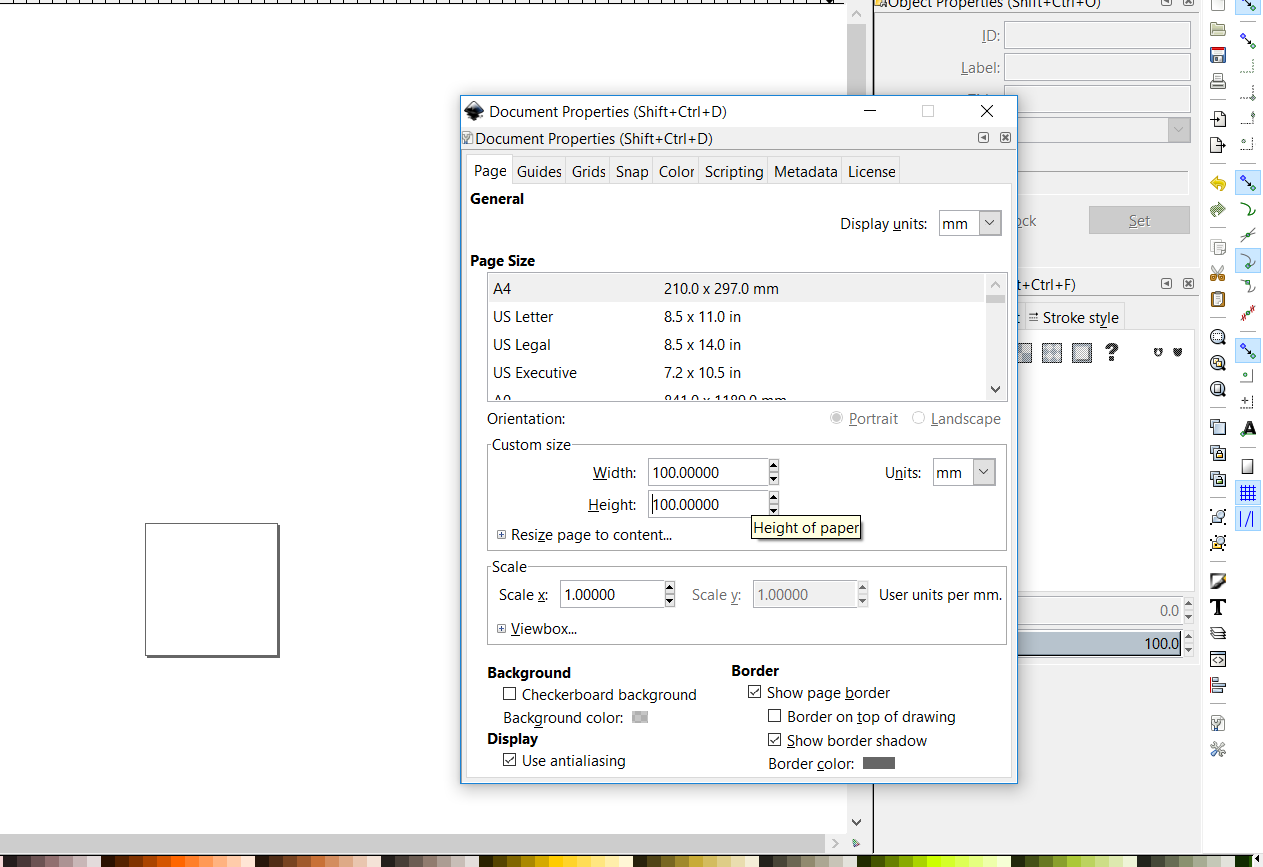
I made Another sticker for my laptop using Inkscape. First I wanted to change the dimensions of the paper this video helped me. I change it to 100mm for the height and the width I wanted to change it to avoid making small or bigger sticker.

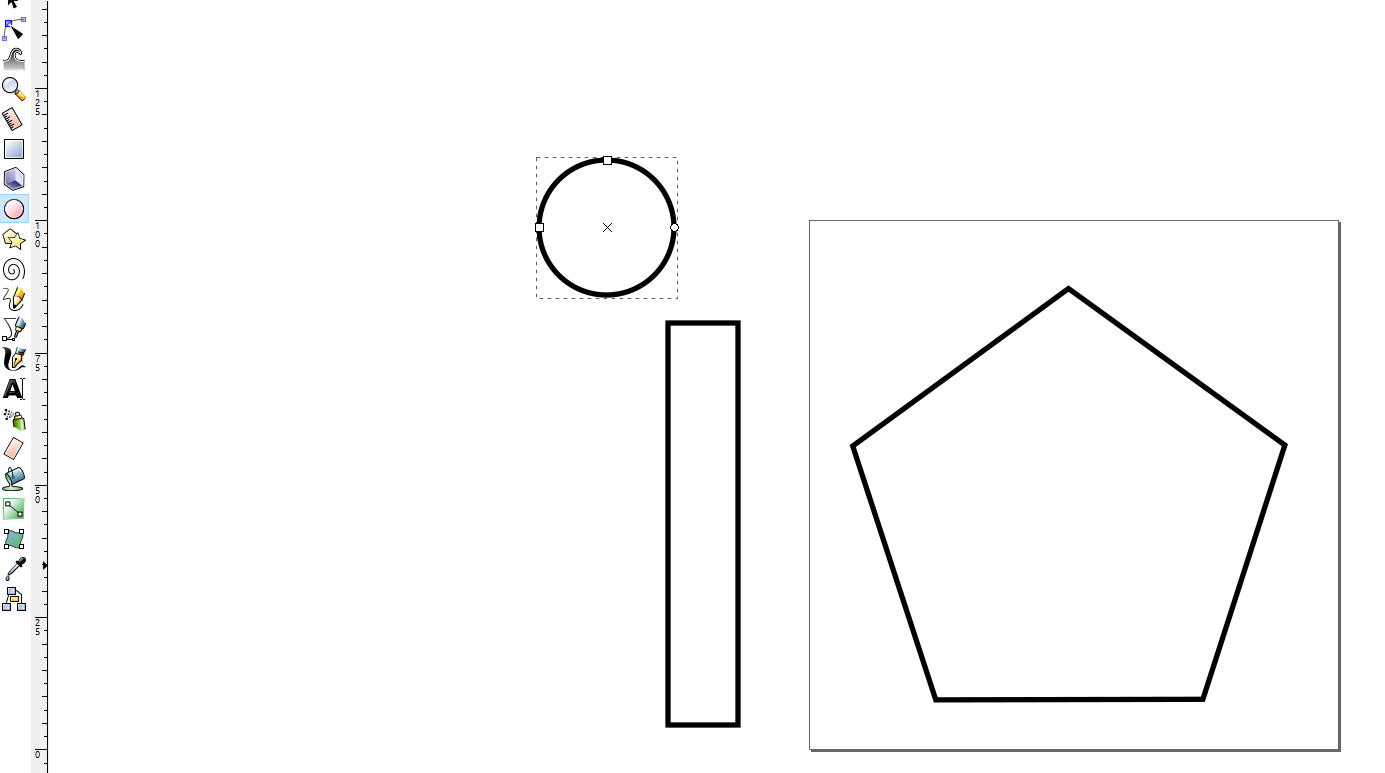
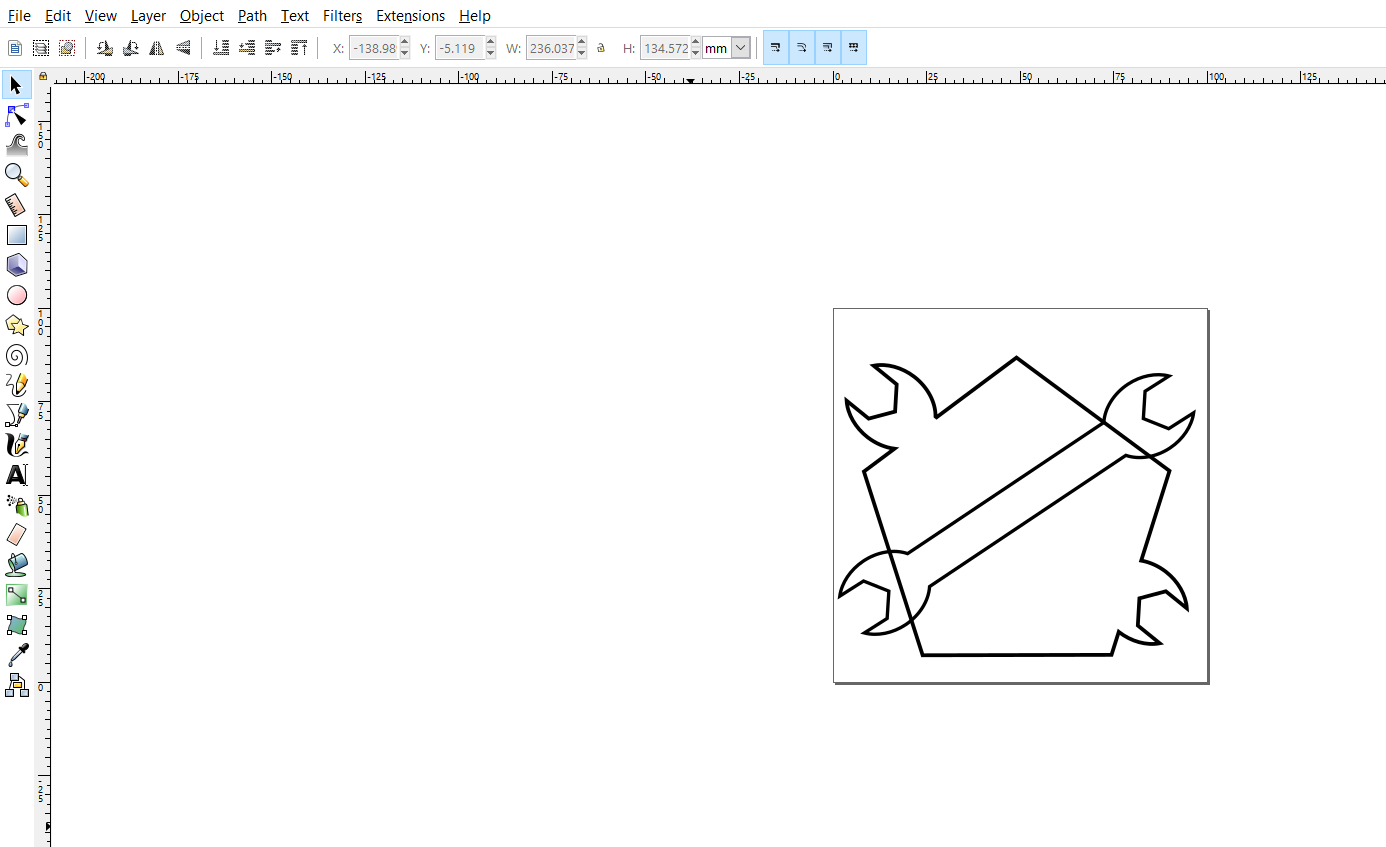
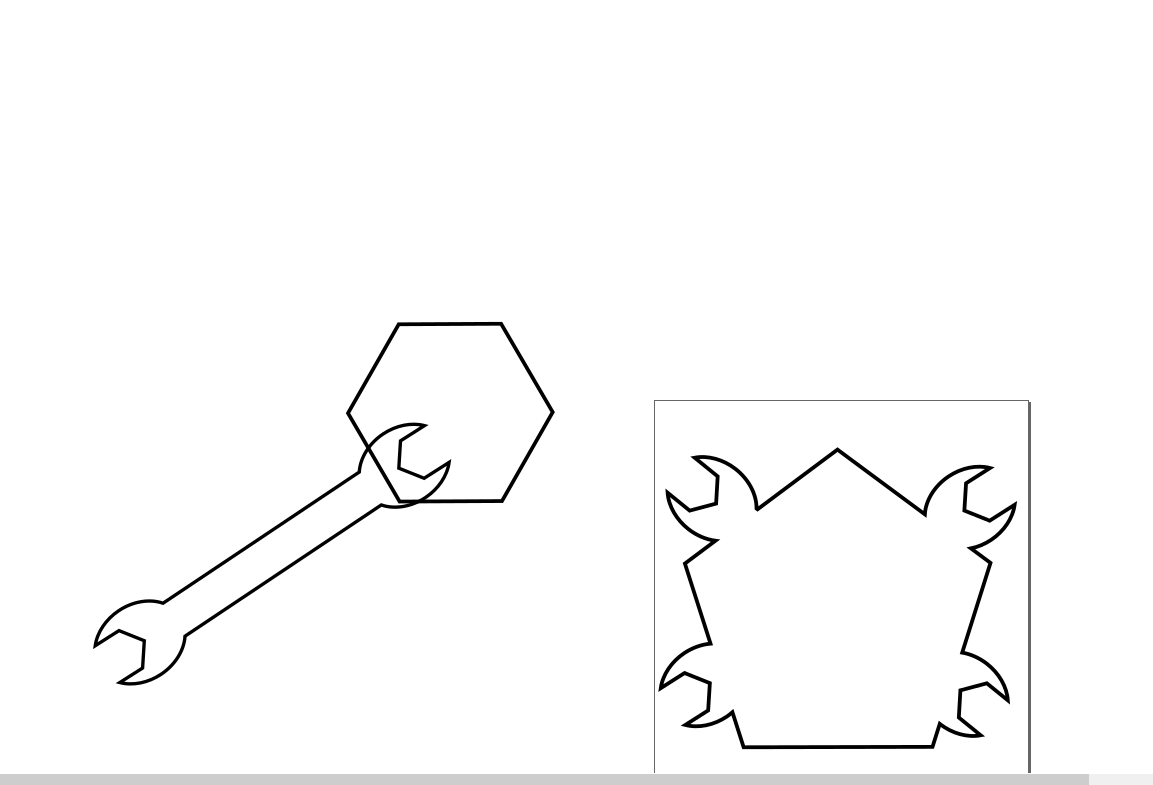
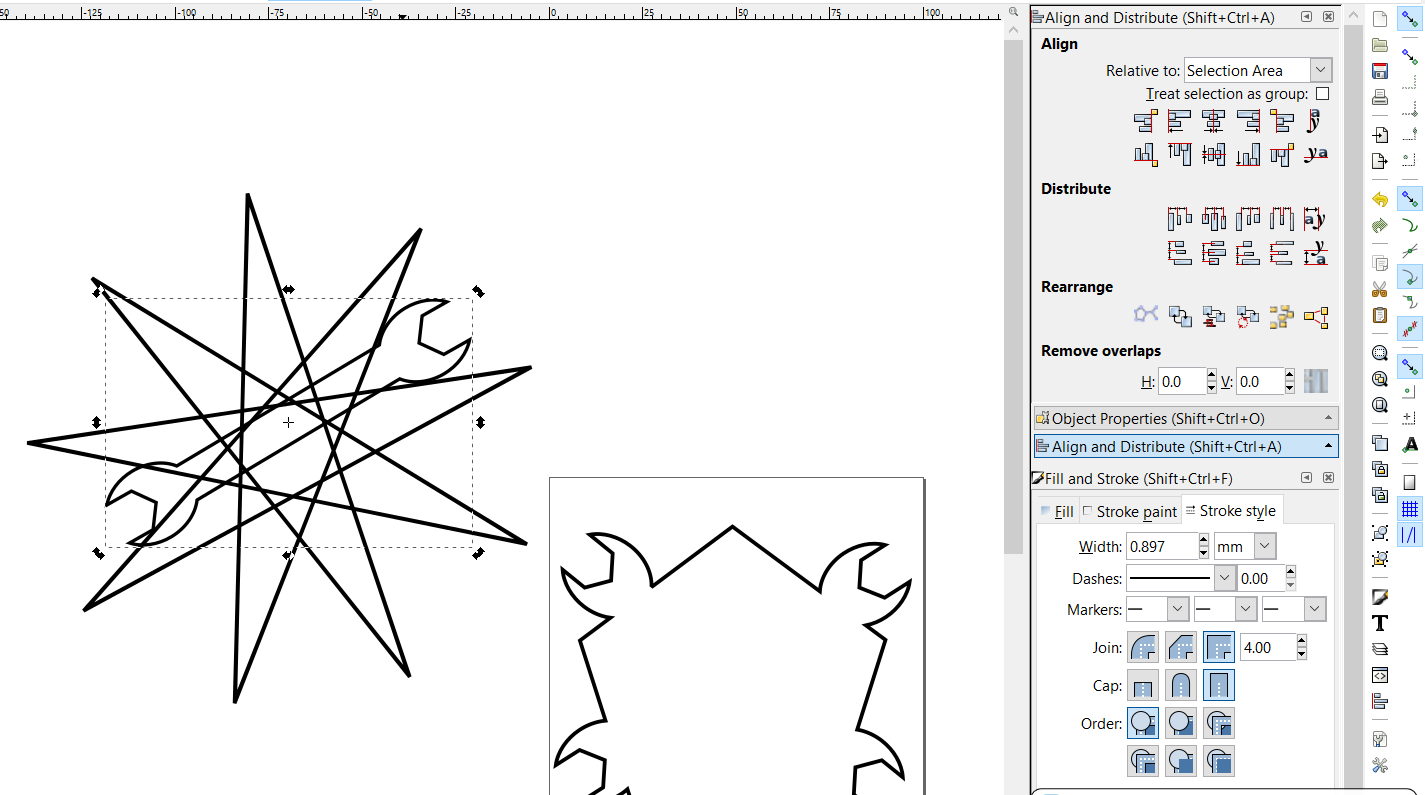
Then I made a pentagon, circle, and rectangular from the left bar. I wanted the hexagon to contain the words and the rectangle and the circle to make a wrench.

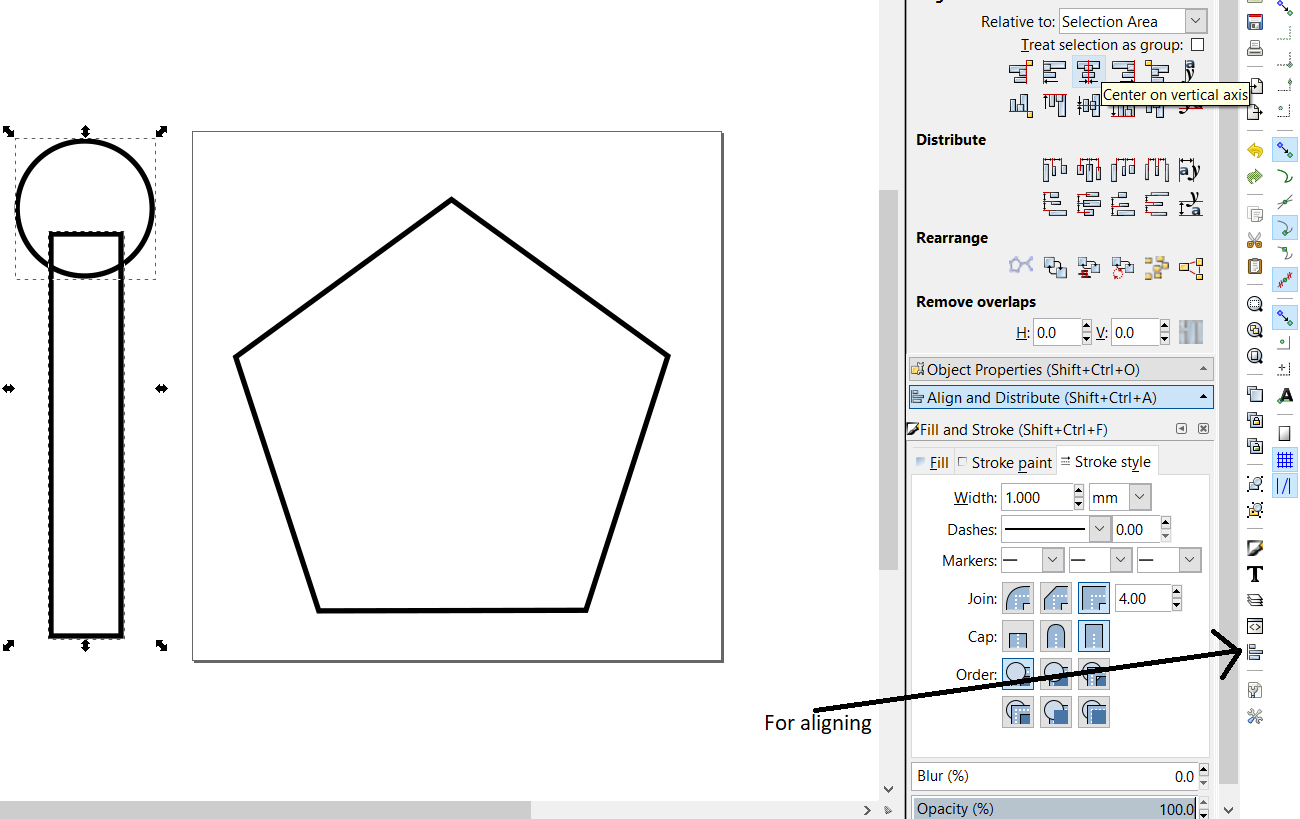
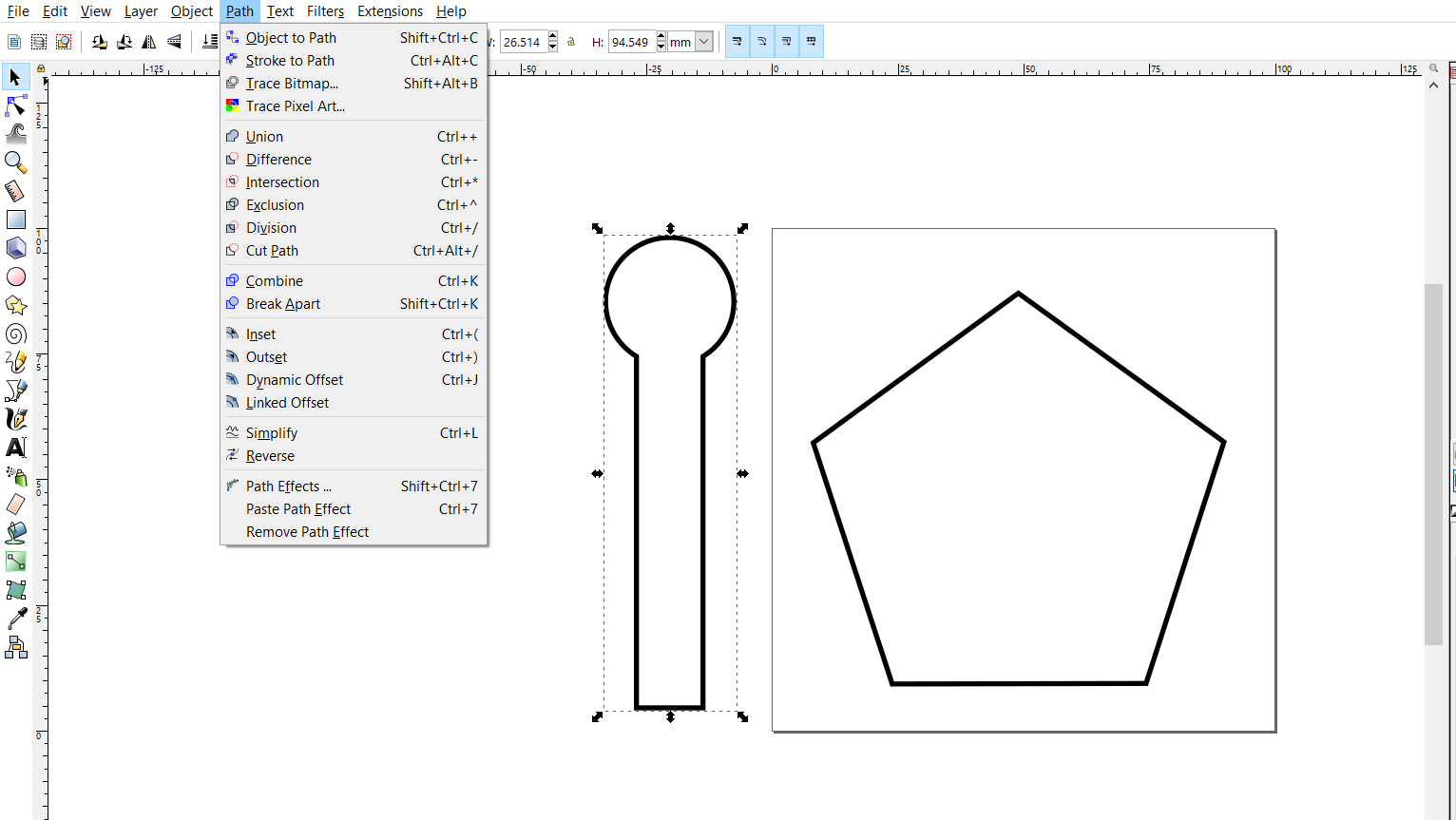
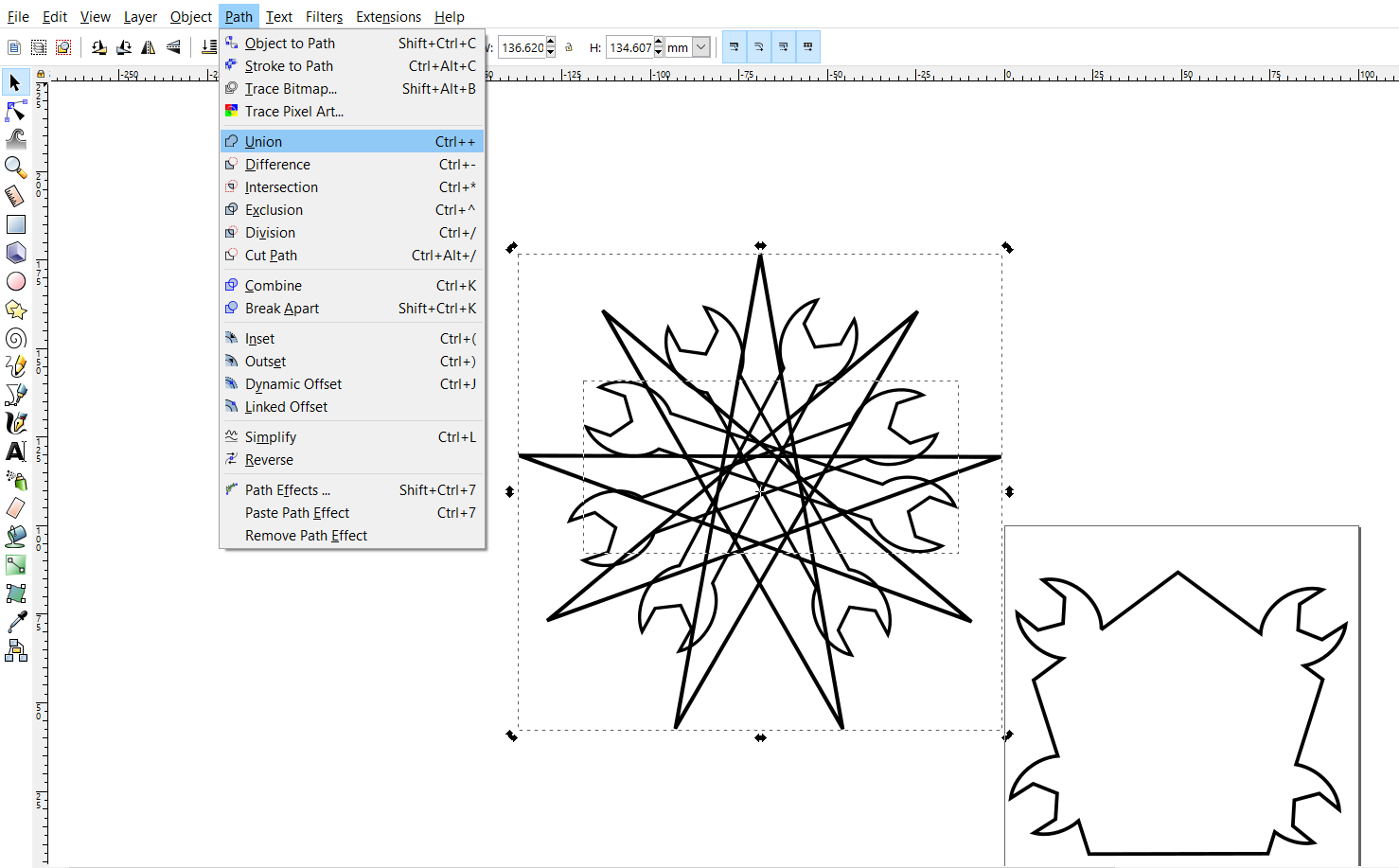
I saw a tutorial on how to make a wrench and from that tutorial, I learned how to join two objects also how to align objects. I first align them by selecting them both and I align them. For joining them I select them both and from Path I clicked Union. and I added a circle for the other end and I followed the same steps.


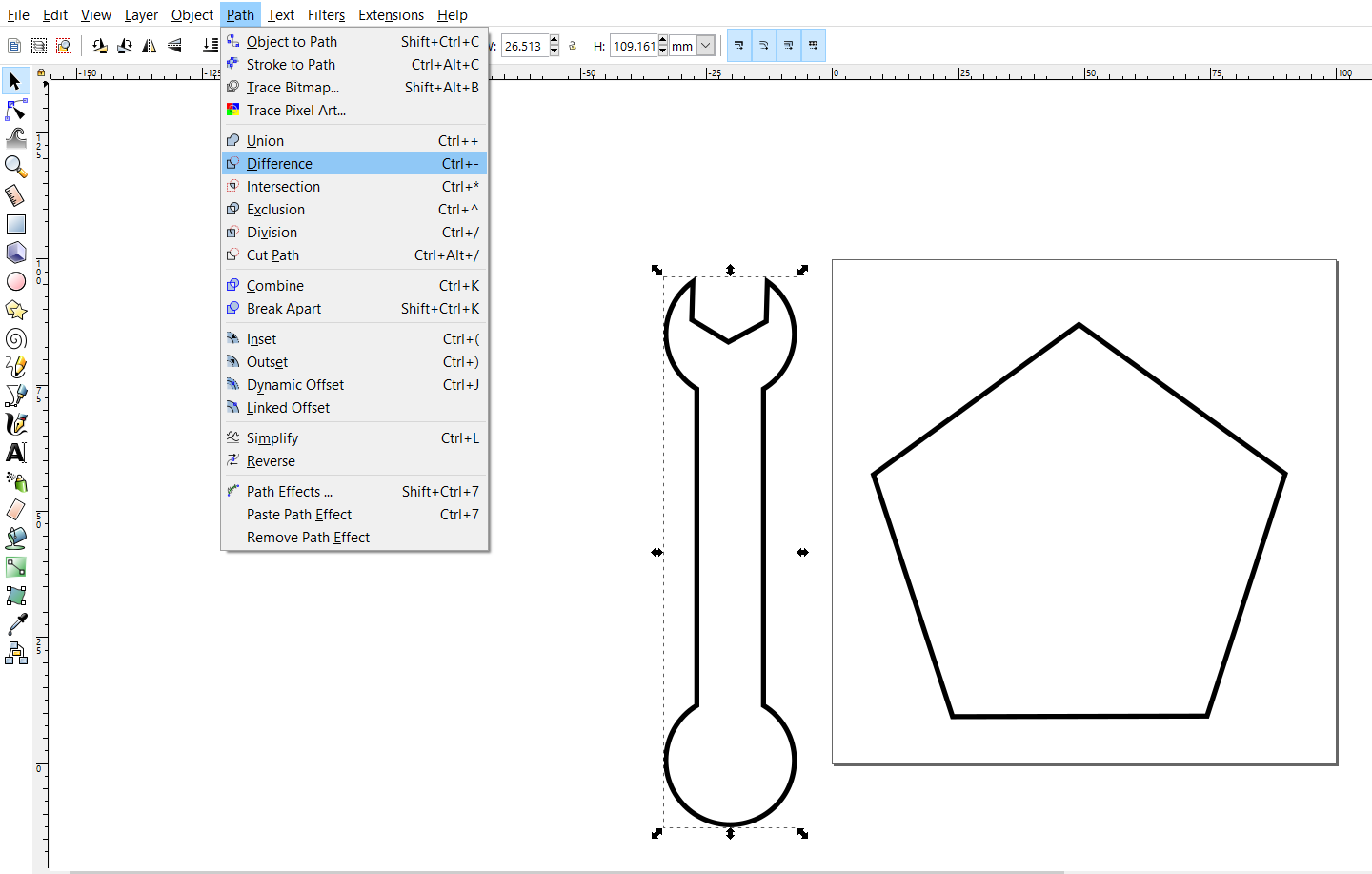
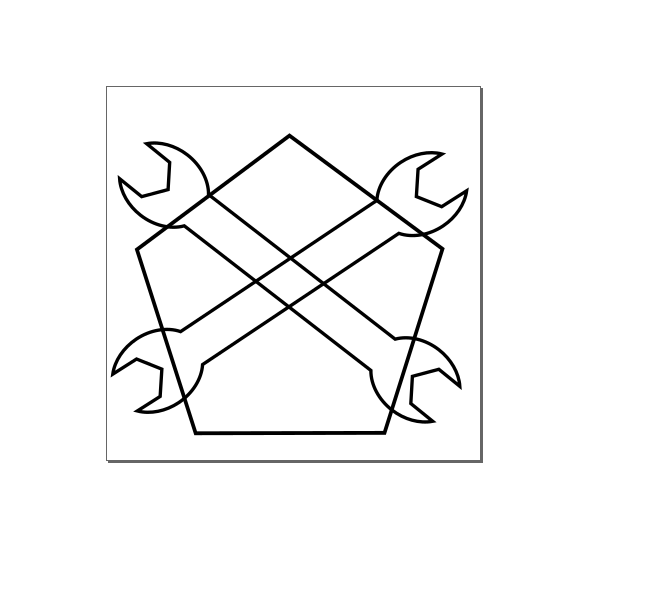
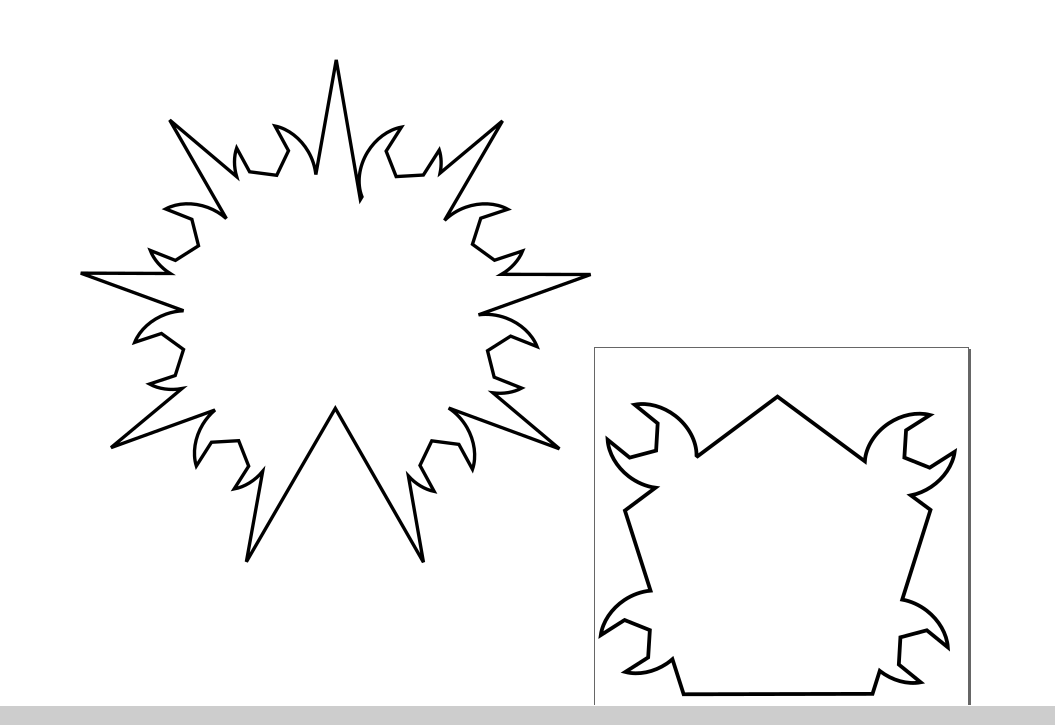
Then I made a small hexagon and then I dragged it to the circle to make a wrench. I selected both shapes and from Path I clicked on Difference by this way I have now a wrench. I dragged the wrench to the Pentagon and then I select them and clicked on Union.


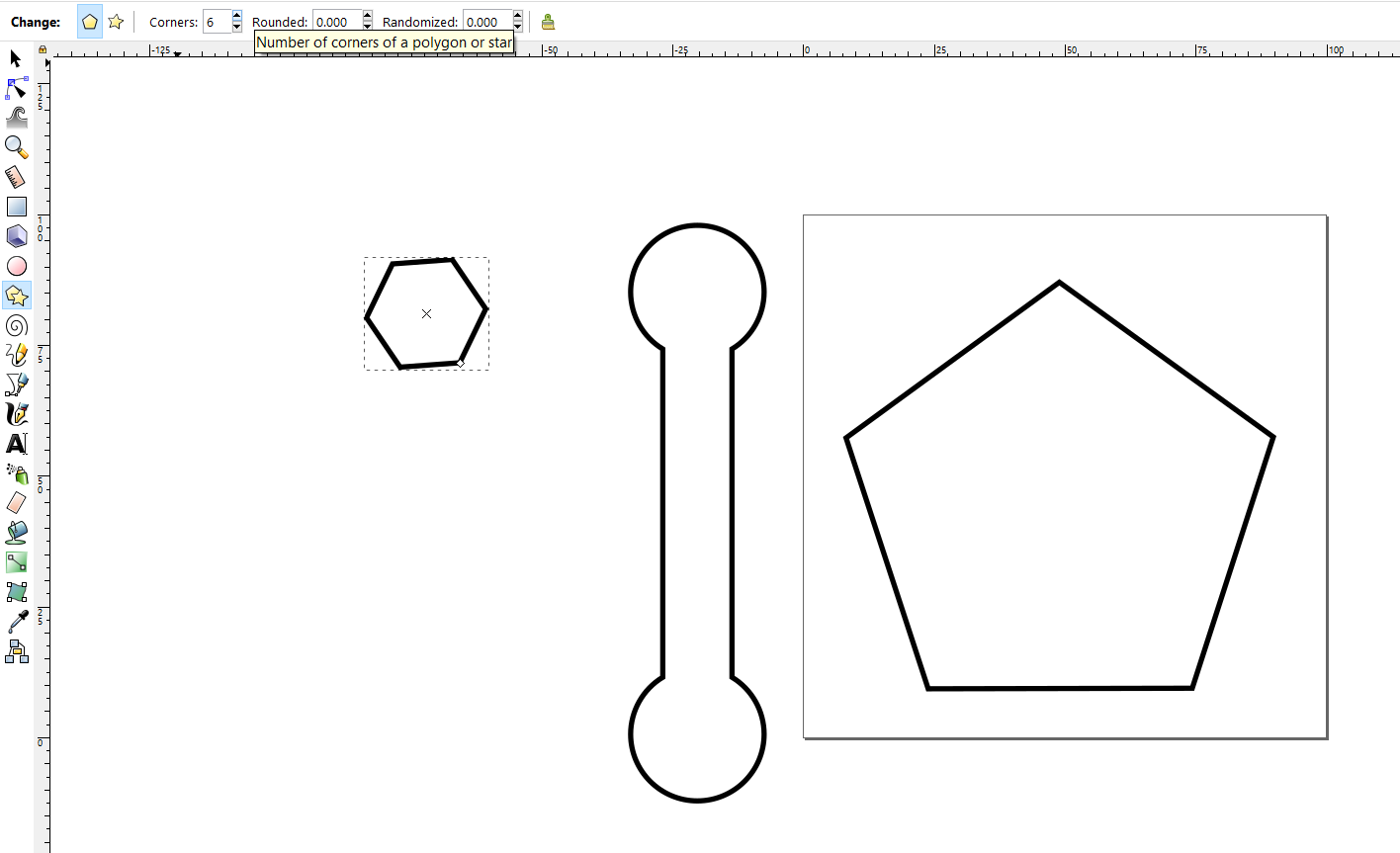
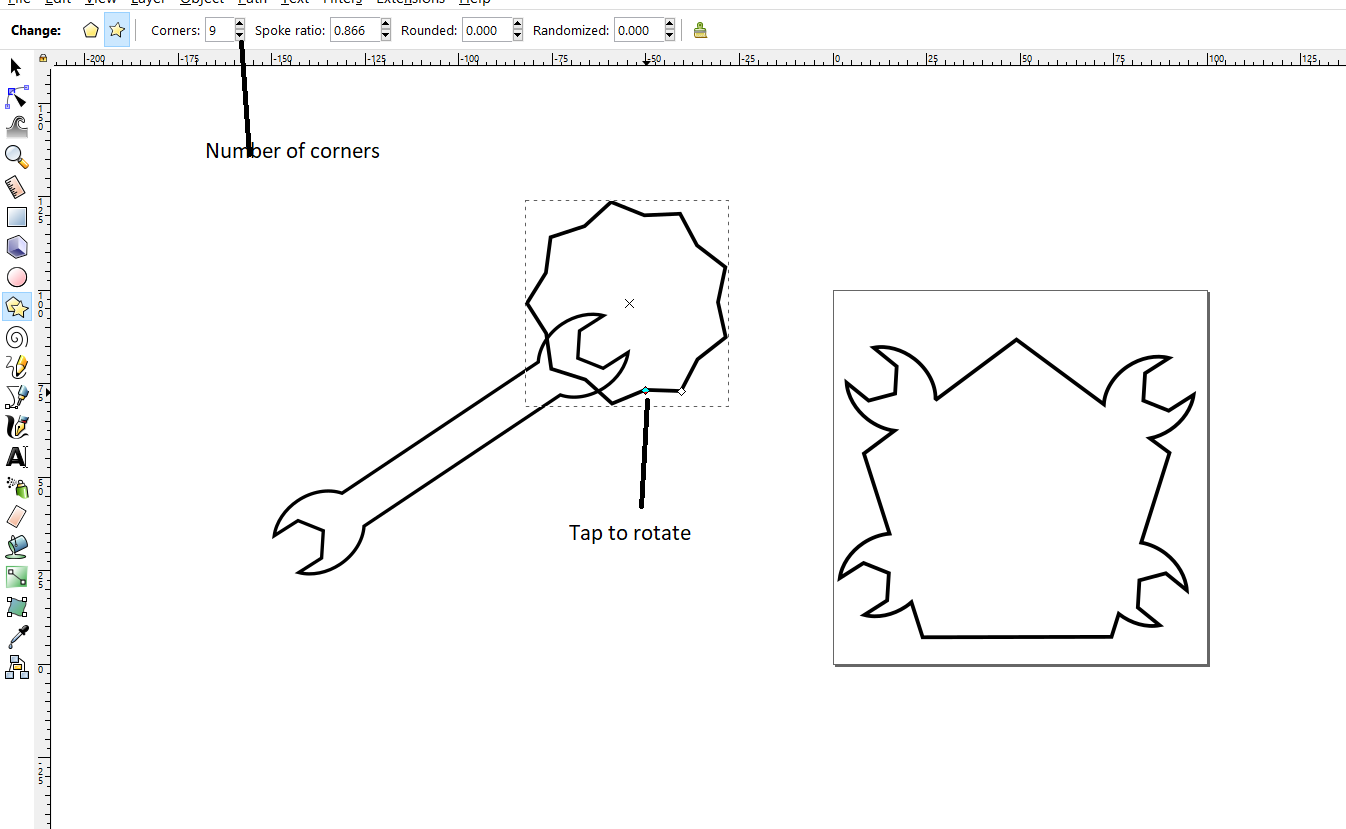
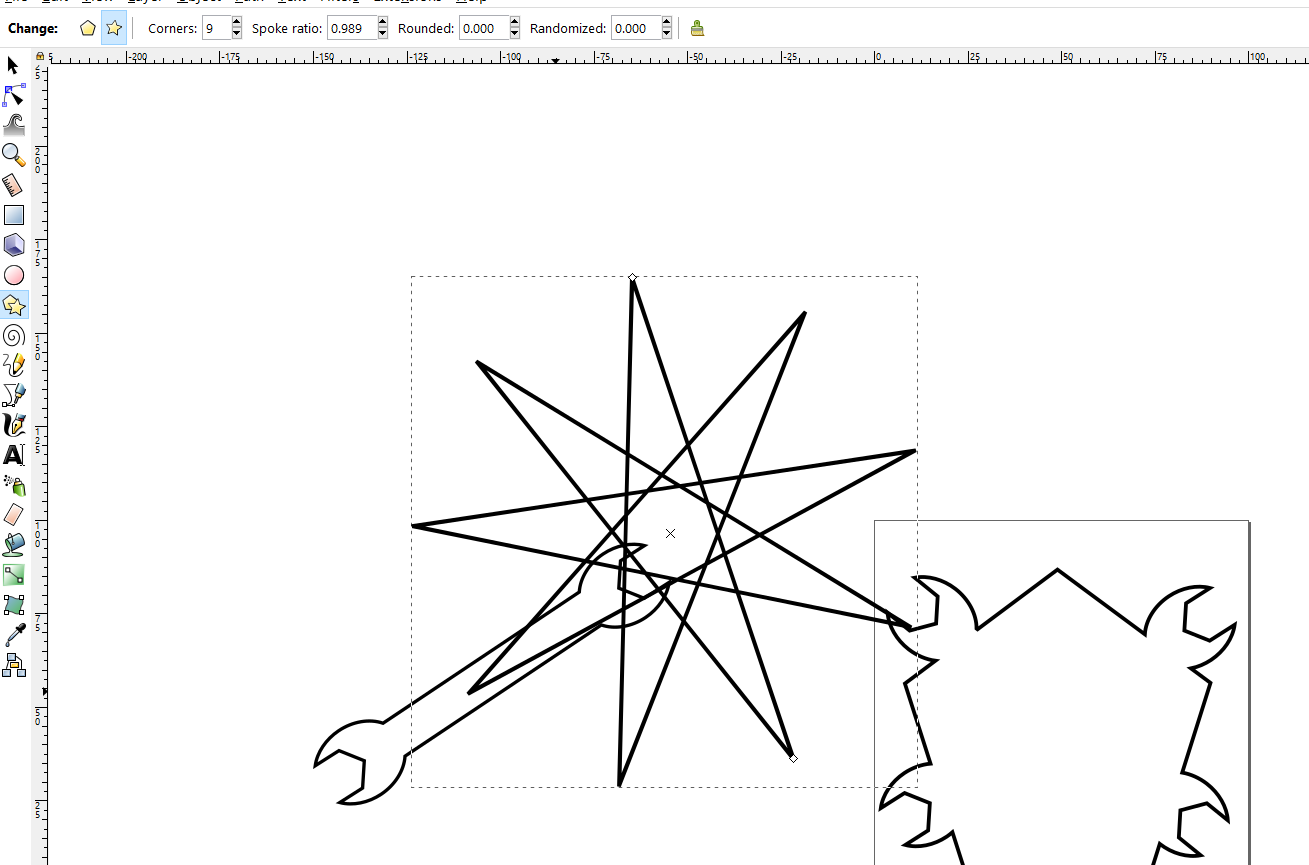
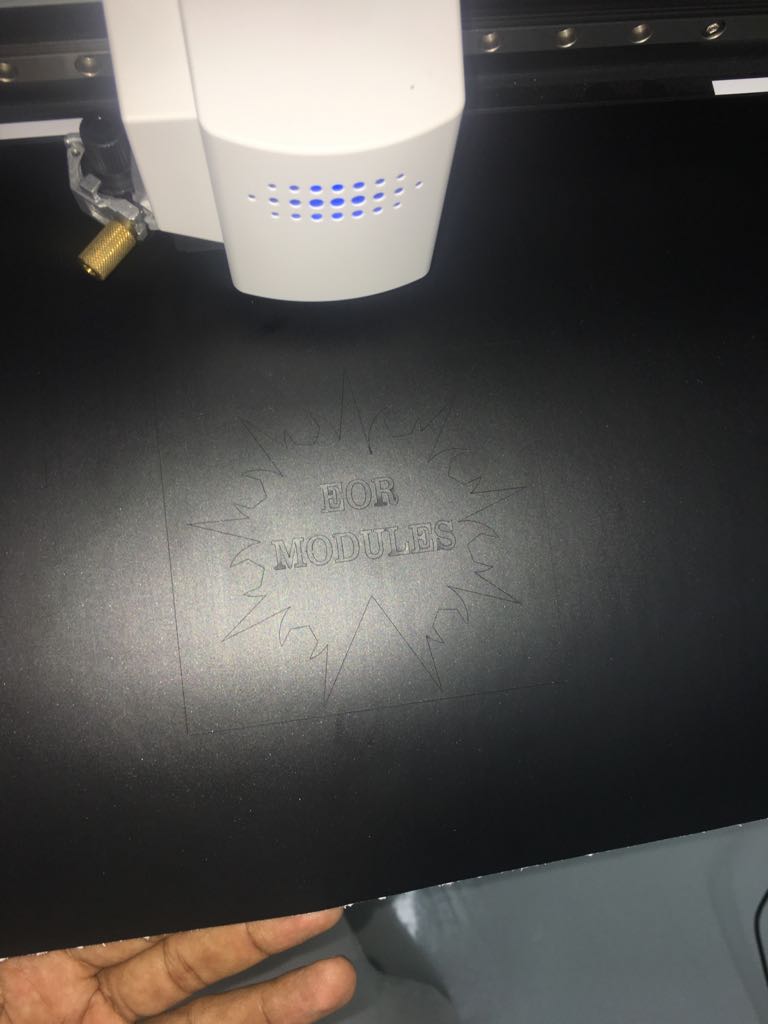
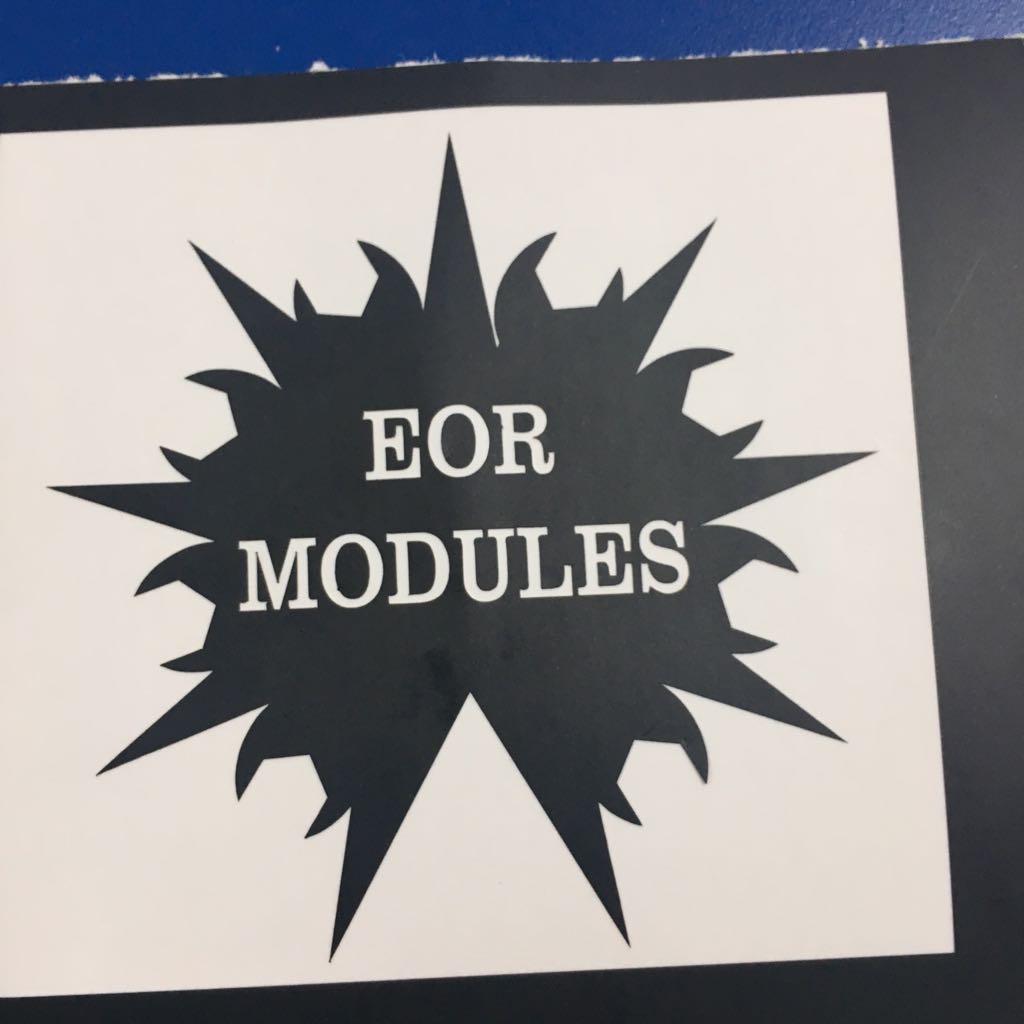
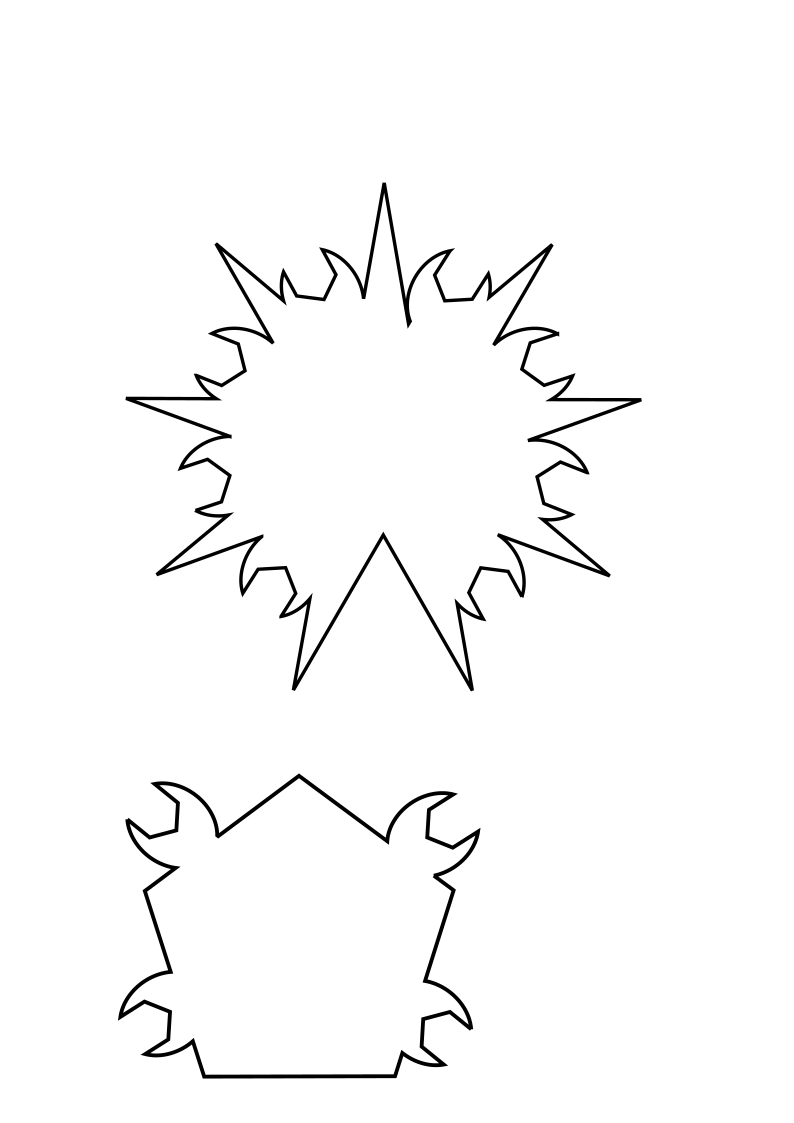
After I finished I made another hexagon just to play. Then I notice in the upper bar there are two shapes one is polygon and star and then there is number of corners. I make it star and I increase the number of corners to 9. There was also a tab (which is called tap on the image below) on the shape. So I played around with it. It makes beautiful shapes so I thought of adding a wrench to it. It was beautiful than the previous shape.


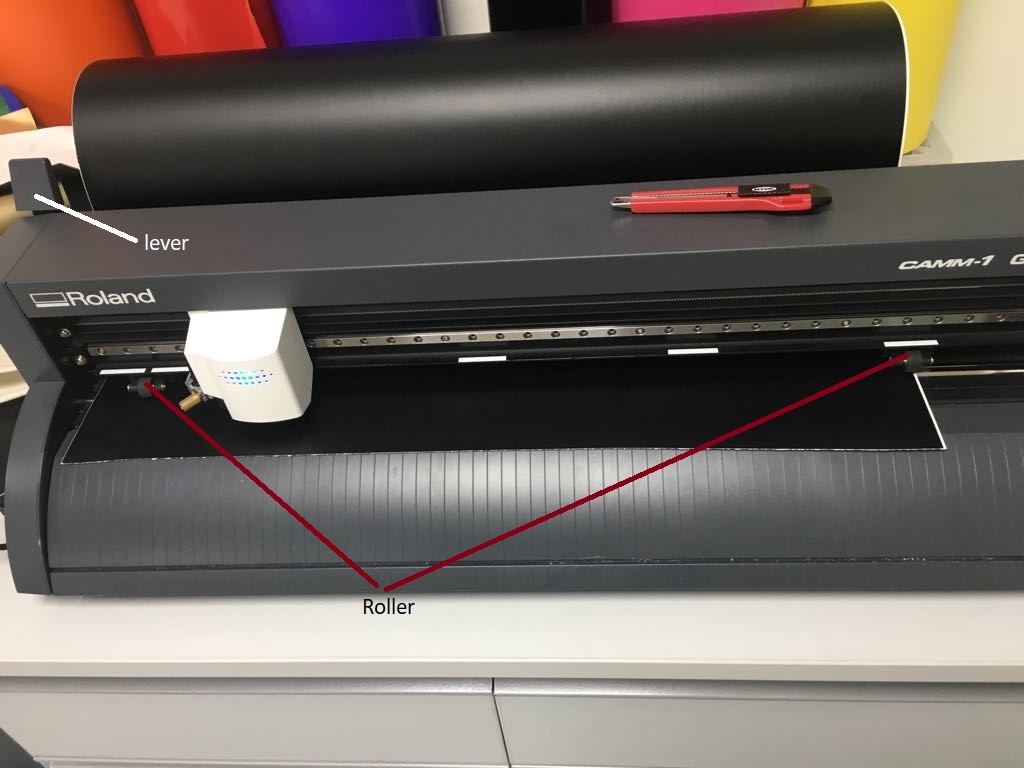
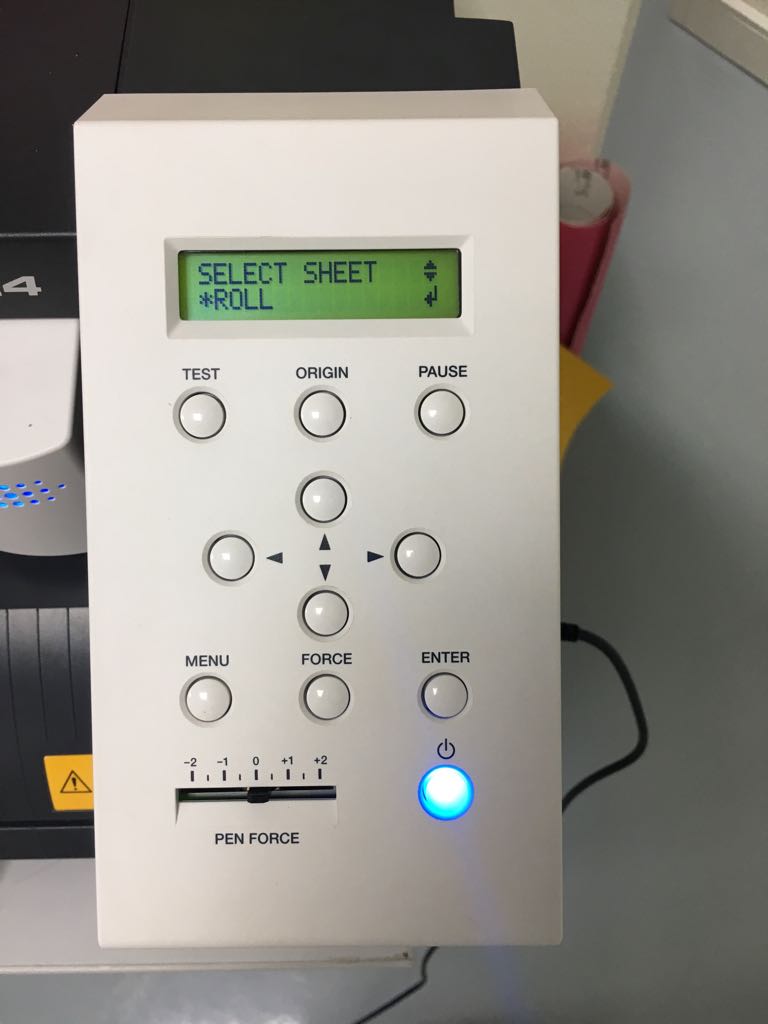
I took the new design to coralDrow. I turned ON the vinyl cutter then I connected to the laptop. To set up the vinyl cutter I followed the steps in this website, this website has a tutorial that teaches you everything. Regarding the vinyl cutter, we have in the lab Roland GS-24. After setting up the the cutter already wendy teach us how so I will make it in steps to make clear:-

  1. Open the lever so you can move the two roller easily.


  2. Put a sheet or a full roll (make sure its aligned).
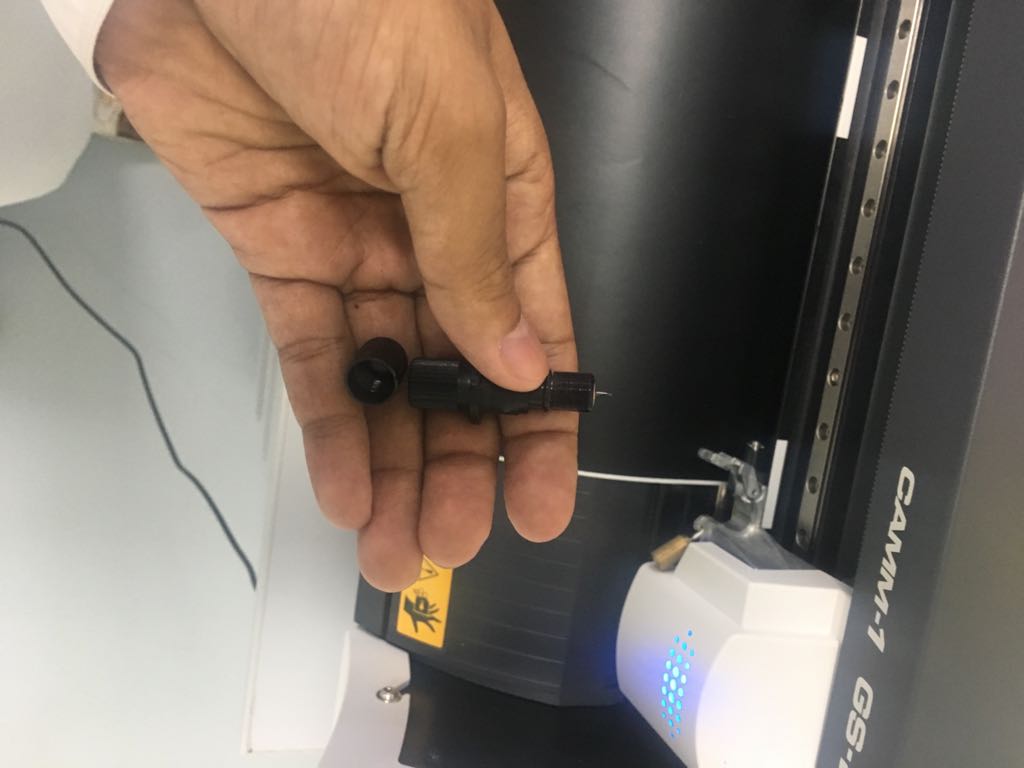
  3. Check the blade, and if you take off the cover, you can clean the blade. It might have sticky stuff on it. Close the cover so the the blade only shows >1mm.


  4. Close the lever.
  5. Press menu/ unsetup.
  6. Choose piece (if you put a sheet) or roll (for the roll).


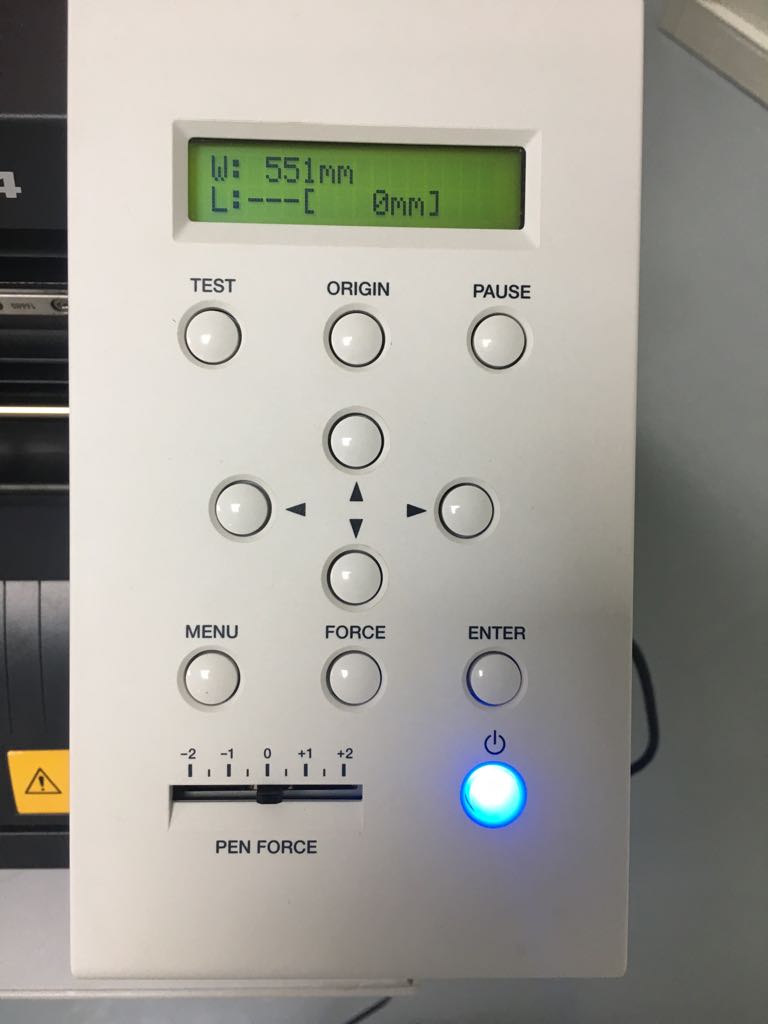
  7. press enter then the machine will measure the sheet.


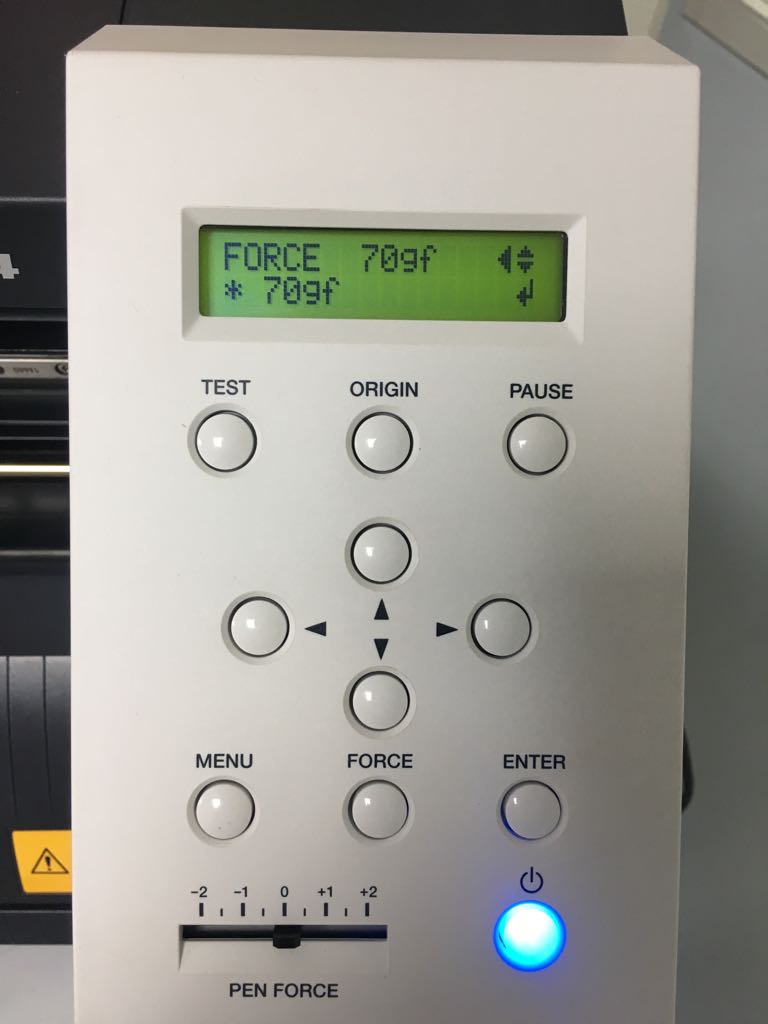
  8. Press force to change it (to change pressure of the blade on the sheet).


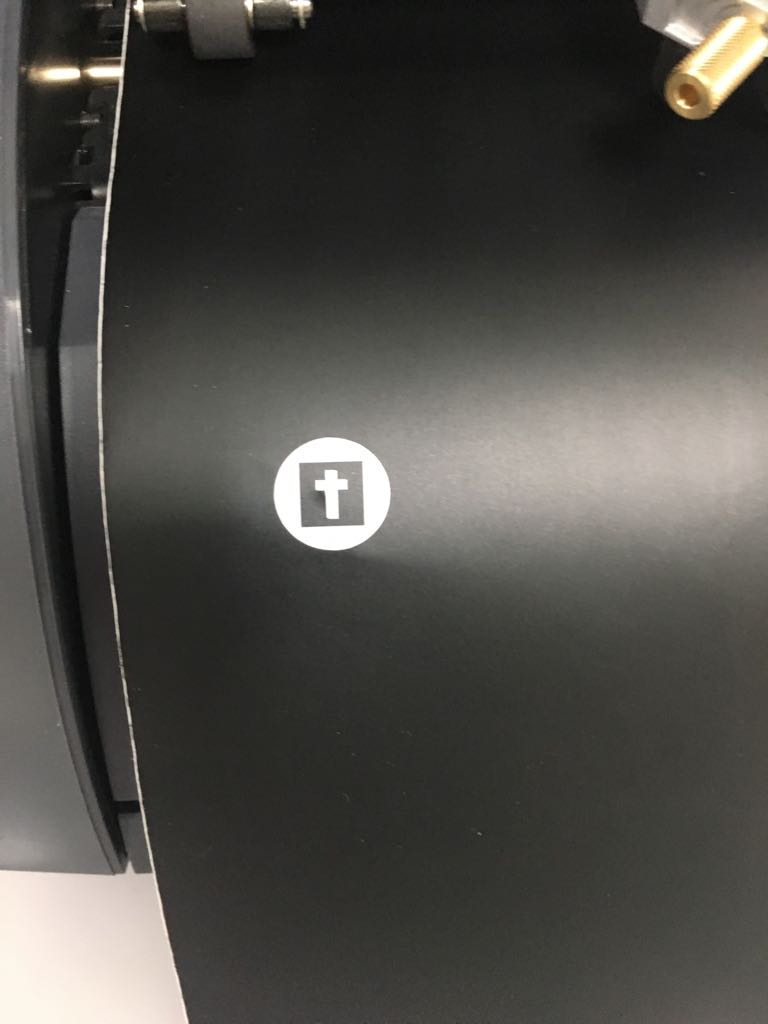
  9. Press test to check the force


  10. Now you have the machine ready at reference point.

In my case, 70gf as a force was good because I looked to the test the depth of the cut was good not too deep nor too high. If you want to change the reference point, change the place of the cutter by moving it with the arrows then press and hold Origin.

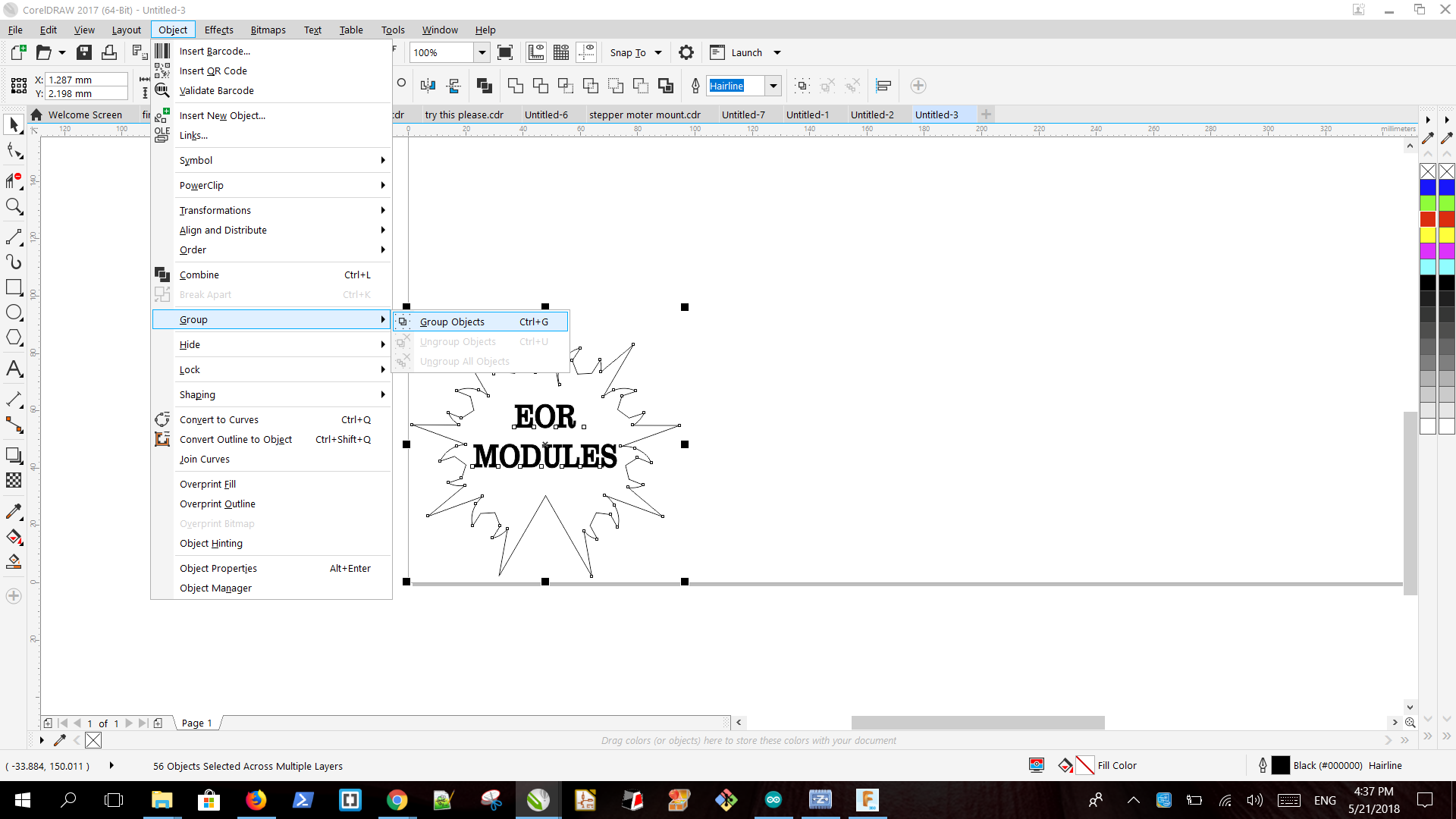
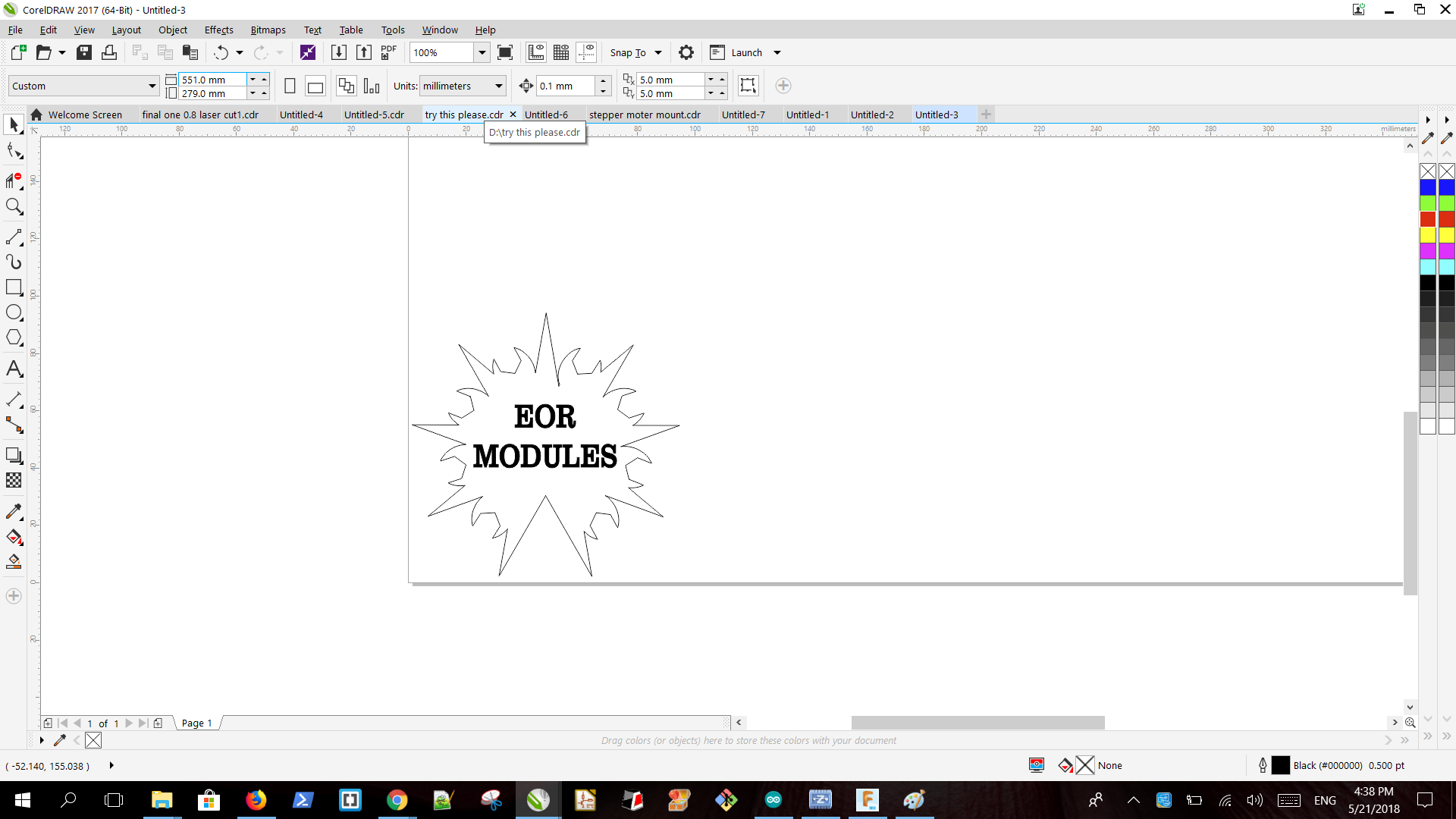
After that, I went back to Corel draw. I added the design Then I added a text then I select them both the design and text then I group them together to make them one object. Then I select the same object and I change the font to hairline.

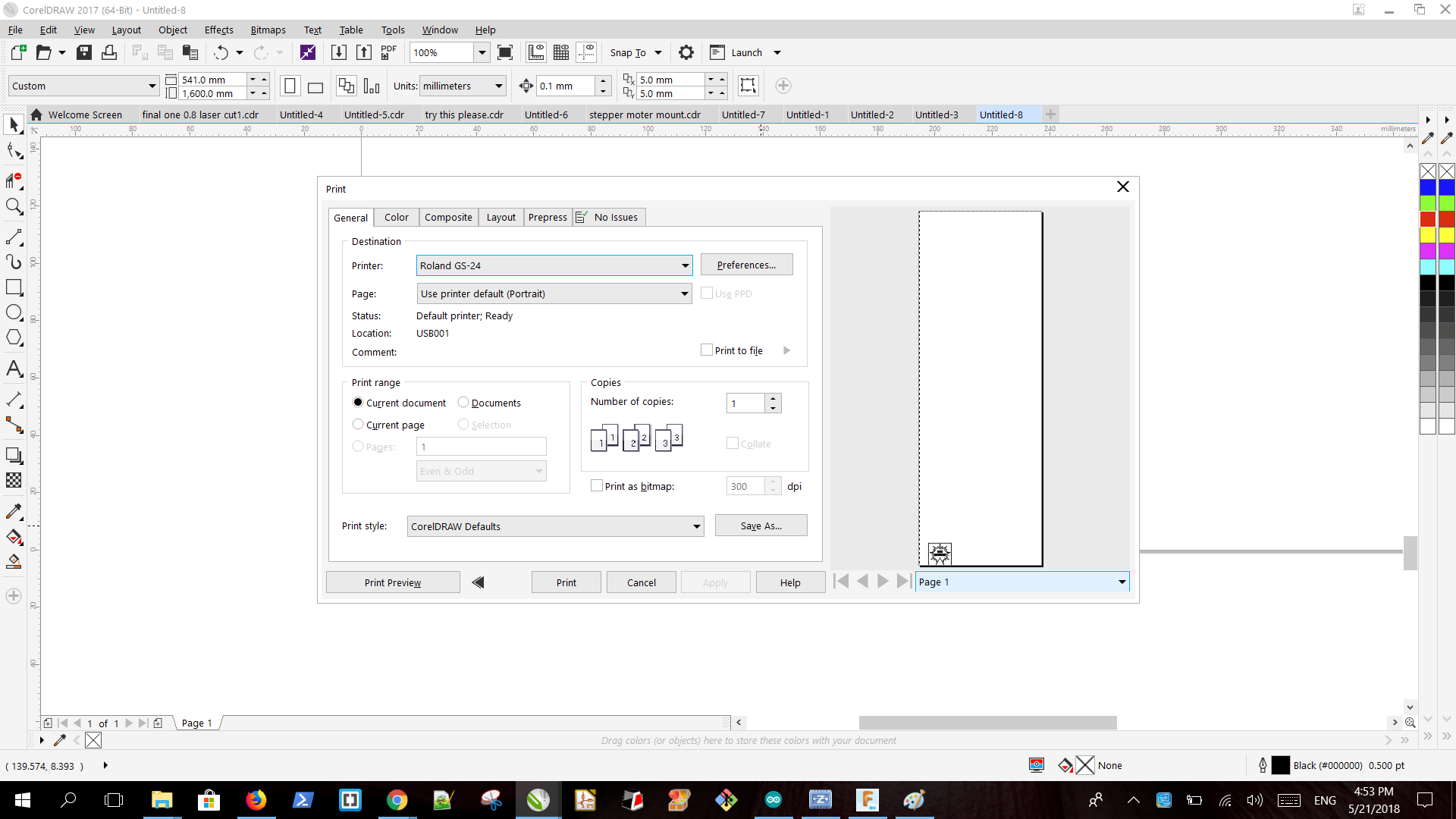
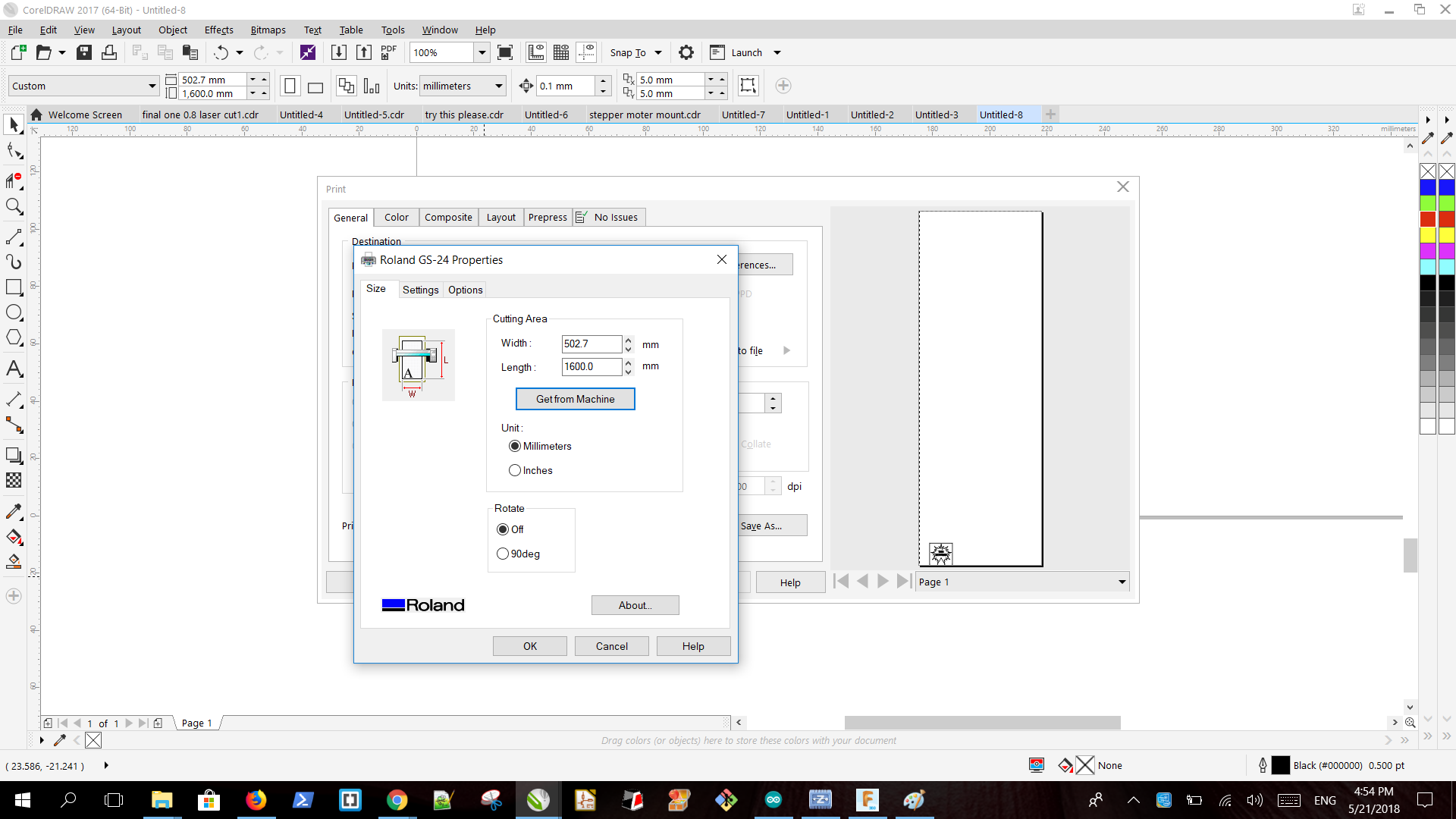
After that, I clicked on print from file. Then I clicked on preferences and I clicked on -get from machine- to see the dimensions so I change the dimensions of the page to the one I saw on preferences to know where exactly my sticker will be. I moved the design to a better place and then I made a square and put the design inside it. This helps me to take off the sticker. Then I print the sticker.

When the vinyl finished I cut the design and then I took the parts that I don't want.

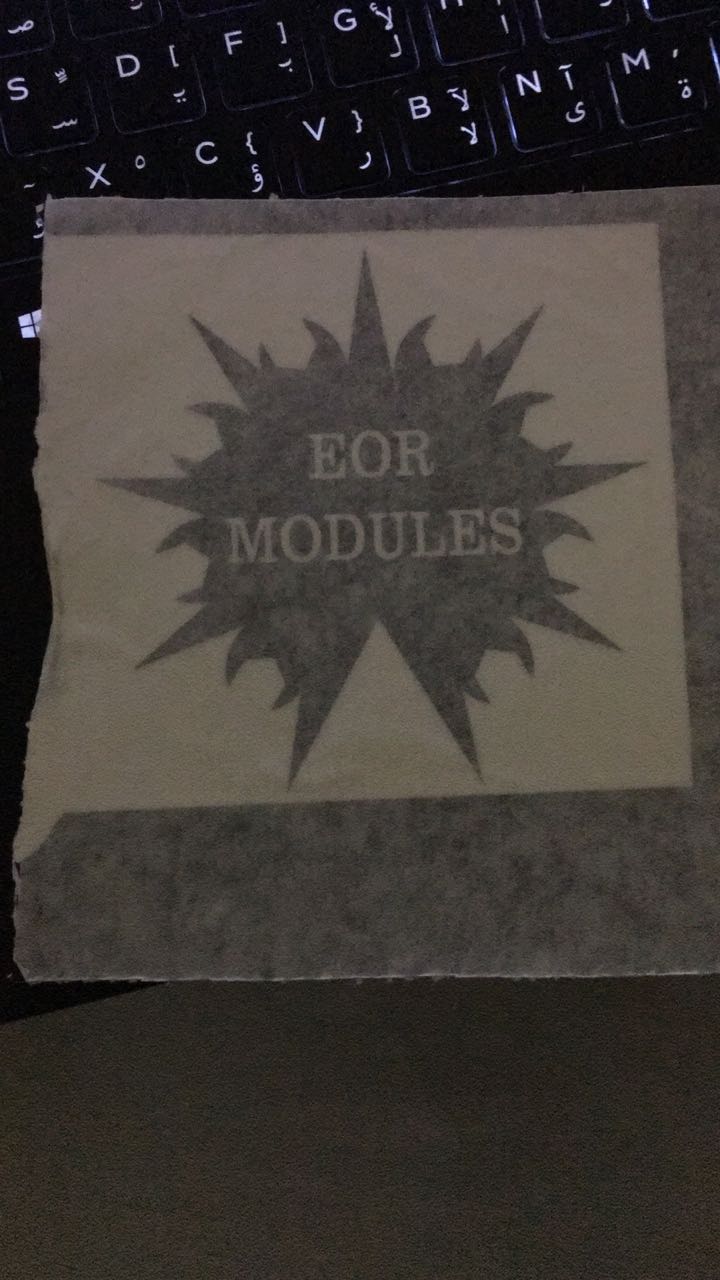
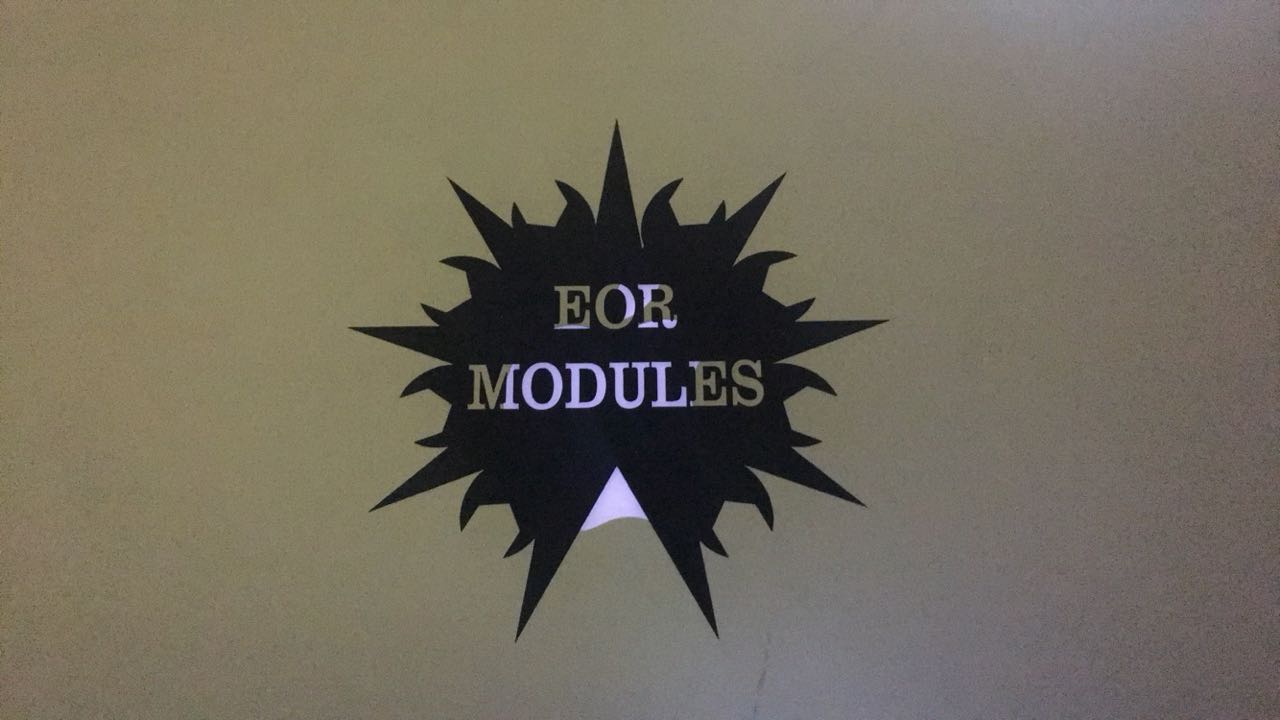
Then I stick the tape on it. I could leave the design on the vinyl and not cut it and then take off the square I made to leave the design alone and then stick the sticky paper on it and take it. I will now wait for the final project to stick it on it.


Here is the file for both shape(svg)
Here is the file for both shape(dxf)

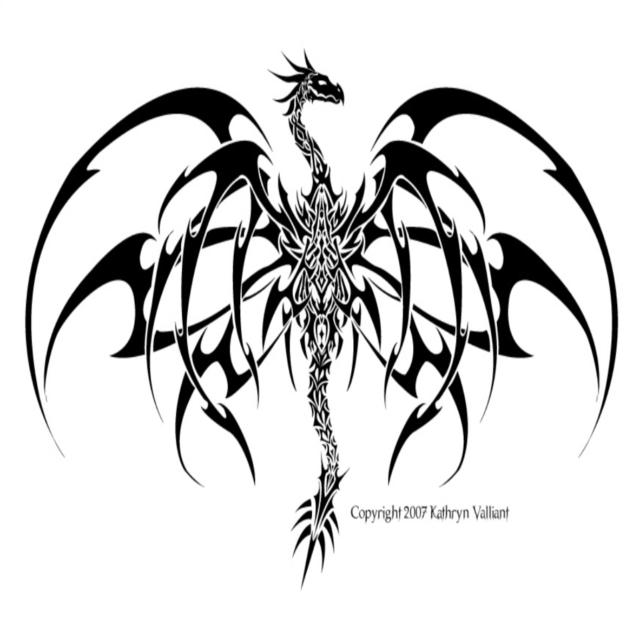
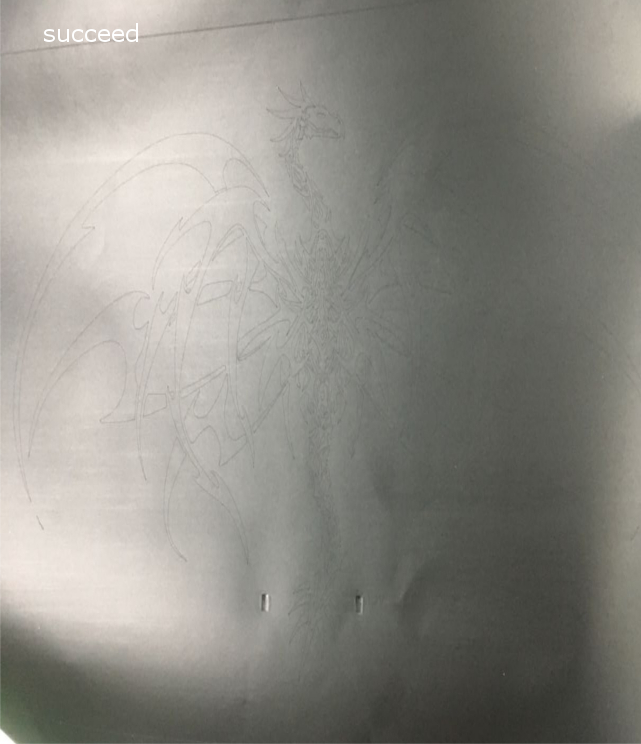
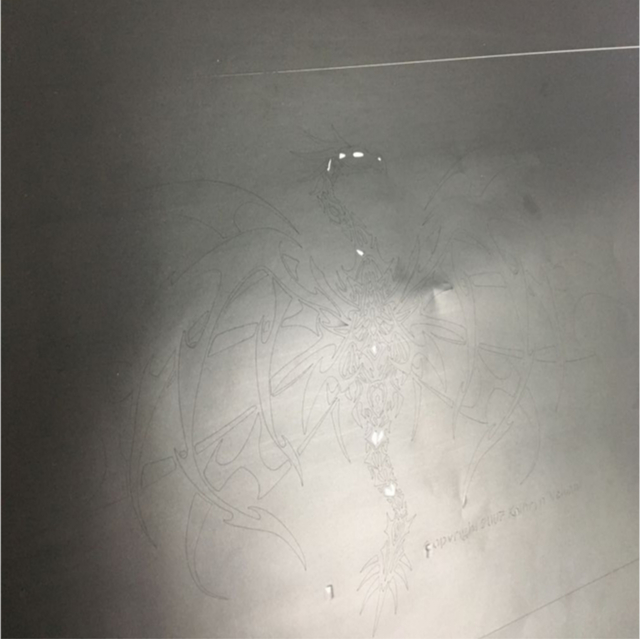
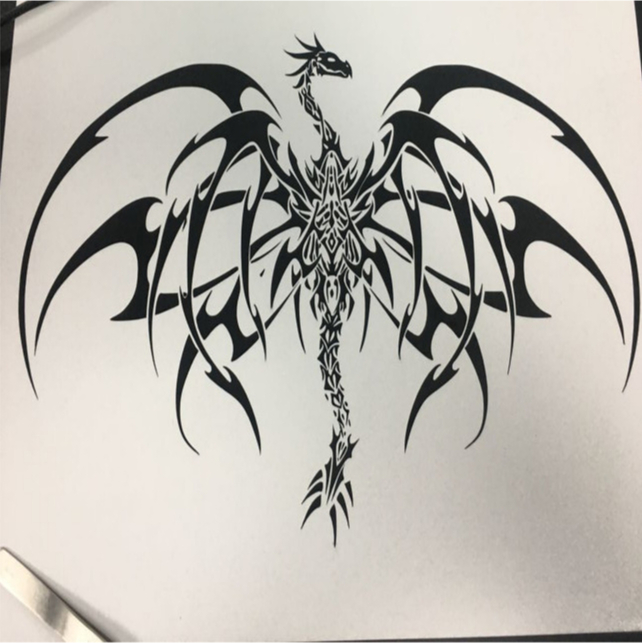
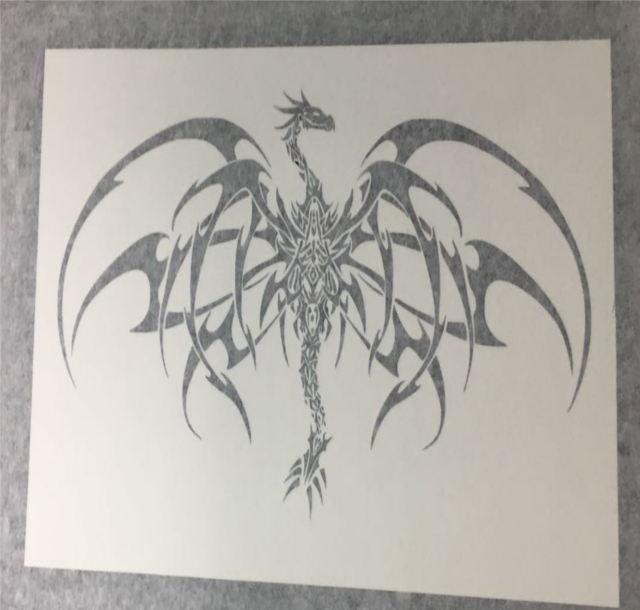
Since I like Dragons I thought of finding some super cool image of a dragon and stick it in my room so my family and friends can see my sticker. Maybe they want so I can ask for money (no seriously I will). So my wonderful dragon is this I took it from this website they have so many cool images.

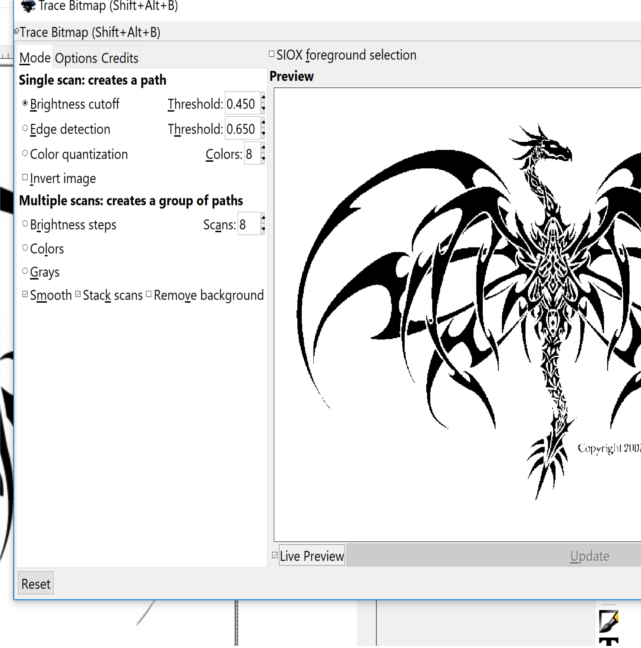
I thought of using Inkscape because I'm not that good in it. So I open that image and then I crop the copyright ( to know how to crop go to week 3) I know it's not good but yeah I want to stick it in my laptop without the words. Ok so after I opened the image It was pixels so in order to take it Carl told me how to make it I clicked on the image than from the path I click on trace bitmap then I choose brightness cutoff then ok. After that I didn't know where the image was so I accidentally moved the image then I saw the new one there ware no squares of pixels, yes this is the way to make it vector (delete the pixel one).


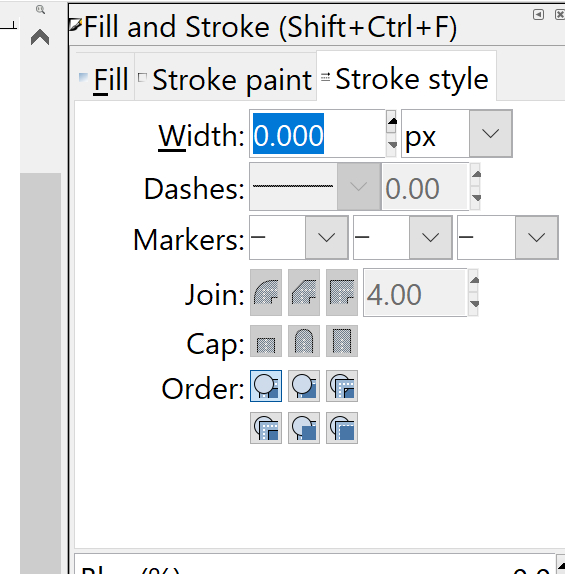
After that right click on the image then click on fill and stroke. A window from the left will come up. I made the width 0.001 mm (hairline) if you want to see it just make it any number like 0.1 but you must return it to 0.001 when you will print.


So from the bottom left I choose the fill empty and the stock black this will define the outline of the image. Then I remember that I didn't put the width of the page. So from the file, I click document properties than from custom size I change the unit to (mm) then I put it 521 I get it from the screen, about the length I make it 500 I thought if making the image bigger then I canceled my idea.

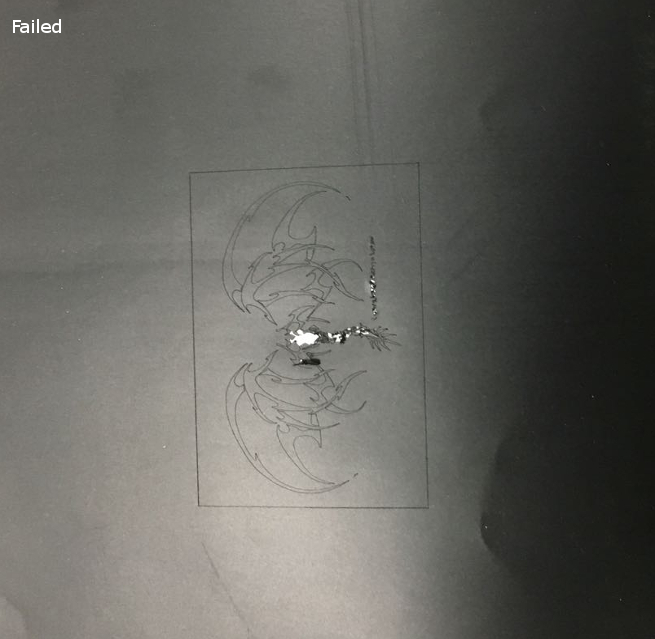
I did my first print put the size was not good so I make it again and define the height and width and then I print it.


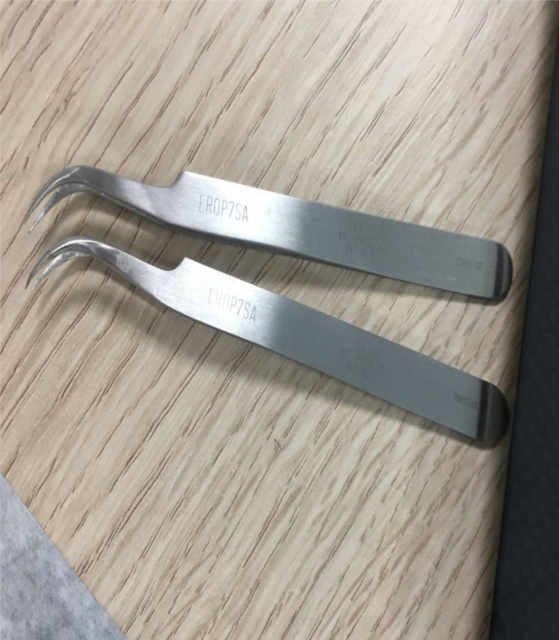
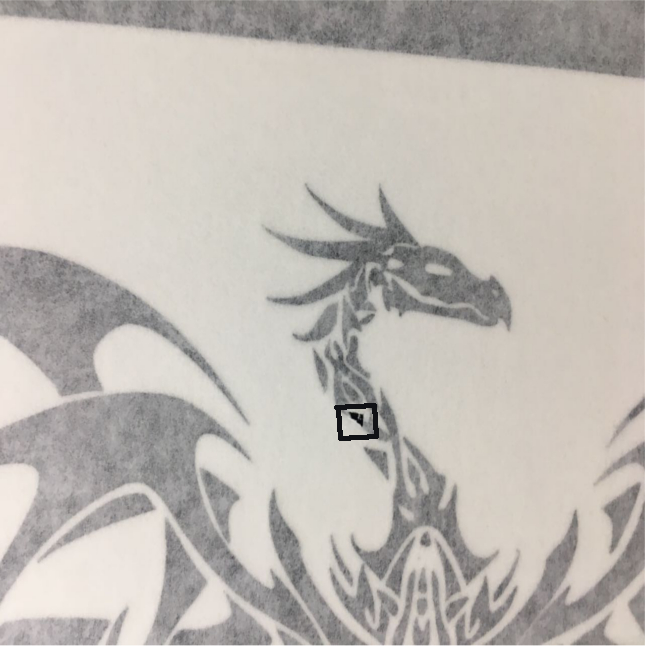
After I print it I cut it from the roll then I tooked out unwanted part its better to take the parts in the meddile of wanted parts to make your life easy. It was hard and it took time for me to remove all the material that I don't want. After two hours I finished by using two tongs there were some small parts removed by mistake but the good thing it didn't ruin the beauty of this masterpiece.


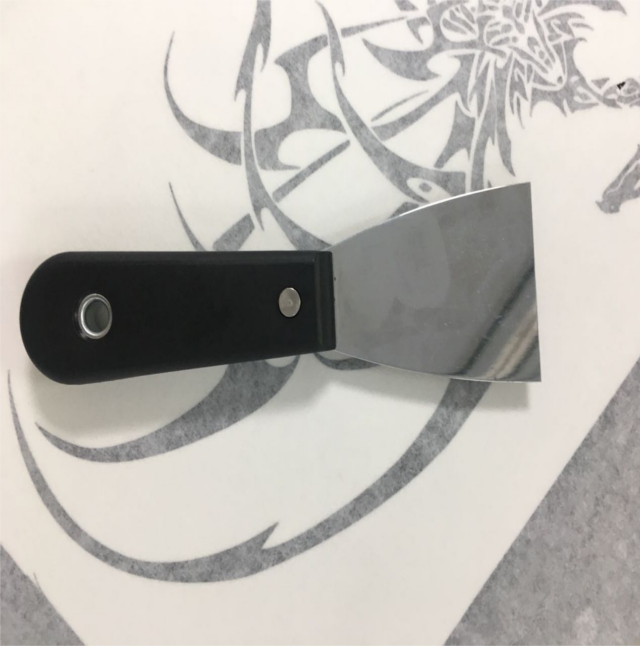
Then I put the tap on the image I use this tool to press on the tap but it wasn't good because it nearly ruins it. Then I used my finger I think it's better to use a wood roller or your finger for small areas.


I stick it on my laptop, I'm very excited to see my friends reaction. I cant put the file here because of the copyright, if you want the file like I mention above you can take it from this site

My experince

It’s the first time I use Laser cutter I’m very excited to use it more in the future. I learned that different material needs different setting also when you change the thickness. I learned that not every material we can use in the laser cutter. I learned that cardboard can be used to make a lot of cool things. Also, I found out there are many good laser cutter that can cut tiny things. I can say now that I can draw anything and import it into the software to cut it using the laser cutter. I will for sure use the laser cutter in my final project to cut some part maybe using cardboard or any material. Also the vinyl cutter I'm happy that I print an image and not a normal one it's complicated, at the beginning I didn't believe that it can cut this design but yeah it proves the opposite. It's useful for me it will benefit me a lot, for example, I can use it to label the component in the project to make a logo for the project. Regarding the group assignment, I’m very happy to work with the team. We Share thought’s it was helpful and enjoyable assignment. Like everyone is good in some part, so he was the guider in some part.

Previous week Home Next week