WEEK 2 - COMPUTER AIDED-DESIGN
Objectives
Have I...?
Softwares
I have previous experience in 2D raster and vector graphic because I frequently use software as Photoshop, Illustrator and more others for wireframing. But I have never seriously approached to 3D graphic and for this reason I decided to catch this opportunity to explore deeply this new topic, trying to make the same 3D model (like the sketch below and similar to a water flow sensor mentioned in my Final Project Page) using different softwares.
So if I made it, you can do it too!
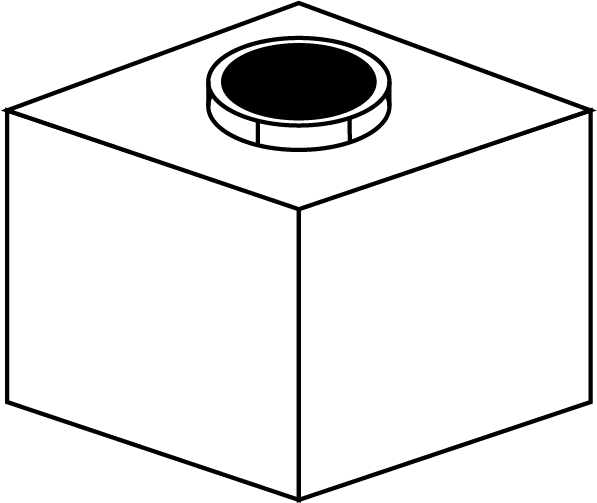
I made this sketch using Adobe Illustrator. I record the screen with Quicktime (I'm using a Mac) and I upload the video to Vimeo.
In order to compress images and make my repo (and my website too) as light as possibile I used two different strategies
Tools - Adjust Size you can choose the dimension you want for your image. It's a good solution for the moment, but in future I need to found something to resize more images at the same time to spend less time to do this operation.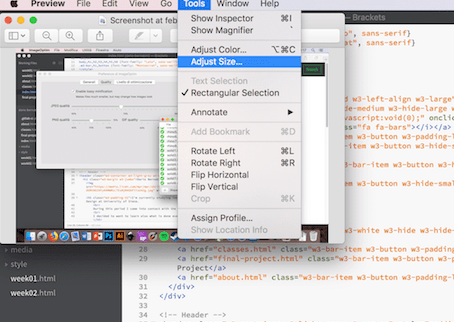
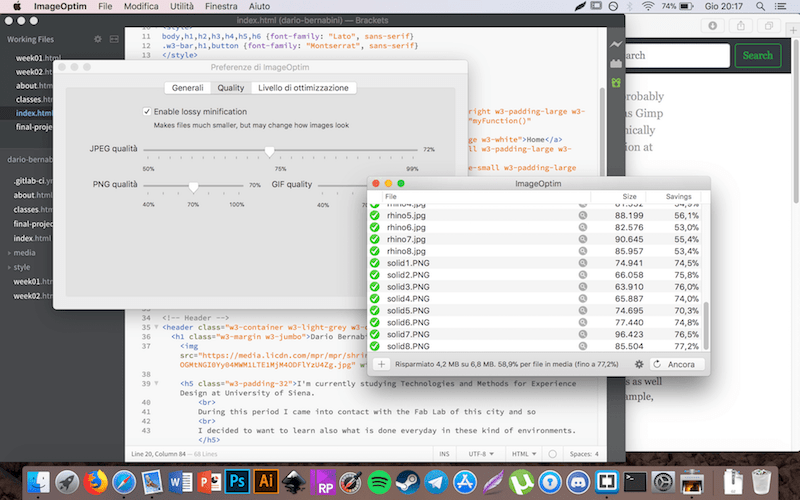
So, after this little assumption, it's time to start with the magic world of 3D graphic!!
Blender
I installed Blender few months ago just for playing, nothing serious. In this process I have been helped by Flavio Lampus, a graduated Fab Academy friend that works in my Fab Lab.
To create a 3D shape similar to the sketch I proceeded in this way.
First of all I opened the lateral menu using the M key of the keyboard. In this I changed the position of my cube setting X: 0, Y: 0 and Z: 3 under Location
Under Dimension voice i set X: 5, Y: 5 and obviusly Z: 5.
These are absolute values inside Blender (no inches or millimetres), but if you want to export your figures for 3D printing you have to know that Blender read this as millimetres.
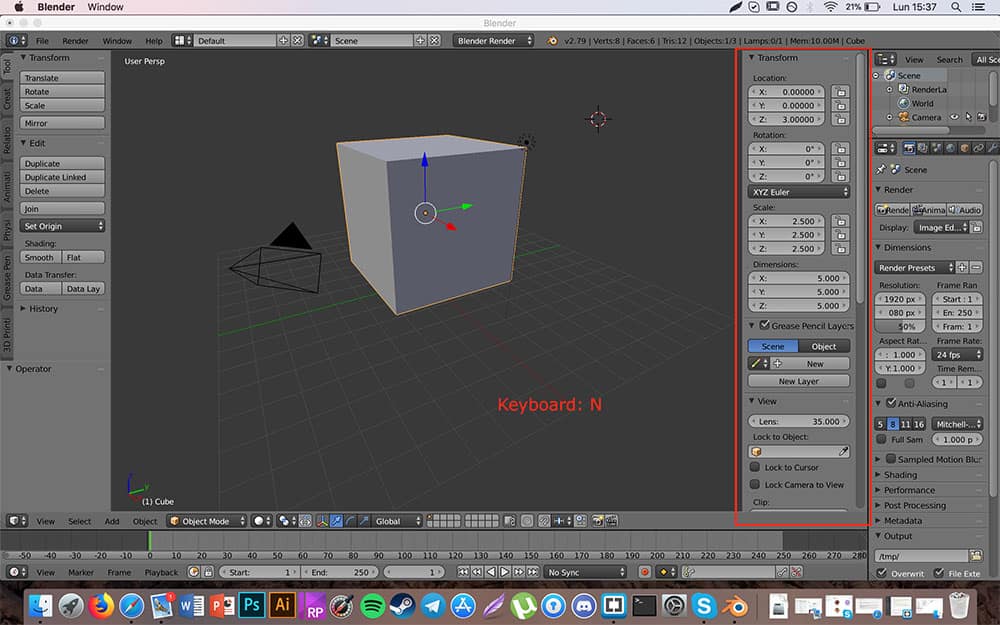
After that I switched from
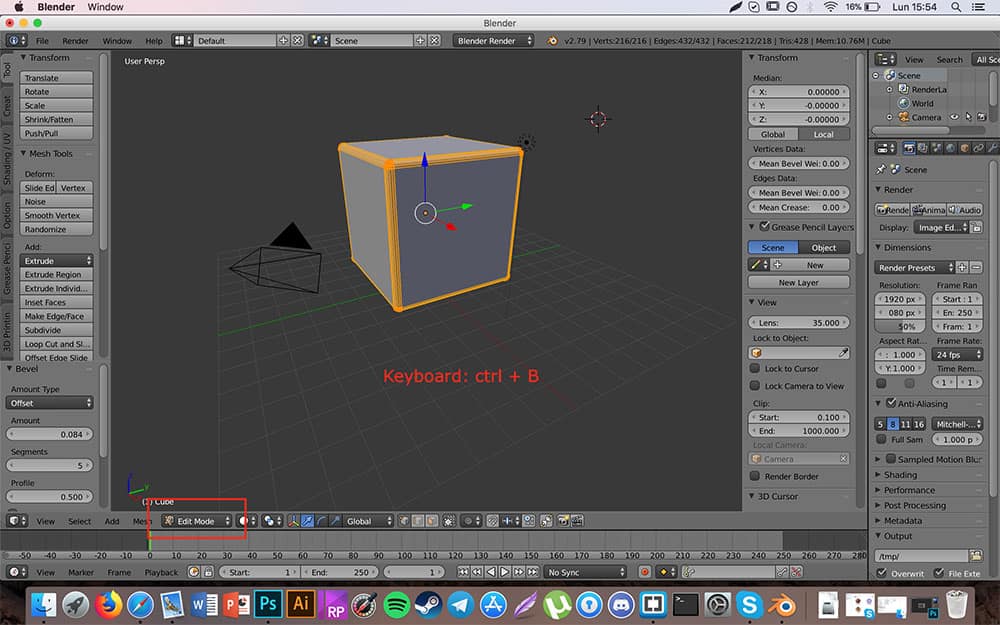
Object Mode to Edit Mode to modify my shape. I selected the cube pressing A key of my keyboard and I proceeded to smooth the edges and corners pressing ctrl + B. I moved the mouse to decide how much smooth my cube and I rotate my mouse wheel to decide how much precise this change was. I confirmed pressing the Left Button of my mouse
Now I created a new figure: a cylinder. For make it real I got back to
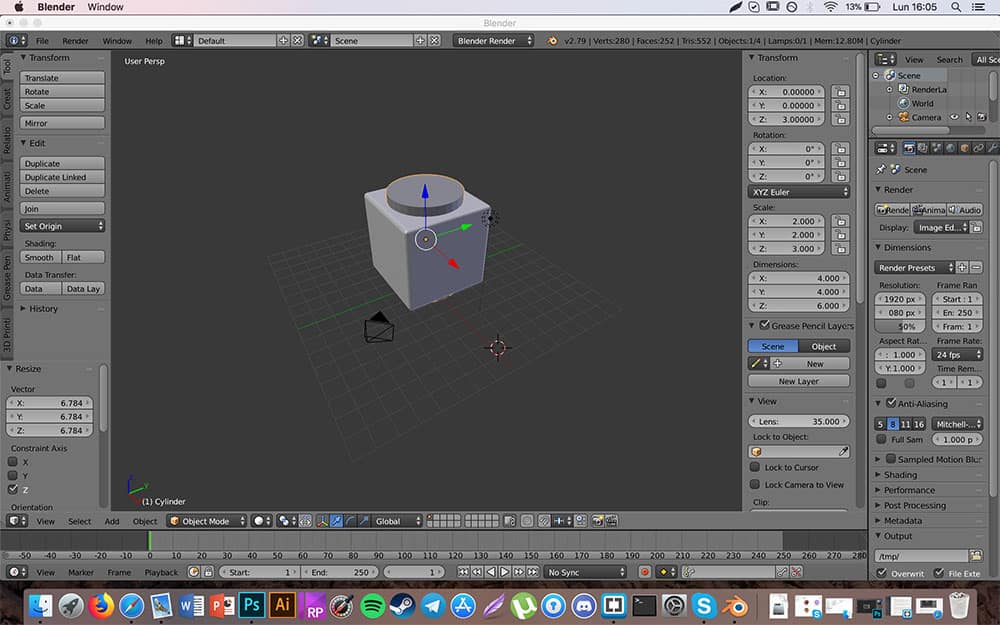
Object Mode, I pressed Shift + A and under Mesh menu I choosed Cylinder. Using the same lateral menu on the first screenshot I modified location and dimension in this way:
Now I merged the cube and the cylinder in a single form. This passage is pretty complicated in Blender so I hope to explain it properly. Also in Object Mode I clicked on the wrench icon in the right side, than
Add Modifier and here Boolean.
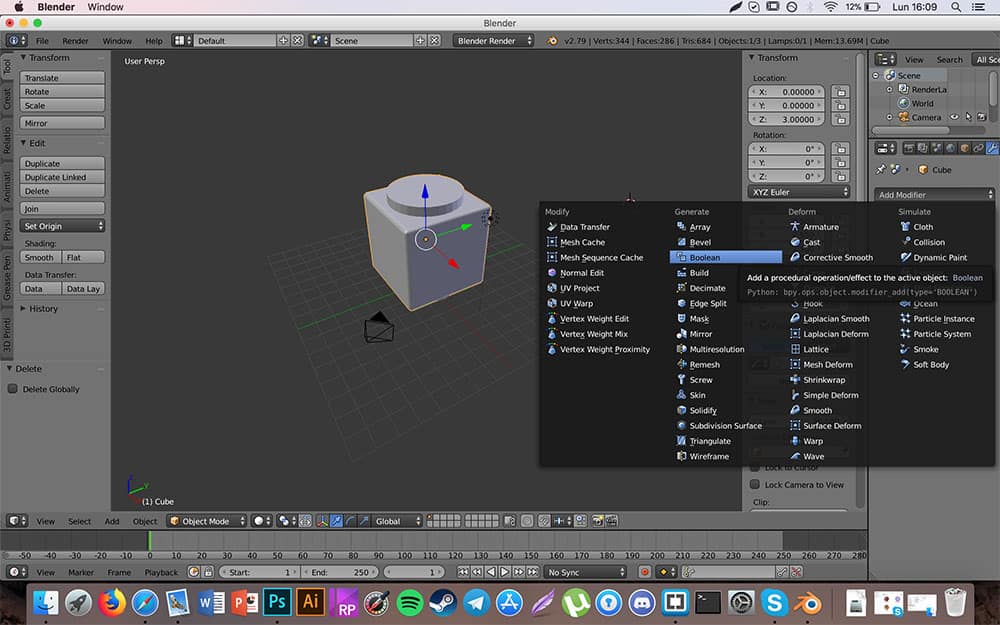
Here I selected
Operation - Union and under Object menu I choosed the Cylinder. Than I pressed on Apply. After that I deleted the first Cylinder selecting it and pressing X on my keyboard. The only thing remained on Blender screen was the new figure composed by the merge of a cube and a cylinder.
Now I created another cylinder using the same procedure, but I modified dimension in order to be smaller than the previous one.
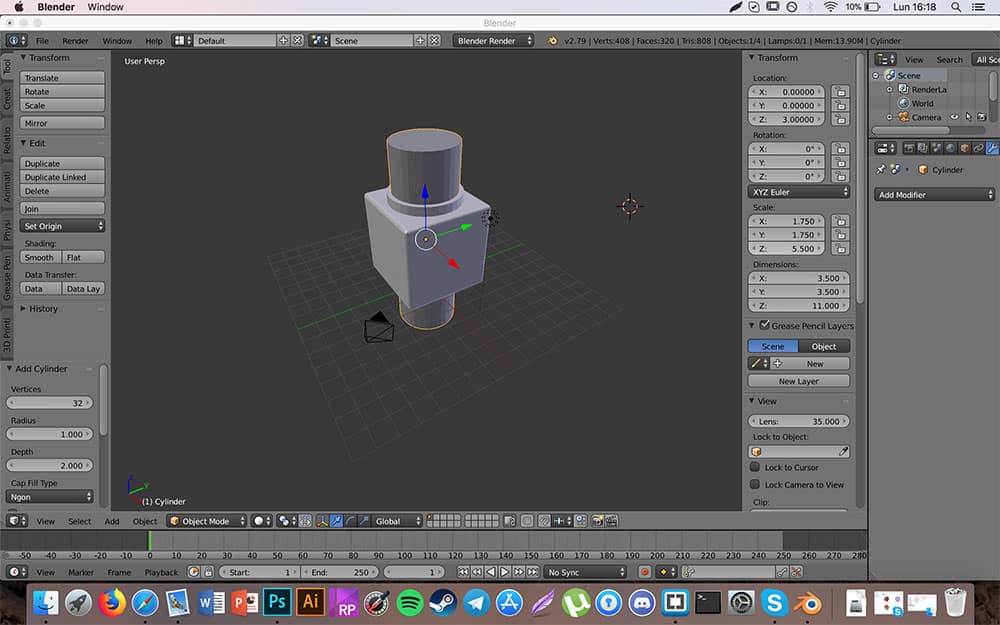
At the end I made a difference between these two figures. To make a difference I follow the same way to make a boolean union but now I choosed
Operation - Difference.
There is the result after deleting the second cylinder.
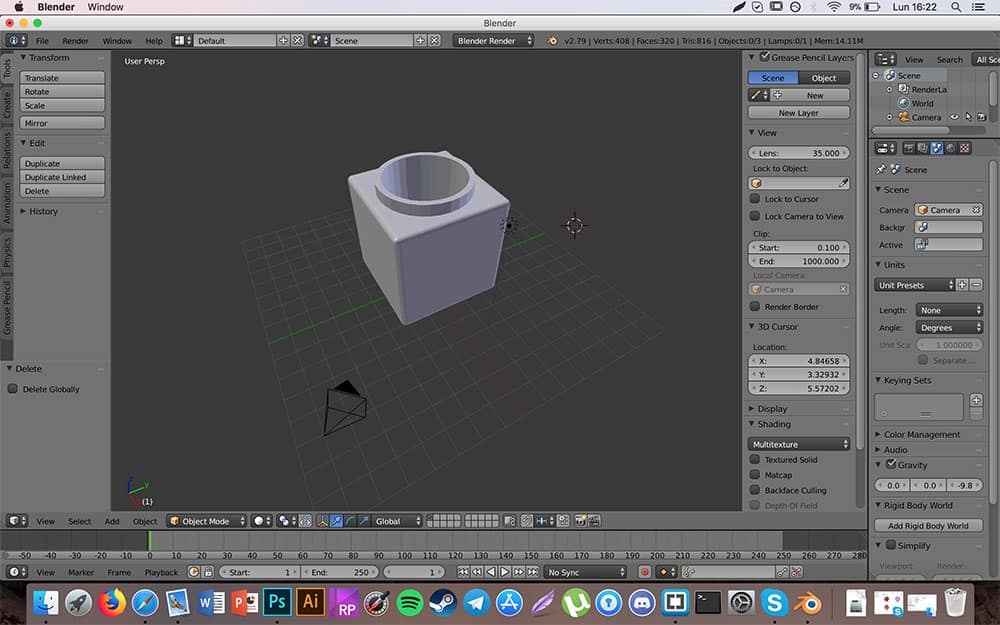
--> Download week2_blender.blend (508 KB)
So at the end I not suggest to use Blender for this kind of work. It's very powerful and there are a lot (trust me, A LOT!) of documentation and it's great, but I think it's more appropriate not for creating printable objects, just to create 3D renderings of mockups. I also found it very complicated in the initial stages due to the large number of keys to remember, which leads to confusion very easily.

FreeCAD
My second choice was FreeCAD. Basically it caught my interest because is open source and apparently functional. But unfortunately I left it after a few hours because of numerous random crashes when I tried to use some functionalities. So unfortunately I can't help you with this software: for this reason I can't suggest to use it or not.

Onshape
Onshape has a totally different approach from Blender. I had to install anything: I only created a new account (using the code sent me for being a Fab Academy student) and I had access to the OneShape's graphic online interface.
I never used Onshape, so I decided to follow some tutorial, starting from the base. The first one I follow is THIS ONE. If you've never used Onshape or a CAD program like me, I suggest you take a look.
So now it's time to show how to create the same object with Onshape.
First of all I selected a plan. In my case I choosed the Right one. Then I pressed the Sketch button. For drawing a quadrangle on the sketch I pressed on Center point rectangle.
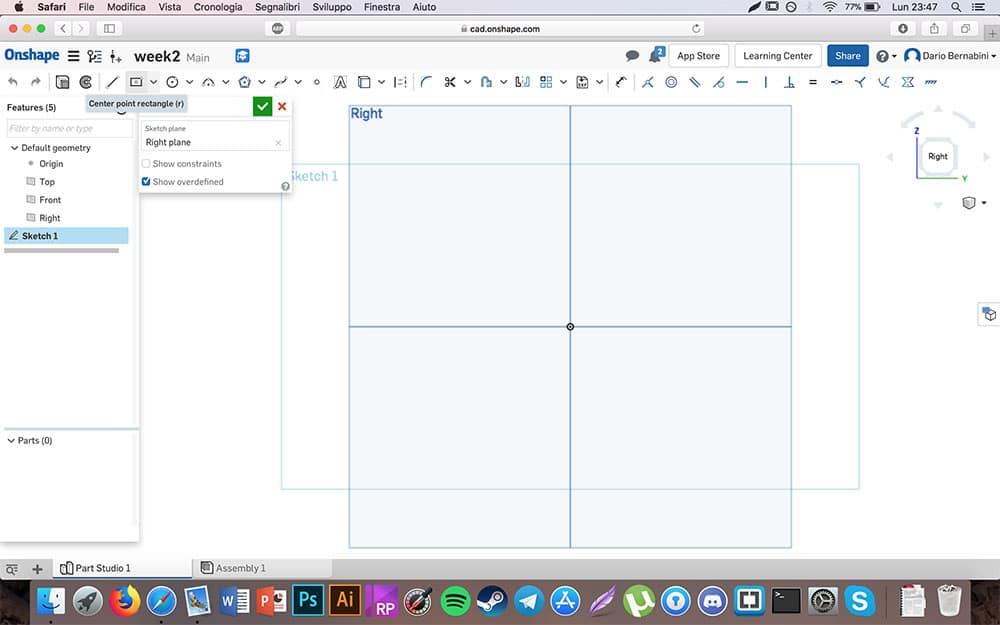
Then I decided the dimension of my rectangle. Basically I used the Dimension button. I selected two sides of my rectangle (right and bottom ones) and I set 3 inch for each to transform the rectangle into a square.
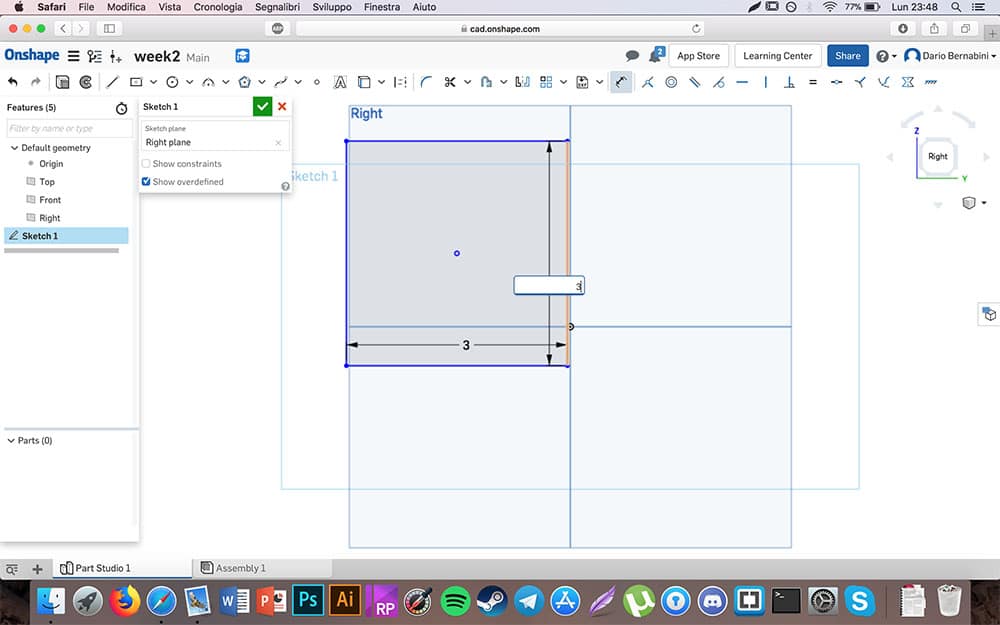
Creating a new sketch always above the frontal plane I drawed a Center point circle centering the origin with the central point of my square.
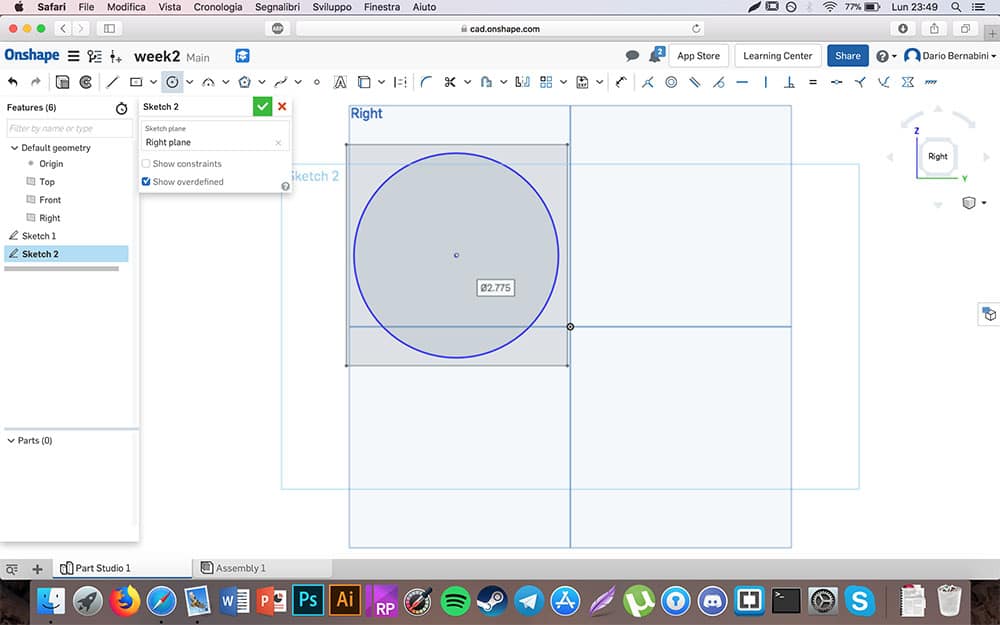
I come back to Sketch 1 making a double click on the homonymous option inside the left menu. After that I extrude the square to make it a cube with 3 inch of depht.
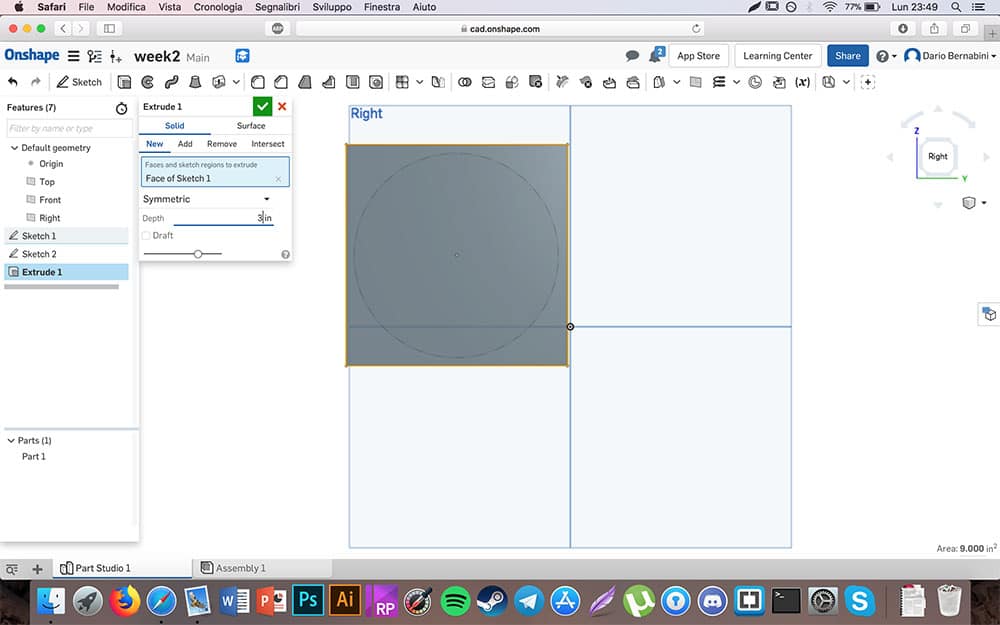
Than I selected the Sketch 2 and I extrude the circle to make it a cylinder, but I made it a little bit taller (4 inch depht). The important think in this stage is click on New inside the pop-up extrude menu. It will make the two solids differentiated from each other.
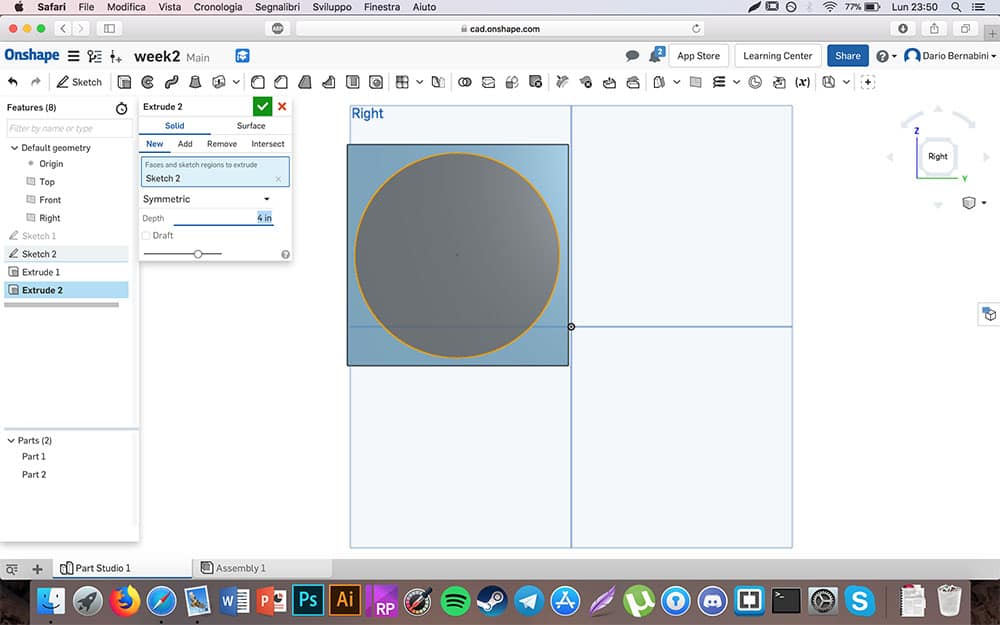
The next step was to merge the cube and the cylinder and create an unique solid. To make this I pressed the Boolean button, than click on Union and select with the left mouse button the cube and the cylinder. To confirm I clicked on the green tick.
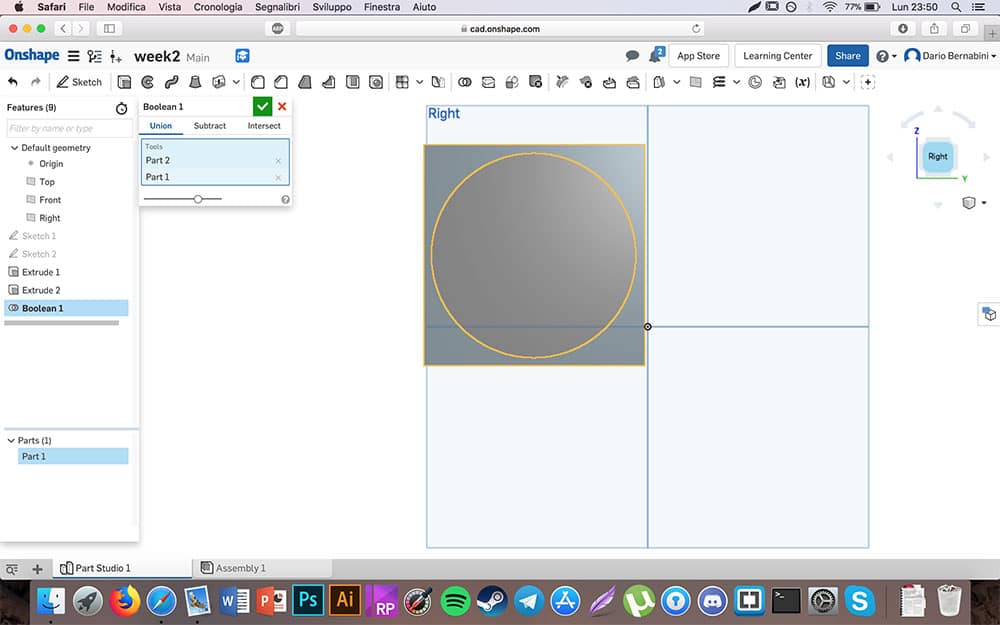
So I created a second circle, smaller than the previous one, and I centered with the first square and I extrude it, remembering to press again the New inside the pop-up extrude menu. I made this second cylinder taller than the previous one (6 inch).
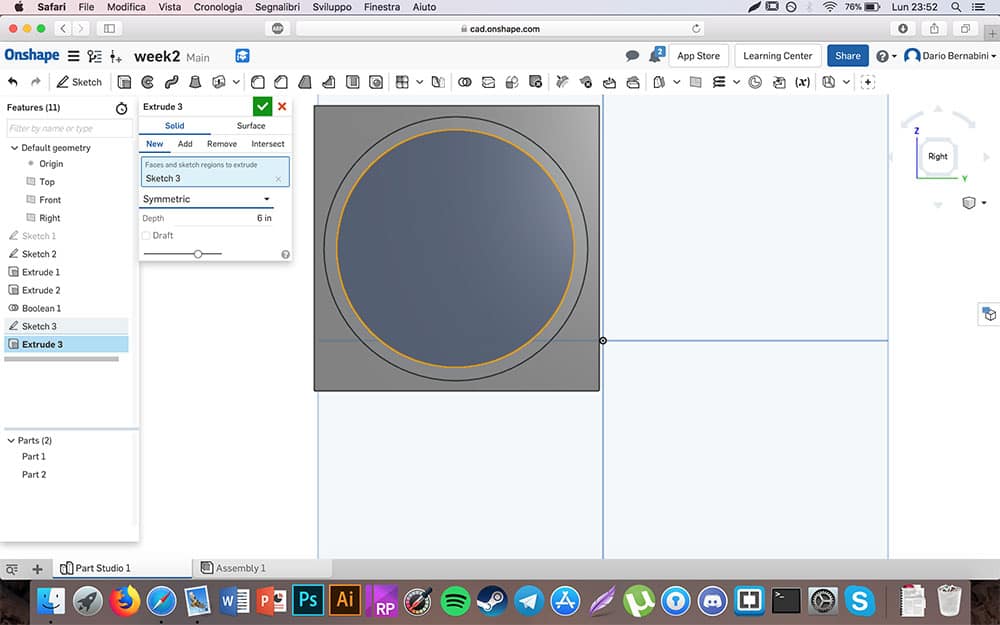
Now I used another boolean function: I press Boolean but this time I choosed Subtract. The order is: Part 2 (the second cylinder) and then Part 1 (the solid made by cube+cylinder) for creating the central hole.
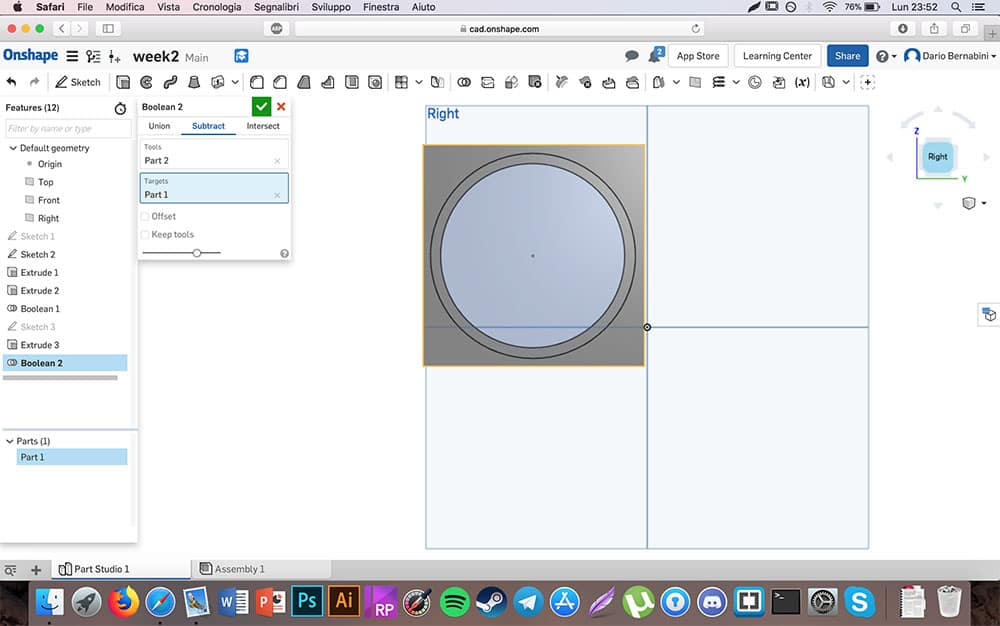
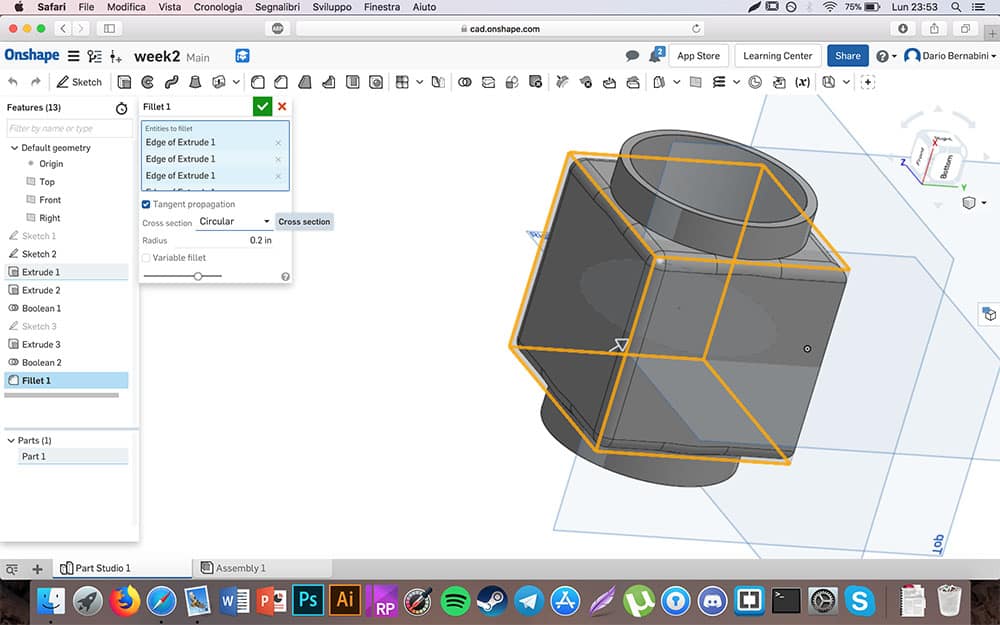
The solid is basically completed. I proceed to made it a little bit smooth selecting every edges of the original cube and I press on the Fillet button, with 0.2 inch of radius. I made the same for the edges of the first cylinder.
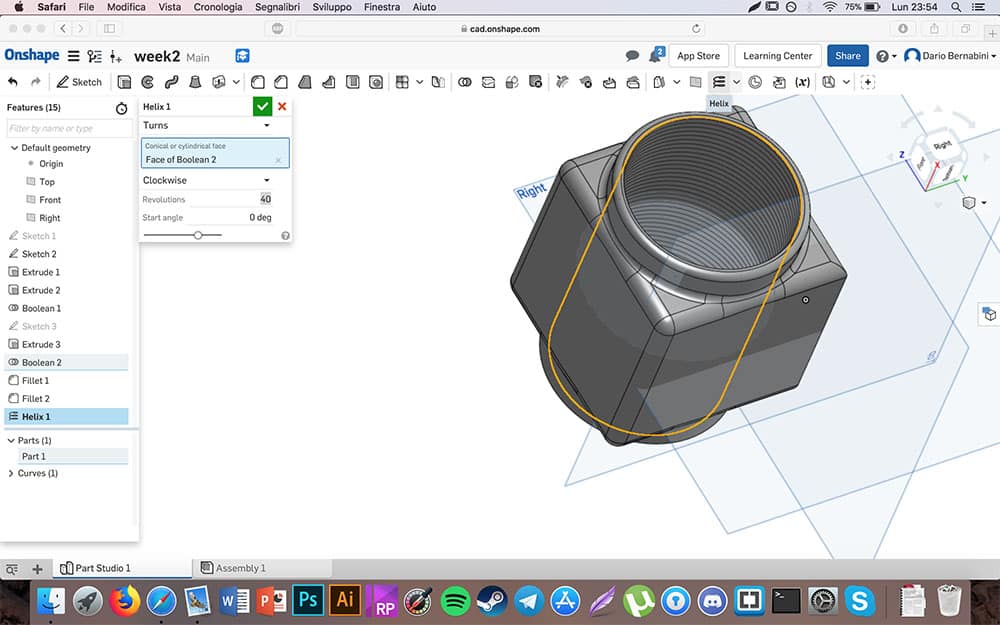
As last step I tried to provide the idea of internal threading by selecting the inner circular face and pressing the Helix button, selecting 40 rotations.
In conclusion I suggest Onshape for 3D graphic, basically for those reasons:

Rhinoceros
The fourth software I decided to try was Rhinoceros. I know that Rhino is different between Windows and Mac operating systems, so your experience with this software could be a little bit different.
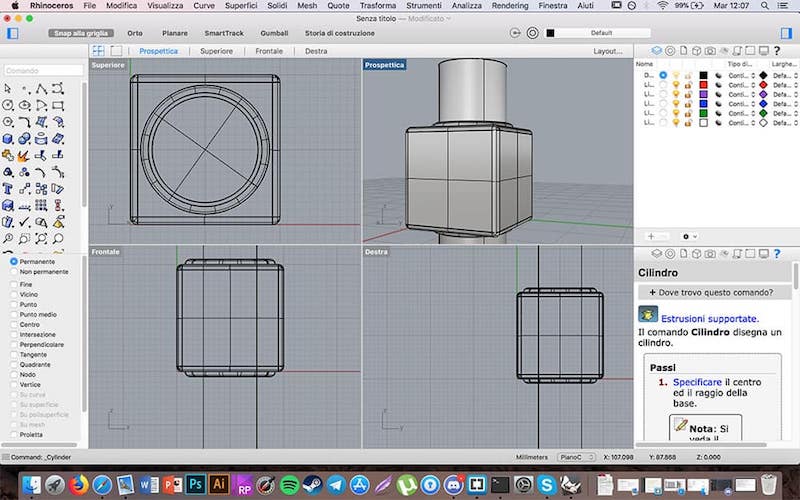
To create my solid figure, first of all I create a cube helping me with the grid proposed by the program
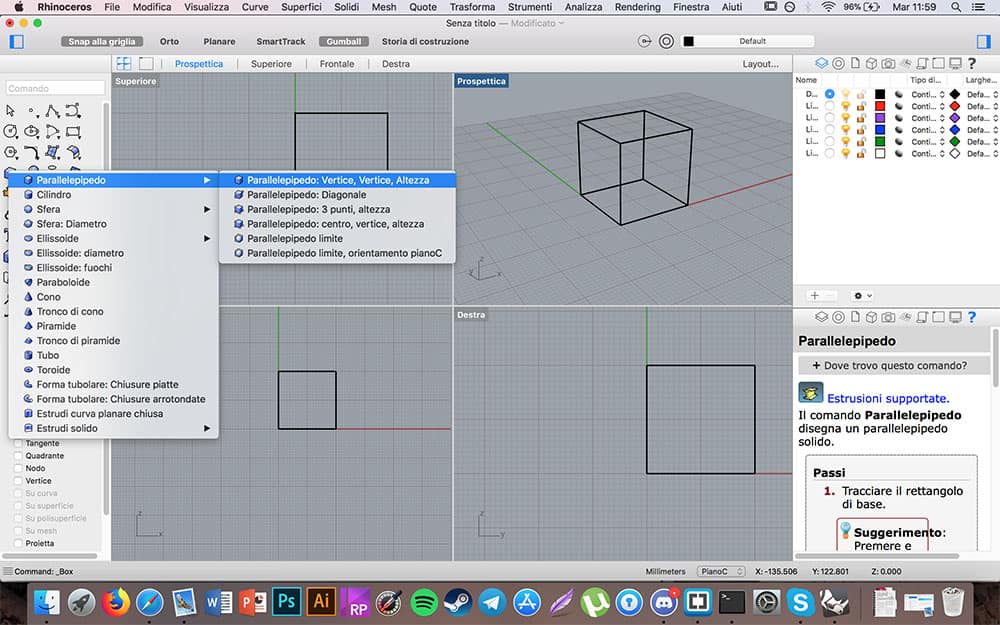
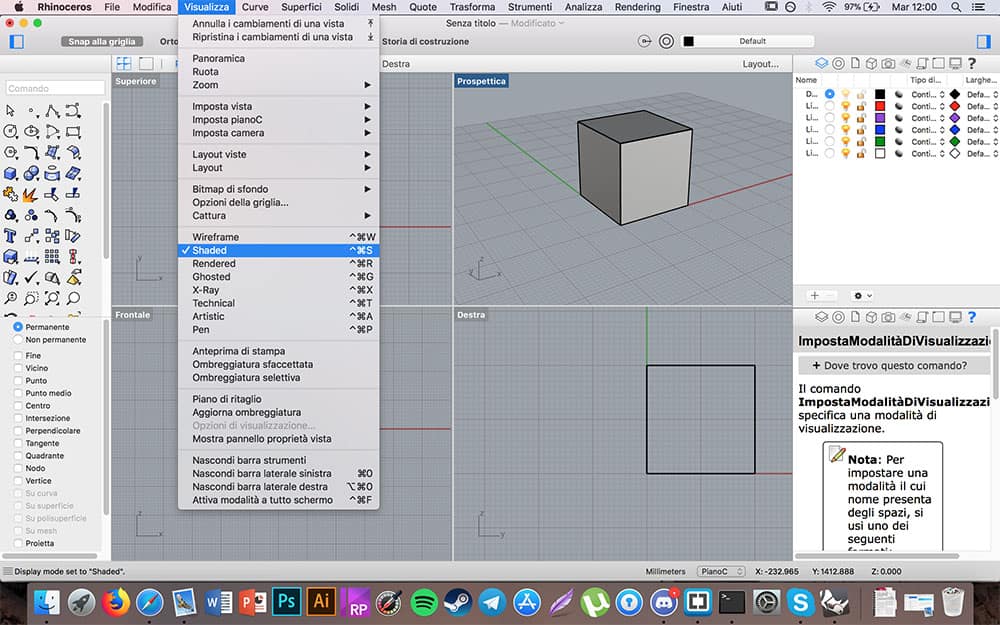
Then I changed in the Prospectic view (simply clicking on it) the visualization way, swapped from Wireframe to Shaded, so I can see the cube as a solid figure and not only a simple wireframe.
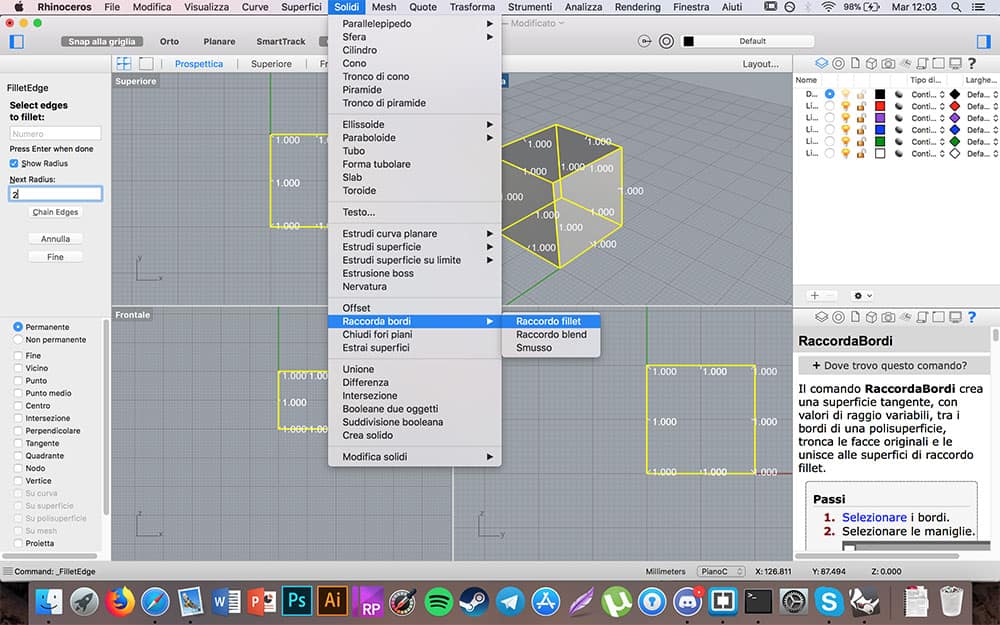
Now I tried to round up every corners and edges. I choose Solidi - Raccorda bordi - Raccordo fillet. It opened me a lateral menu on the left side of my screen where I set Next radius: 2. Then I selected every edge of my cube simply using the left button of my mouse and confirm everything pressing Enter on the keyboard.
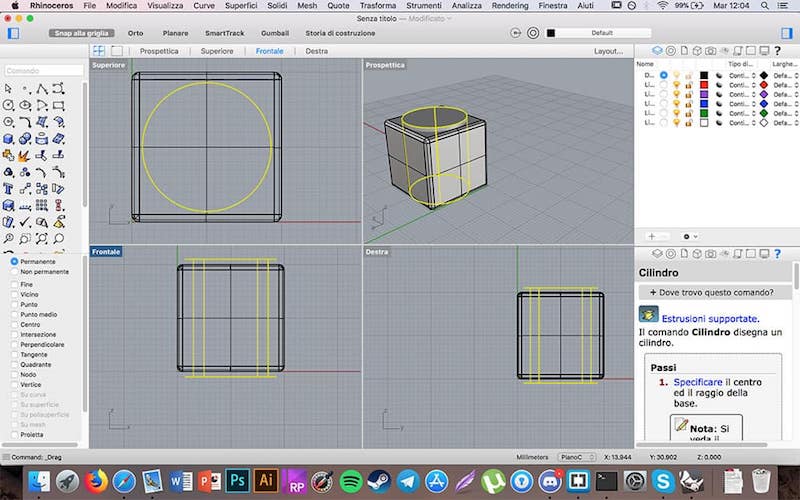
After that I create the first cylinder. I choosed Cylinder under Solids menu and I made it, setting the center of the circumference with the center of the cube's square face.
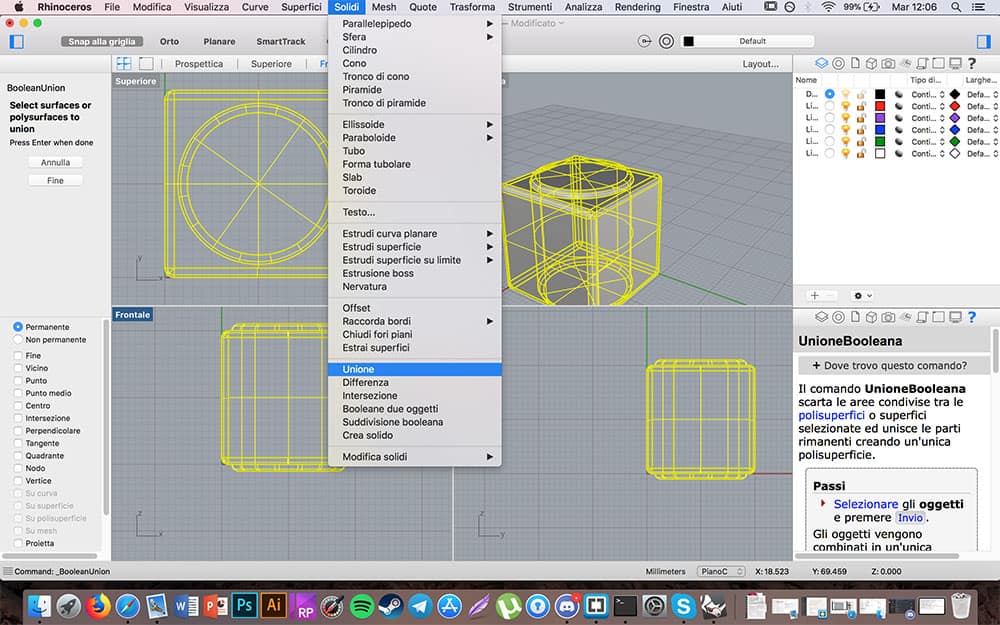
The following step was merge cube and cylinder in a unique solid. I went to Solidi - Unione, I selected each solid with the left mouse button and I pressed Enter to confirm. I rounded up cylinder's edges in the same way I made with the cube, but in this case I preferred to set Next radius: 0.5.
So I created a second cylinder in the same way I created the previous one. For this one I did not pay attention to the depth because this is the element that I used to create the central hole.
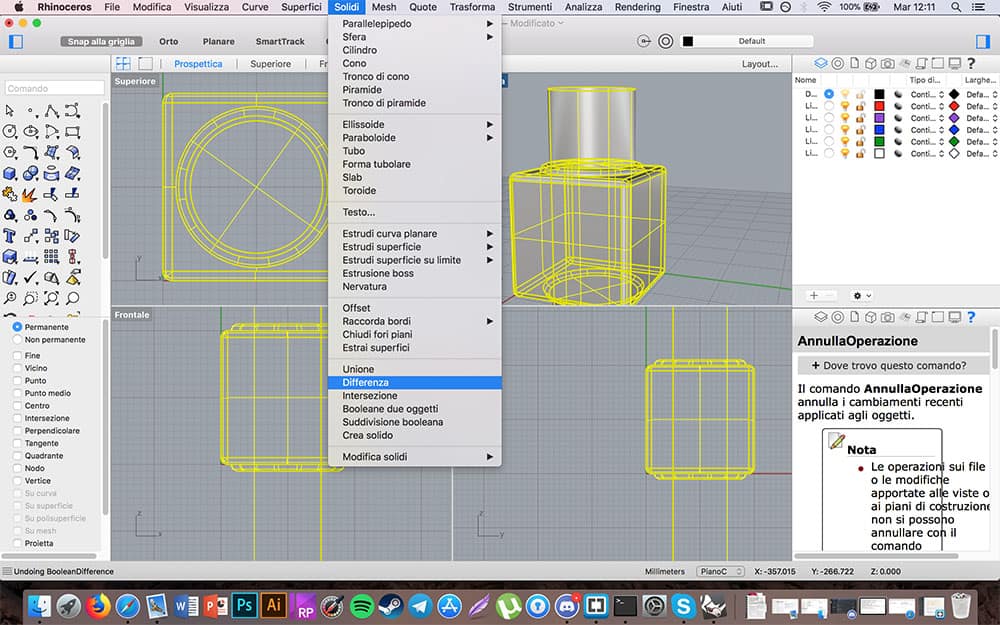
I went to Solidi - Differenza. After I click on the complex solid (cube+first cylinder) and I pressed Enter, than I click on the second cylinder and Enter again. In this way a make a difference, removing the shape of the second cylinder from the solid.
And this is the result.
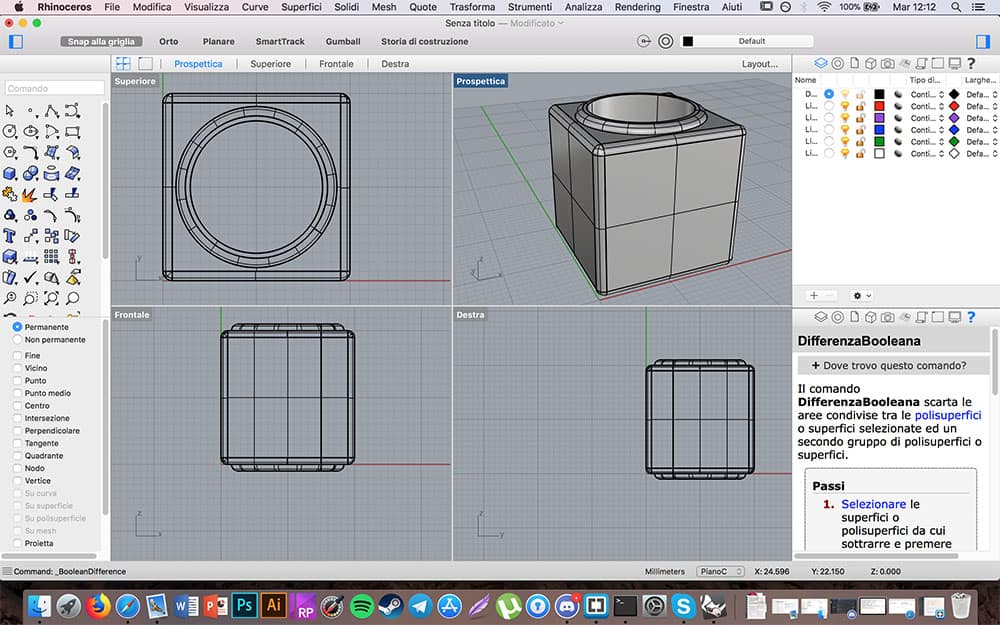
In conclusion I suggest Rhinoceros for 3D graphic, basically for these reasons:

Fusion 360
As fifht software I decided to try Fusion 360, compatible with Windows and MacOS. As usual, I tried to reproduce the same 3D model. So, let's go!
Since the first impact I appreciated the low number of on-screen menus, as well as the possibility to recall them simply by holding down the right mouse button. As first think I created the usual starting cube with Create - Box. In this phase I appreciated that the wireframe was magnetically adapted to the grid of the various plans and that measurements could be changed immediately.
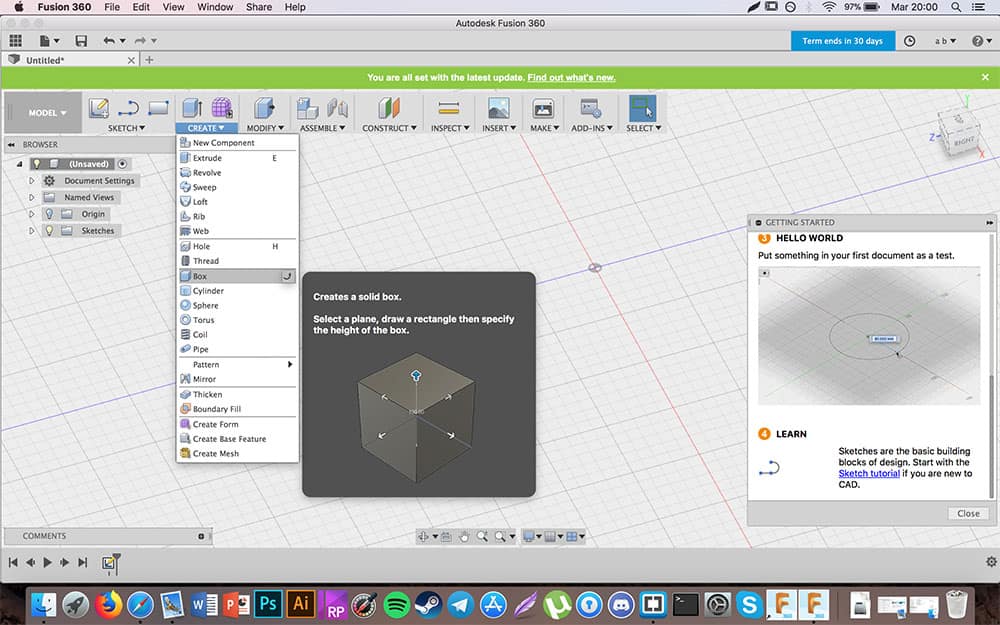
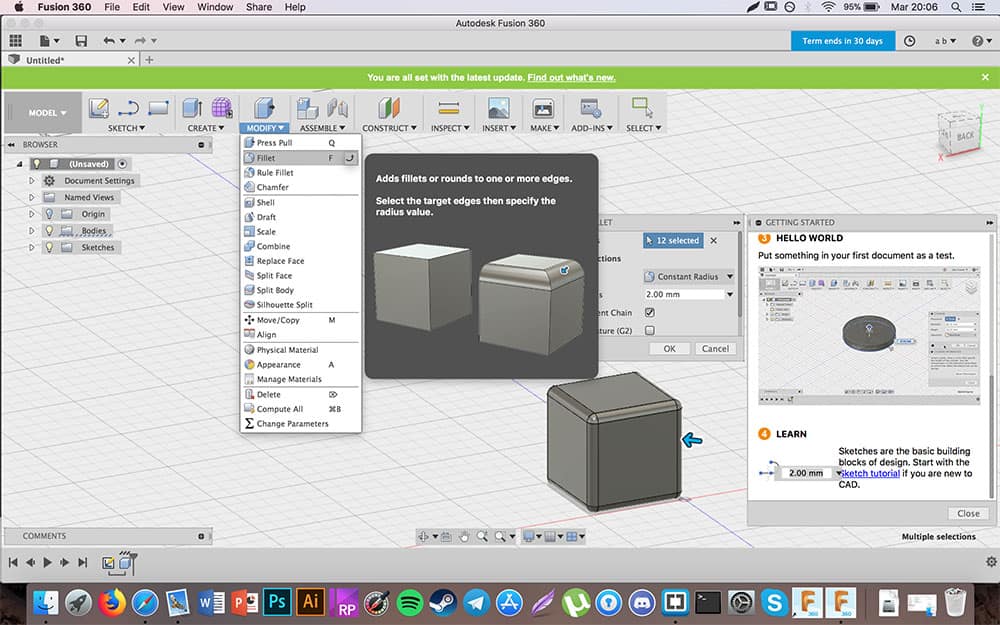
Than I rounded up every edges of my cube. I choosed Modify - Fillet and then I selected the edges with the left mouse button. To rotate the figure you can use Shift + press the mouse wheel. In this case the radius value was 2 mm.
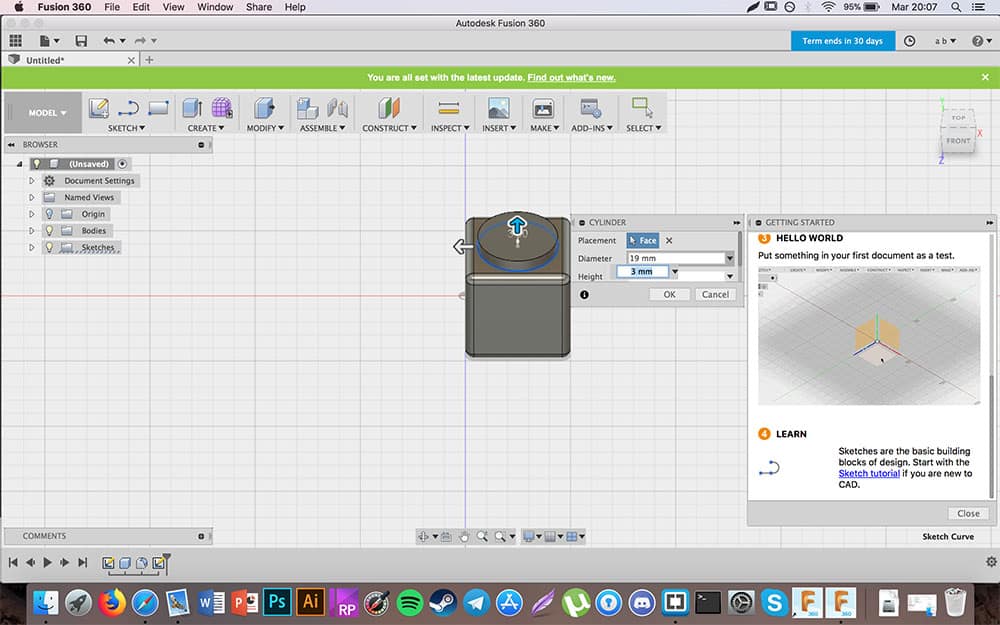
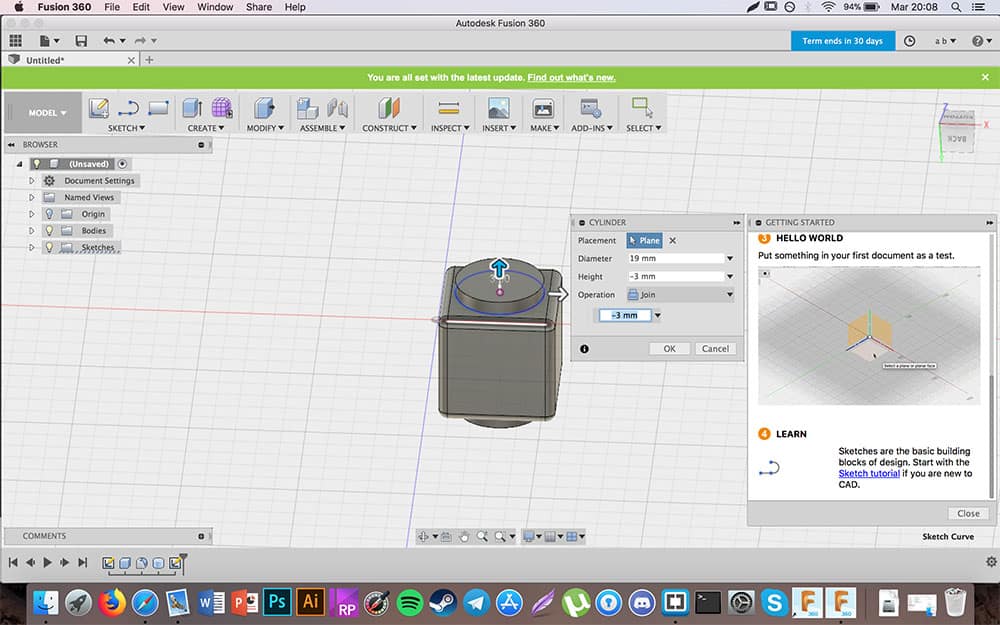
So I created the central cylinder. Unlike other software, here I found easier to make this creating two different little cylinders (one for the top and one for the bottom plan) with 19 mm diameter and 3 mm height for the top one and -3 mm height for the bottom one. Normally the Operation - Join is proposed as default option. So Fusion 360 can merge every new solid figure automatically. I rounded up cylinders' edges as I made before with the cube.
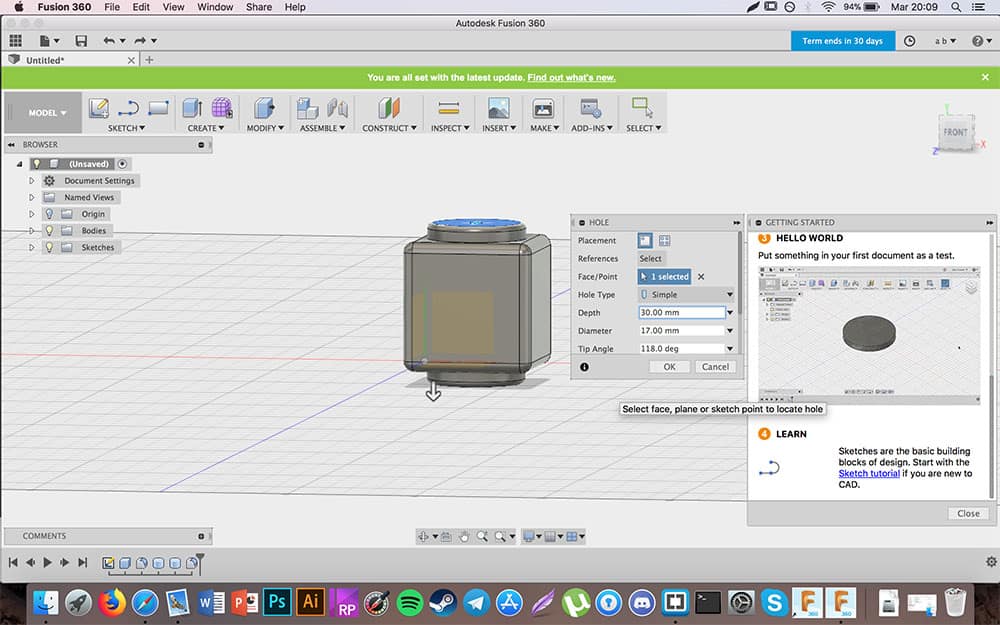
Now I created the central hole. For making this operation I have two option: creating a new cylinder and make but set Operation - Cut or, as I did, making a hole. I choosed Create - Hole, I centered the circumference with the cylinder's one and I inserted these parameters:
And in the end here's the result.
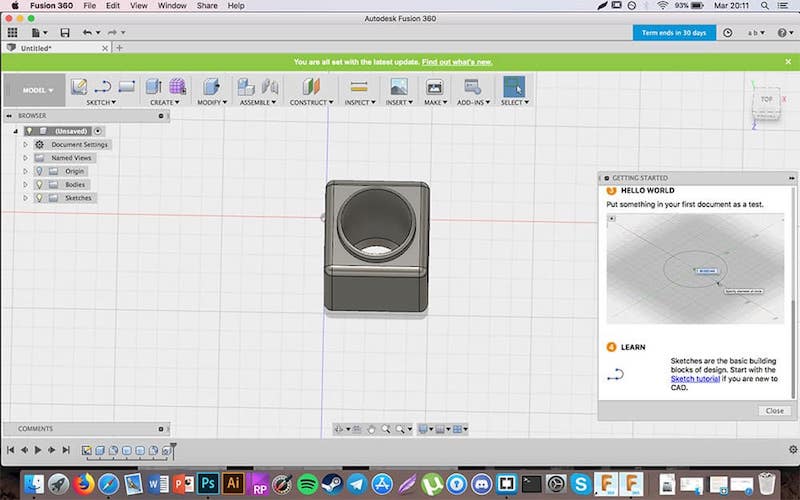
After using this fifth software, perhaps for having already tried others, I found it easier to use. In facts I created the solid at the same time I used to make it on Rhinoceros, but in fewer steps. So I suggest to try with Fusion 360 for 3D modelliing during Fab Academy.

SolidWorks
SolidWorks is the sixth and last software for 3D graphic that I tried. It seems very complete and professional but unfortunately is compatible only with Windows OS systems. Let's check how I created the same solid with SolidWorks.
First of all I created a new sketch, the starting point to create every figures or solid. I went to Sketch - Sketch and I choose the top plan for creating my sketch. a little further to the right I selected Central Rectangle and I create a new rectangle on my sketch.
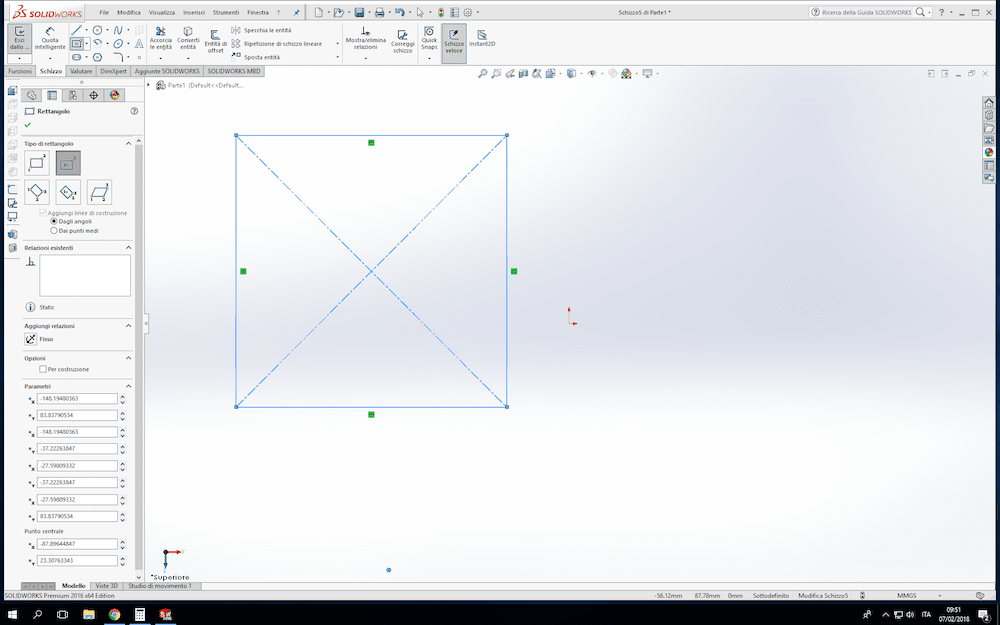
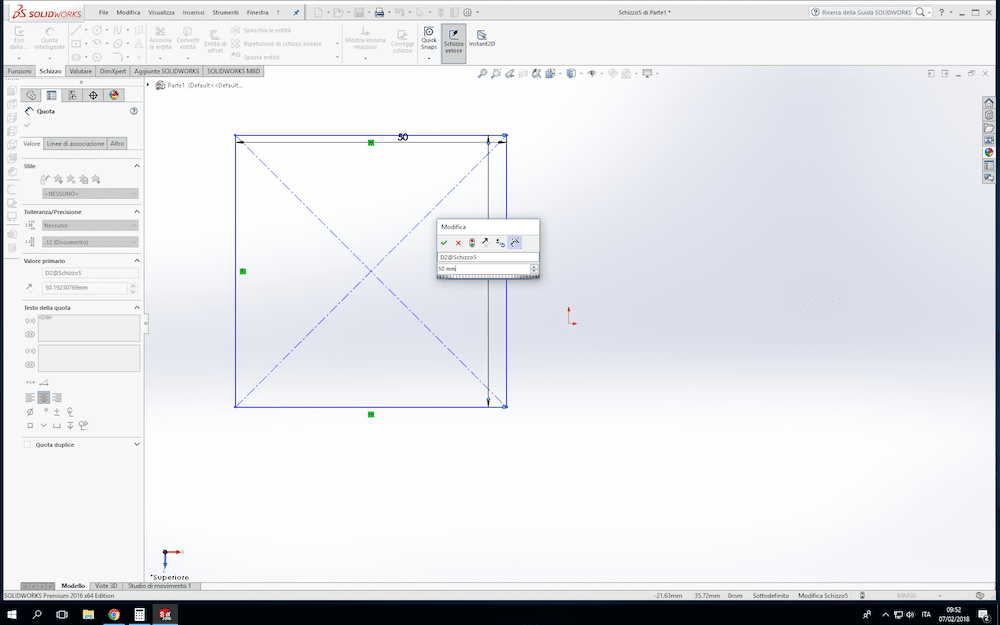
Now I choosed the dimension of every side of mt rectangle. Even a little further to the right of Sketch button I found Quota intelligente (I think in English is Smart Dimension or something similar). Selecting 2 sides of my rectangle and choosing 50 mm the dimension, I transformed the rectangle in a sqare.
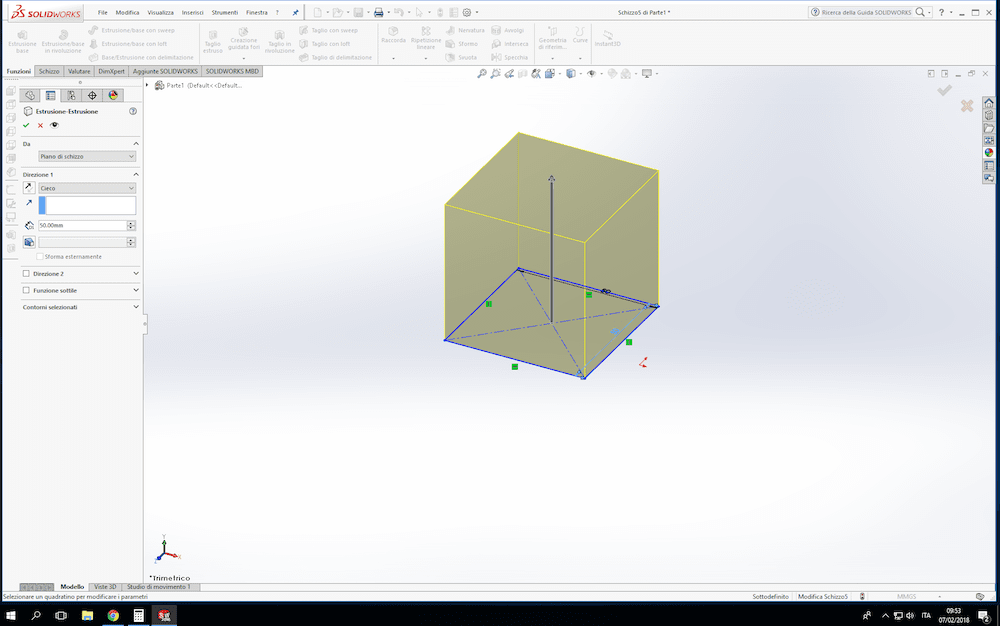
Then I transformed my square in a cube making an extrusion. I went to Funzioni tab (in English could be Features) than Estrusione base (Extruded Boss/Base, the leftmost button), obviusly putting 50mm as depth.
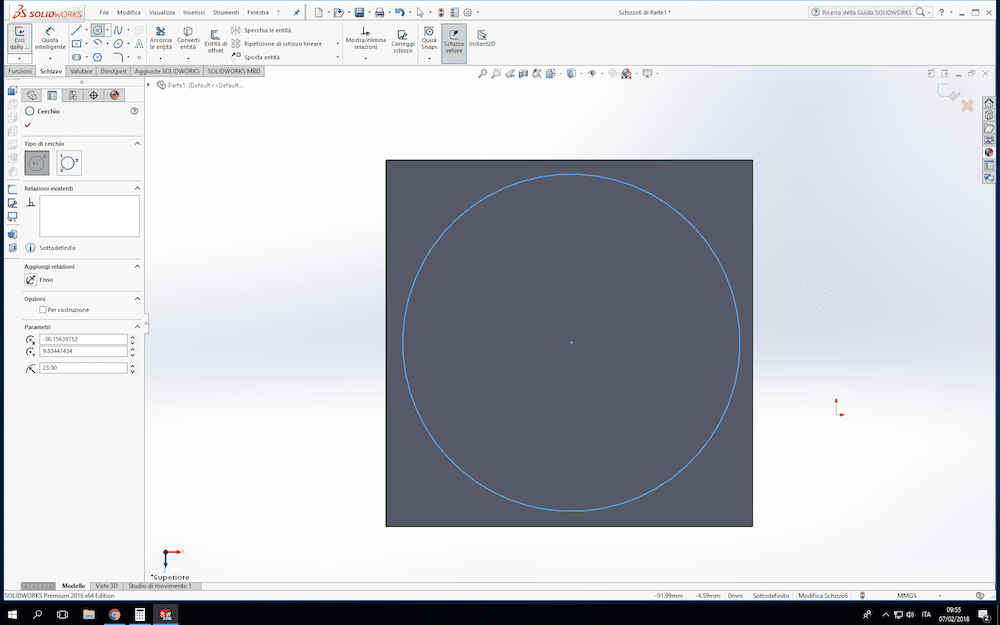
With the same way (going in Sketch Tab than Sketch button) I created a circle on my sqare's top face.
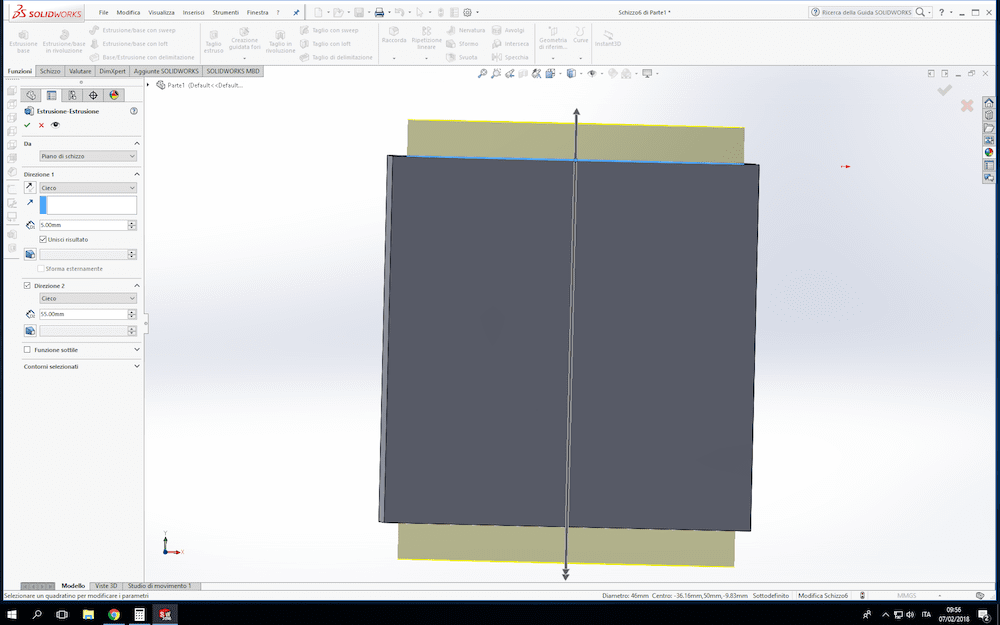
So I extruded it making a cylinder. I made 2 cylinders at the same time. In the left lateral menus I set 5 mm as depht on Direction 1, than I putted a tick on Direction 2 but here I inserted 60 mm as depth (5 mm 1st cylinder + 50 mm cube). I obtained this solid:
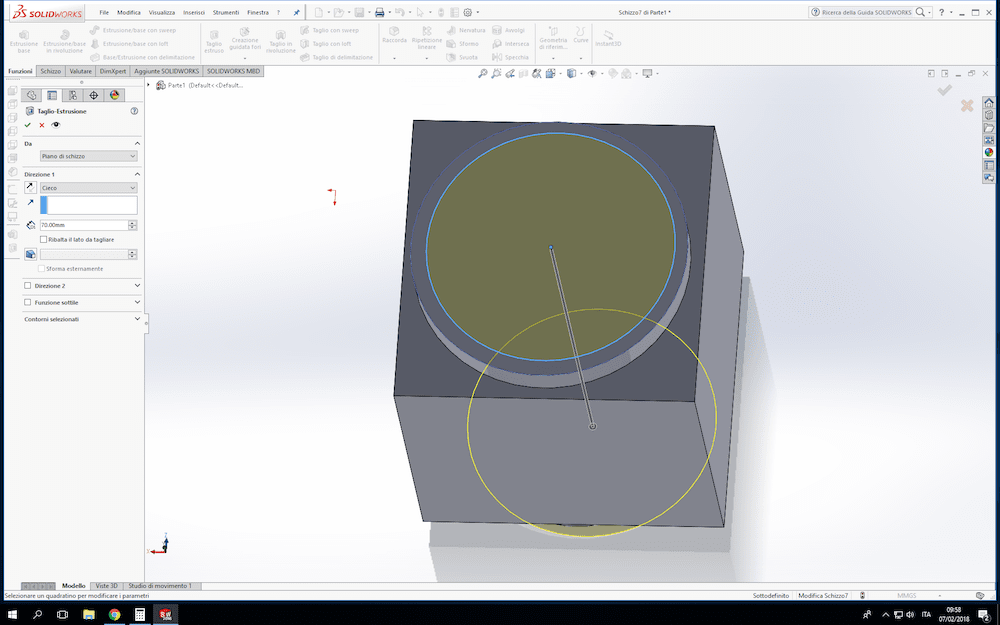
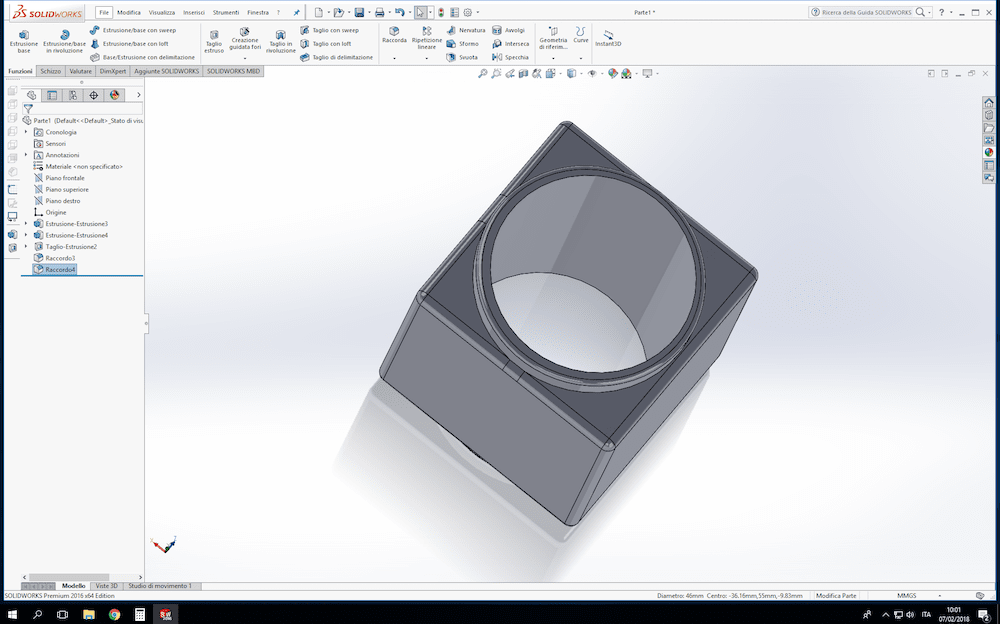
Now it was the time for the central hole. I created a new smaller circumference up to the previous one, I clicked on Features tab but here I choose Taglio estruso (in English could be Extruded cut). In this case I set 70 mm as depth because here this value is not so important: the only thing is that it must be deeper than the starting solid.
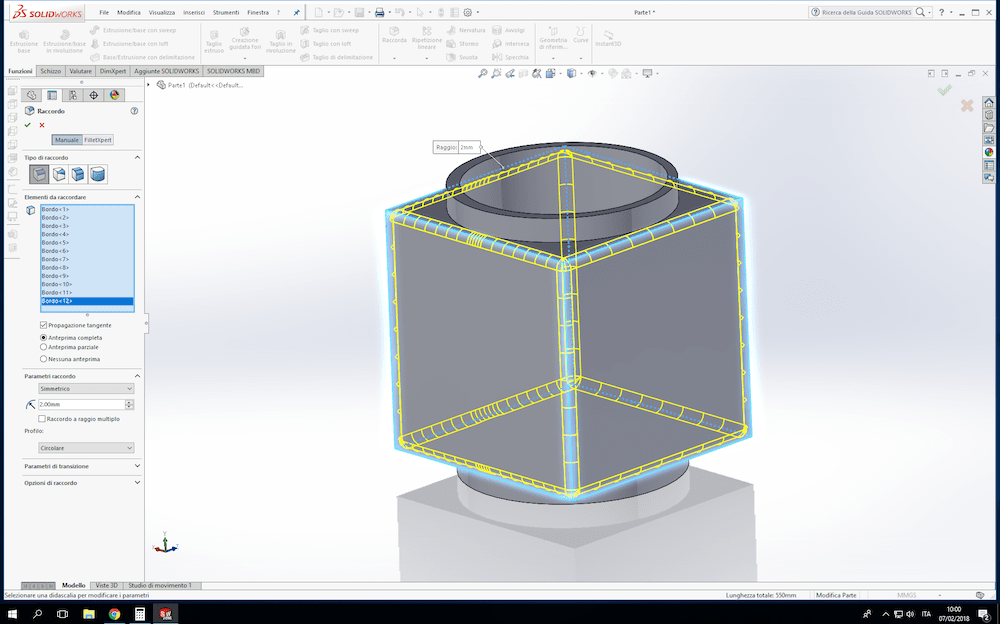
As last step I rounded up every edges. Also in Features tab I choosed Fillet. I selected every square's edges and I set 2 mm as radius and I confirmed, then I selected cylinders' top edges but for them I set 1 mm as radius.
And here the final result:
CONCLUSIONS
In my research about the best 3D software for Fab Academy I tried six softwares:
I've only seen the surface of those incredible softwares, but in this my little experience I can suggest which may be the most suitable software. In my opinion, I've found SolidWorks and Rhinoceros the best choices for functionality and use practicality for creatings projects, even complex ones. Fusion 360 is also very effective software with a simple graphic interface and I think I will use expecially for parametric design. Onshape is also easy to use but I found it perhaps not suitable for complex projects. Working online, it's theoretically accessible from every machine. Unfortunately it needs an internet connection, in the absence of which it is not possible to work on the projects. Blender is a very complete software, but not so indicated for the creation of solid figures with which to be able to interact in the real world in the future. It is also very difficult to learn initially: I need to have the list of keys to press always close to me! As mentioned, on FreeCAD I can't express myself because I could not really use it.
So, at the end, my advice to you is to try some softwares and select your favourite one. My favourite ones are SolidWorks and Rhinoceros, softwares I think I will use starting from now for Fab Academy classes.