. Fab Academy 2018 - Saba Ghole

Exercise 07: Computer-Controlled Machining


Computer-Controlled Machining


My Process (Machining my Interactive Shelf)

:: March 12, 2018 ::

Precedents & Initial Designs

Our assignment this week was two part: 1) A group assignment to test runout, alignment, speeds, feeds, and toolpaths for our machine, and 2) an individual assignment to make something big using a CNC machine.

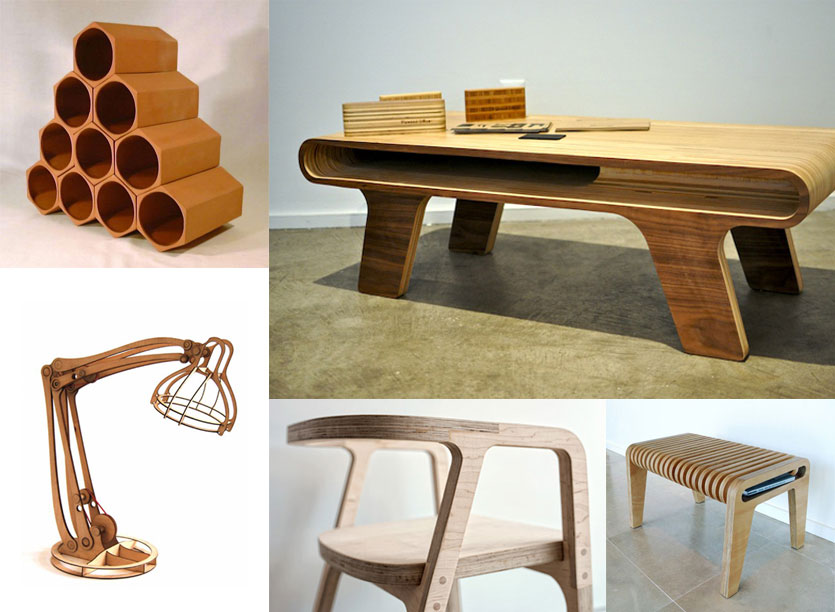
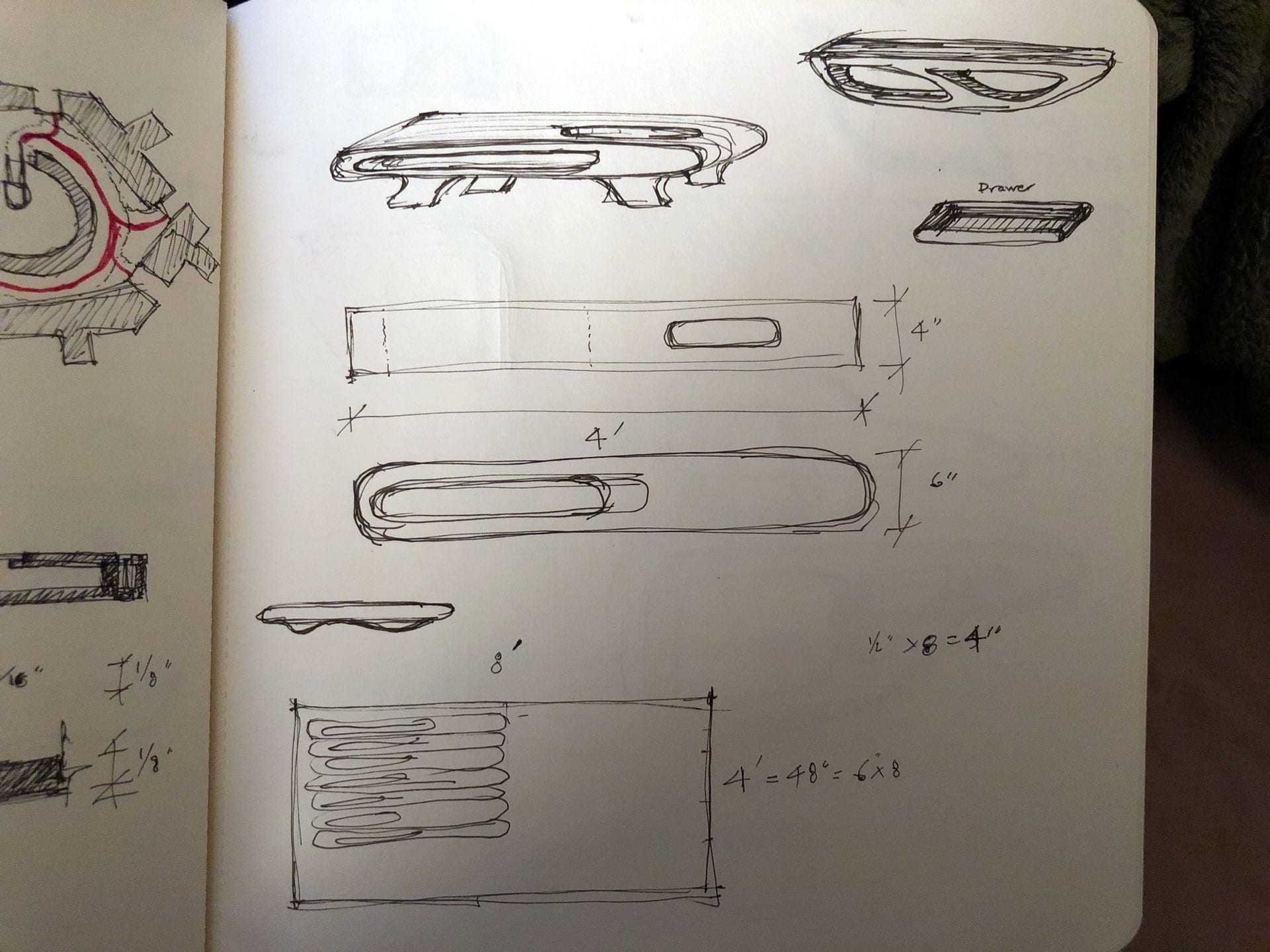
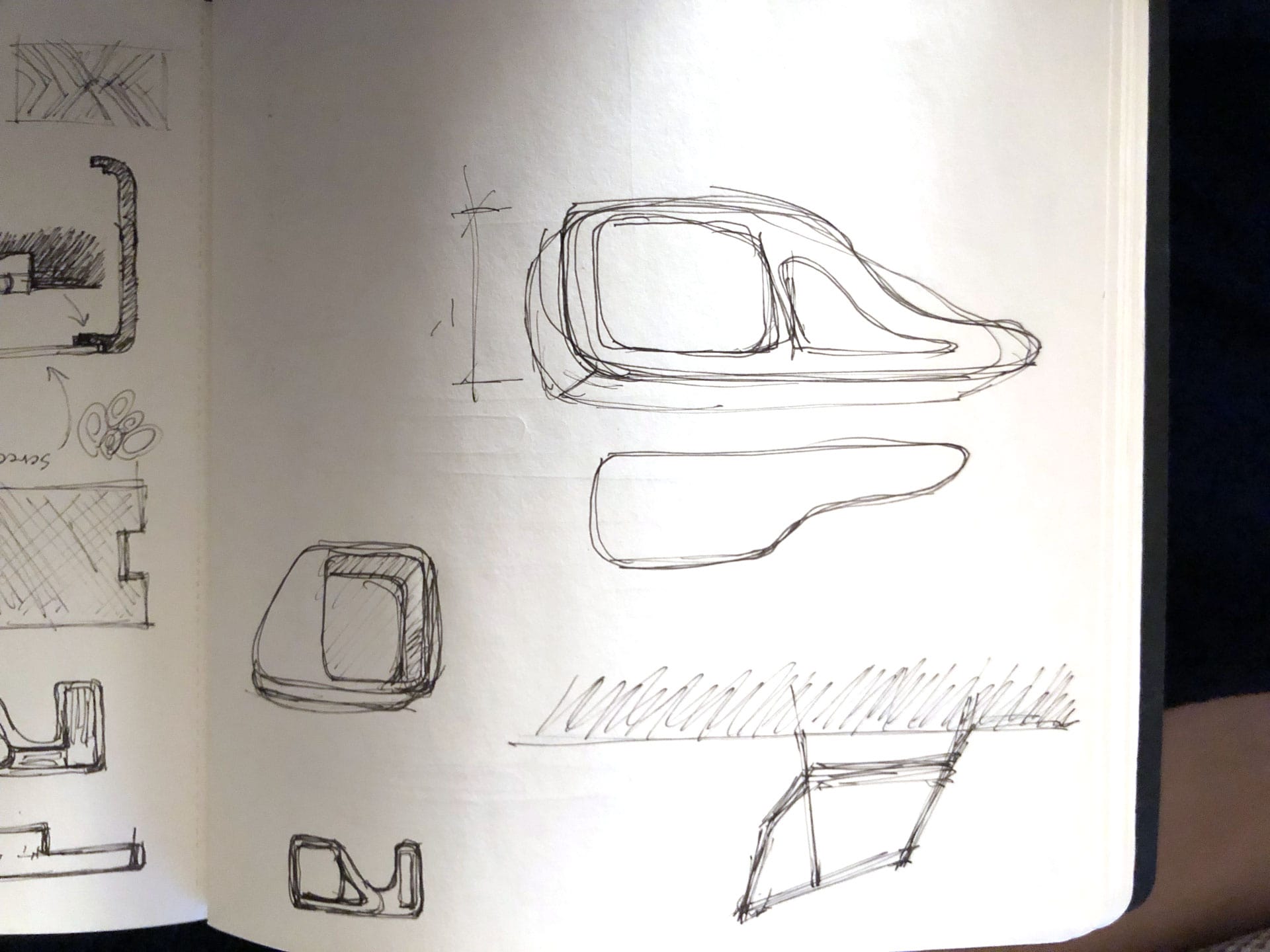
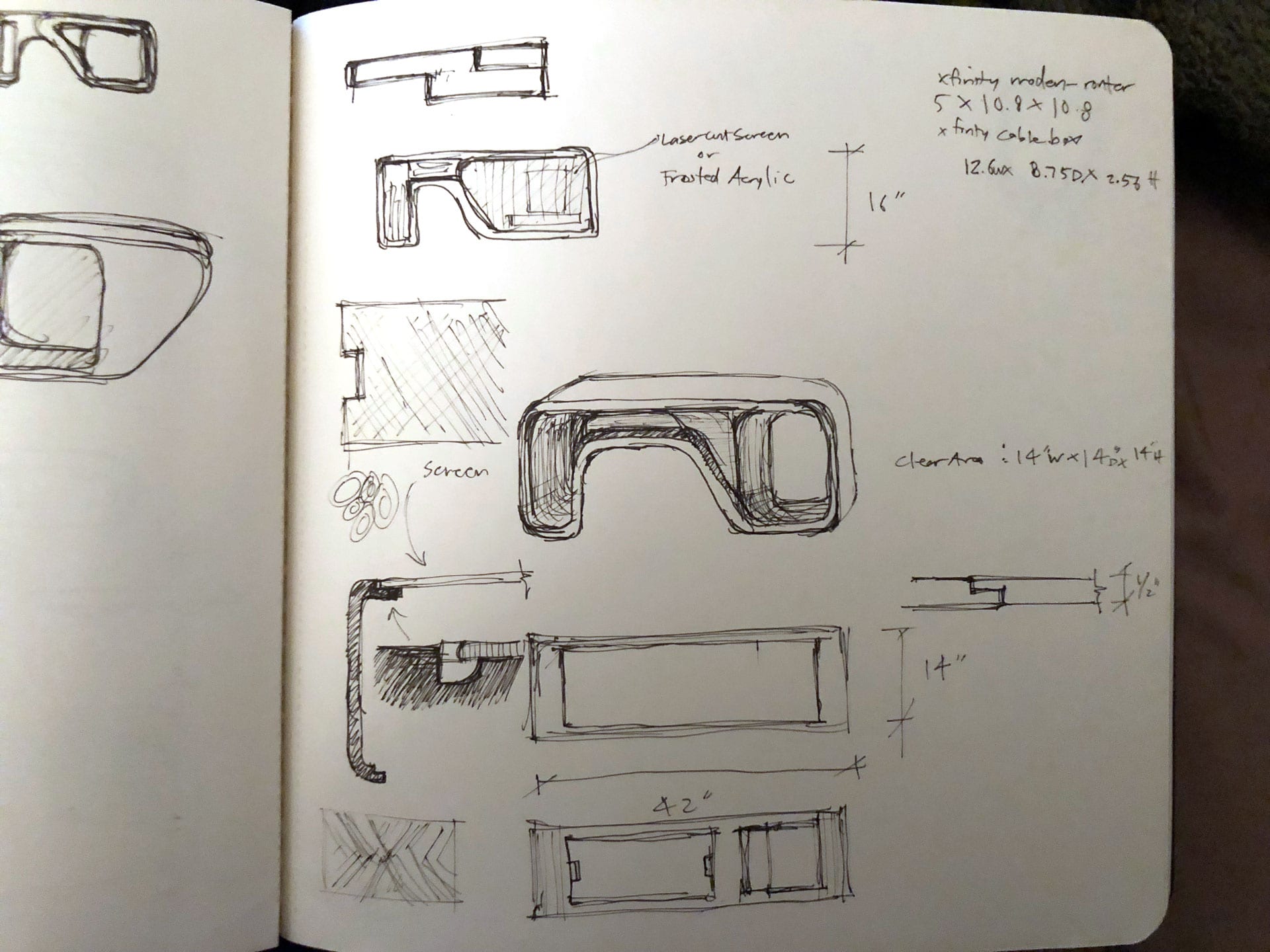
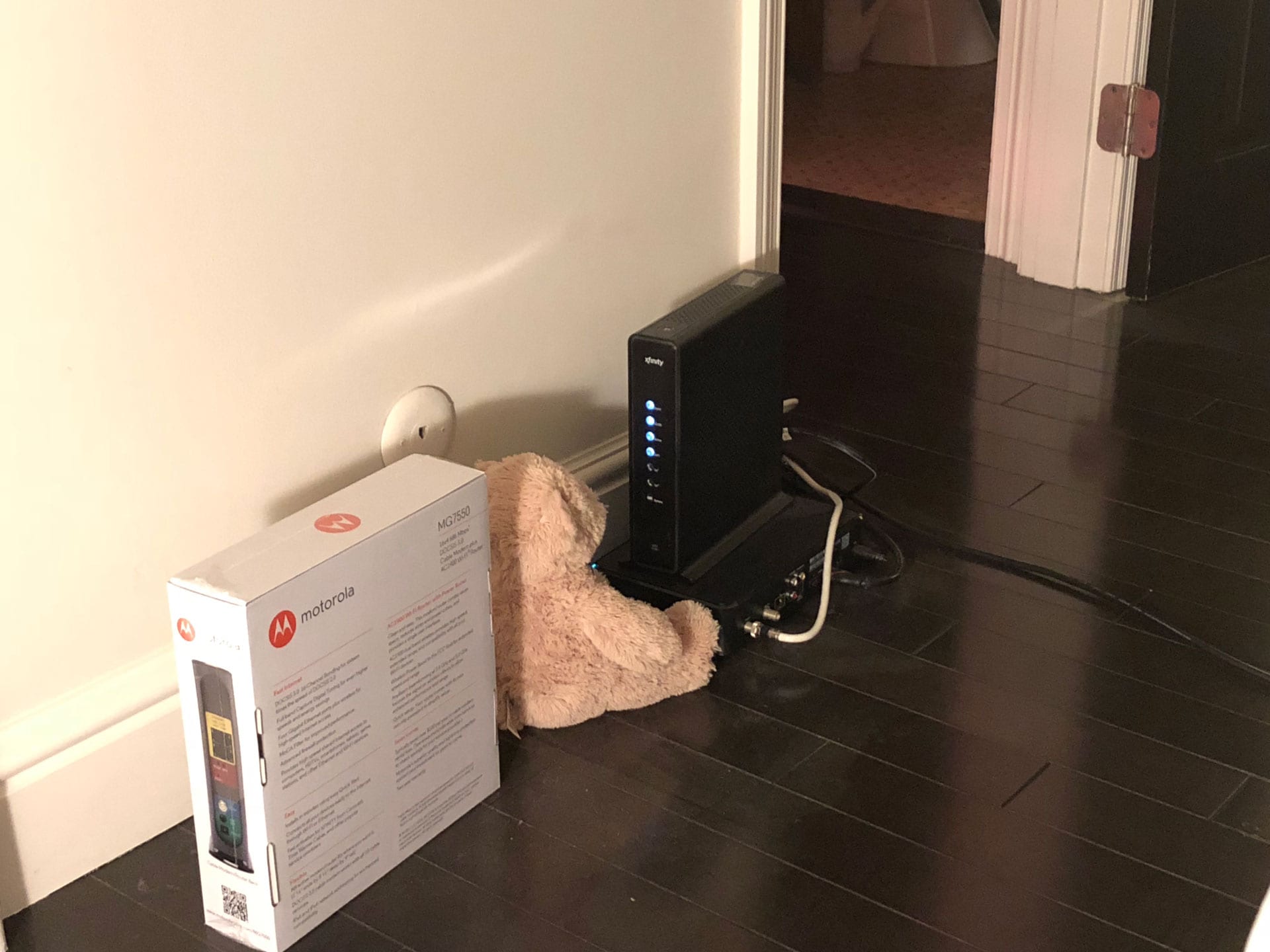
I was excited about this week’s assignment, as I have been wanting to build something large scale for quite some time. I decided that my project should be something useful that I can use at home. One of the things I have been looking for is a housing/casing/shelf for my router-modem and cable box. Currently the two boxes sit on the floor in a very untidy manner and the light from the modem can be distracting at night when I am sleeping. I decided to design a compact casing-shelf for the two units based on a postmodern aesthetic which could also transform into an interactive shelf via a transformable face panel for kids and adults.

My modem-router unit sitting on the floor (very ugly!) Inspiration precedents for my shelf Sketching different designs for my interactive shelf Sketching different designs for my interactive shelf Sketching different designs for my interactive shelf

3D Design

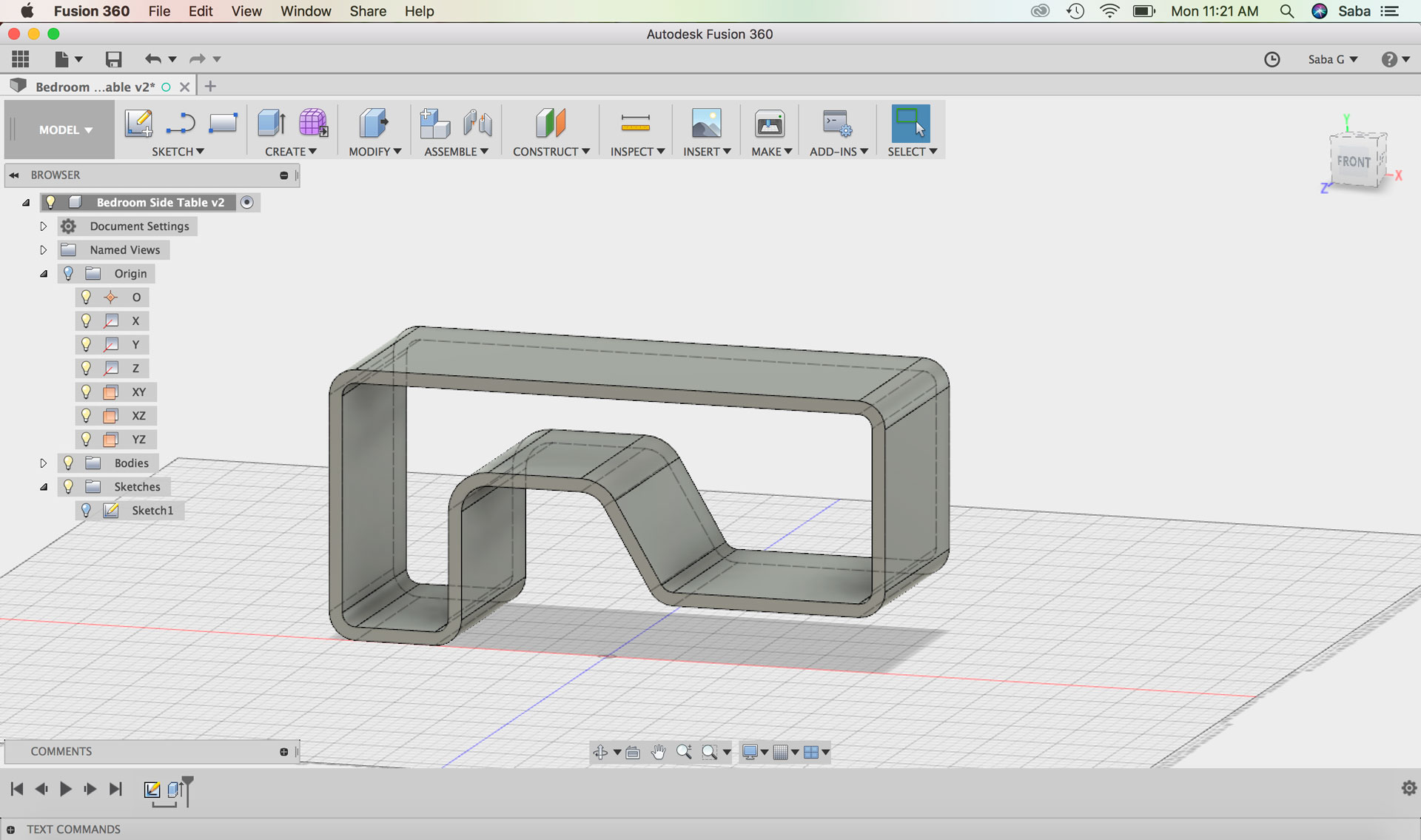
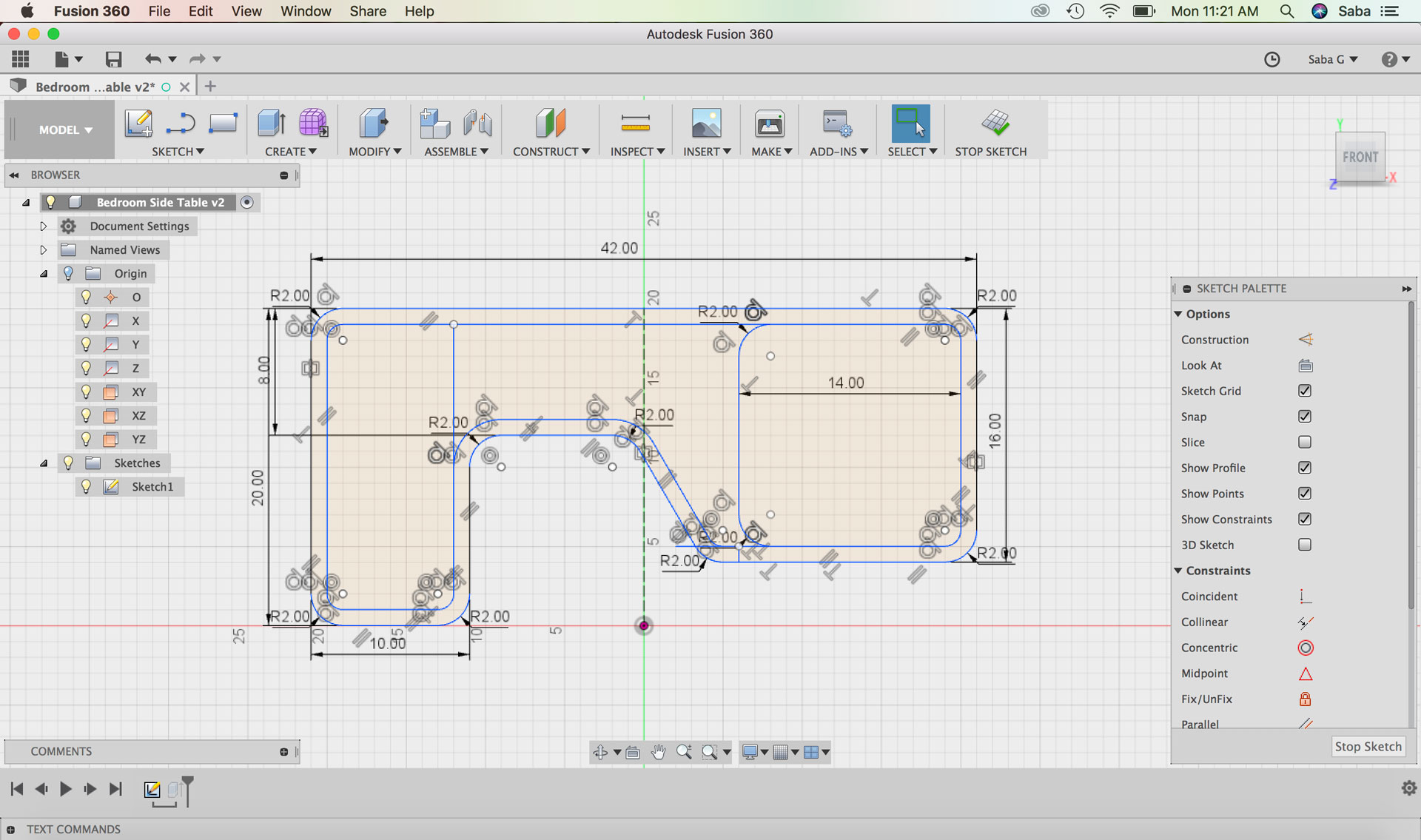
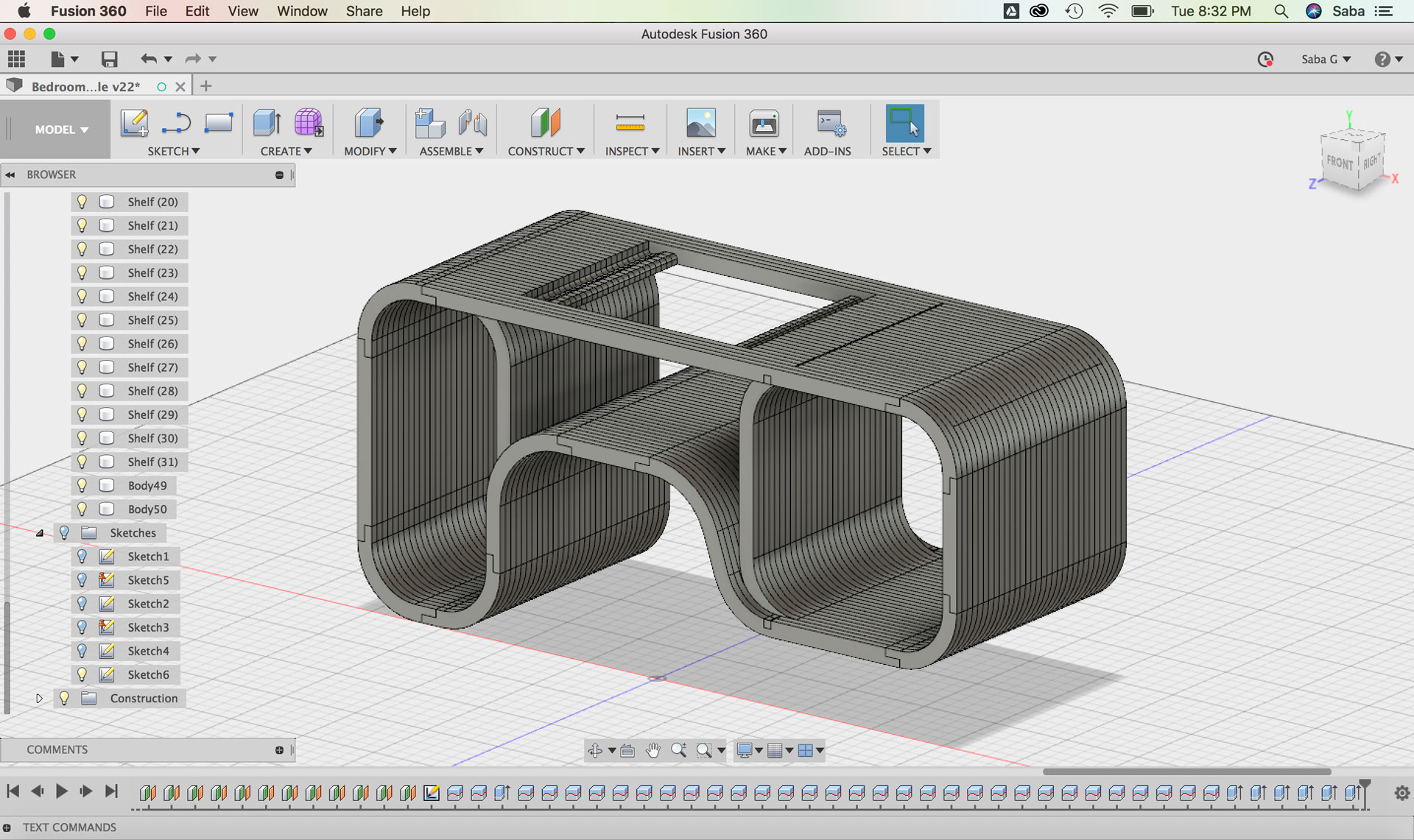
I worked through a number of different designs in Fusion 360 before arriving at my last and final iteration. My first design was a much larger shelving unit that included a dedicated space for the two units, but also another complementary space for books and items. I really liked the design, but when I started measuring this unit in my actual bedroom, it seemed to occupy too much space. I decided instead to edit the overall design and cut off the additional bookshelf, leaving only the space for the two units.

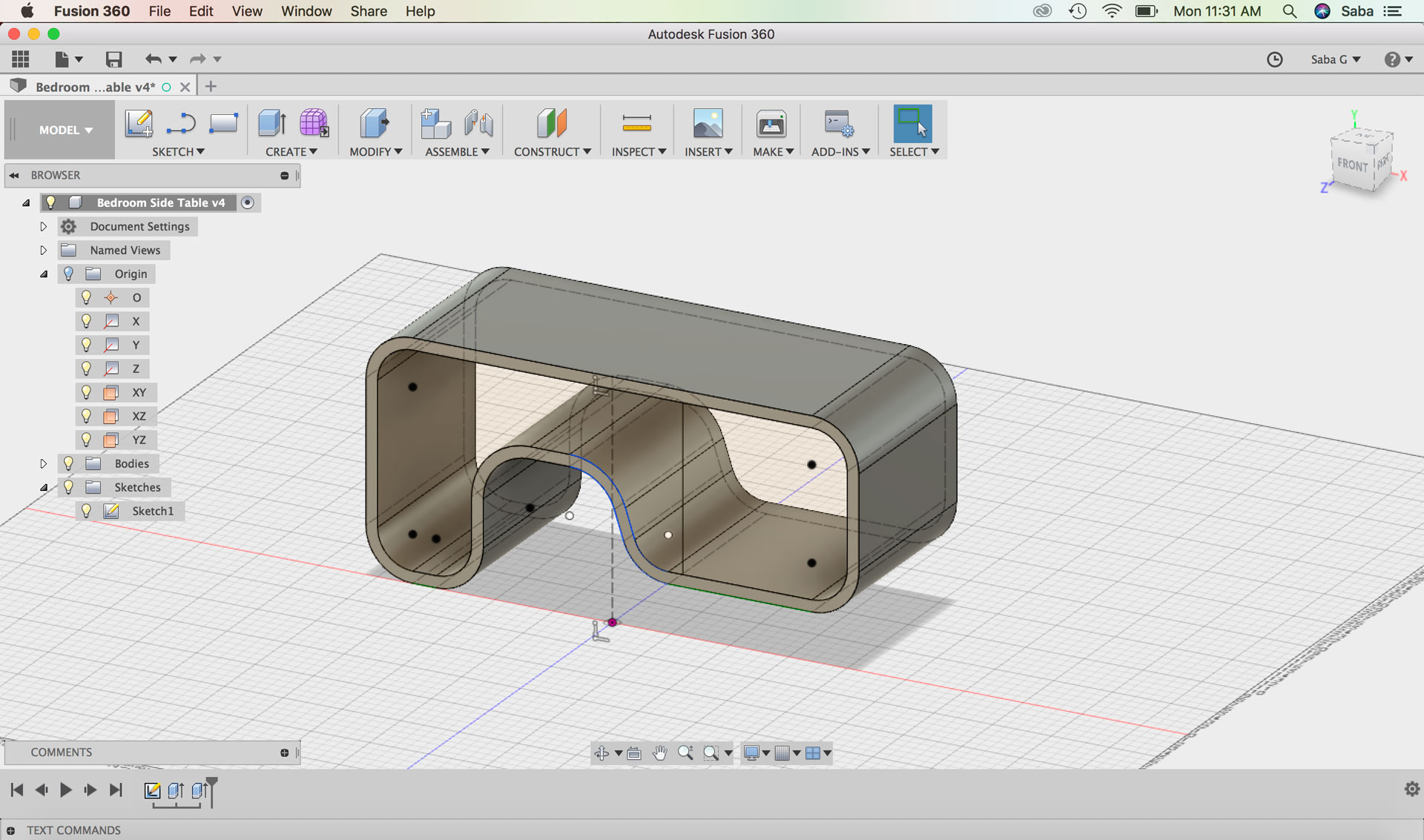
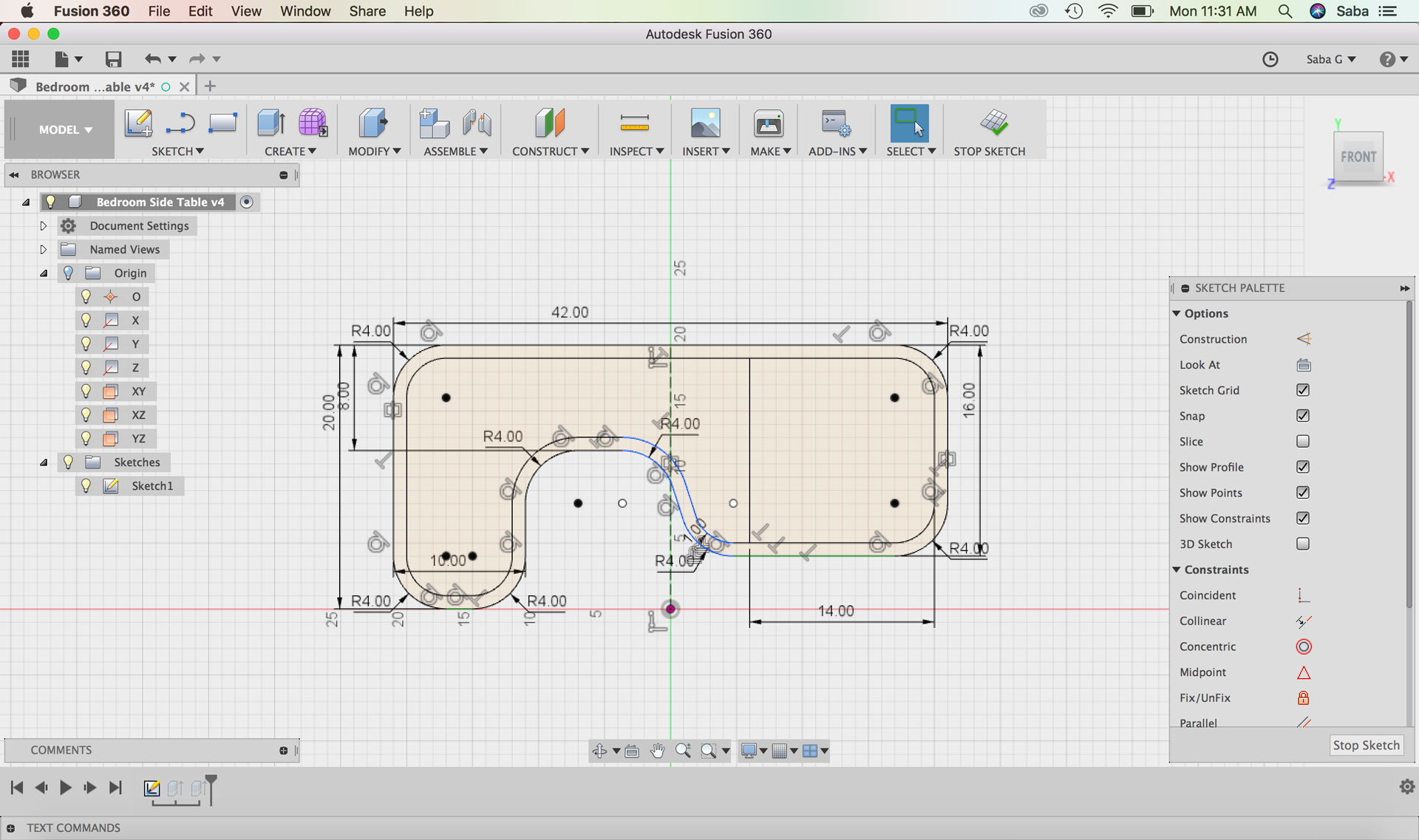
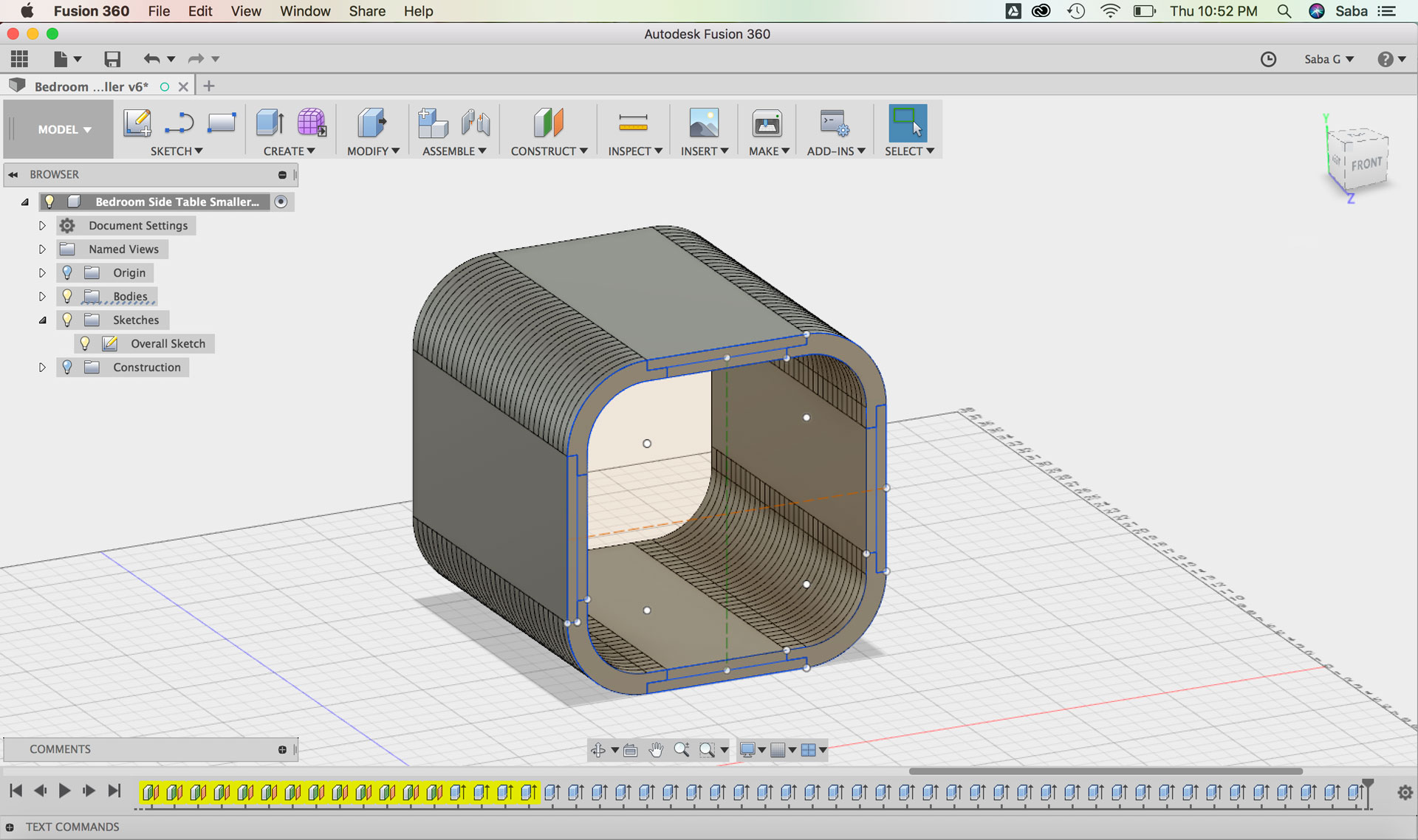
The second iteration felt much better, but still felt bulky. I reduced the overall depth of the piece from 16” to 10”, just enough to accomodate the two units stacked and open from the back to allow wires to go through to the wall outlet.

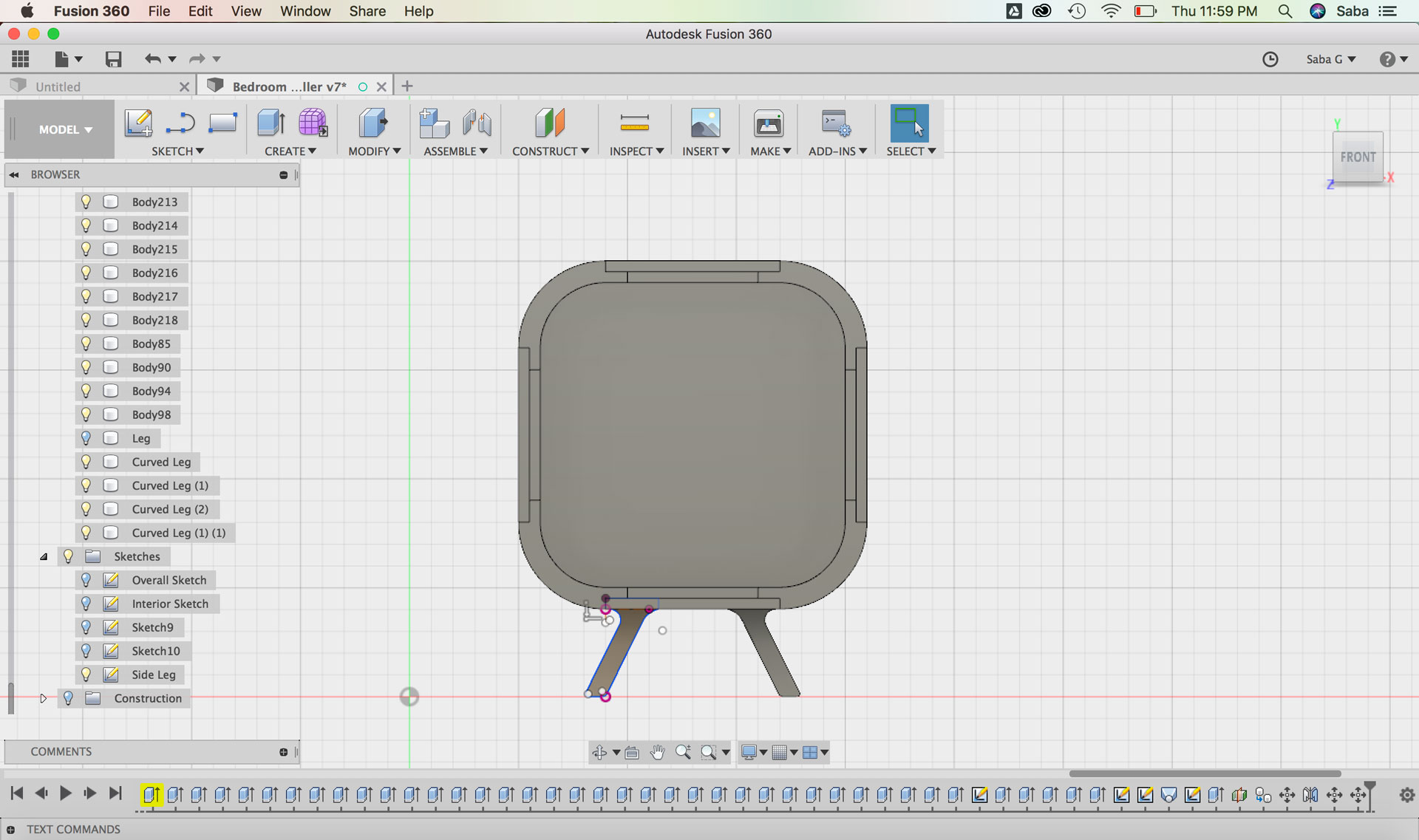
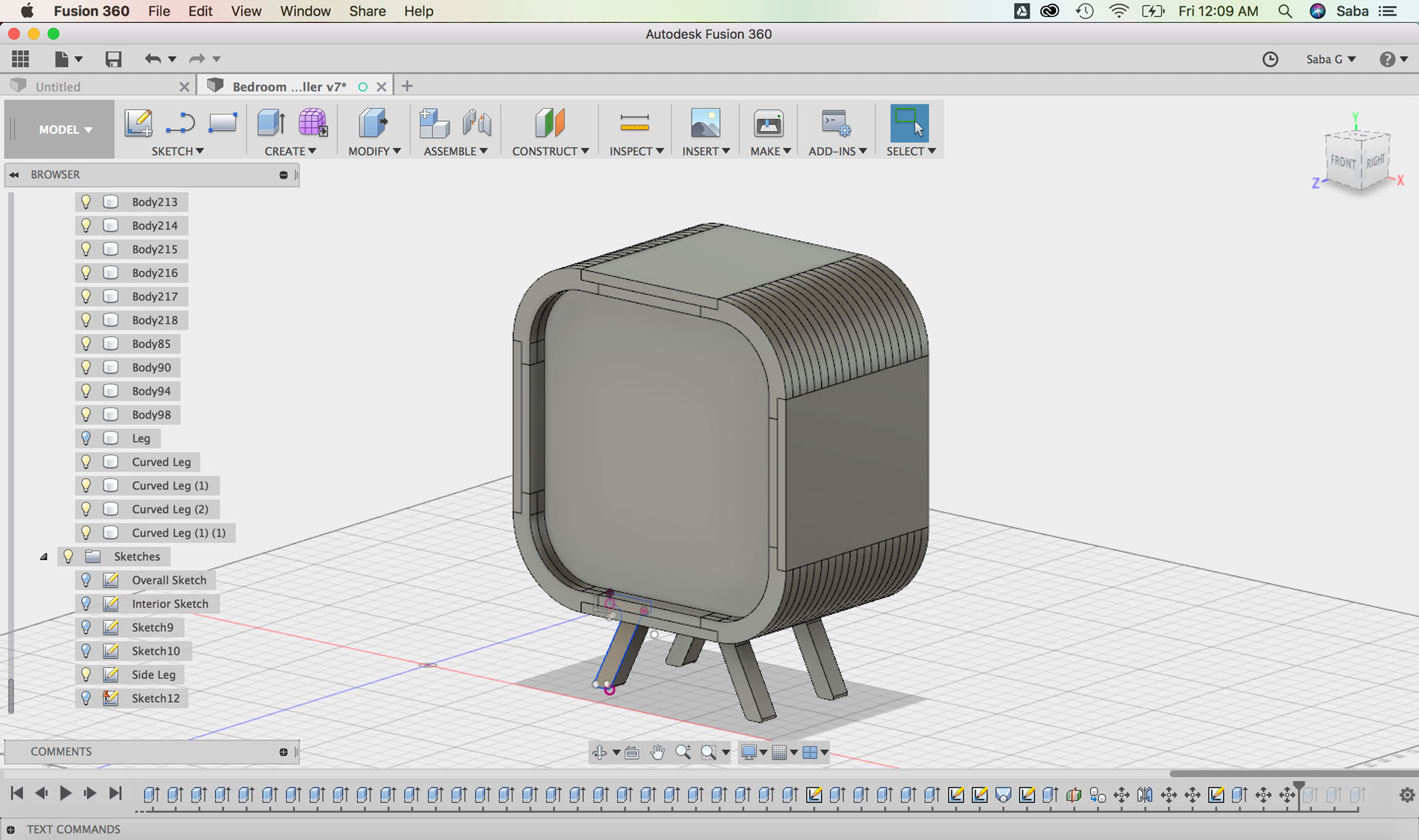
Fusion 360 model: larger shelf design Fusion 360 model: larger shelf design Fusion 360 model: larger shelf design Fusion 360 model: larger shelf design Fusion 360 model: larger shelf design Fusion 360 model: smaller shelf design Inspiration precedents for my shelf Inspiration precedents for my shelf Inspiration precedents for my shelf Inspiration precedents for my shelf

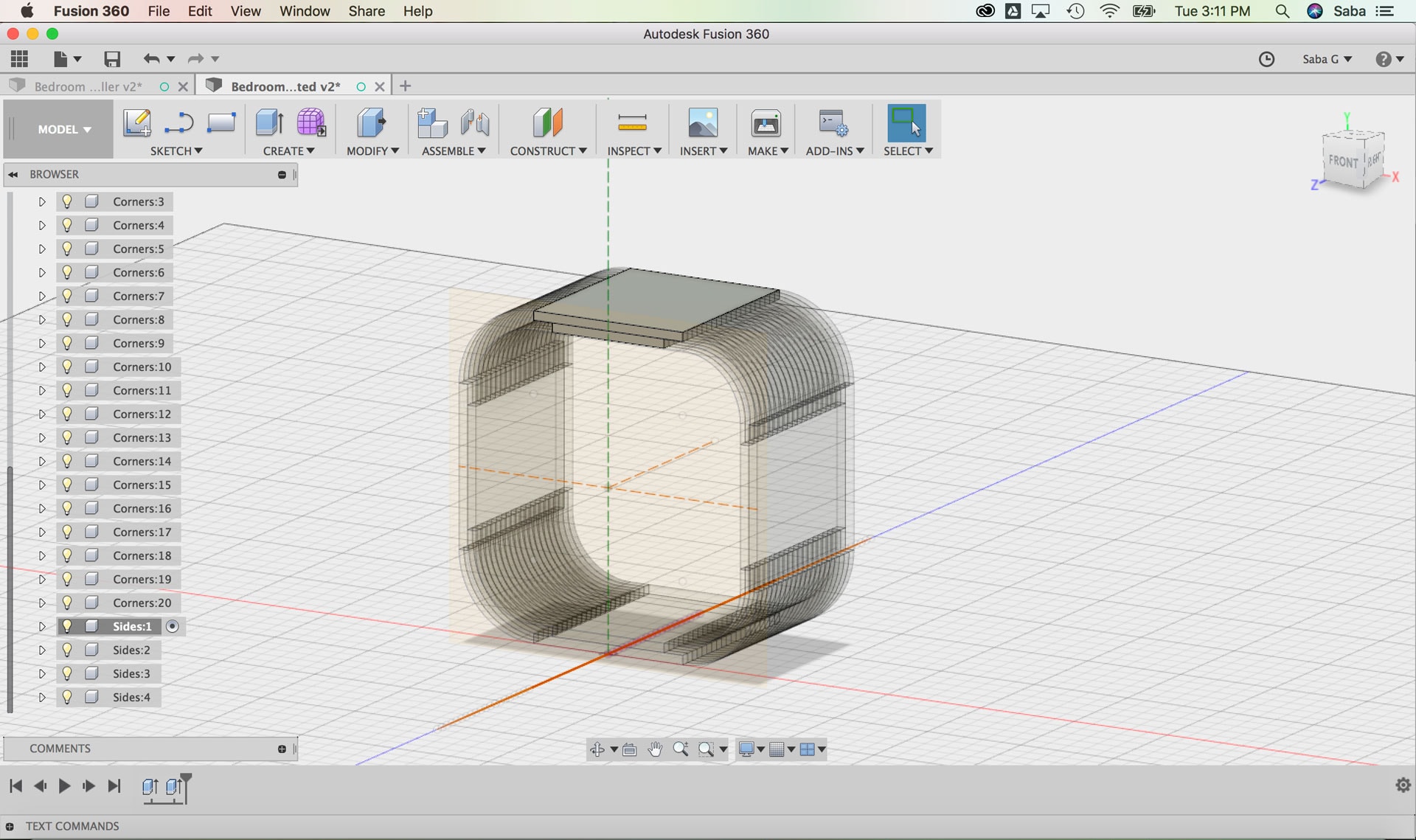
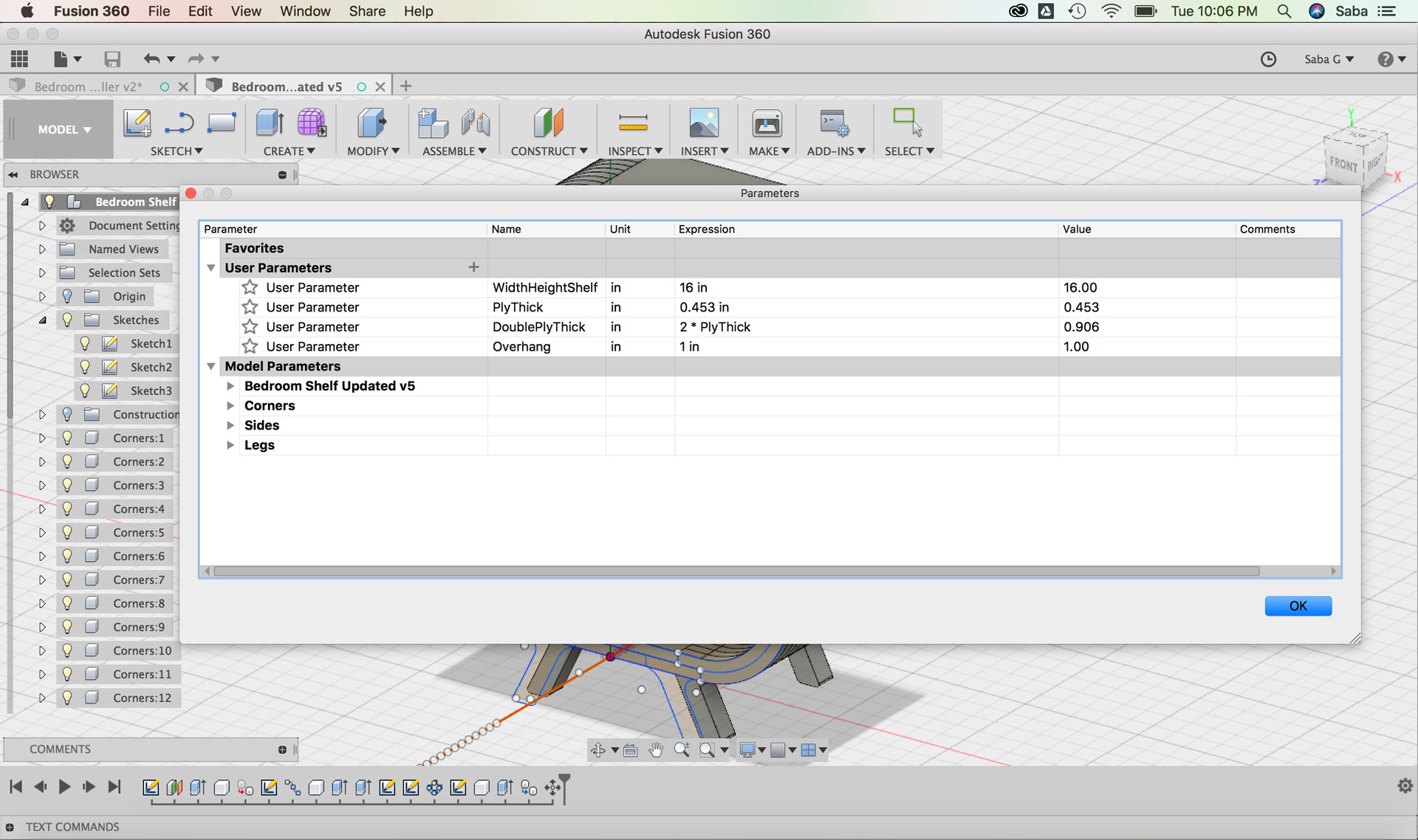
I realized while designing the second iteration that there was an easier way to model the unit using parameters, mirroring/copying components, and using components, in case I wanted to modify the design and depth of the plywood in the future. Although I spent days modeling these various iterations and design options, all the time I spent helped me become a better Fusion 360 modeler (woohoo, looking at the bright side of the many 2am nights...or mornings :)).

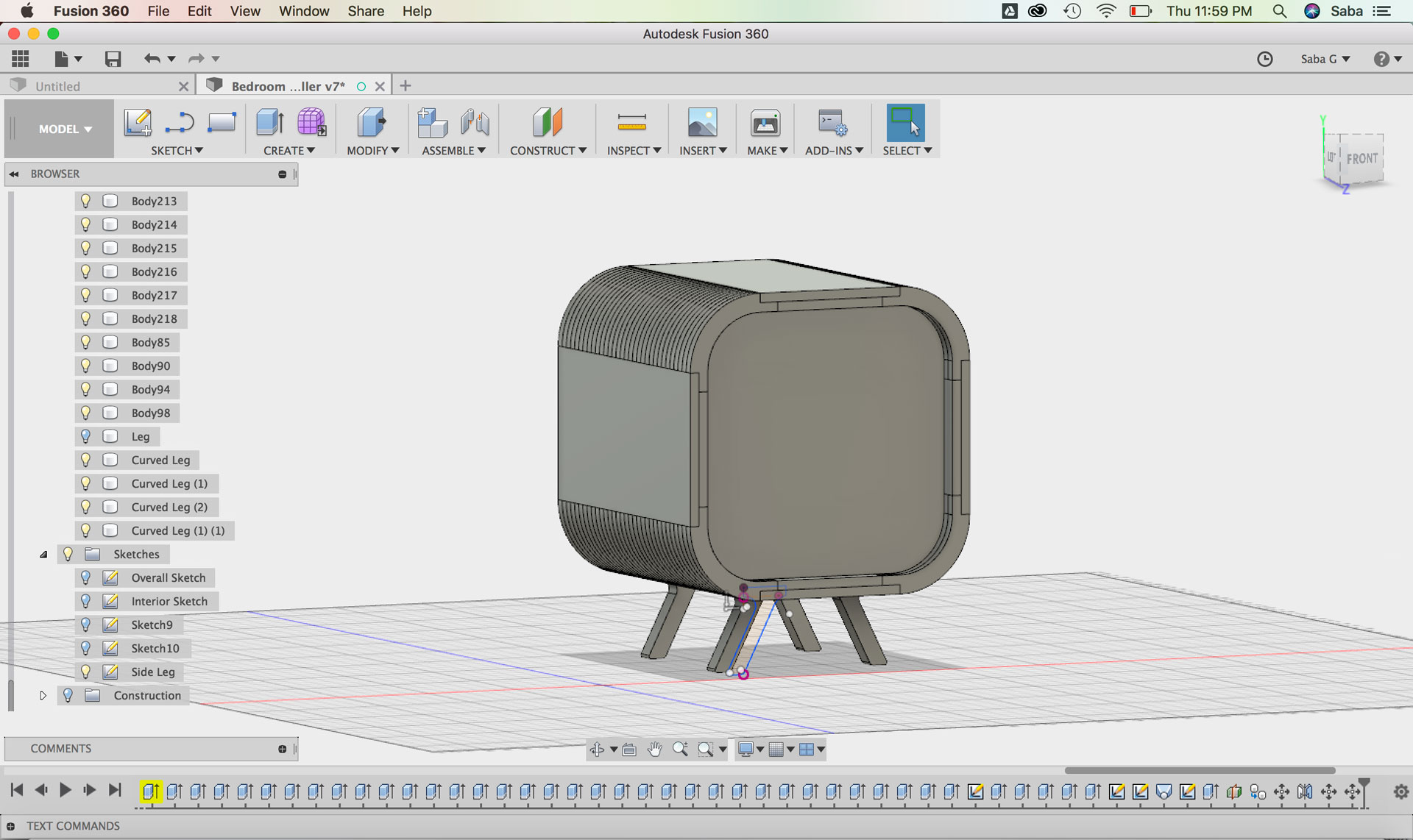
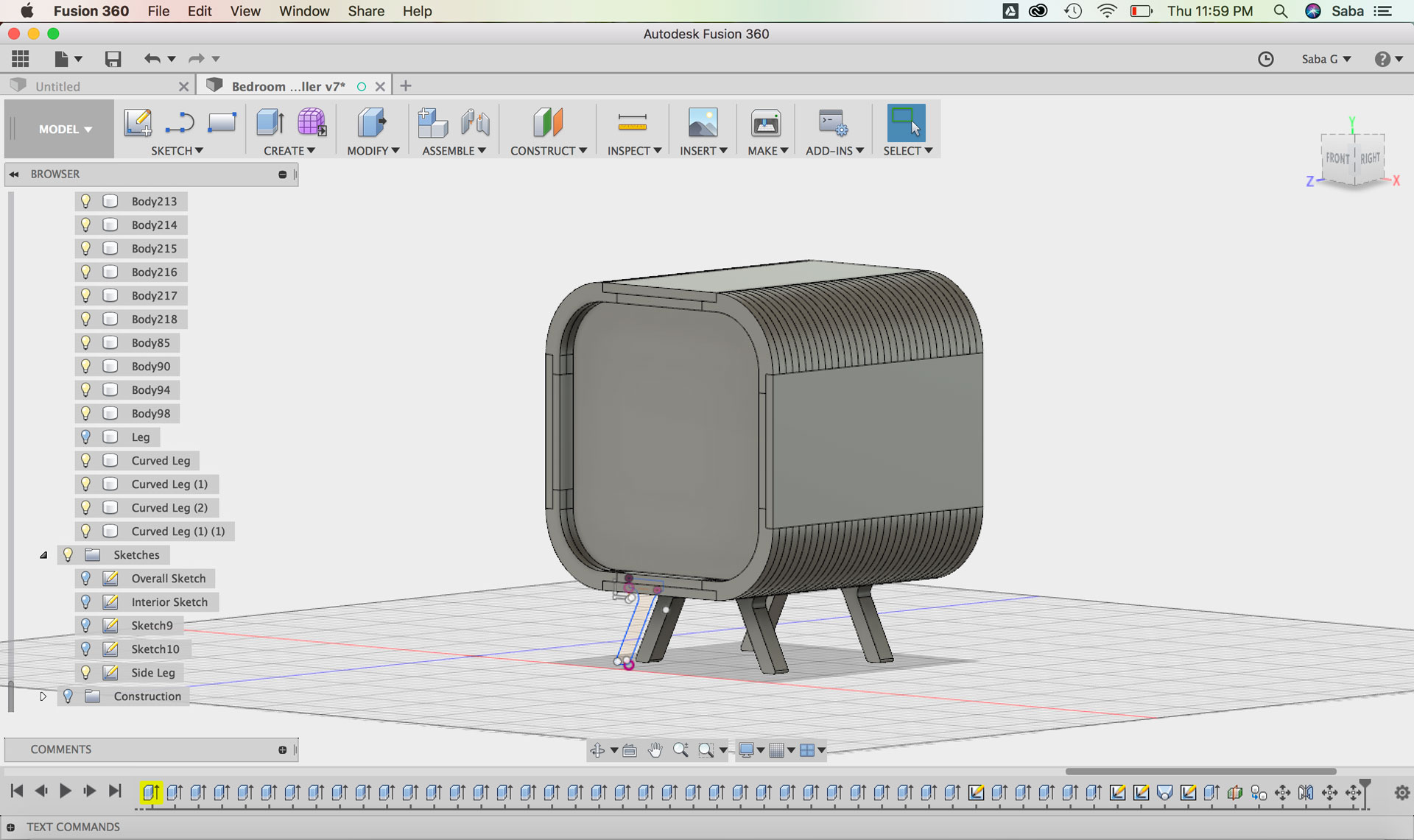
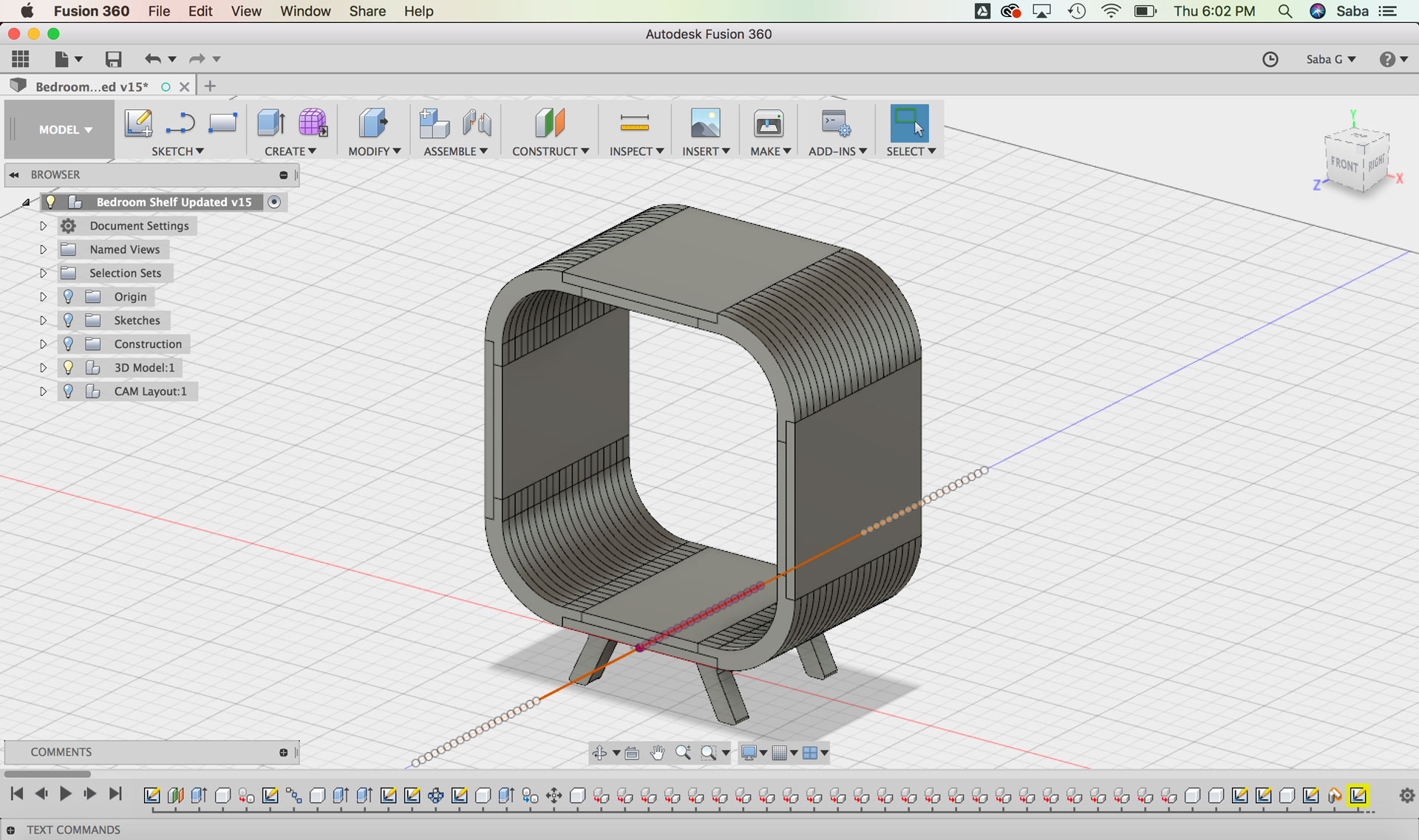
My final iteration for the shelf design has dimensions of 16”W x 16”H x 10”D for the main casing with legs around 3” high off the ground.

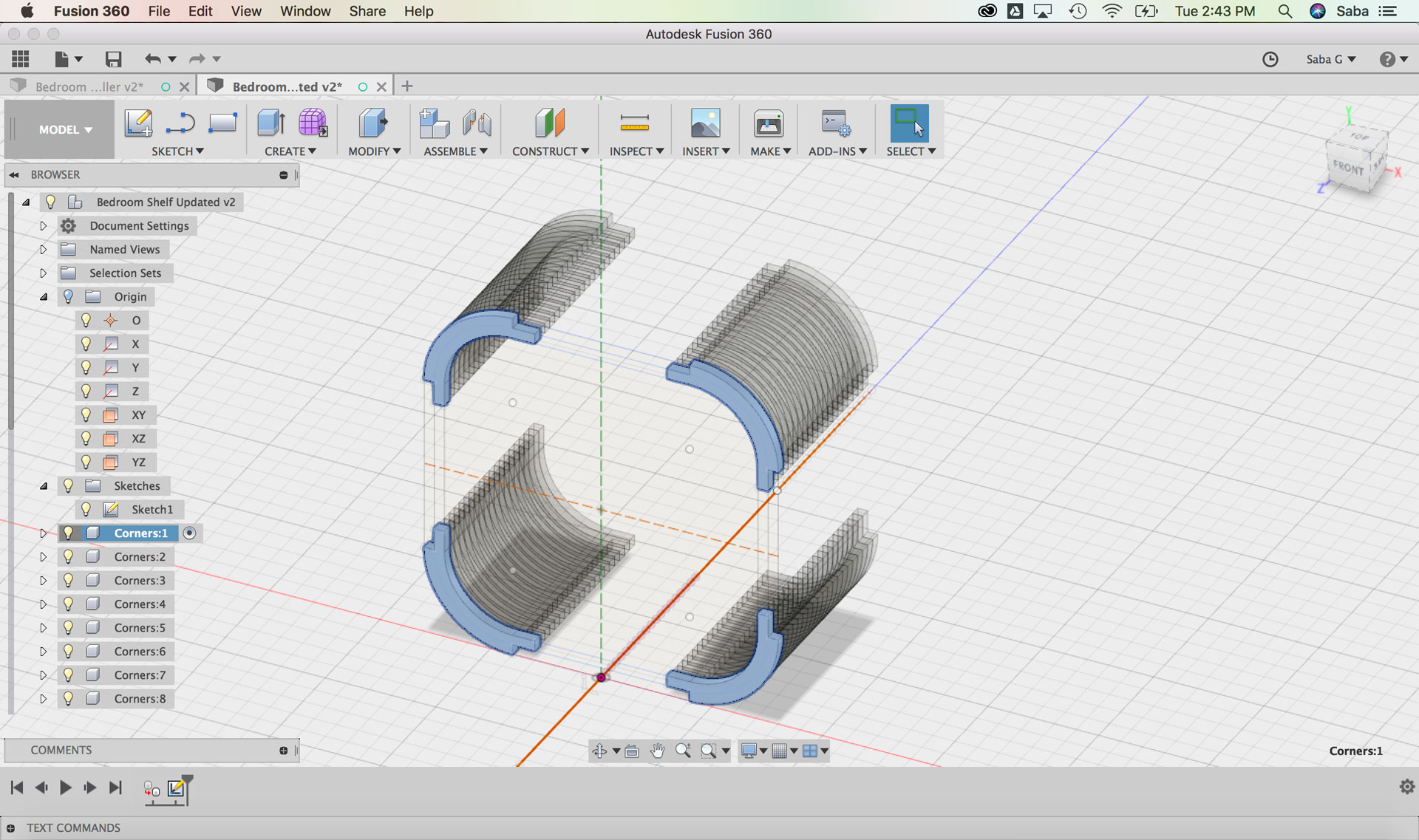
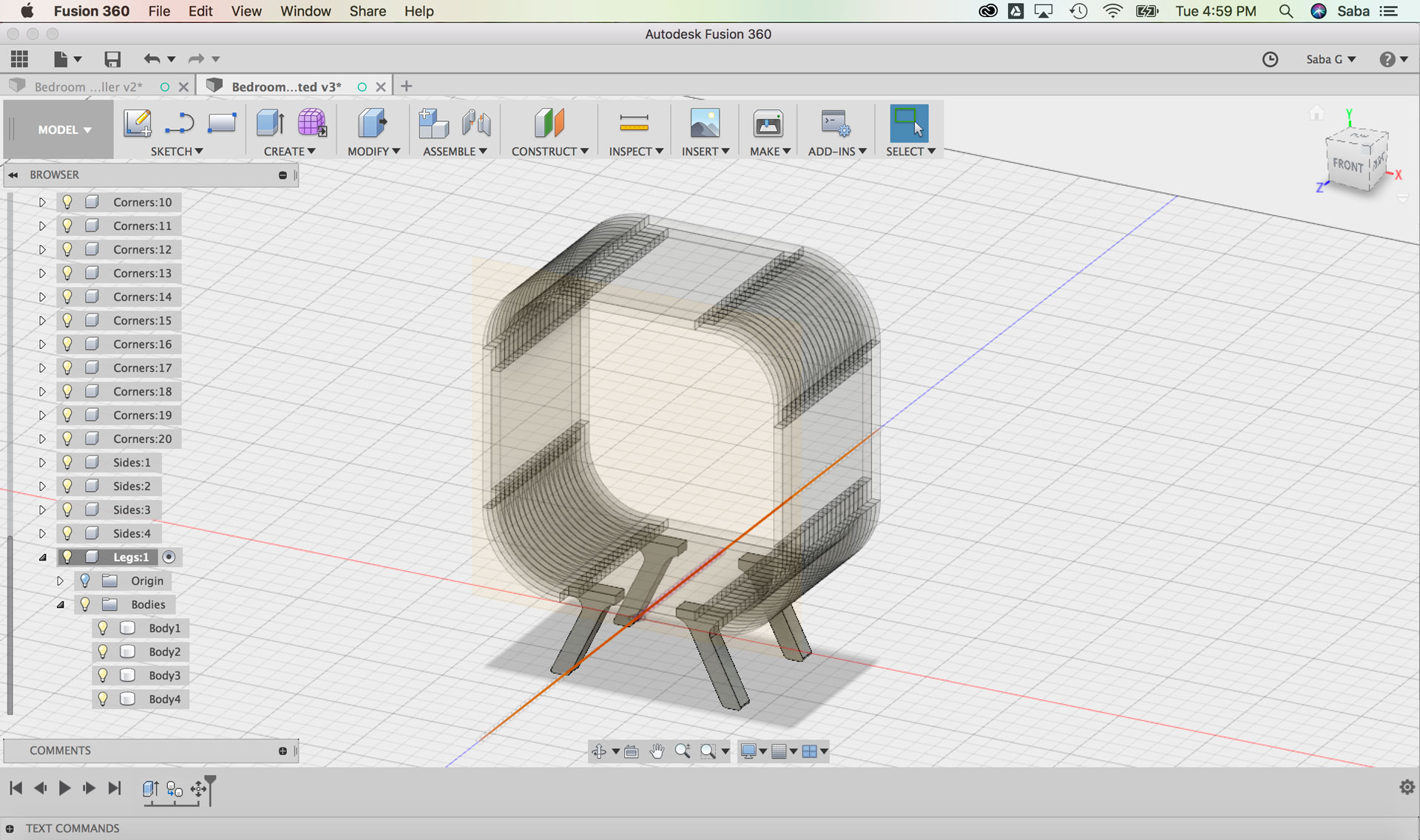
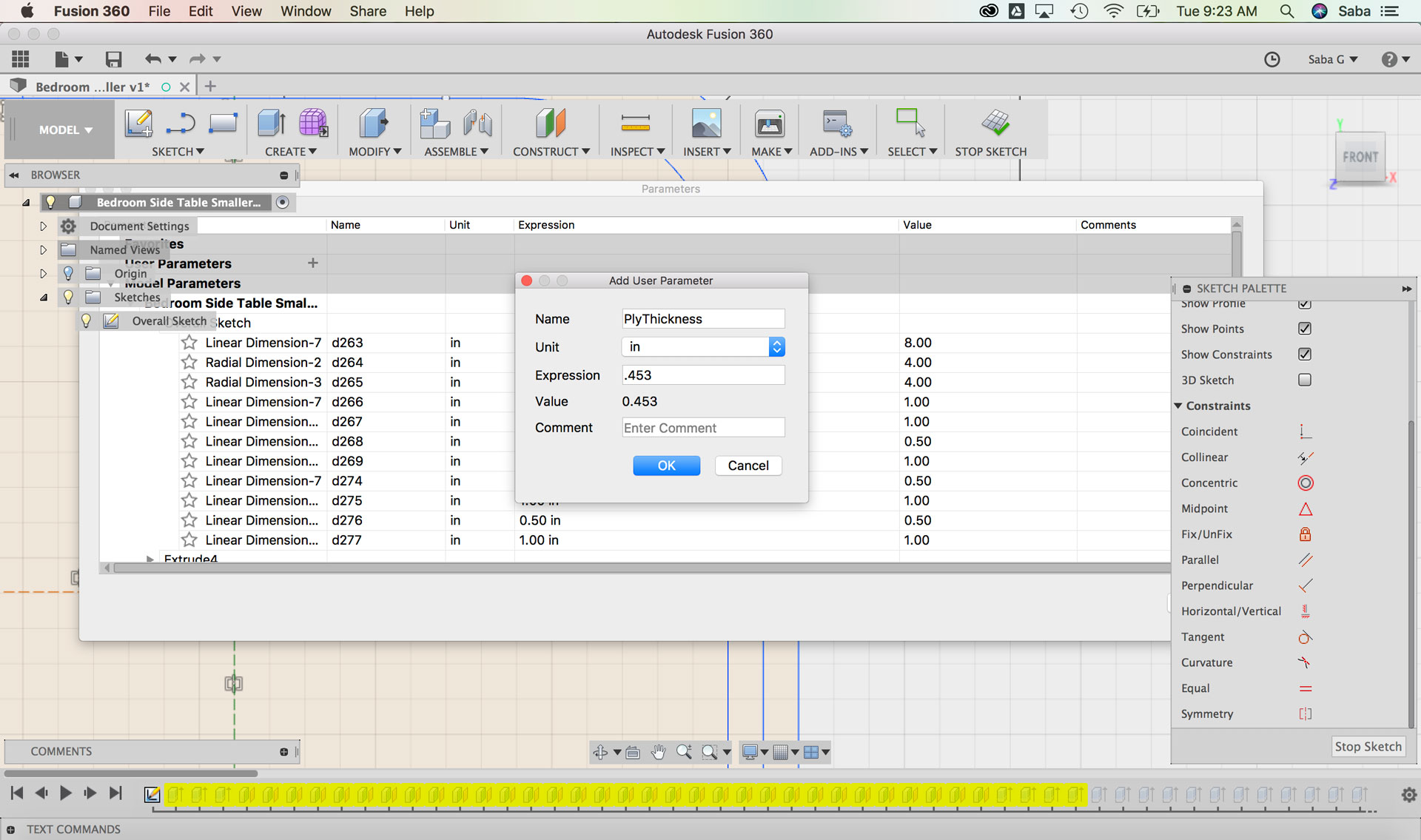
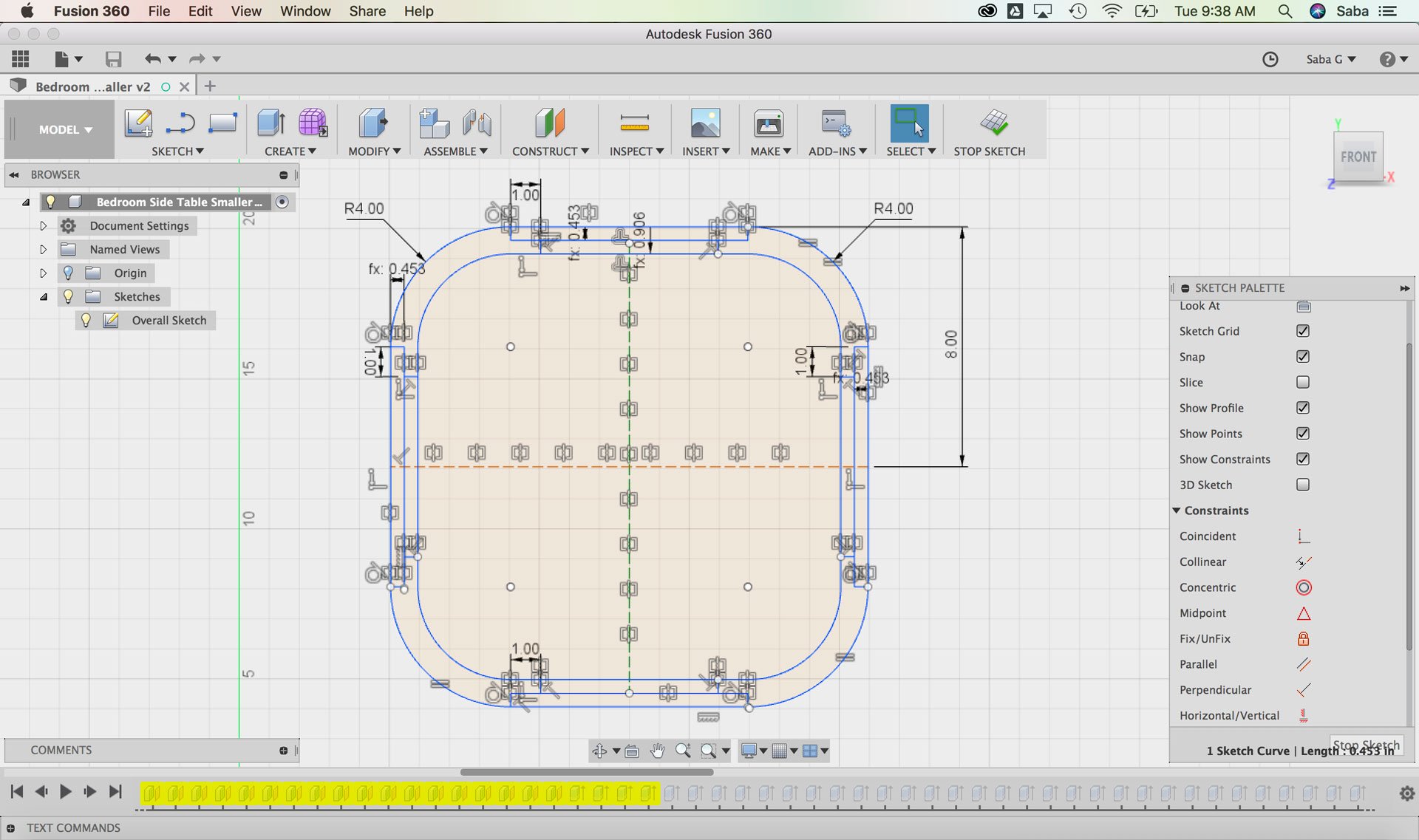
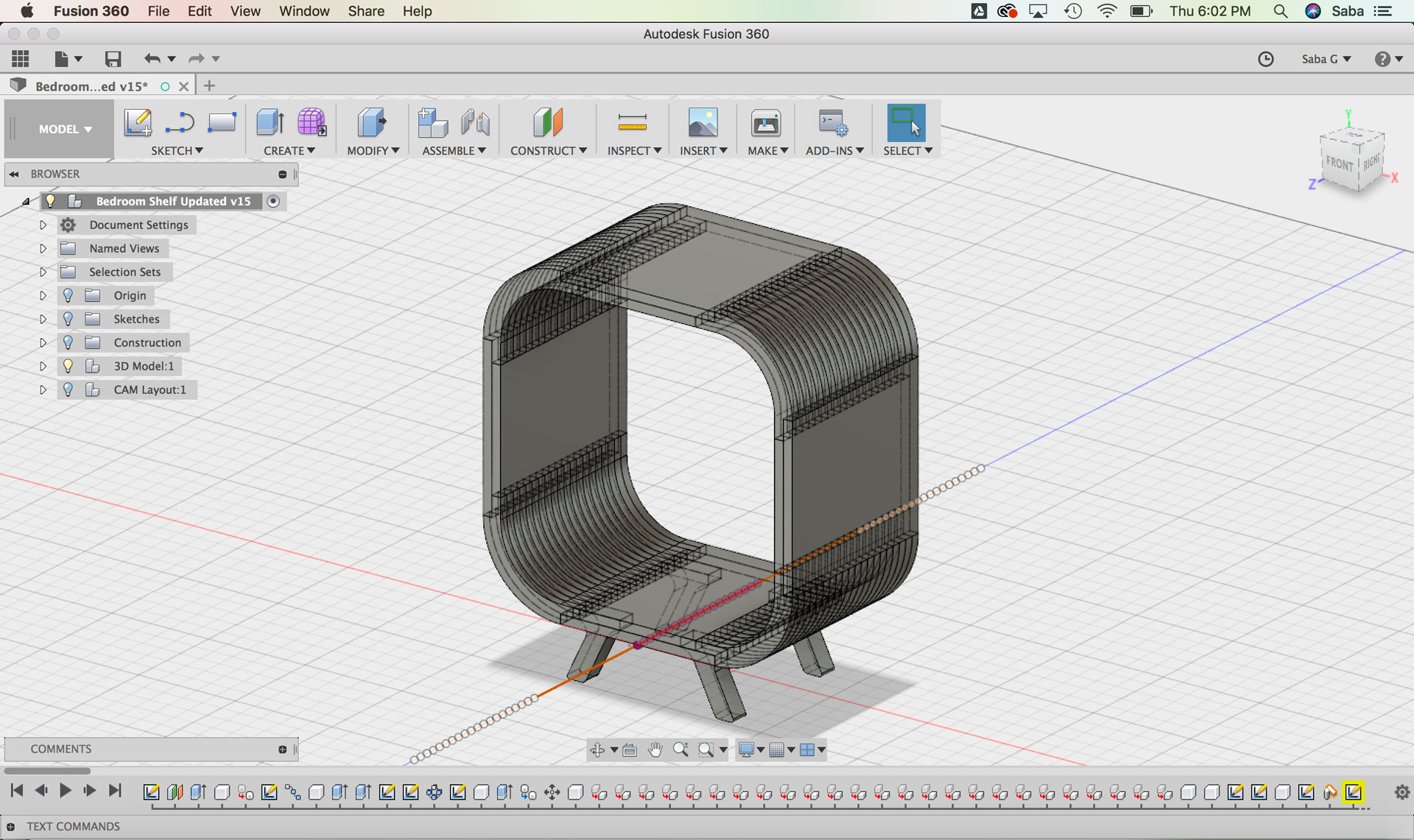
Fusion 360 model of shelf using components and parameters Fusion 360 model of shelf using components and parameters Fusion 360 model of shelf using components and parameters Fusion 360 model of shelf using components and parameters Fusion 360 model of shelf using components and parameters Fusion 360 model of shelf using components and parameters Fusion 360 model of shelf using components and parameters Fusion 360 model of shelf using components and parameters

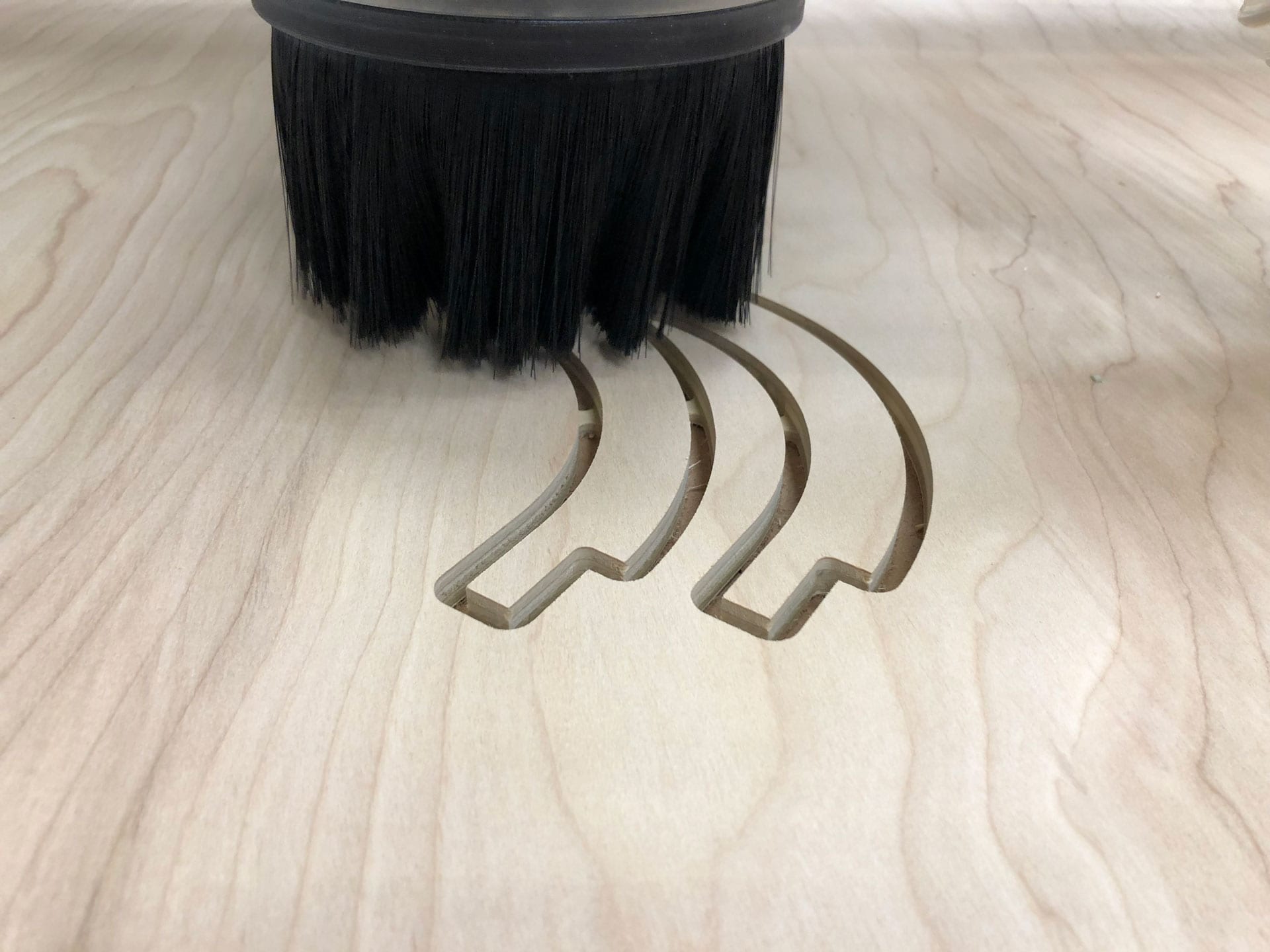
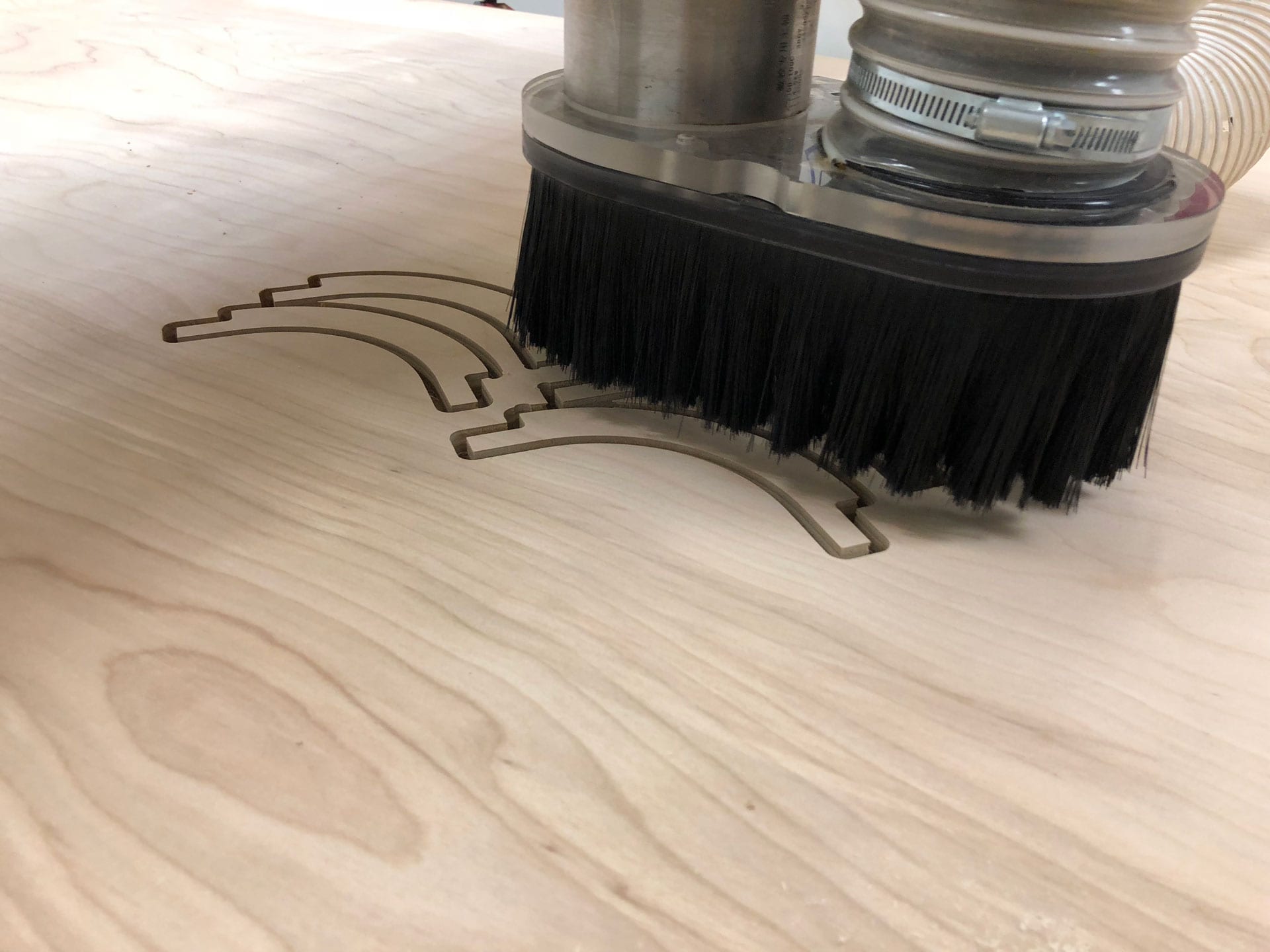
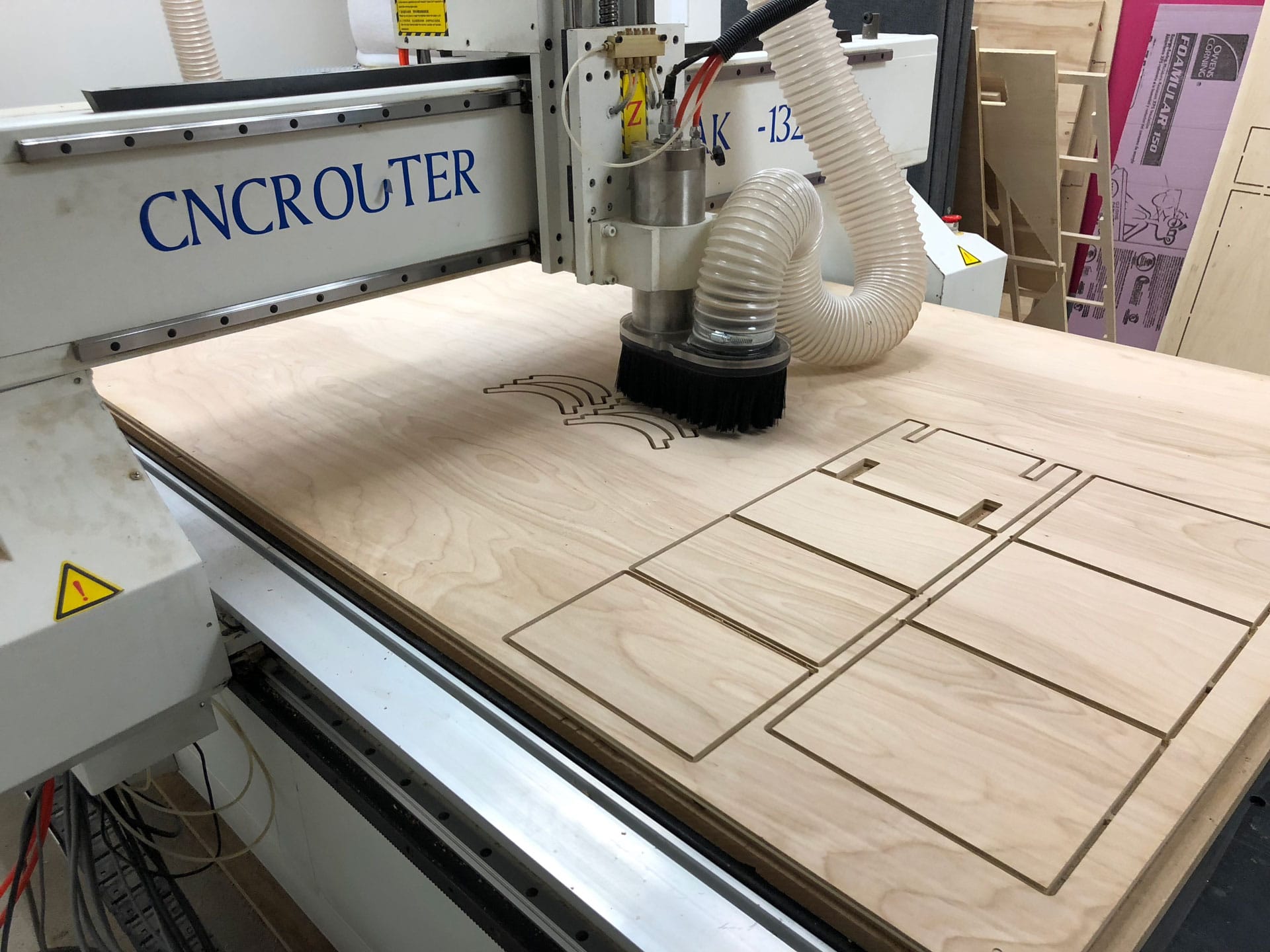
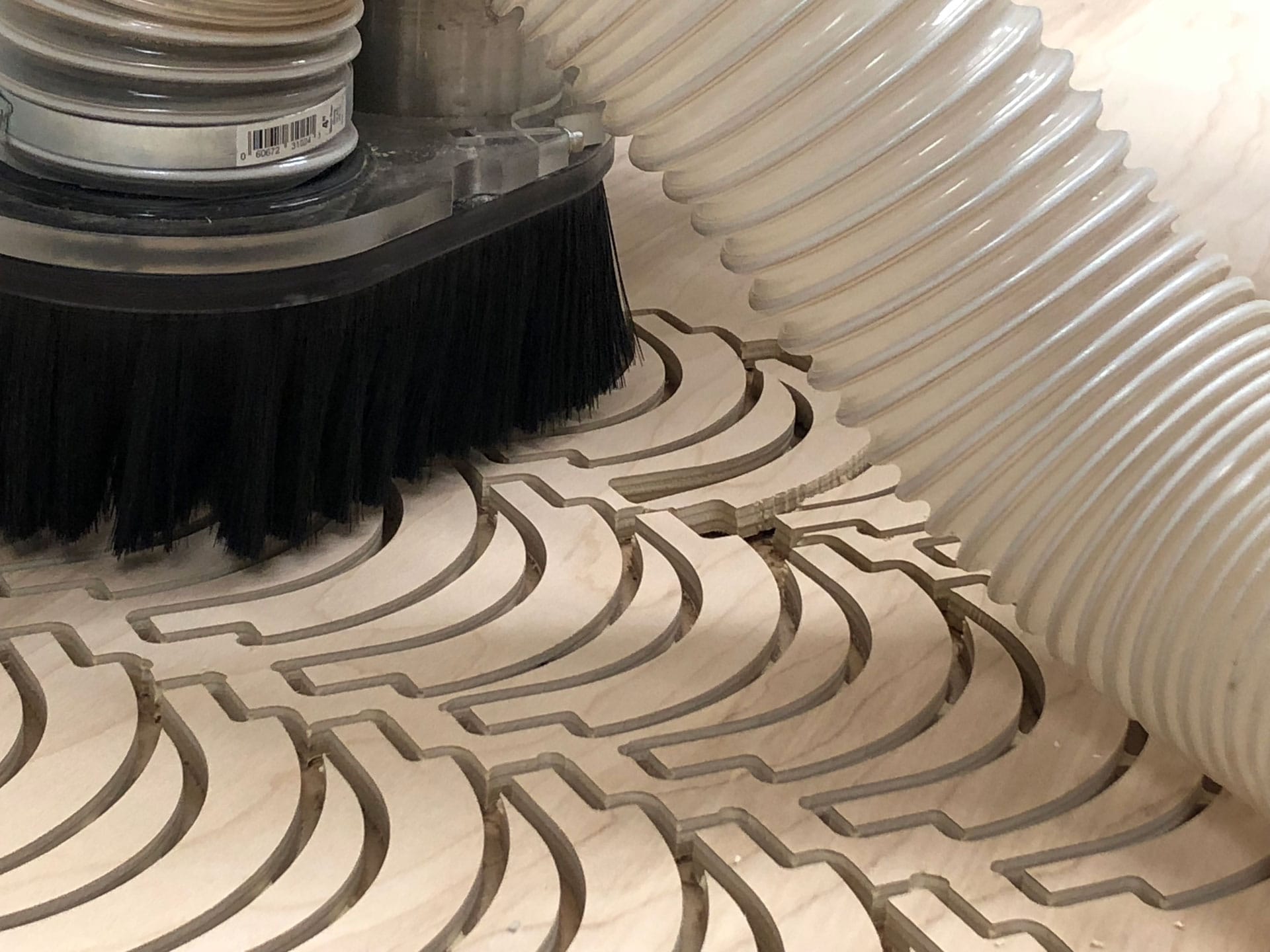
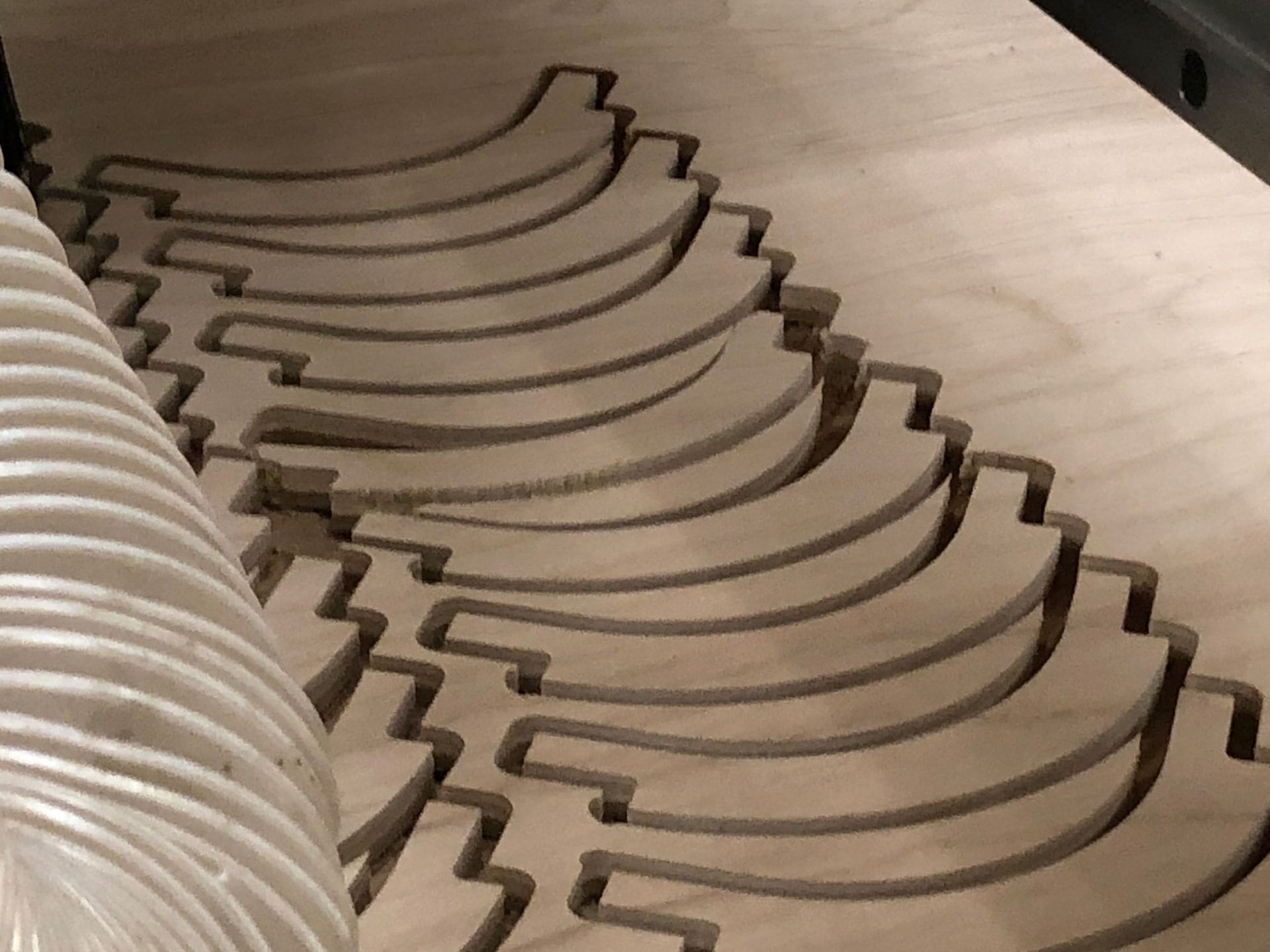
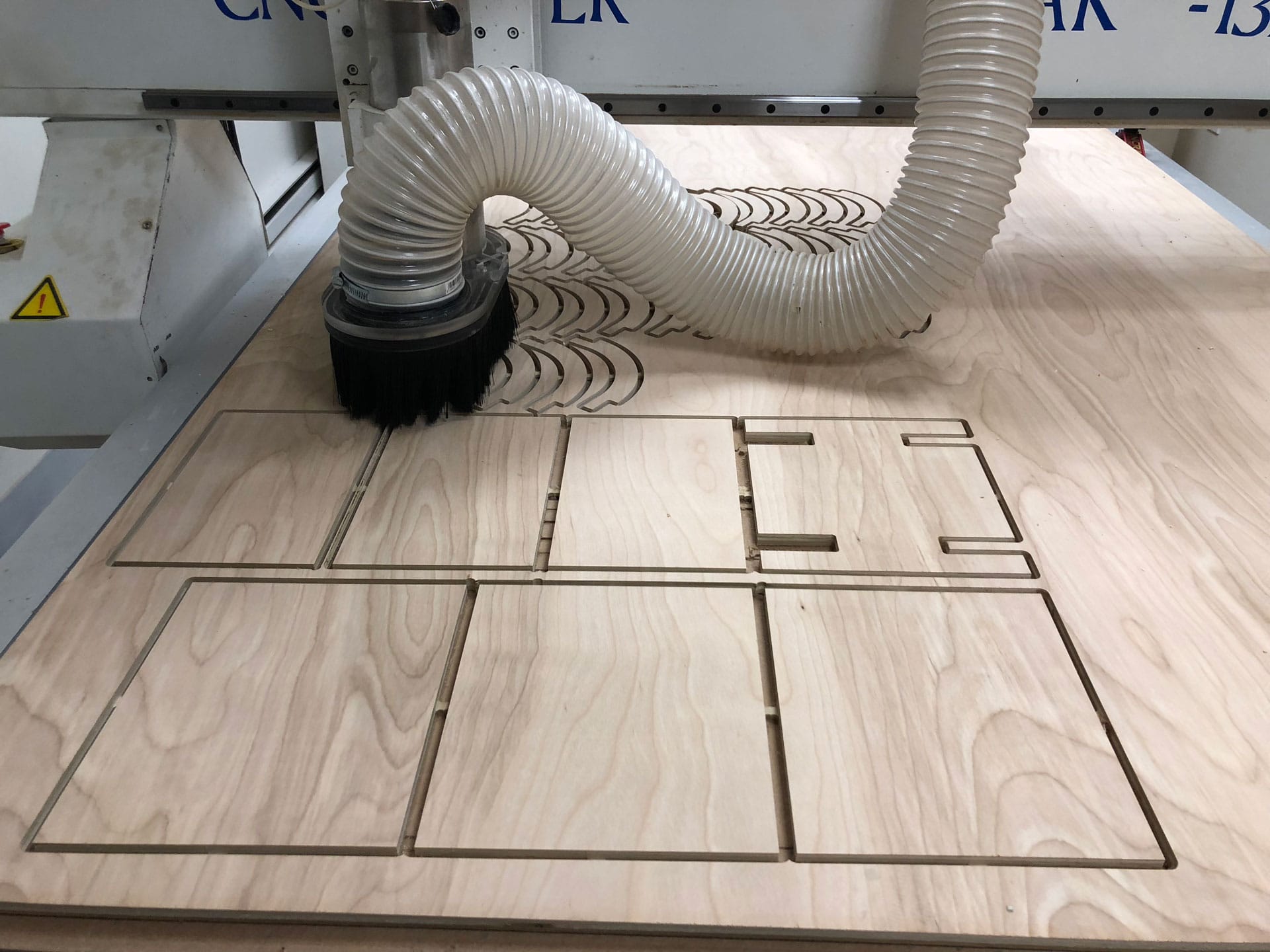
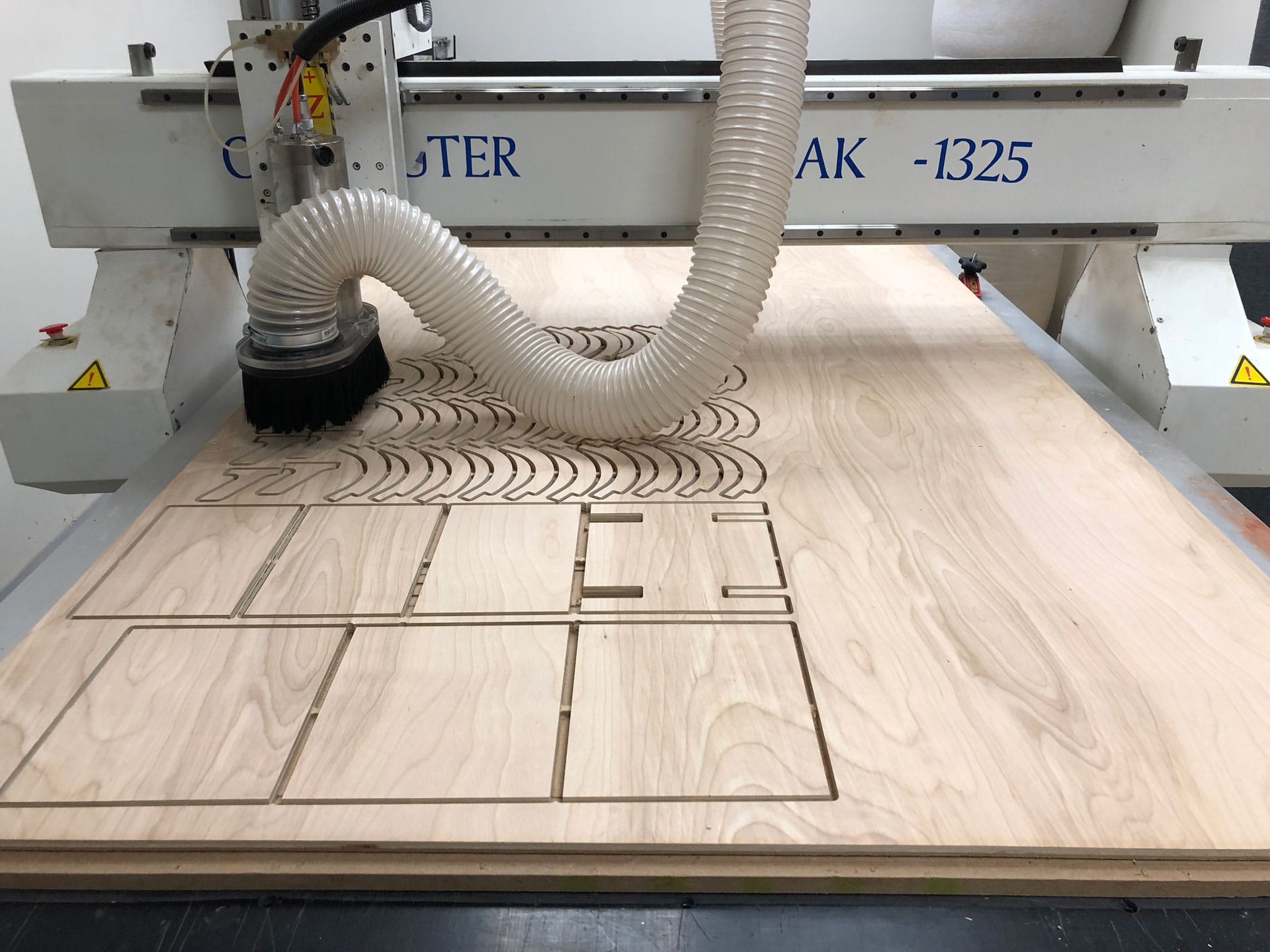
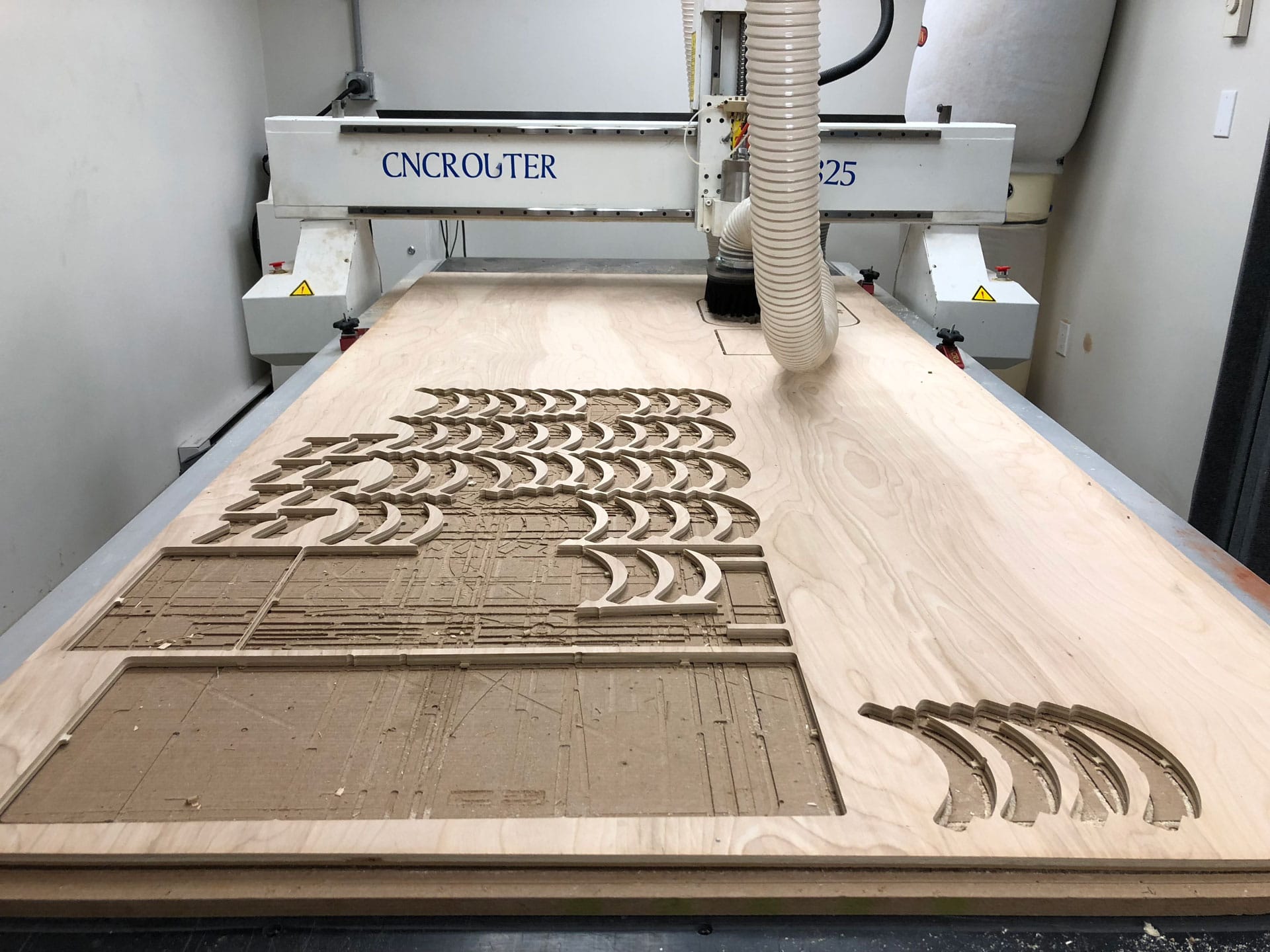
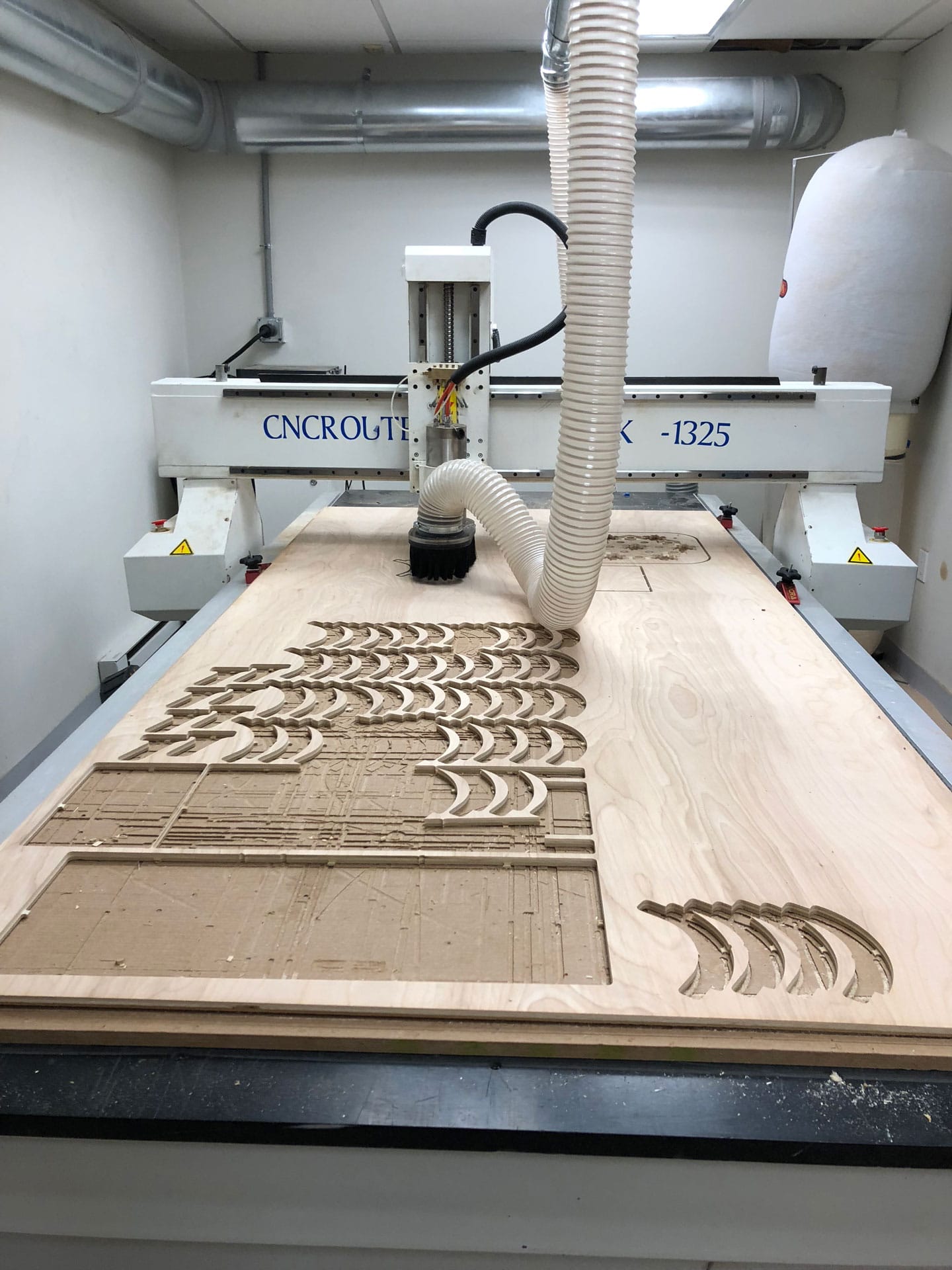
I did a few test runs on the milling machine at our studio (NuVu) to understand the process of milling from Fusion 360. I cut a simple semi-circular table that we needed for our upcoming exhibition that one of our NuVu students had designed.

Once I had an understanding of the basic process, it was time for cutting my interactive shelf. Whew (deep breath). Here we go.


CAM Setup

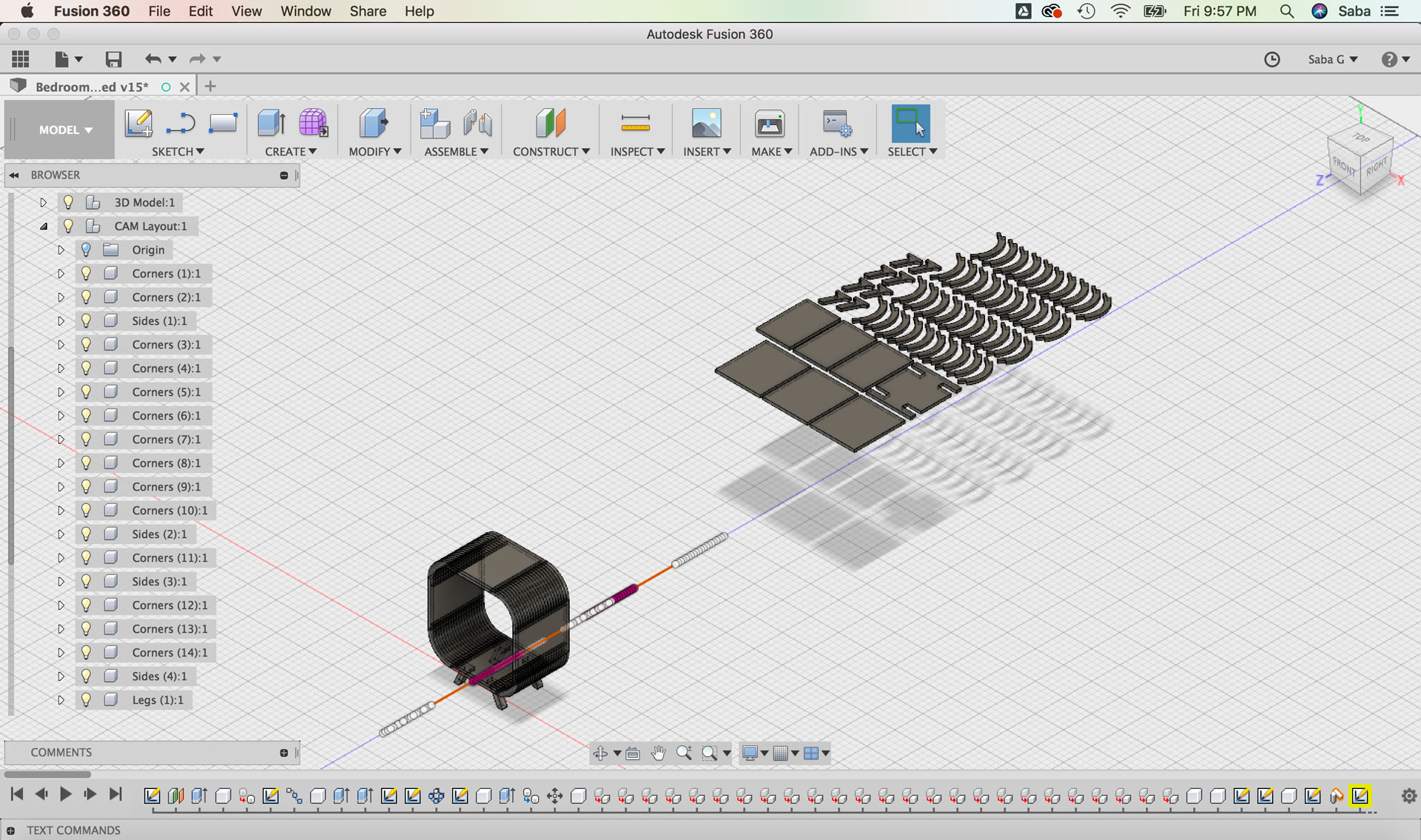
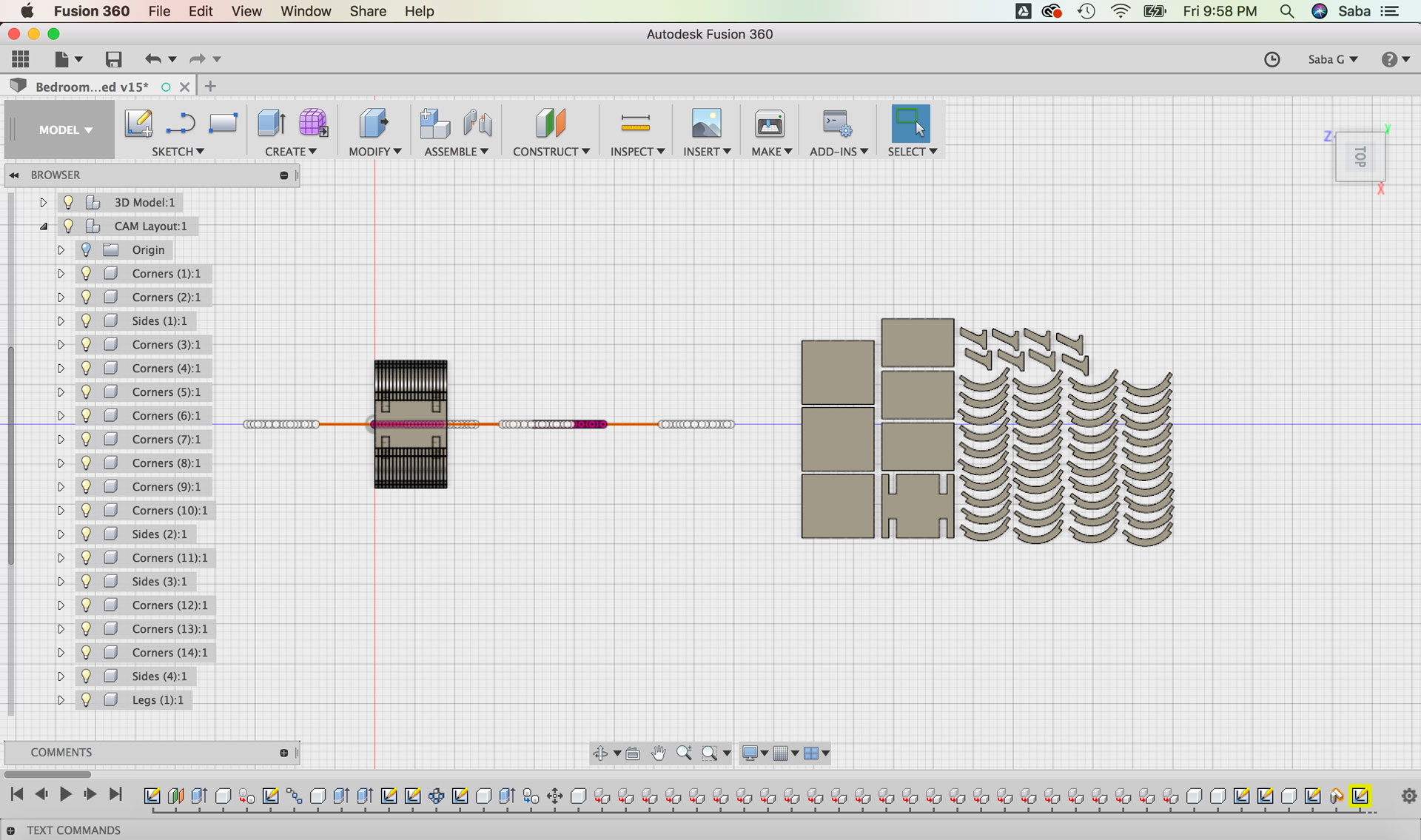
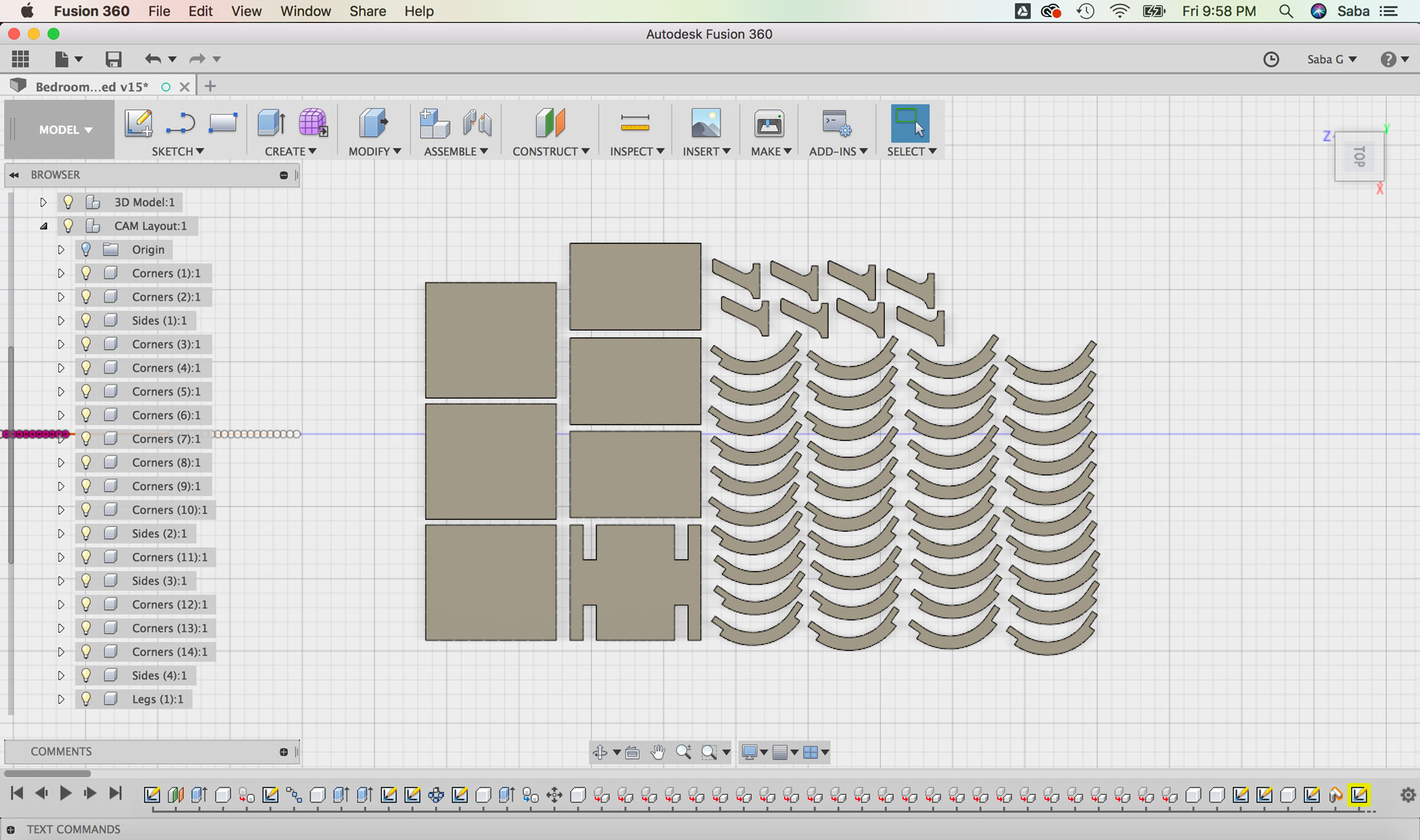
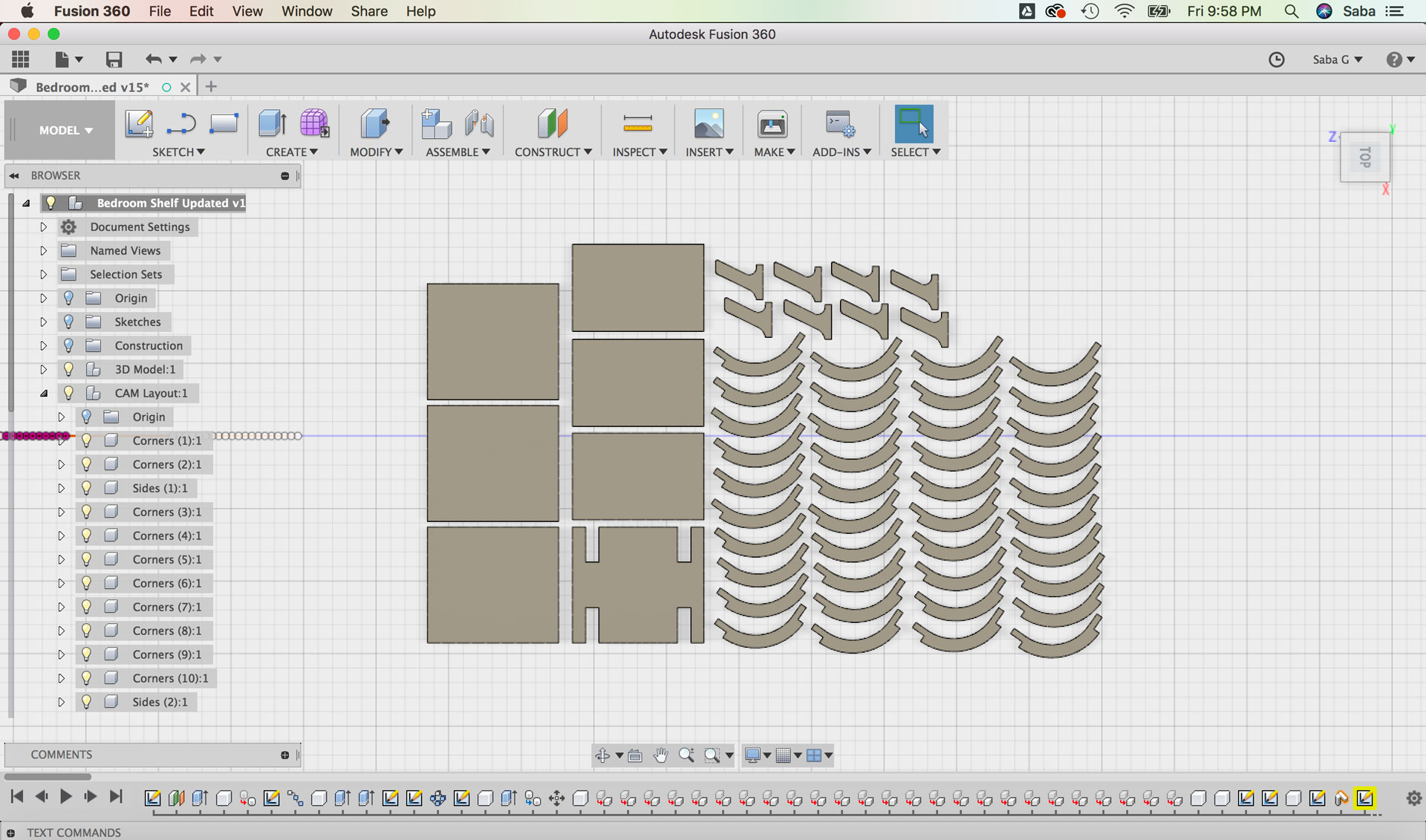
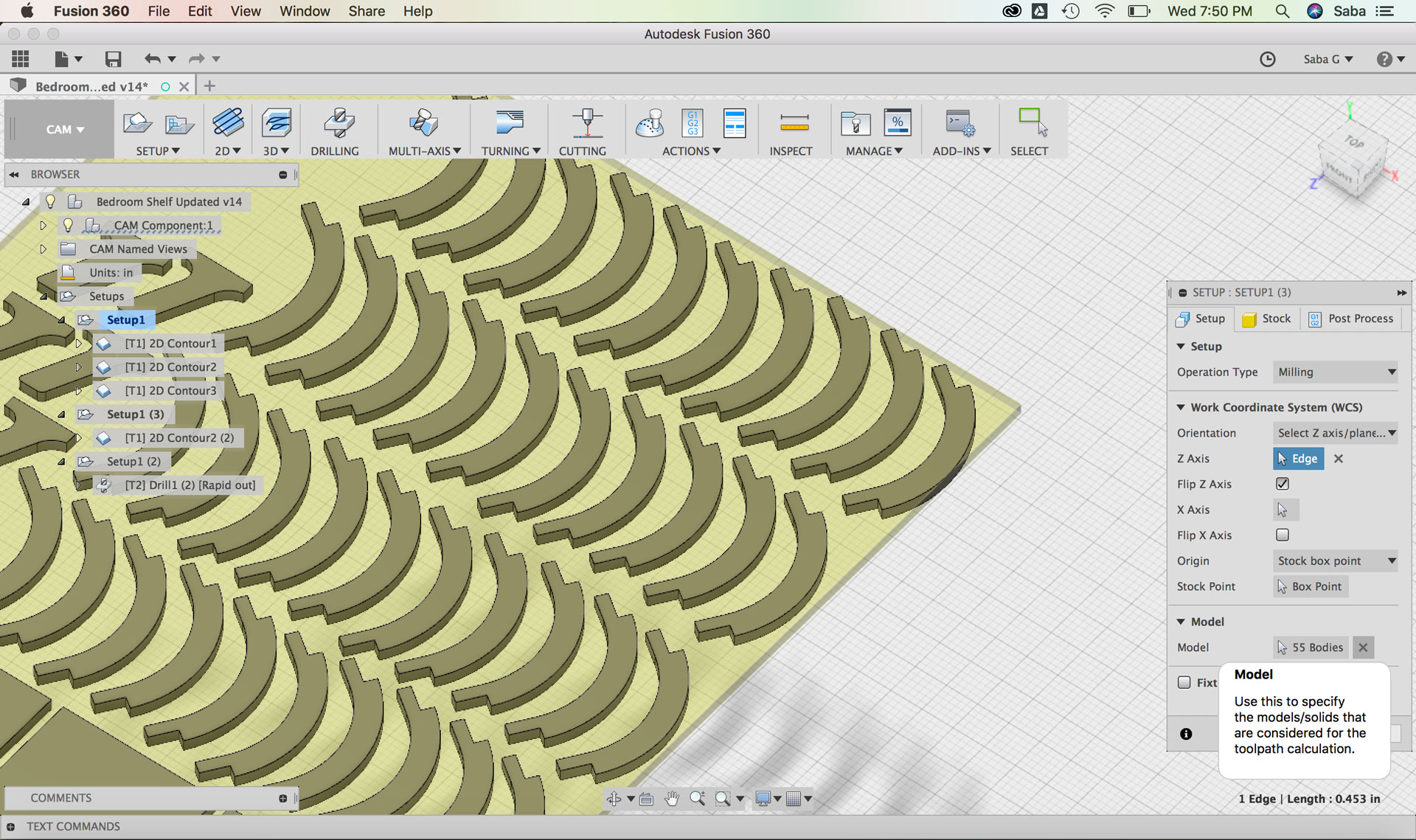
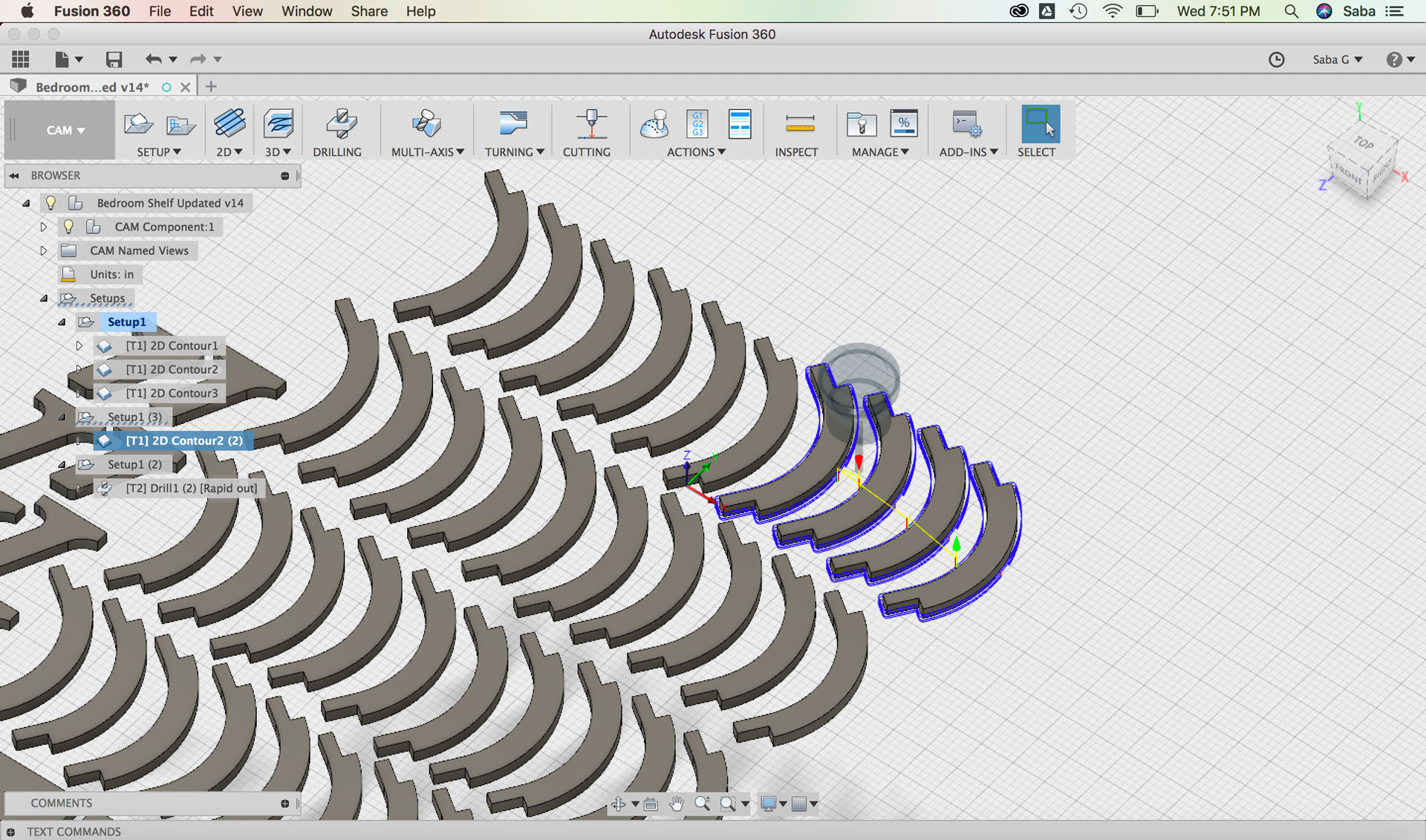
I decided to use the CAM features in Fusion 360 to set up my tool paths for machining the pieces of my shelf. Before I could do this, I needed to lay all my pieces flat on the x-y plane. In order to do this, I copied and pasted the 3D Model Component and called it CAM Layout. I then used the “Align” command under the Modify tool to align the bodies flat and close to one another as to not waste too much material.

Creating and then duplicating "3D Model" component as "CAM Layout" component to arrange pieces for CAM setup Laying pieces flat in Fusion 360 in preparation for CAM setup Laying pieces flat in Fusion 360 in preparation for CAM setup Laying pieces flat in Fusion 360 in preparation for CAM setup

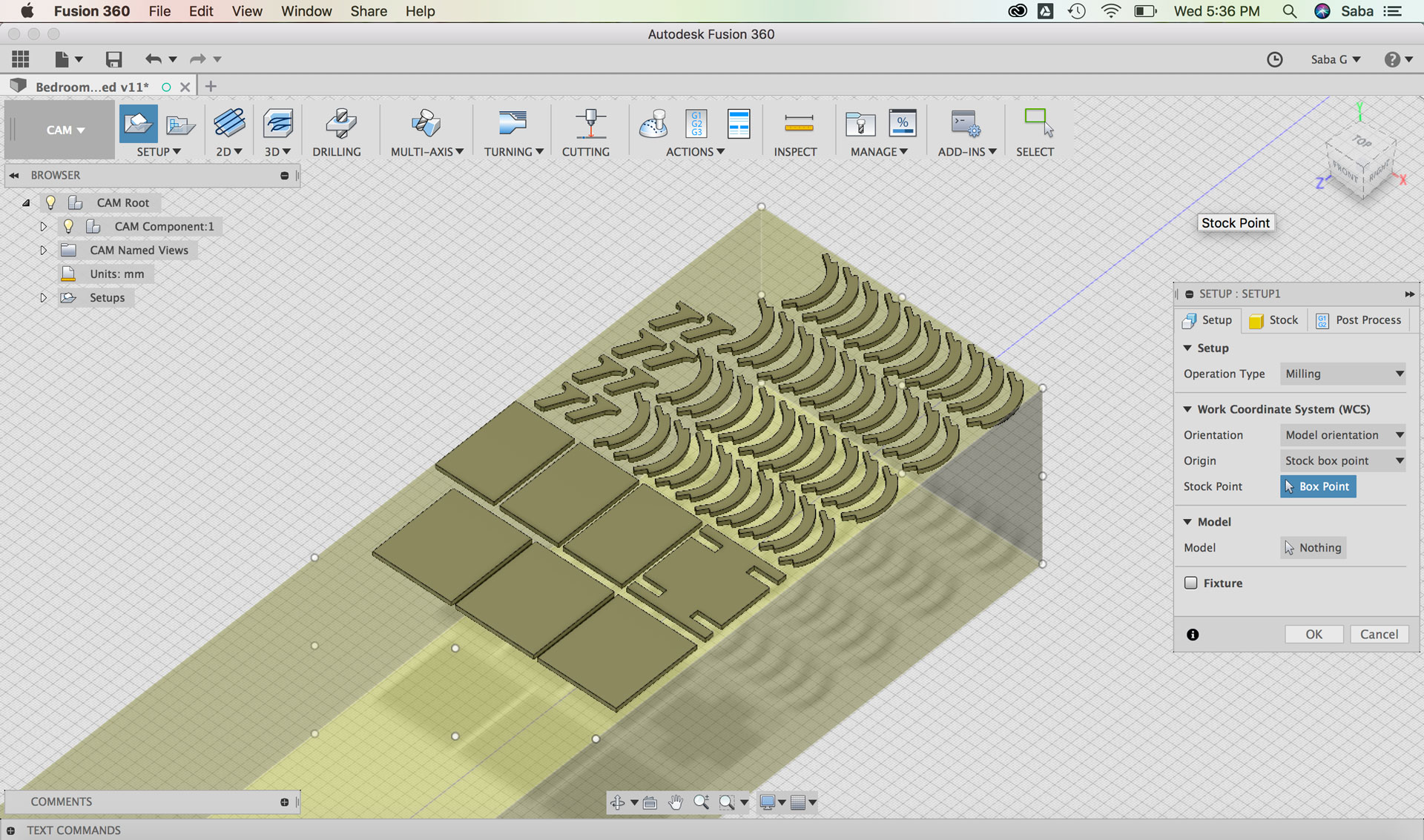
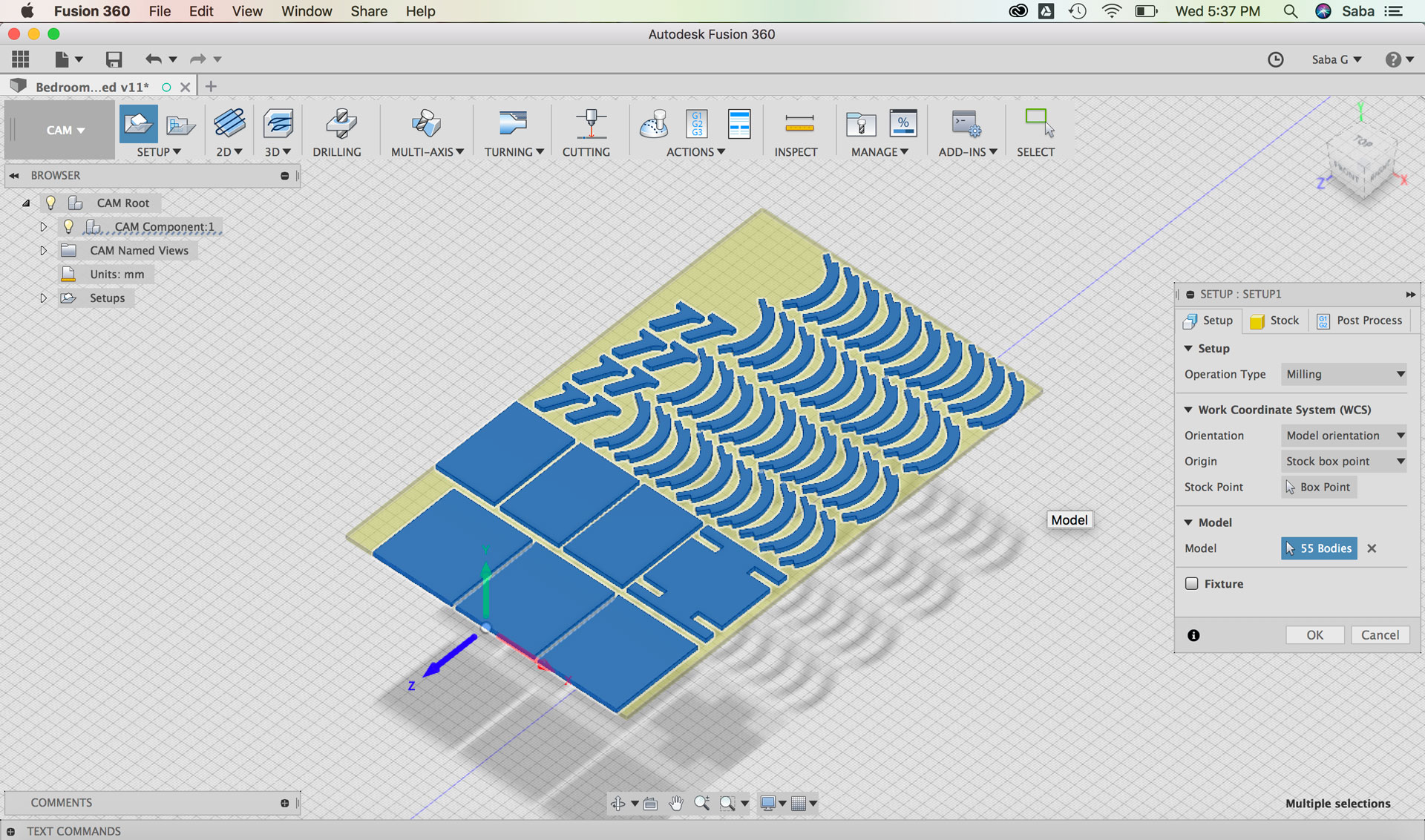
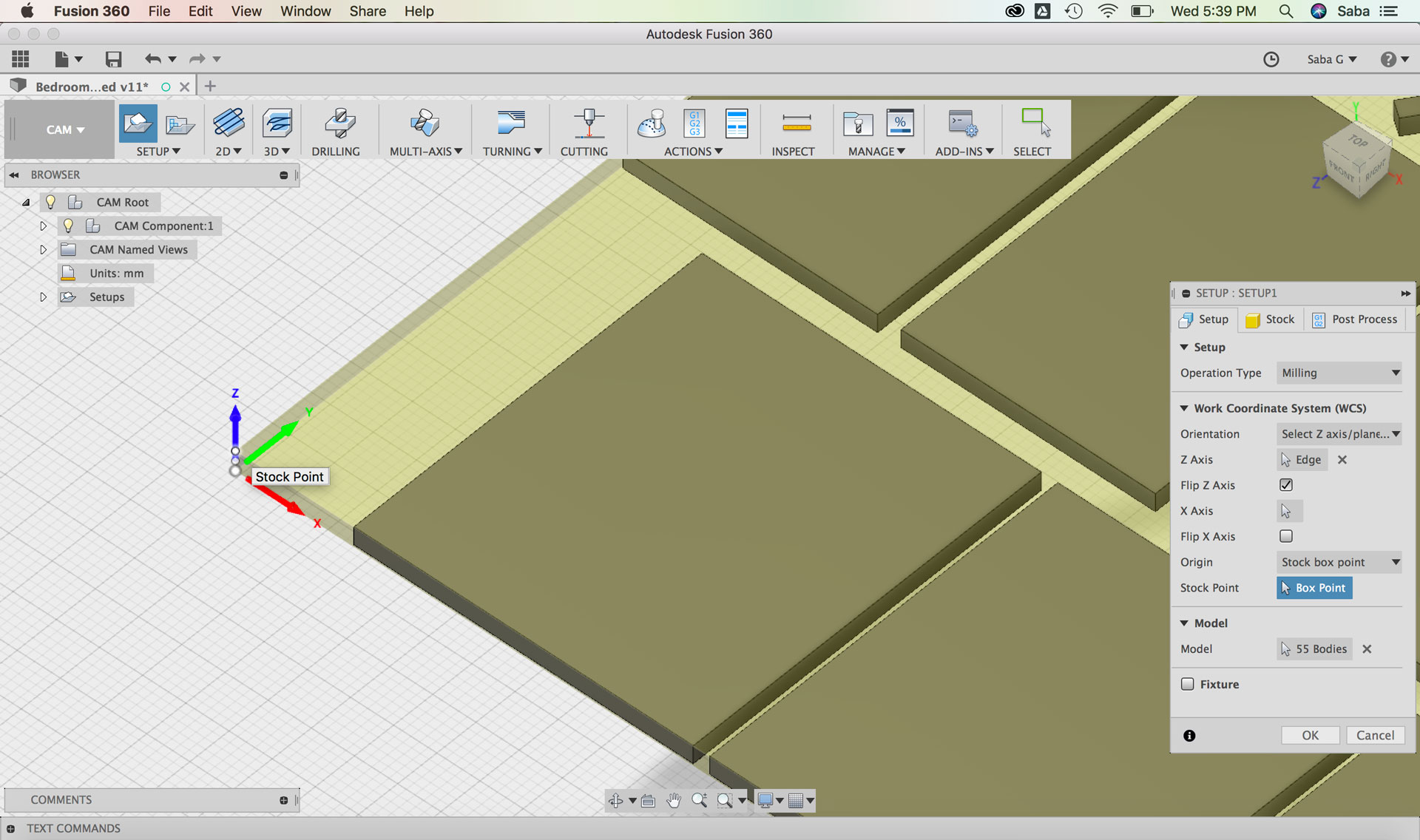
I began by creating a new Setup in the “CAM” menu in Fusion and did the following steps:

Under Setup tab:

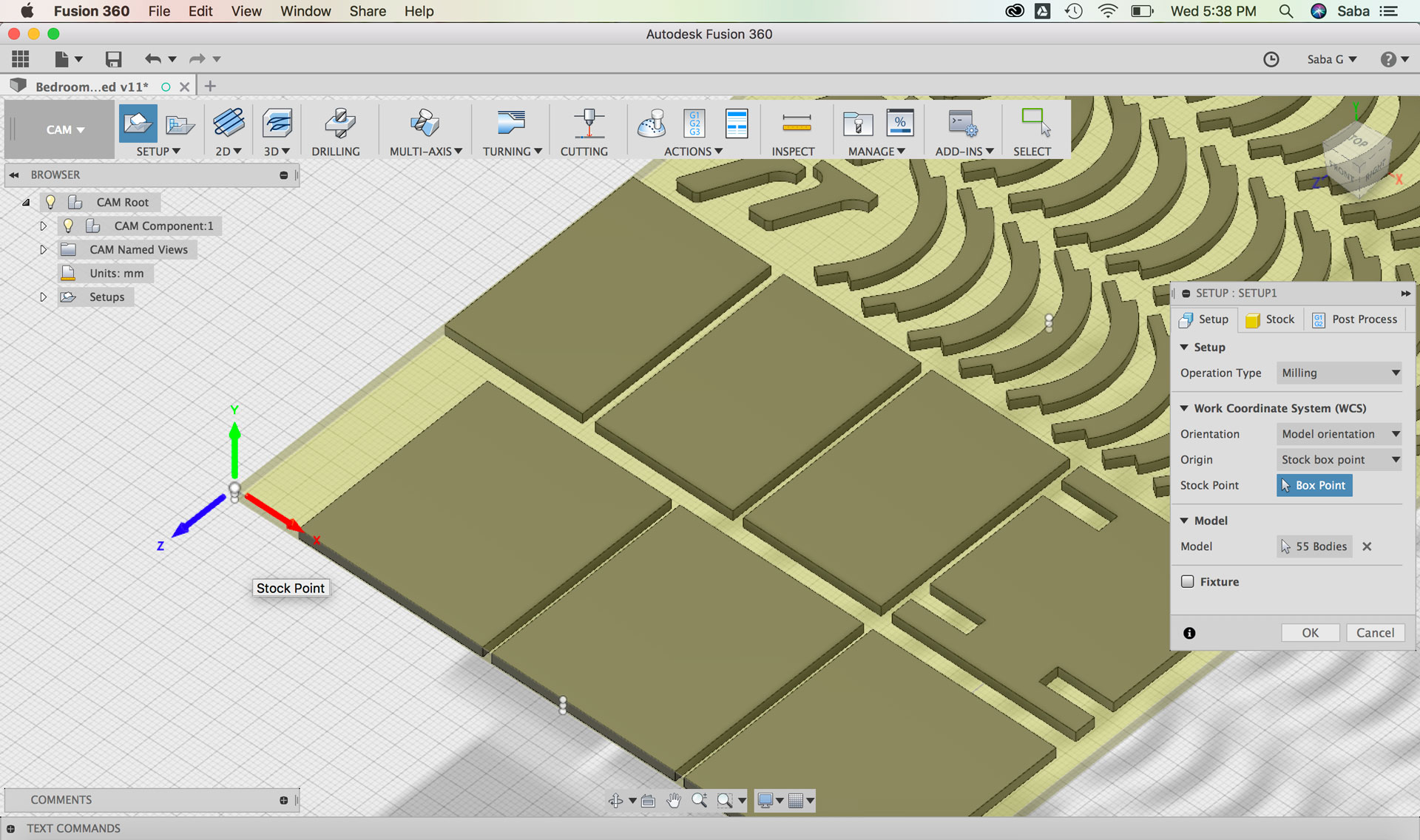
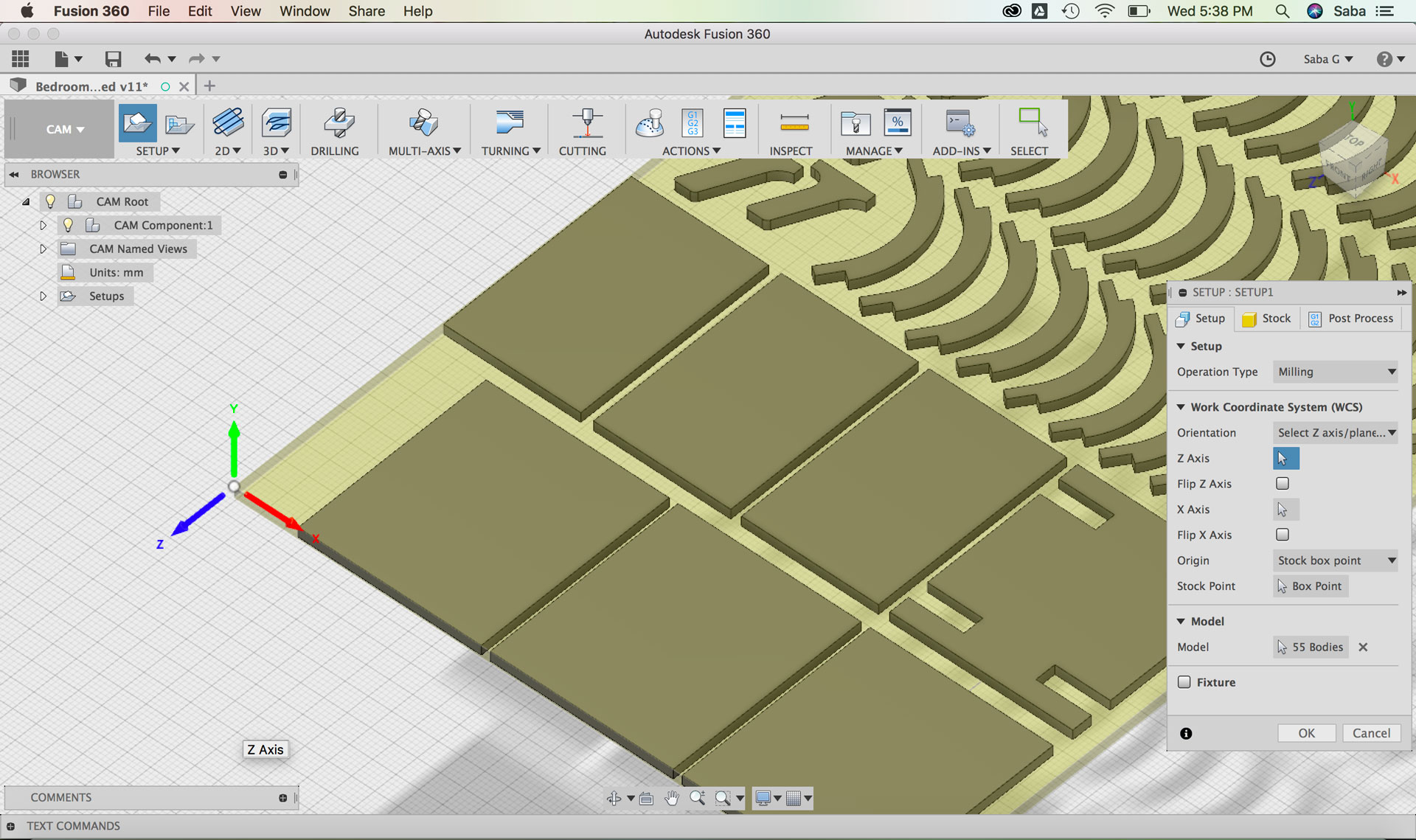
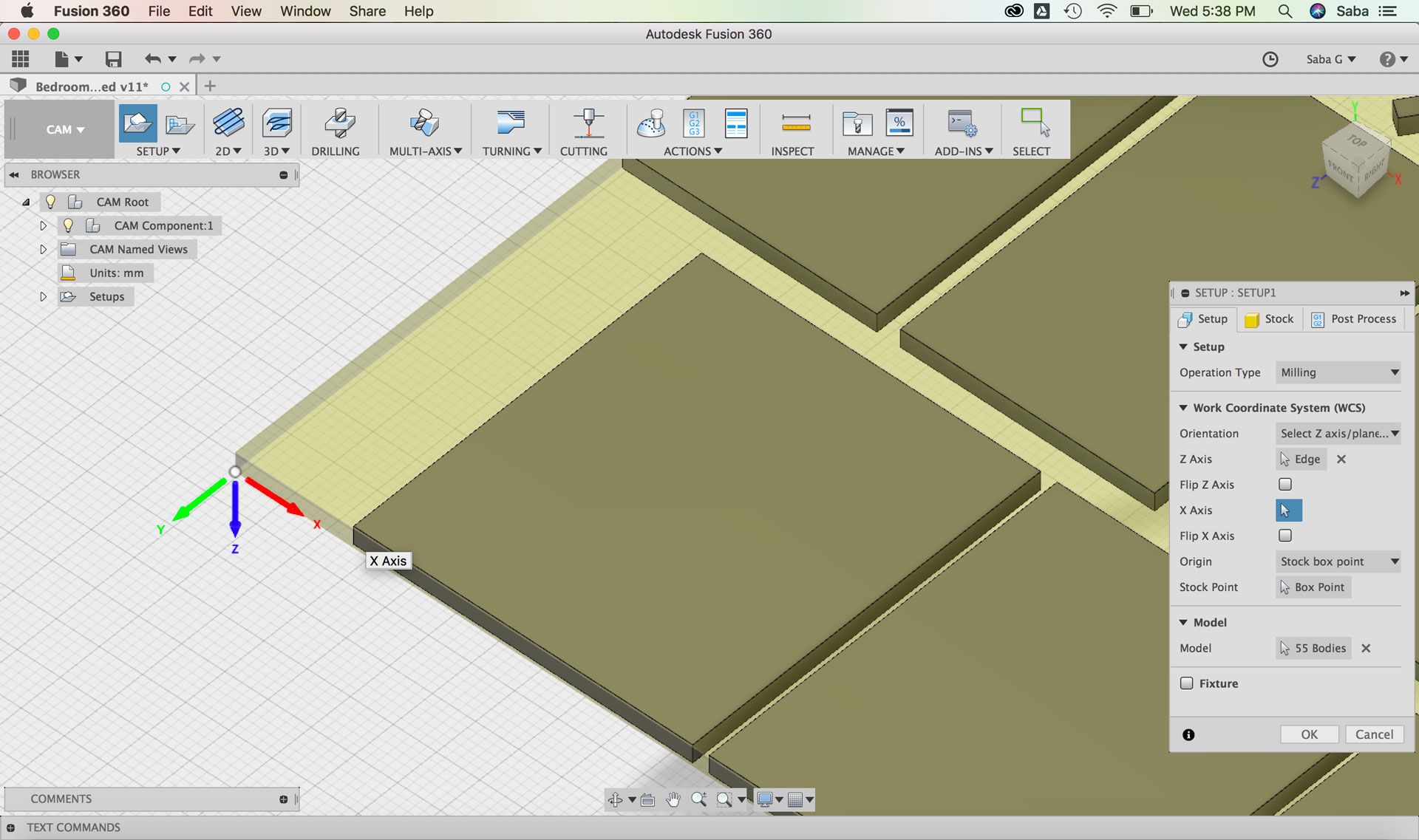
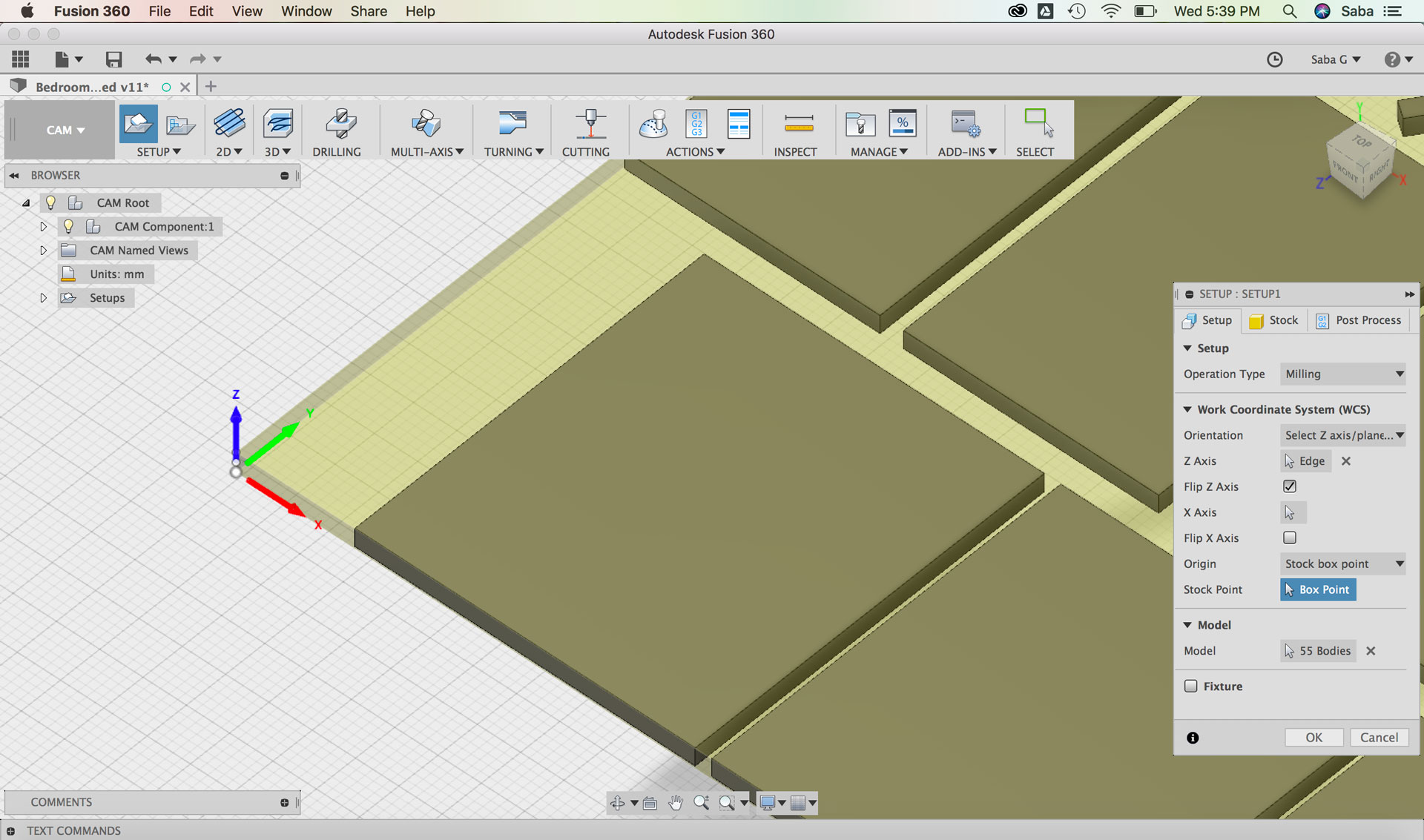
  • Update Work Coordinate System based on the x, y, z axis of our milling machine at NuVu
  • Select Stock Point (top of stock material at the bottom left corner of my stock material)
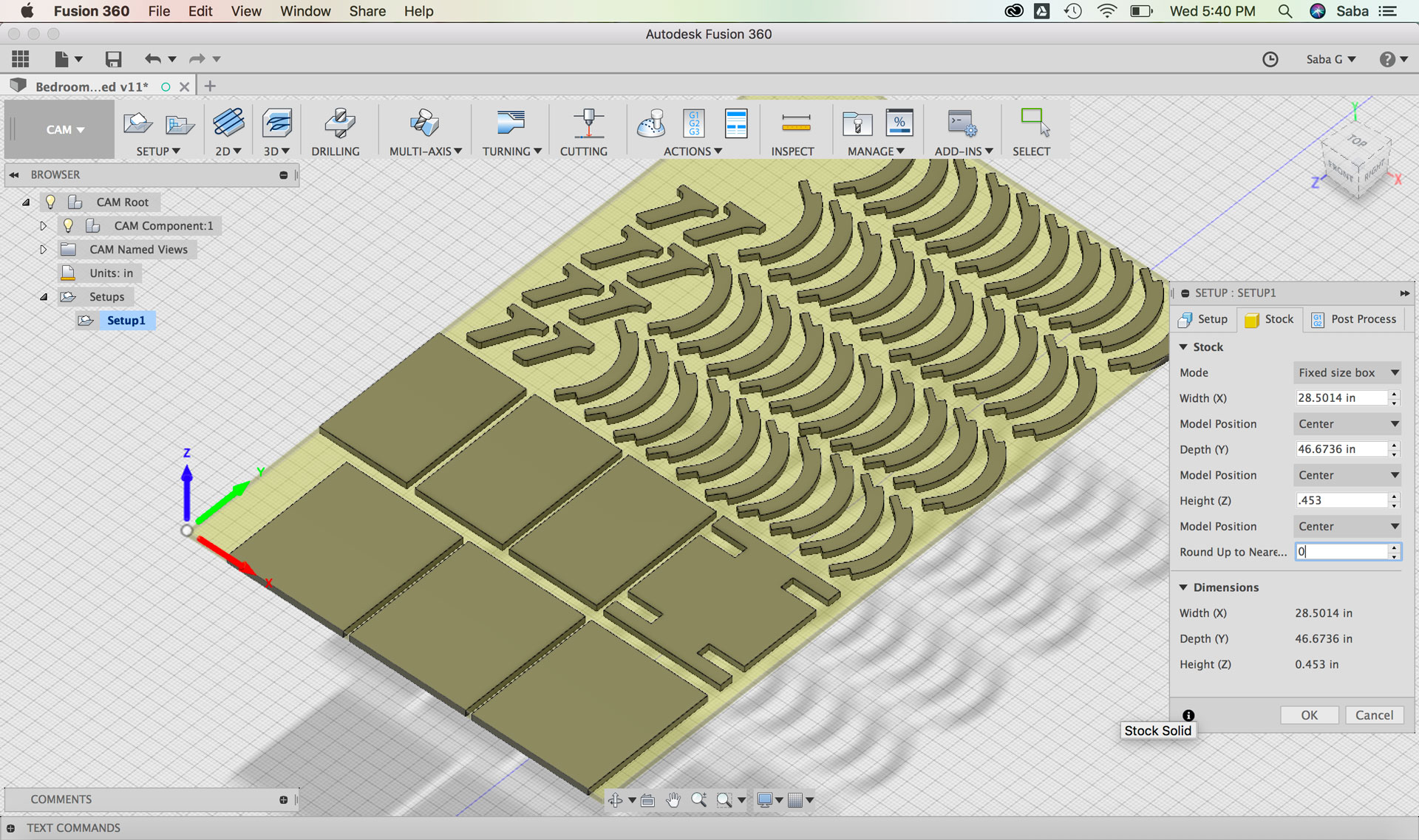
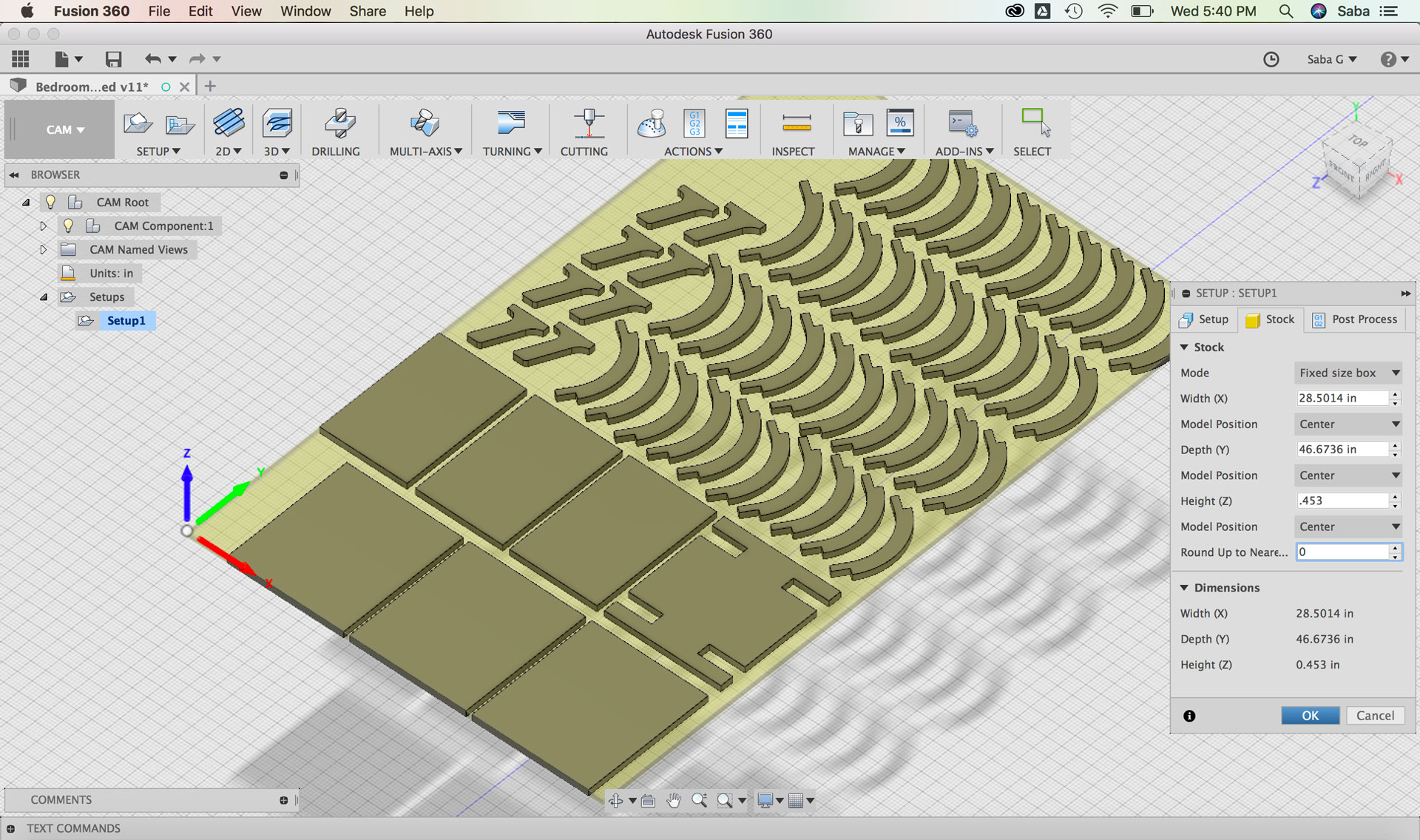
  • Under Stock tab:
  • Set Mode to “Fixed size box”
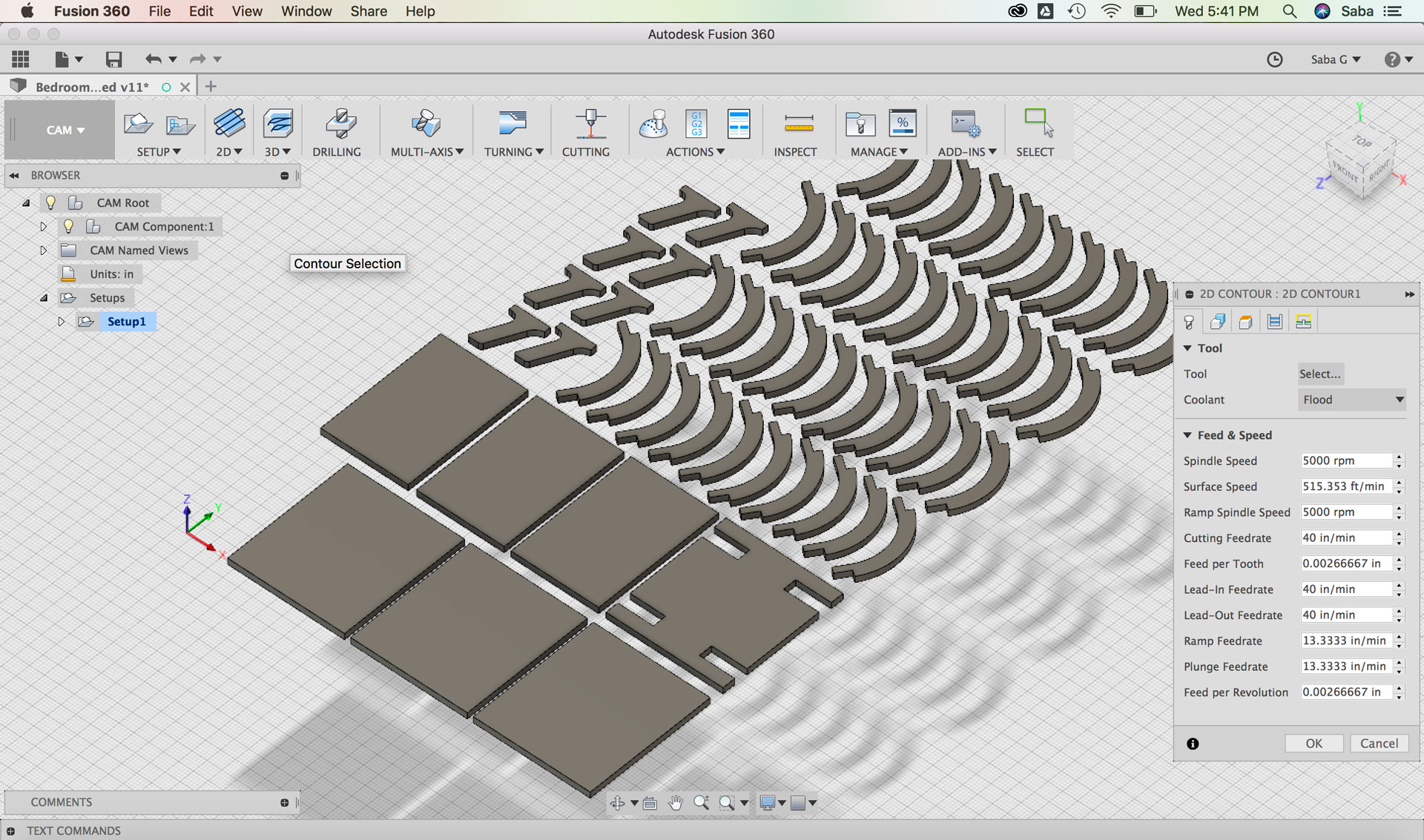
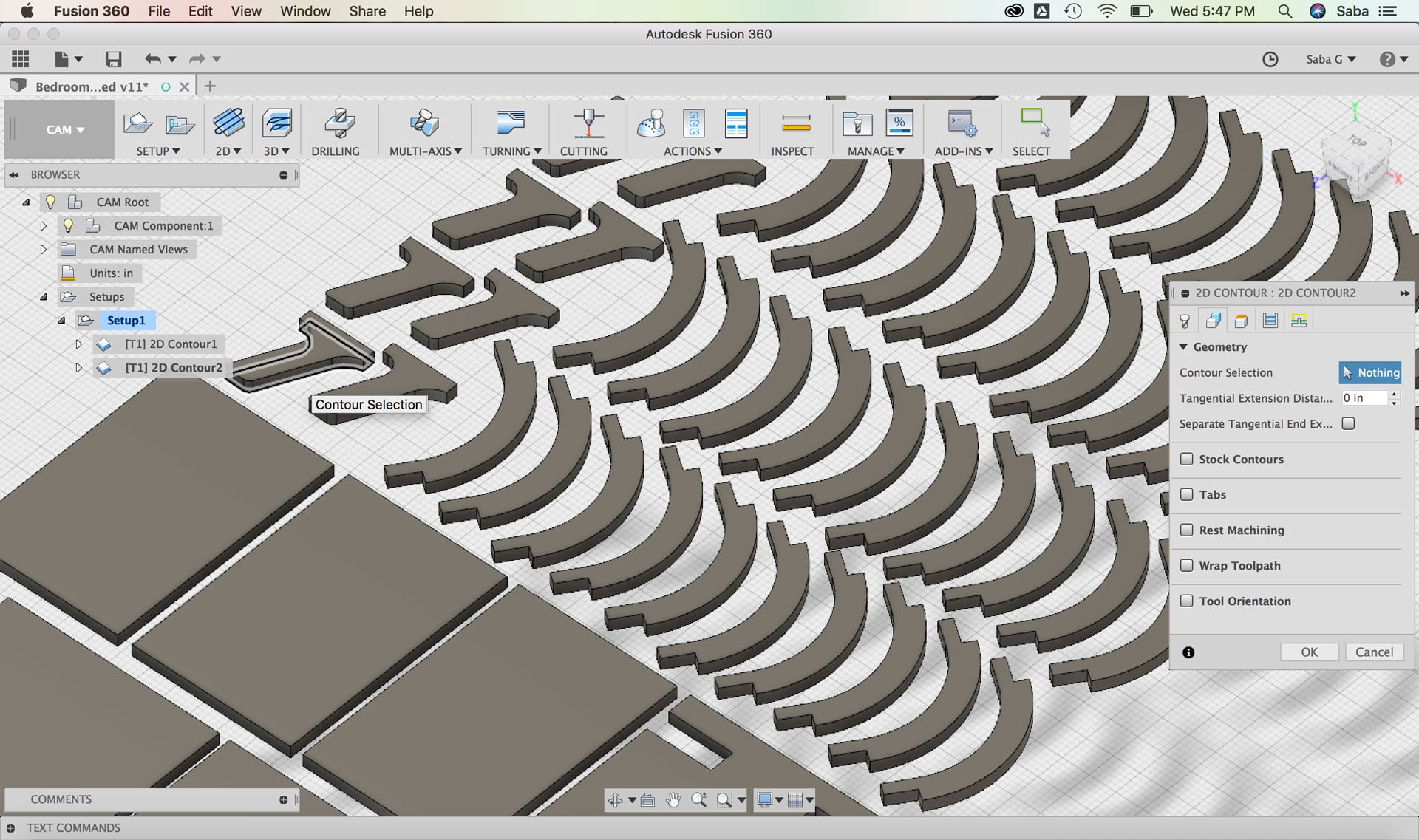
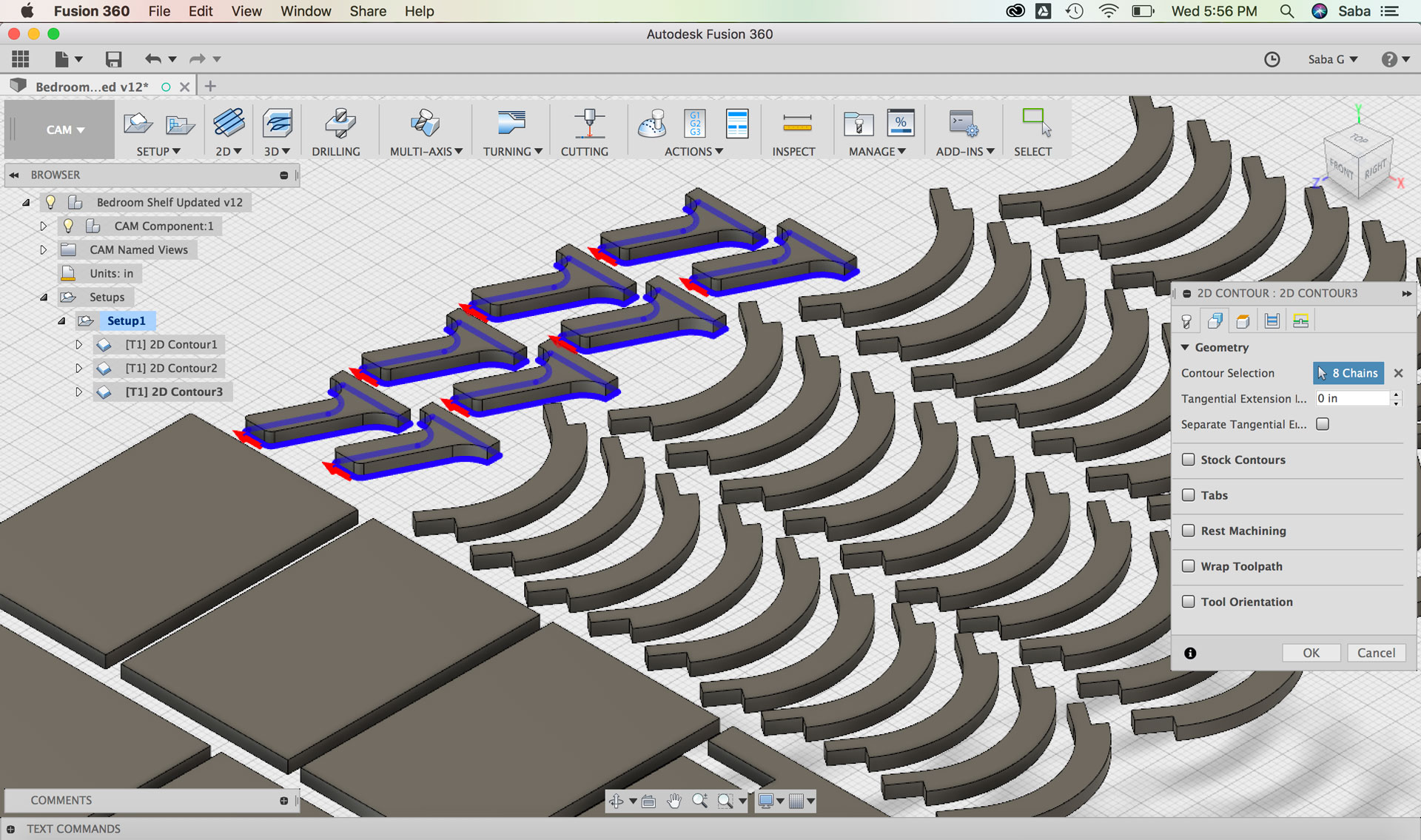
  • For my first toolpath, I used the 2D Contour feature and did the following steps for the rectangular pieces:

    Under Tool tab:
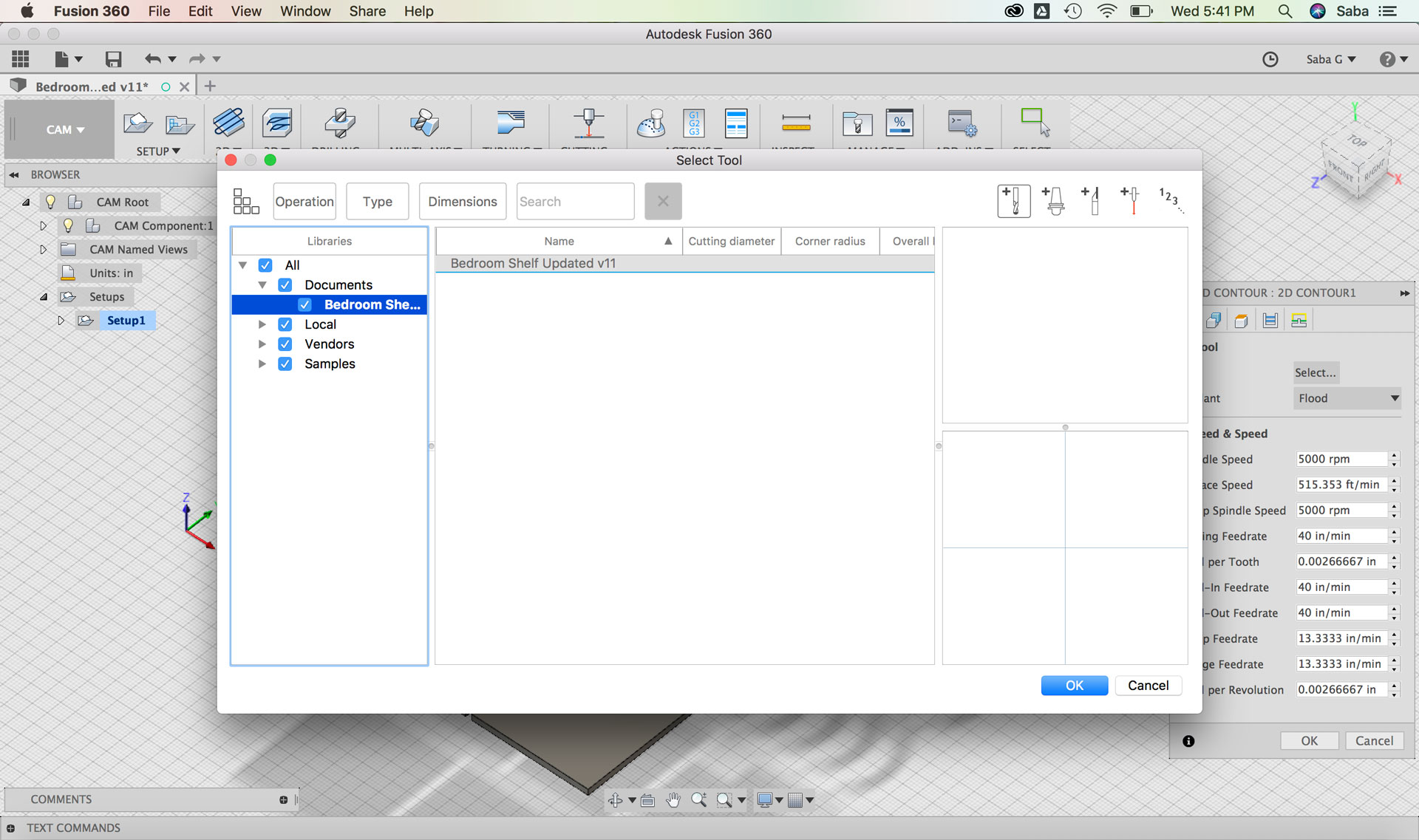
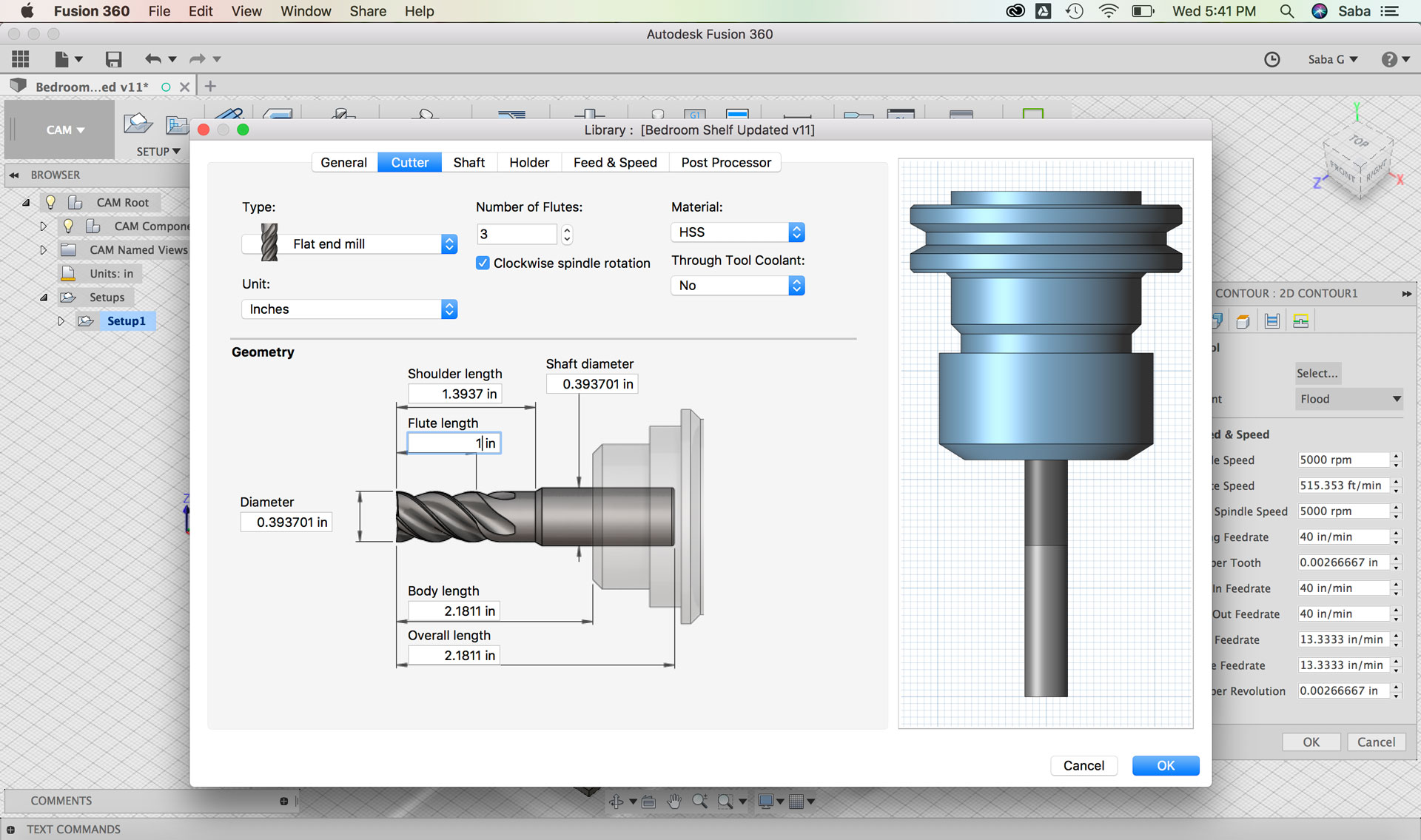
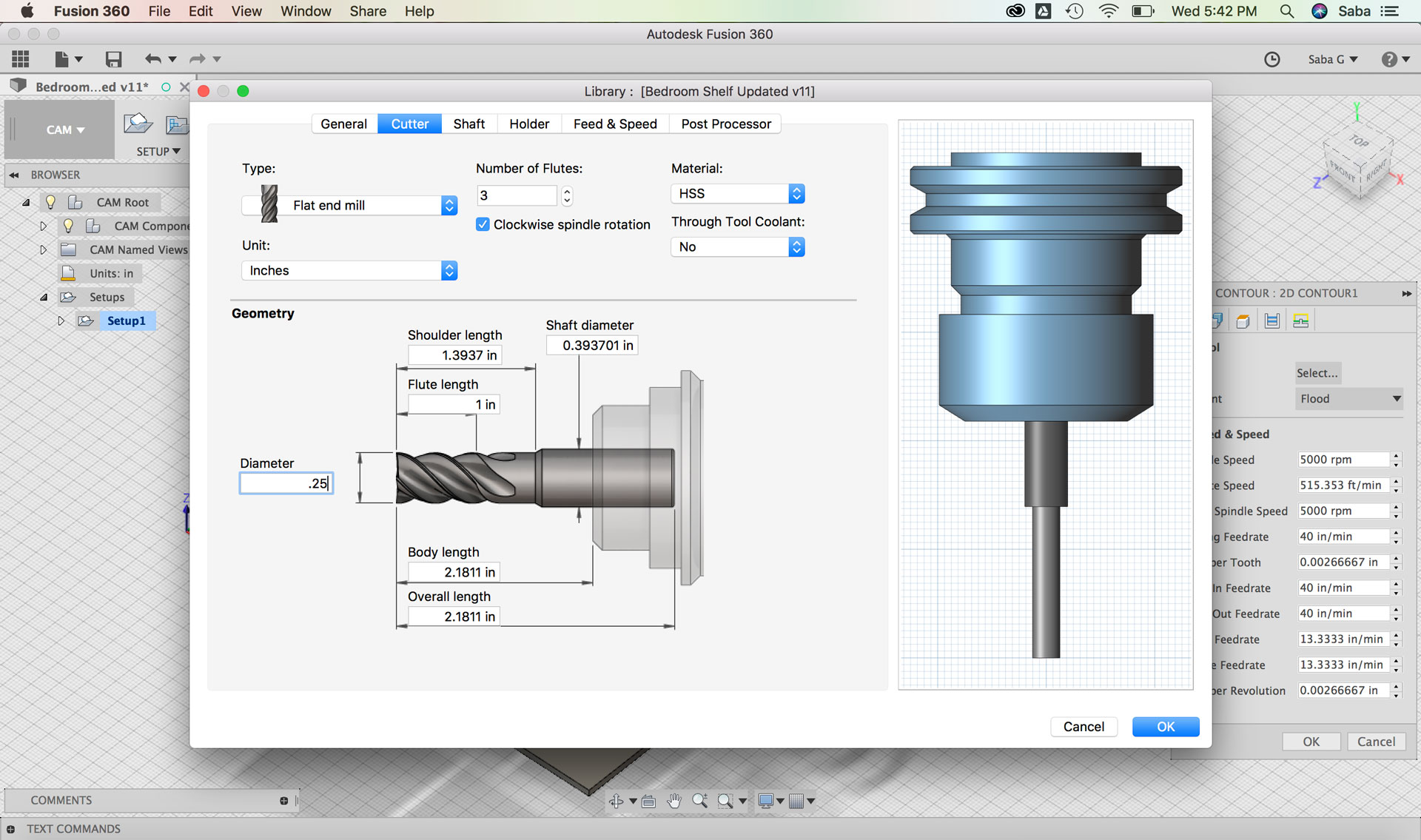
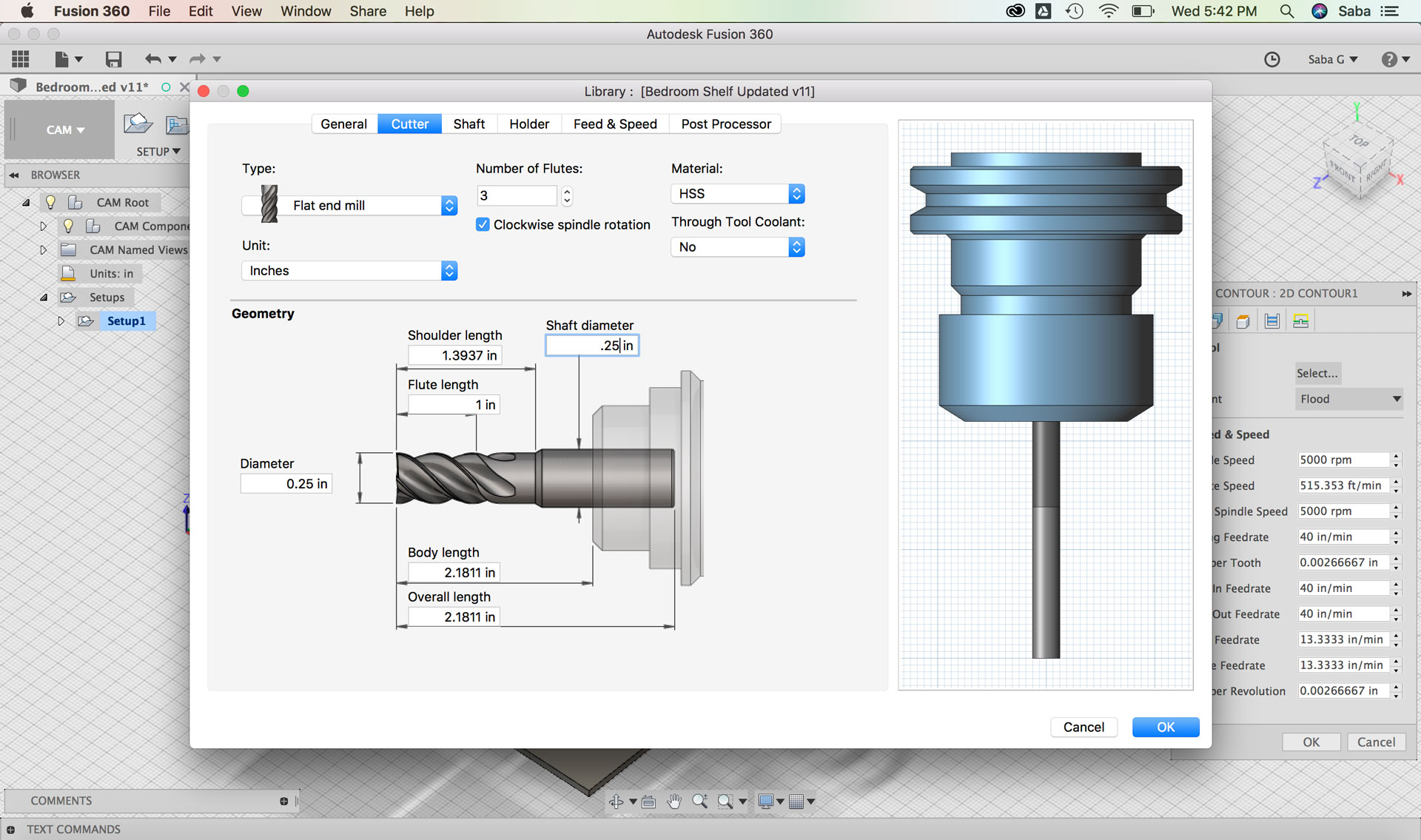
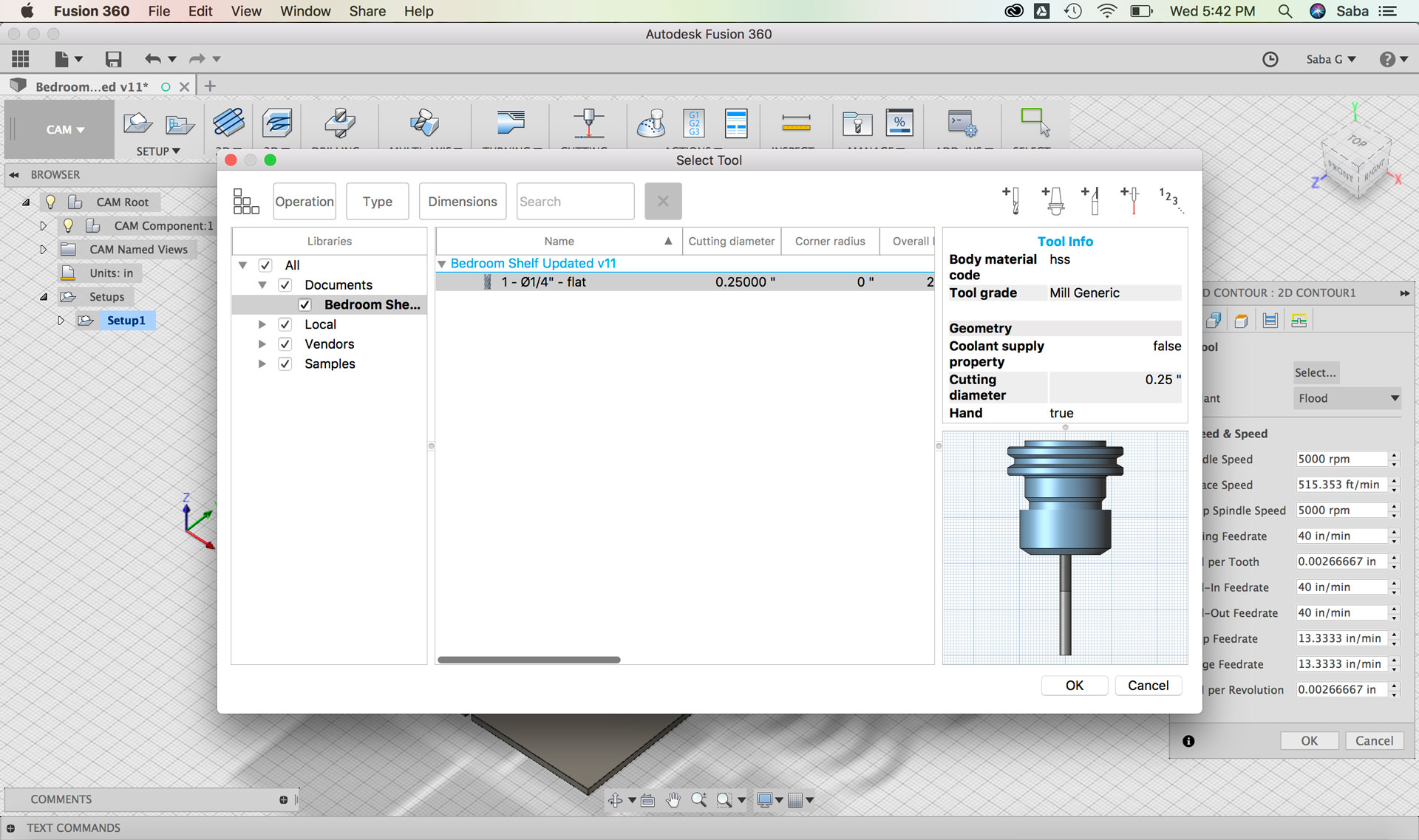
  • Select “Tool” >> add cutting tool >> Flat end mill, 3 Flutes, Flute Length of 1”, Shaft Diameter and Diameter of “.25,” Material made of HSS, and Units set to Inches
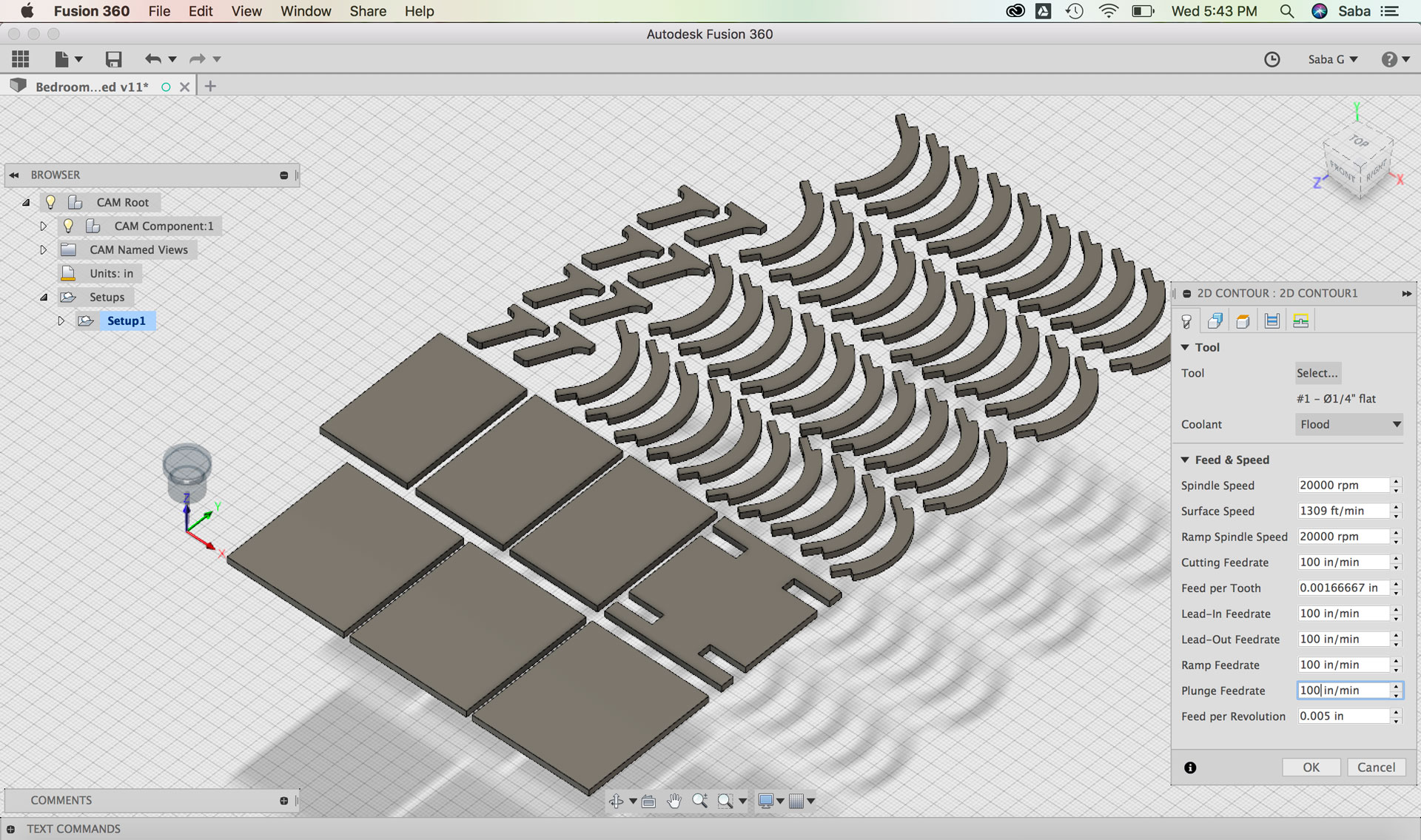
  • Update Feed & Speed >> Spindle Speed of 20000 rpm, Ramp Spindle Speed of 20000 rpm, Cutting Feedrate of 100 in/min, Lead-In Feedrate of 100 in/min, Lead-Out Feedrate of 100 in/min, Plunge Feedrate of 100 in/min, Feed per Revolution of 0.005 in
  • Under Geometry tab:
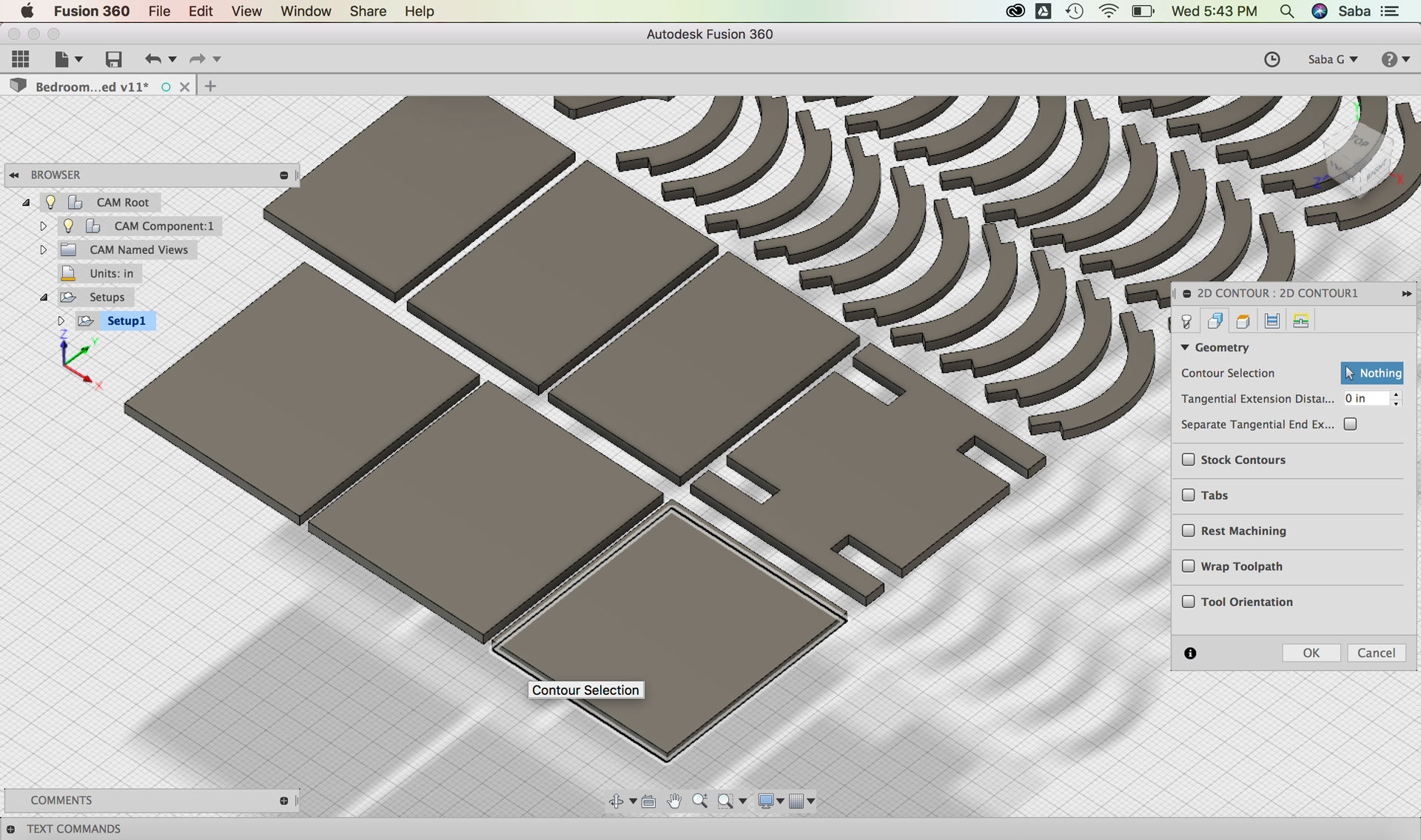
  • Contour Selection: select bottom facing contours
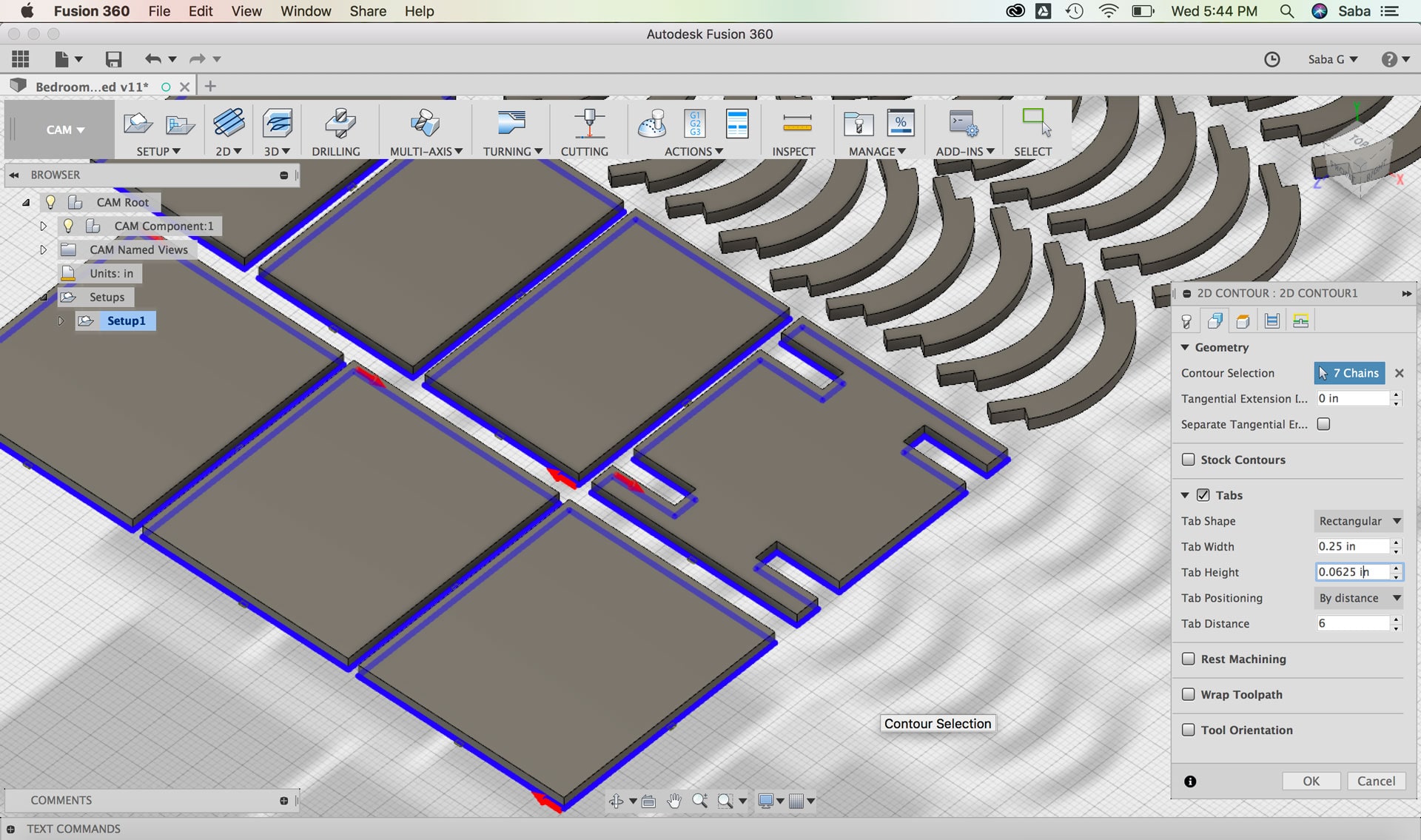
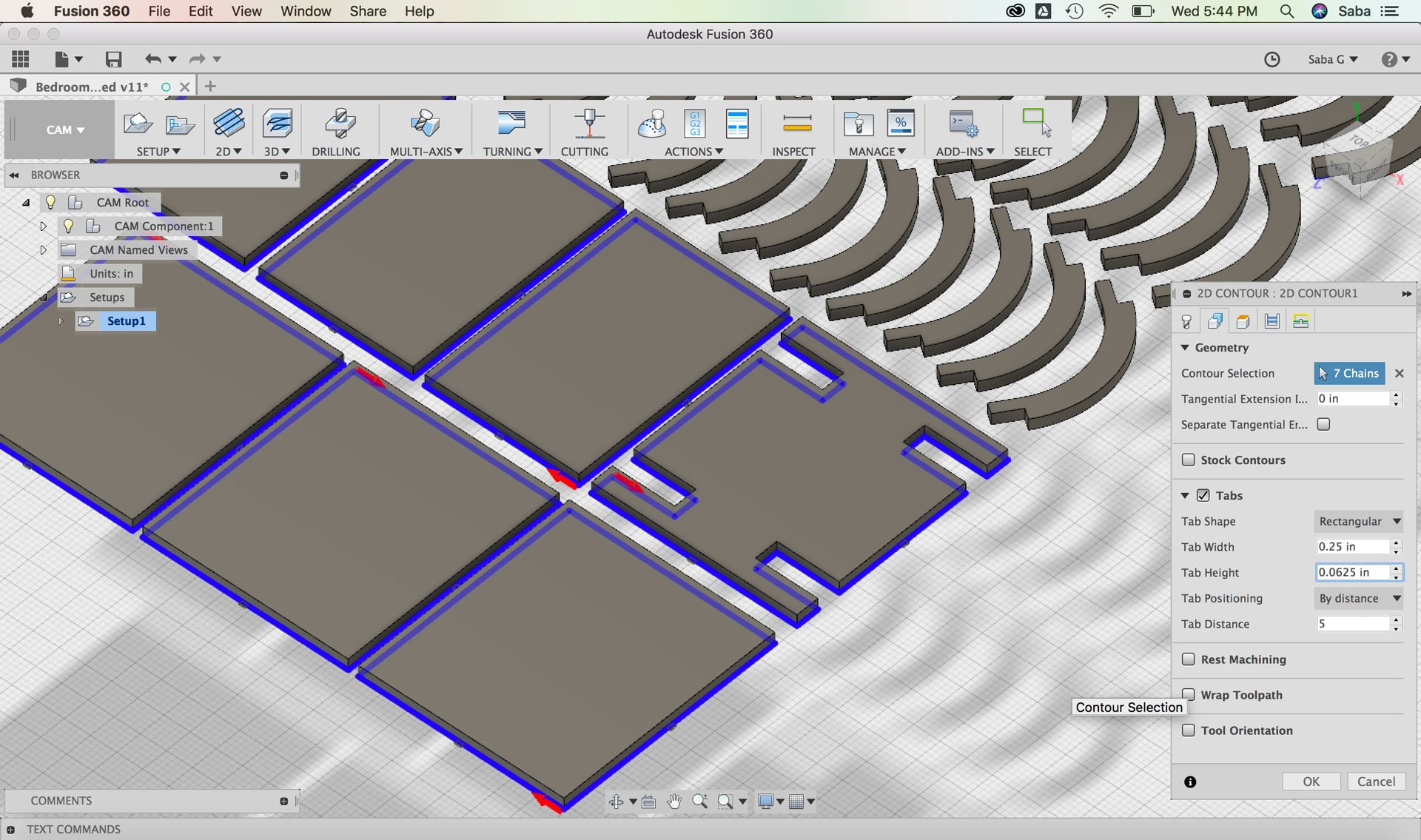
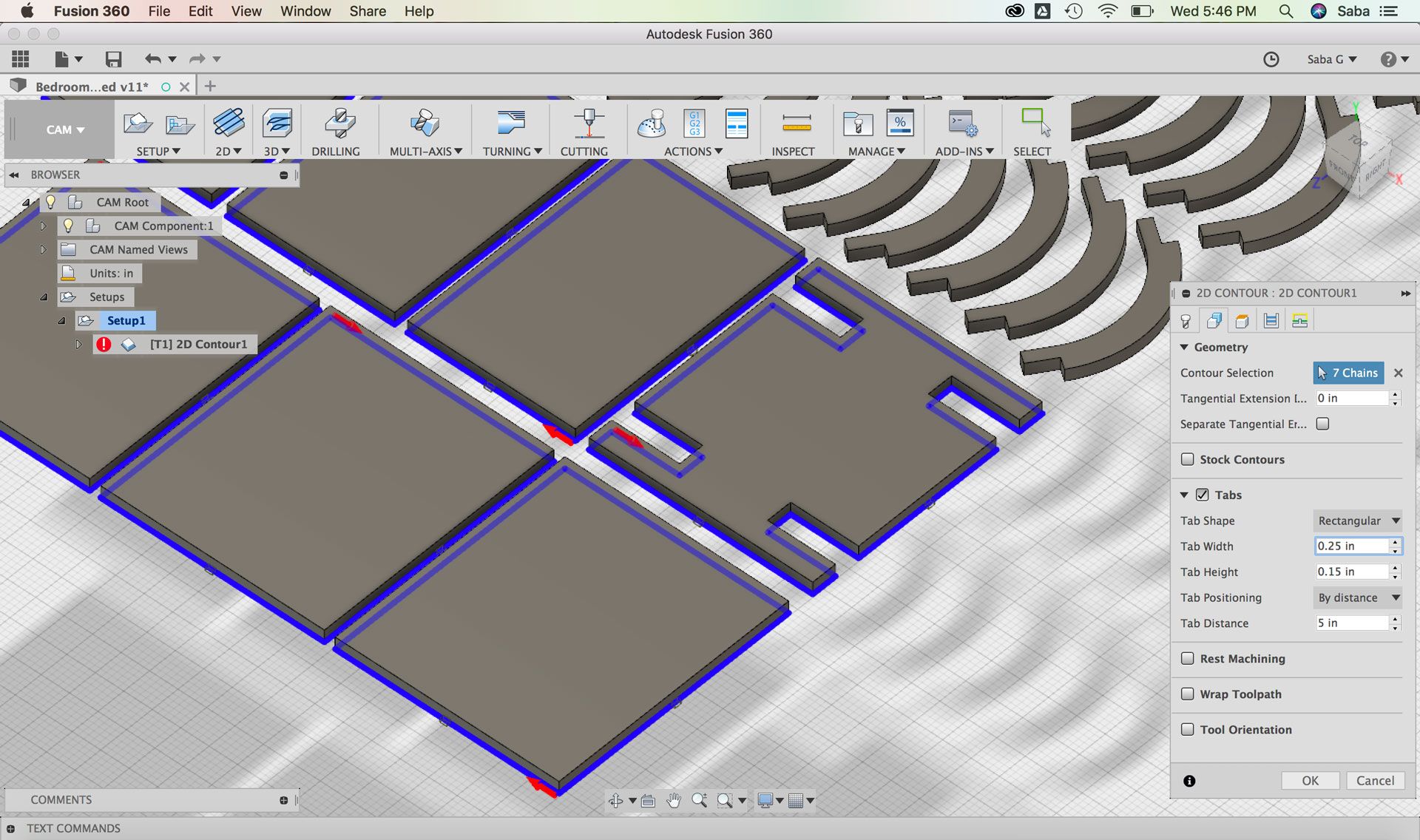
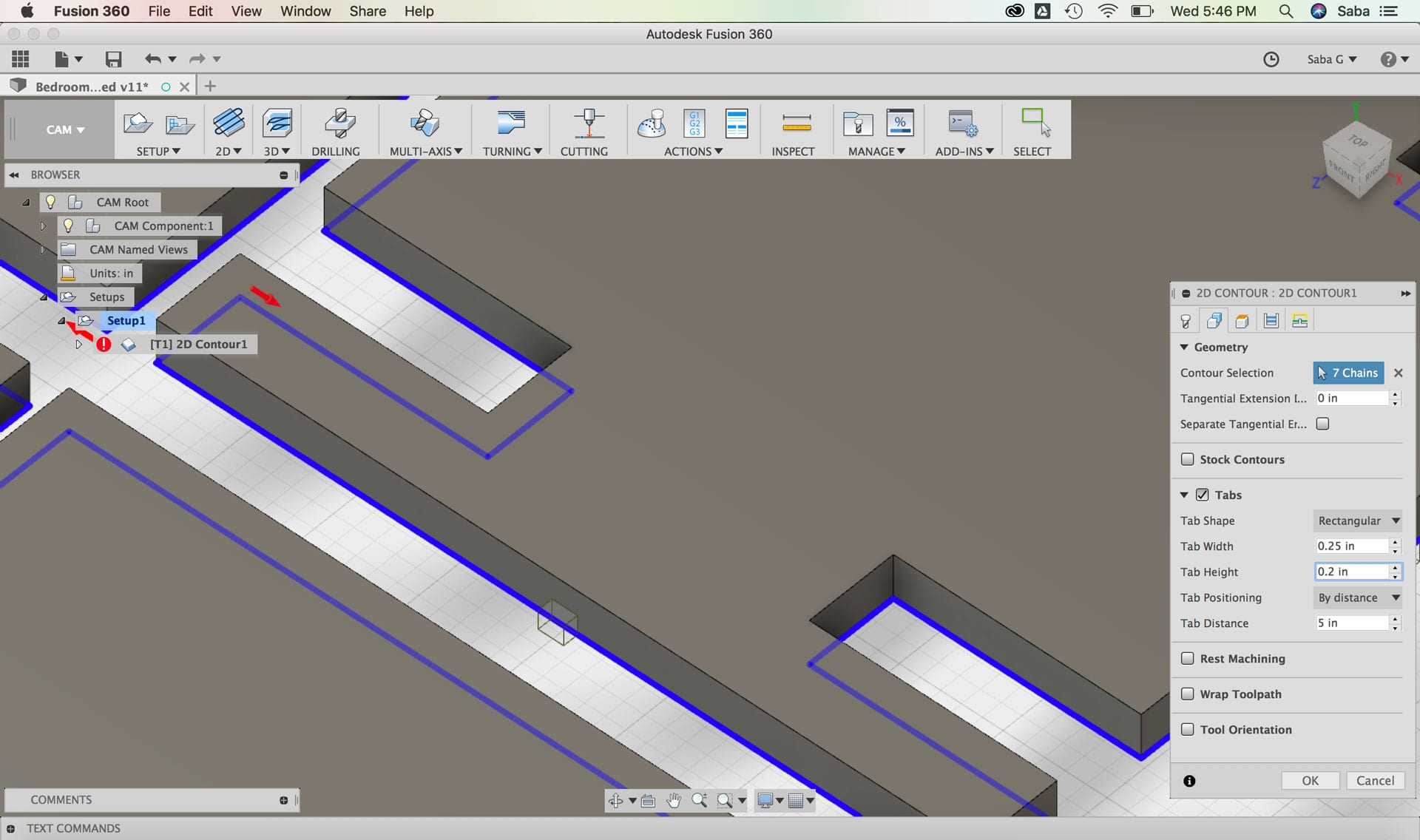
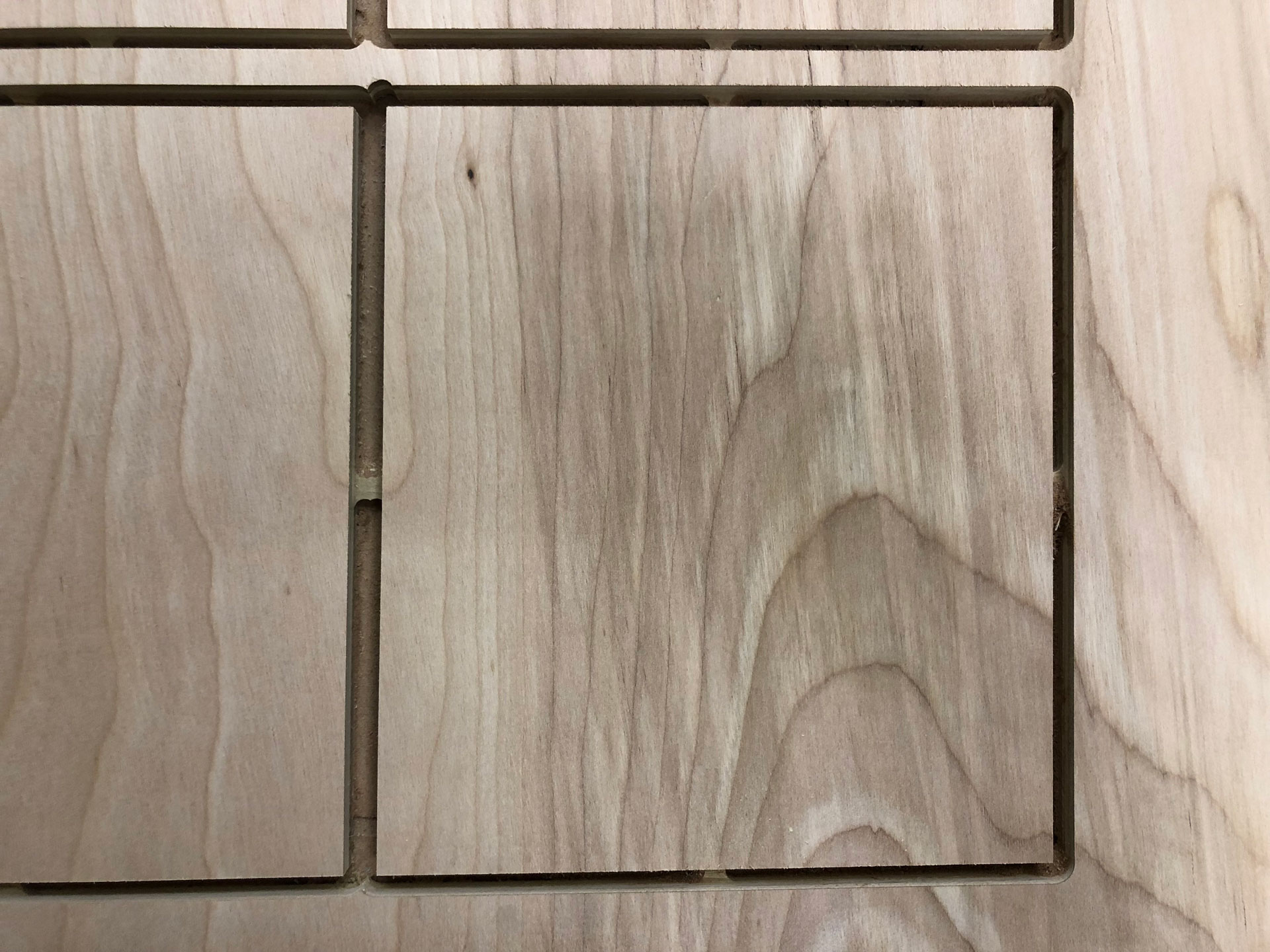
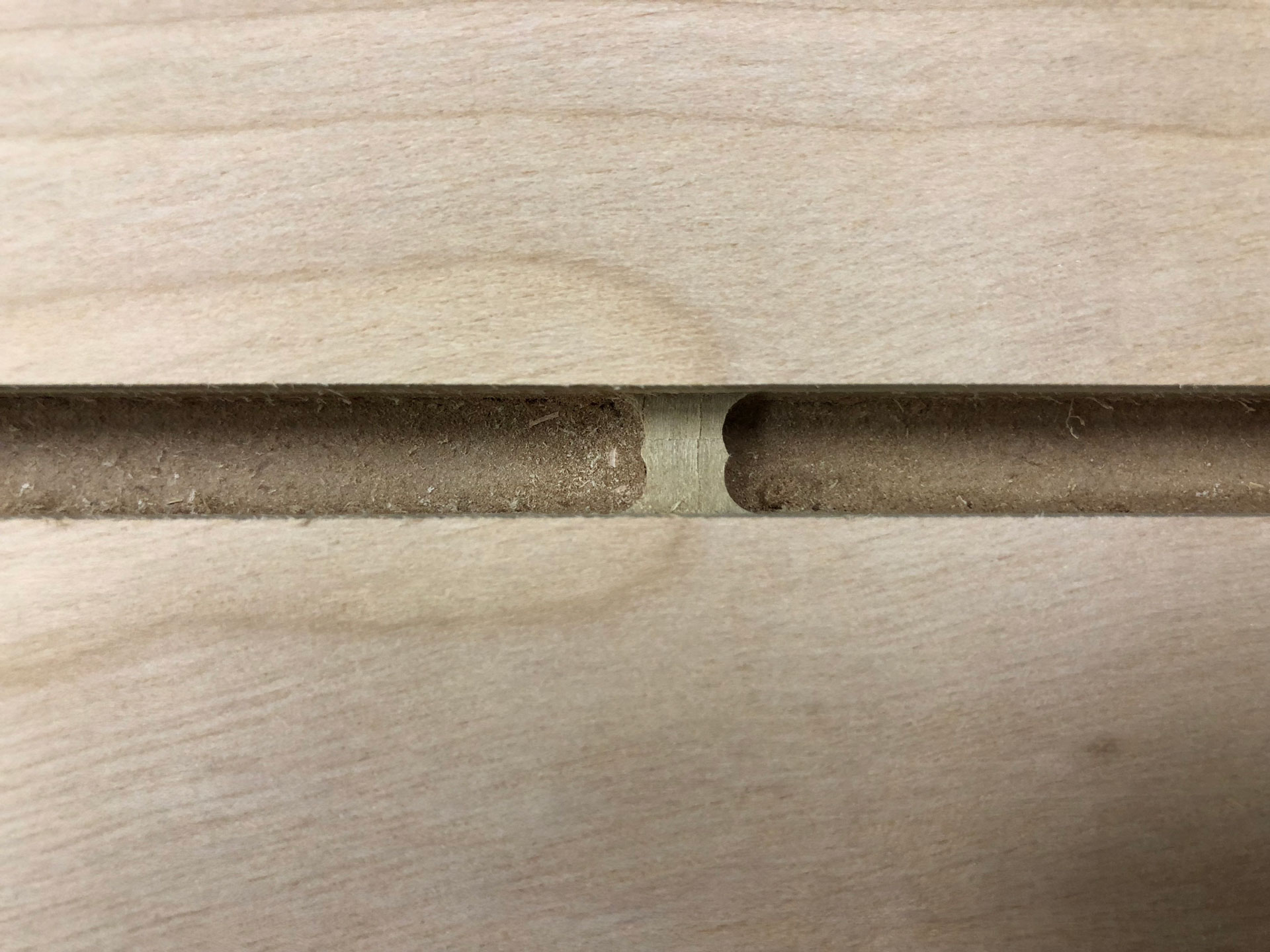
  • Tabs: I set the Tab Width to 0.25” and Tab Height to 0.2” by distance and then selected the Tab Distance to 5 after some experimentation (You don’t want too many or too few)
  • Under Passes tab:
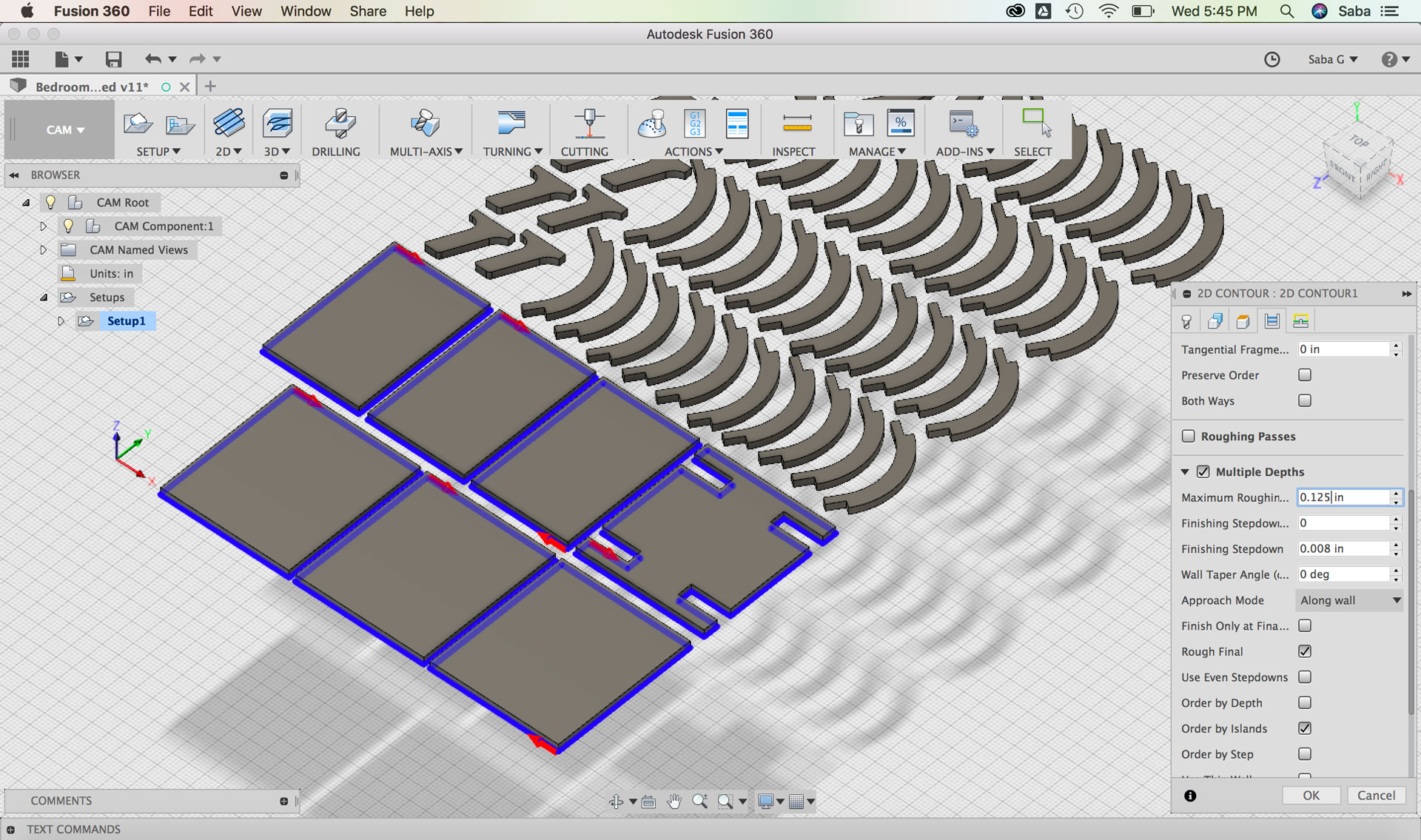
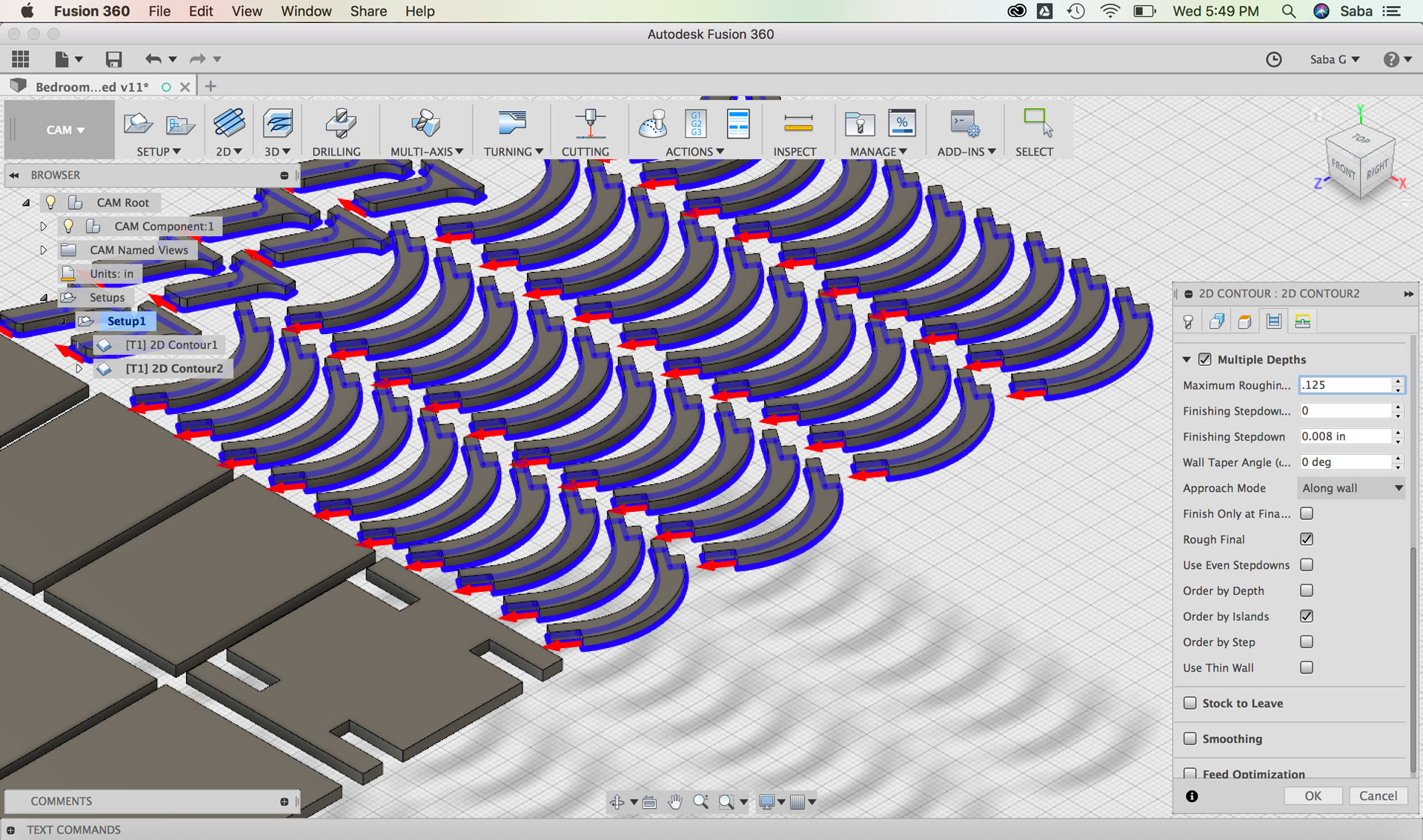
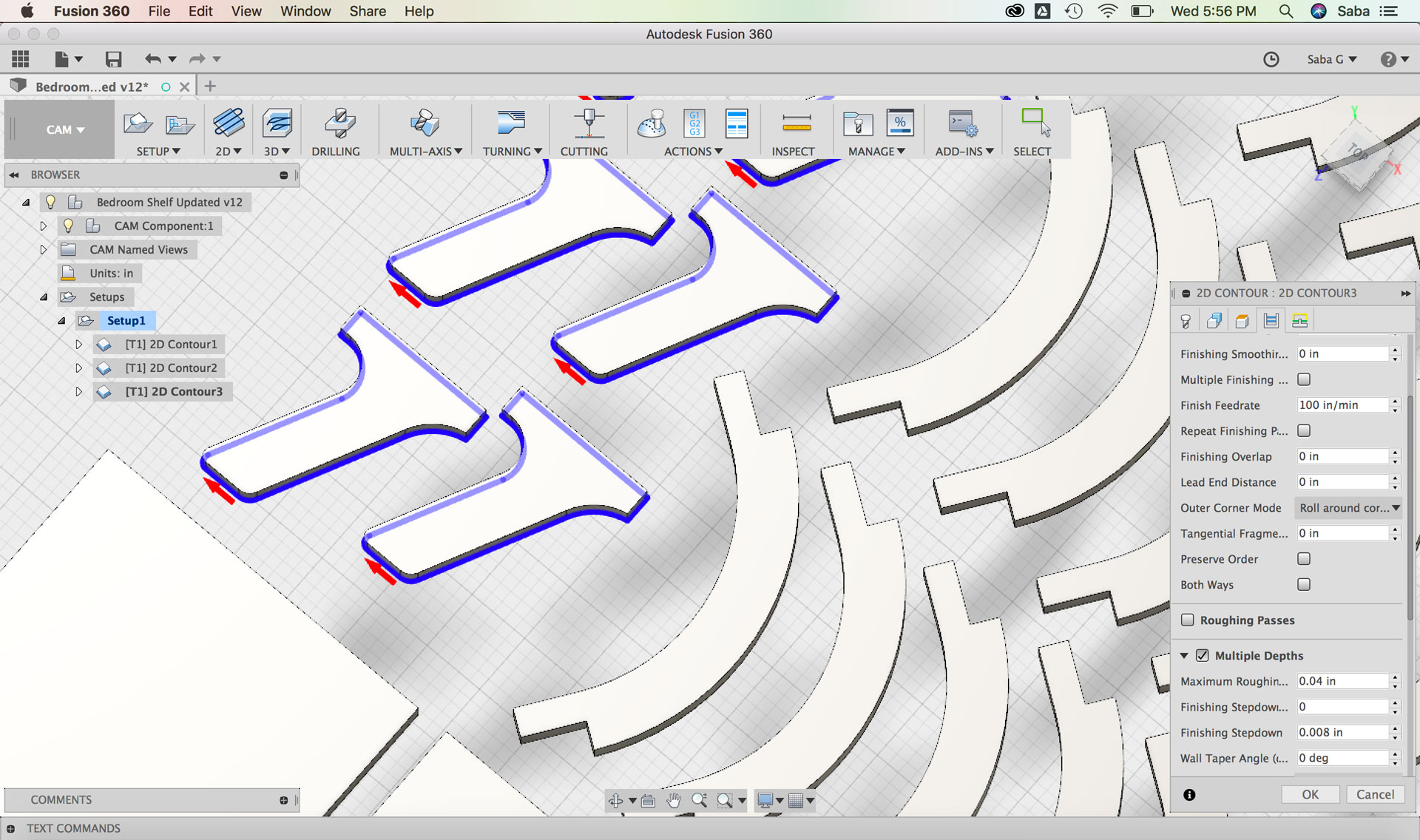
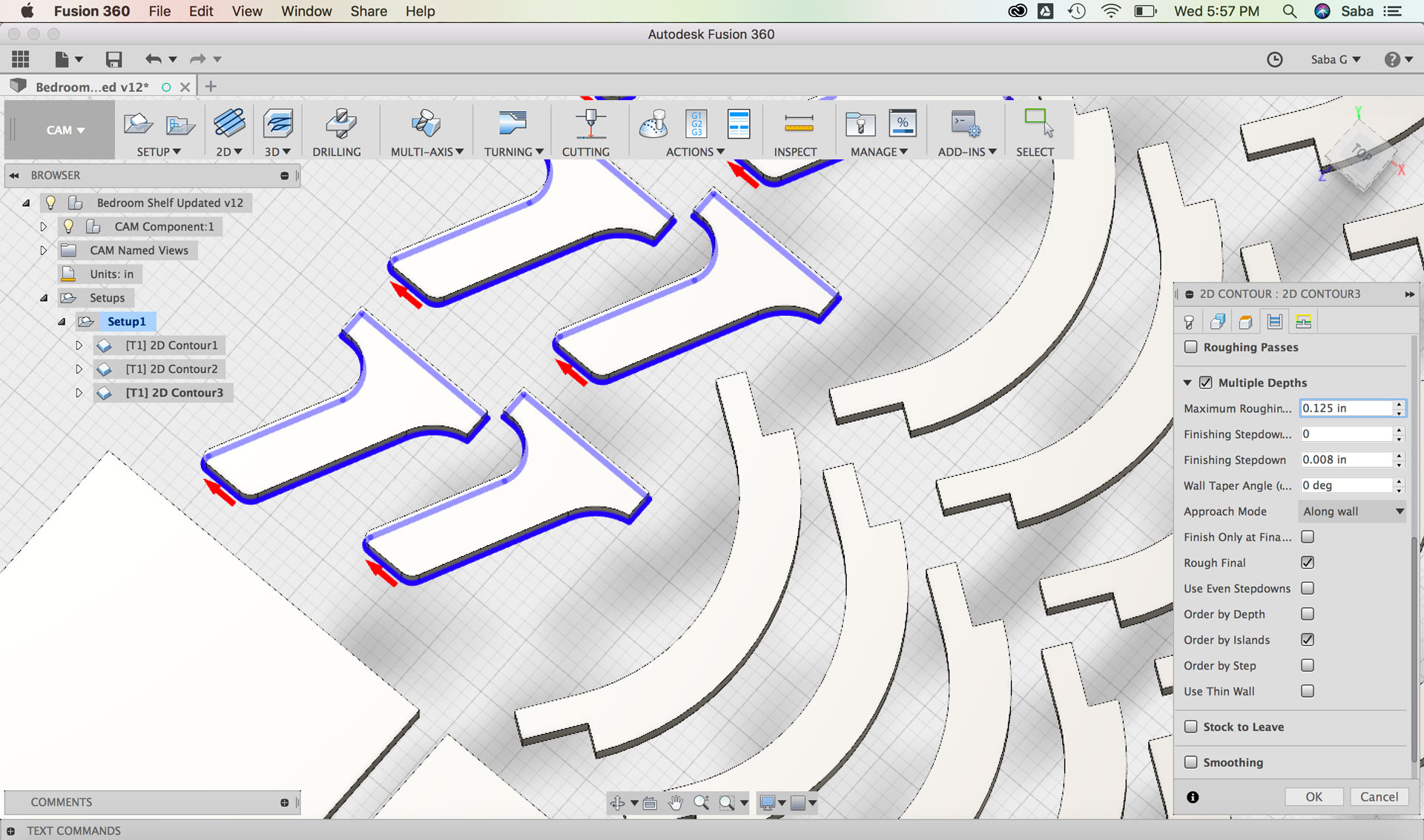
  • Under Multiple Depths, set Maximum Roughing to 0.125”
  • Fusion 360: CAM setup Fusion 360: CAM setup Fusion 360: CAM setup Fusion 360: CAM setup Fusion 360: CAM setup Fusion 360: CAM setup Fusion 360: CAM setup Fusion 360: CAM setup Fusion 360: CAM setup Fusion 360: CAM setup Fusion 360: CAM setup Fusion 360: CAM setup Fusion 360: CAM setup Fusion 360: CAM setup Fusion 360: CAM setup Fusion 360: CAM setup Fusion 360: CAM setup Fusion 360: CAM setup Fusion 360: CAM setup Fusion 360: CAM setup Fusion 360: CAM setup Fusion 360: CAM setup Fusion 360: CAM setup

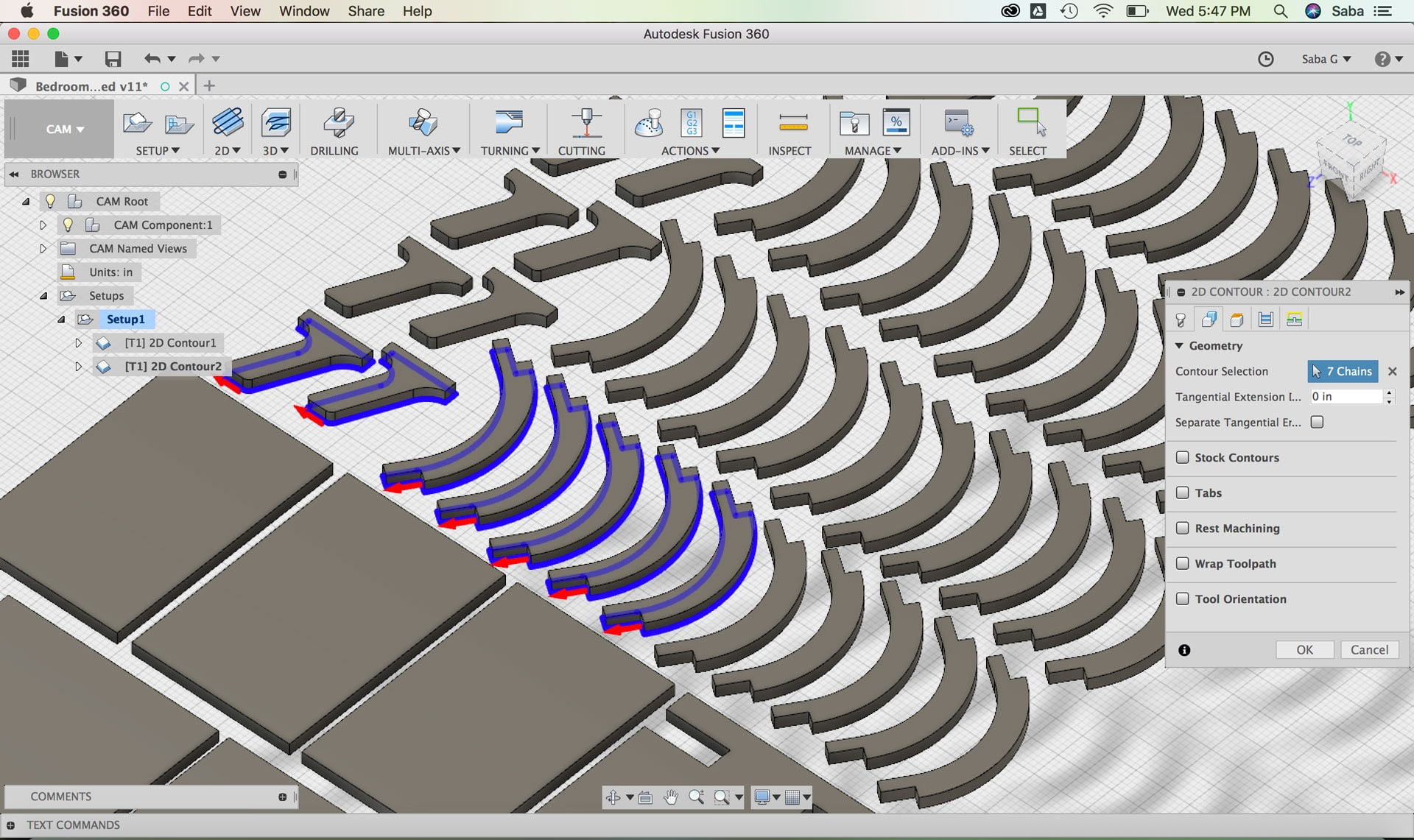
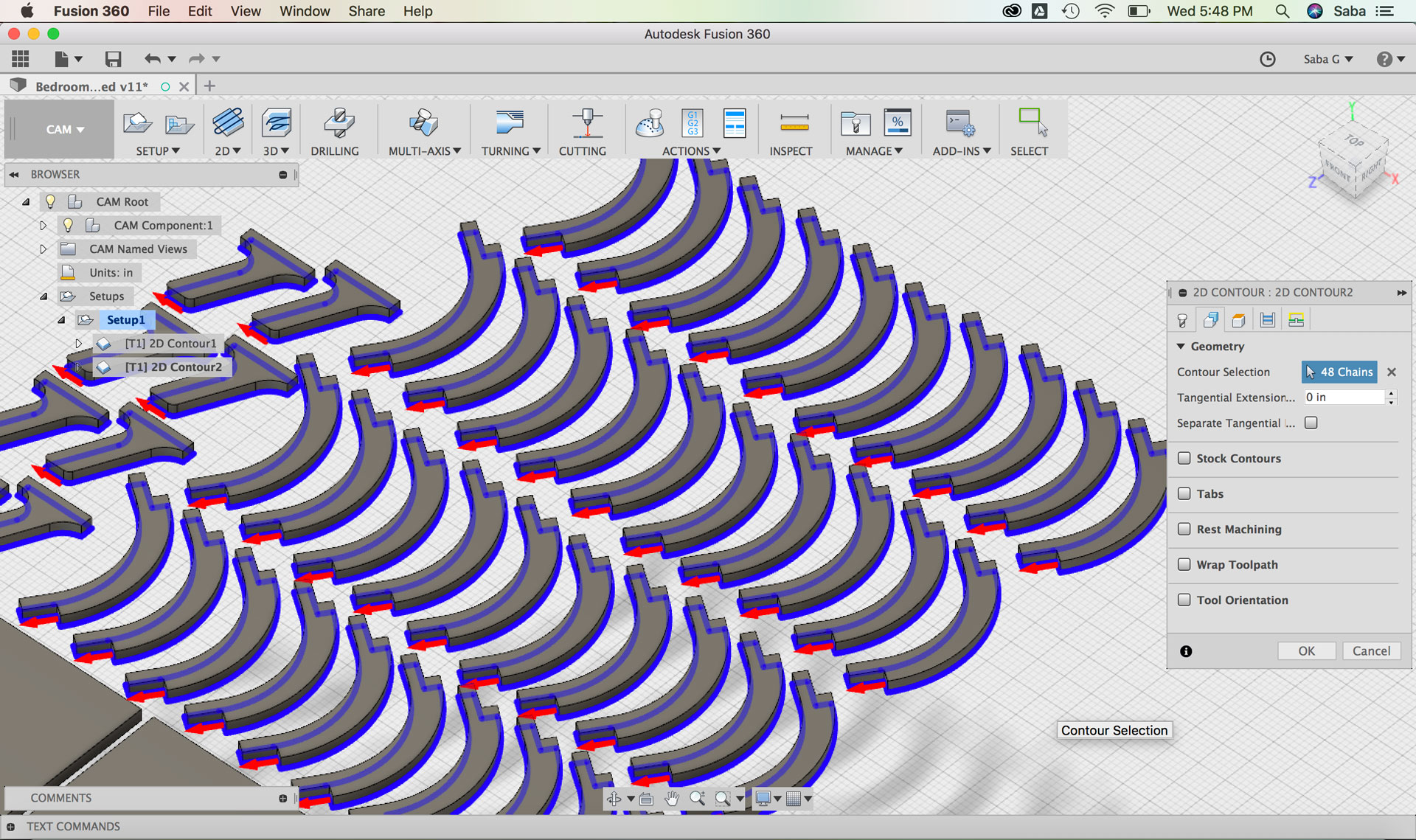
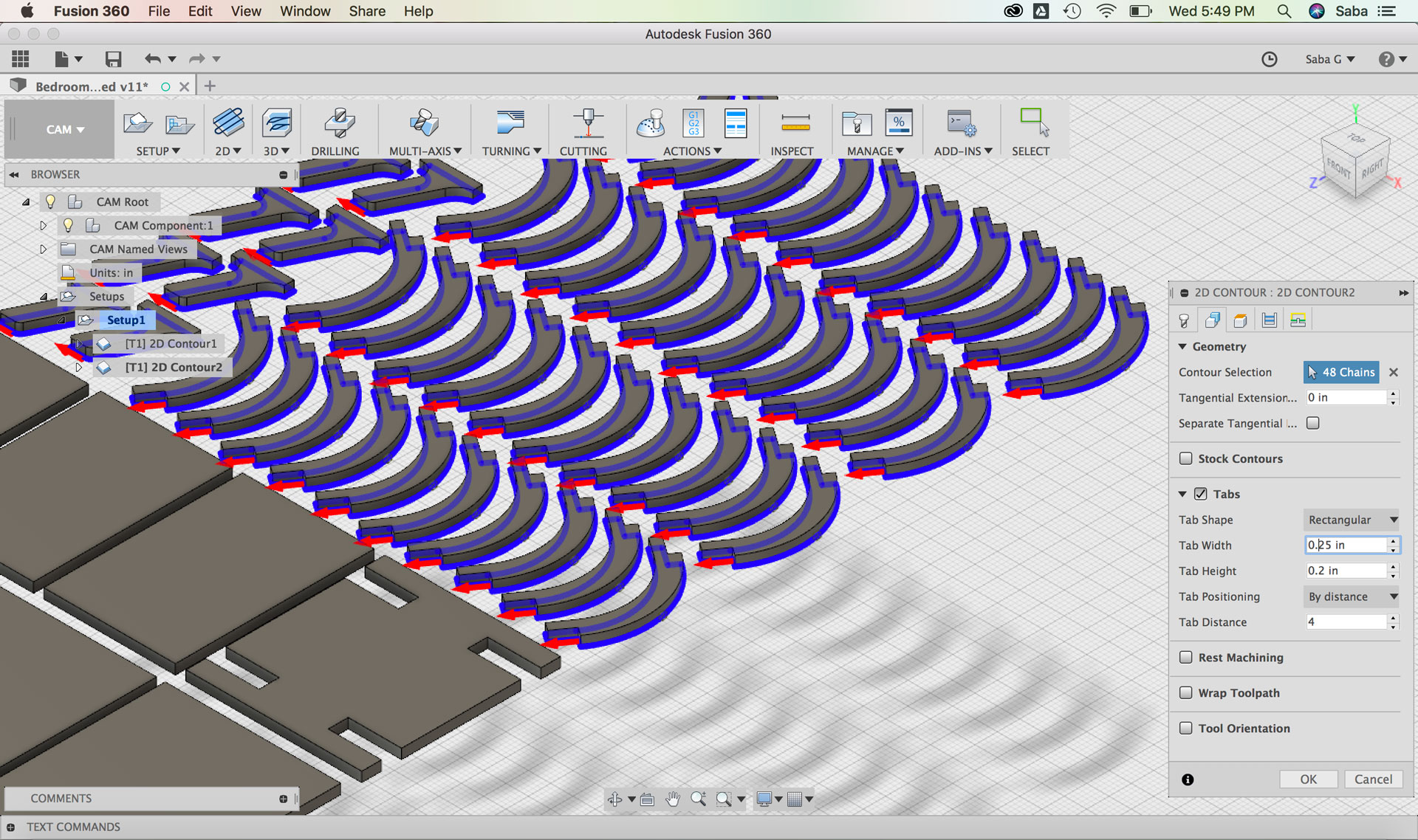
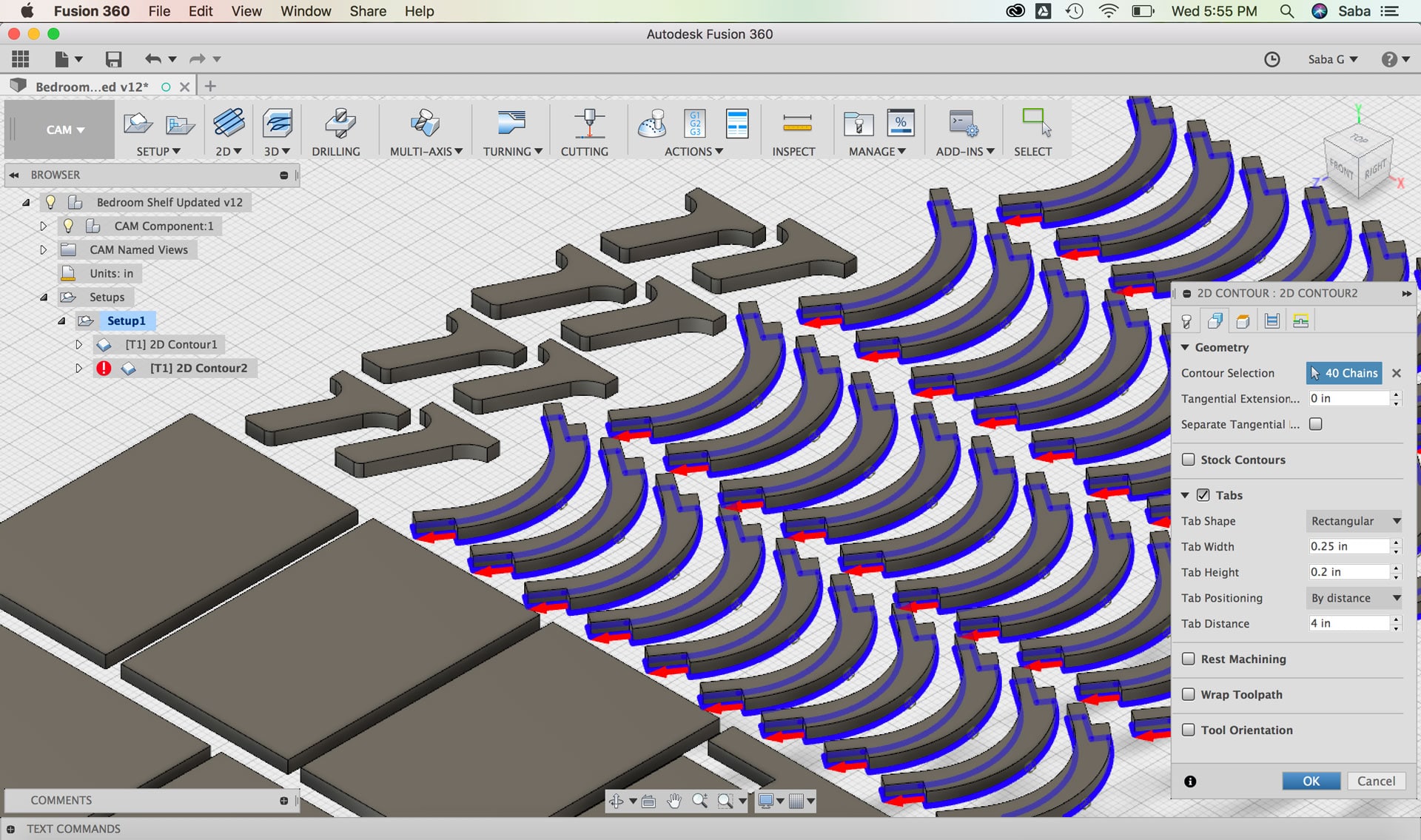
    For my second toolpath, I duplicated the 2D Contour feature that I had just created with the settings and did the following steps for the smaller corner pieces given that they would have slightly different tabs:

    Under Geometry tab:

  • Contour Selection: select bottom facing contours
  • Tabs: I set the Tab Width to 0.25” and Tab Height to 0.2” by distance and then selected the Tab Distance to 4 after some experimentation (You don’t want too many or too few)
  • Under Passes tab:
  • Under Multiple Depths, set Maximum Roughing to 0.125”
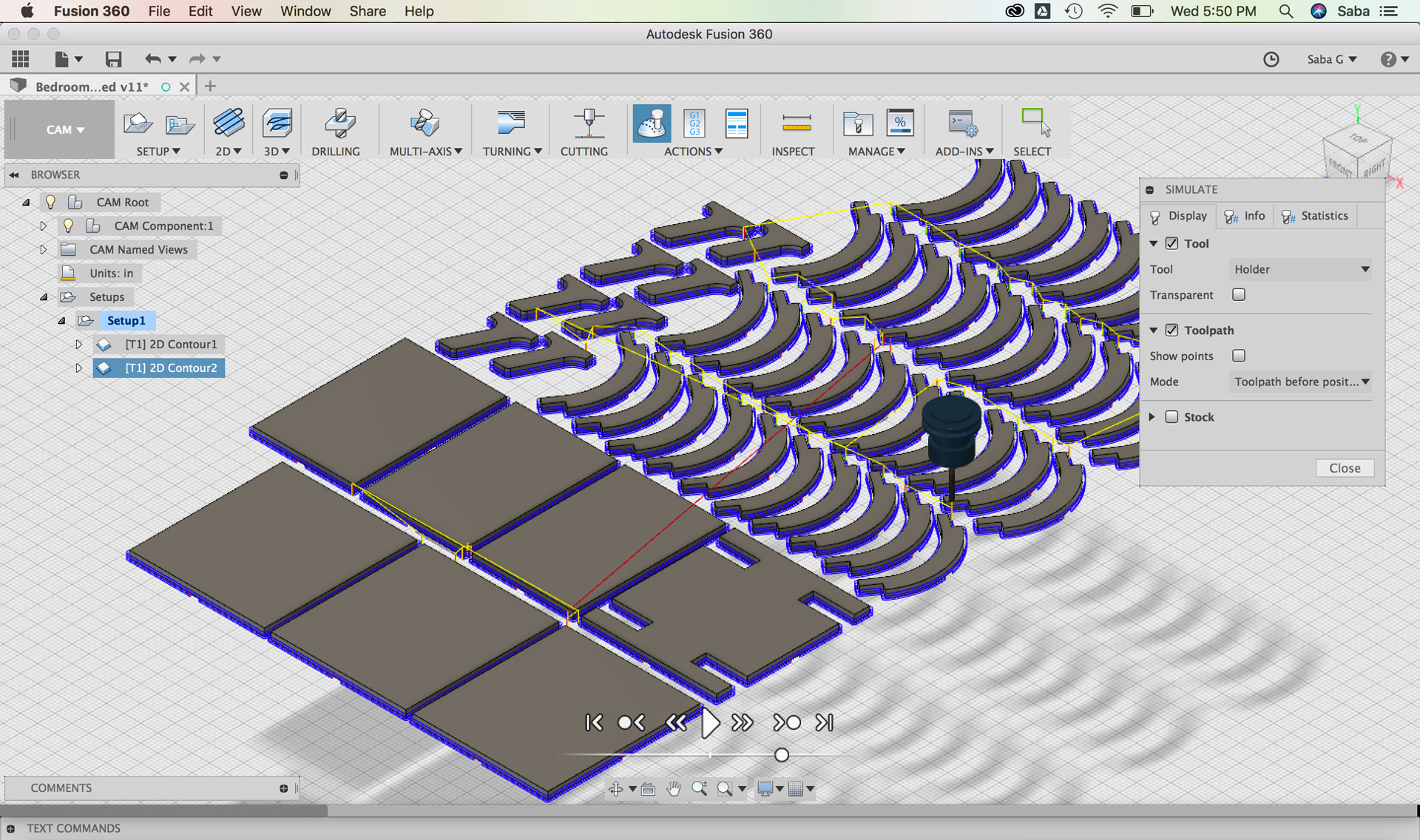
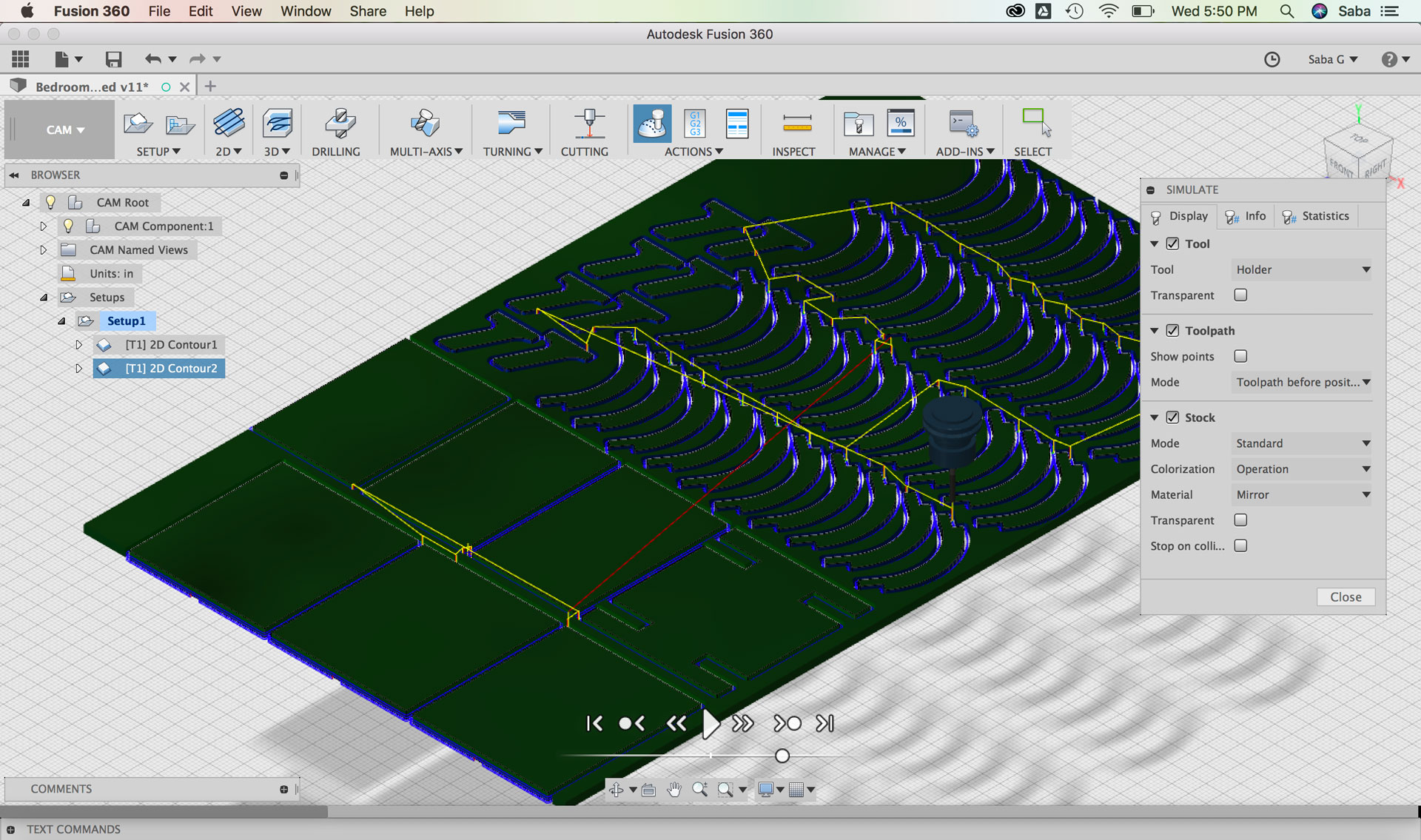
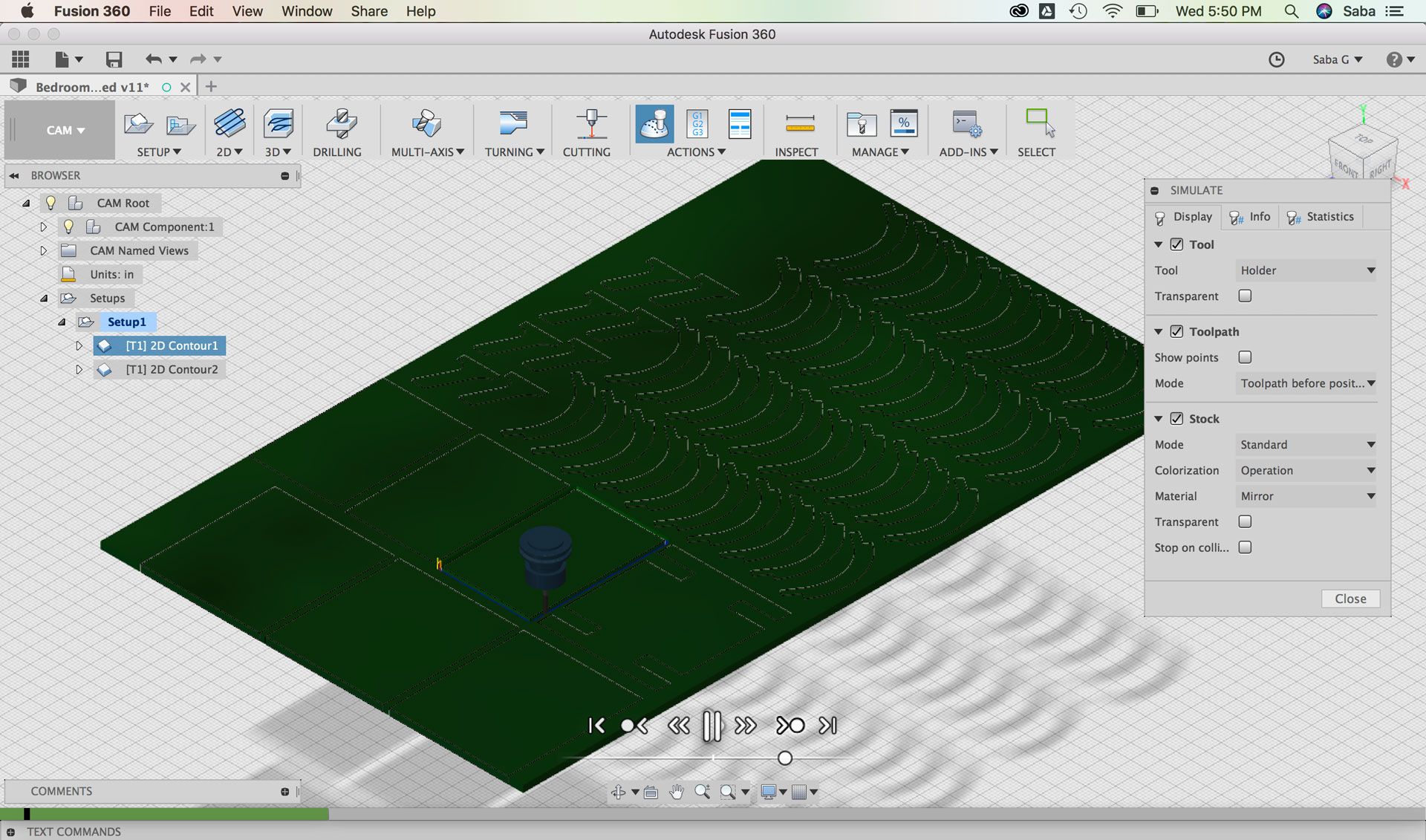
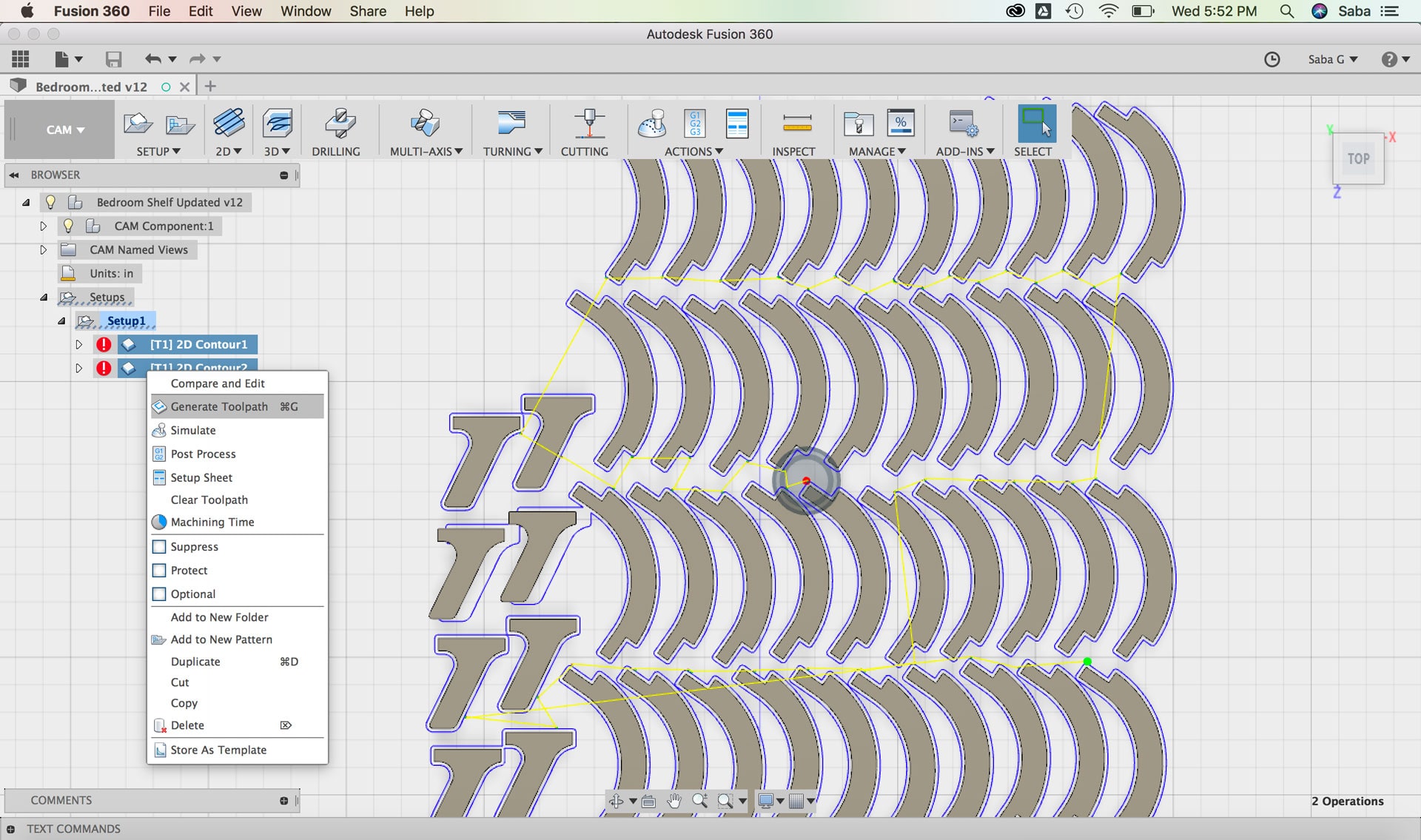
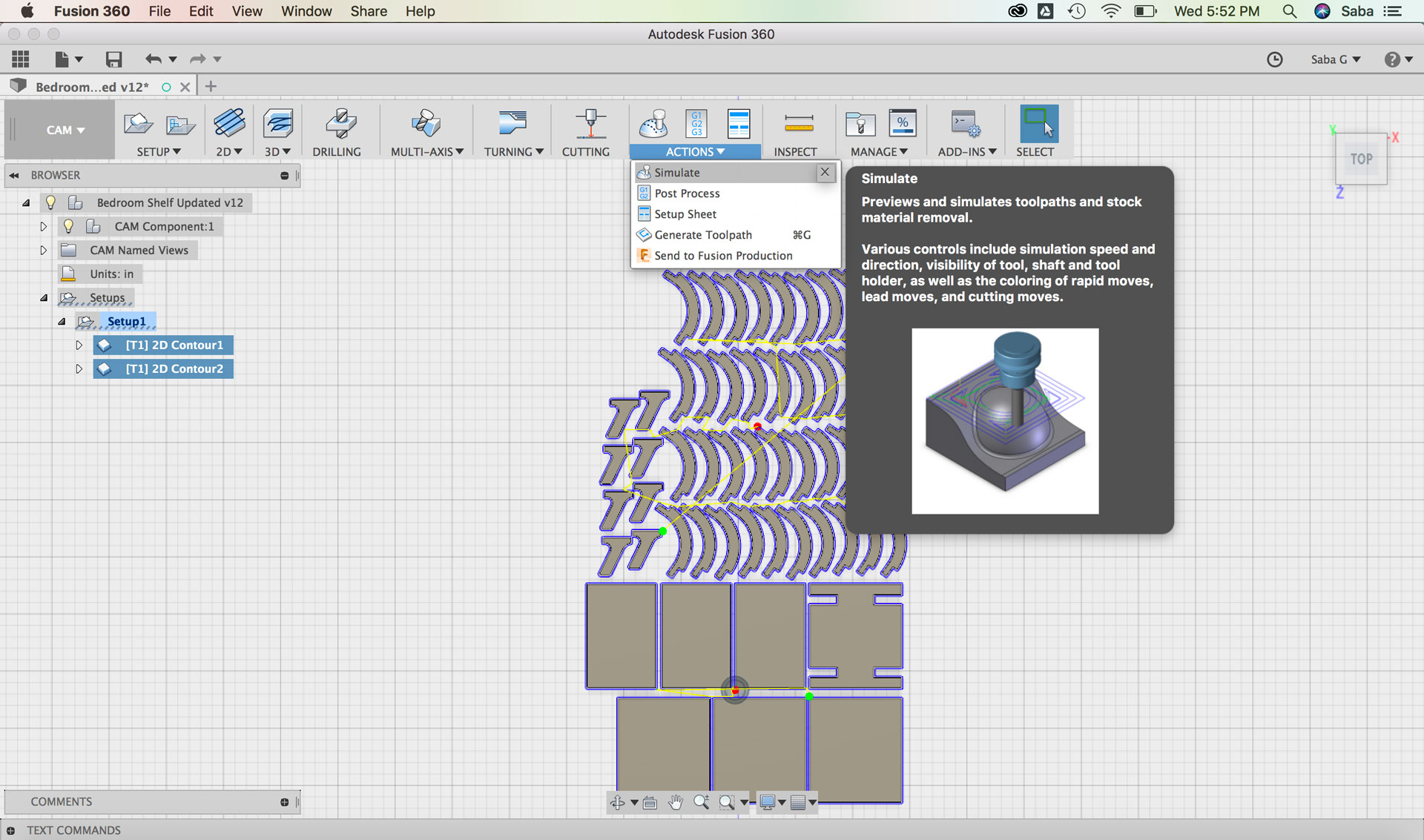
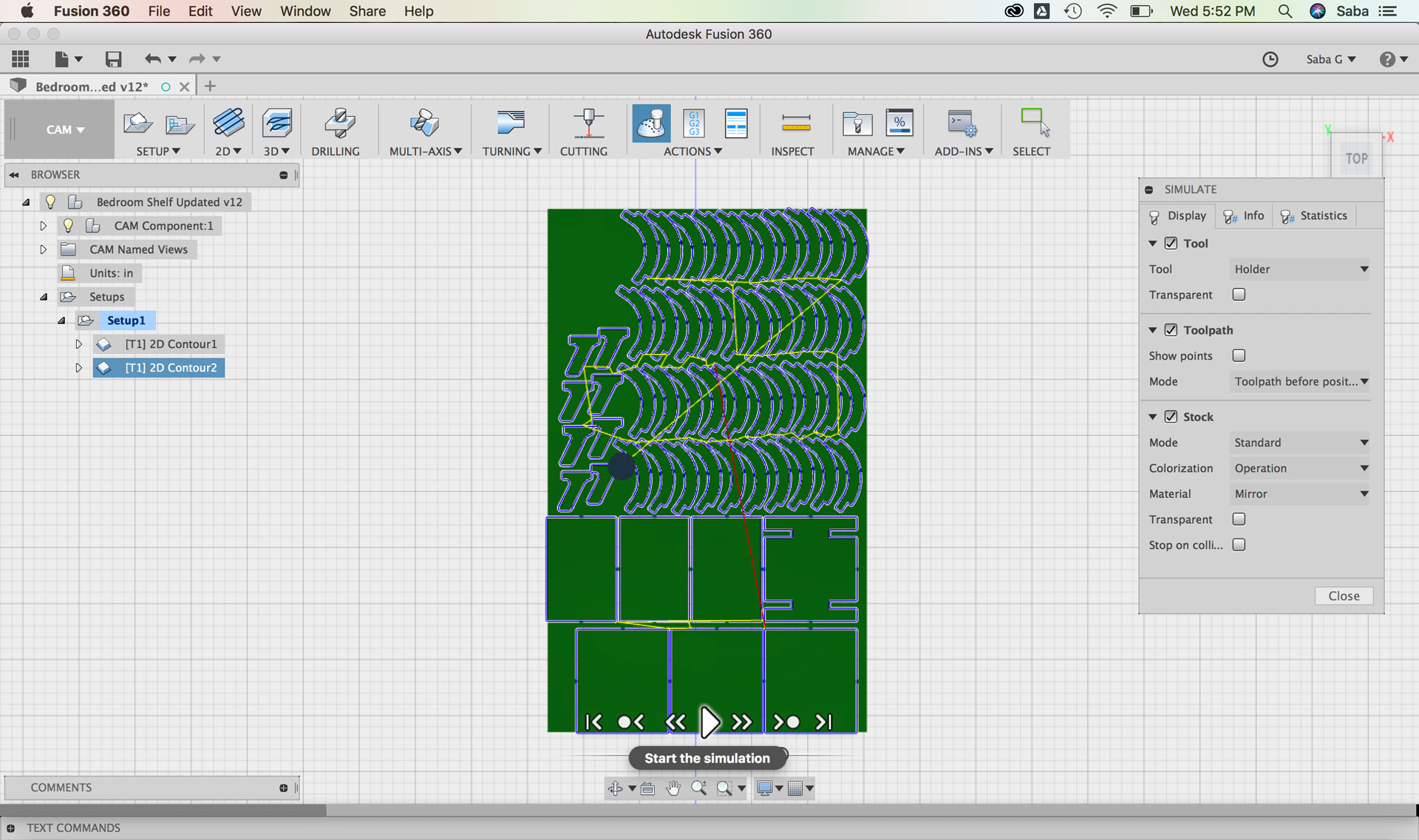
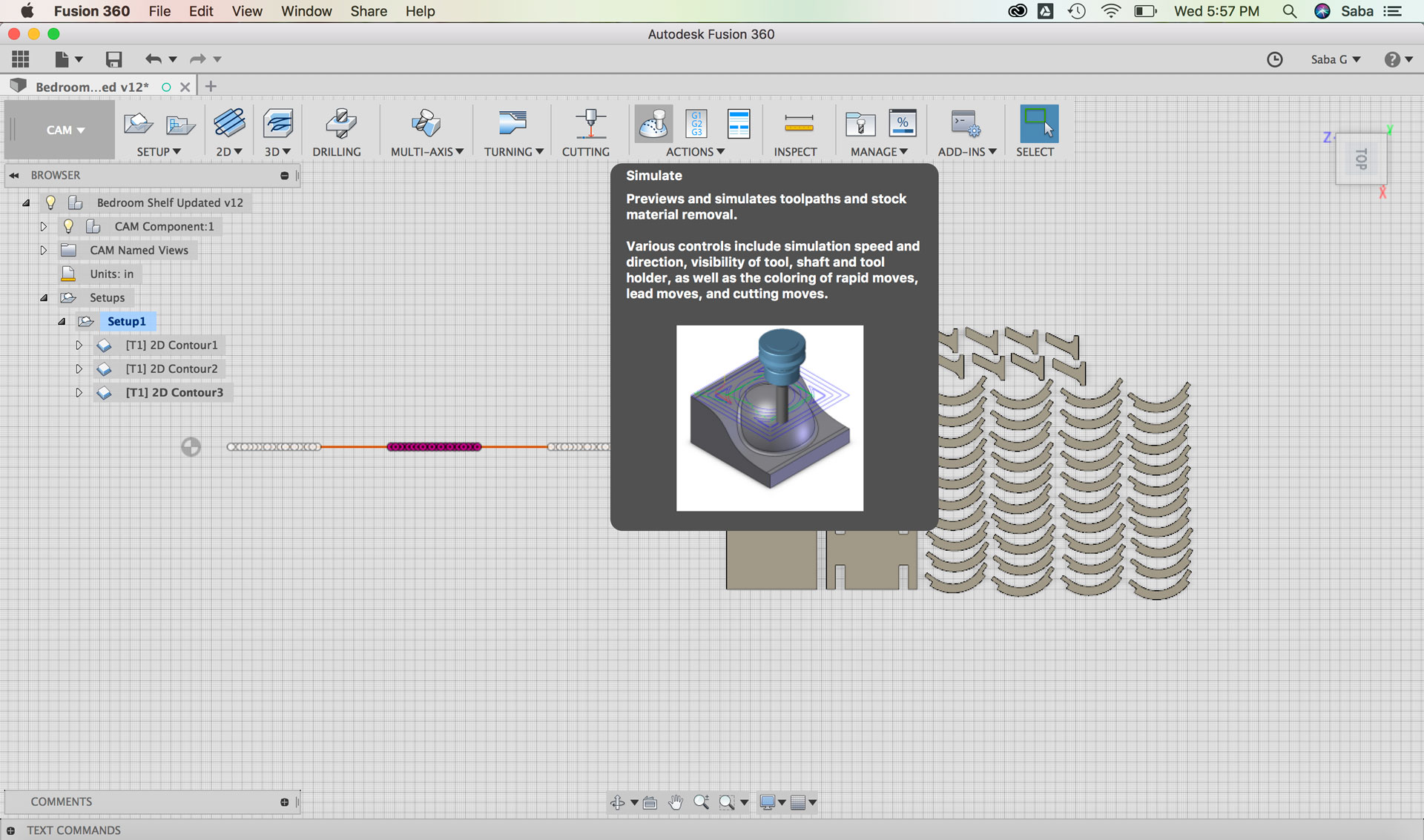
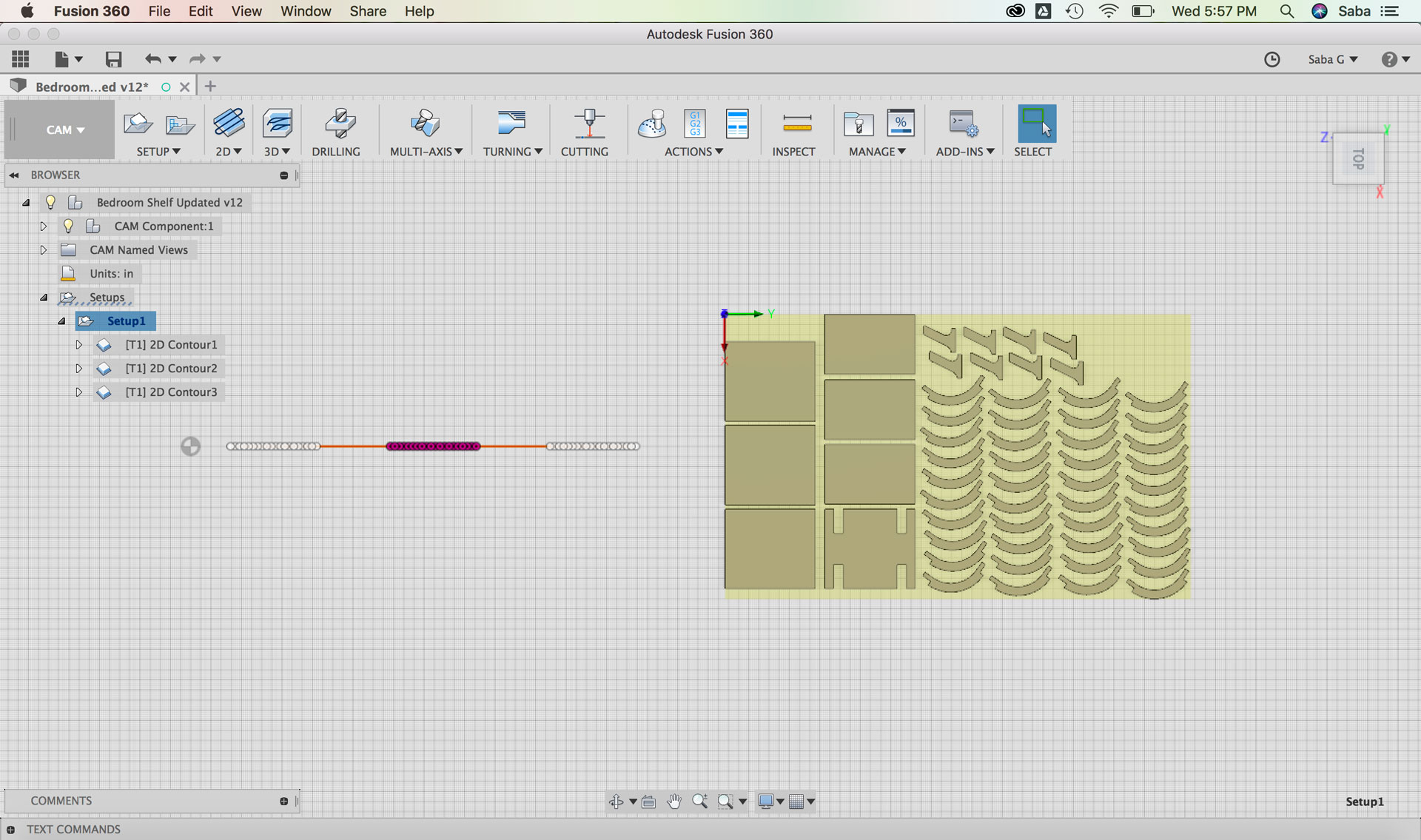
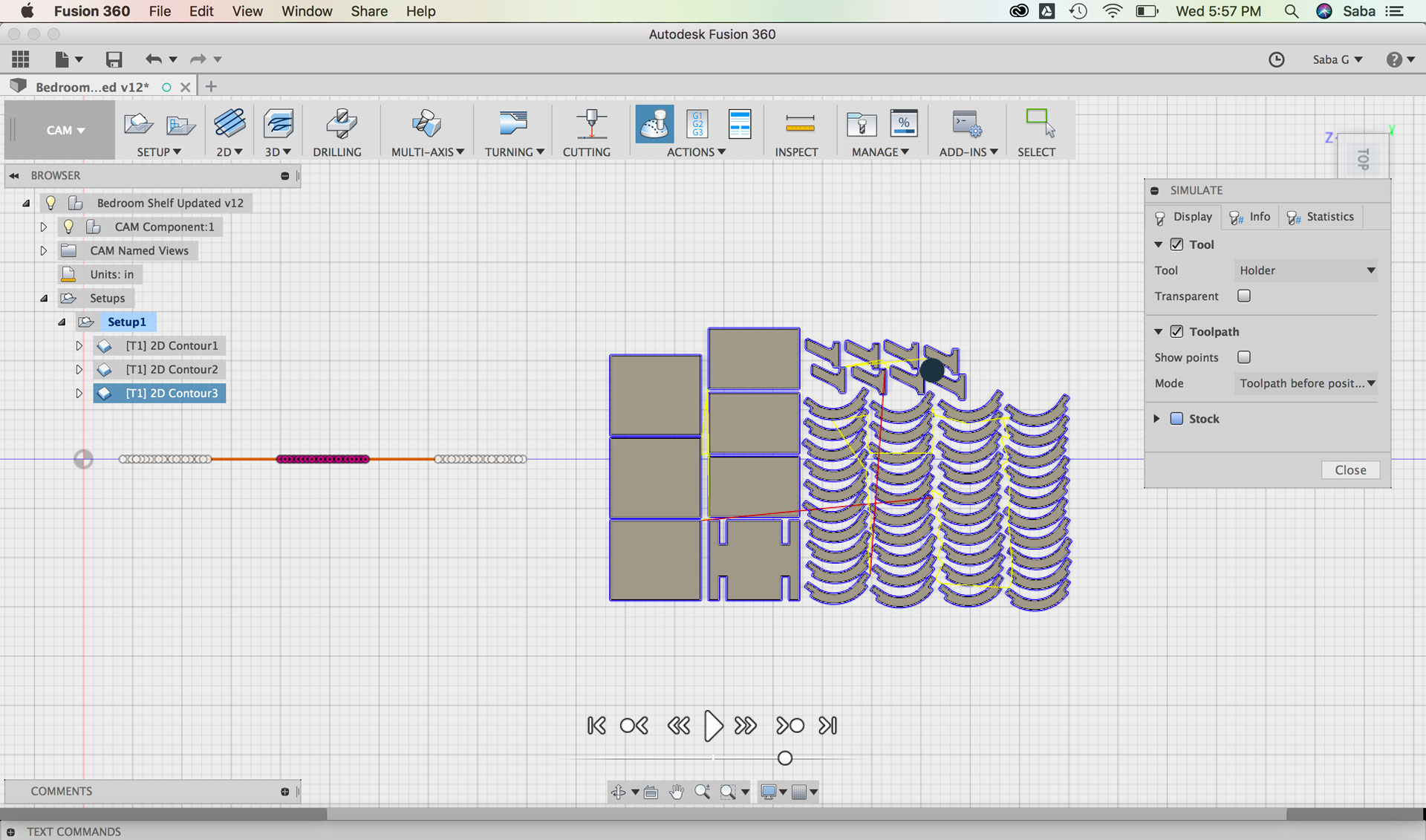
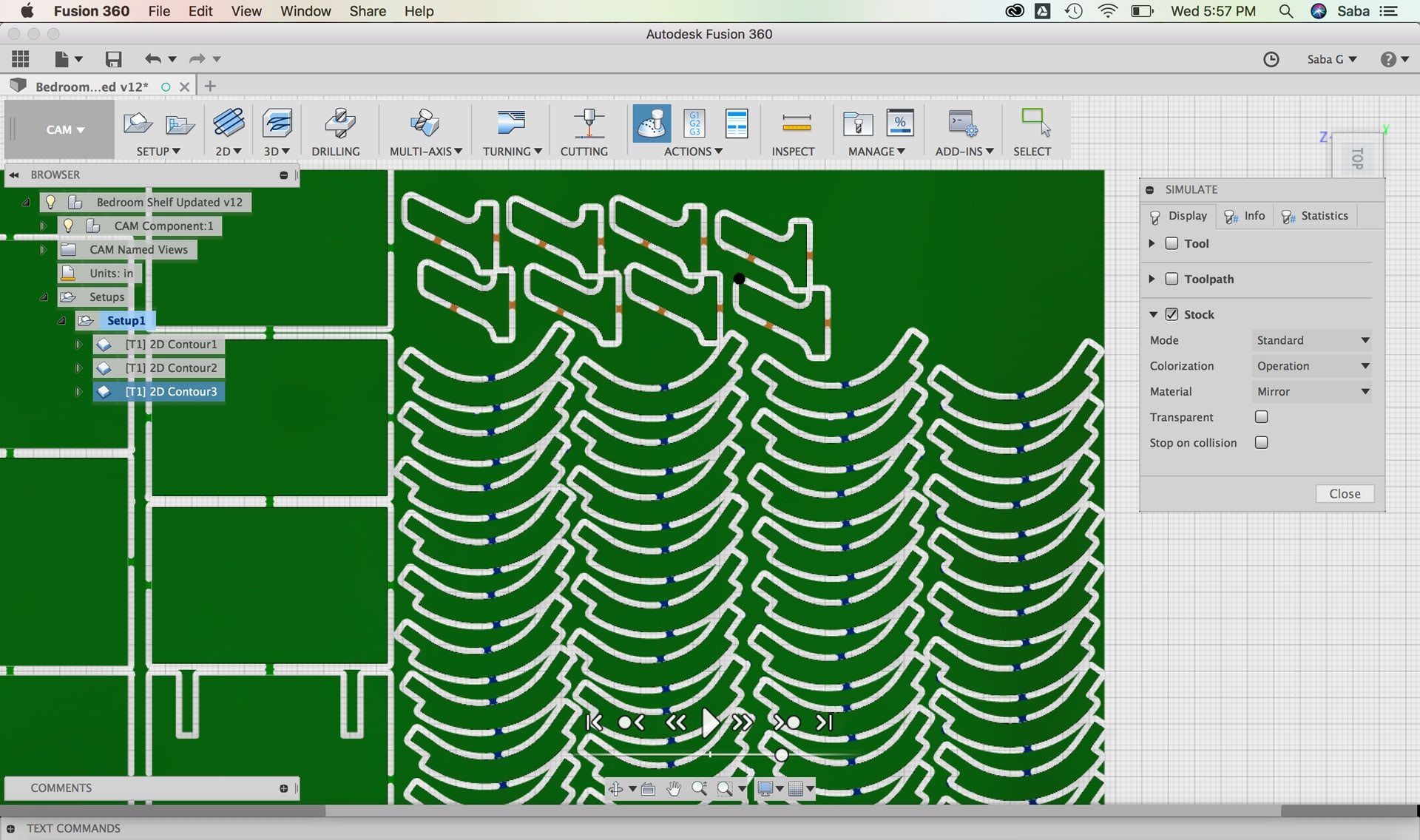
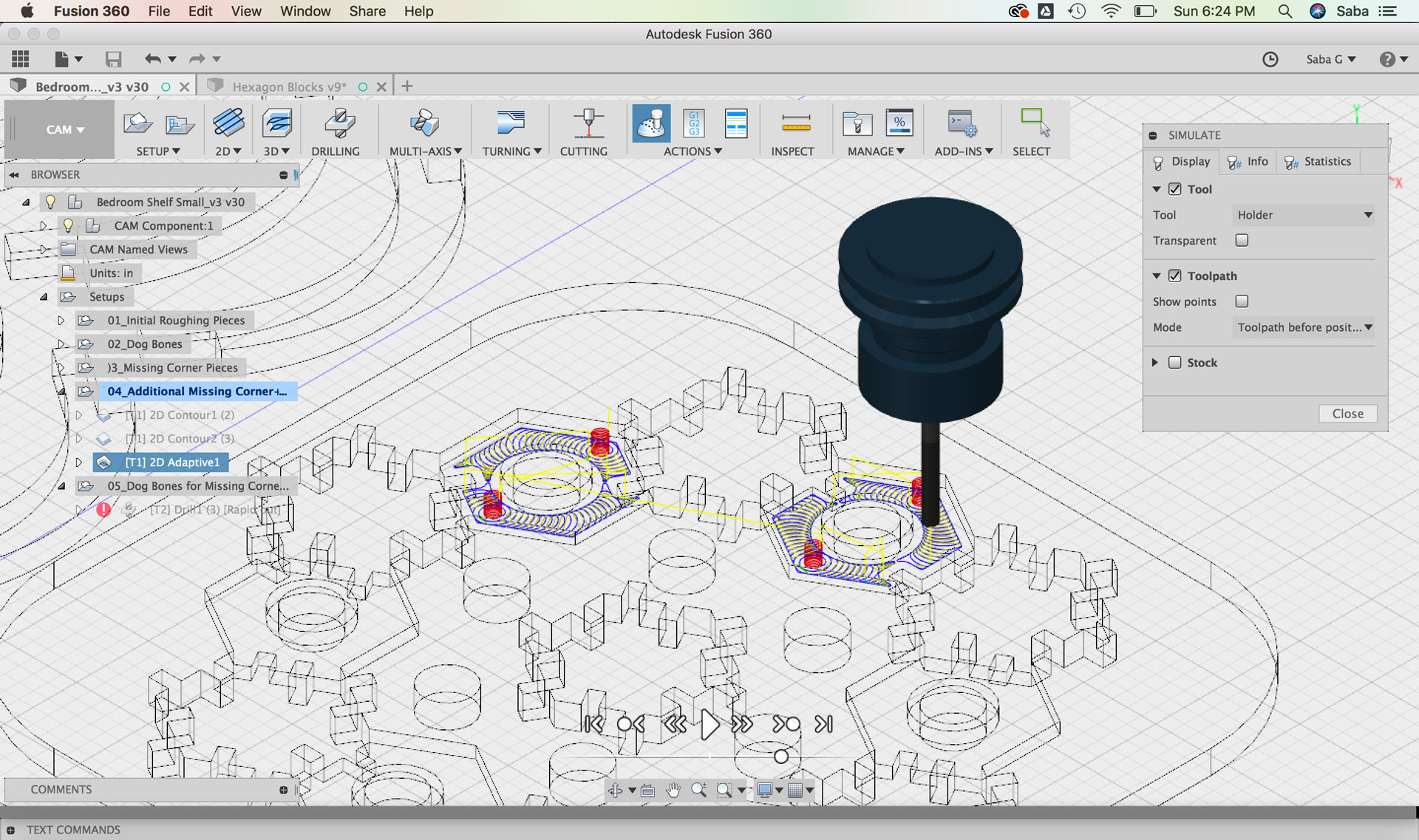
  • I right-clicked on both the 2D Contour paths and selected “Generate Toolpath.” I then selected the Simulate command and under the “Display” tab, I made sure the Tool, Toolpath, and Stock boxes were checked on to preview and simulate toolpaths and stock removal.

    Fusion 360: Setting up 2D Contour Fusion 360: Setting up 2D Contour Fusion 360: Setting up 2D Contour Fusion 360: Setting up 2D Contour Fusion 360: Simulating toolpaths Fusion 360: Simulating toolpaths Fusion 360: Setting up 2D Contour Fusion 360: Simulating toolpaths Fusion 360: Simulating toolpaths Fusion 360: Simulating toolpaths

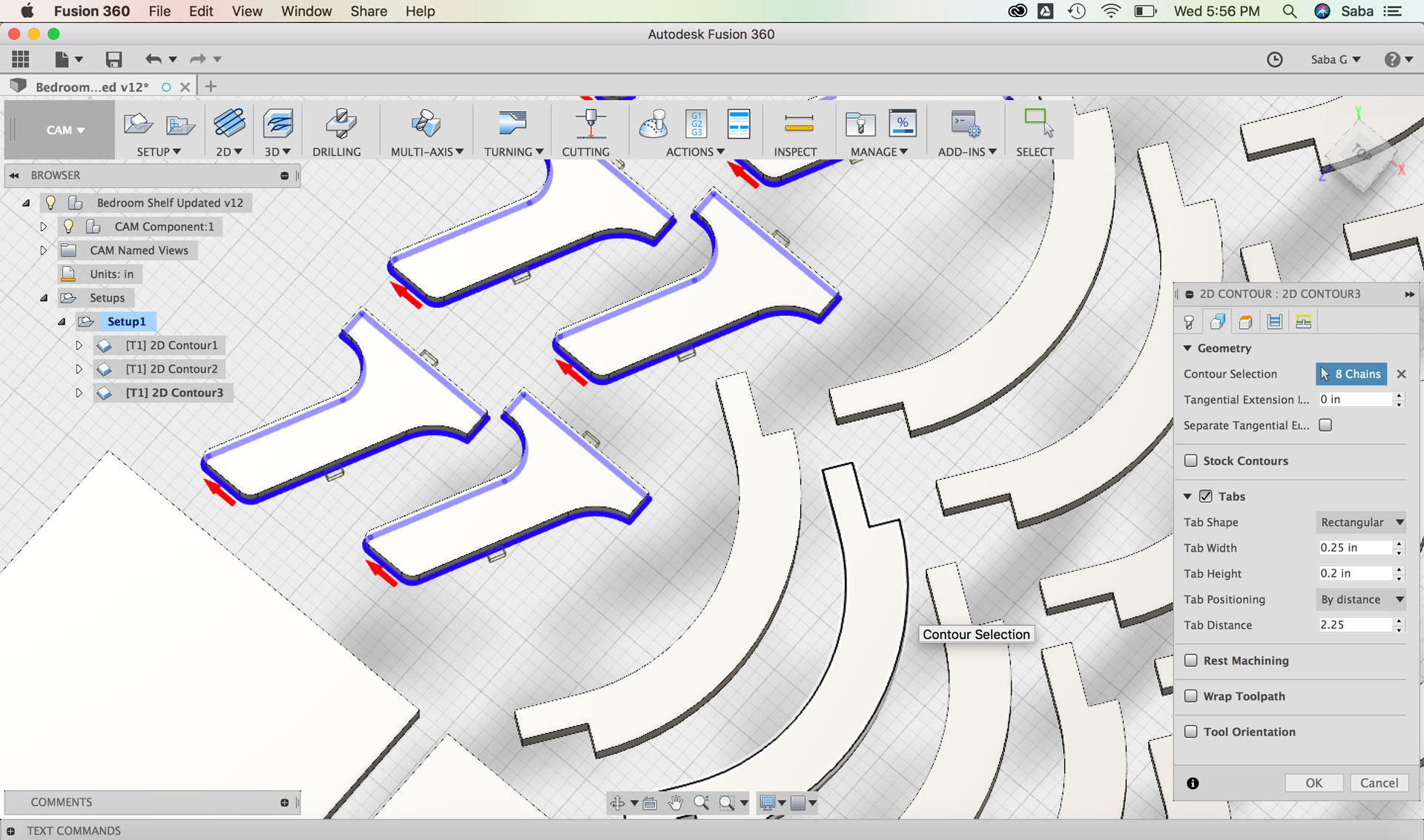
    I realized that I had made one error: the legs included in the previous 2D Contour toolpath needed a different toolpath. I therefore needed to remove them from the previous toolpath and create a separate one. I duplicated the prior toolpath and modified the following:

    Under Geometry tab:

  • Contour Selection: select bottom facing contours of Leg pieces
  • Tabs: I set the Tab Width to 0.25” and Tab Height to 0.2” by distance and then selected the Tab Distance to 2.25 after some experimentation
  • I re-generated the toolpath for the 2D Contour paths and ran another simulation. I checked if the pieces resting on the stock had enough room around each piece for cutting accurately, and it seemed to be fine.

    Fusion 360: Setting up 2D Contour for legs Fusion 360: Setting up 2D Contour for legs Fusion 360: Setting up 2D Contour for legs Fusion 360: Setting up 2D Contour for legs Fusion 360: Setting up 2D Contour for legs Fusion 360: Setting up Simulation Fusion 360: Setting up Simulation Fusion 360: Setting up Simulation Fusion 360: Setting up Simulation

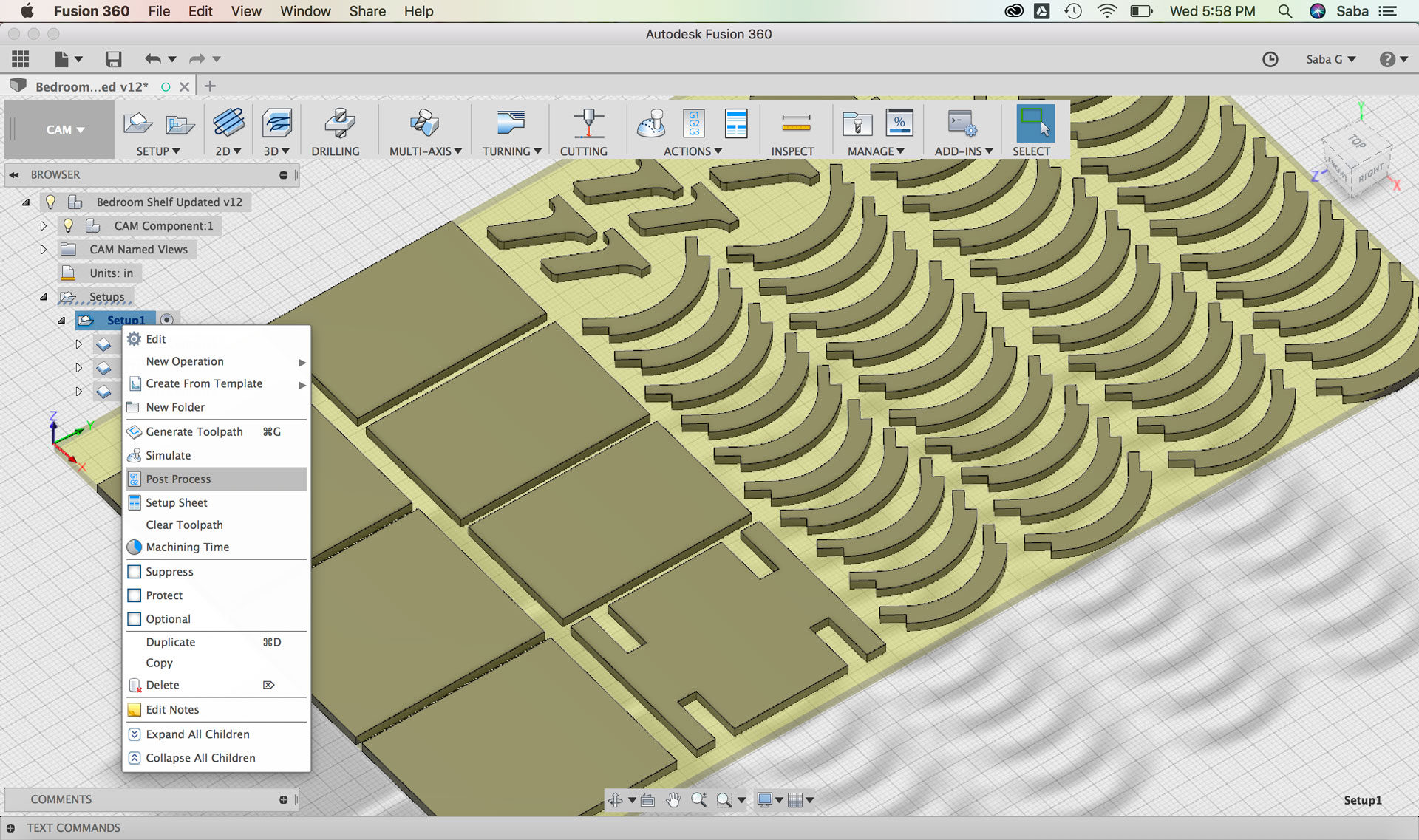
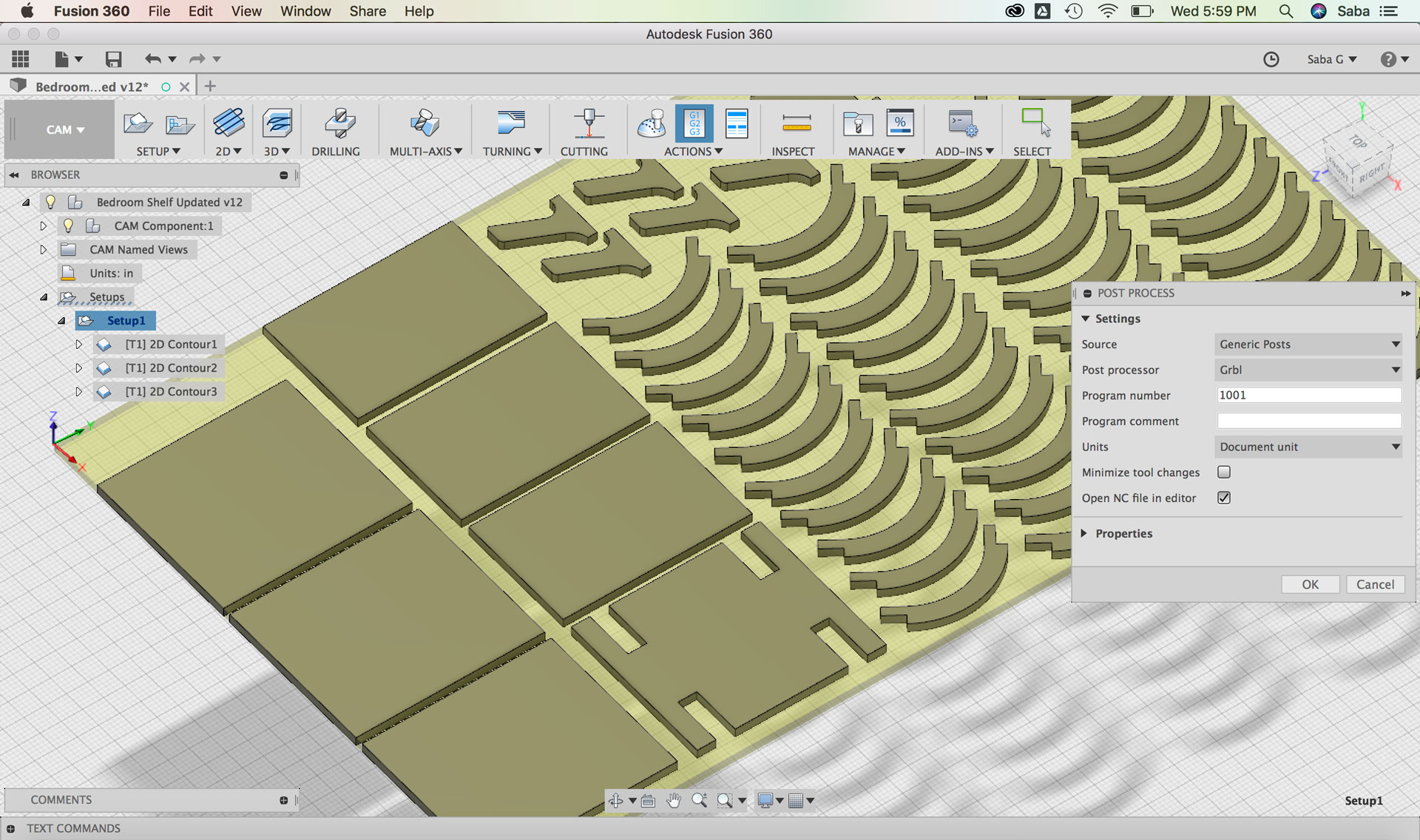
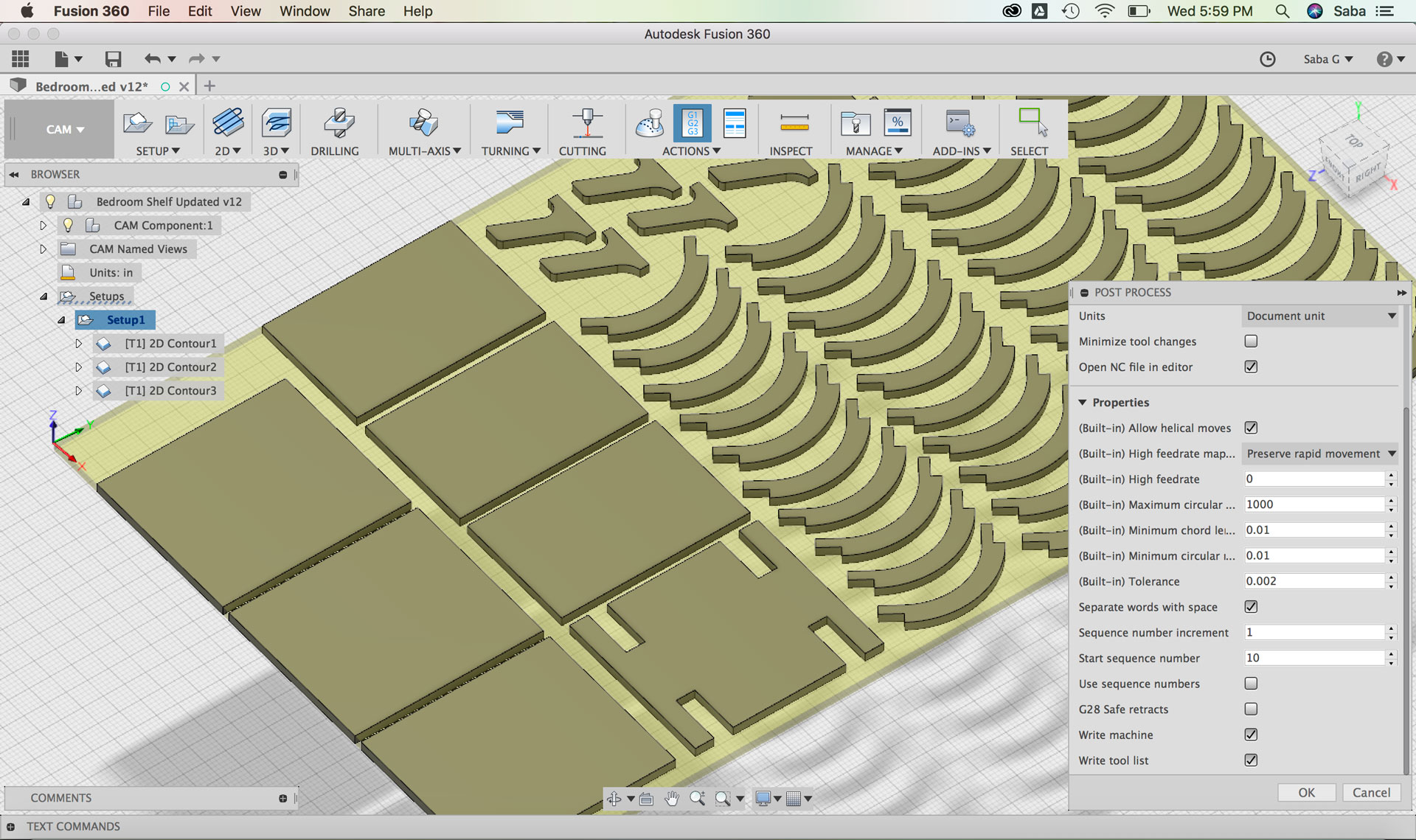
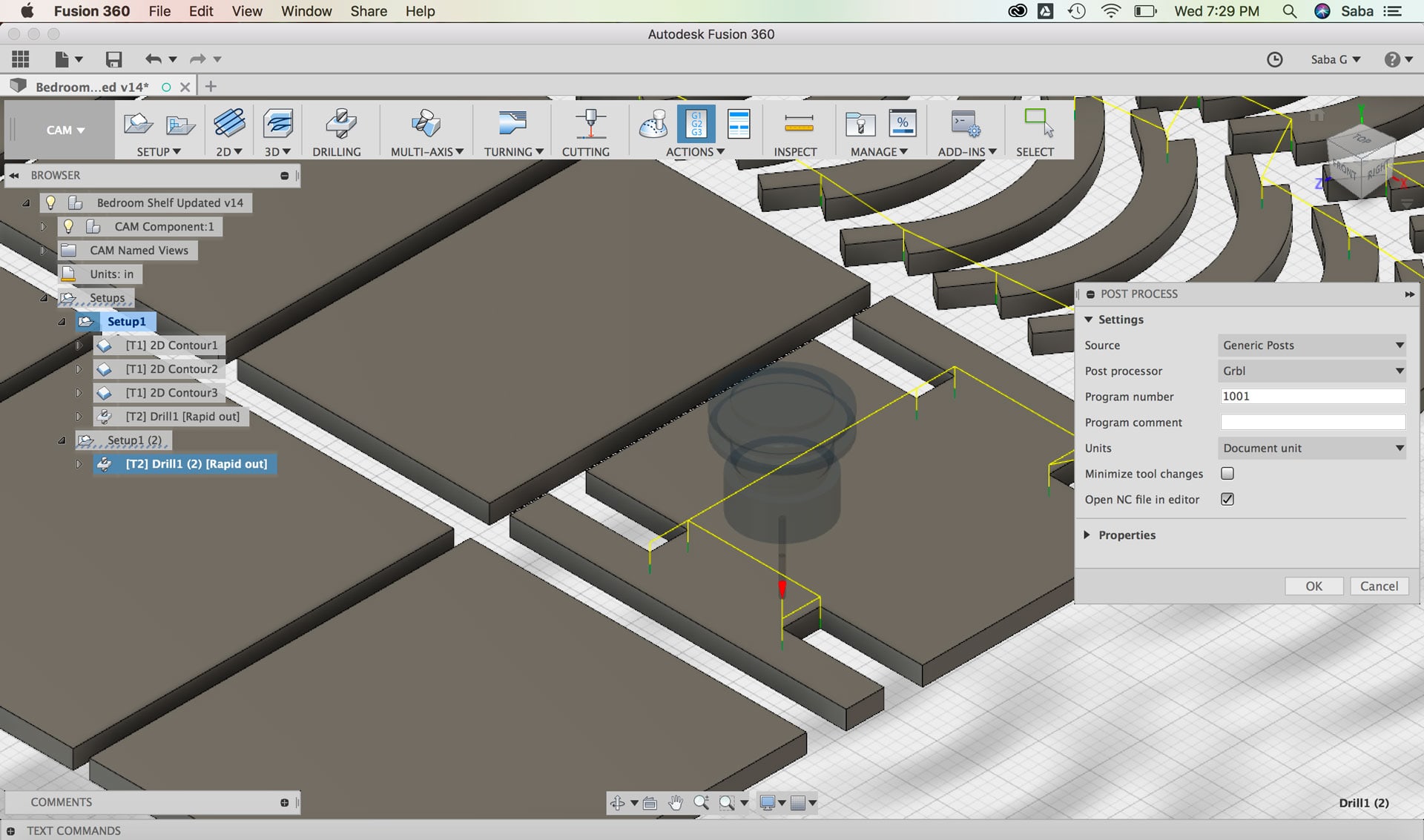
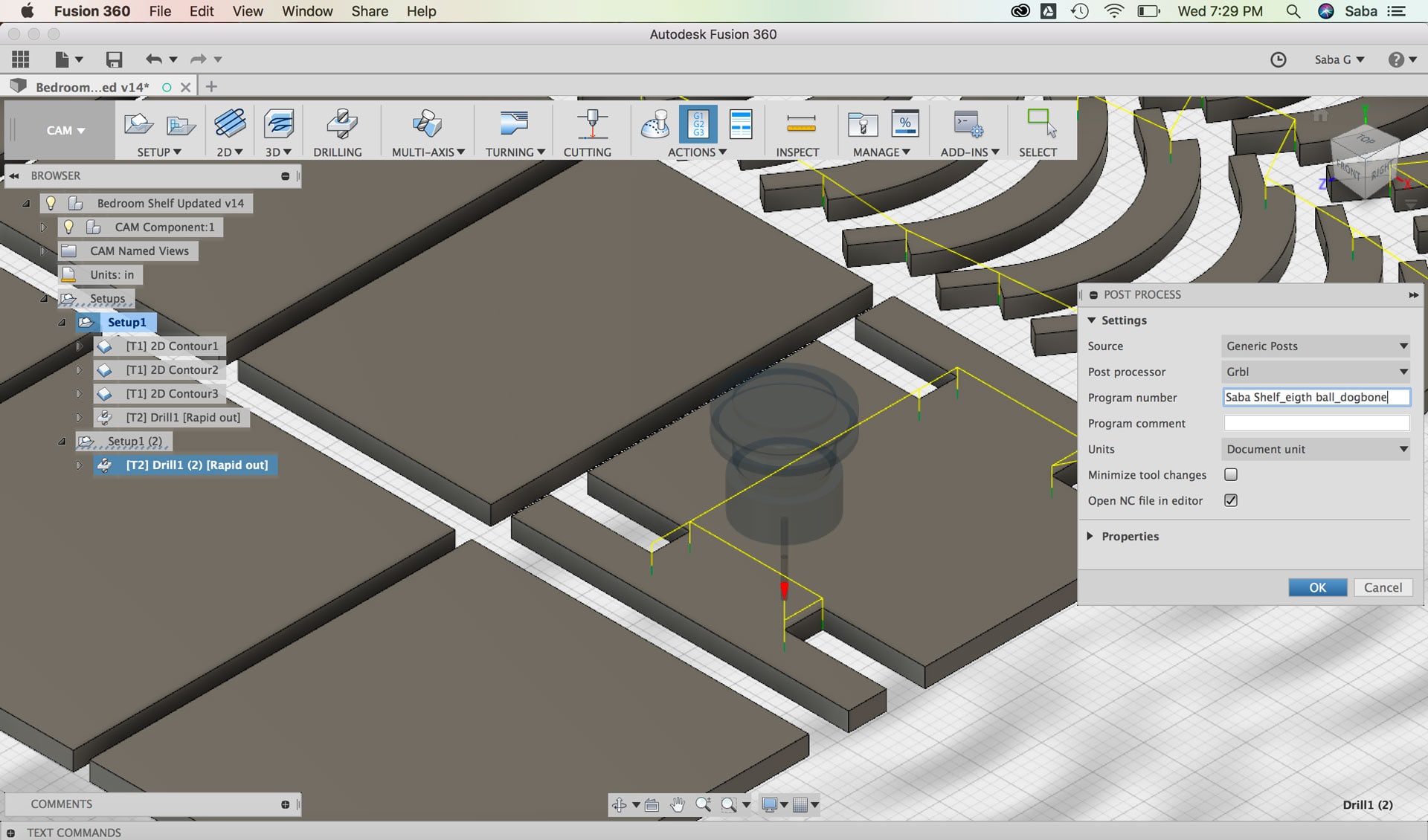
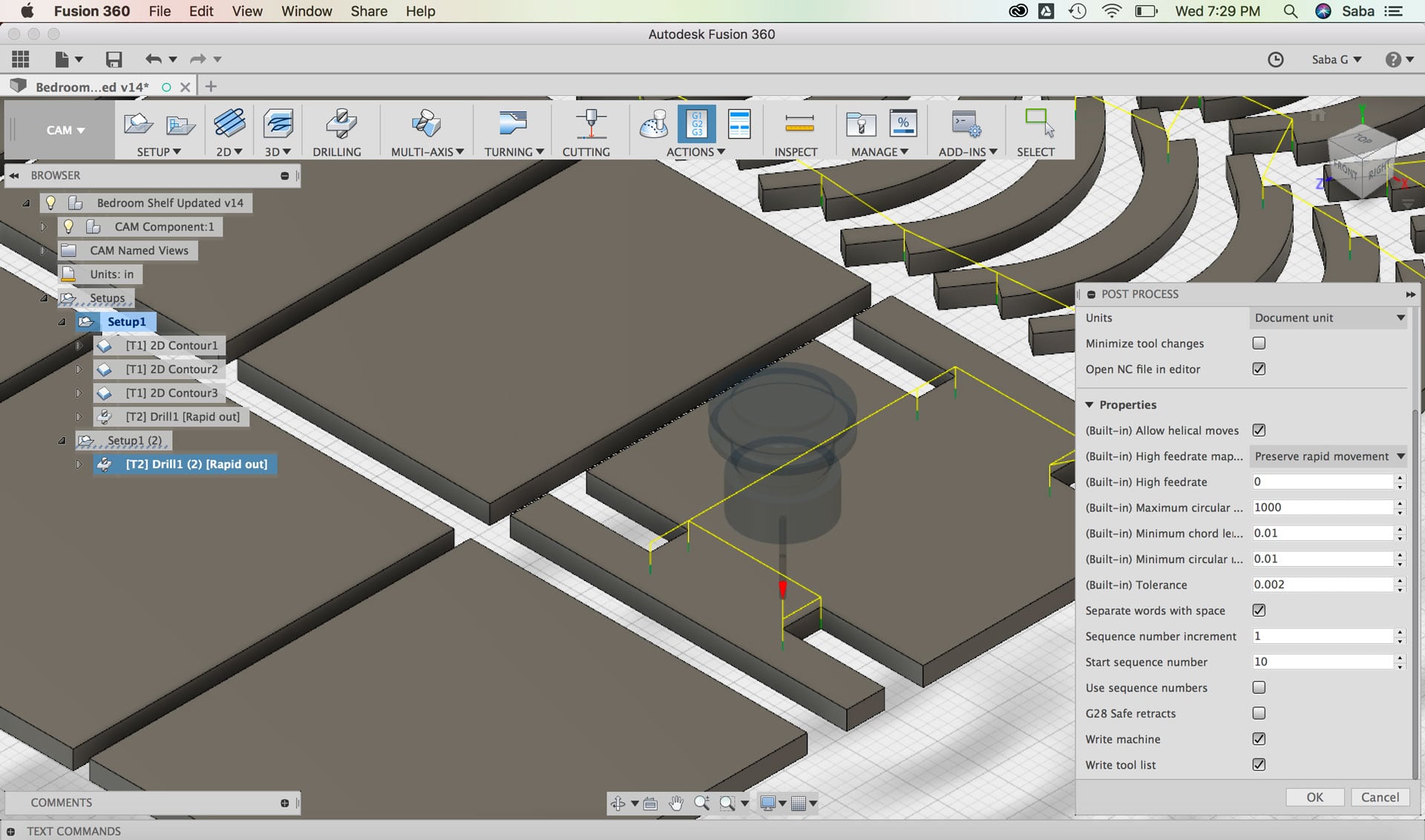
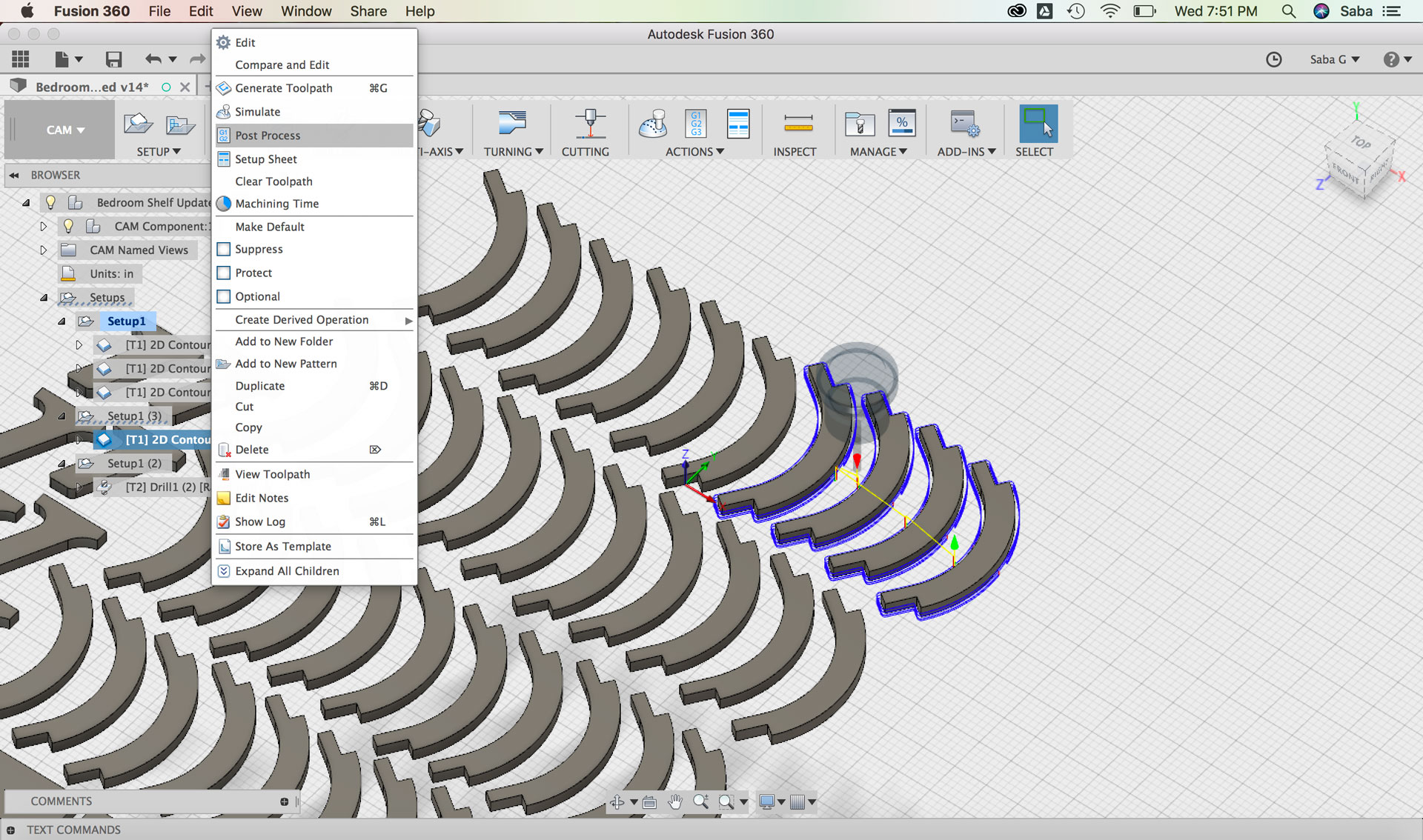
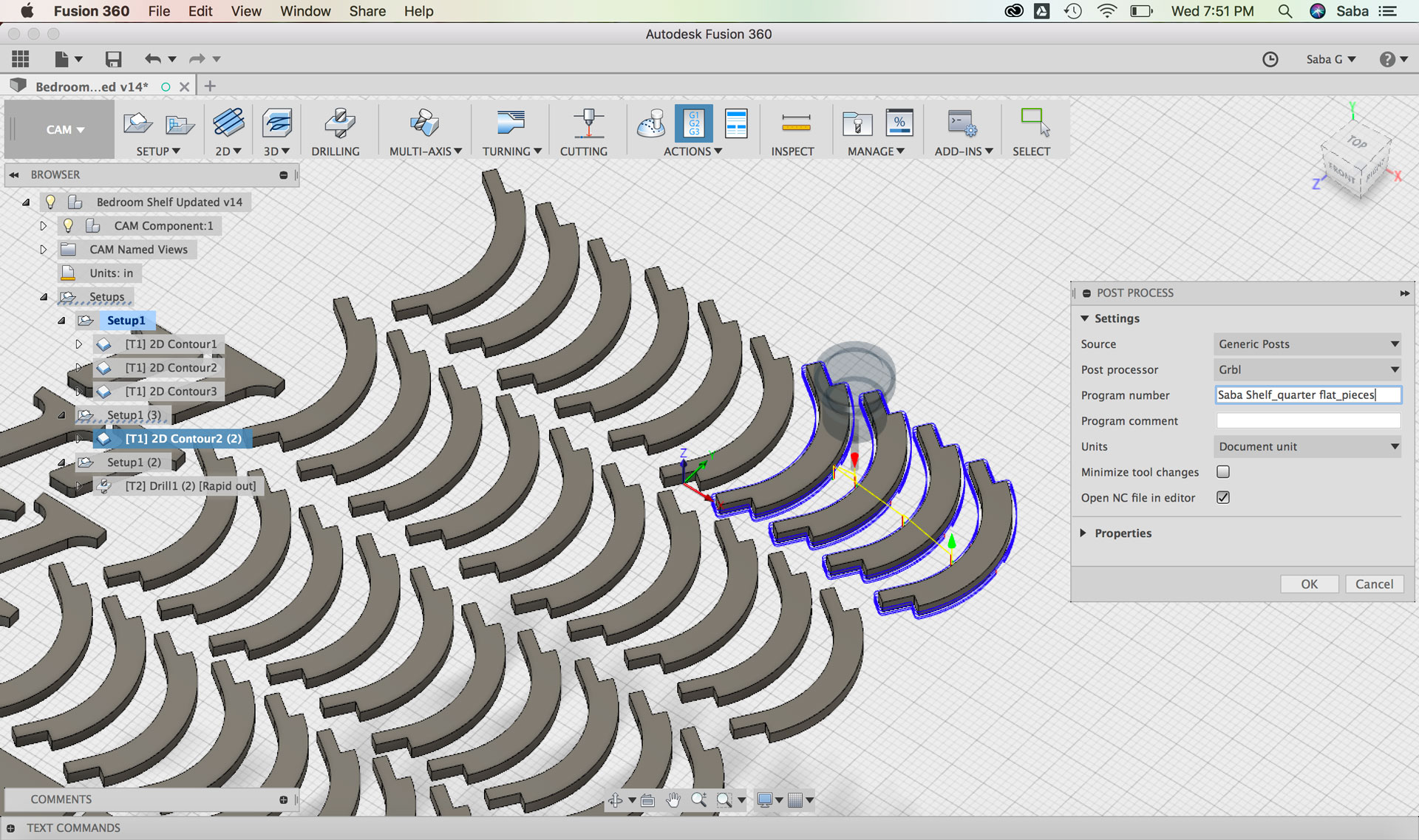
    I then right-clicked on the Setup menu, selected “Post Process” and updated the following:

    Under Settings tab:

  • Update Post Processor to Grbl
  • Change Program Number to 1001
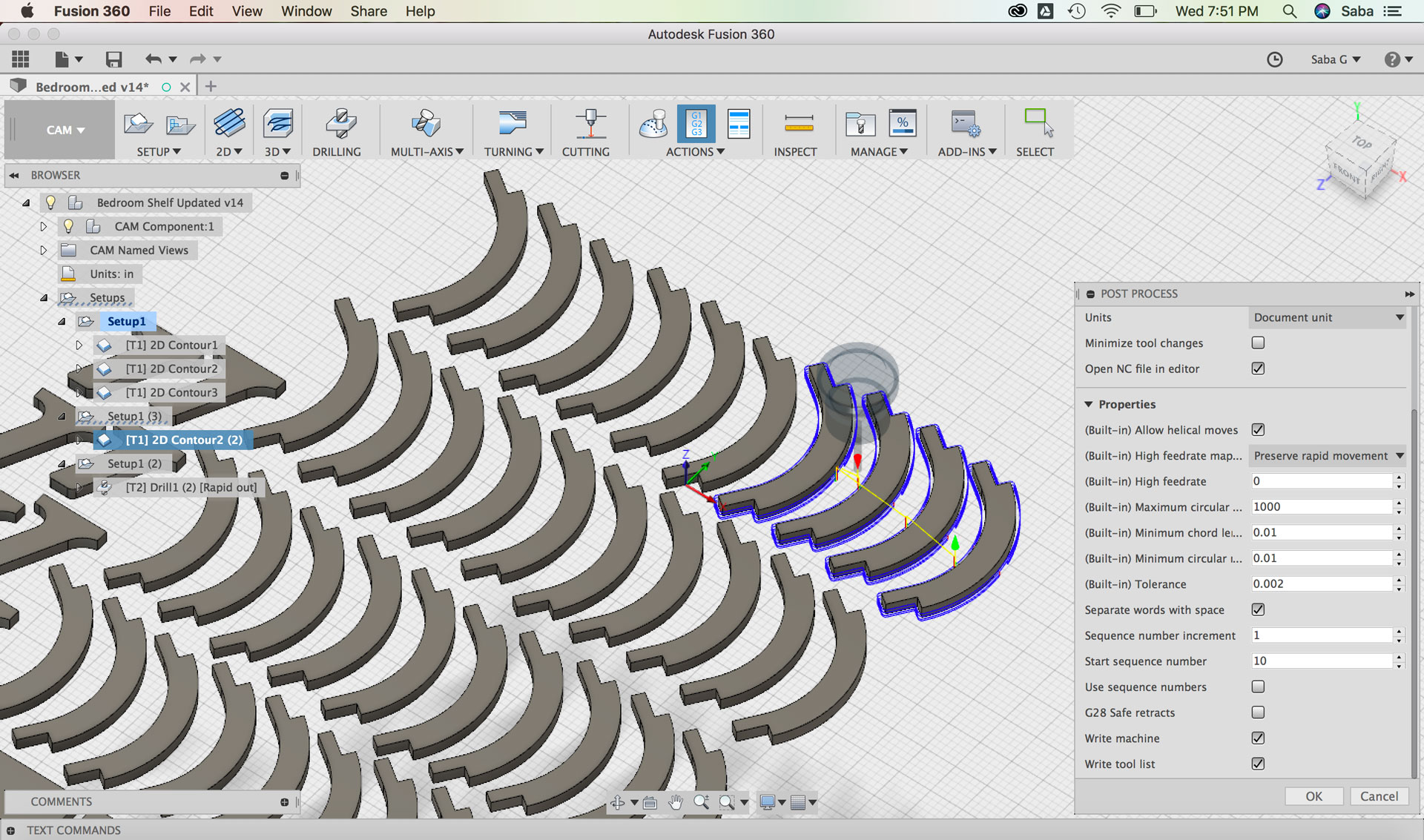
  • Under Properties tab:
  • Uncheck “G28 Safe retracts”
  • Fusion 360: Setting up Post Processing Fusion 360: Setting up Post Processing Fusion 360: Setting up Post Processing

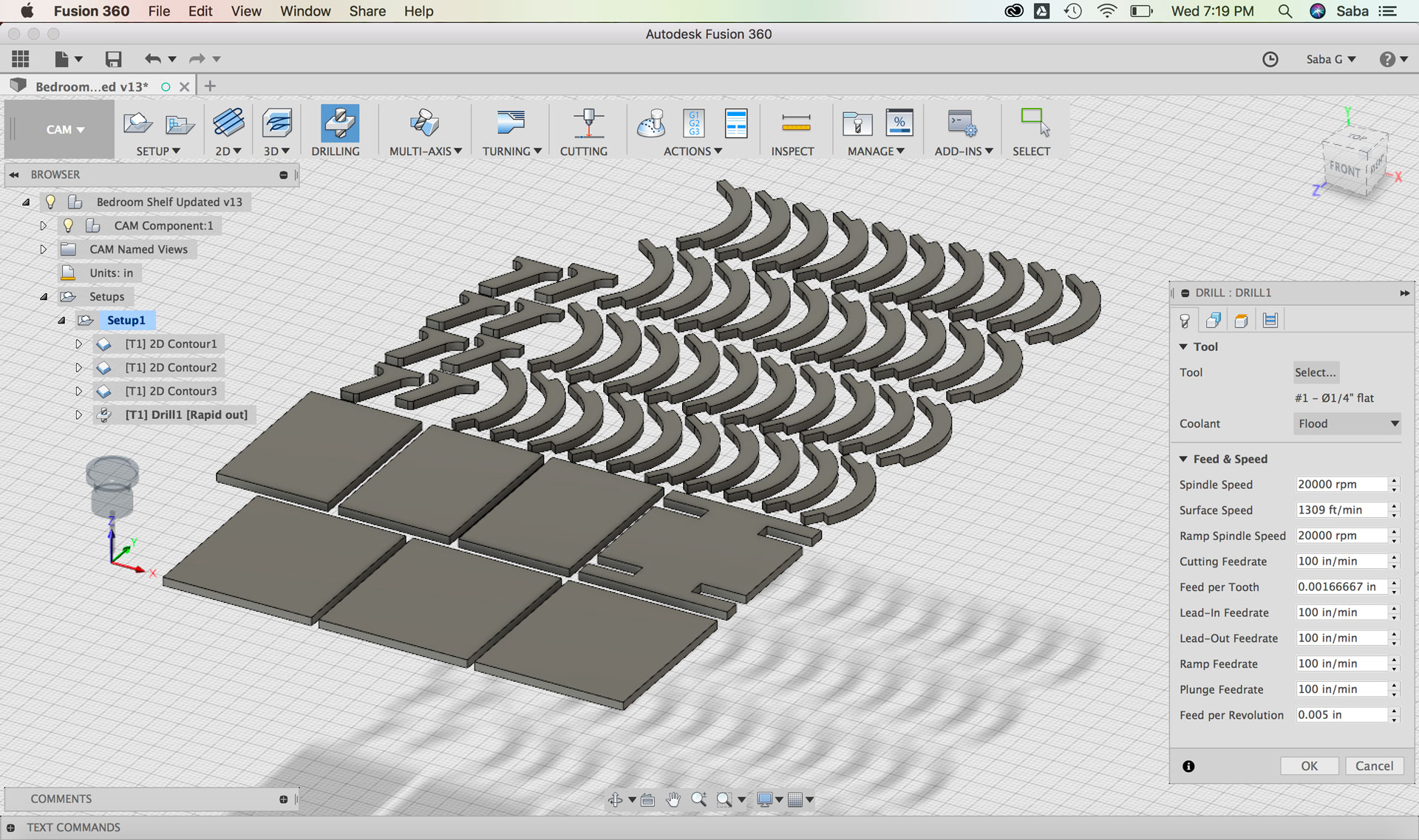
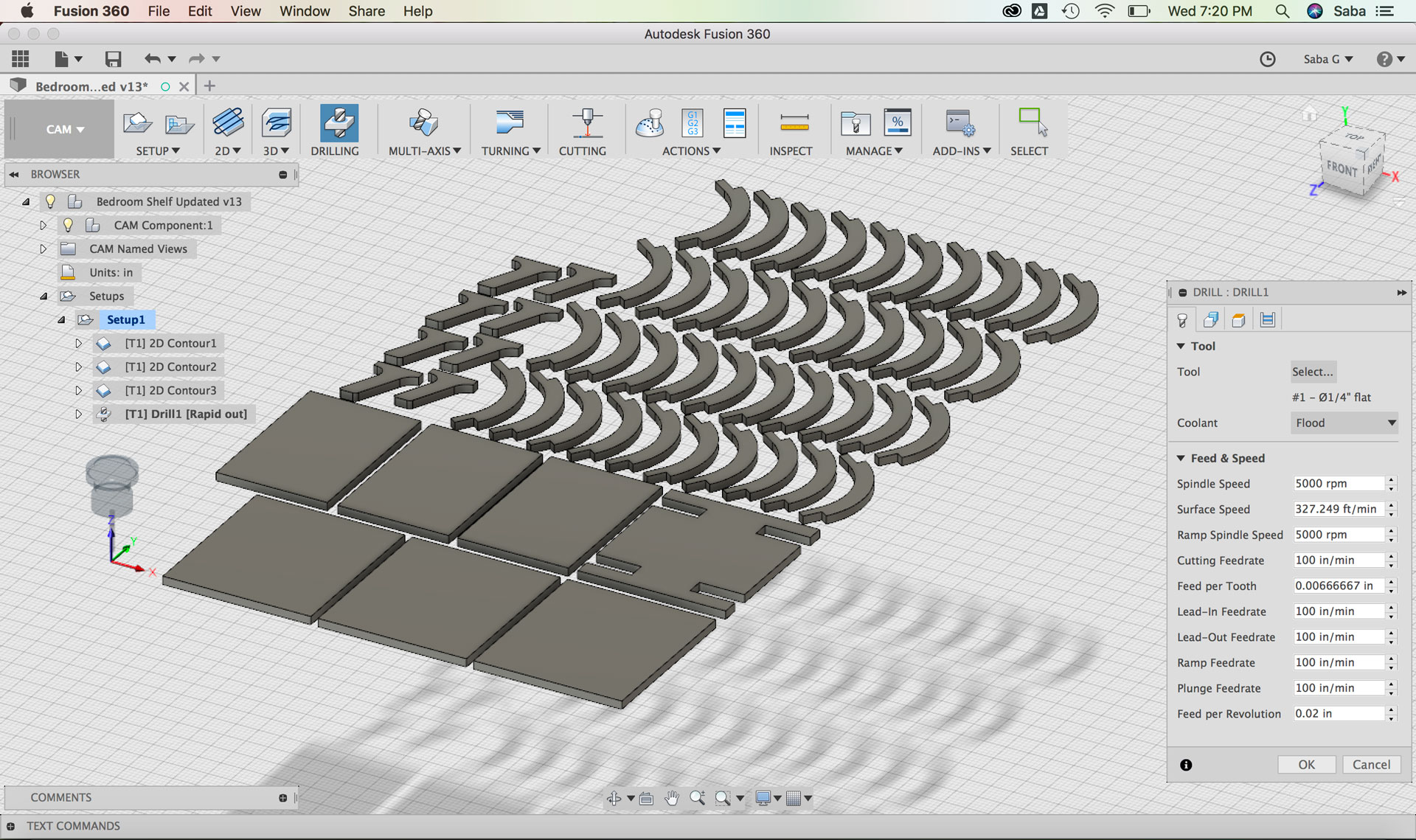
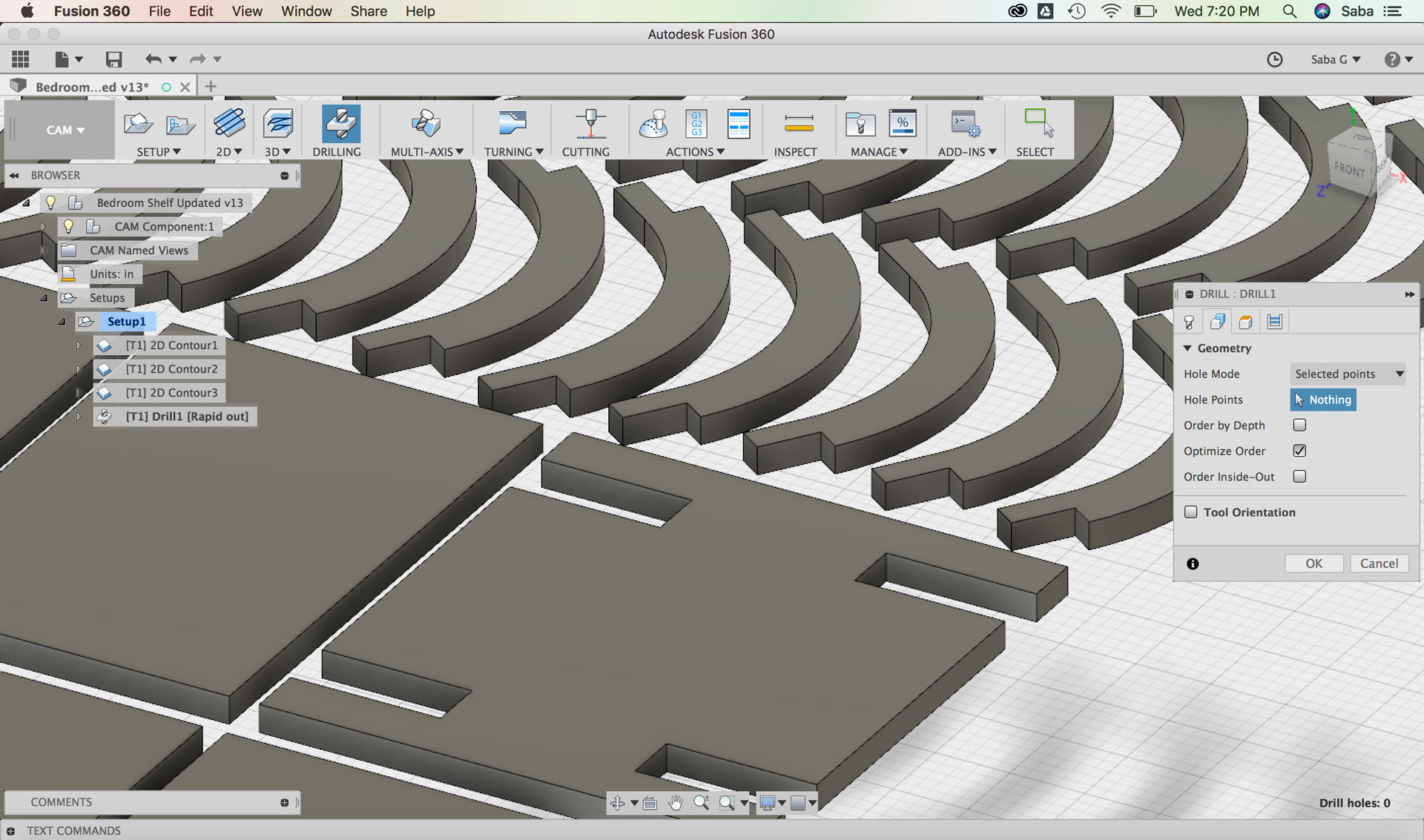
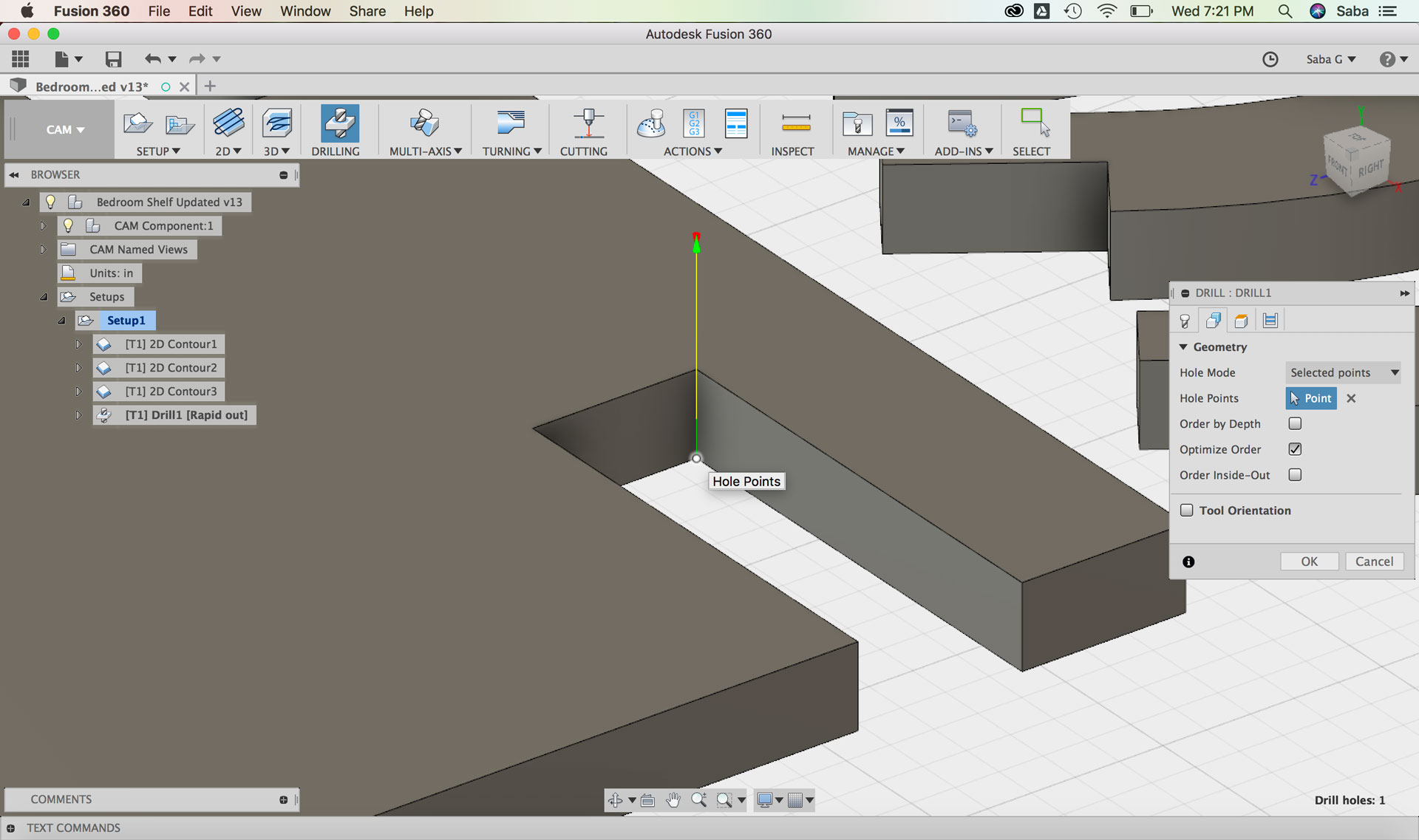
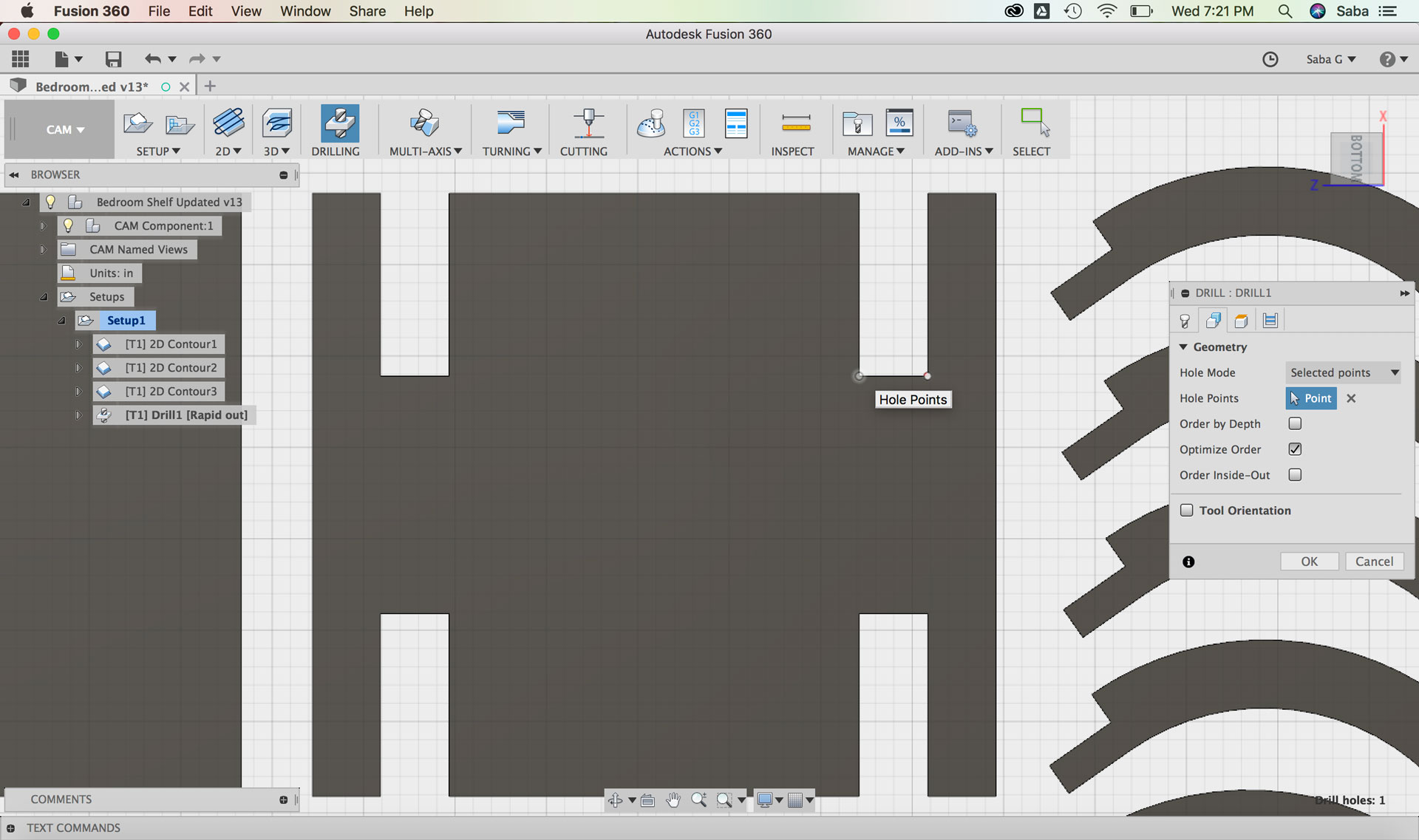
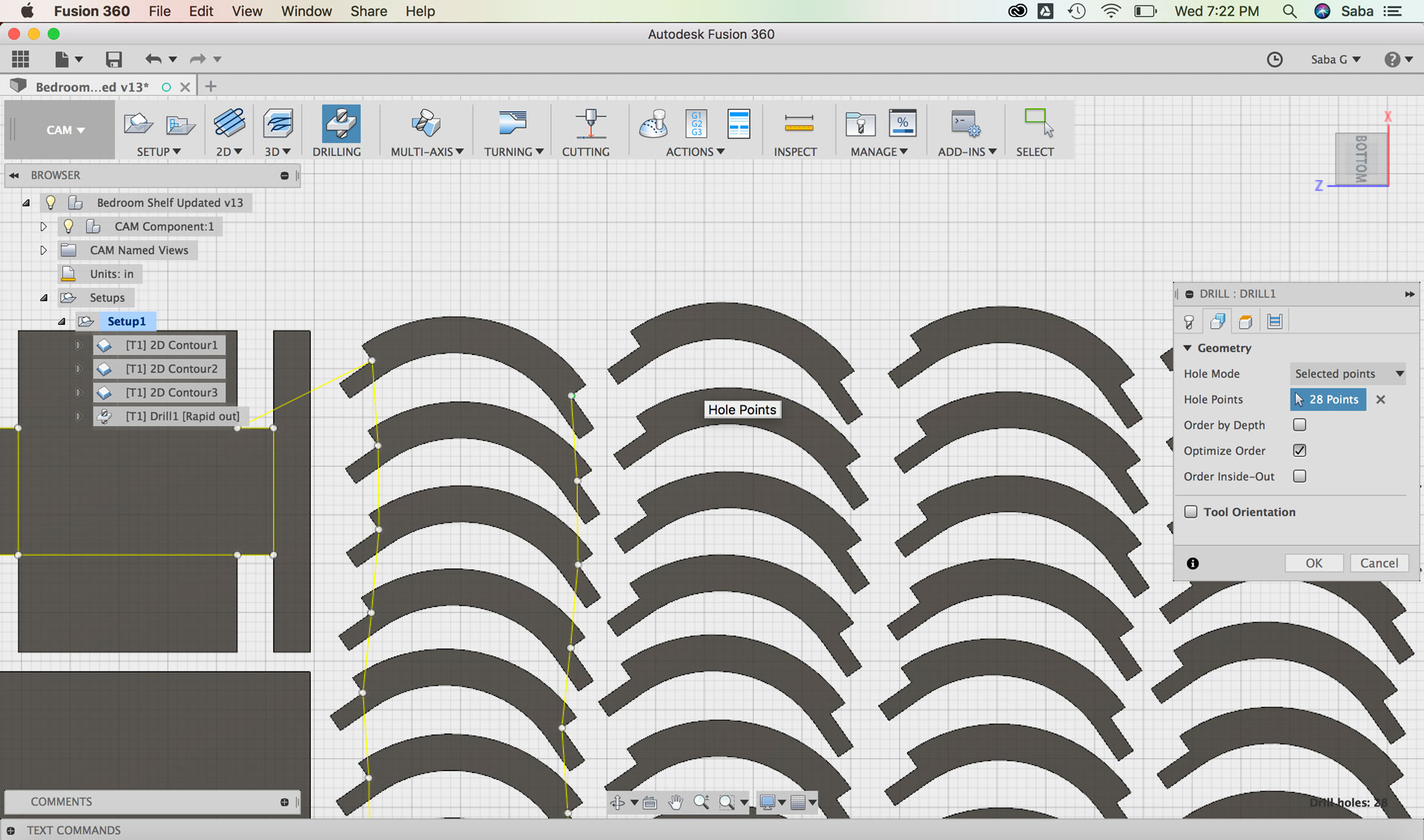
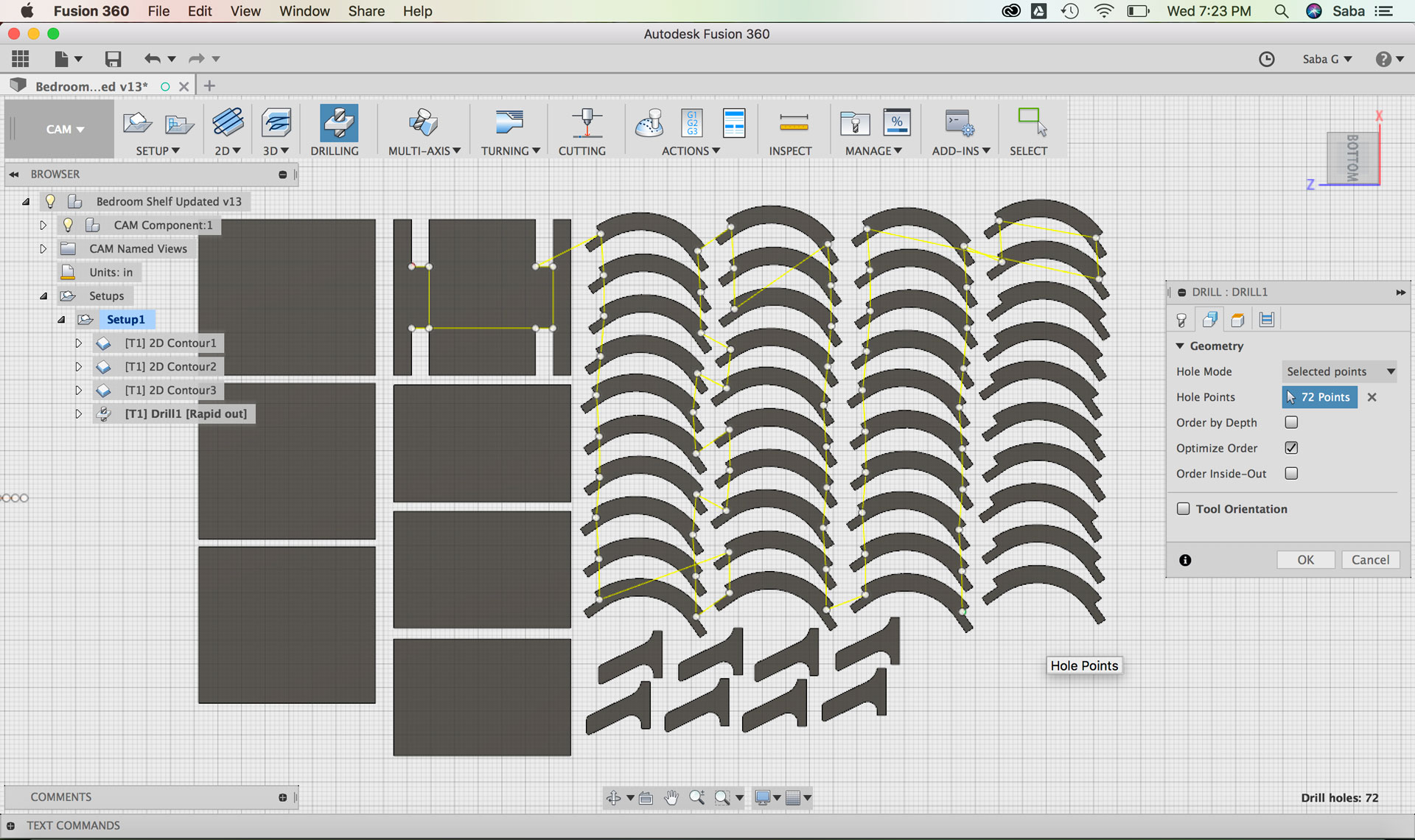
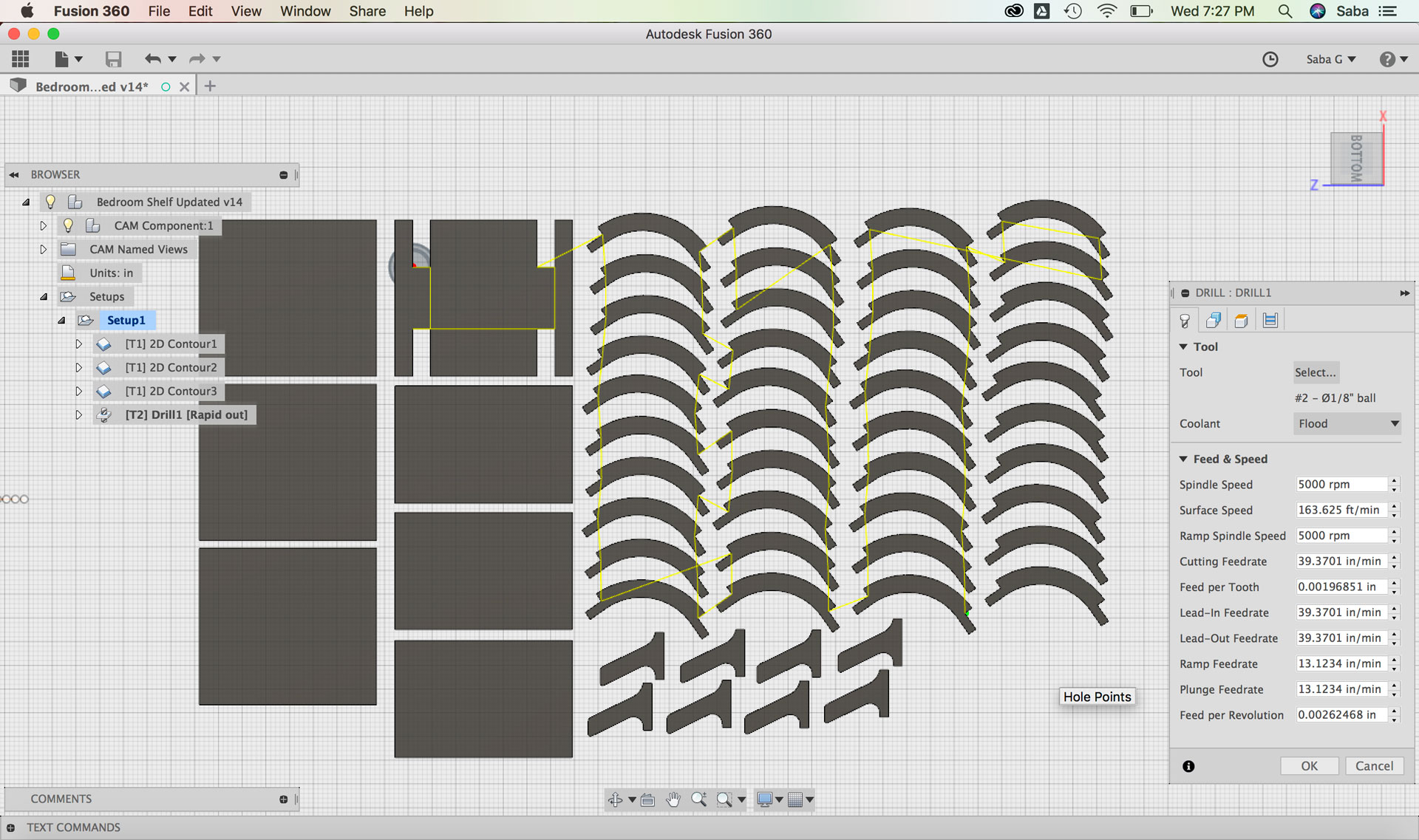
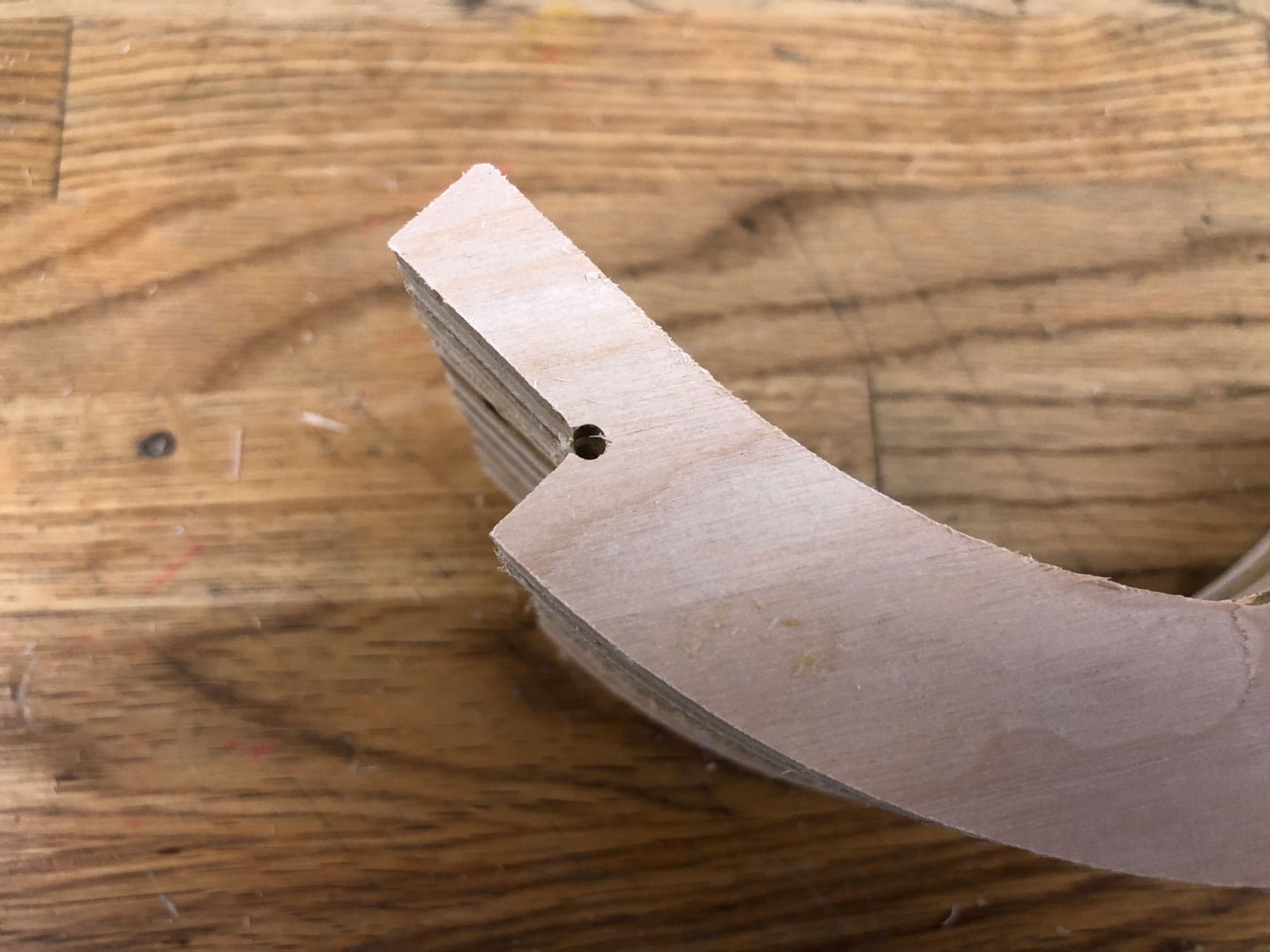
    In order to ensure that my pieces would connect inside one another properly, I needed to drill dog-bone fillets at all the interior right angles. So I created one last toolpath for this procedure. I selected the Drill toolpath command and updated the following settings:

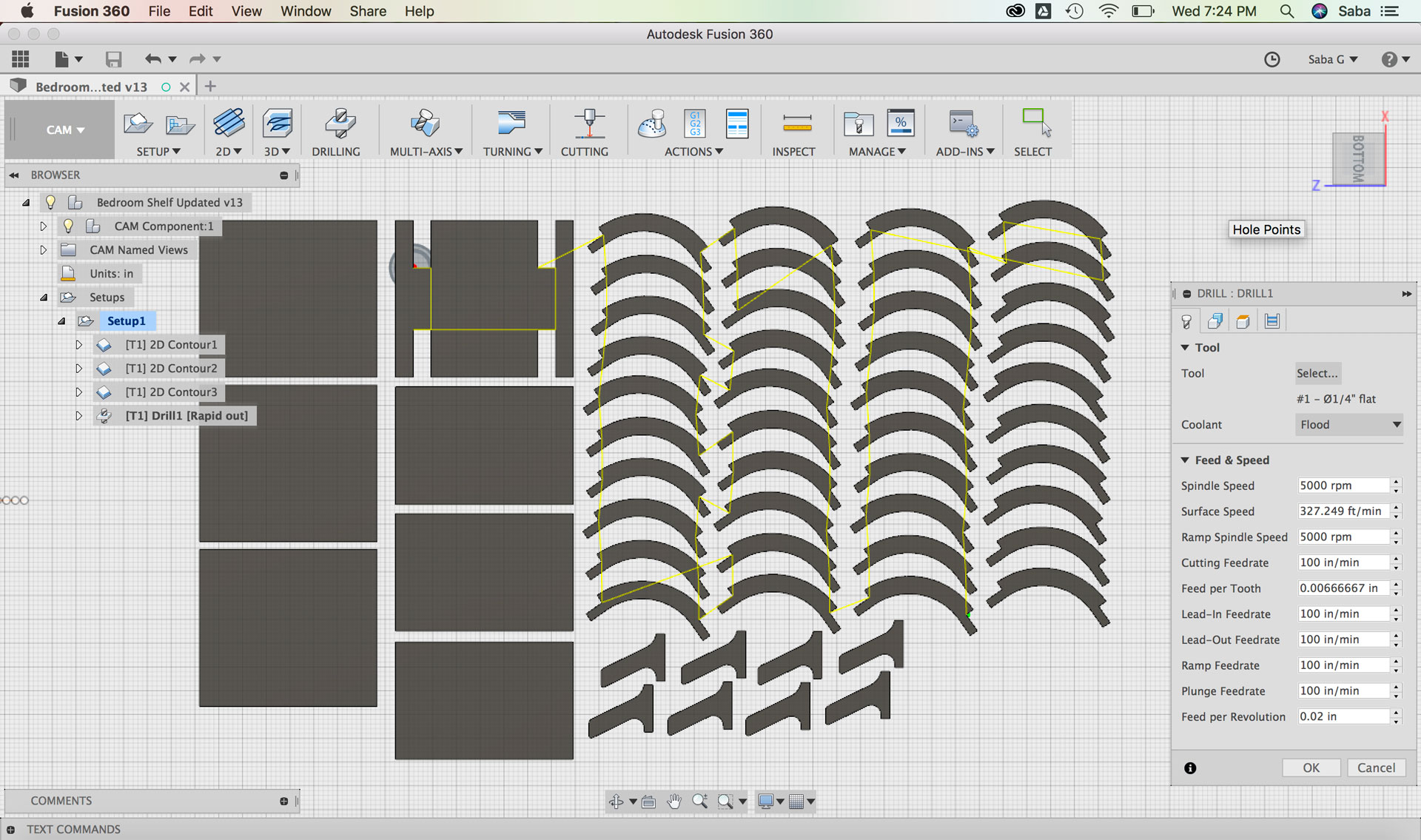
    Under Tool tab:

  • Spindle Speed: 5000 rpm
  • Ramp Spindle Speed: 5000 rpm
  • Feed per Revolution: 0.02”
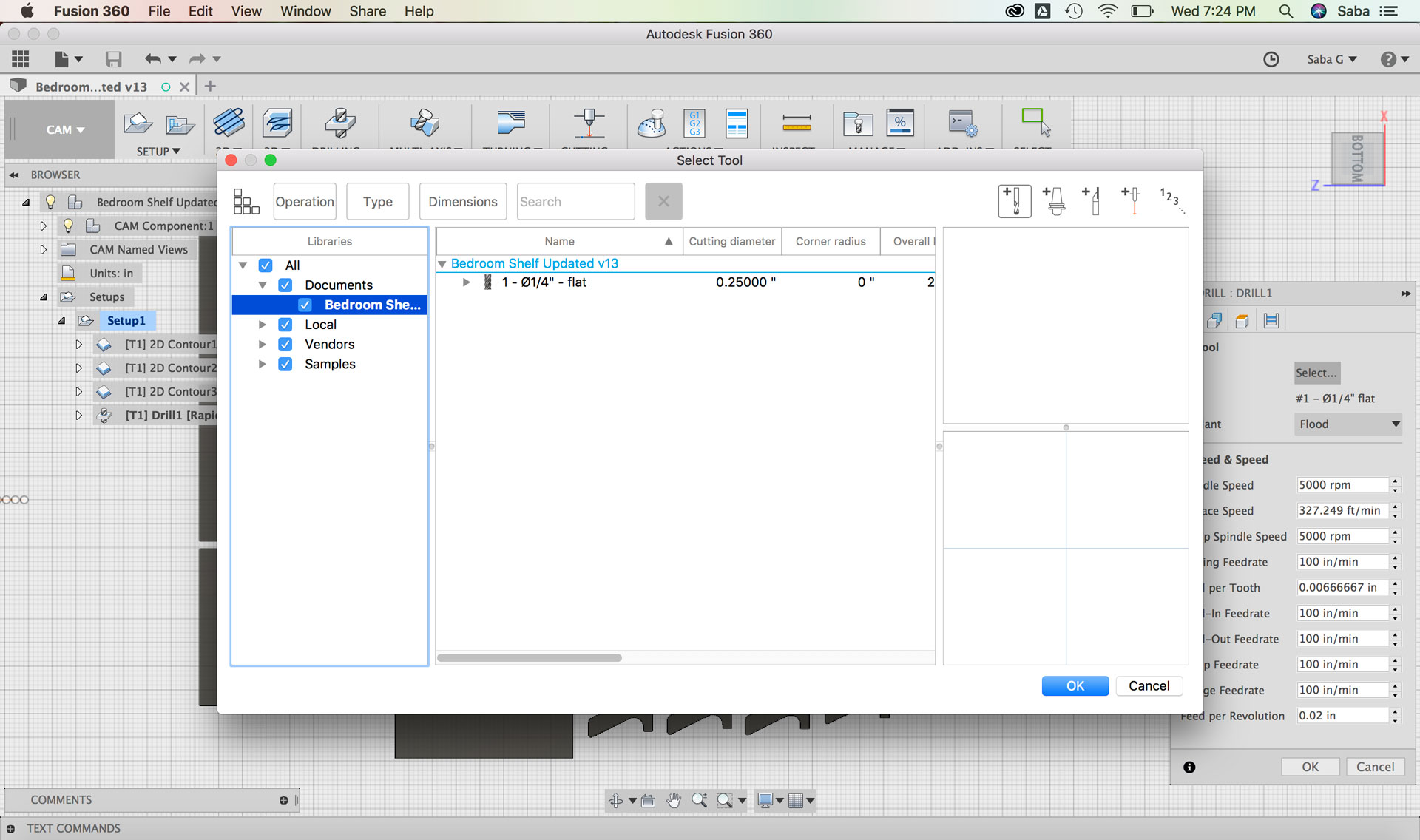
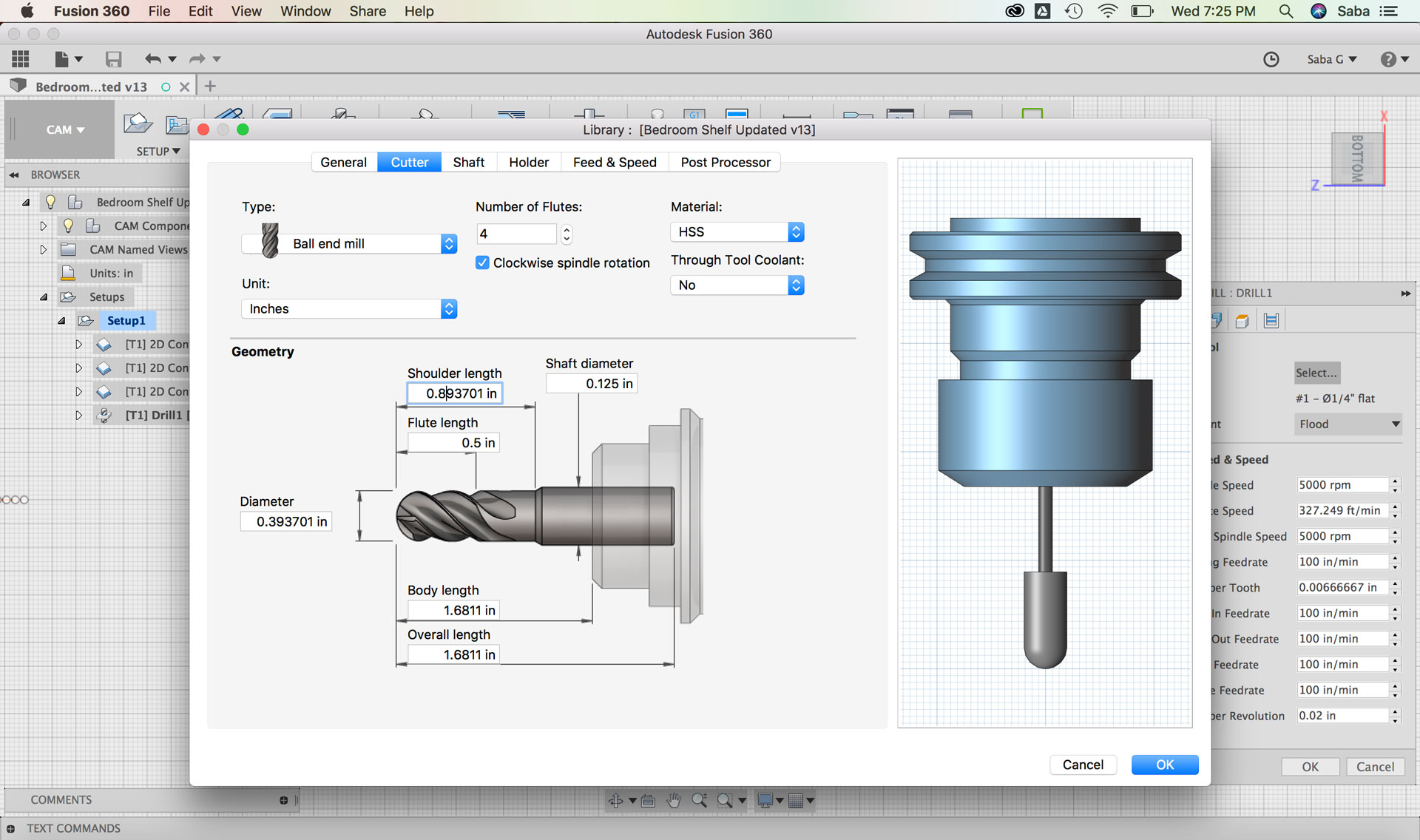
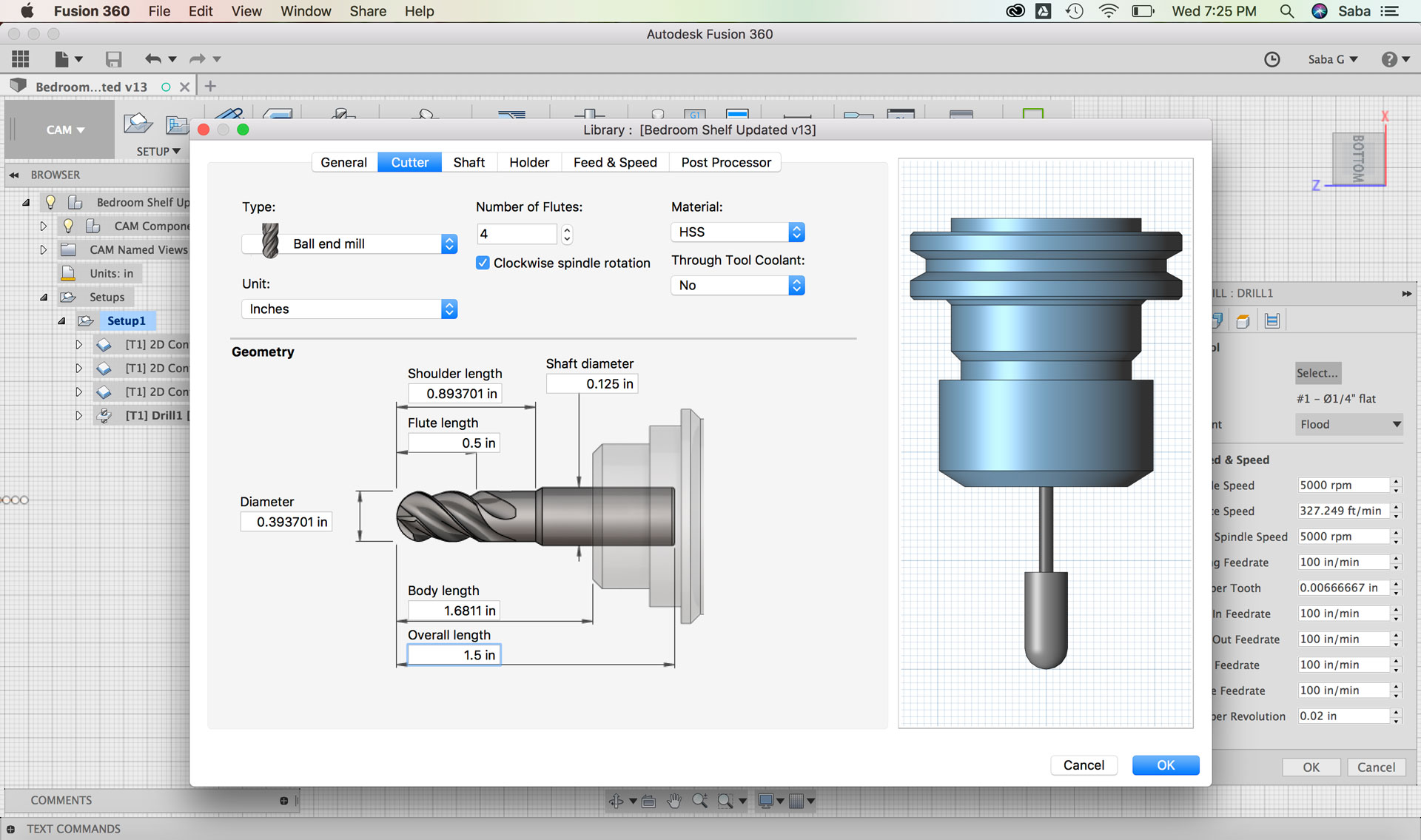
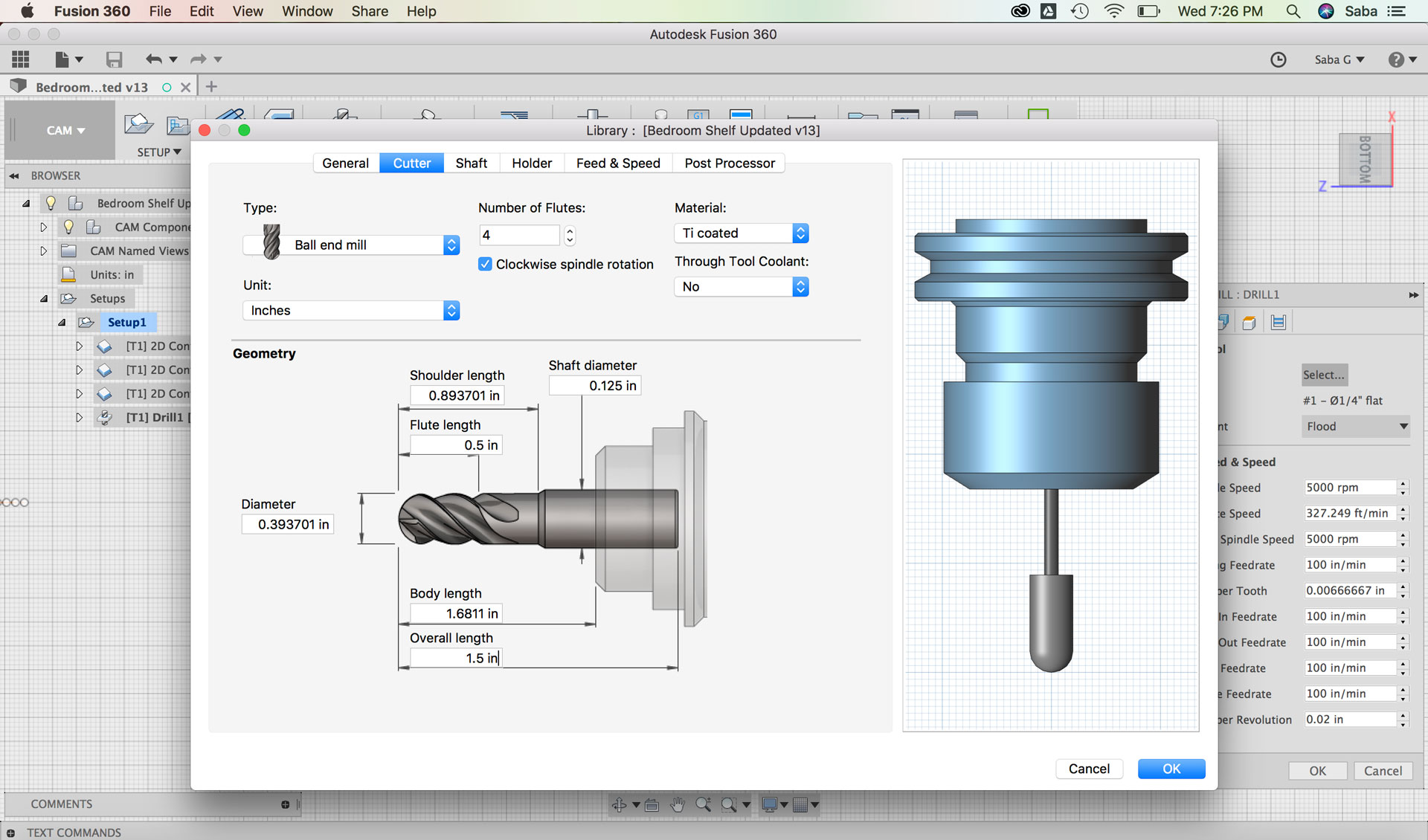
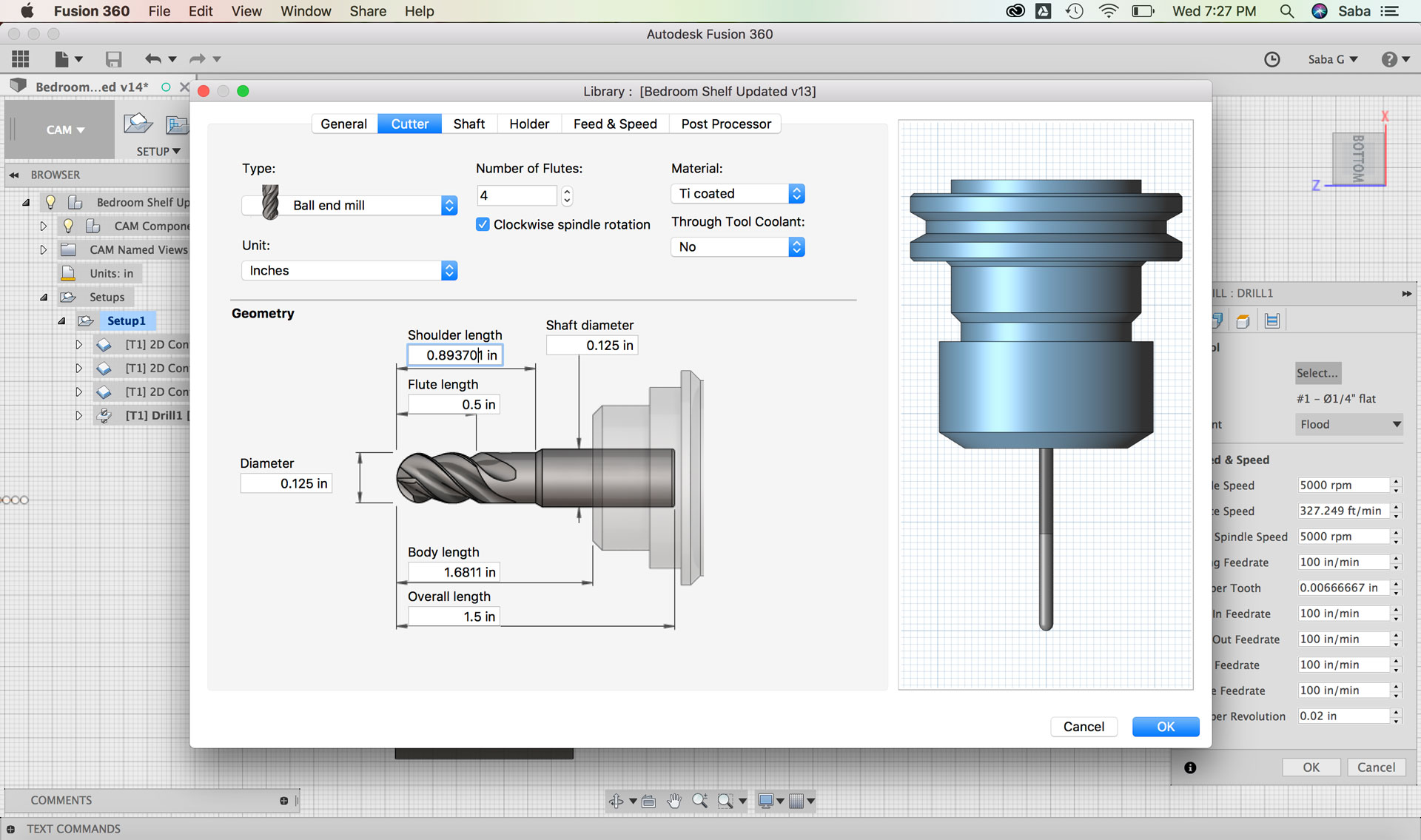
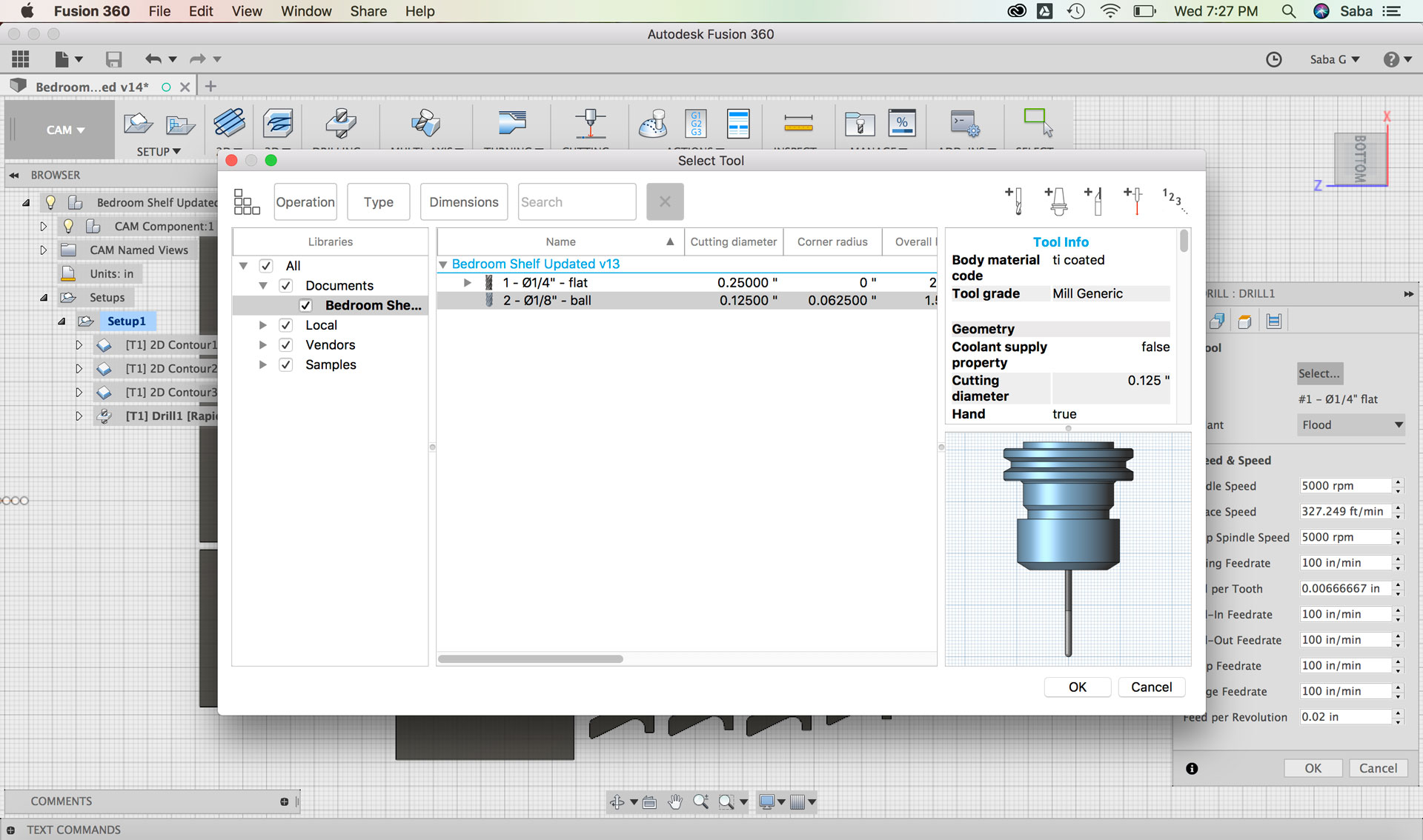
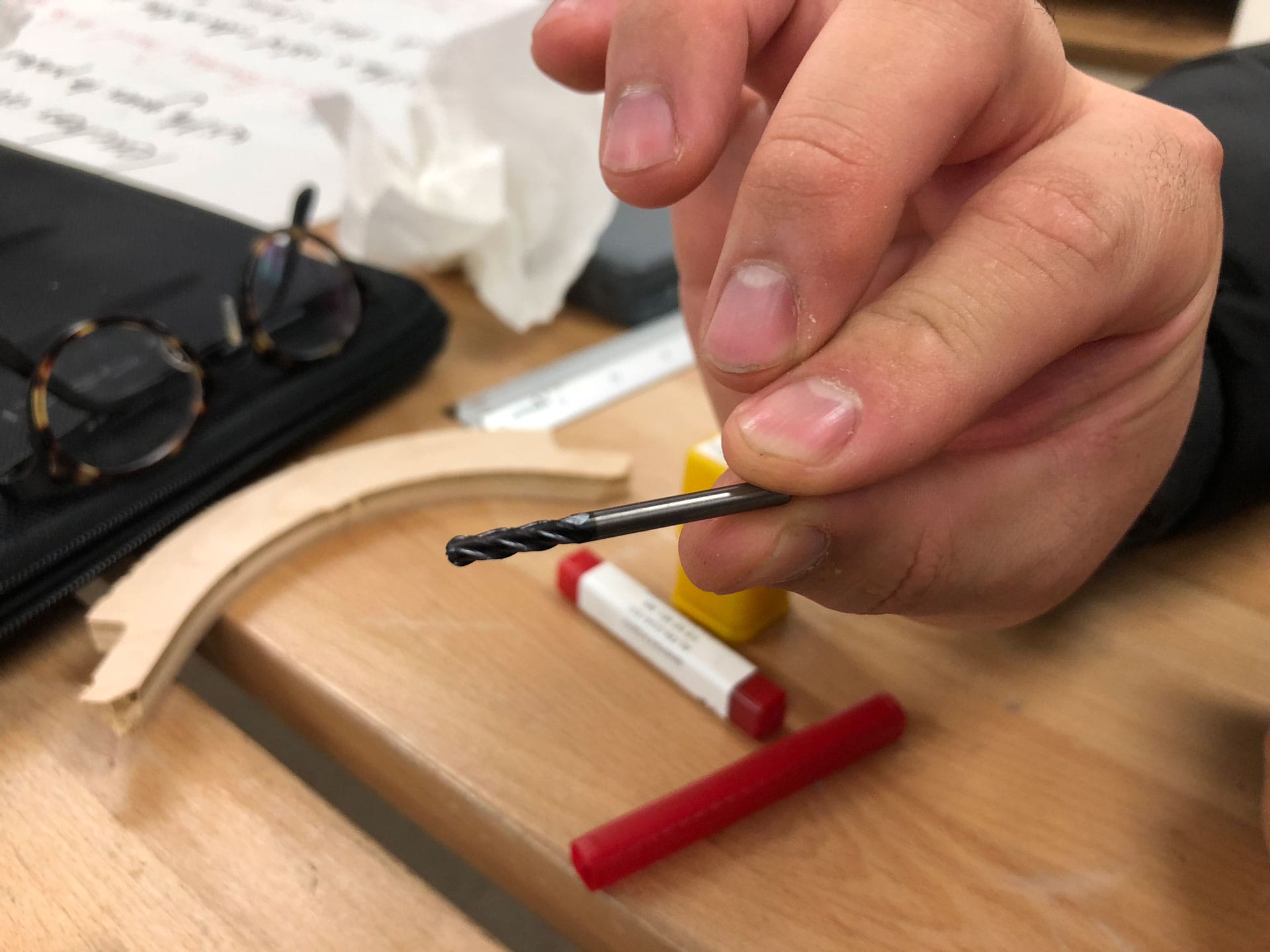
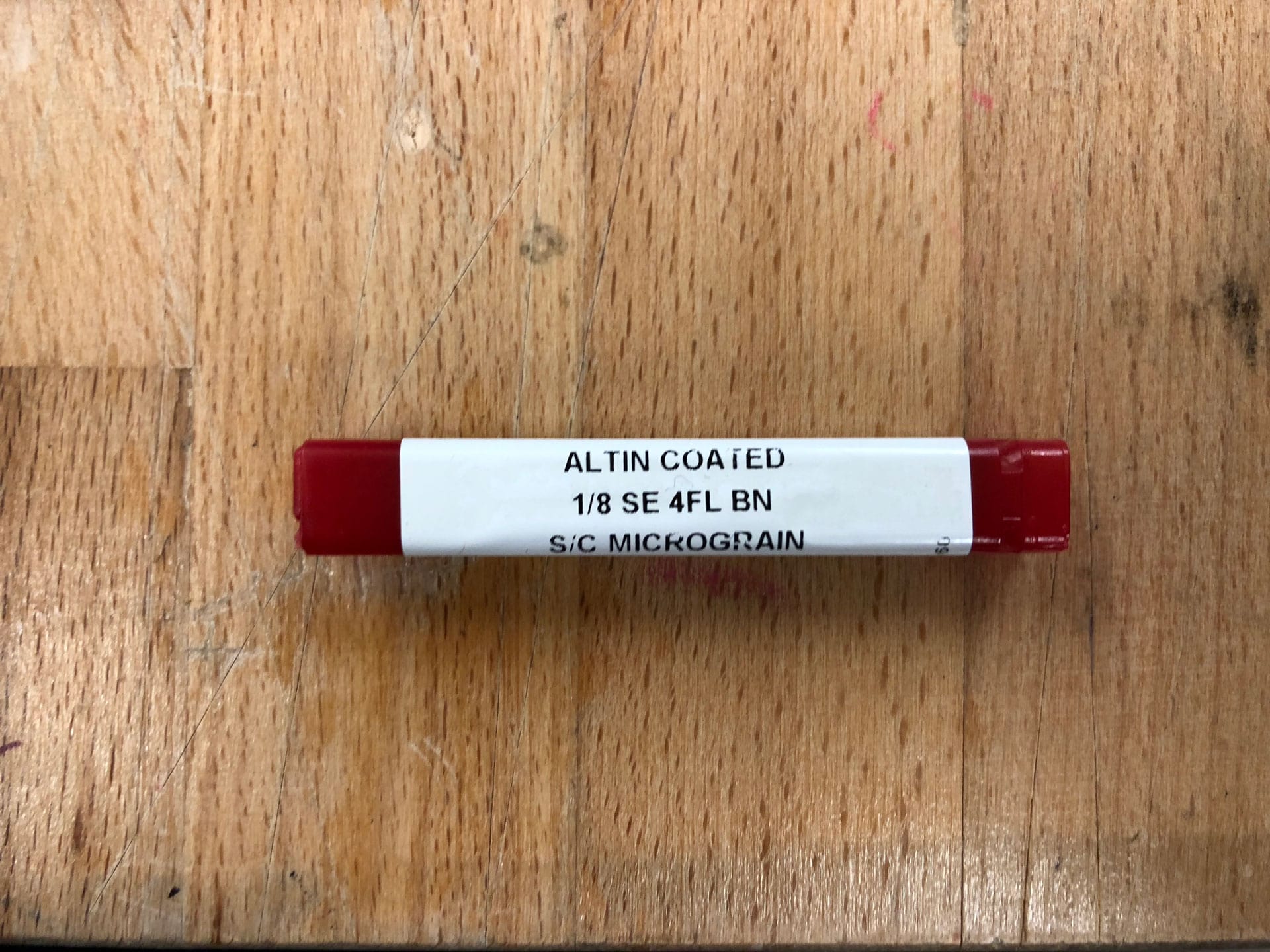
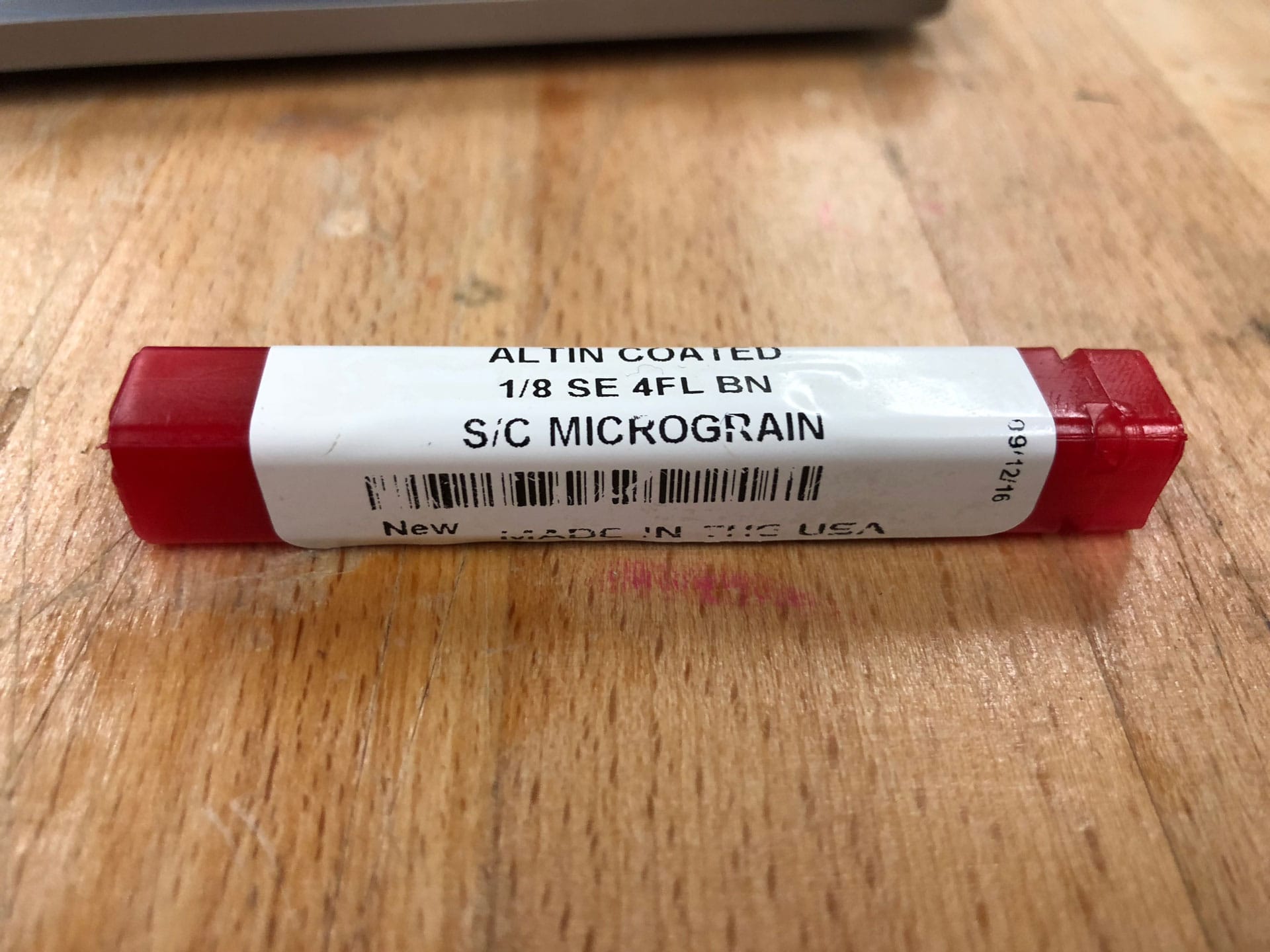
  • Update Tool: Ball end mill, overall length of 1.5”, Flute length of 0.5”, Shaft diameter and Diameter of 0.125”,4 Flutes, and Ti coated Material
  • Under Geometry tab:
  • Hole Points: Select all interior right angle parts from the bottom of the drawing
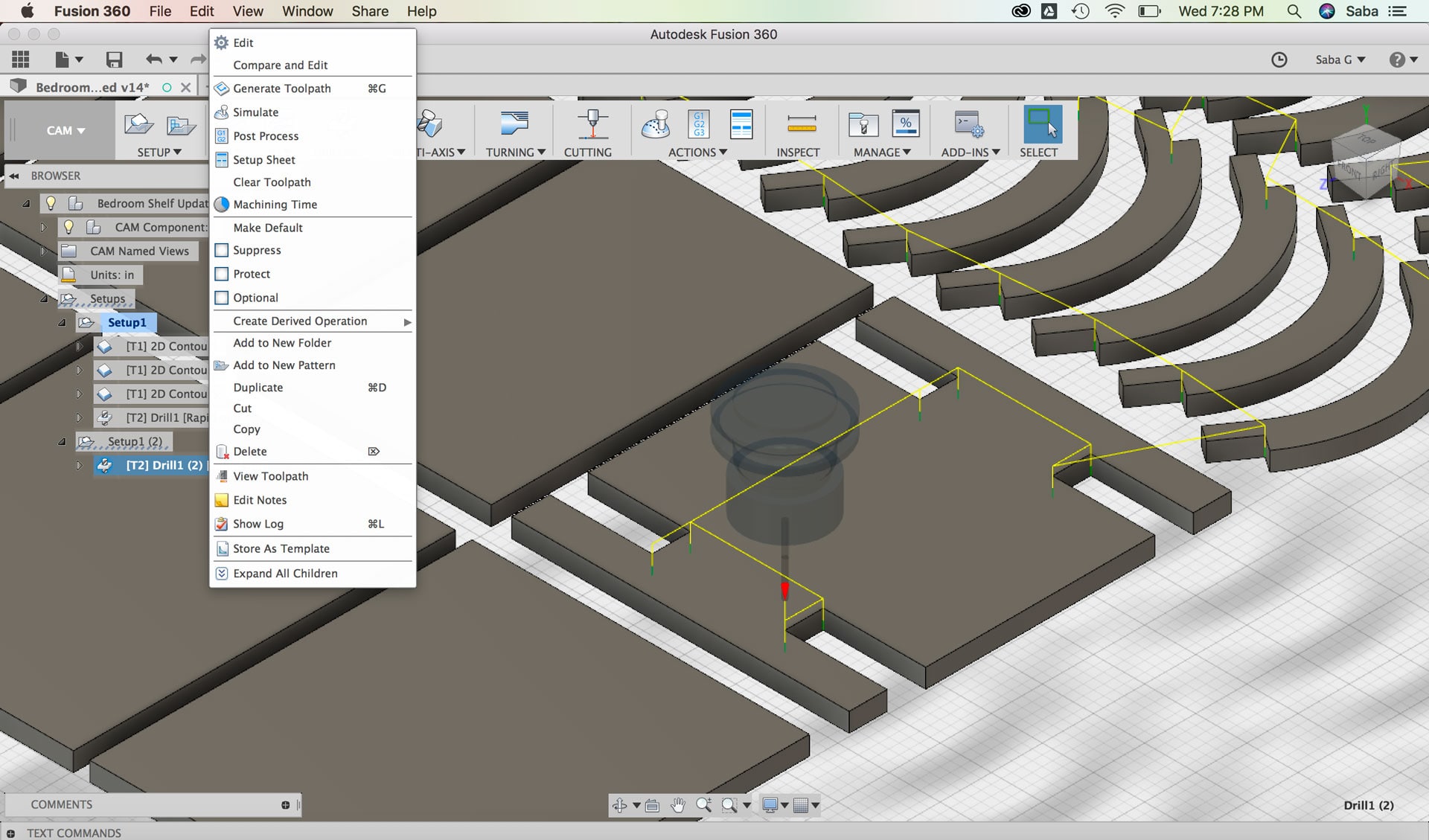
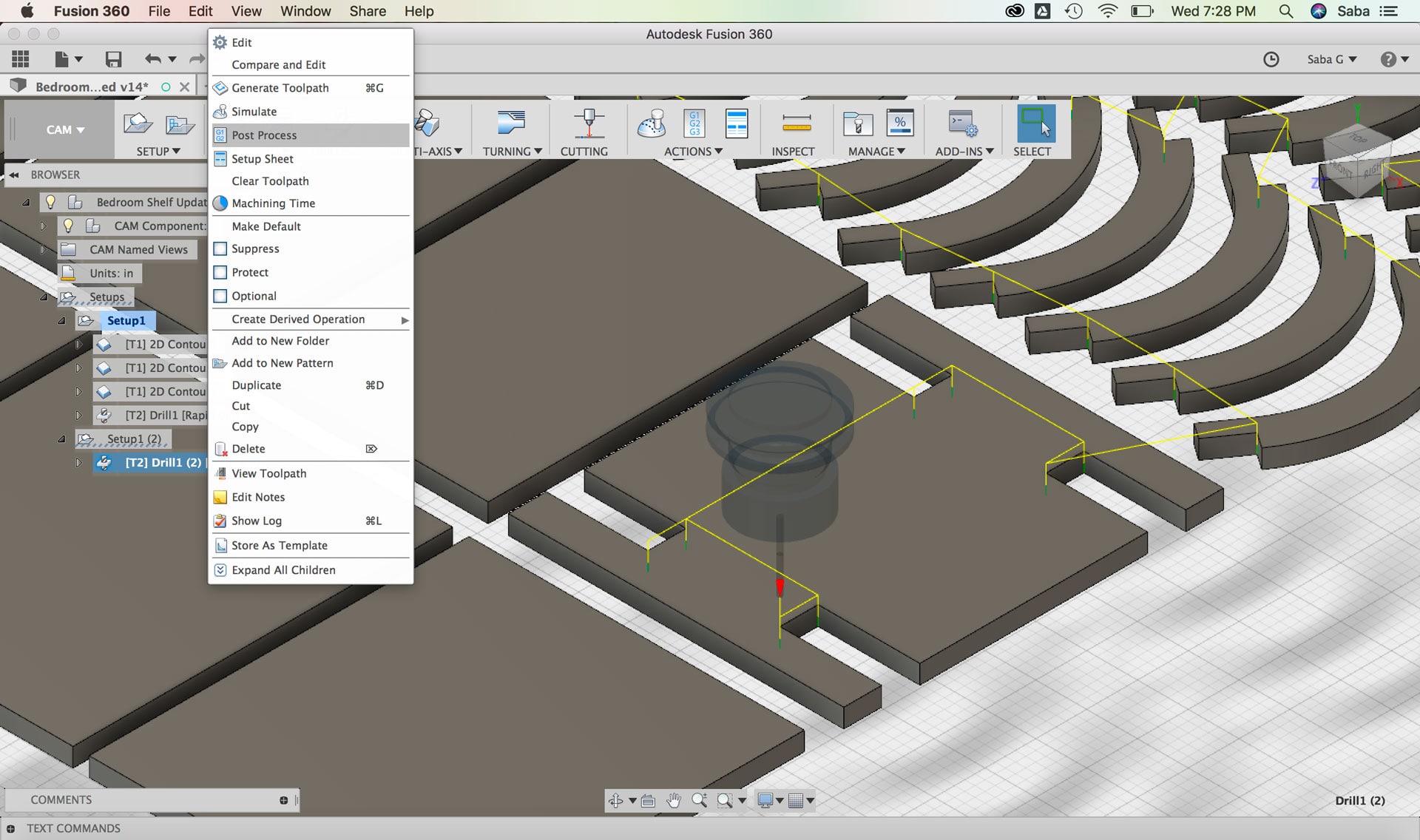
  • Given that these toolpaths would be using a different bit, I needed to have two separate g-code files. I duplicated the entire Setup menu with all 4 toolpaths and then deleted the other 3 toolpaths so that only the Drill toolpath remained in the second Setup. I updated Post Process details to Grbl and updated the Program number. Under Properties, I unchecked the G28 Safe retracts. I also deleted the Drill toolpath from the first Setup.

    Fusion 360: Setting up Drill toolpath for dogbones Fusion 360: Setting up Drill toolpath for dogbones Fusion 360: Setting up Drill toolpath for dogbones Fusion 360: Setting up Drill toolpath for dogbones Fusion 360: Setting up Drill toolpath for dogbones Fusion 360: Setting up Drill toolpath for dogbones Fusion 360: Setting up Drill toolpath for dogbones Fusion 360: Setting up Drill toolpath for dogbones Fusion 360: Setting up Drill toolpath for dogbones Fusion 360: Setting up Drill toolpath for dogbones Fusion 360: Setting up Drill toolpath for dogbones Fusion 360: Setting up Drill toolpath for dogbones Fusion 360: Setting up Drill toolpath for dogbones Fusion 360: Setting up Drill toolpath for dogbones Fusion 360: Setting up Drill toolpath for dogbones Fusion 360: Setting up Drill toolpath for dogbones Fusion 360: Setting up Drill toolpath for dogbones Fusion 360: Setting up Drill toolpath for dogbones Fusion 360: Setting up Drill toolpath for dogbones Fusion 360: Setting up Drill toolpath for dogbones

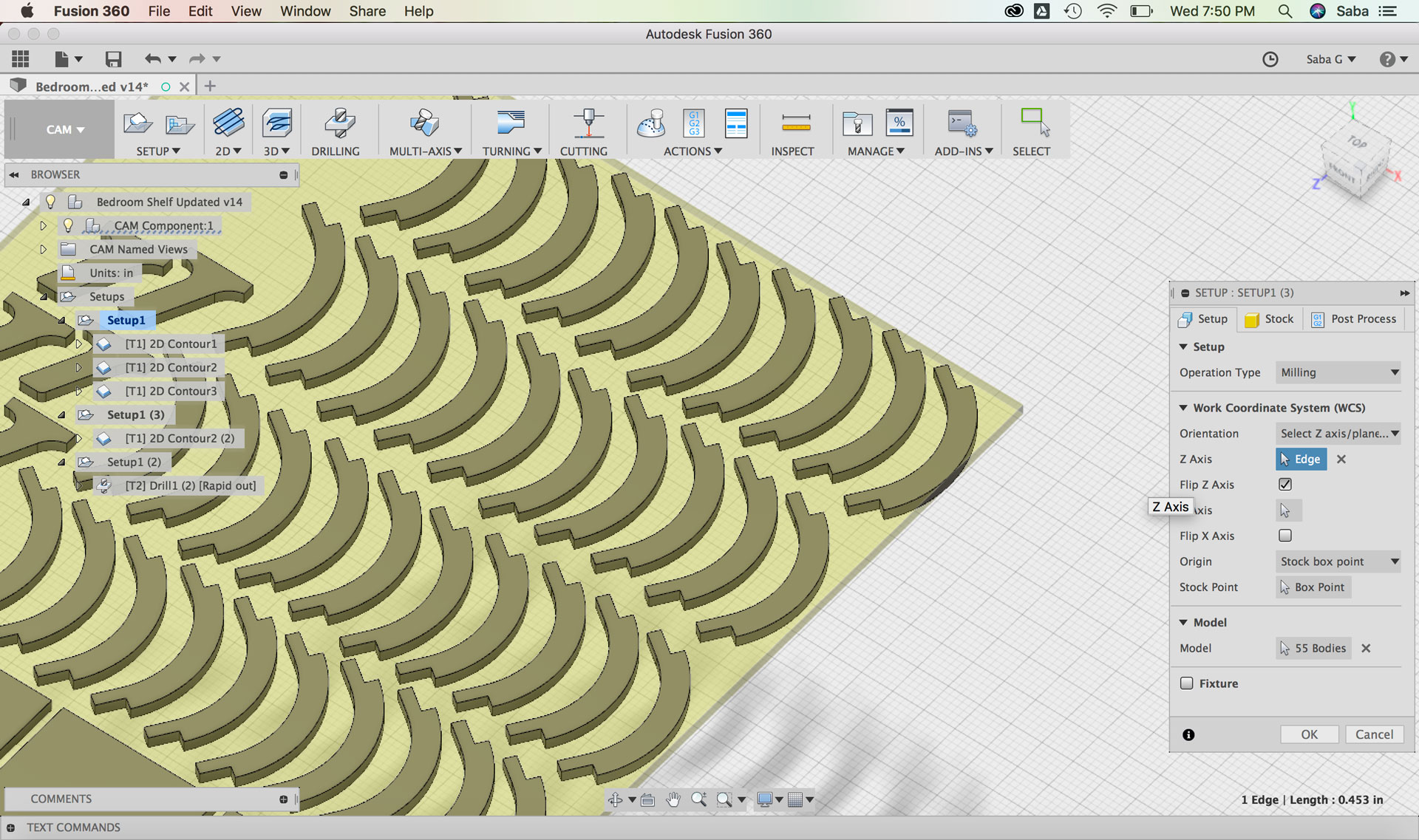
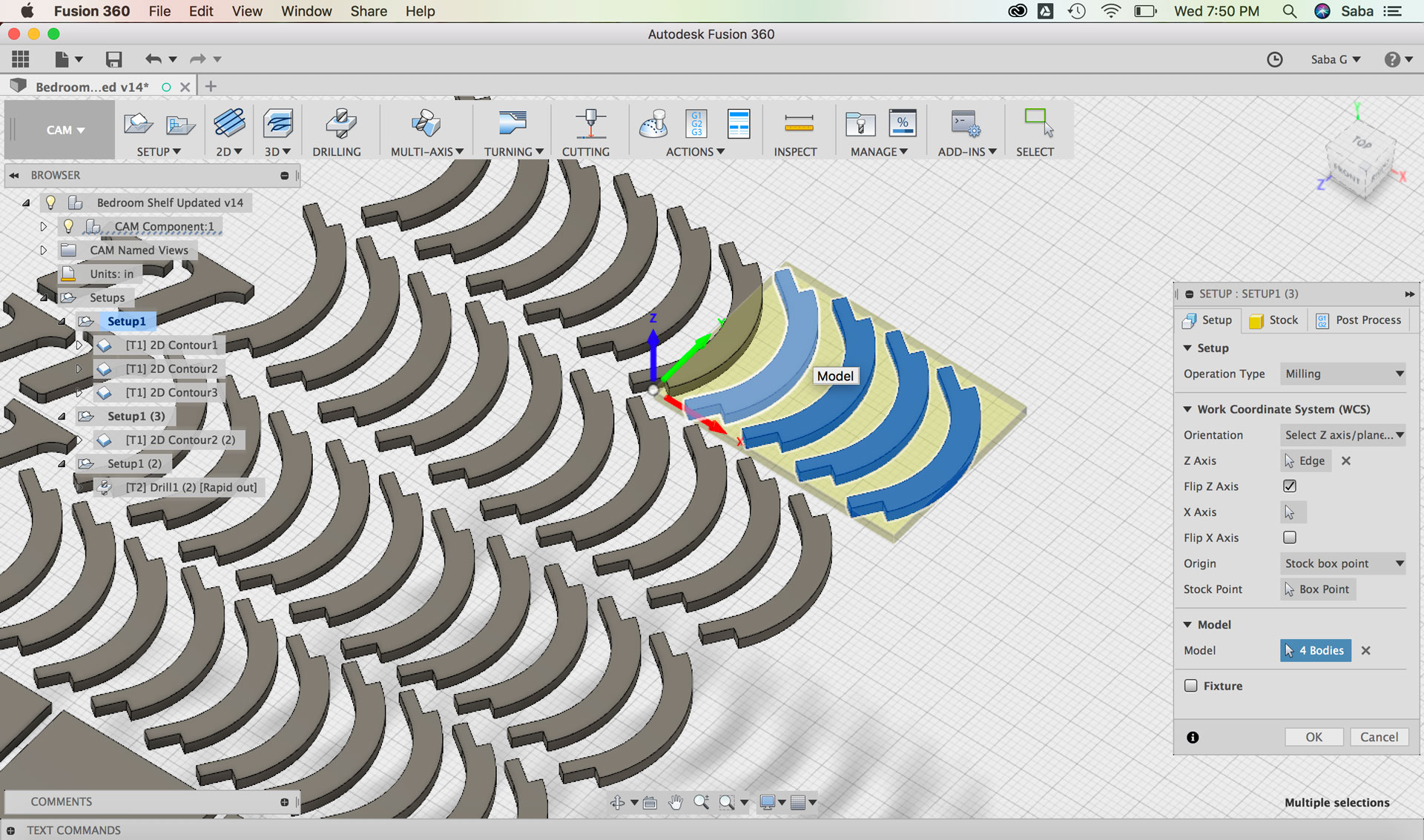
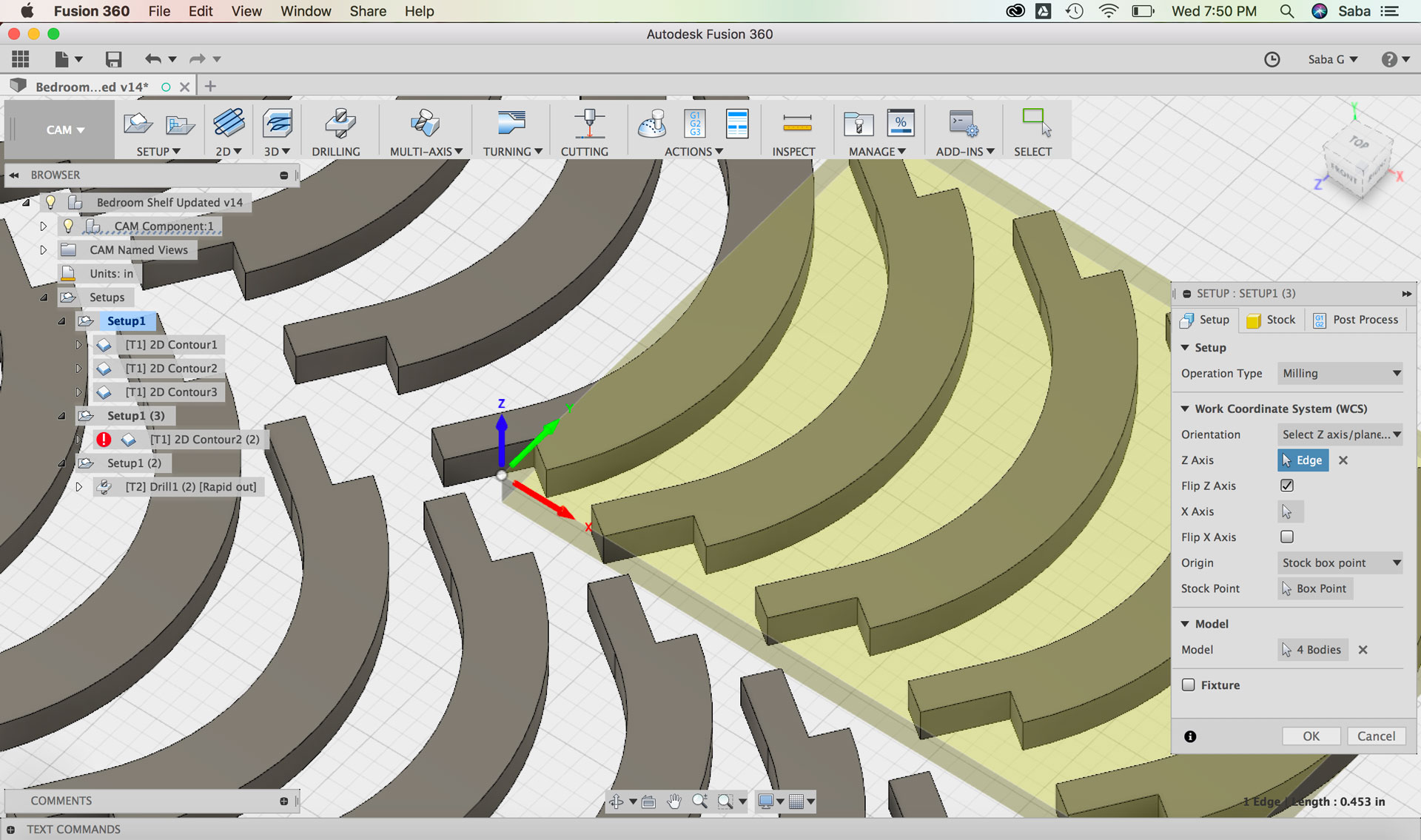
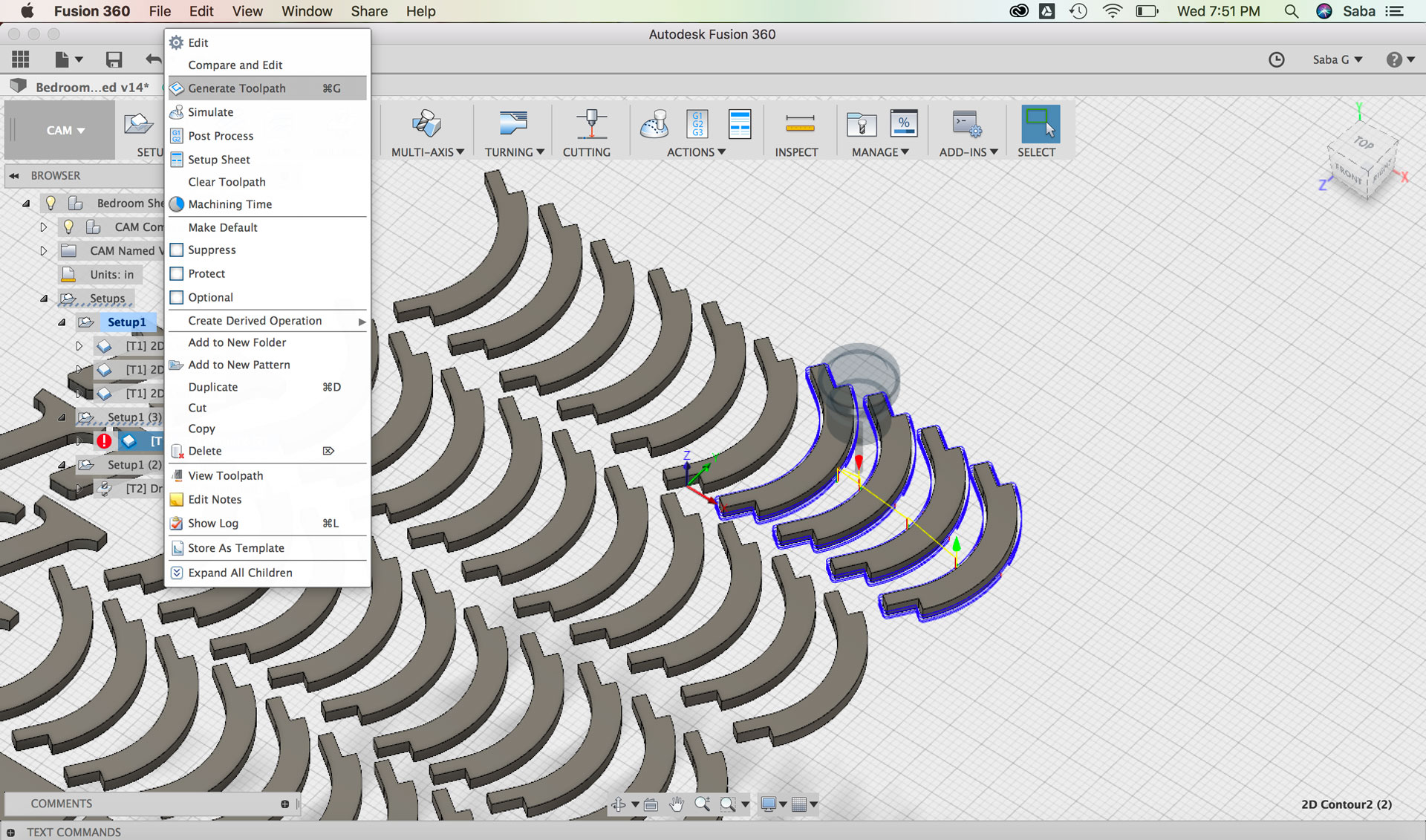
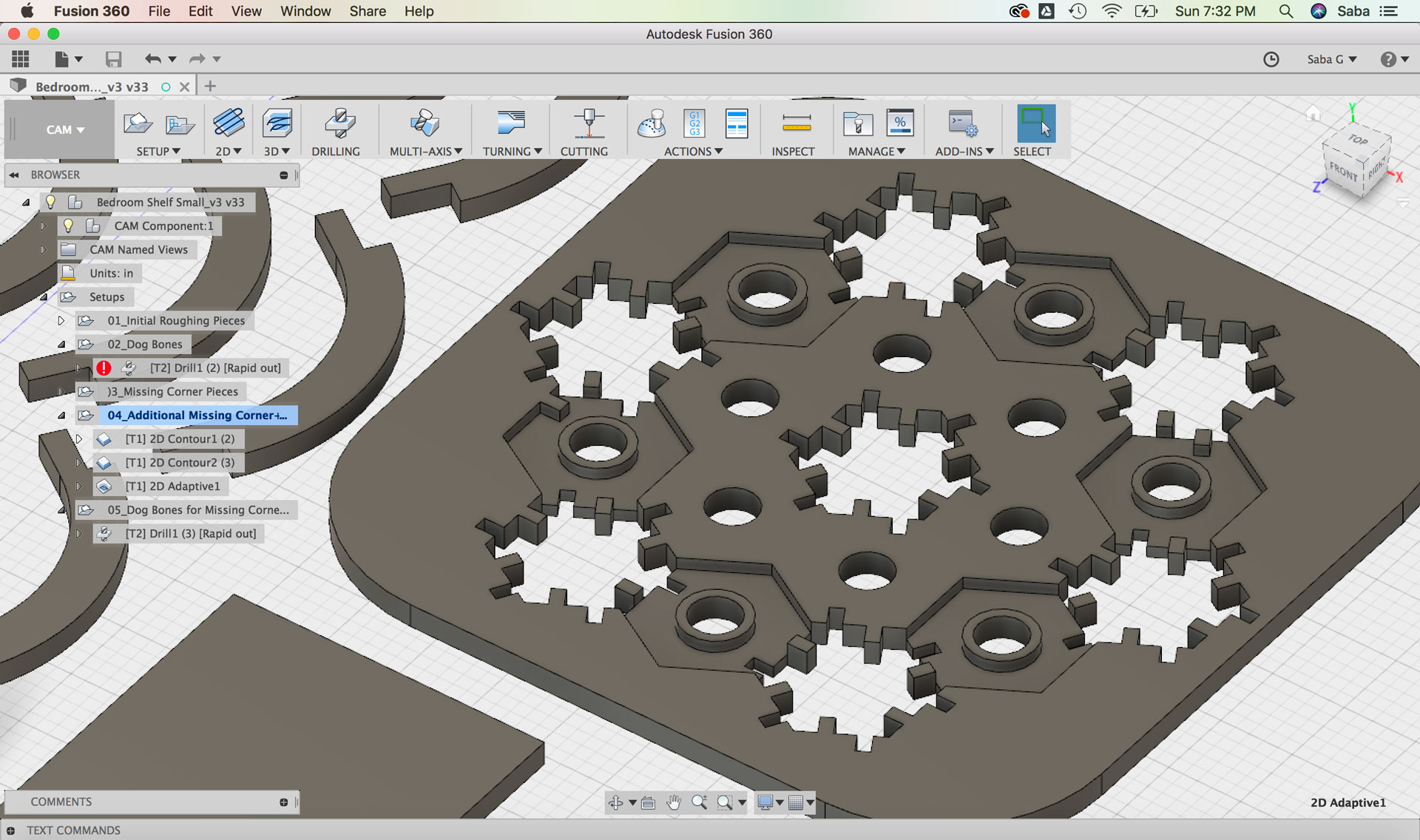
    On hindsight, I should have cut some extra pieces in case of any broken pieces during the machining process, but I didn’t. After the machining process, I created a separate cut file with a toolpath with only 4 pieces. In order to create this, I duplicated Setup 1 and only kept the 2D Contour2 toolpath and modified the Model to include only 4 Bodies. I Generated the Toolpath and updated the Post Process and created a new NC file.

    Fusion 360: Updating Setup3 for missing pieces Fusion 360: Updating Setup3 for missing pieces Fusion 360: Updating Setup3 for missing pieces Fusion 360: Updating Setup3 for missing pieces Fusion 360: Updating Setup3 for missing pieces Fusion 360: Updating Setup3 for missing pieces Fusion 360: Updating Setup3 for missing pieces Fusion 360: Updating Setup3 for missing pieces Fusion 360: Updating Setup3 for missing pieces Setup for shelf facade Setup for shelf facade

    CNC Milling

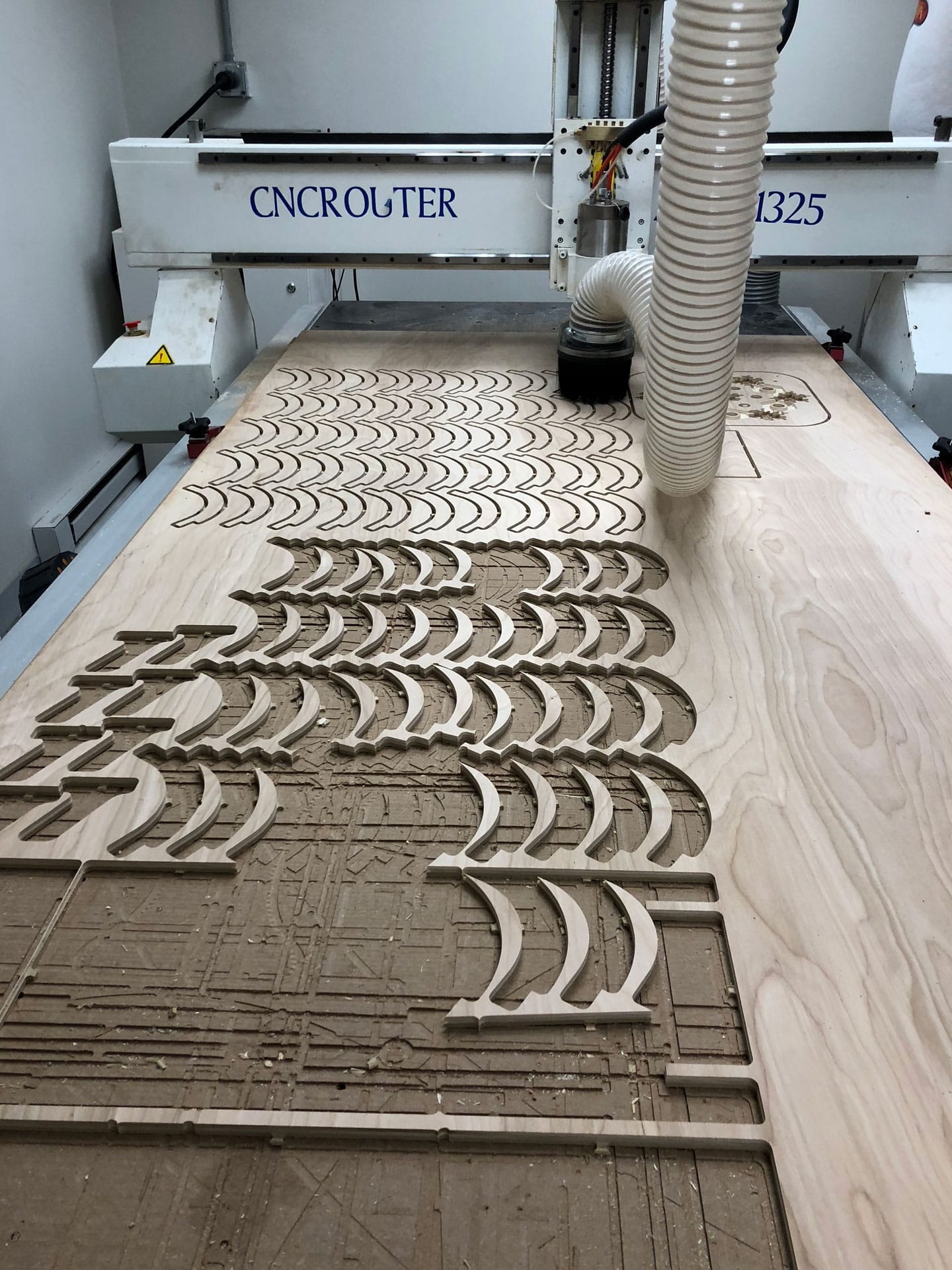
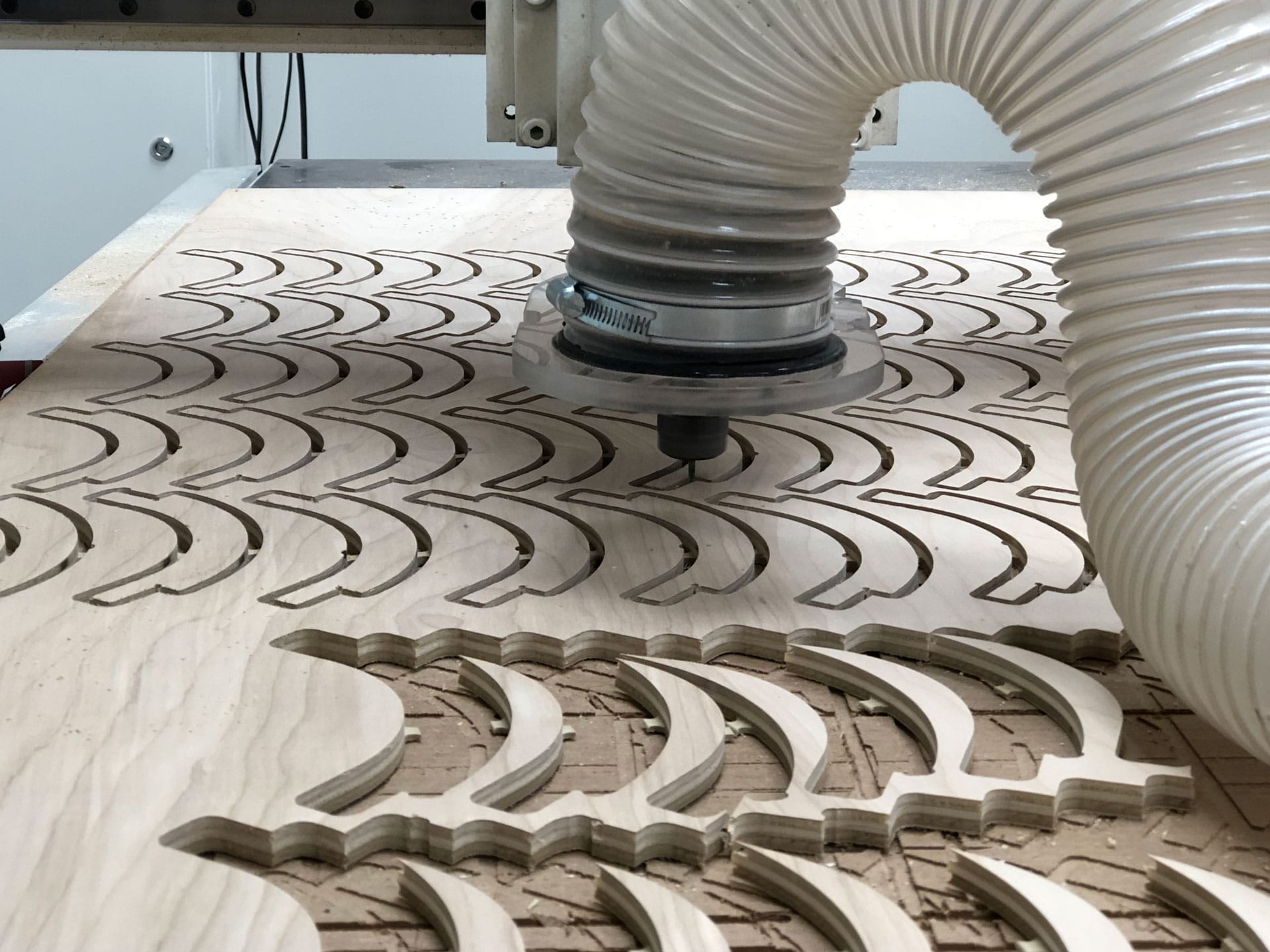
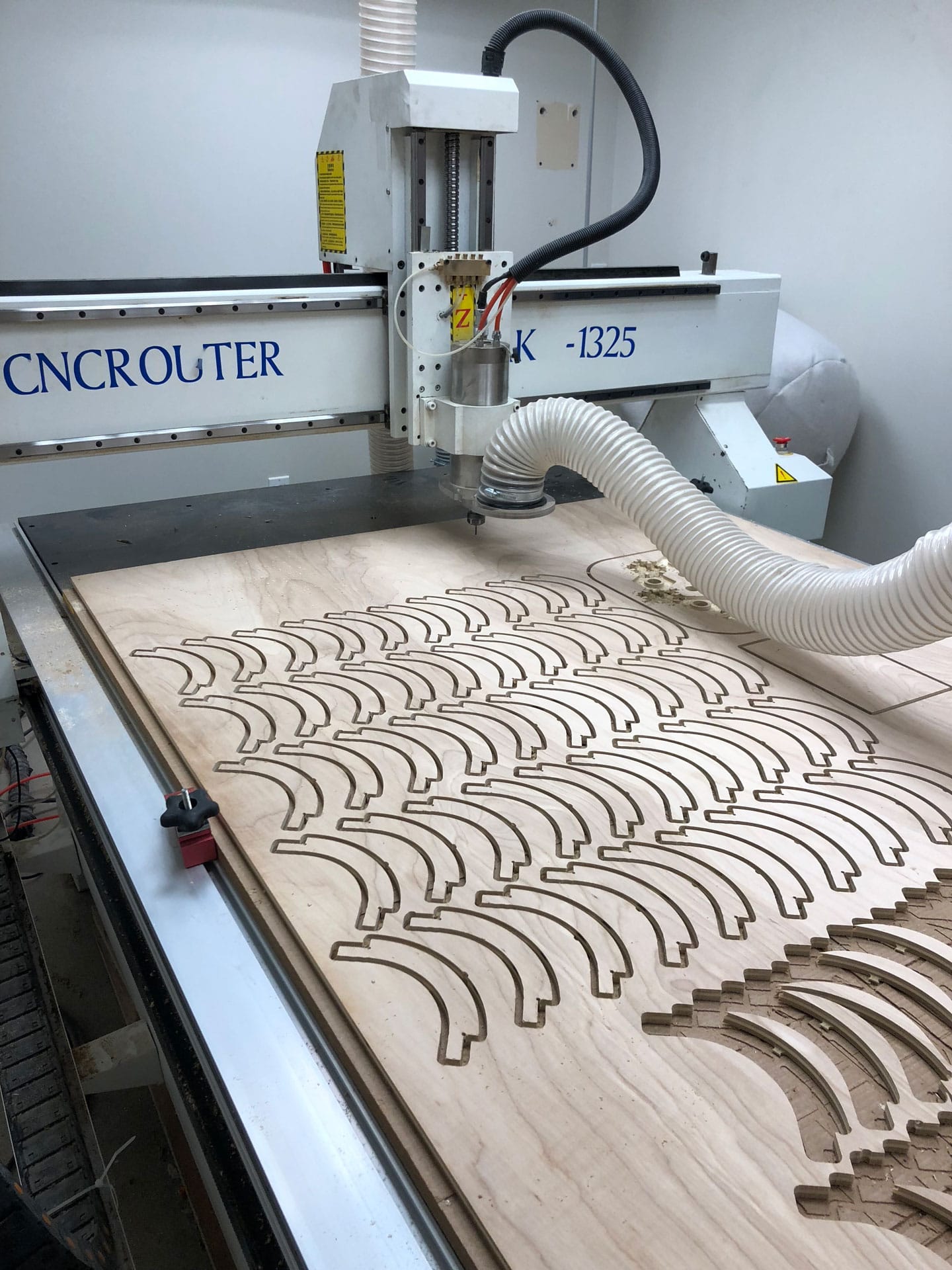
    The Milling process took a few hours between prep and actual cutting time. Below is the sequence of my process machining my pieces.

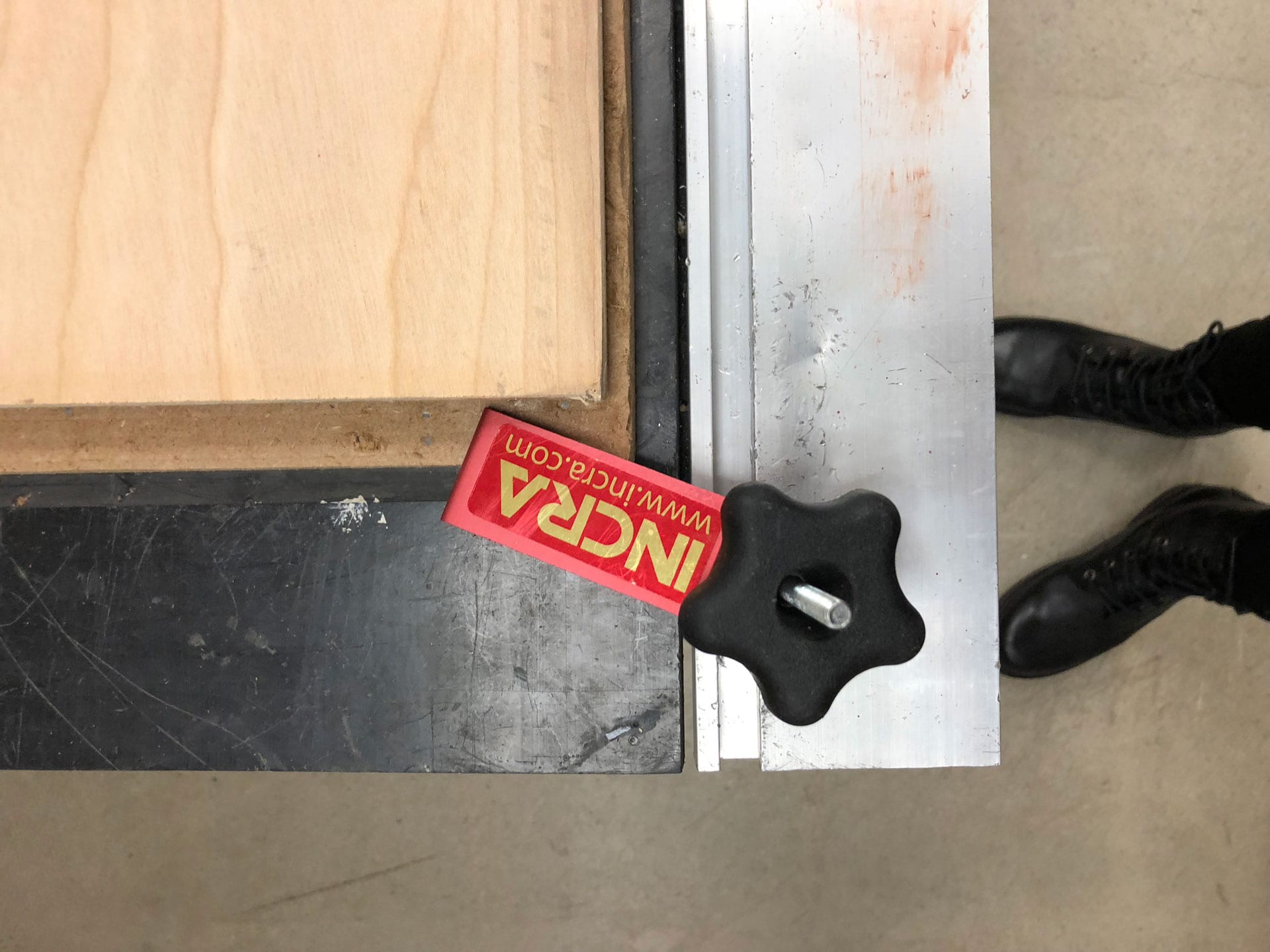
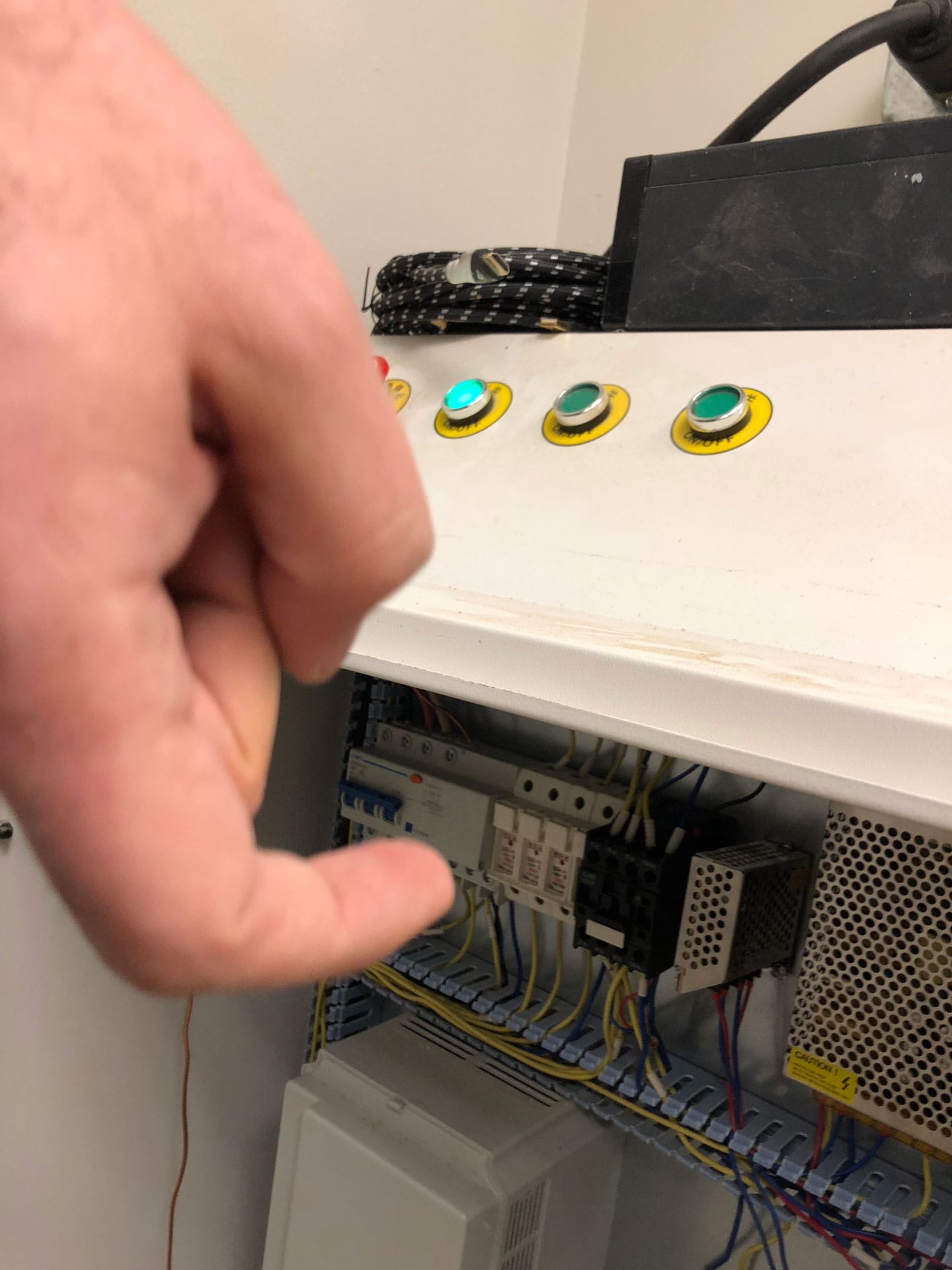
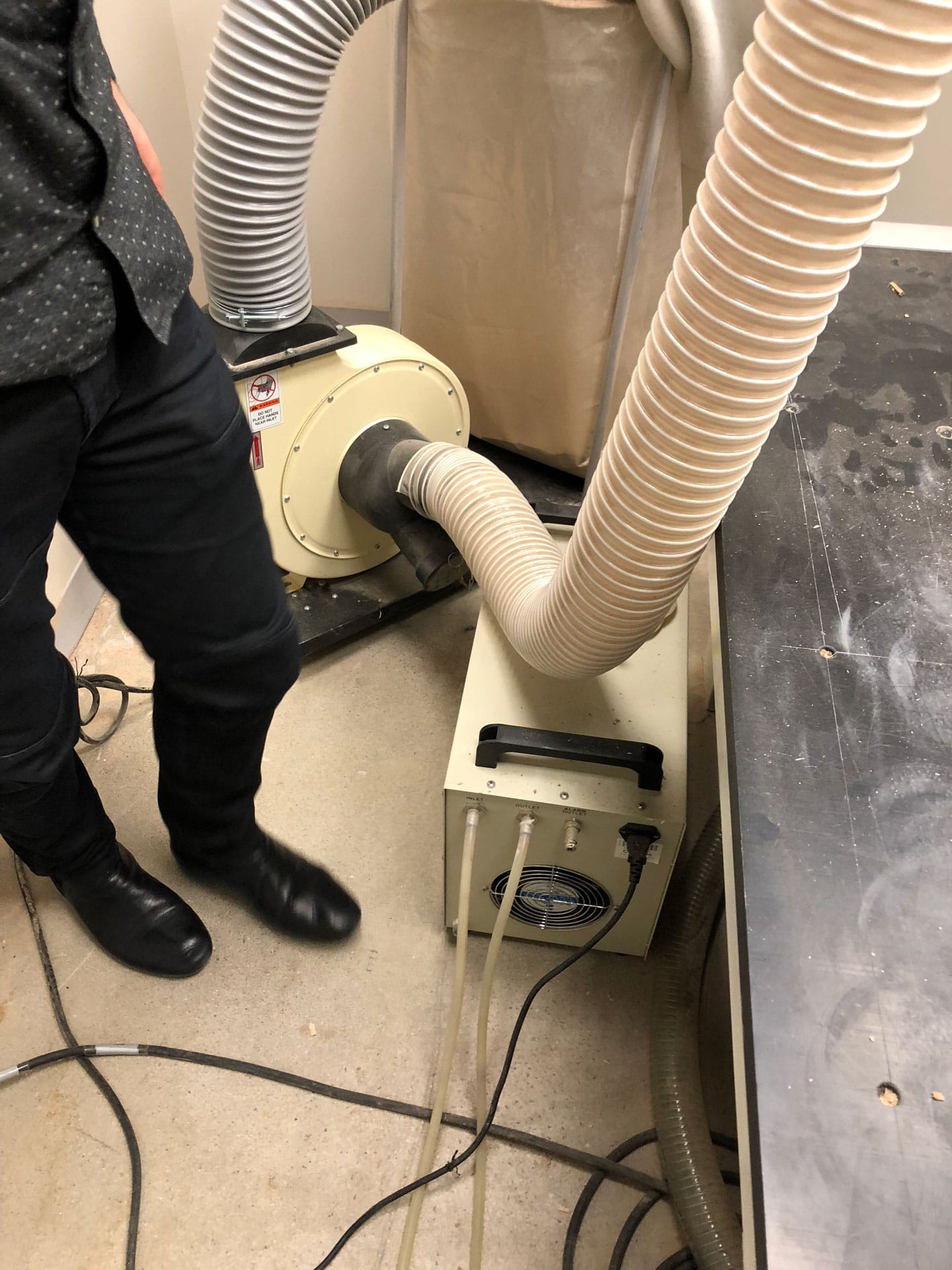
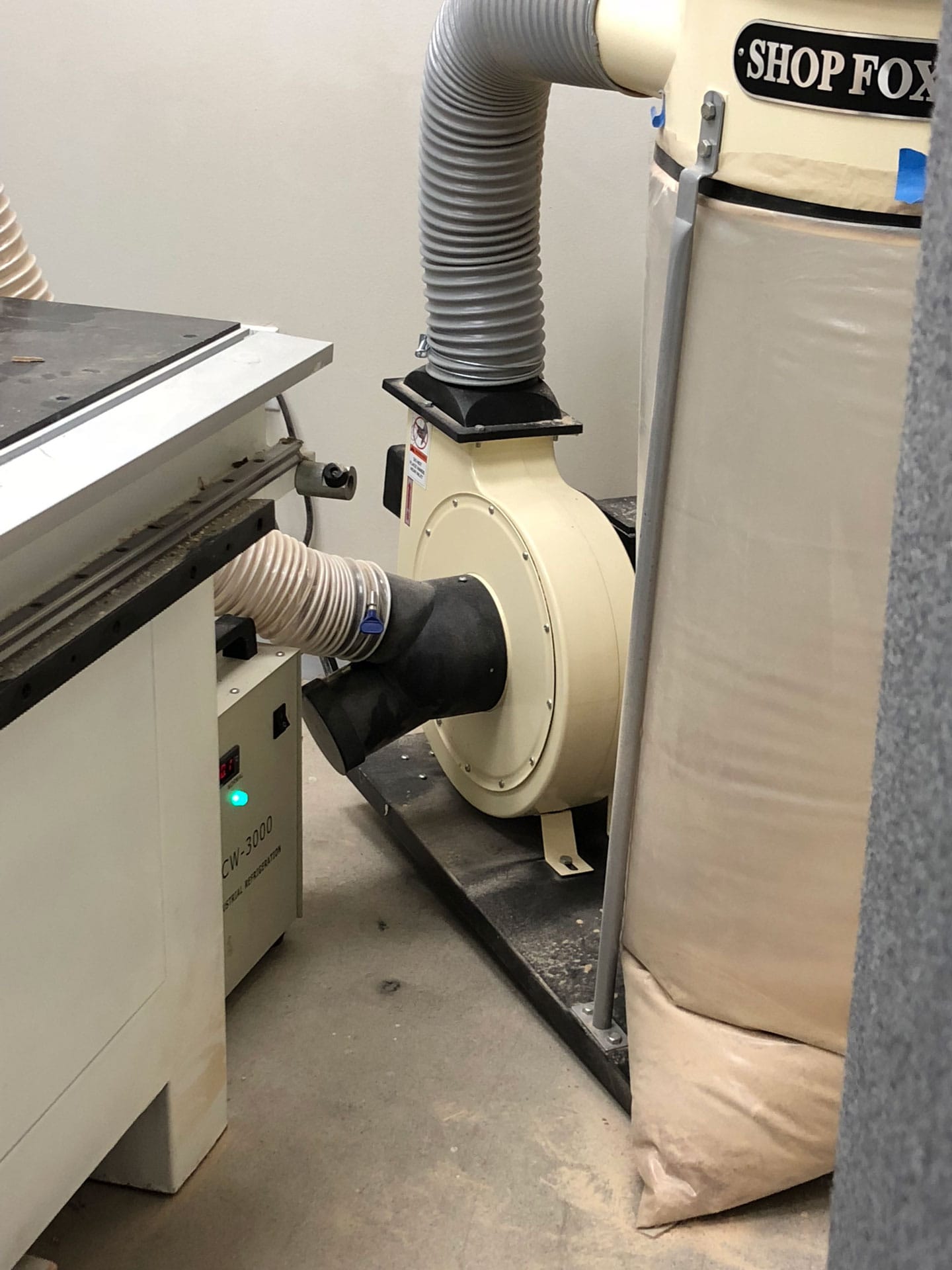
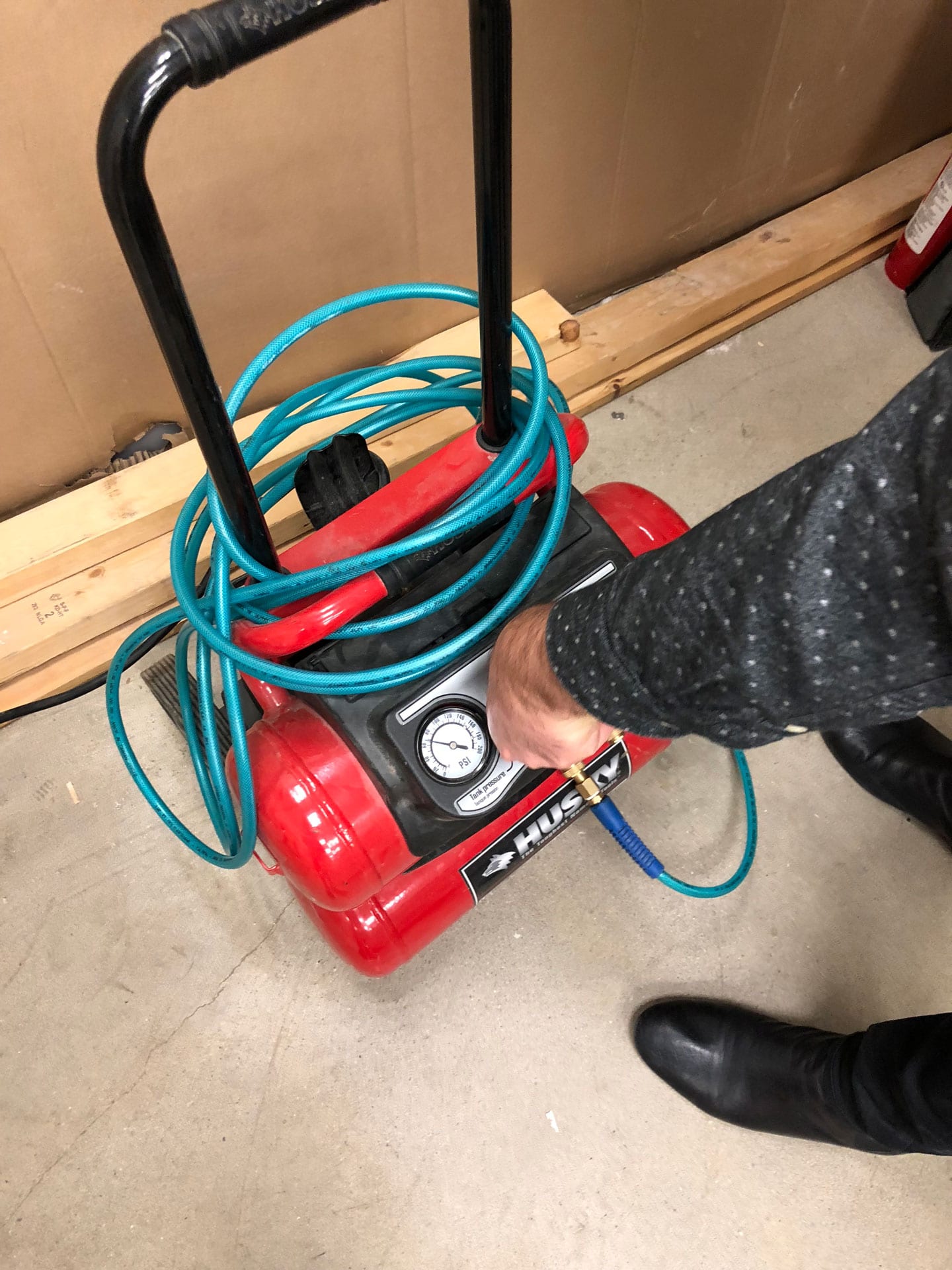
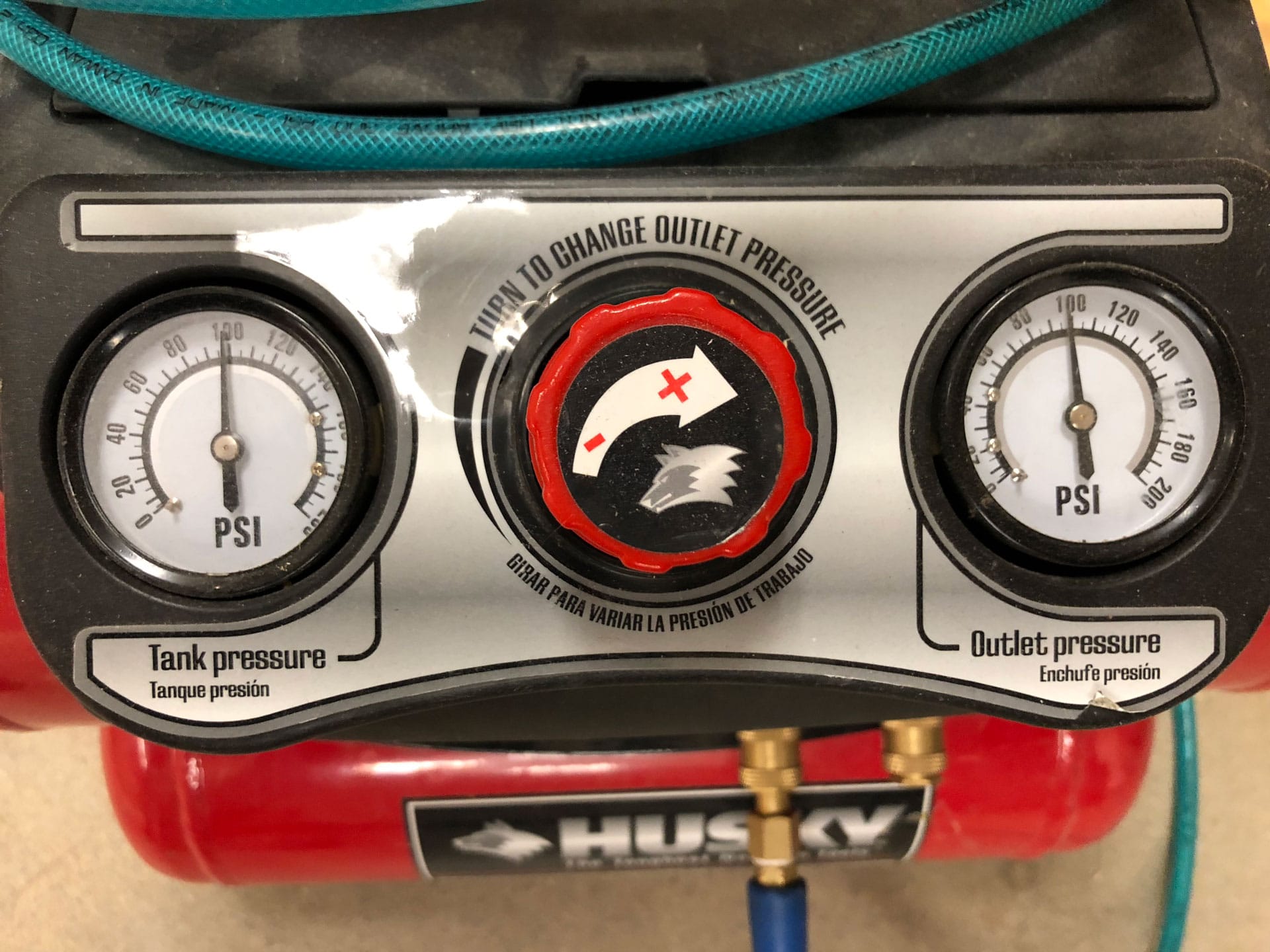
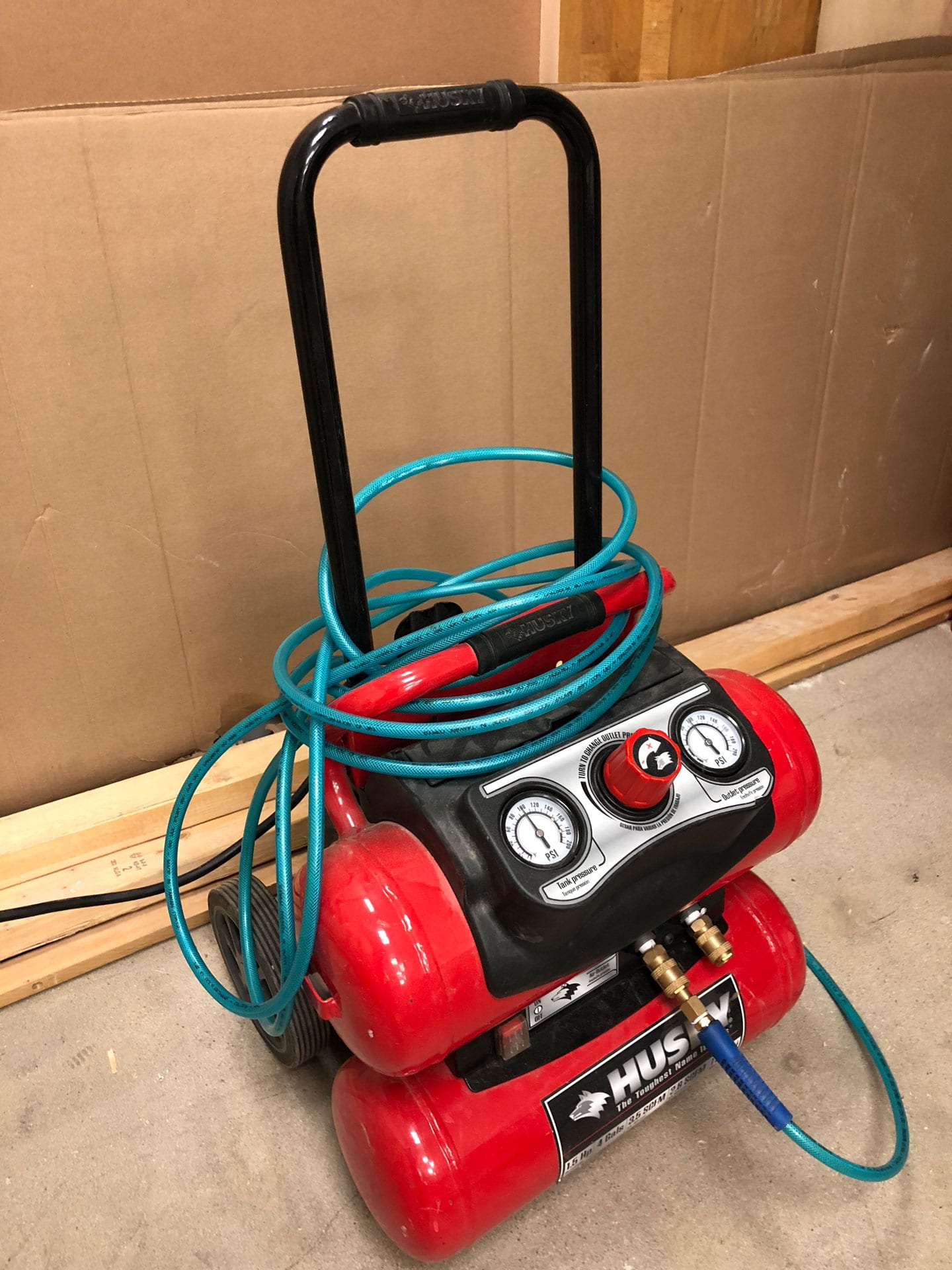
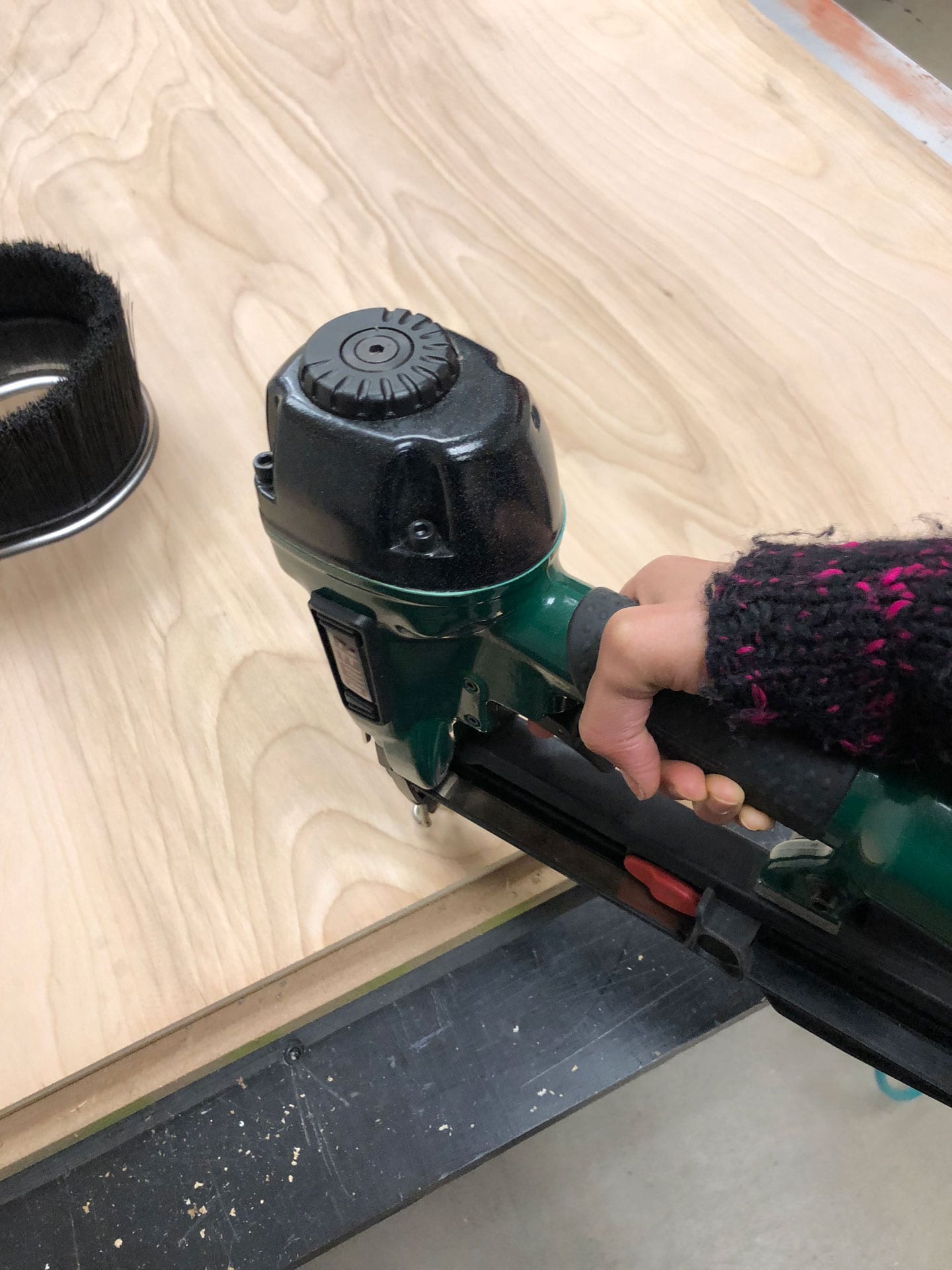
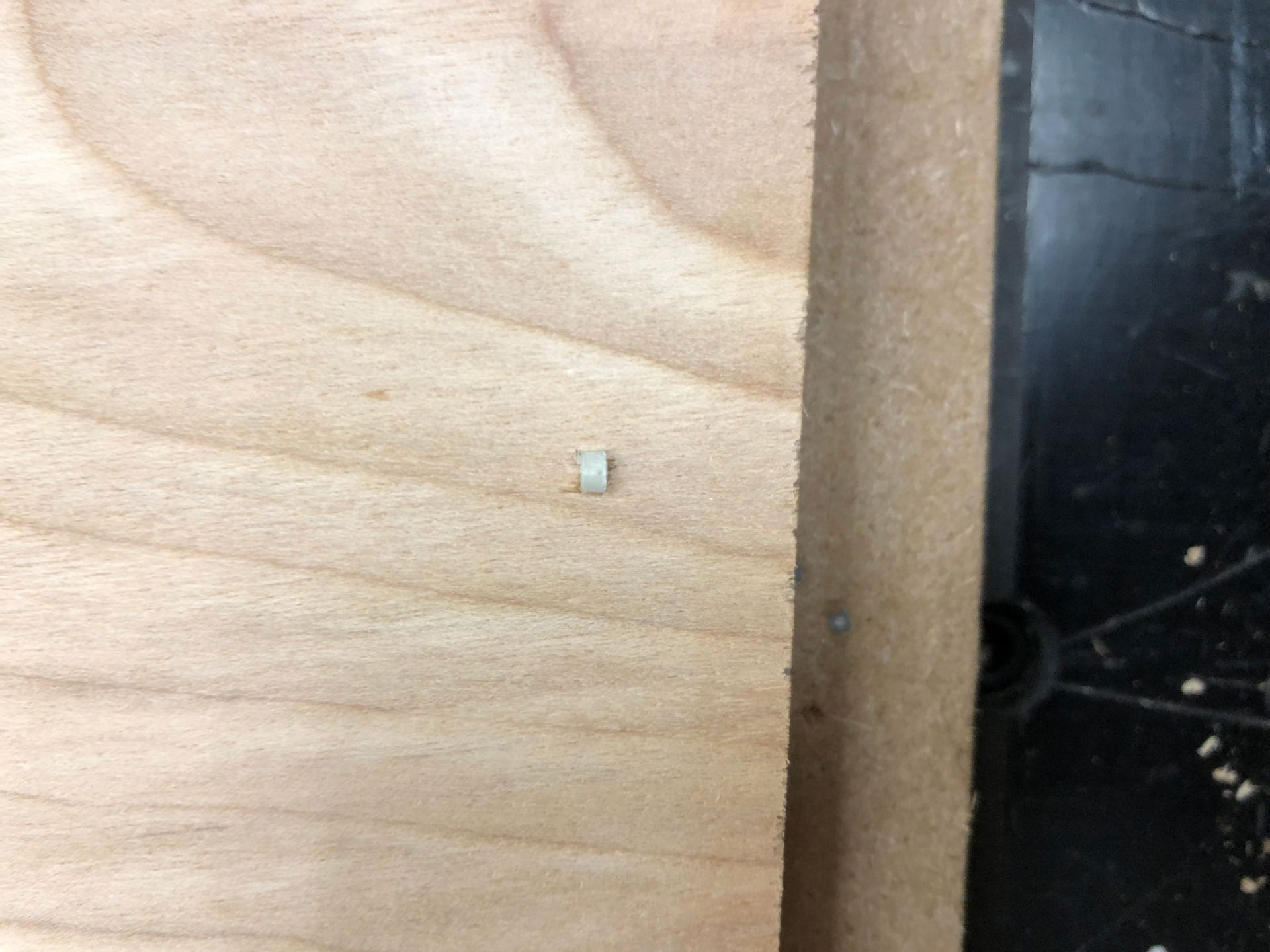
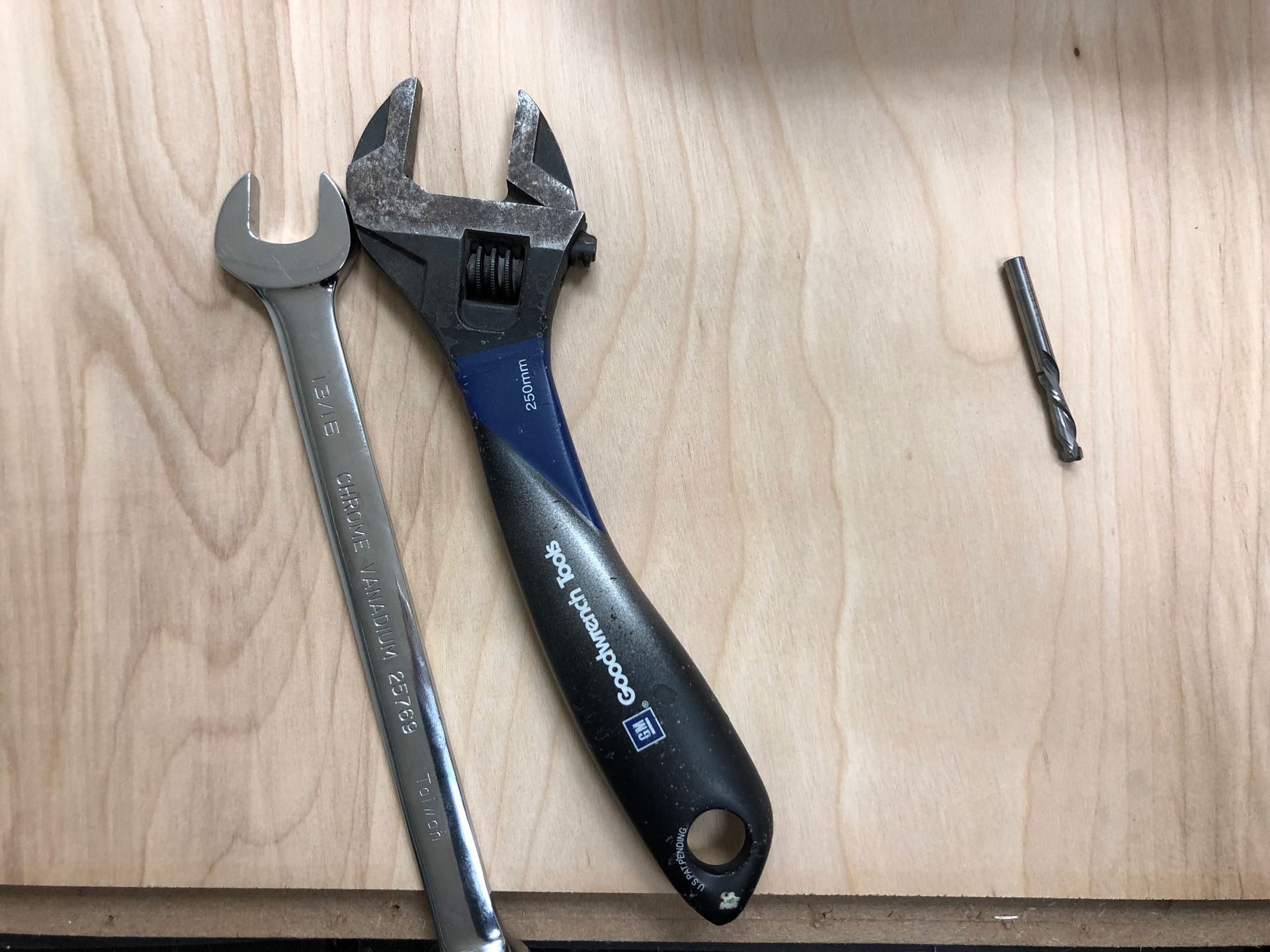
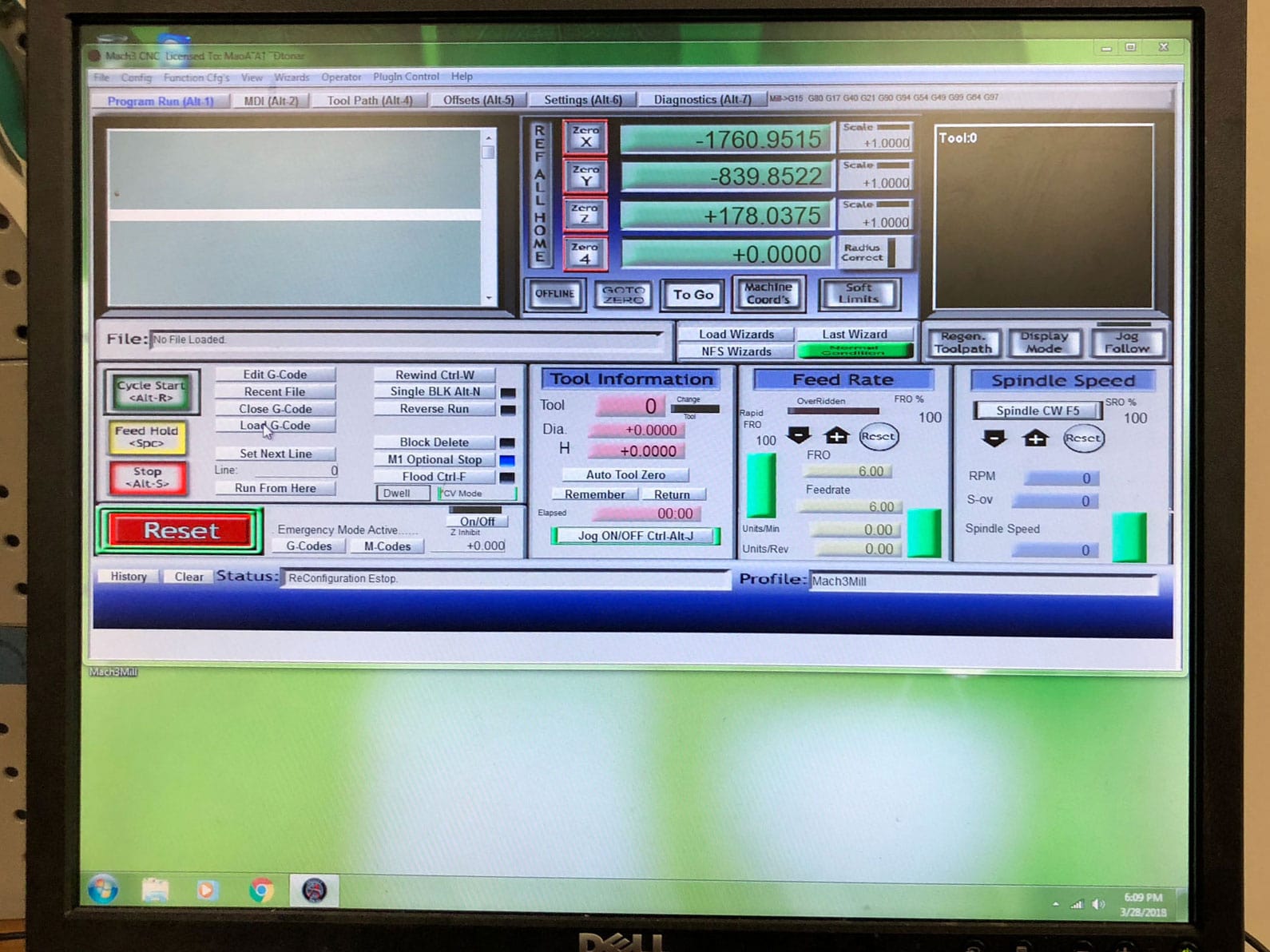
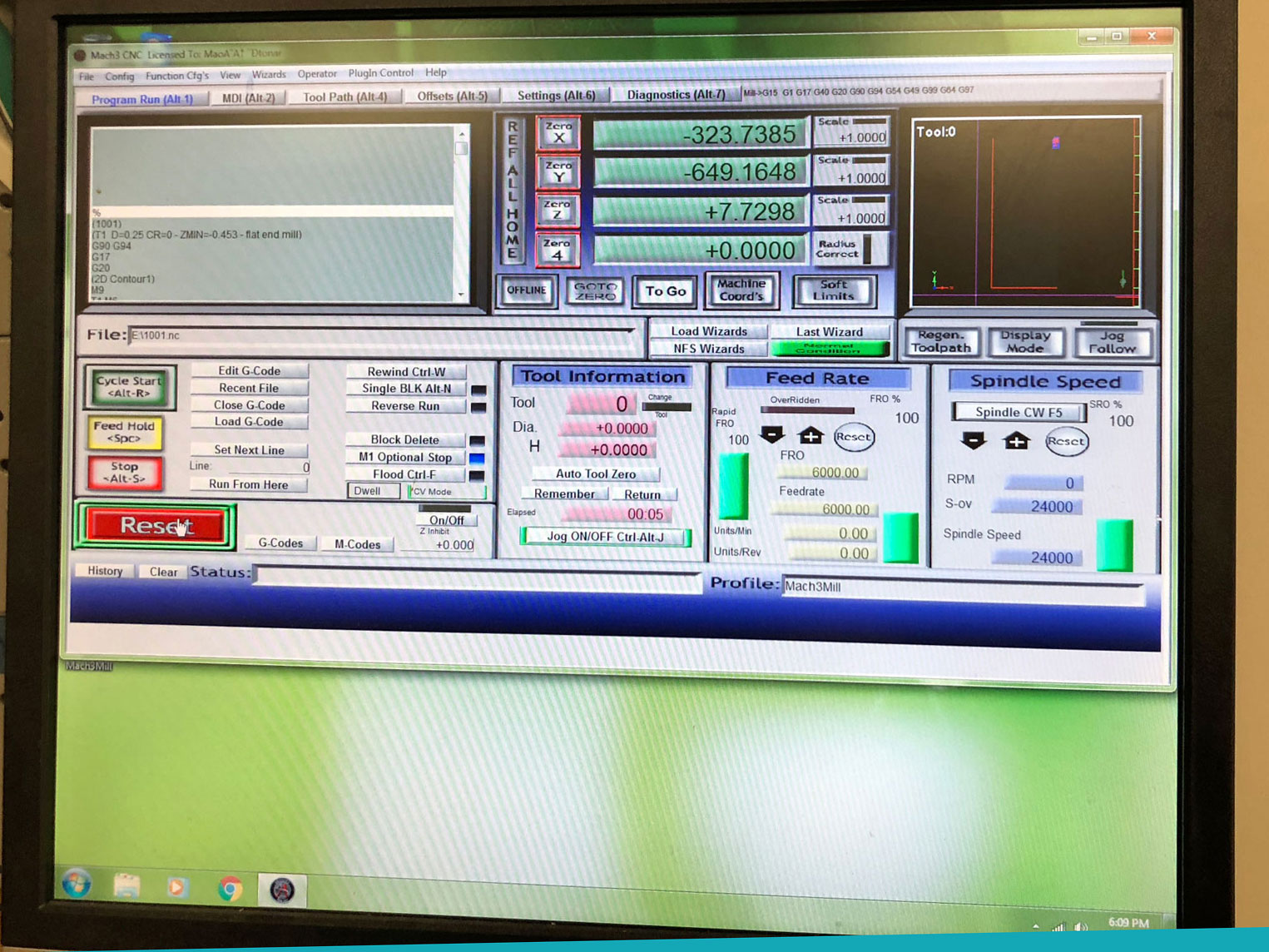
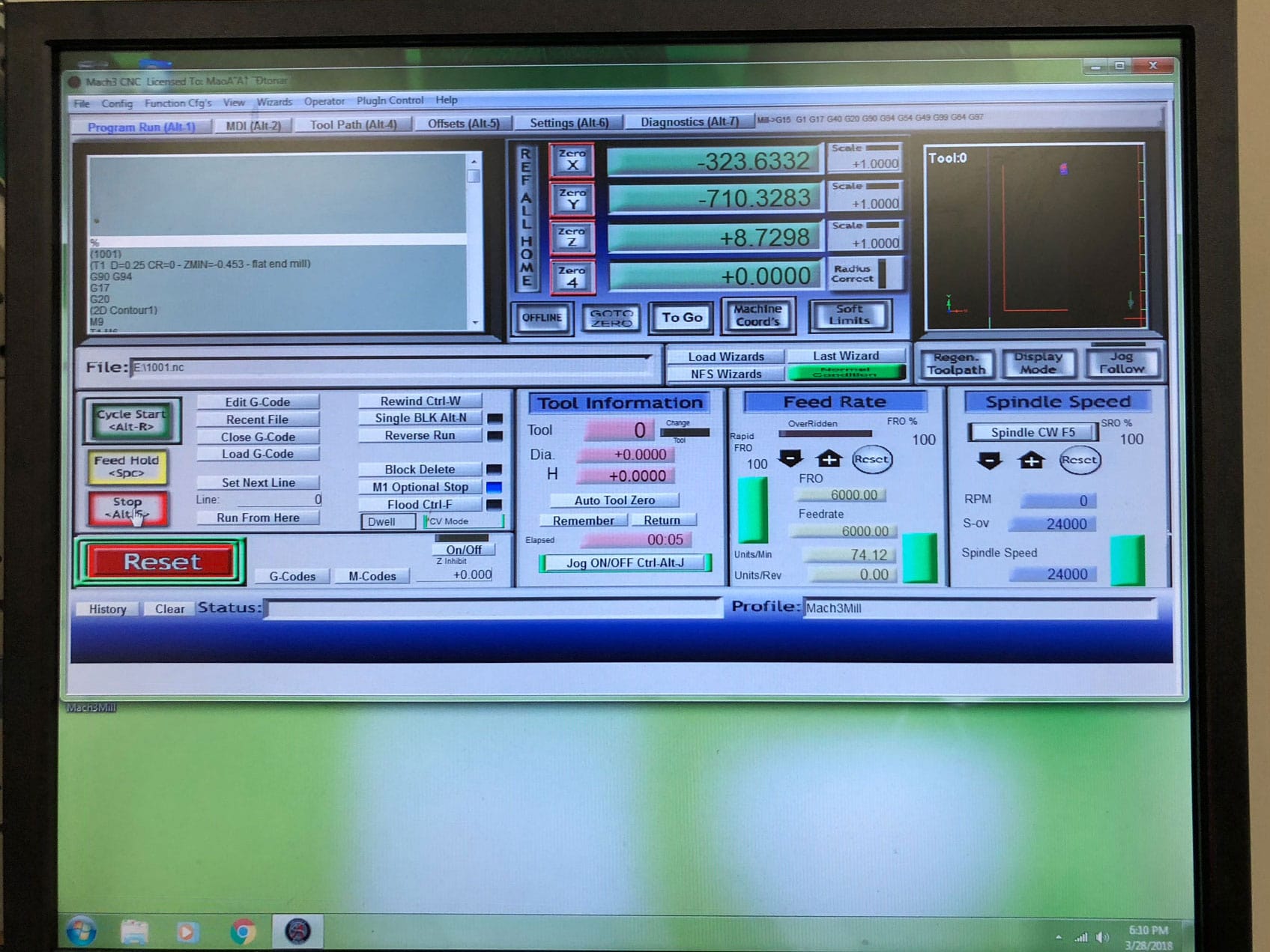
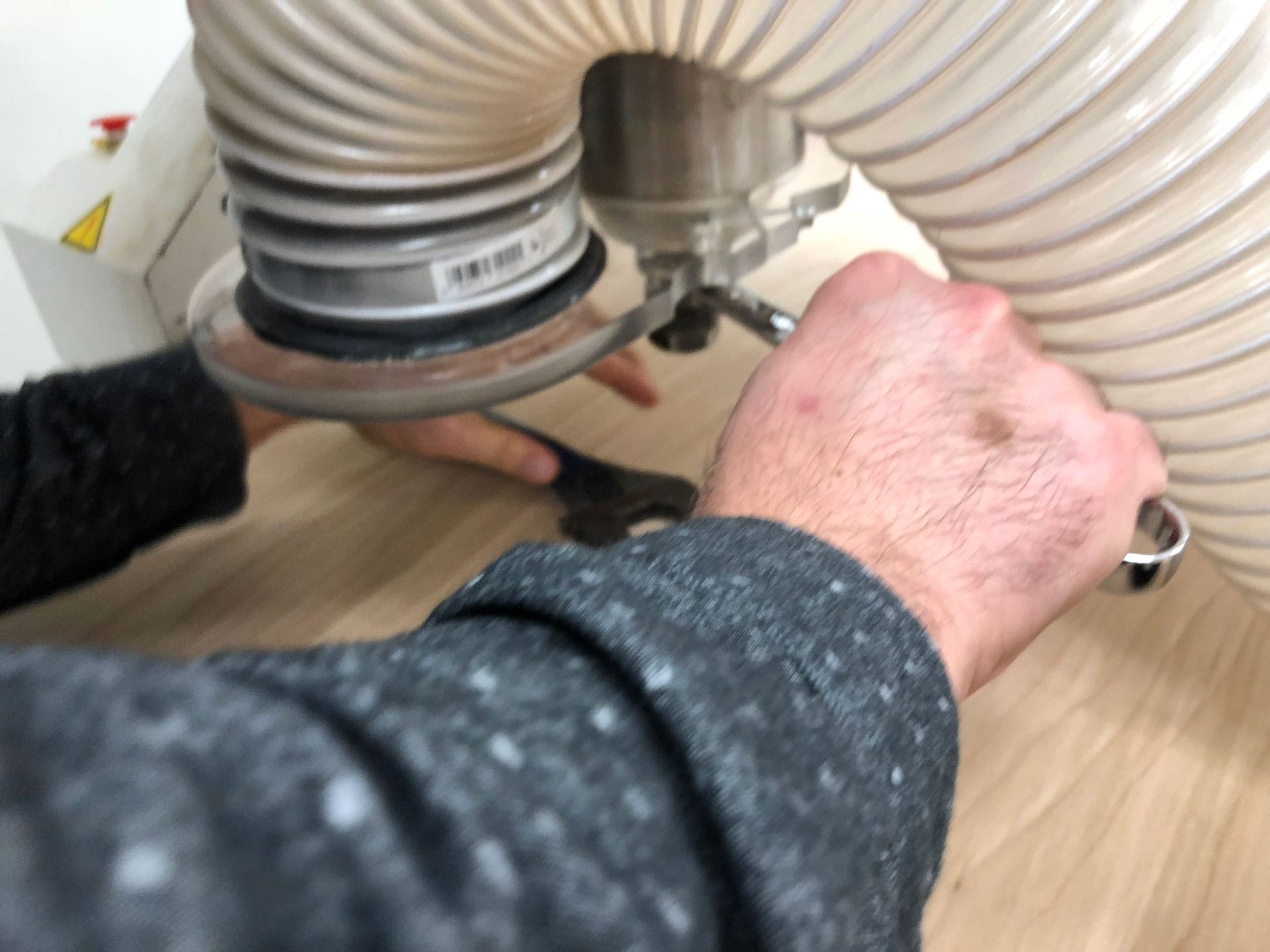
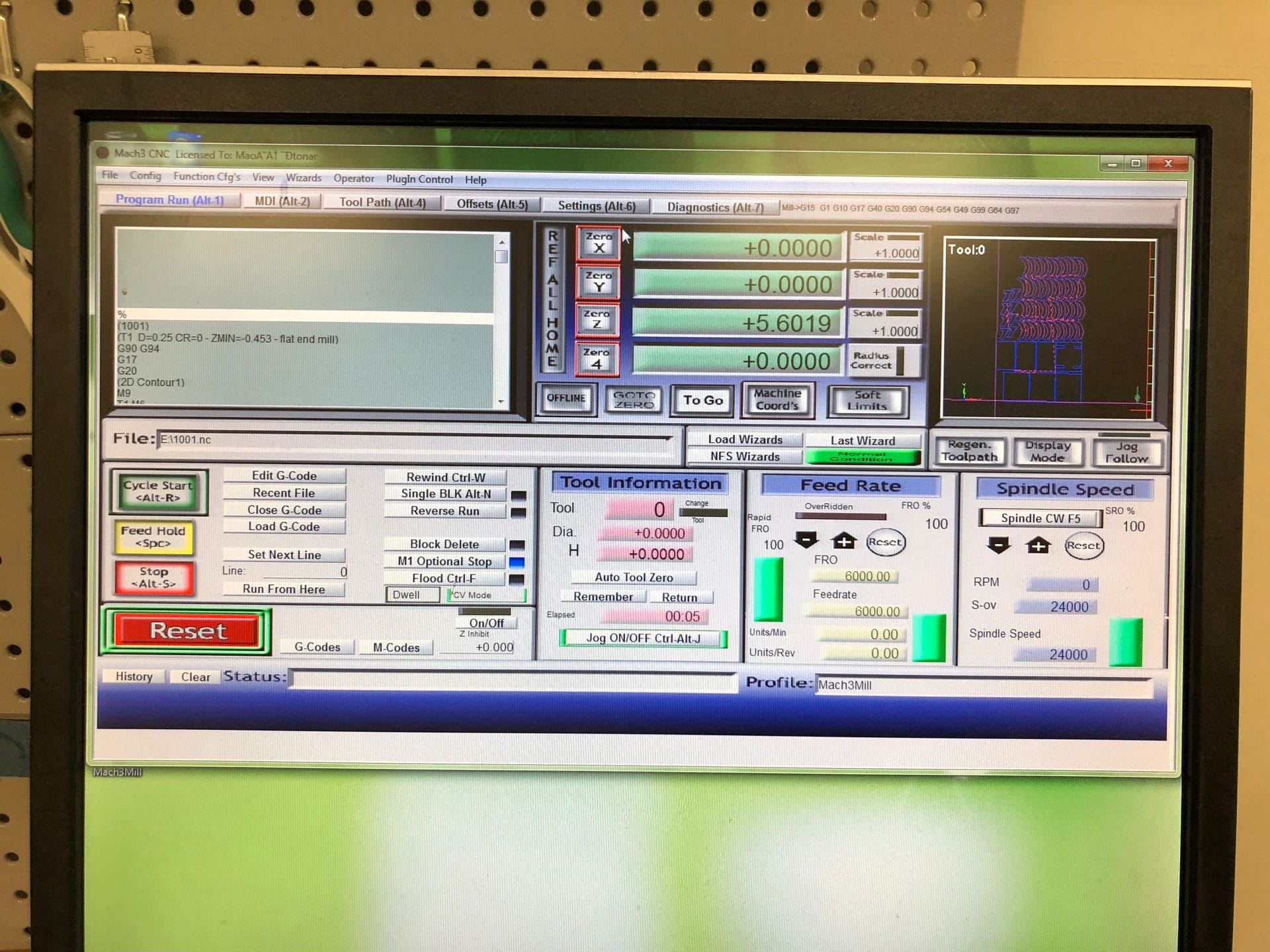
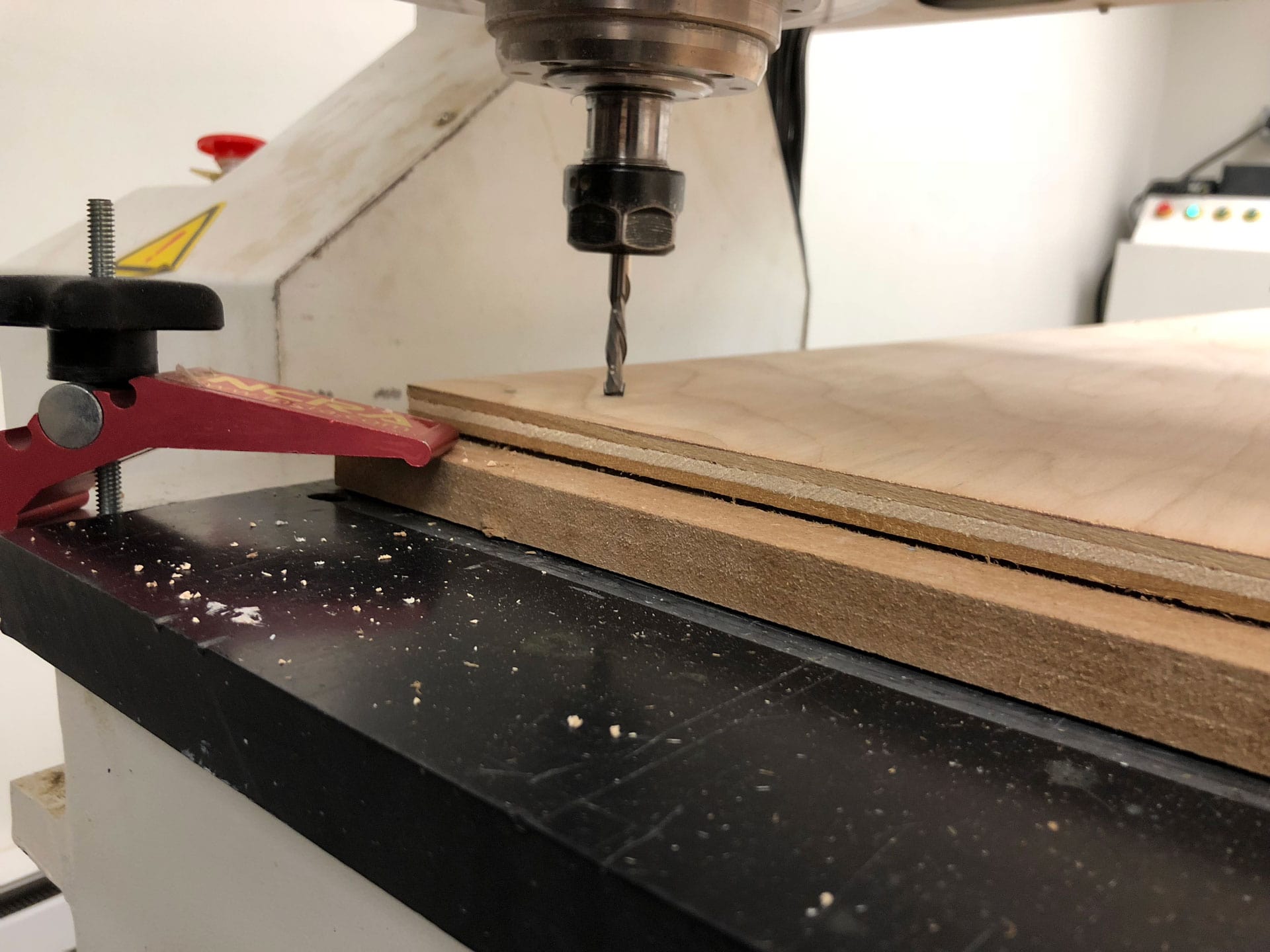
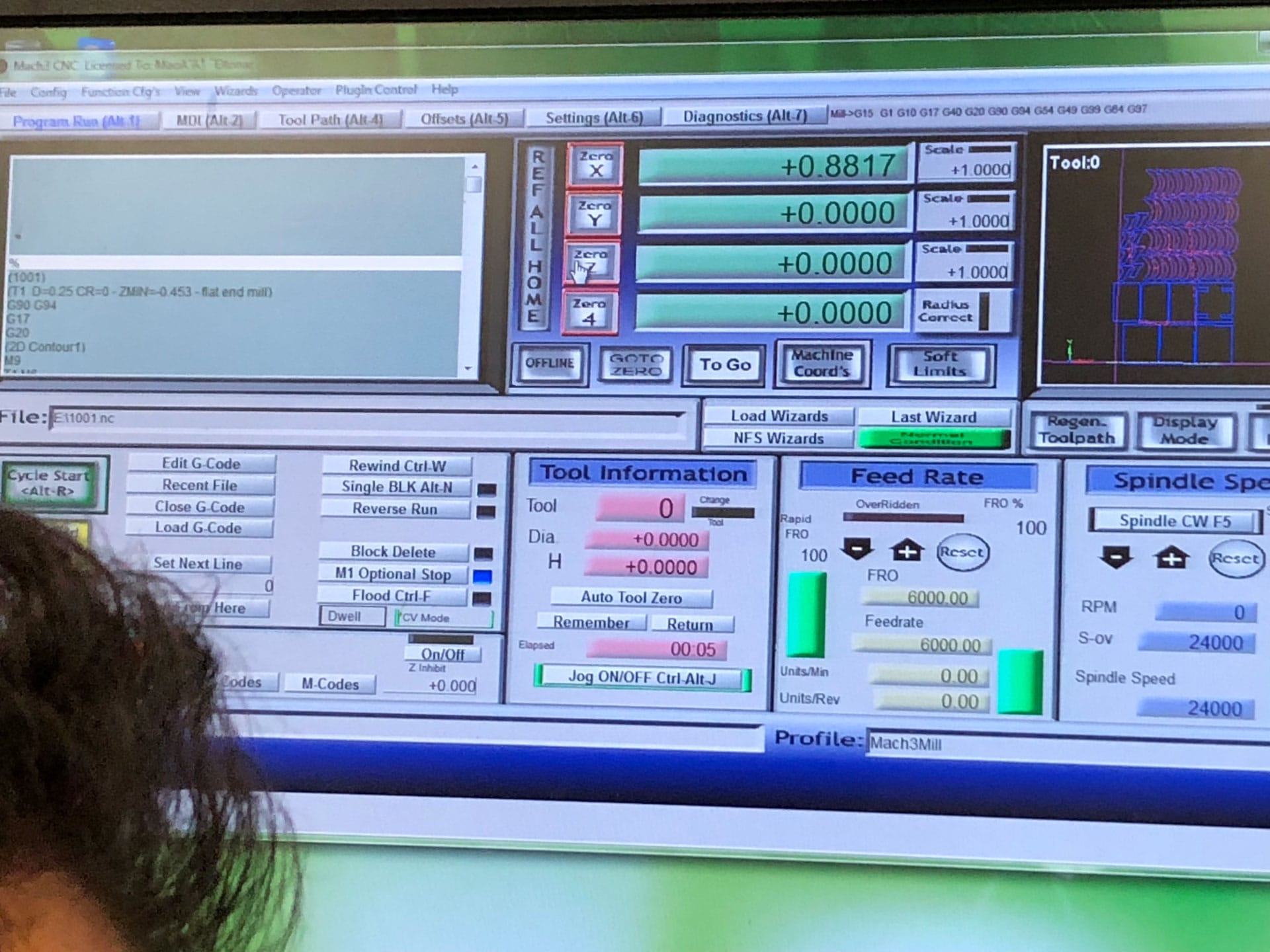
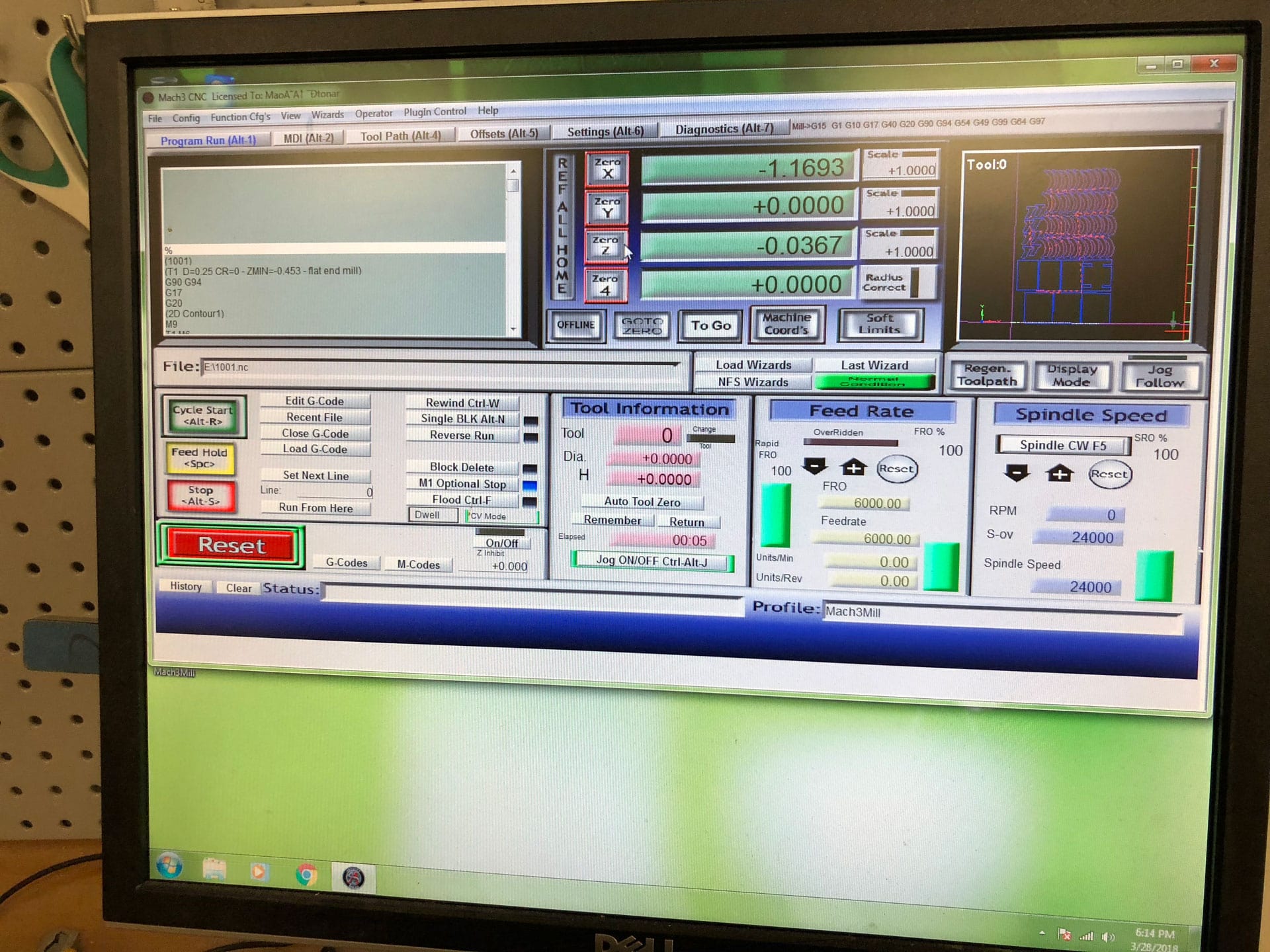
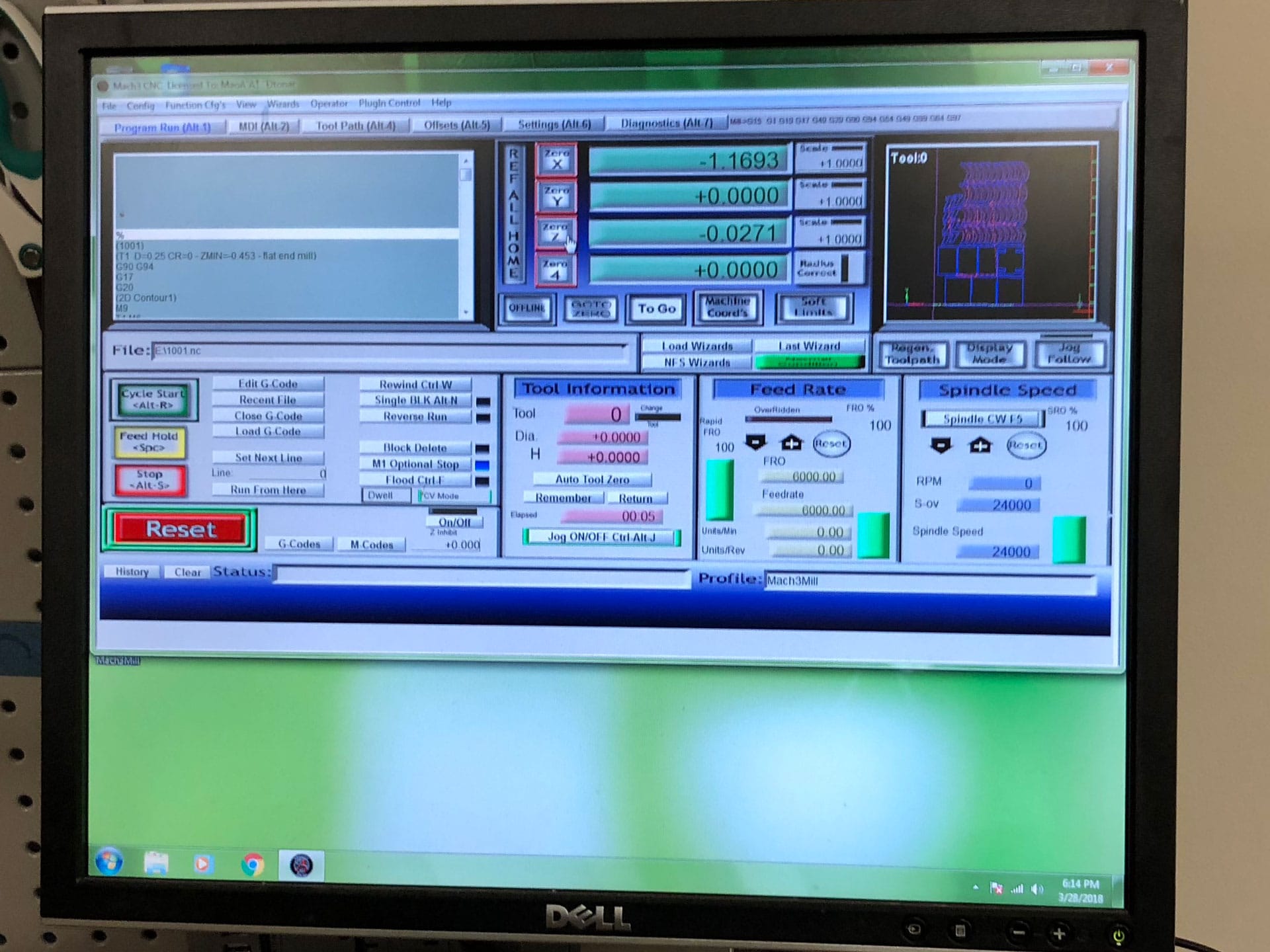
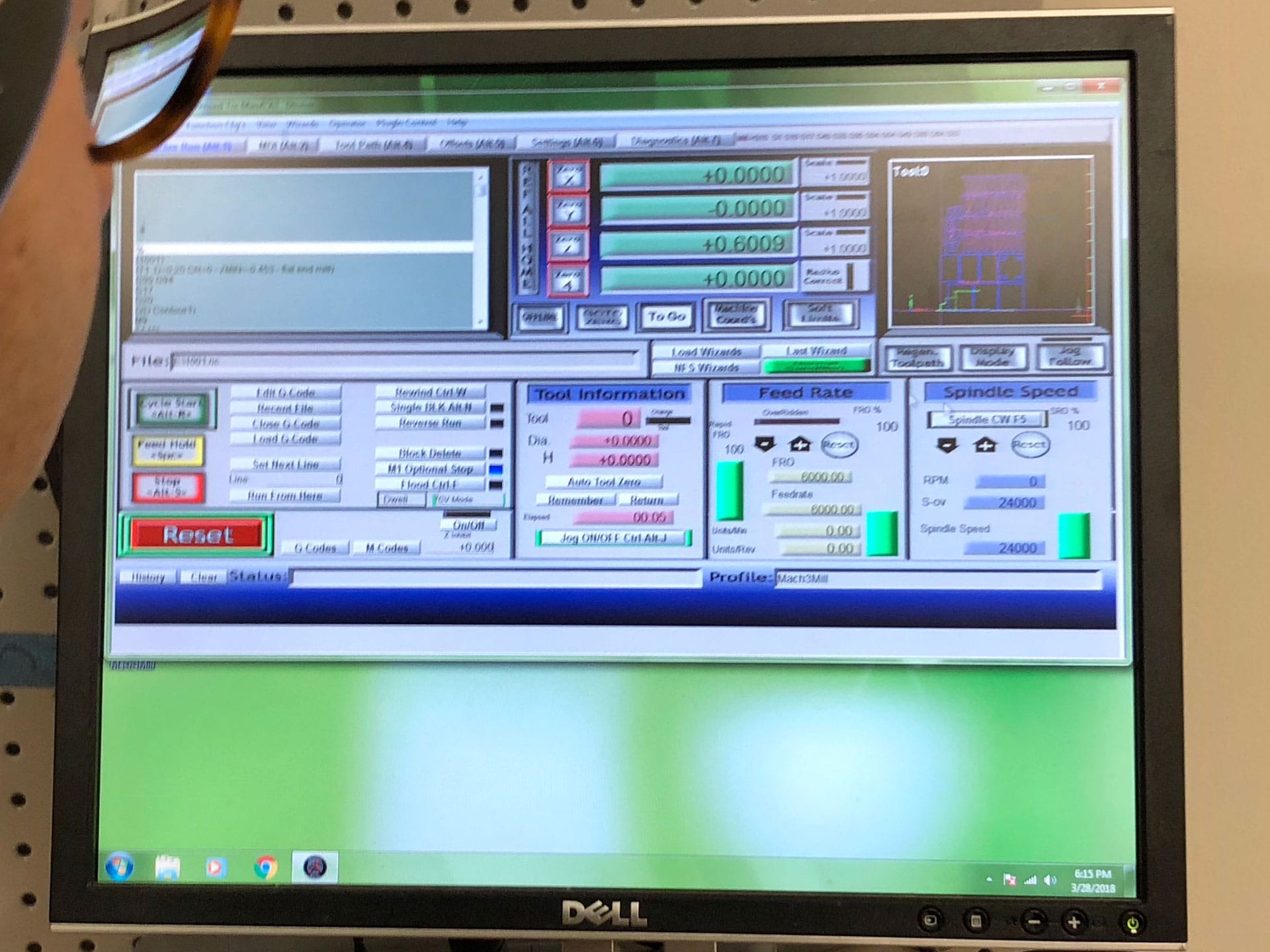
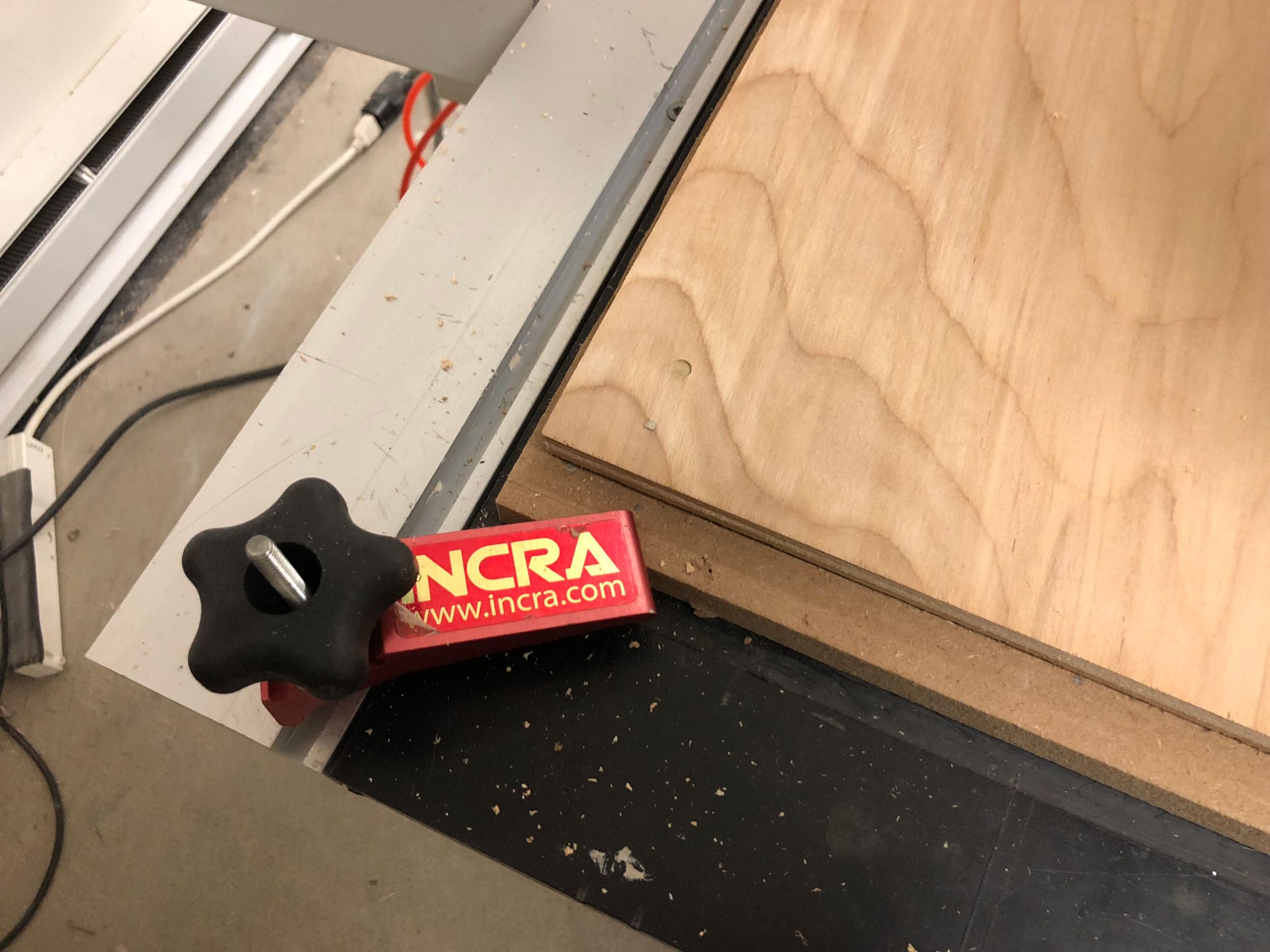
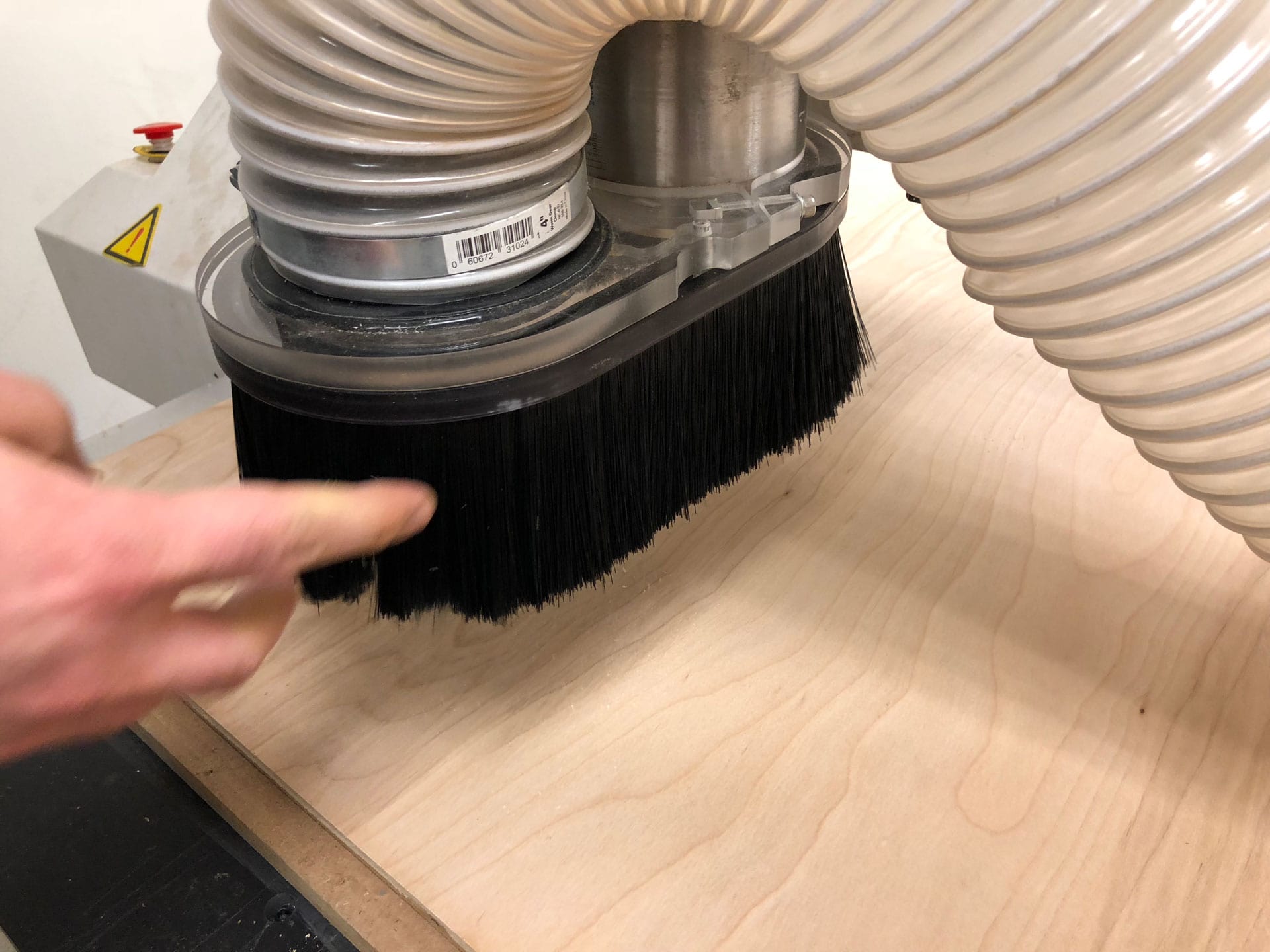
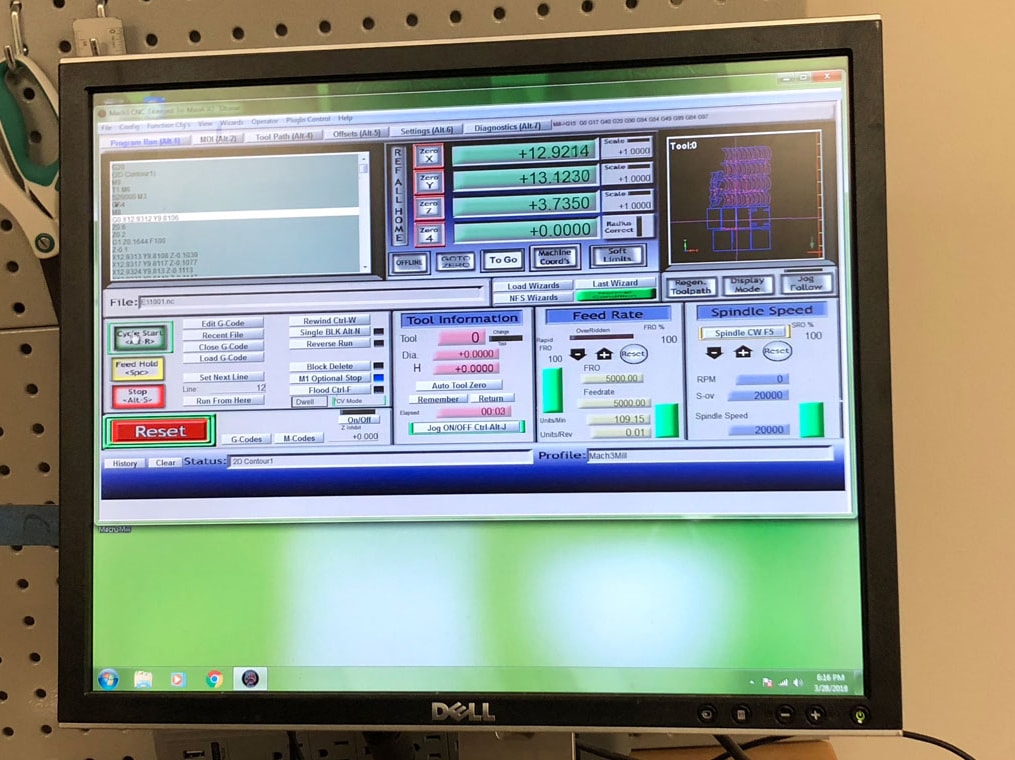
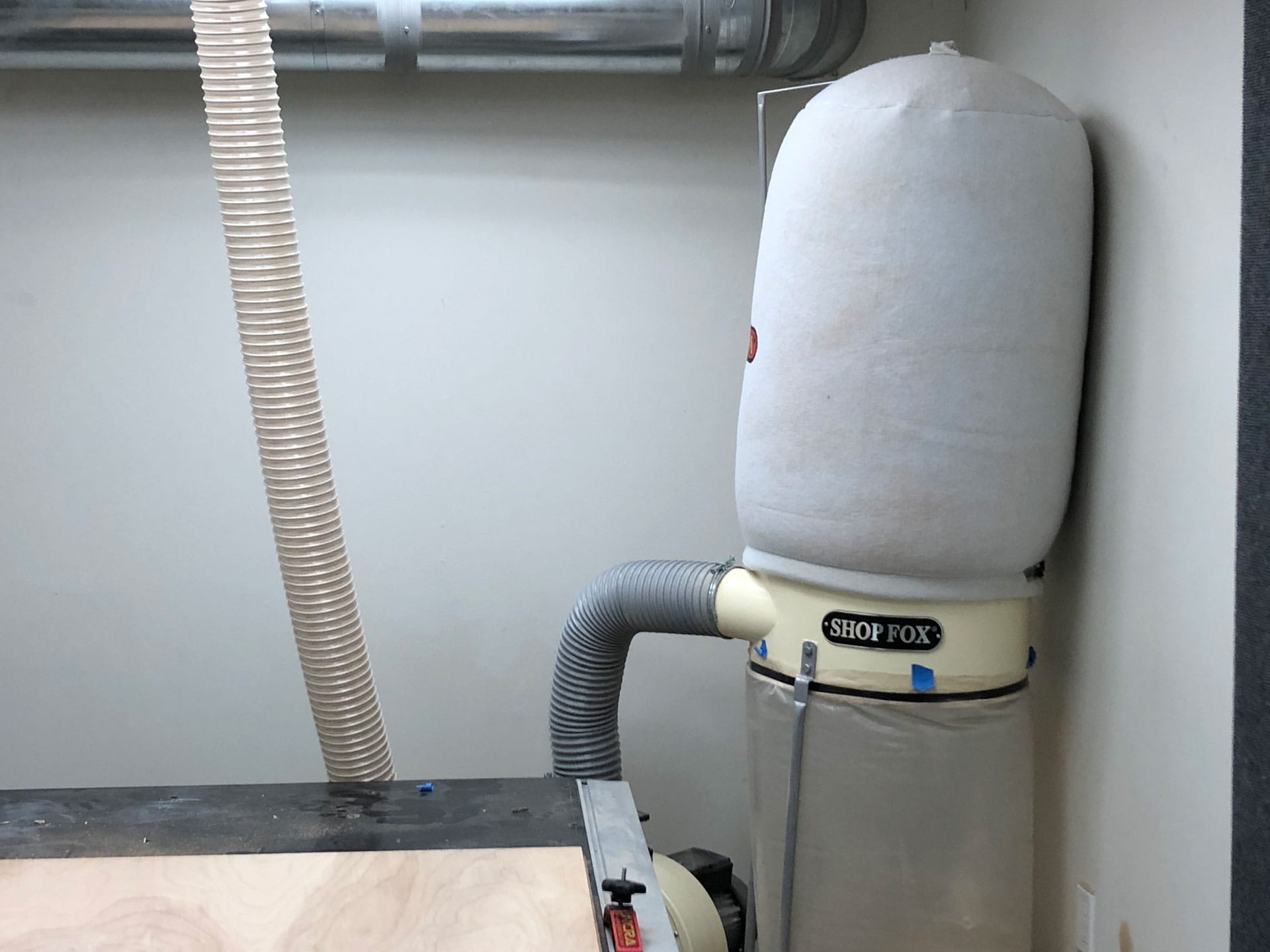
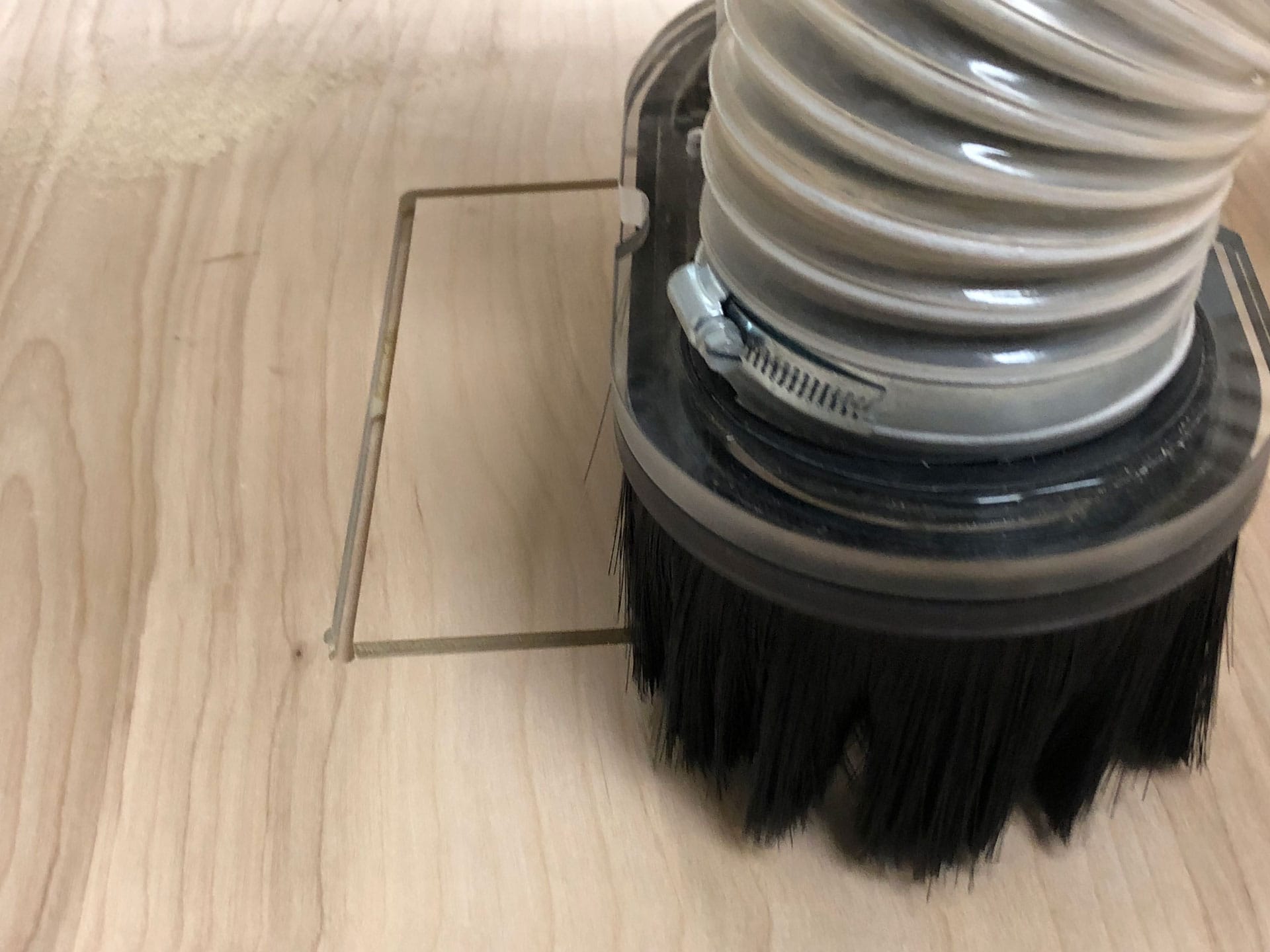
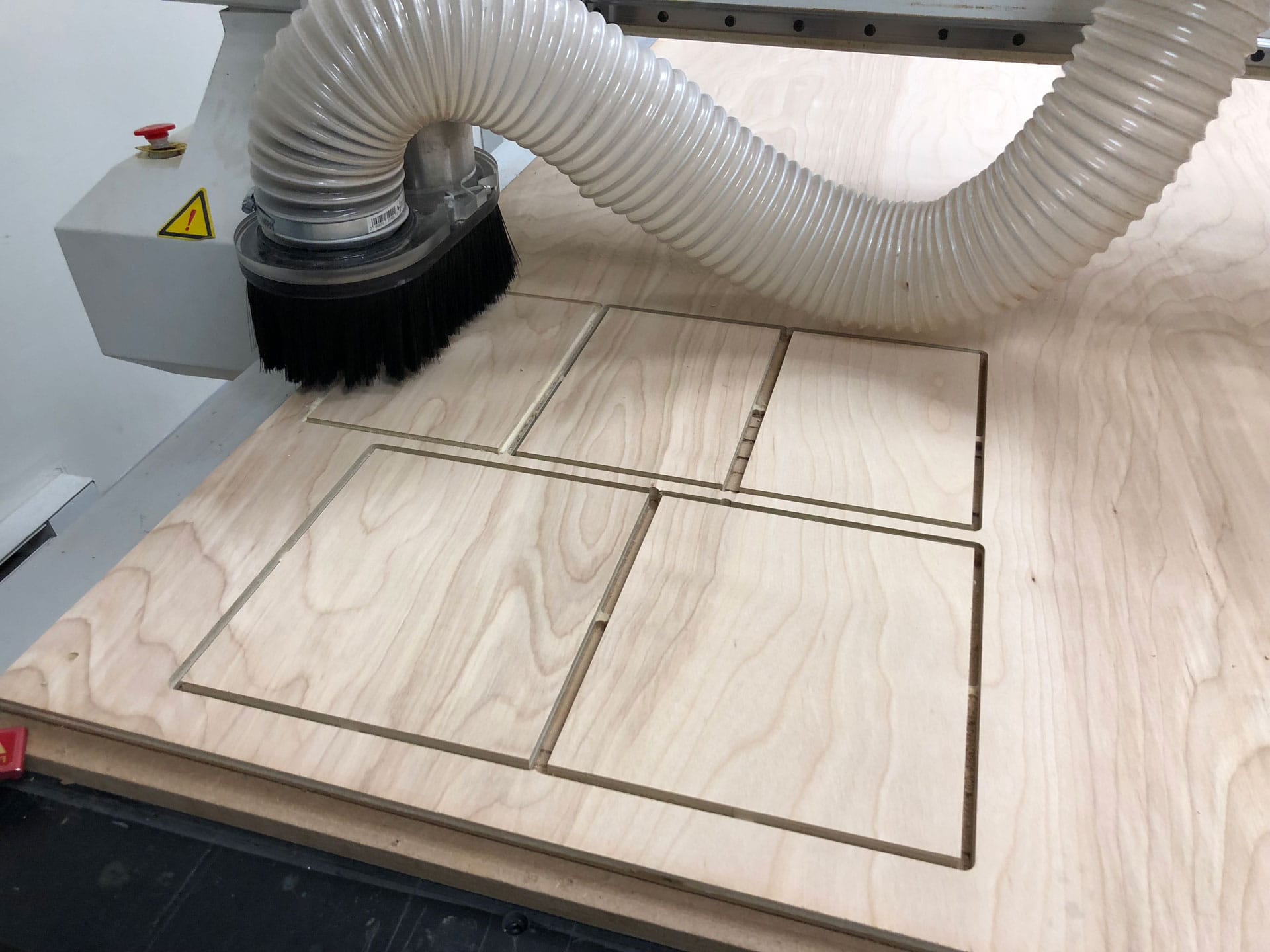
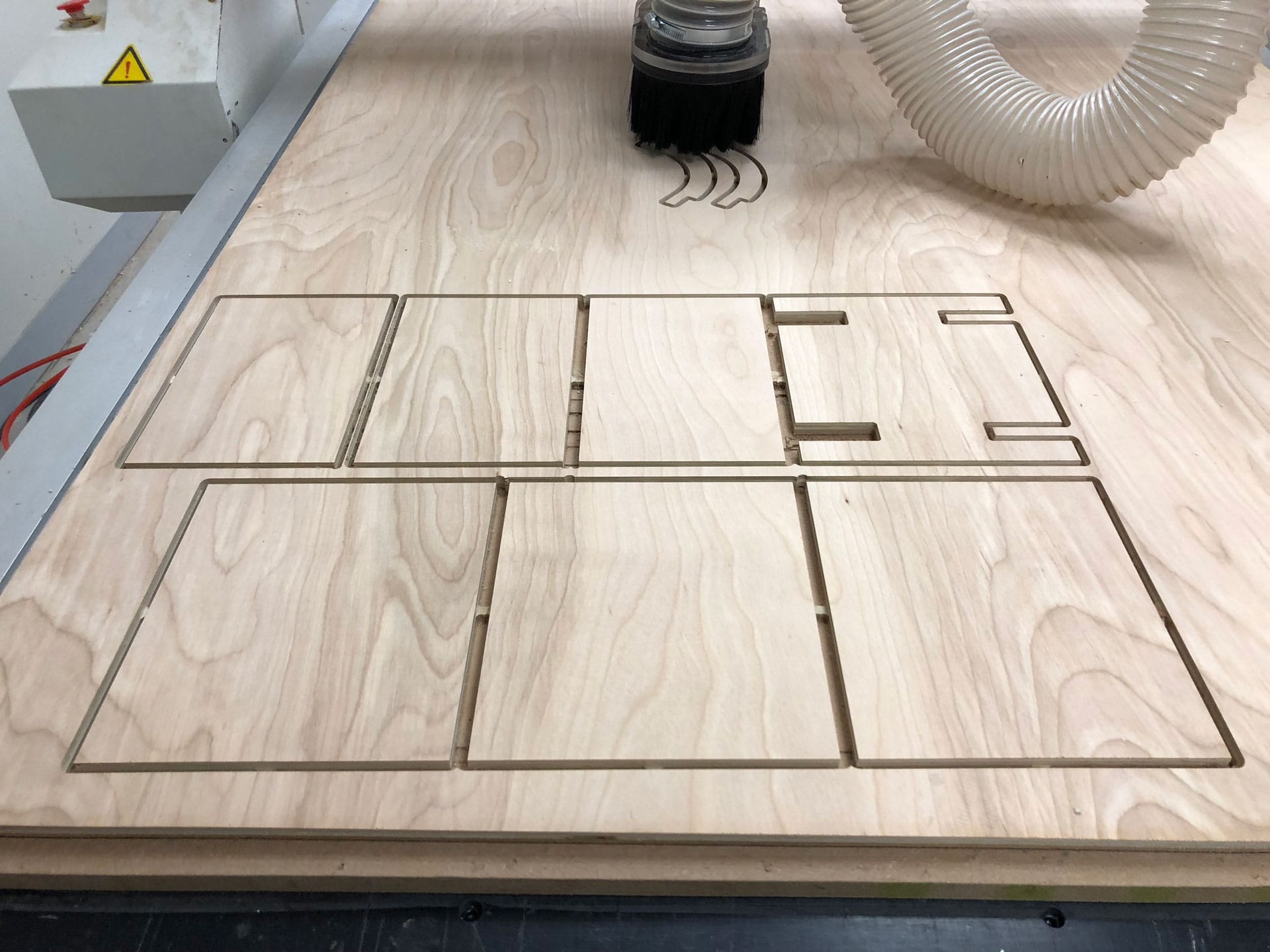
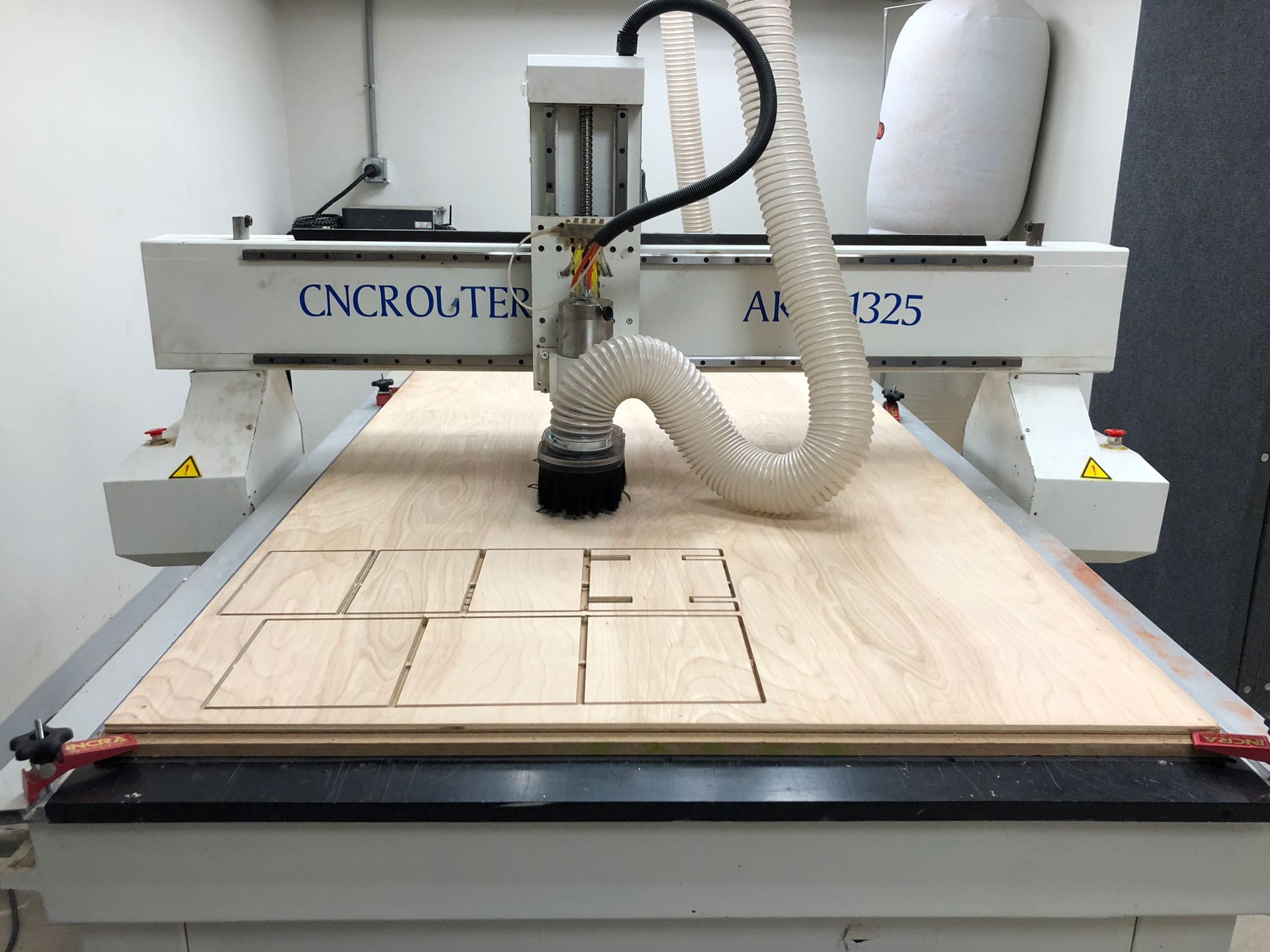
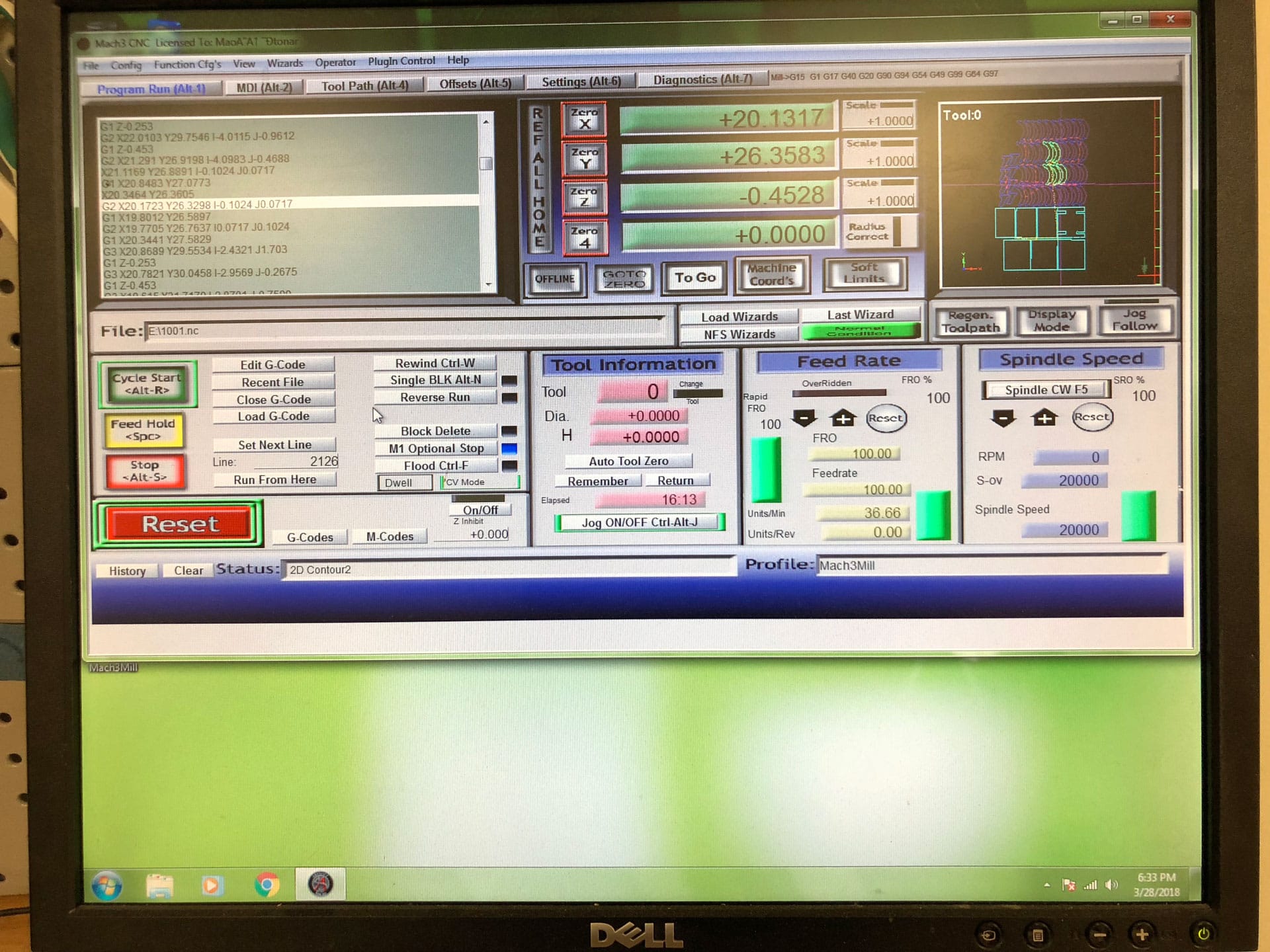
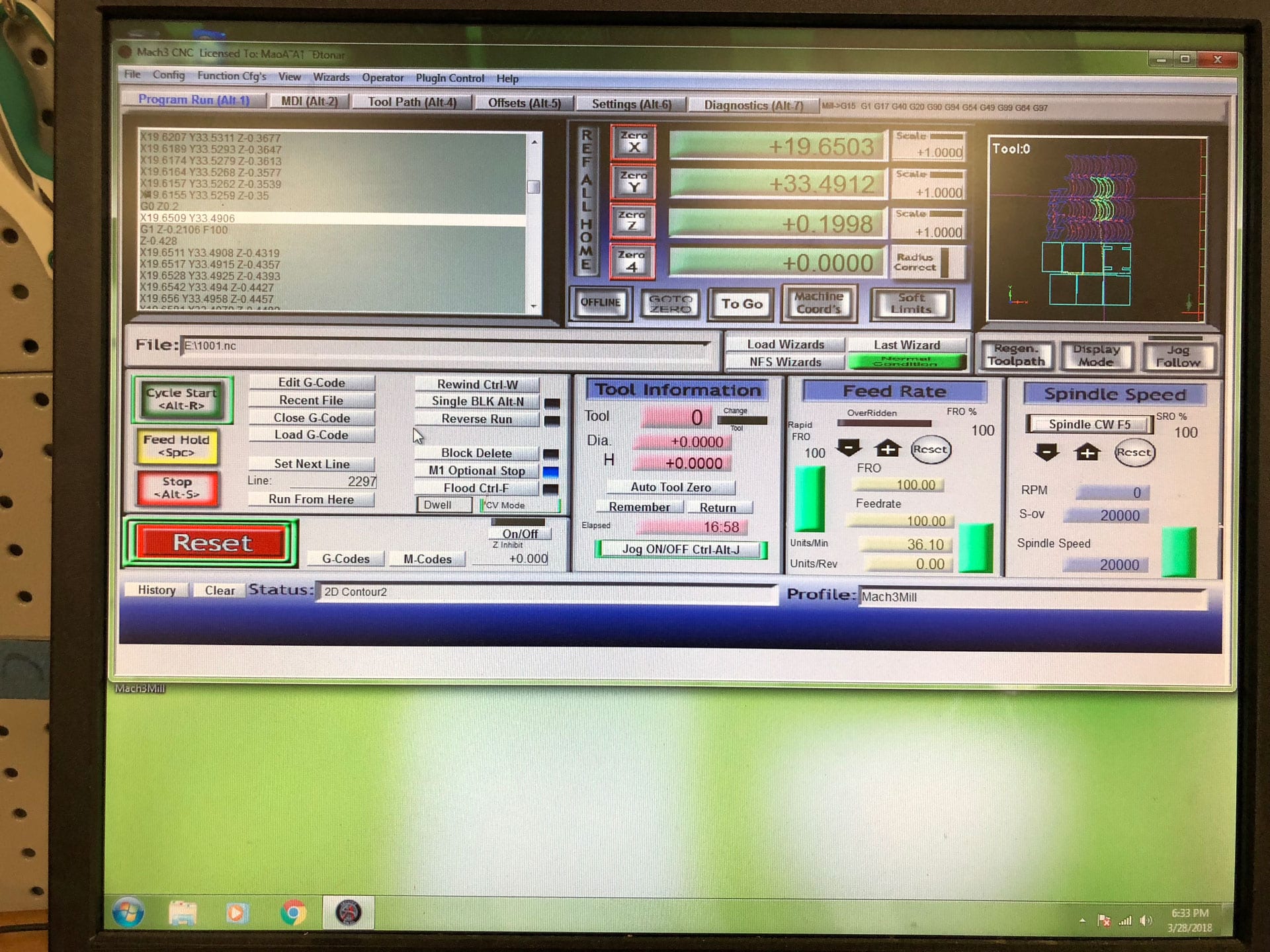
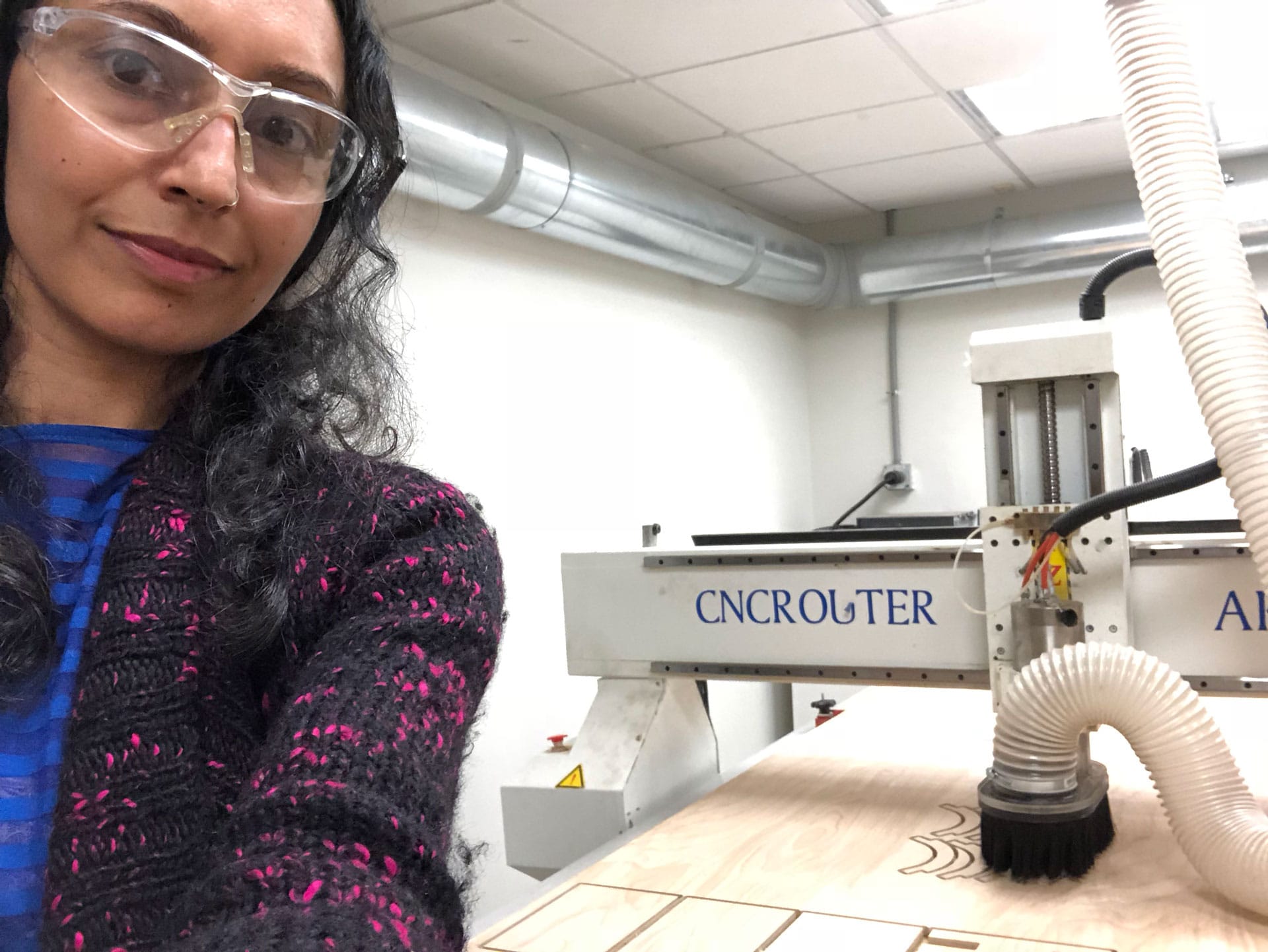
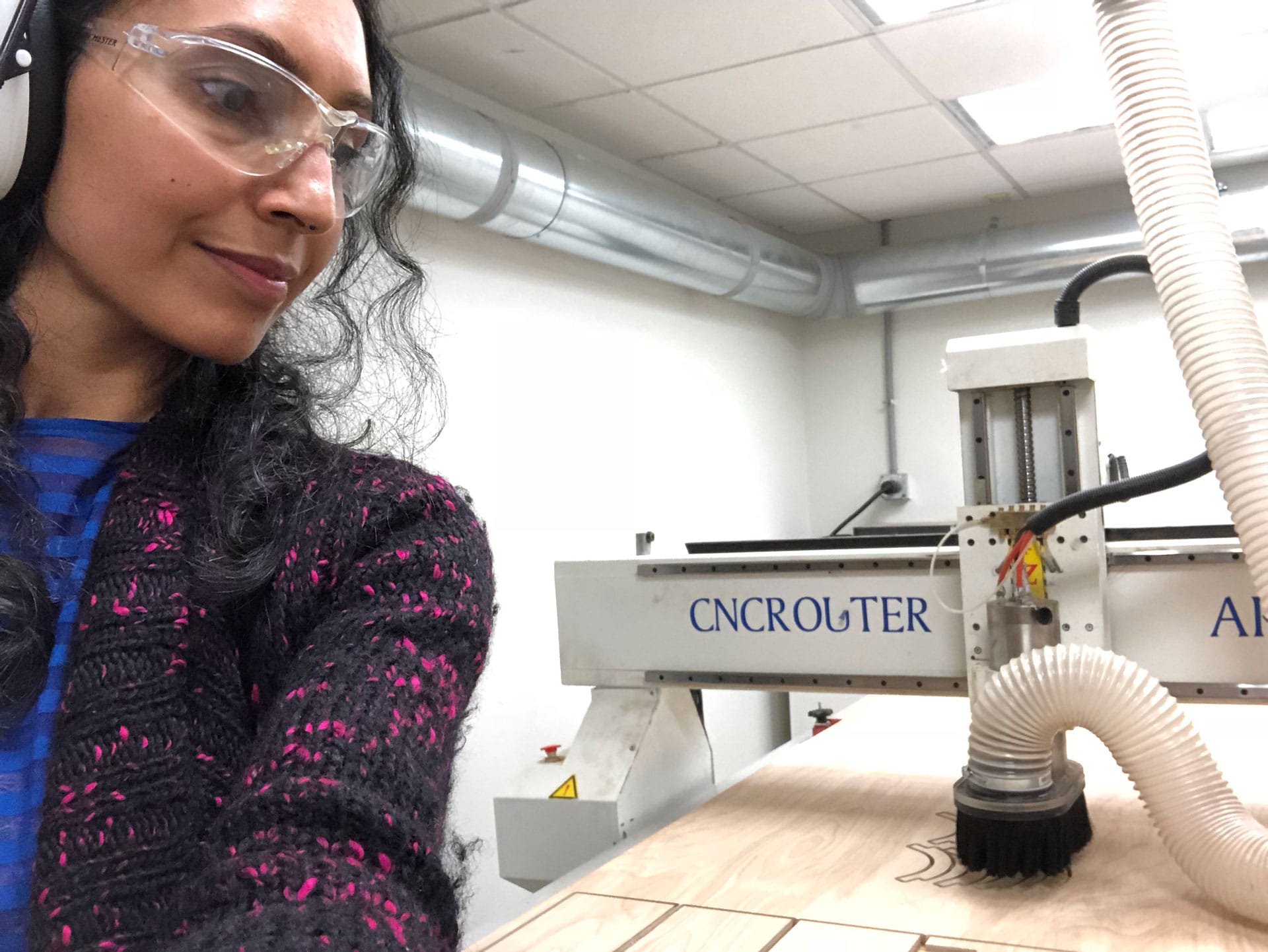
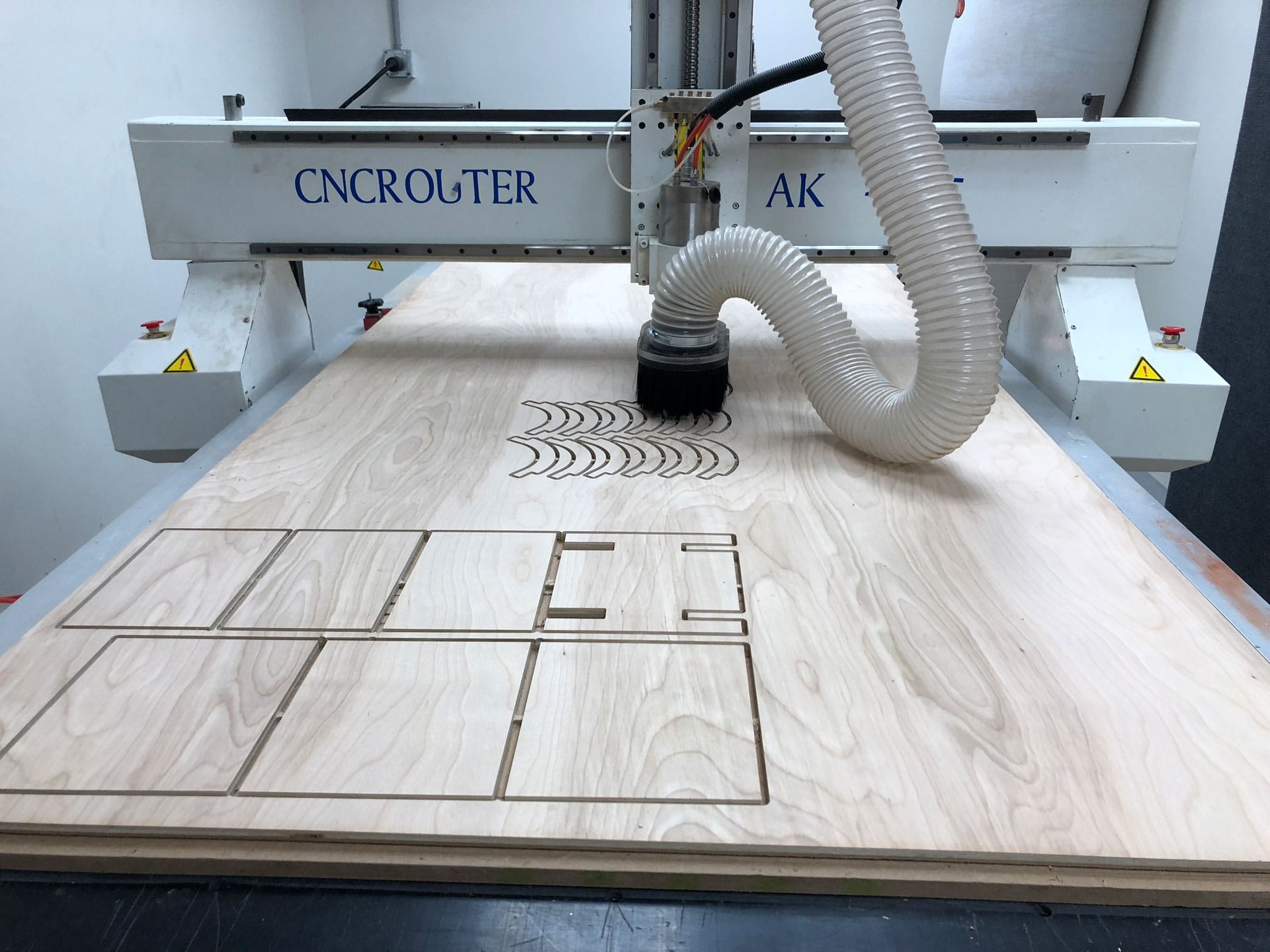
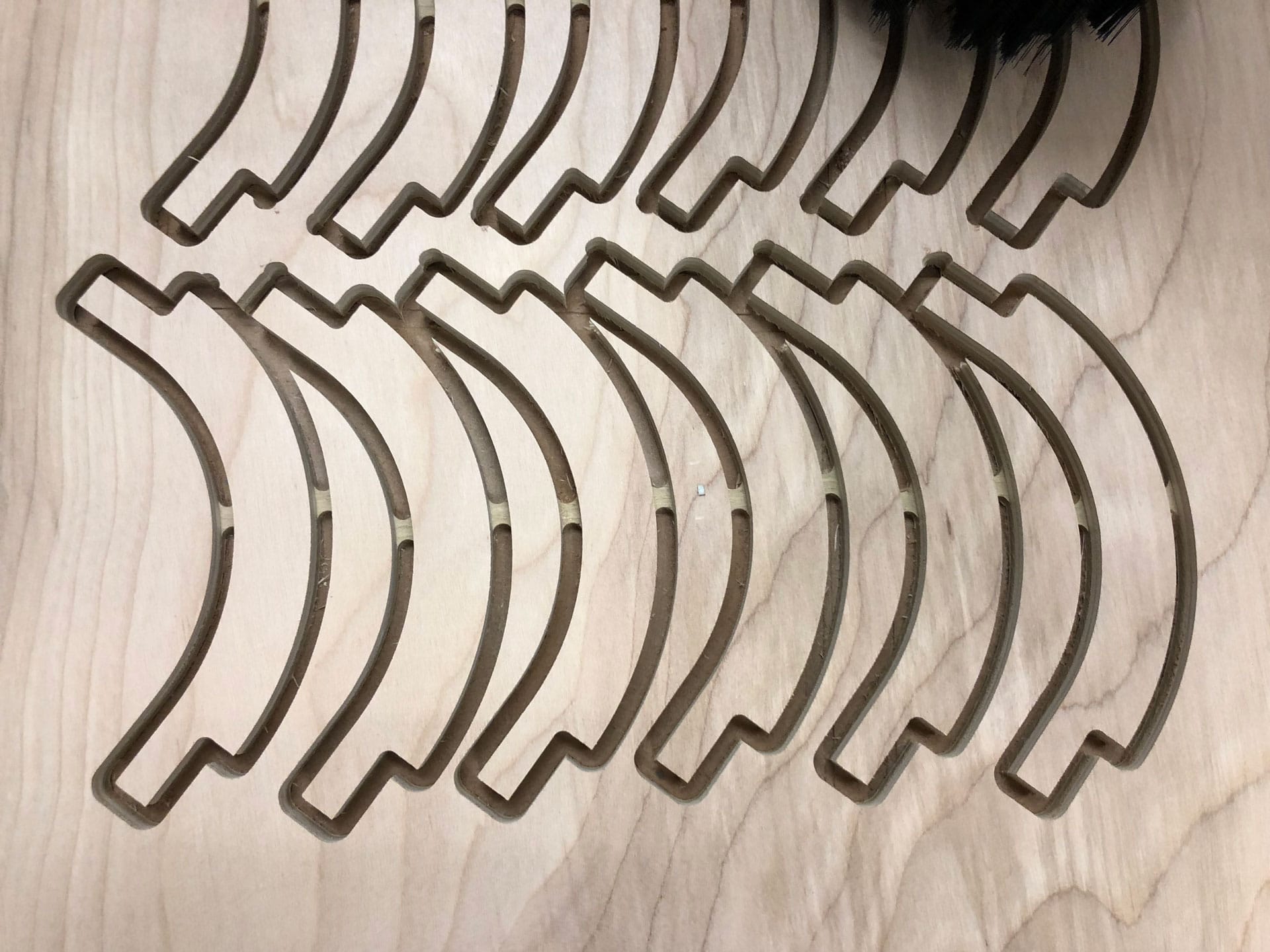
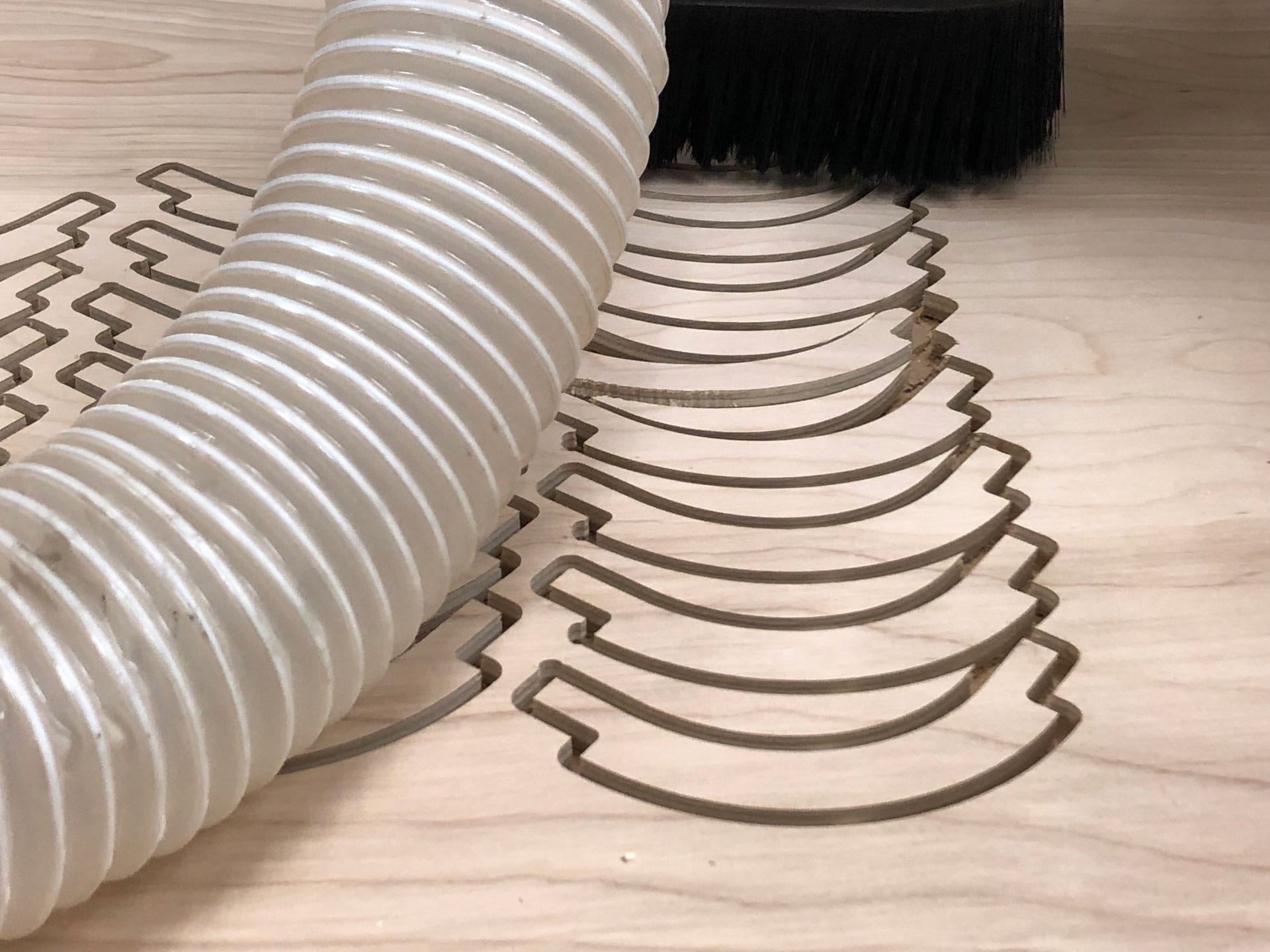
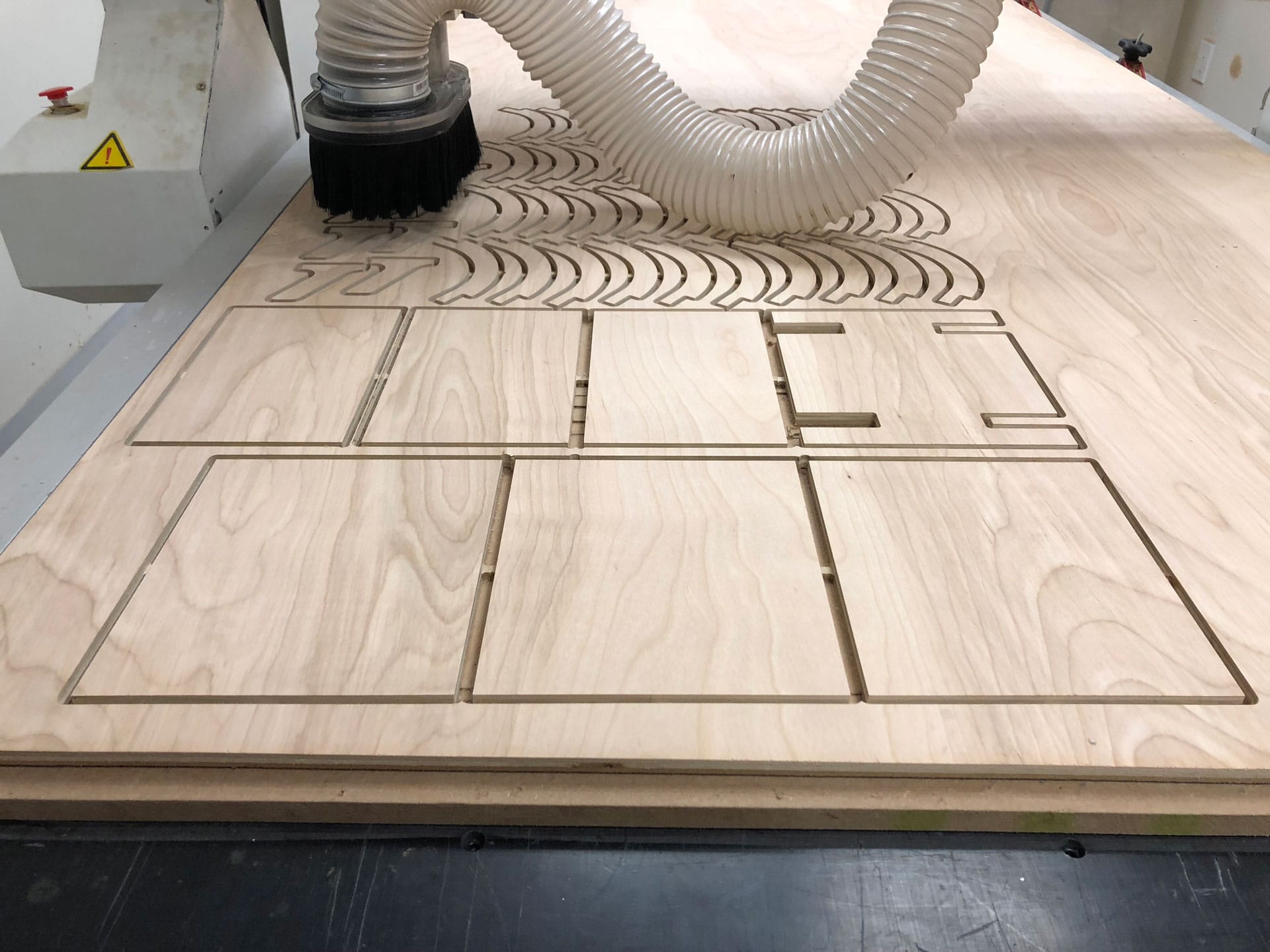
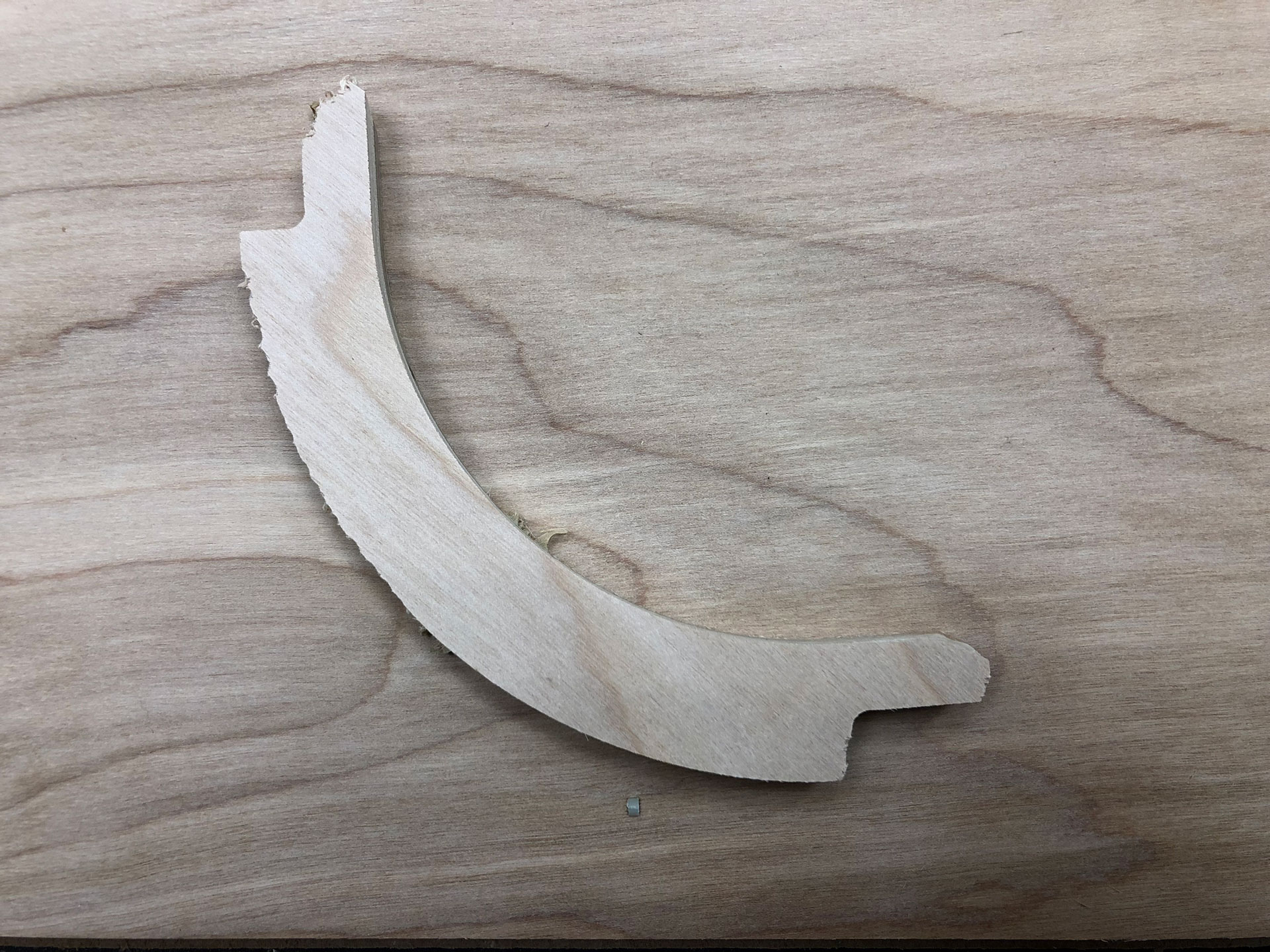
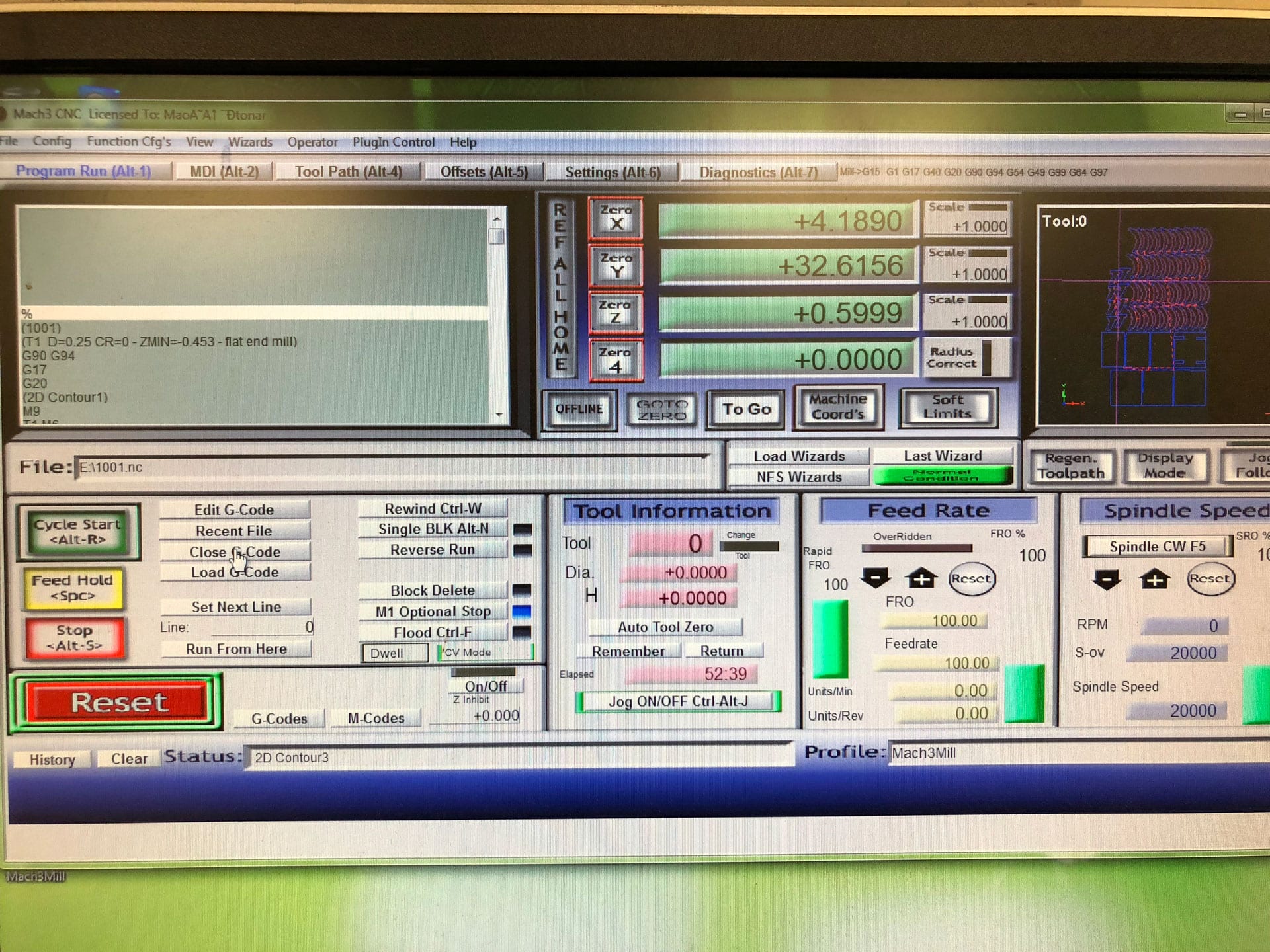
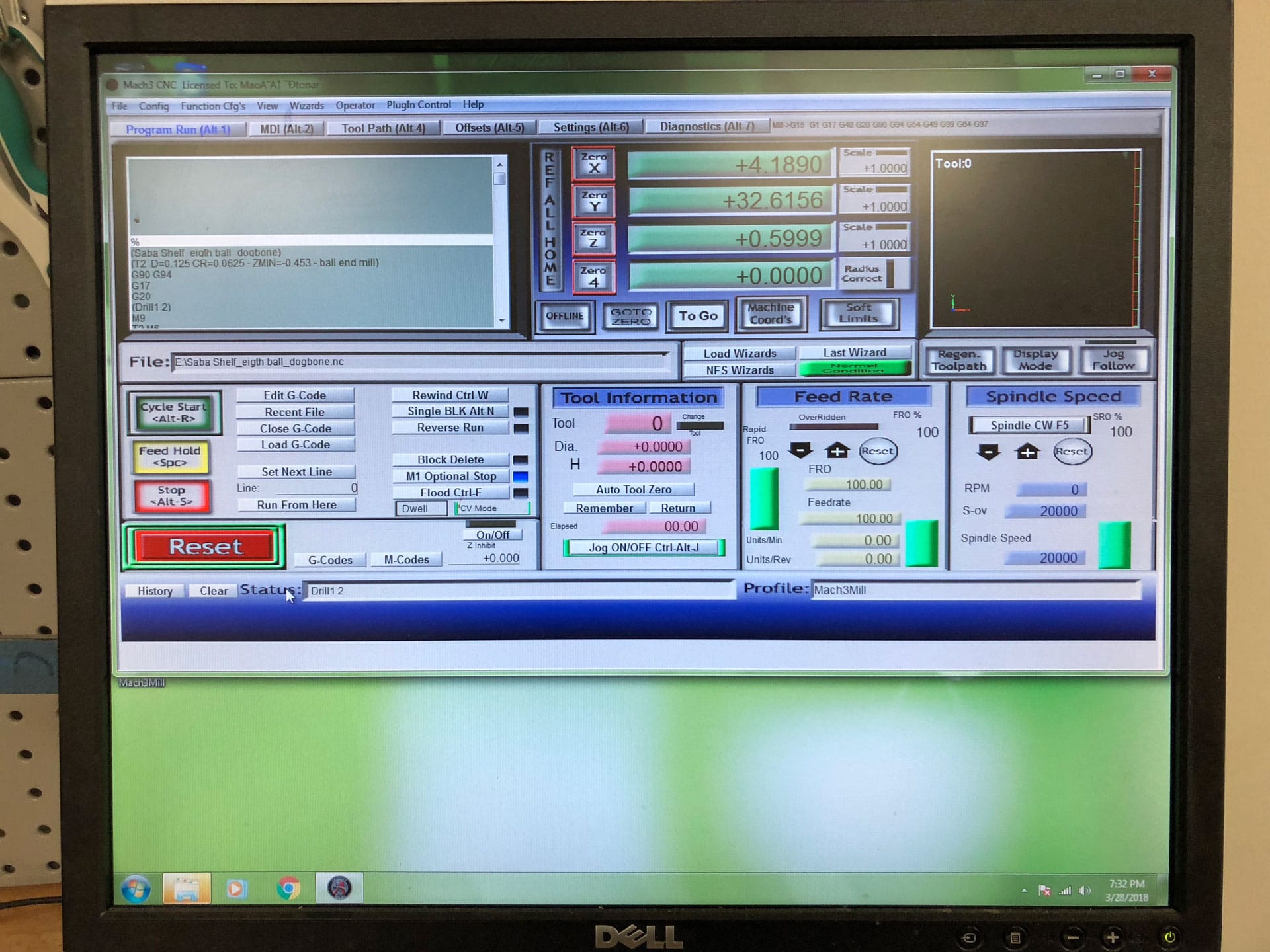
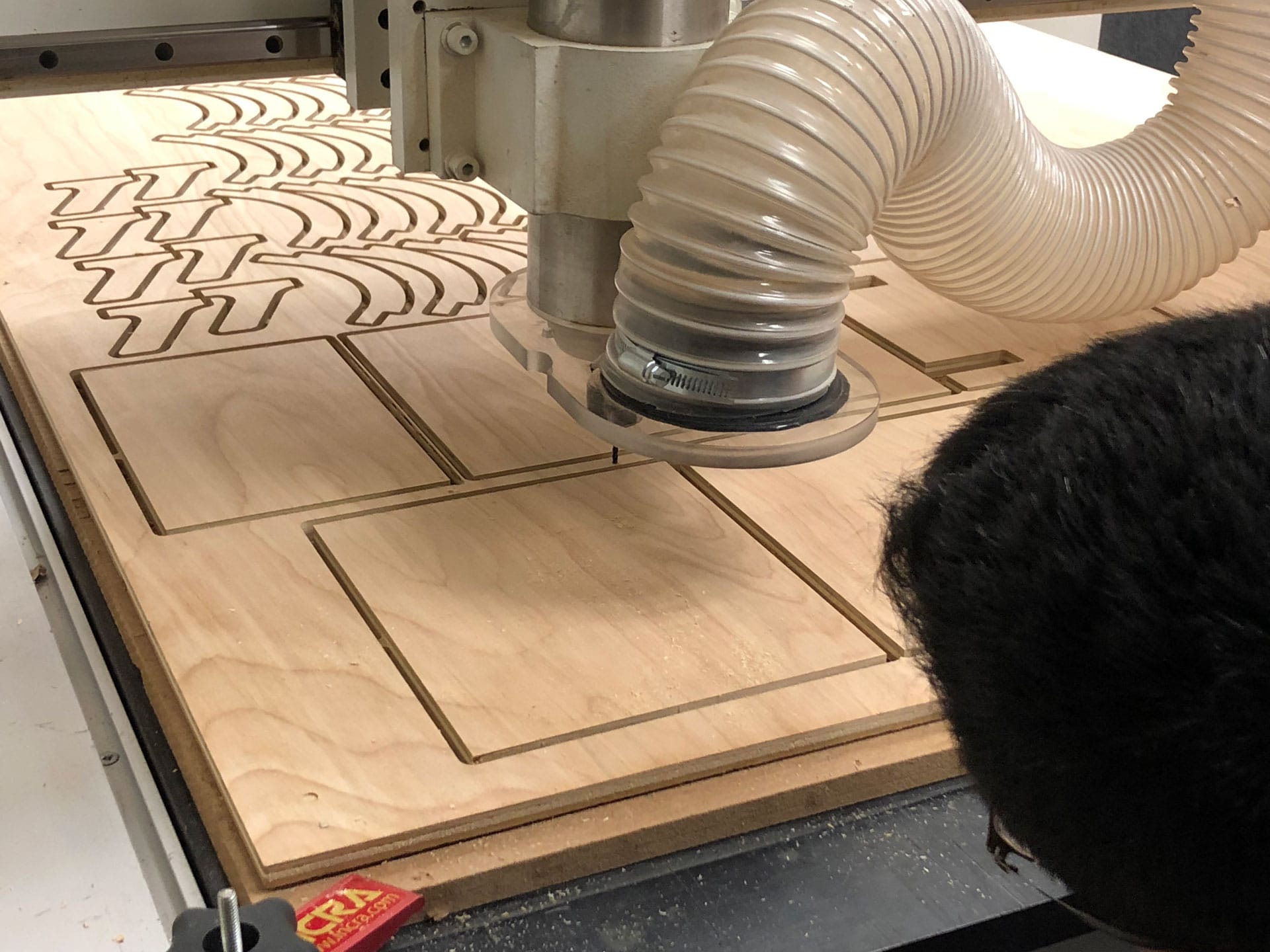
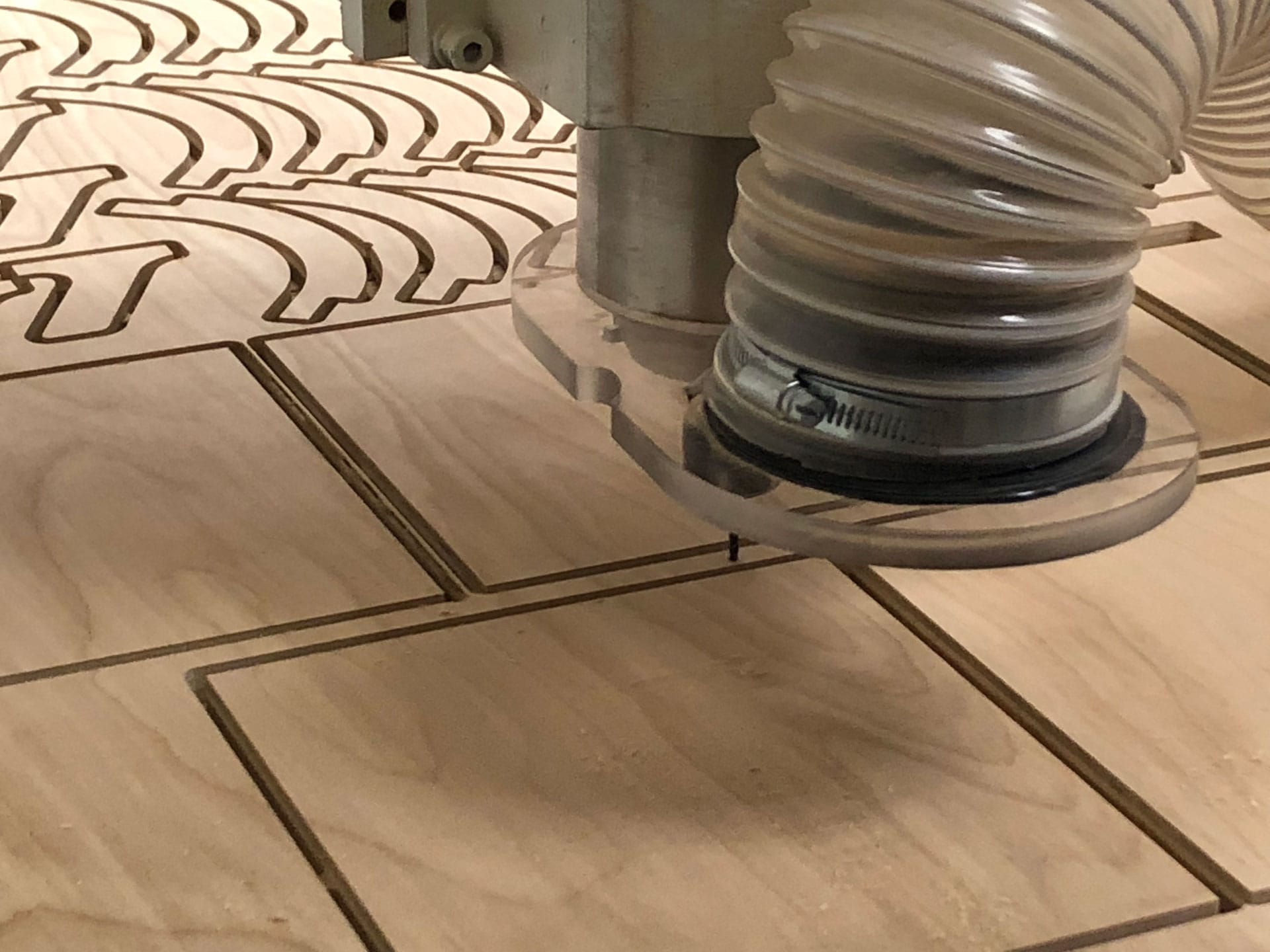
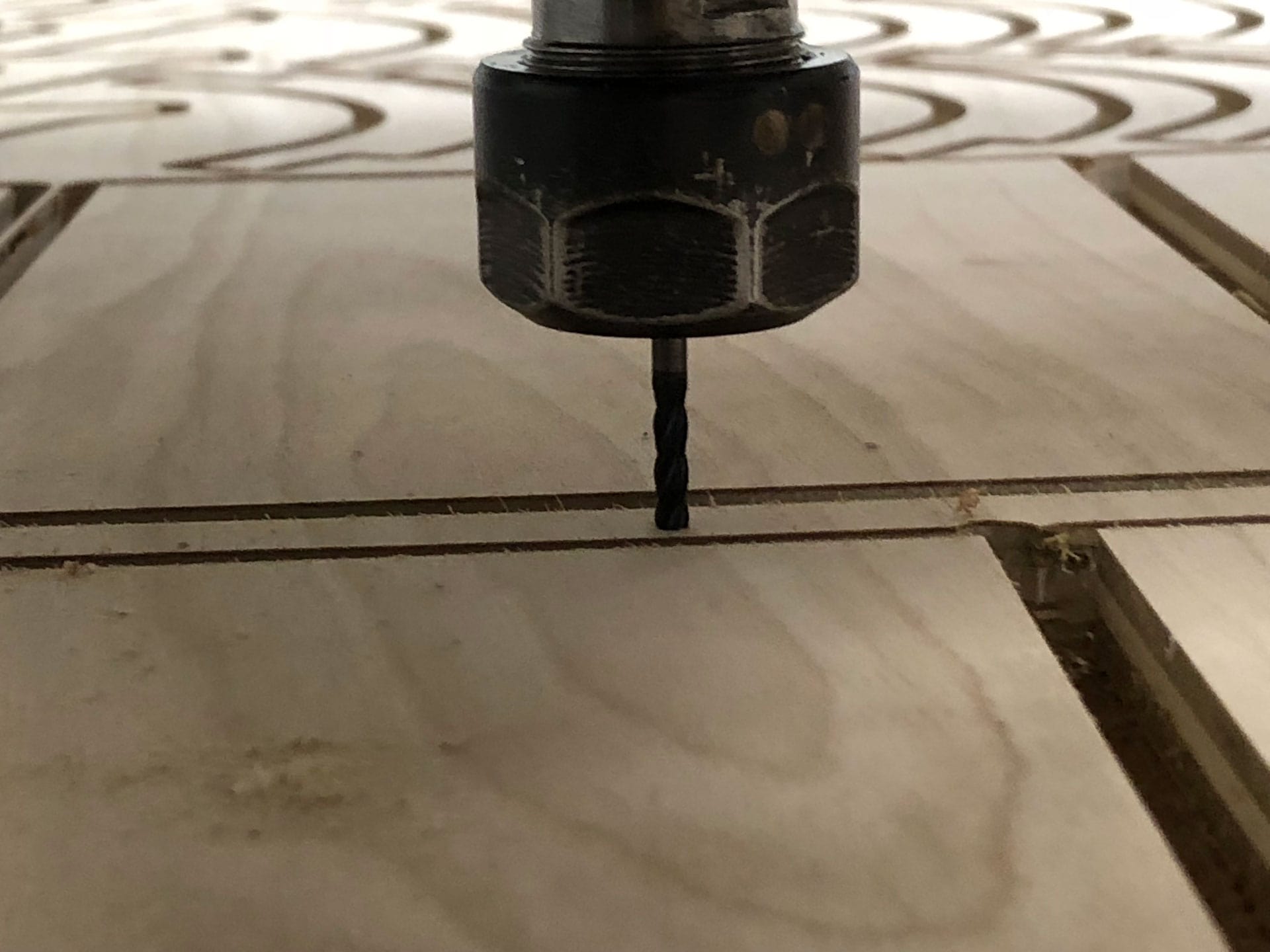
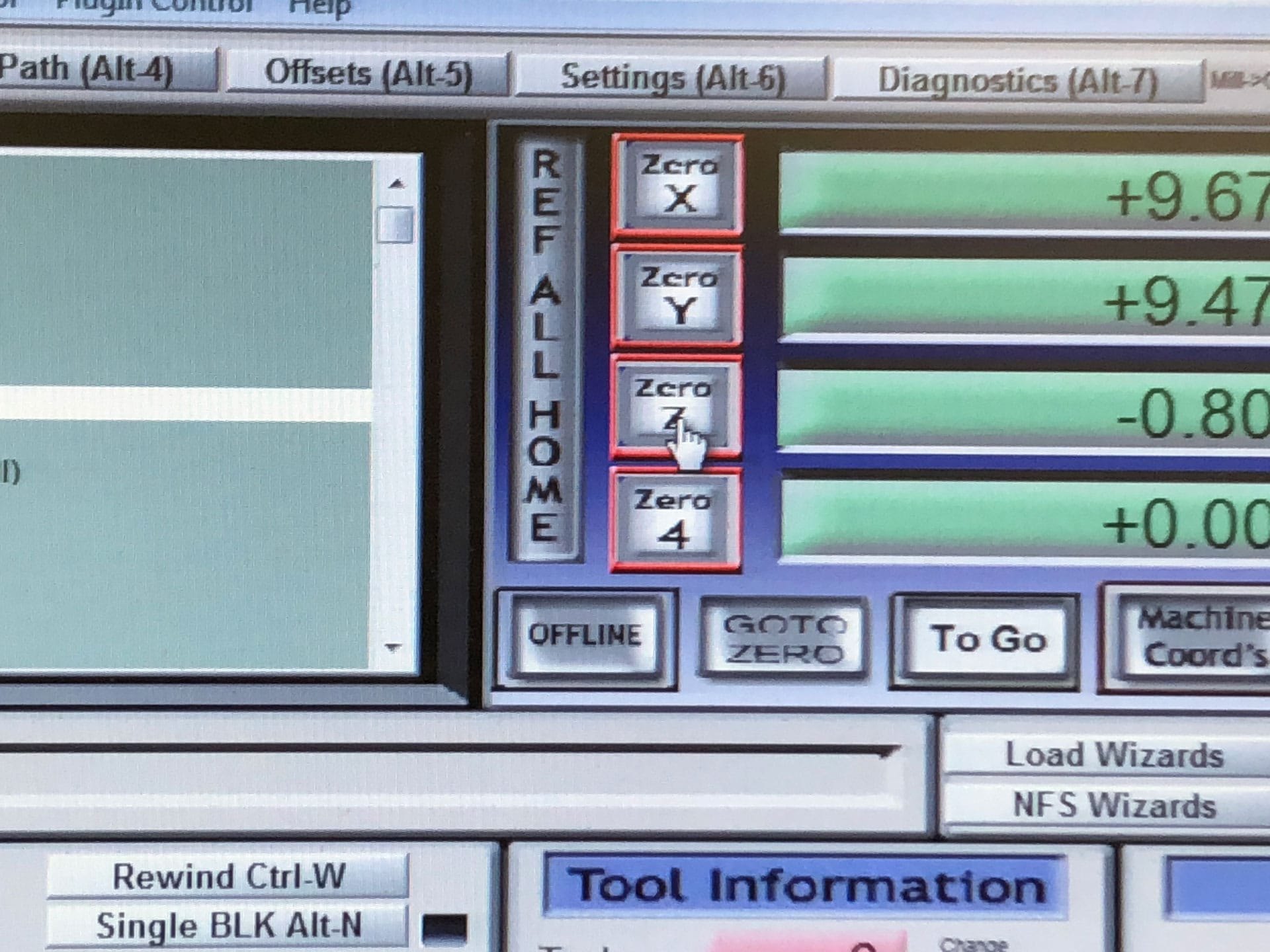
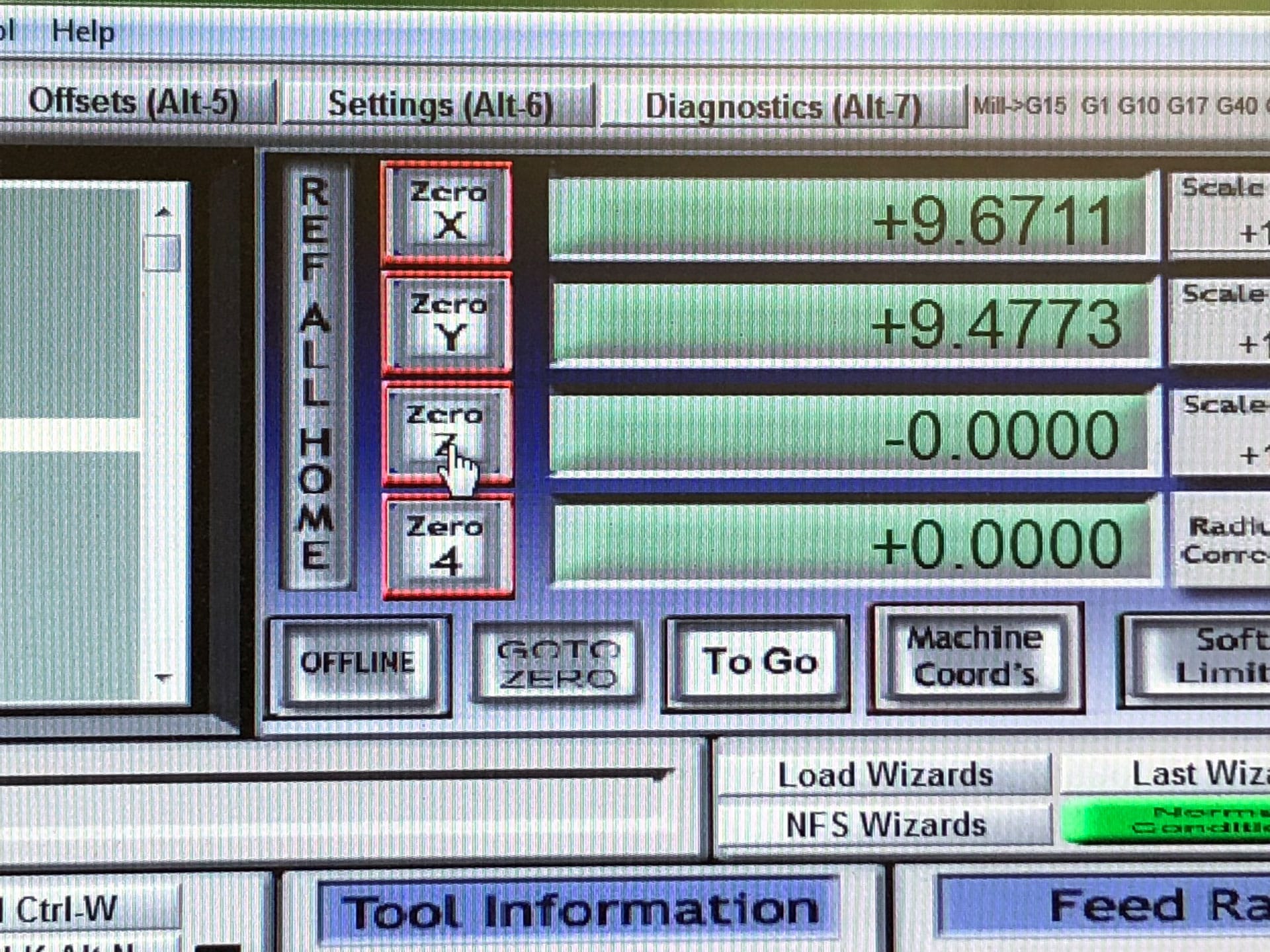
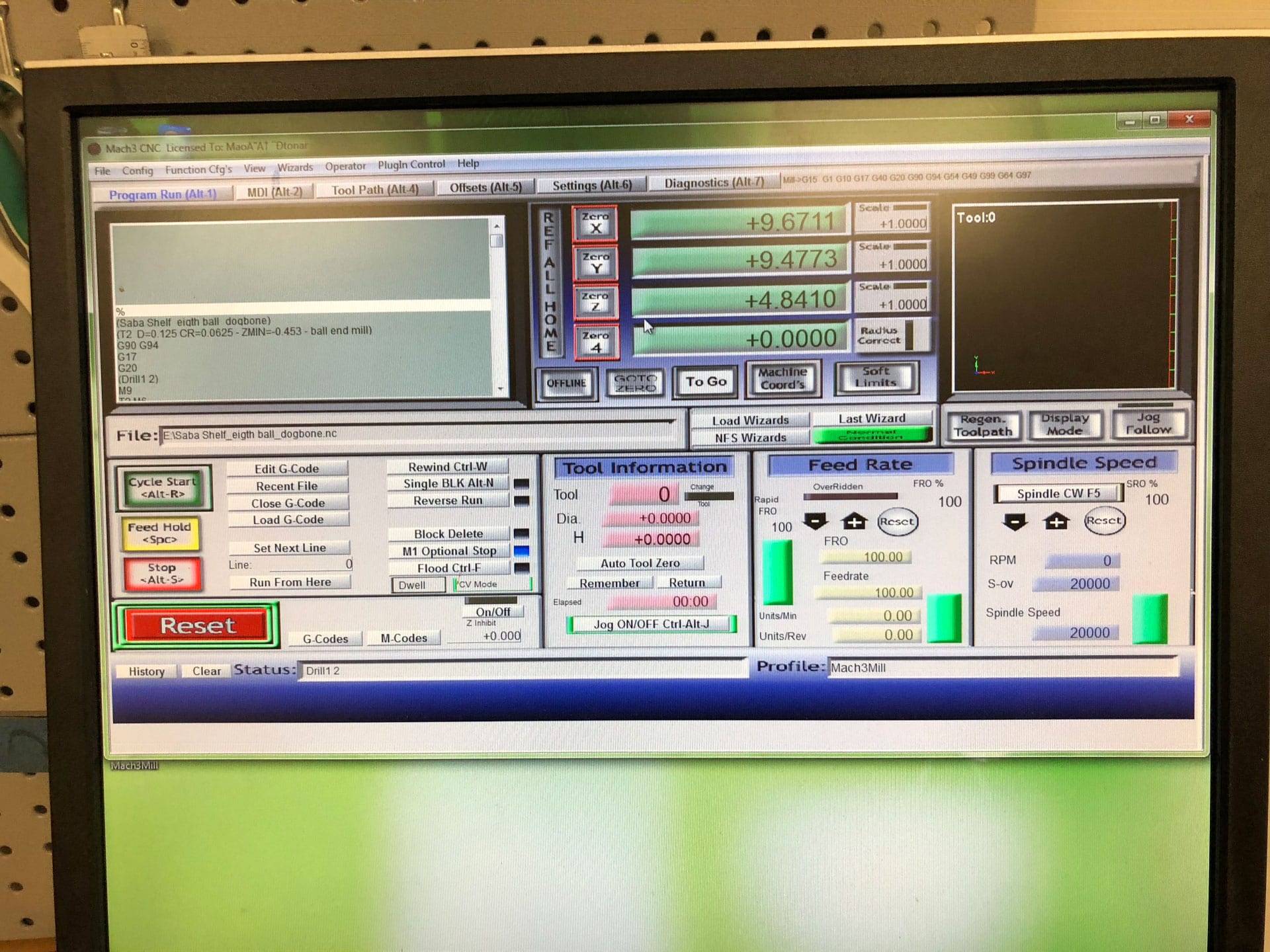
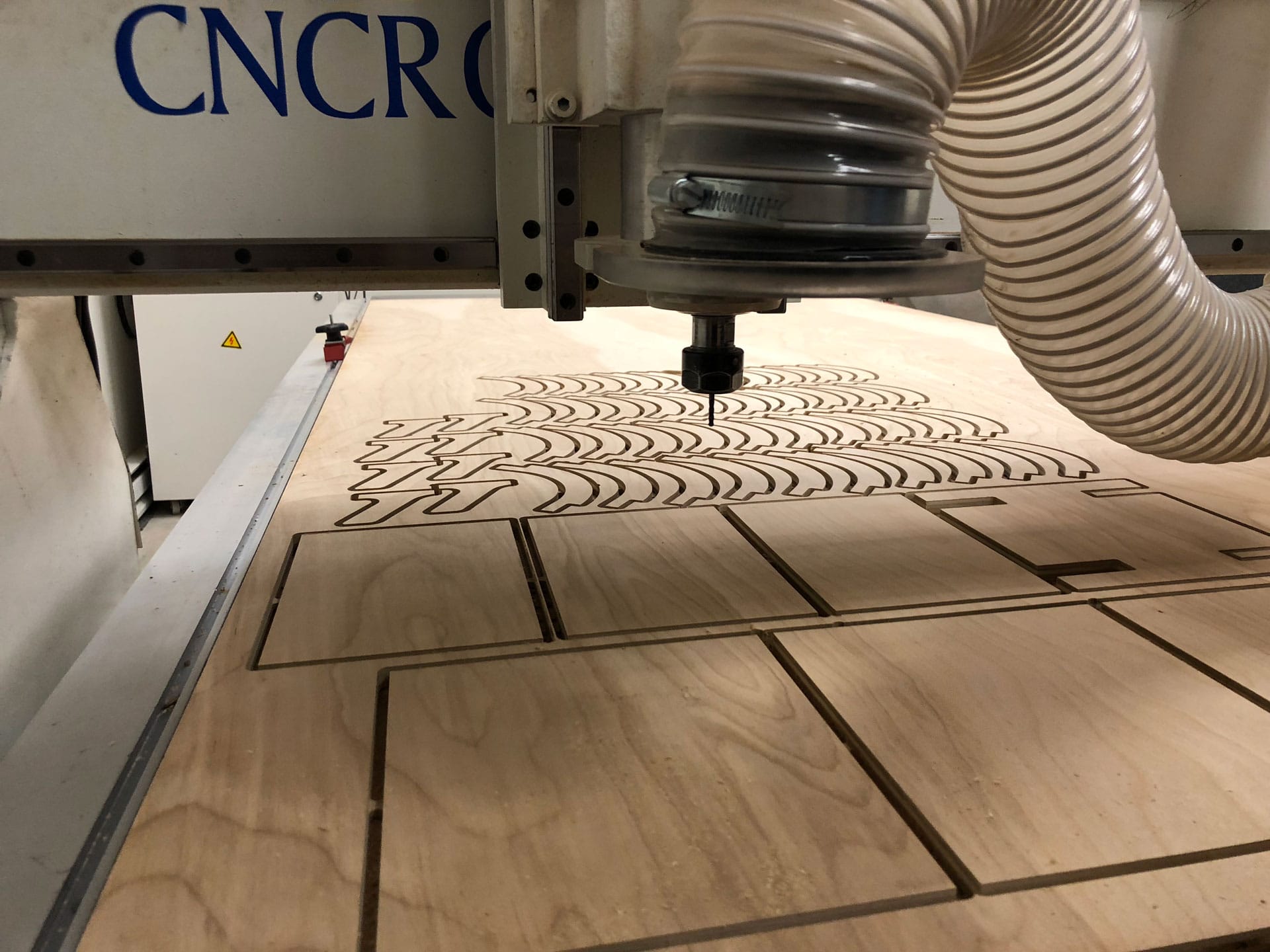
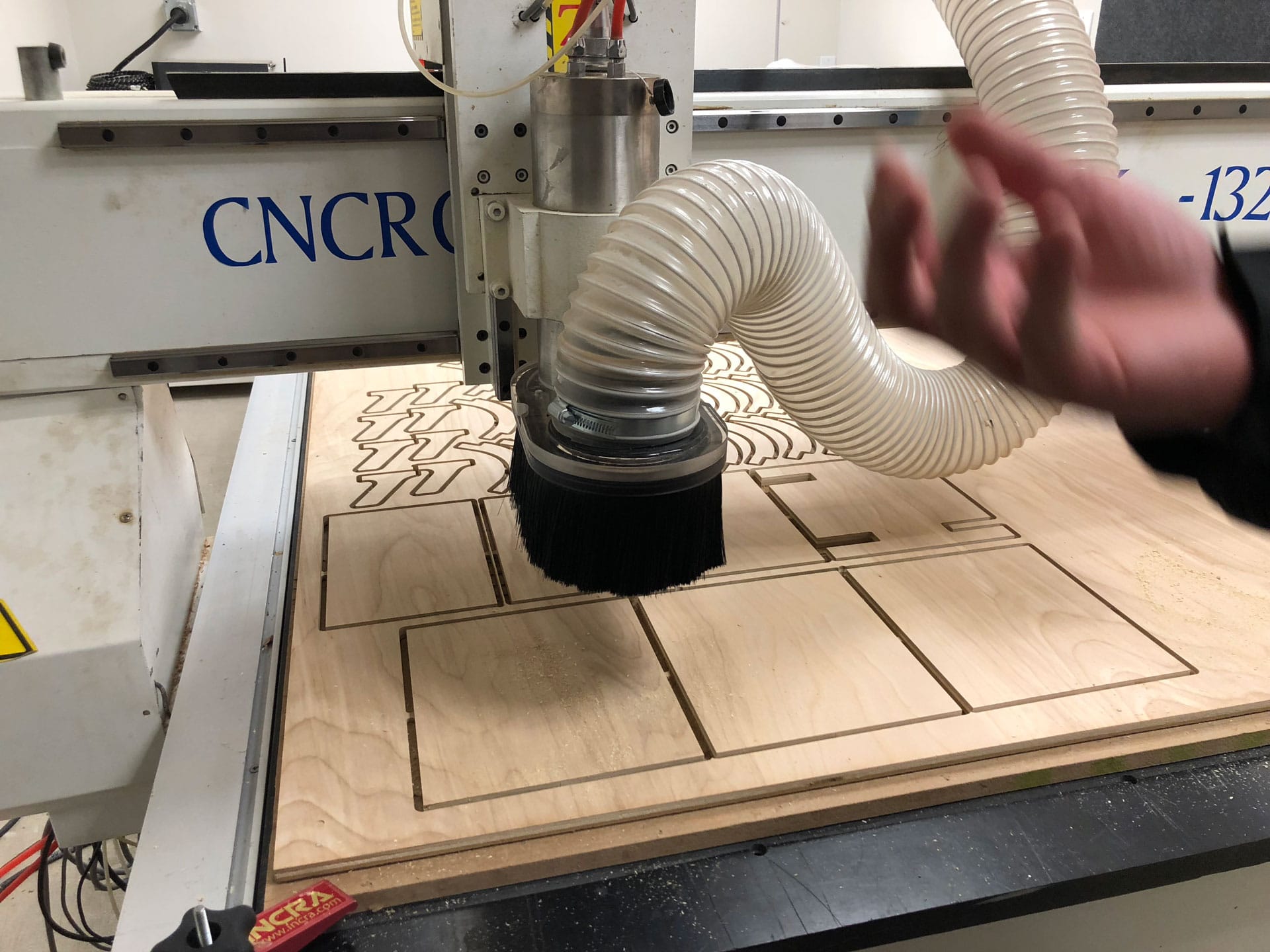
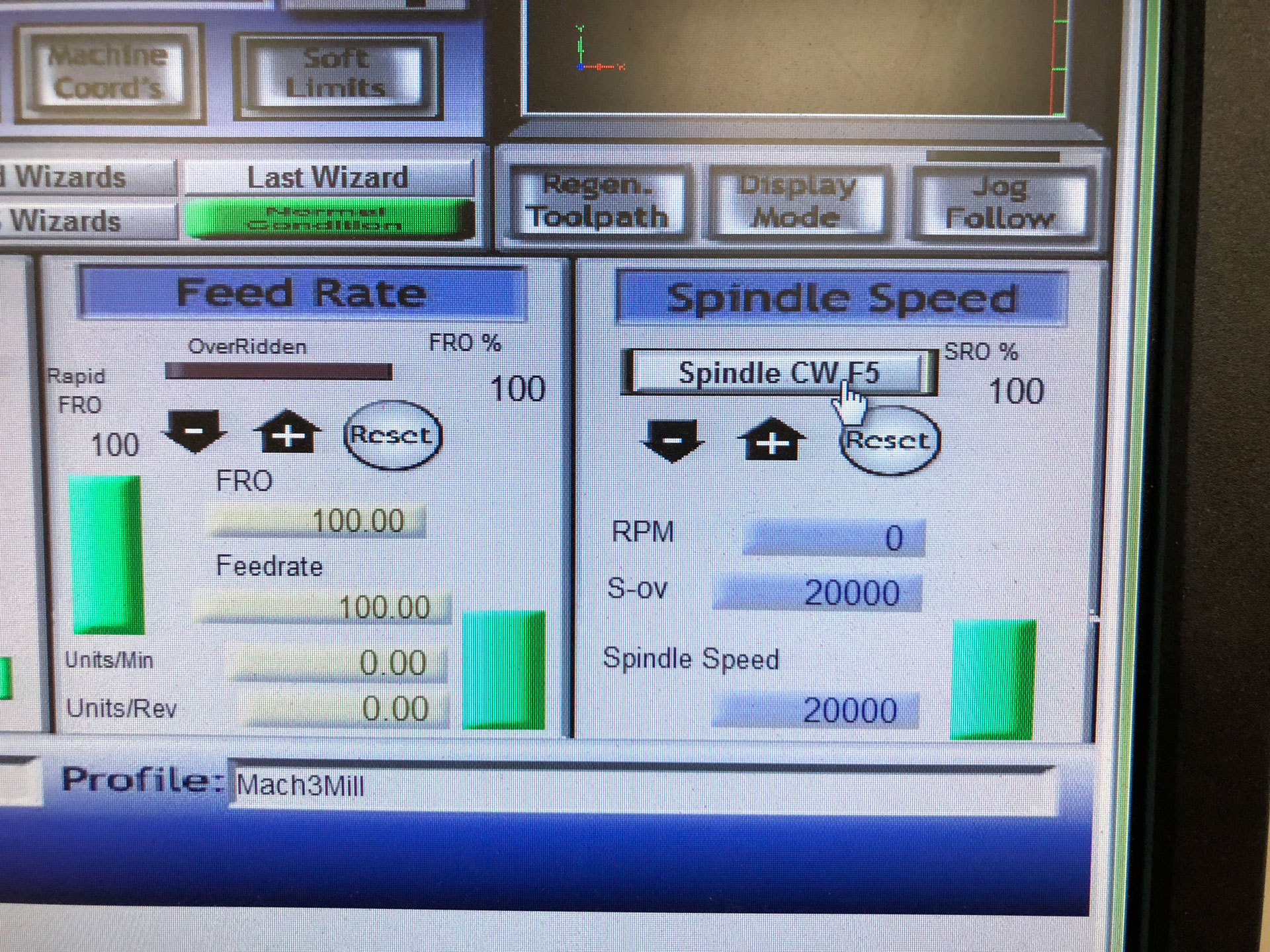
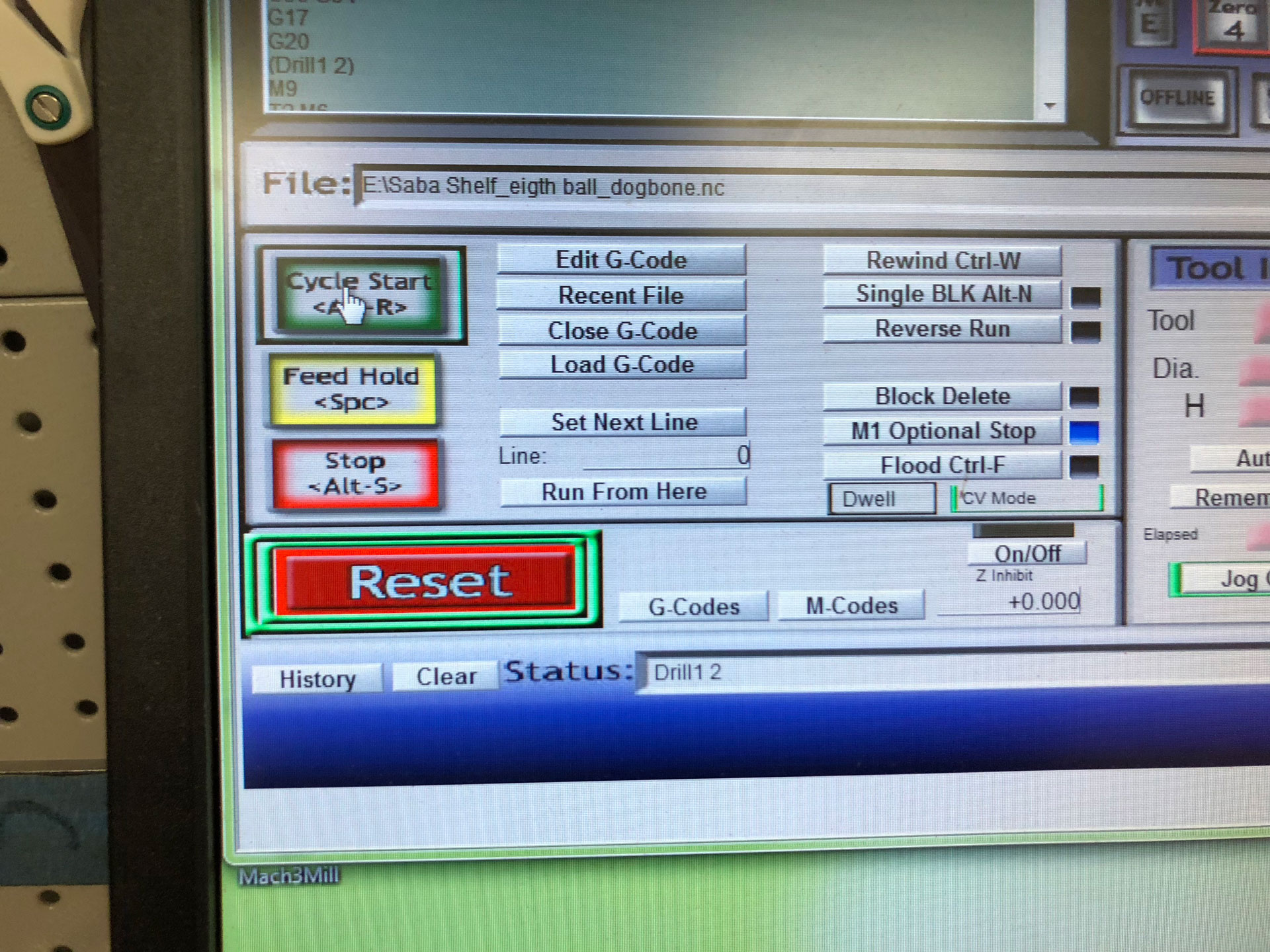
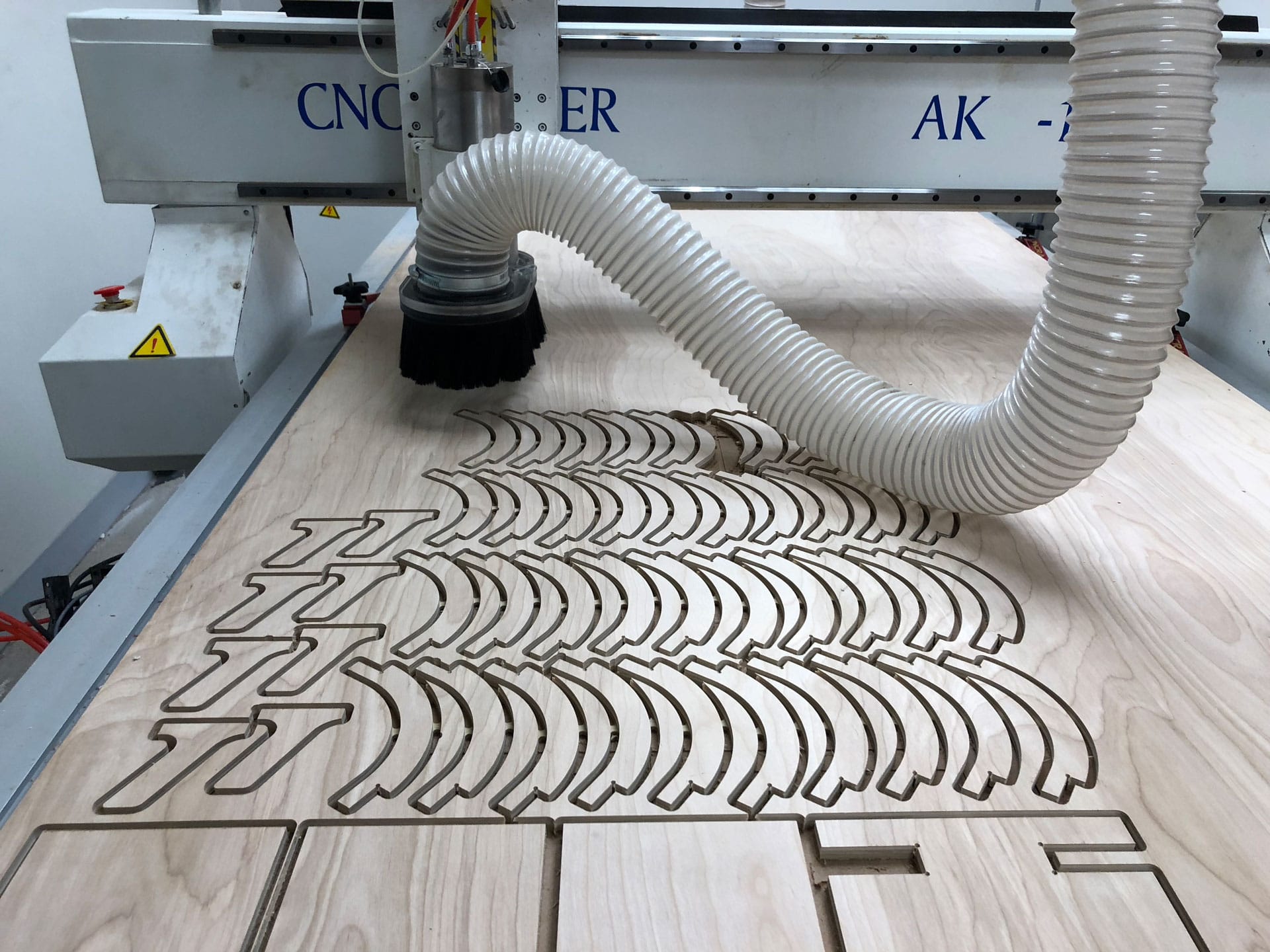
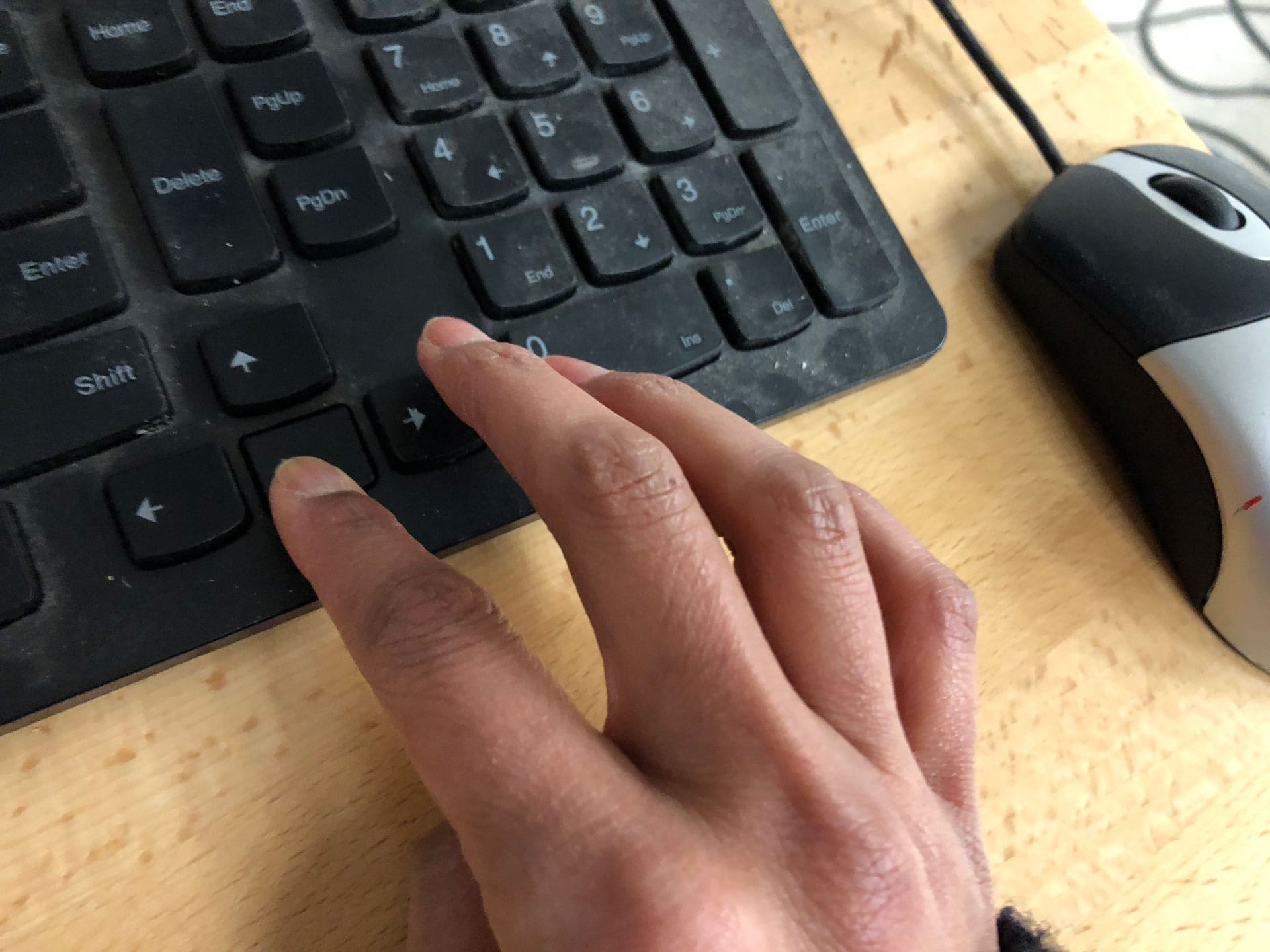
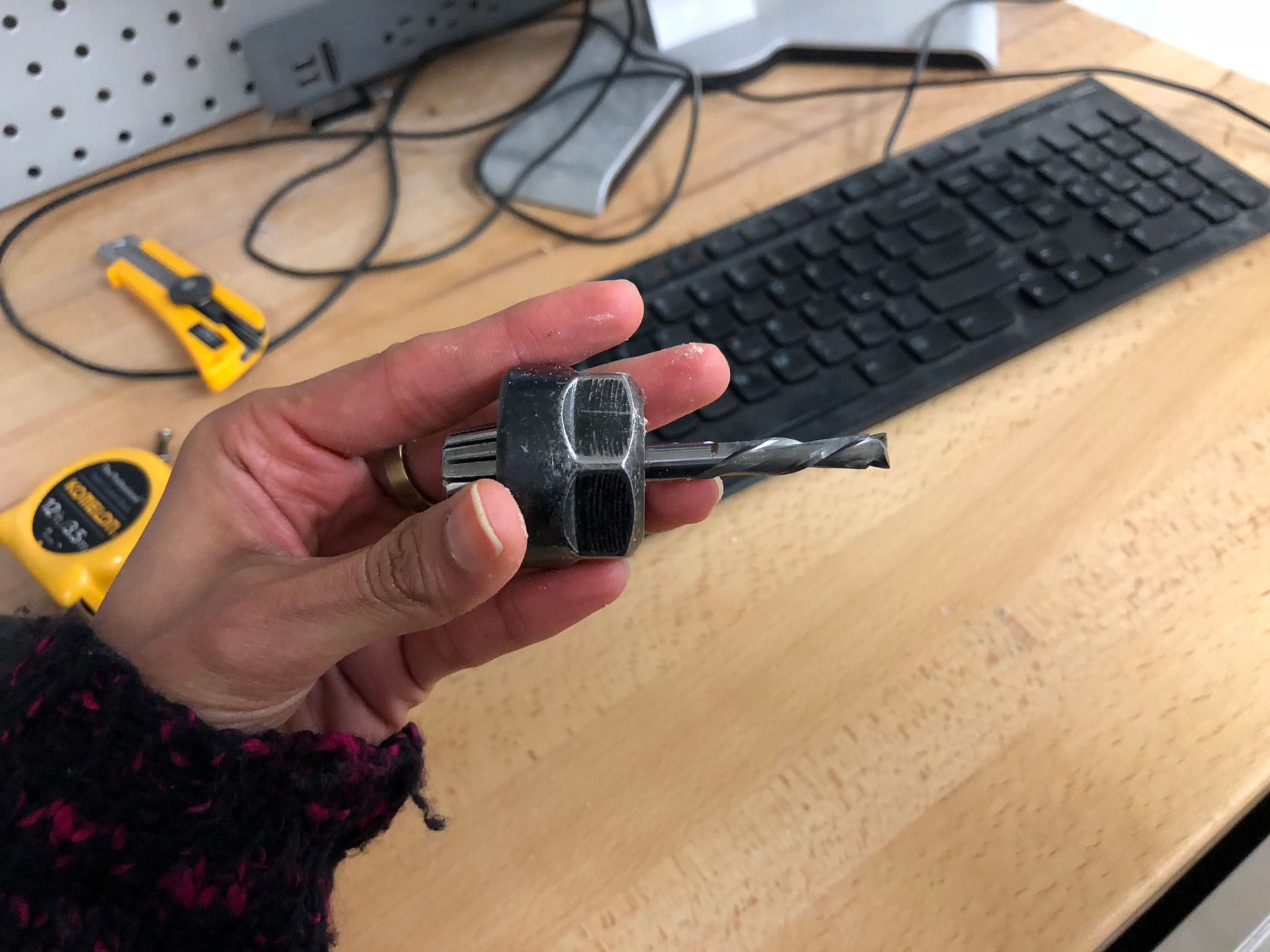
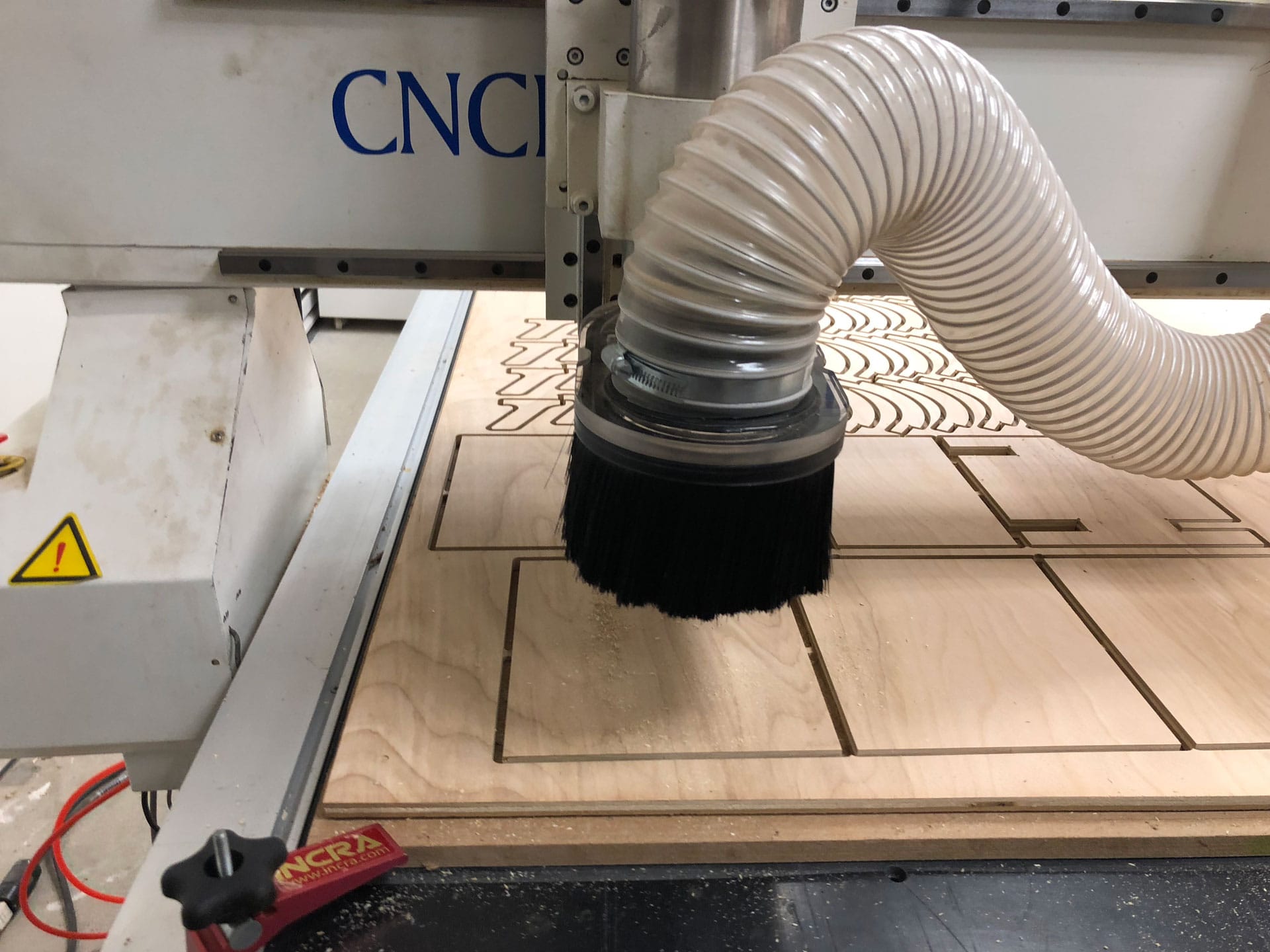
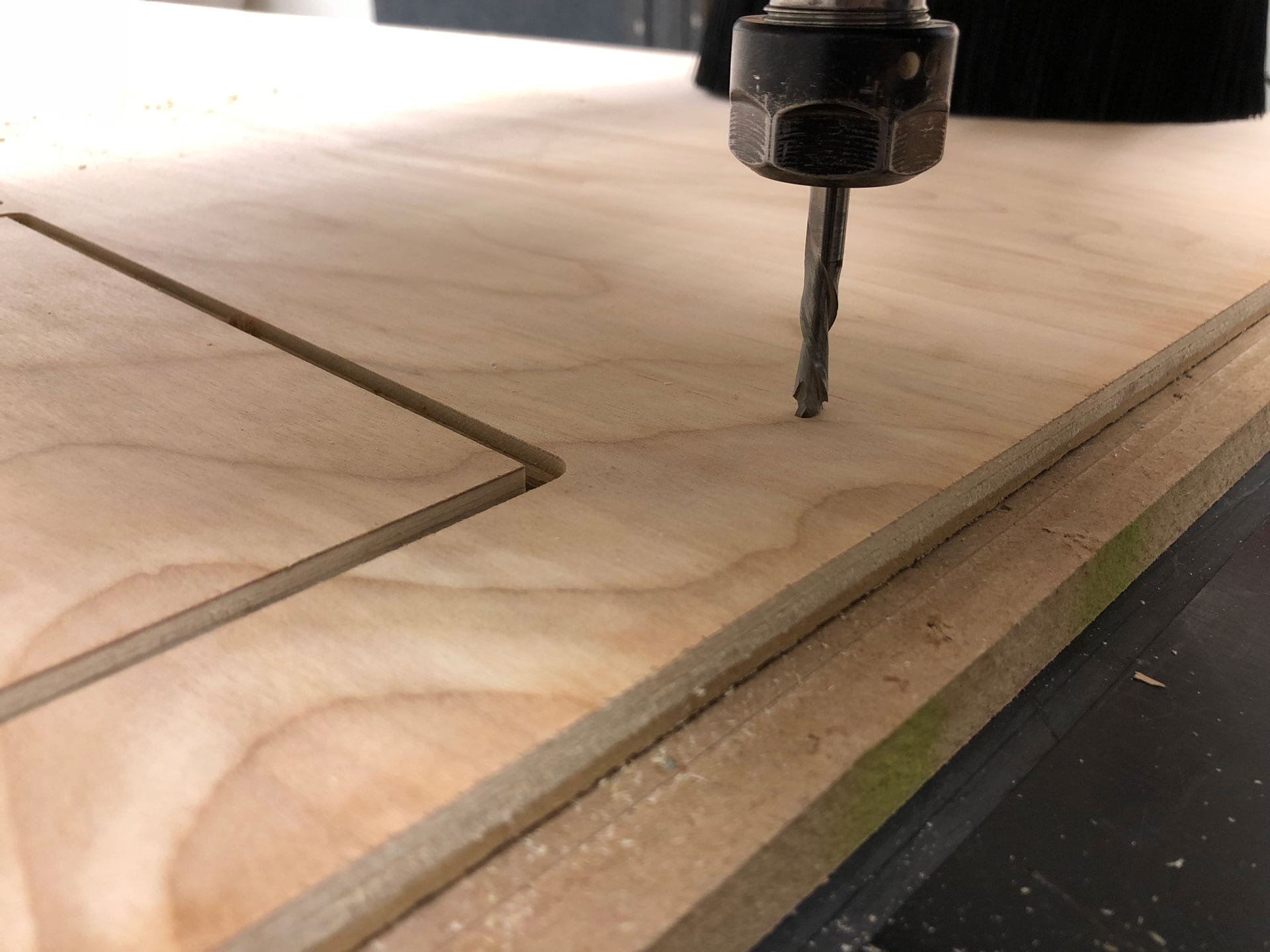
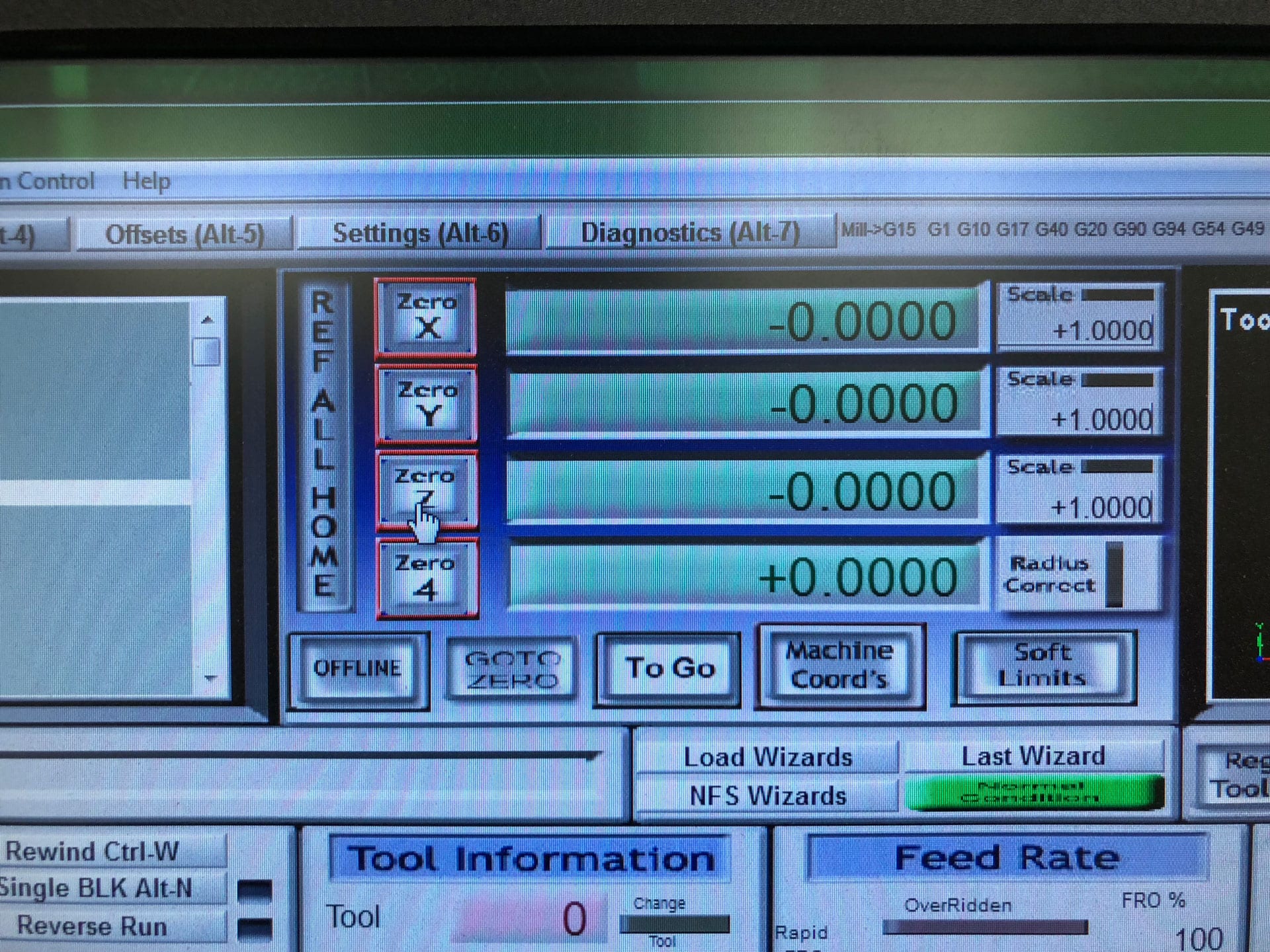
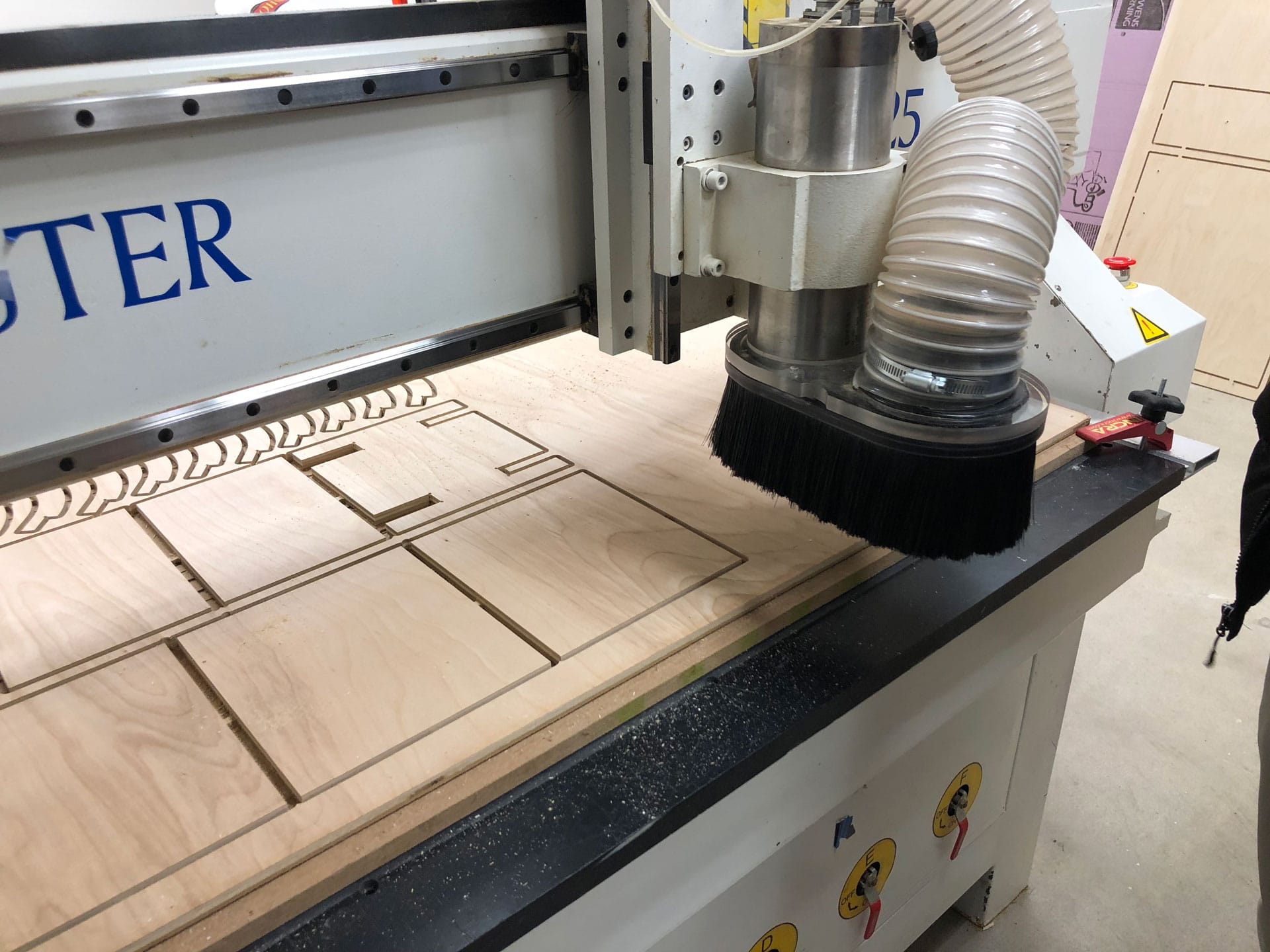
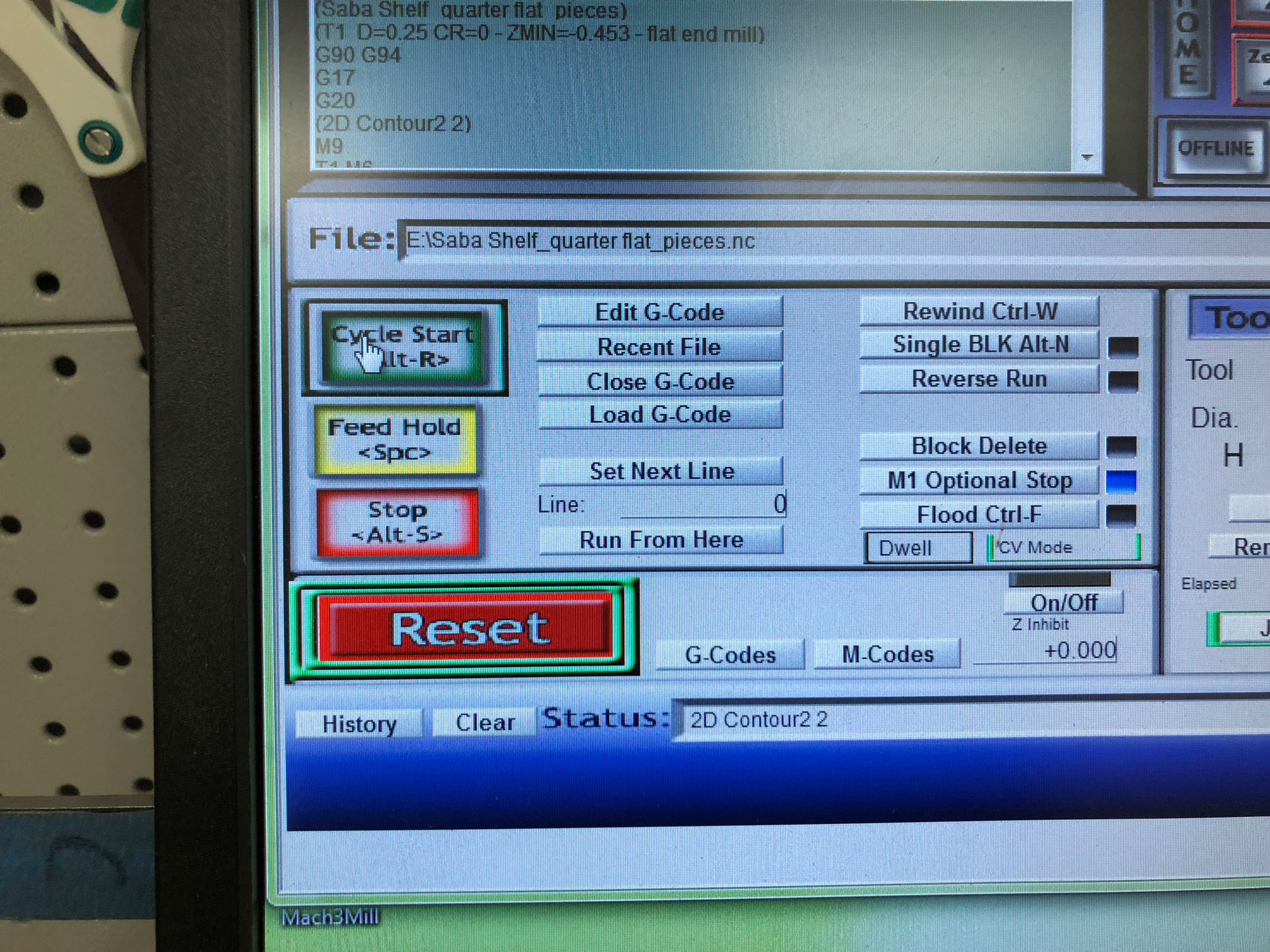
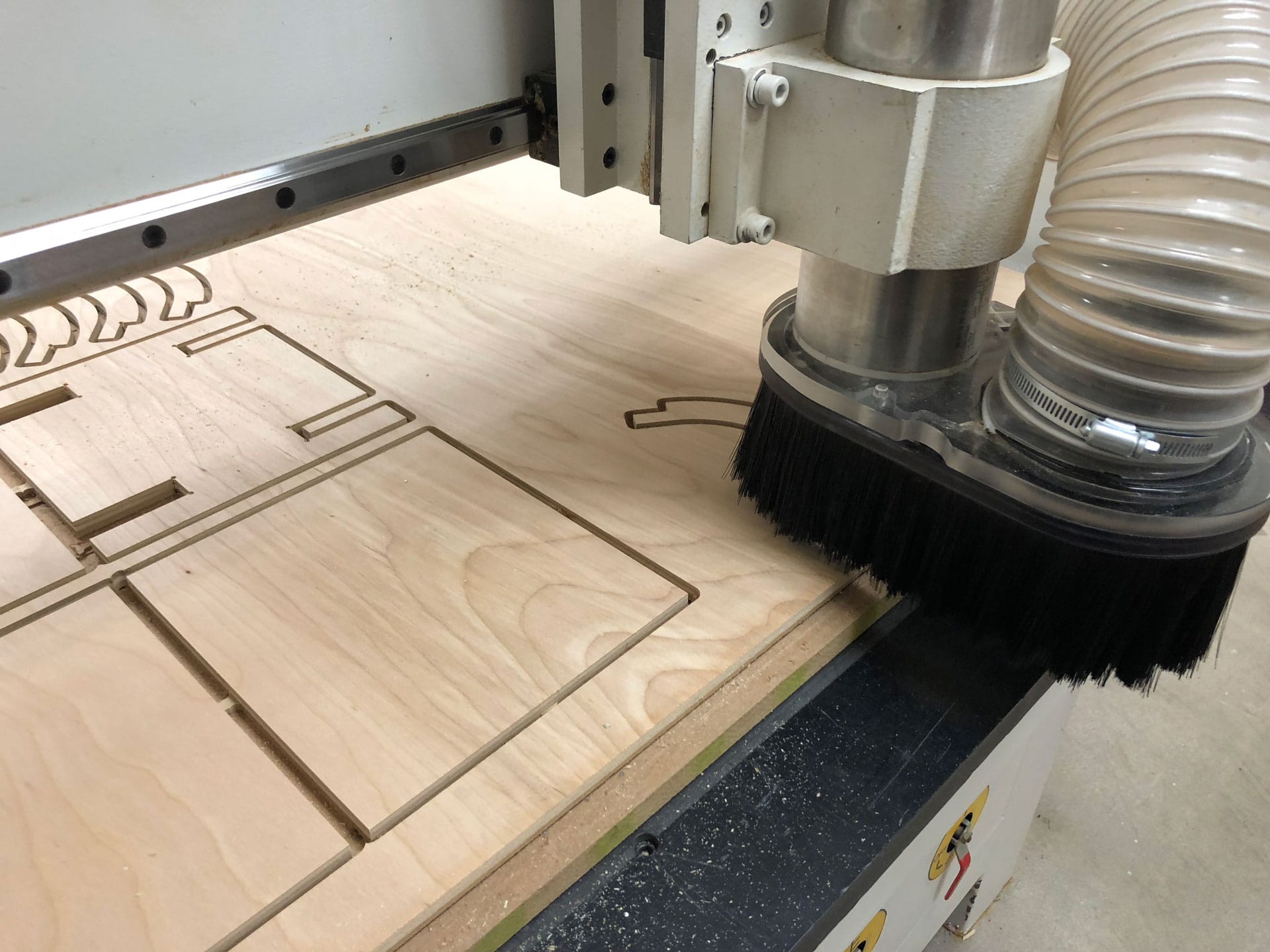
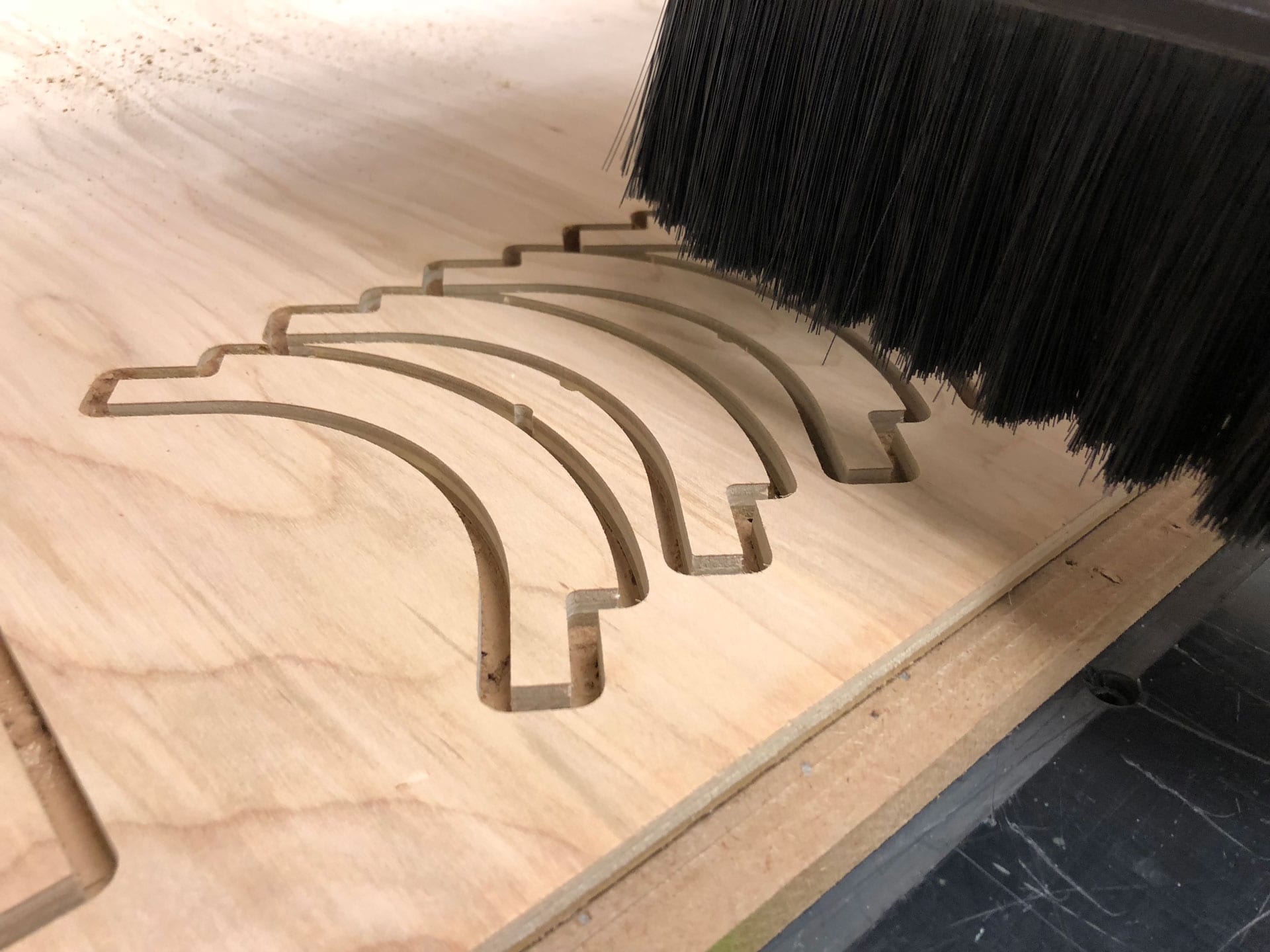
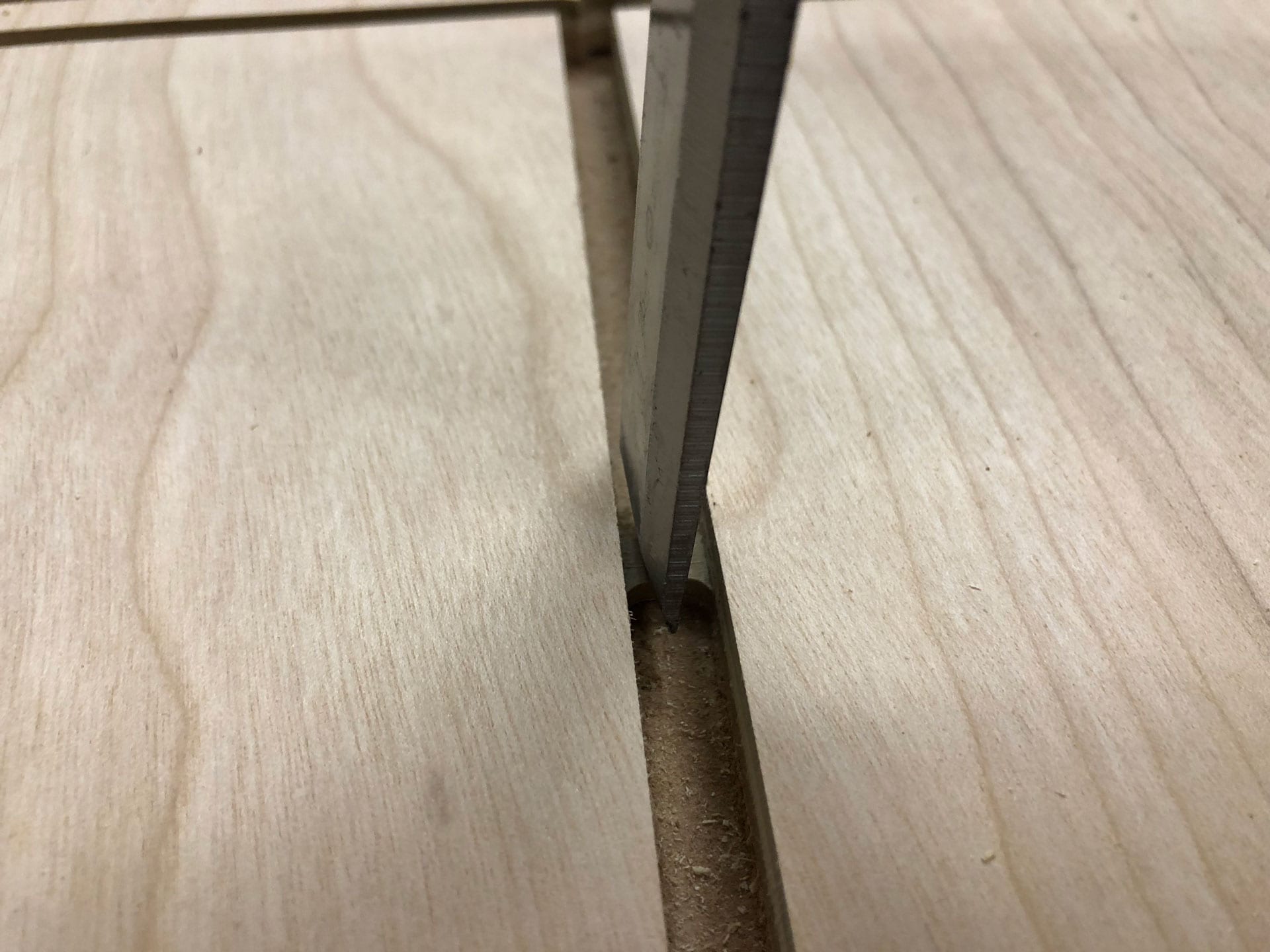
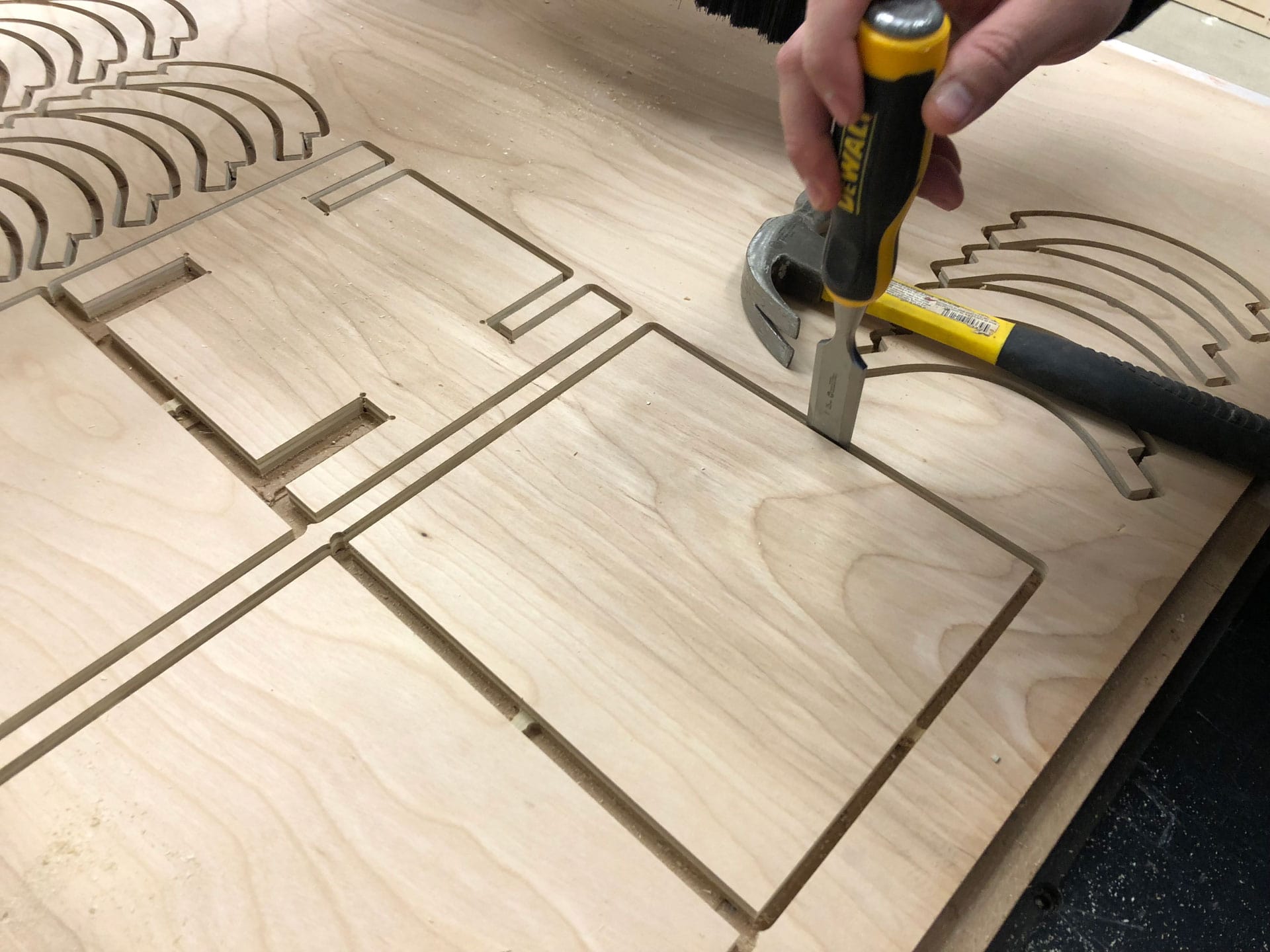
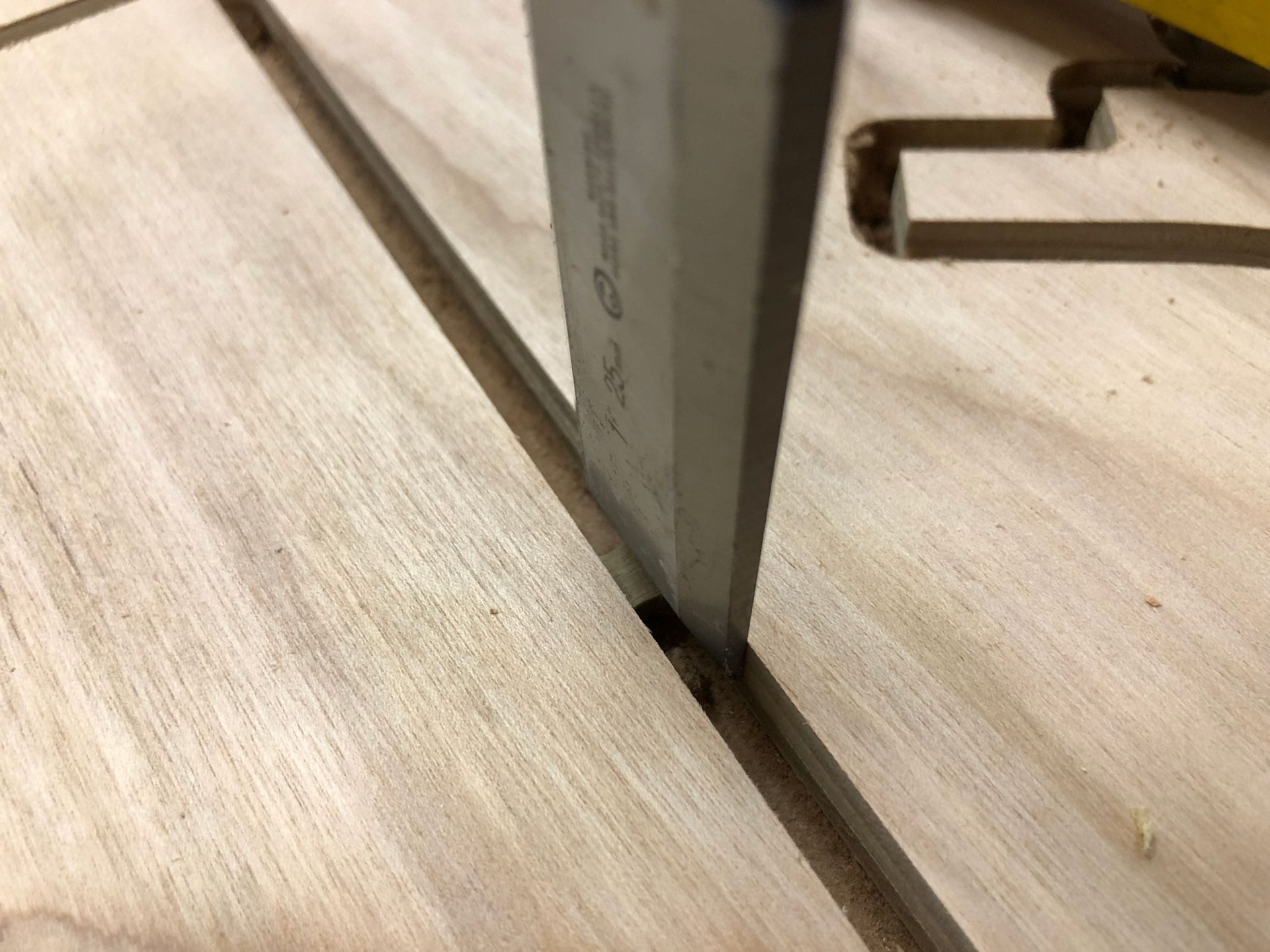
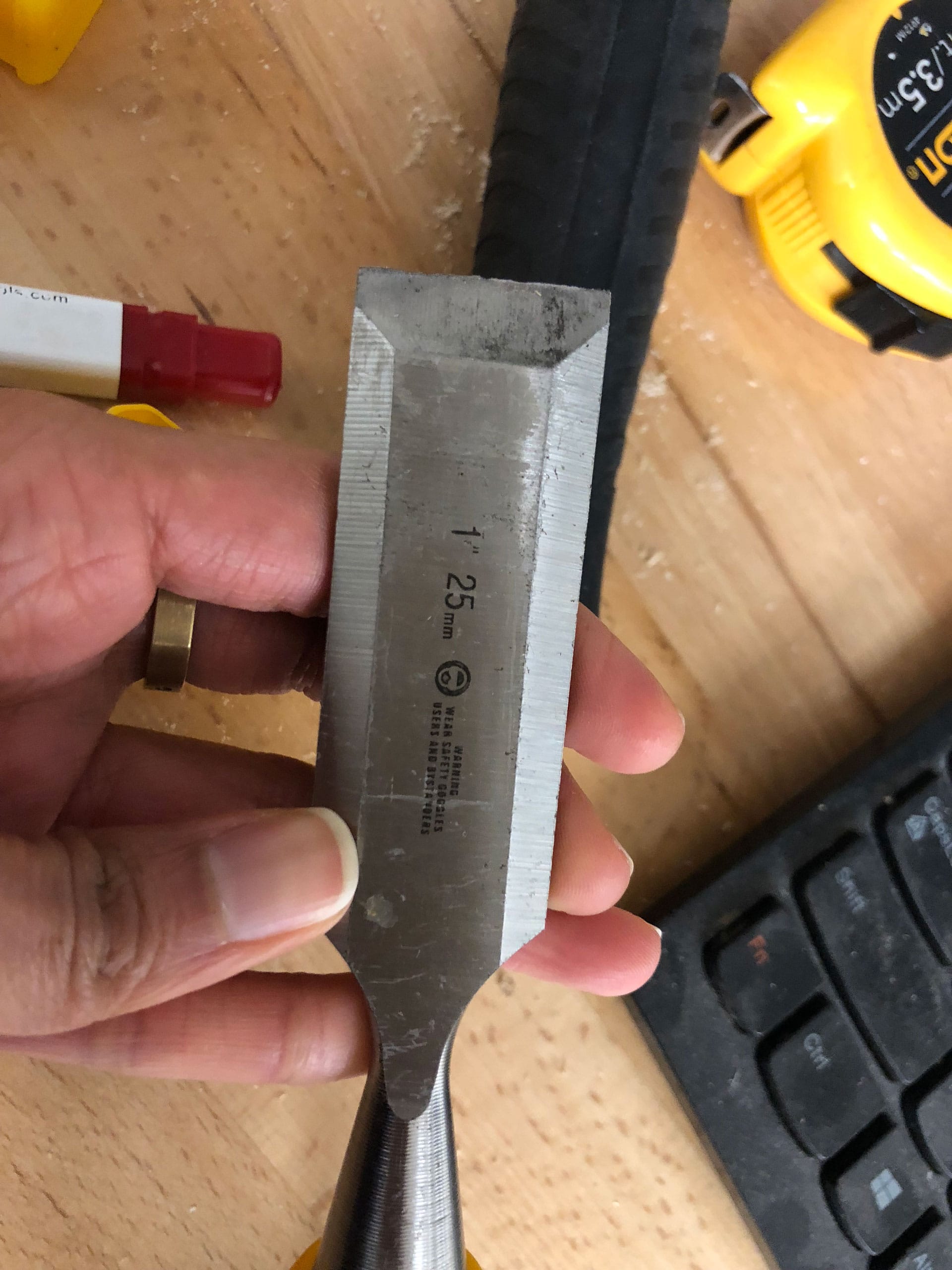
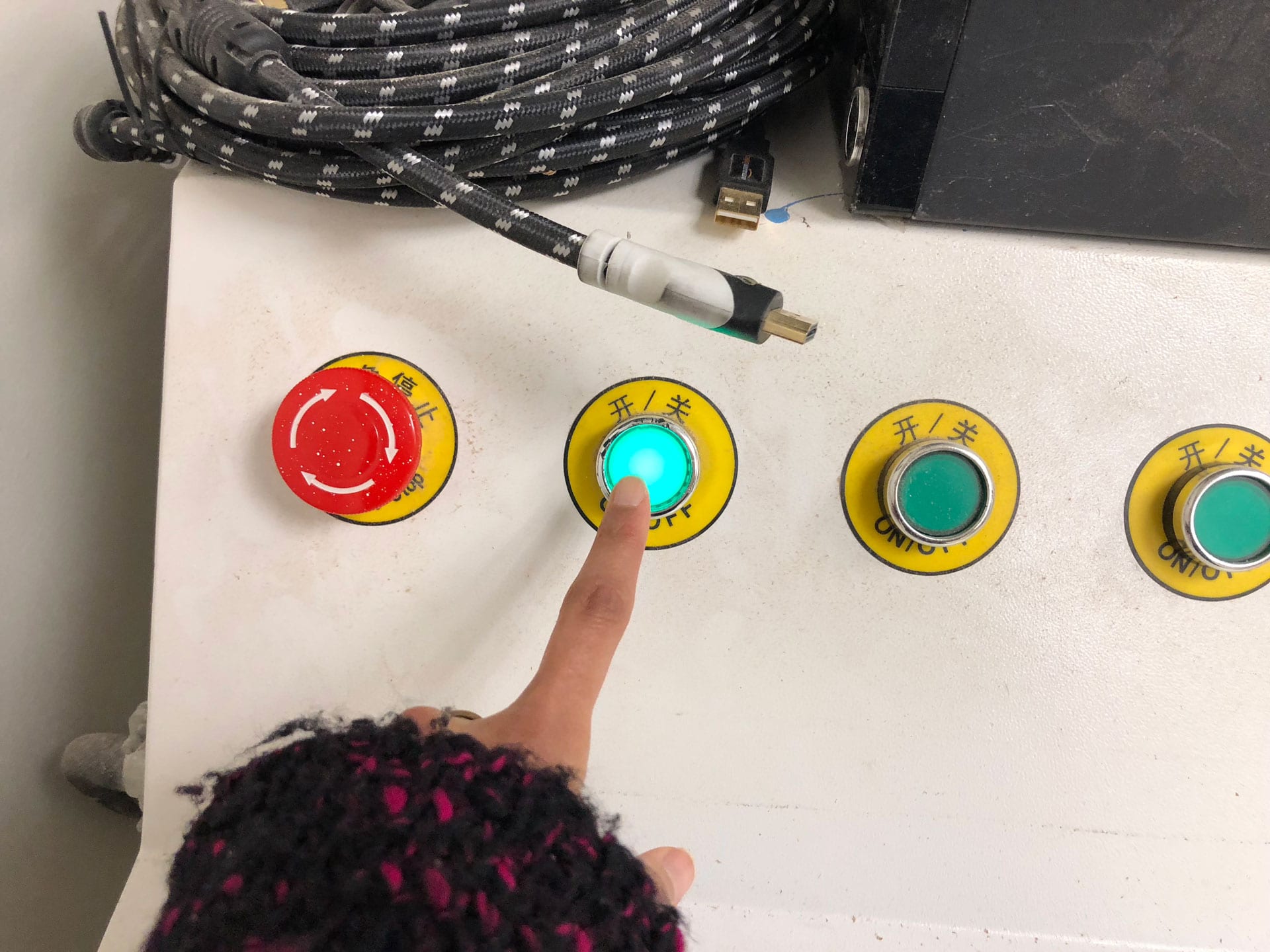
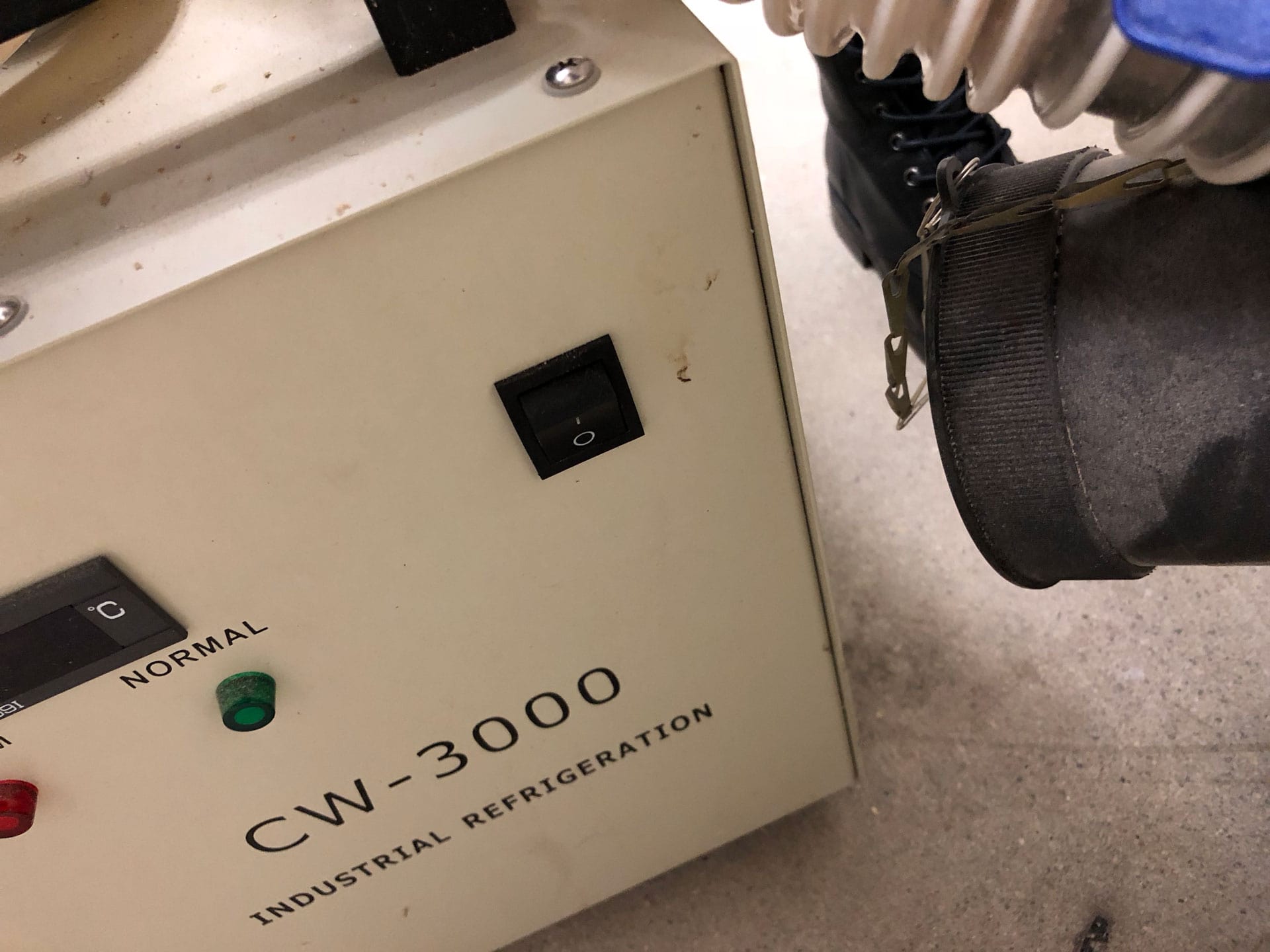
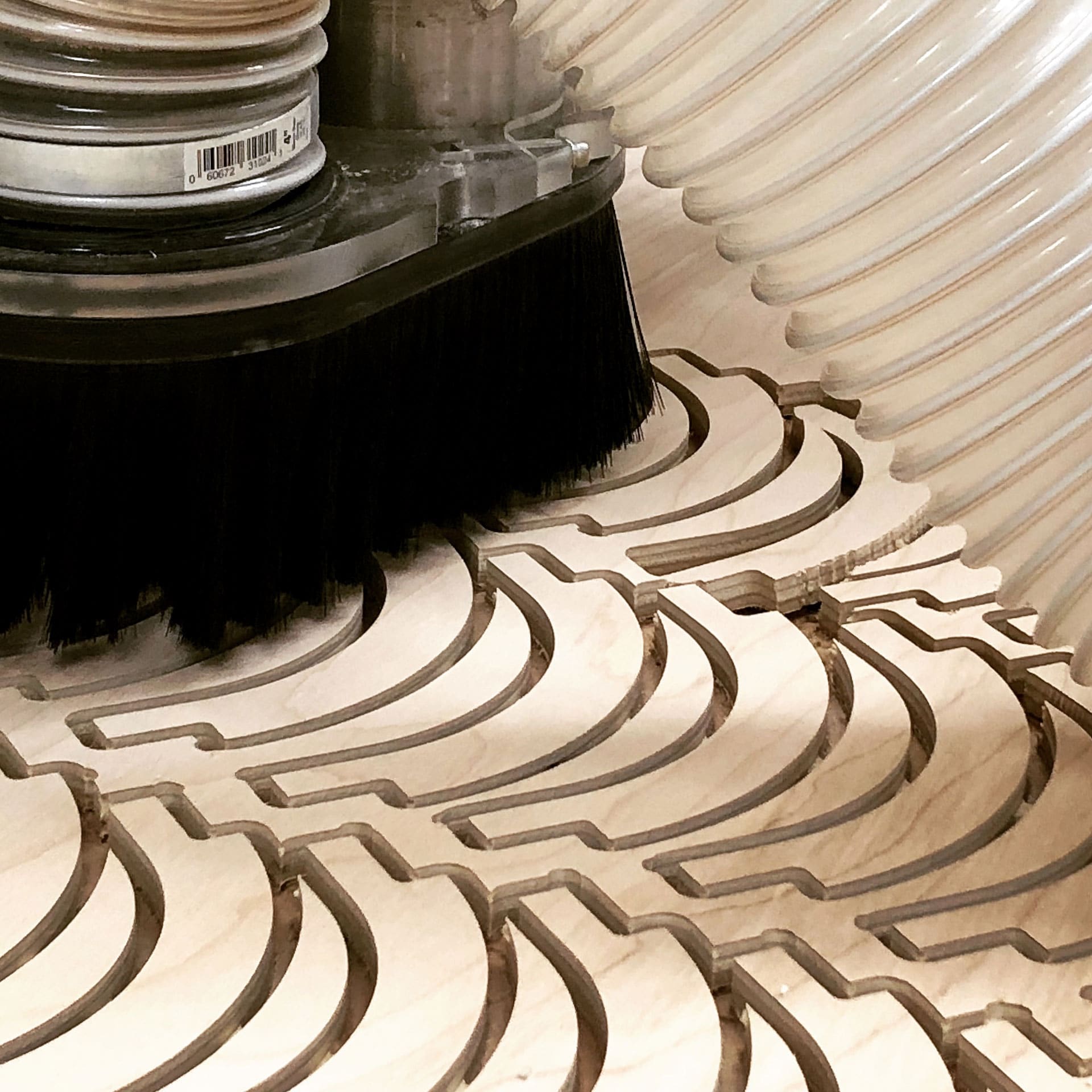
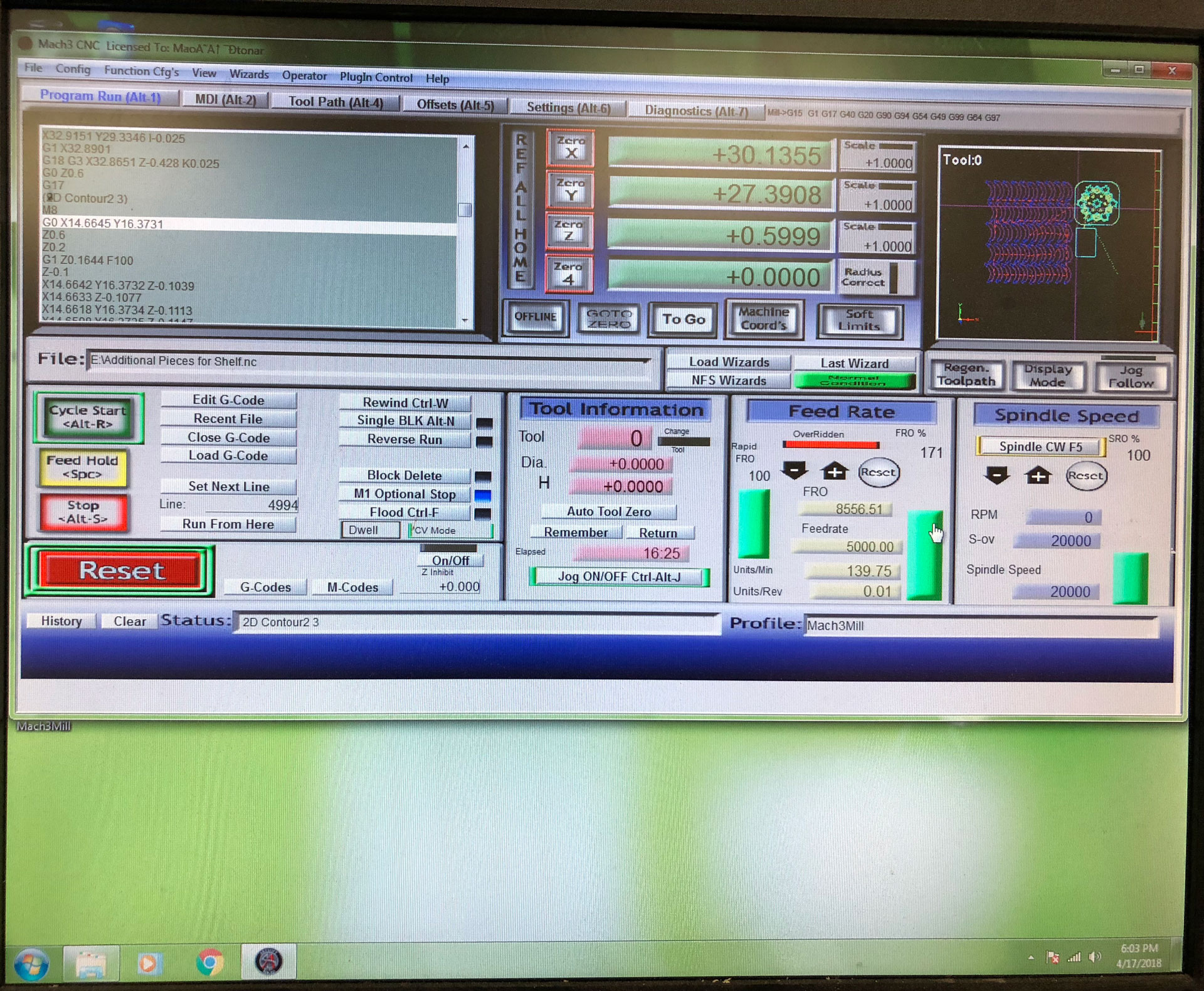
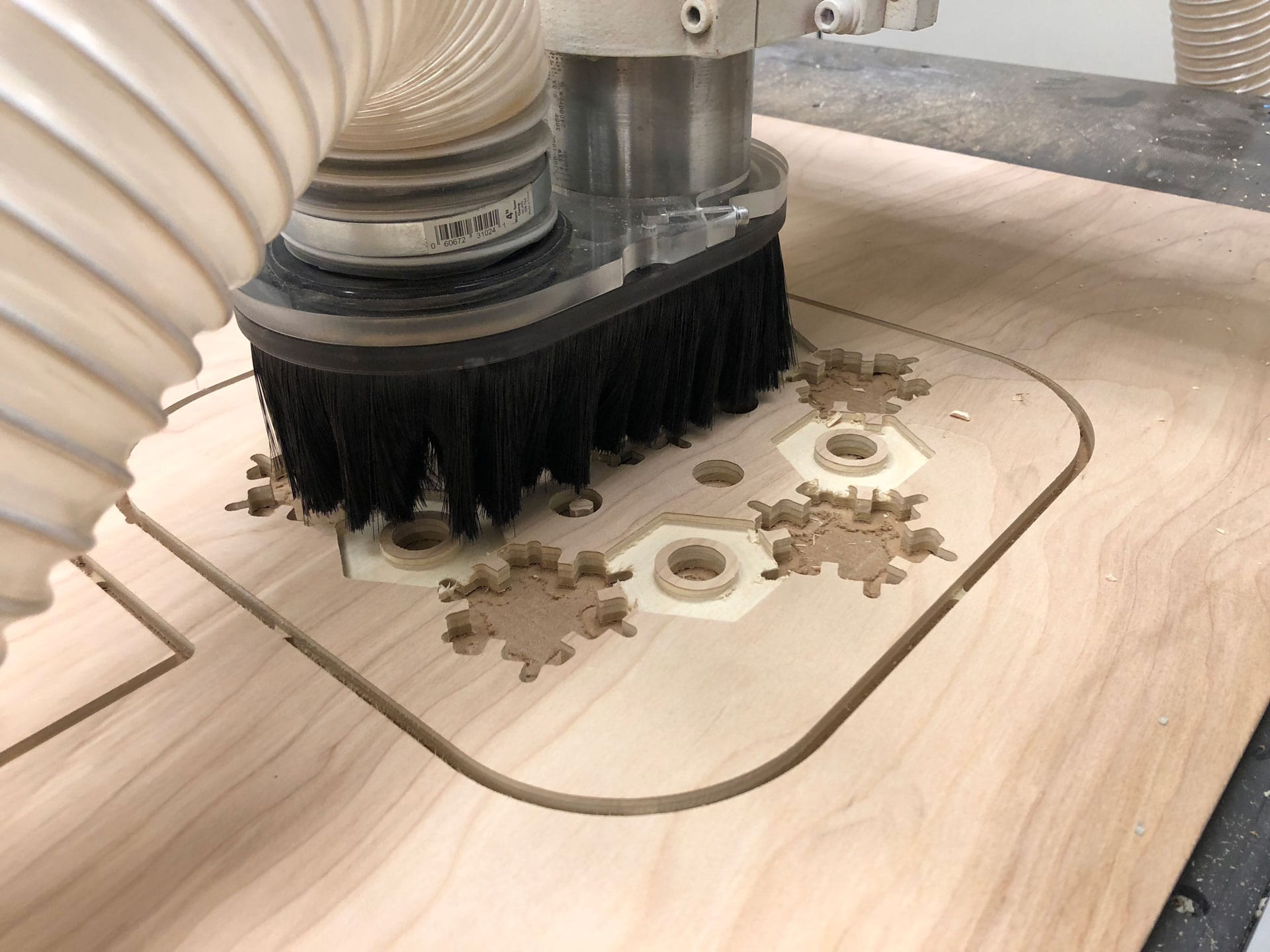
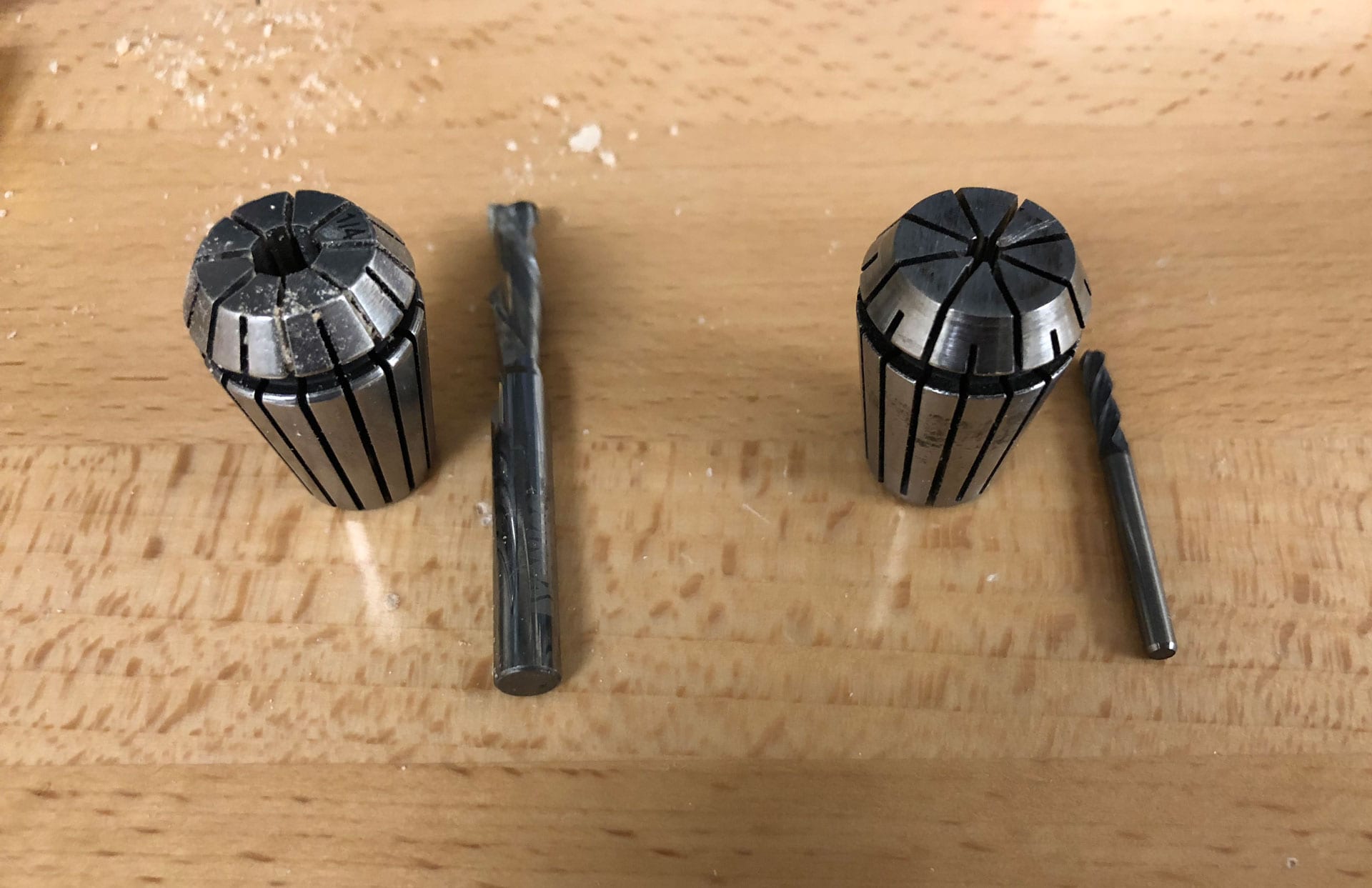
    Locking down sacrificial material Turning on main power switch for CNC machine Turning on coolant recycling machine for CNC machine Coolant on for CNC machine Turning on air compressor for nail gun Air compressor at 100 PSI for nail gun Air compressor at 100 PSI for nail gun Using nail gun to fasten 1/4" plywood to sacrificial material with 1" plastic composite finish nails Plastic composite finish nails Tools for unscrewing the collette and bit and my 1/4" bit for roughing 1/4" End mill bit for 2D Contour toolpath Adjusting x and y axis using arrow keys (up-down for y and left-right for x) Adjusting x and y axes in the Mach 3 software that interfaces with our CNC Machine Adjusting x and y axes in the Mach 3 software Zeroing x and y coordinates at bottom left of material Screwing in 1/4" end mill bit Zeroed coordinates Finding z coordinate to zero on Mach3 as close to the top of the material (T.O.M.) as possible (this meant moving the bit across the material to make sure I had the absolute T.O.M.) Zeroed x, y, and z coordinates Moving end mill in z direction lower than T.O.M. to make sure the bit cuts all the way through the material Moving end mill in z direction lower than T.O.M. to make sure the bit cuts all the way through the material Moving end mill in z direction lower than T.O.M. to make sure the bit cuts all the way through the material Securing sacrificial material Securing the dust boot Moving the end mill away from the T.O.M. and hiting "Cycle Start" to start the cutting process Turning on the vent Starting cutting process Cutting process Cutting process Close up of tabs Close up of tabs Corner pieces being cut Corner pieces being cut Corner pieces being cut Corner pieces being cut Mach3 spoftware showing cutting progress Mach3 spoftware showing cutting progress Me! Happy machining! Me. Serious machining. Me. Checking the machine while taking a selfie. Cutting the corner pieces Cutting the corner pieces Cutting the corner pieces Cutting the corner pieces Noticing a piece who's tabs broke and separated from the plywood Cutting the corner pieces Cutting the corner pieces Cutting the corner pieces The broken corner piece. I realized then that I should have cut some extra pieces (planning for the future) 1/8" Round mill bit for routing dogbones 1/8" Round mill bit for routing dogbones 1/8" Round mill bit for routing dogbones 1/8" Round mill bit for routing dogbones Closing G-code for 2D Contour Loading G-code for Drill toolpath for dogbones Adjusting z axis for dogbones Adjusting z axis for dogbones Adjusting z axis for dogbones Zeroing Z axes in Mach3 software Zeroing Z axes in Mach3 software Moving bit away from top of material Moving bit away from top of material Securing the dust boot Checking the bit placement by rotating the spindle Clicking "Cycle Start" to start the Drill toolpath for dogbones Moving the bit closer to me to replace the bit Moving the bit closer to me to replace the bit Moving the bit closer to me to replace the bit 1/4" End mill bit to cut and replace the broken piece and a few extras Putting on dust boot Finding x, y and z coordinates for zeroing Zeroing x, y and z axes in Mach3 Moving bit away from top of material Pressing "Cycle Start" on Mach3 to begin cutting replacement pieces Cutting pieces Cutting pieces Using chisel to break tabs when pieces are on both sides (chisel end in the middle of the tab) How to chisel tab with only one piece on a side Using chisel to break tabs when there is only one piece on one side (chisel end rests to the farther side of the tab) Need to replace chisel Turning off machine Turning off chiller Cool photo for Instagram :)

    CNC Milling...Part 2

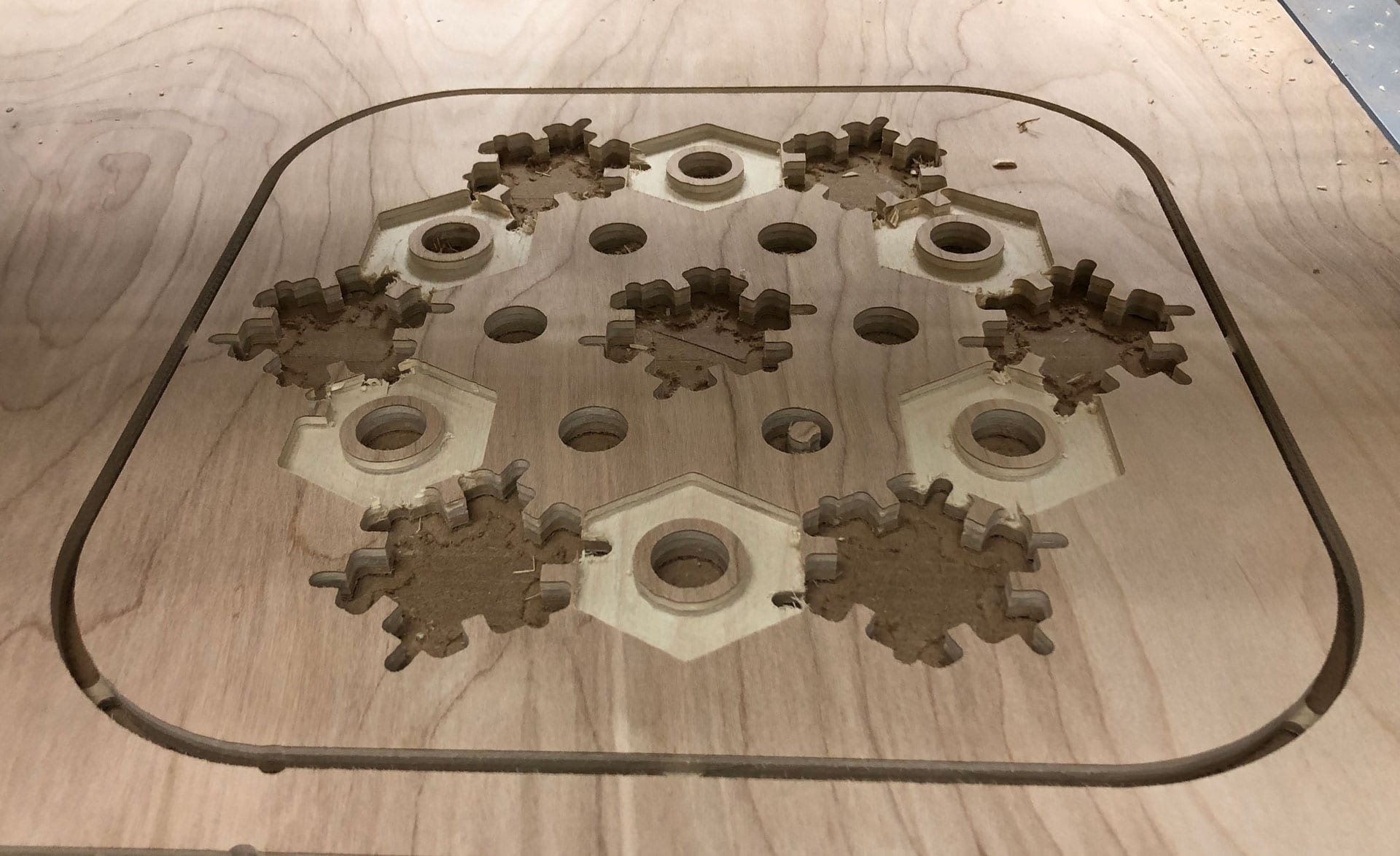
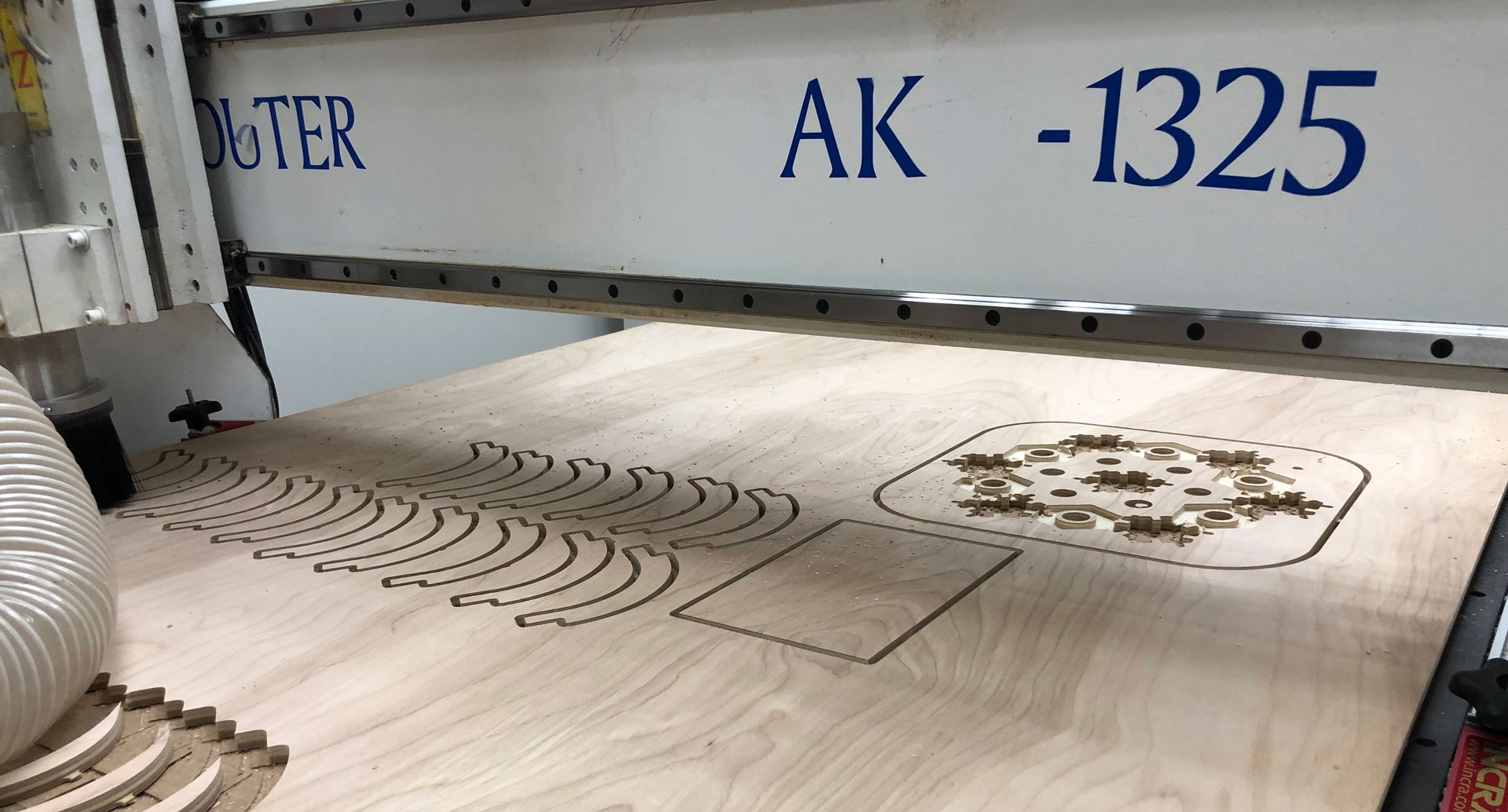
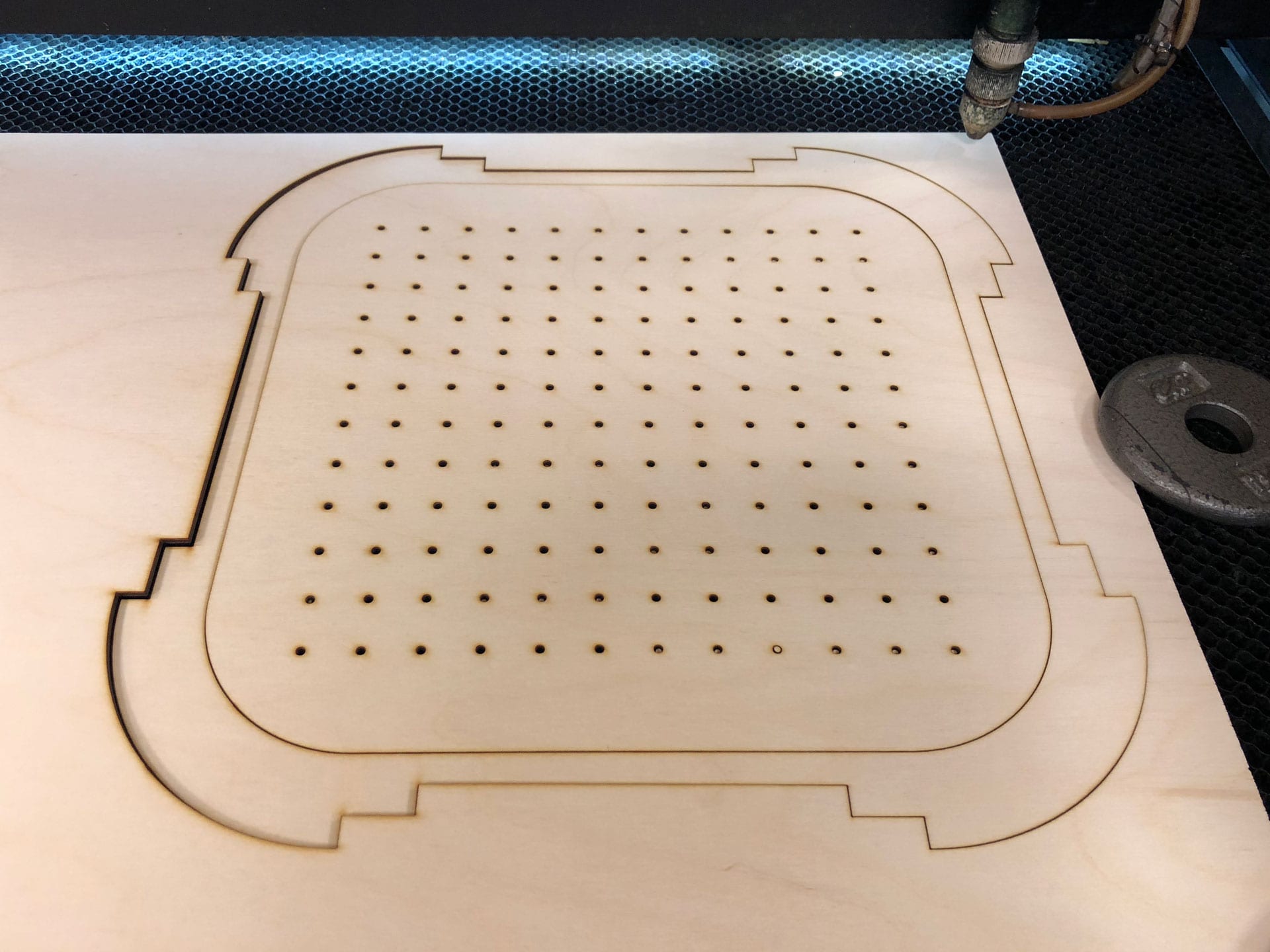
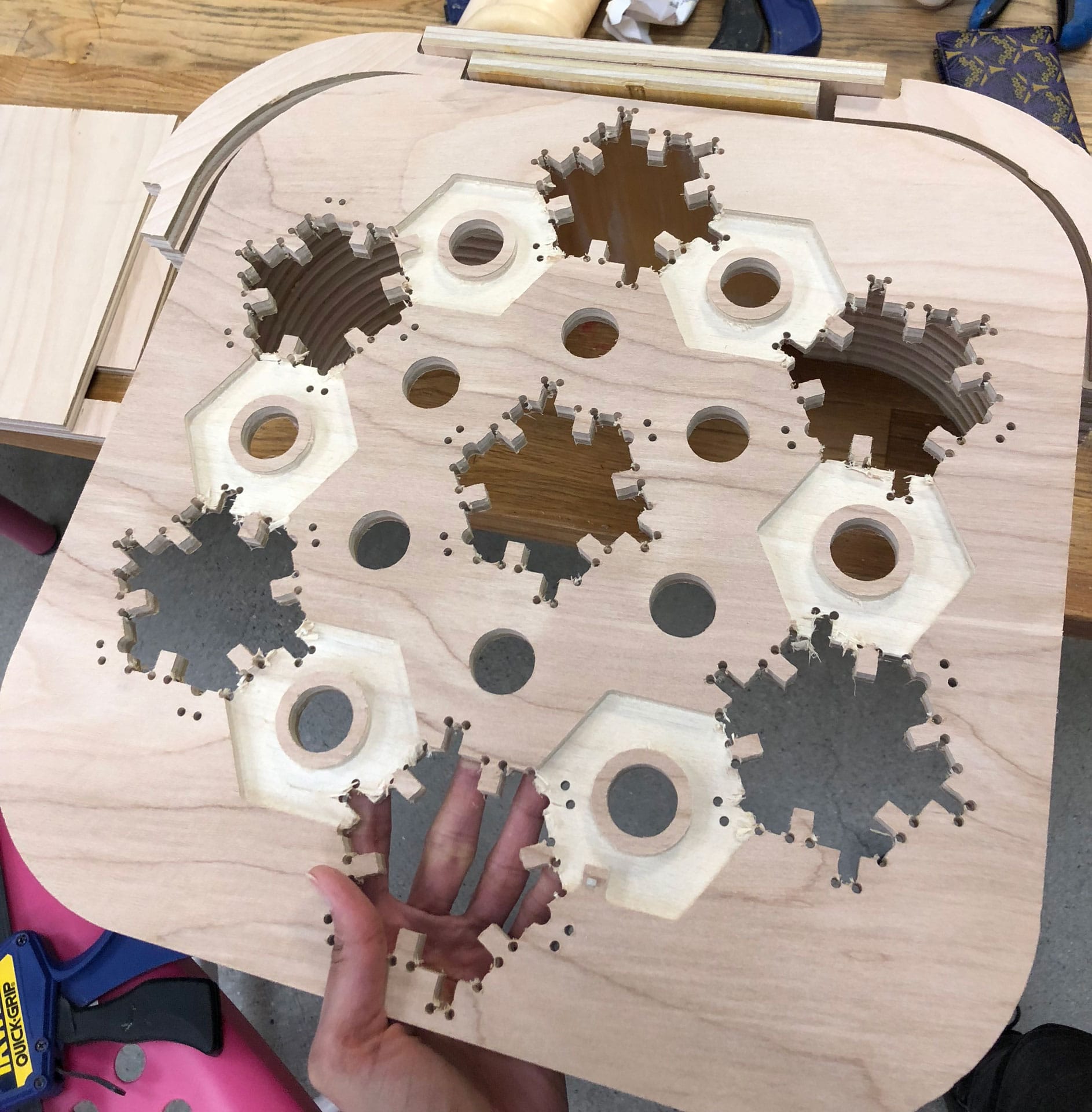
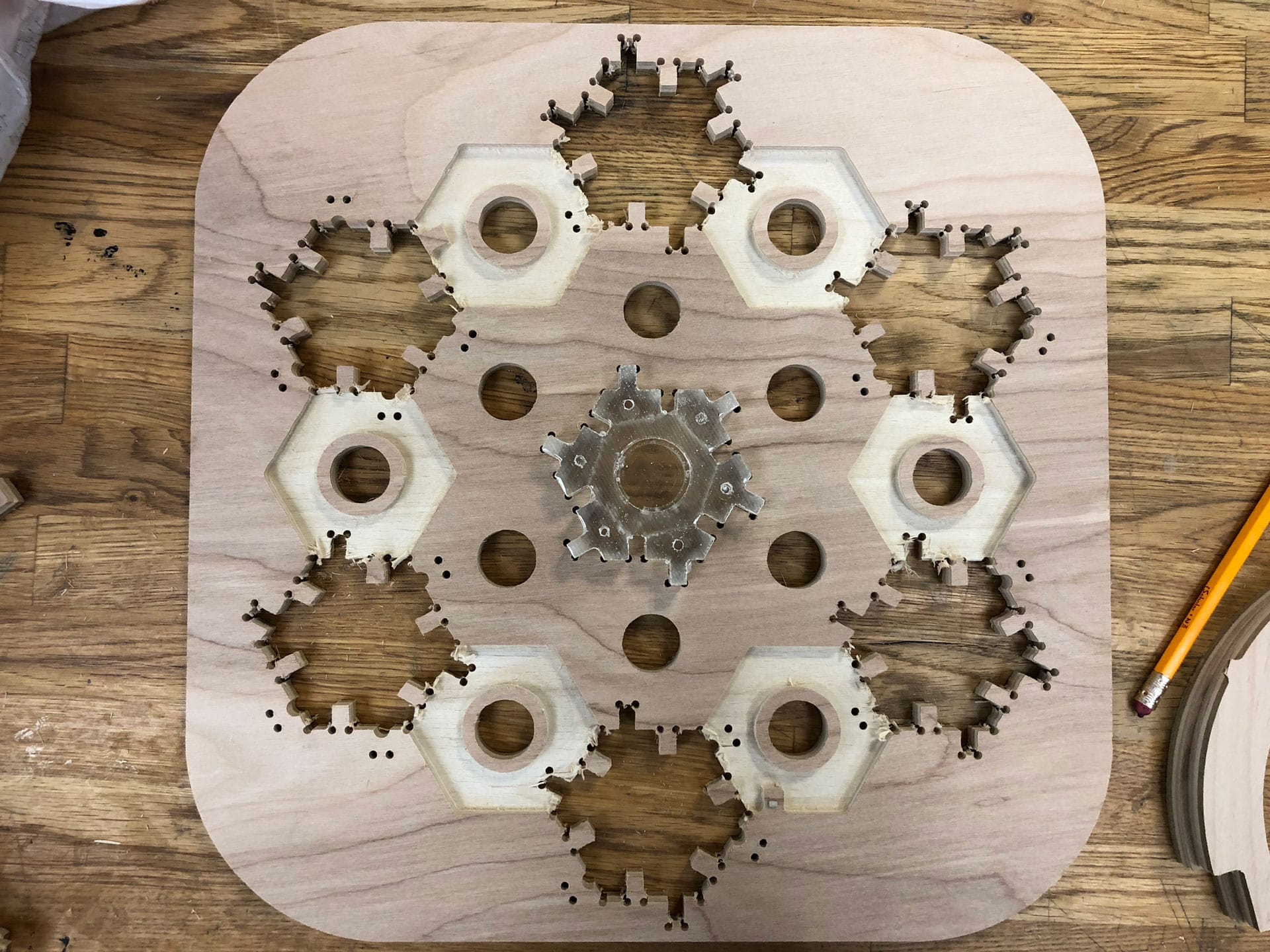
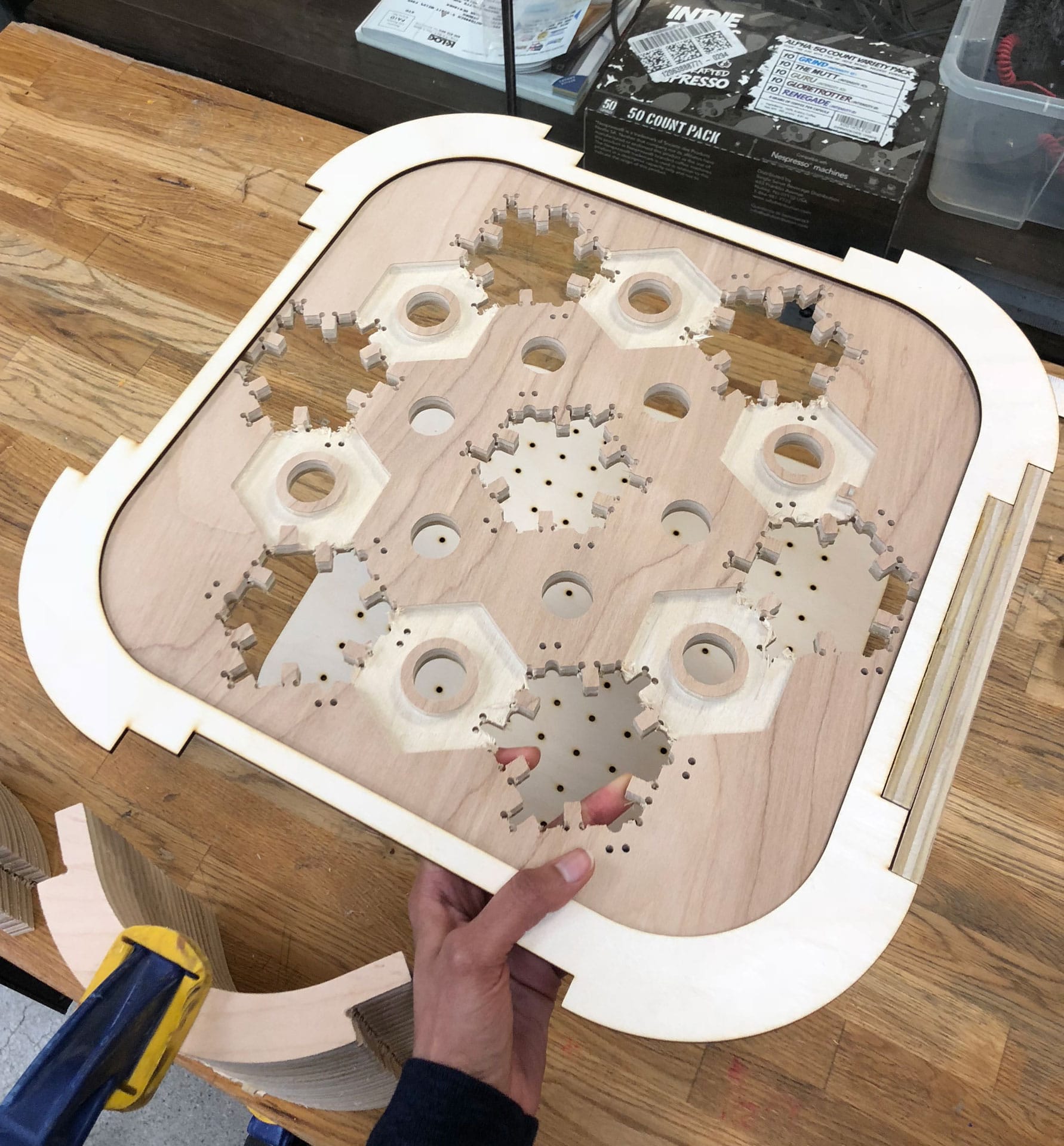
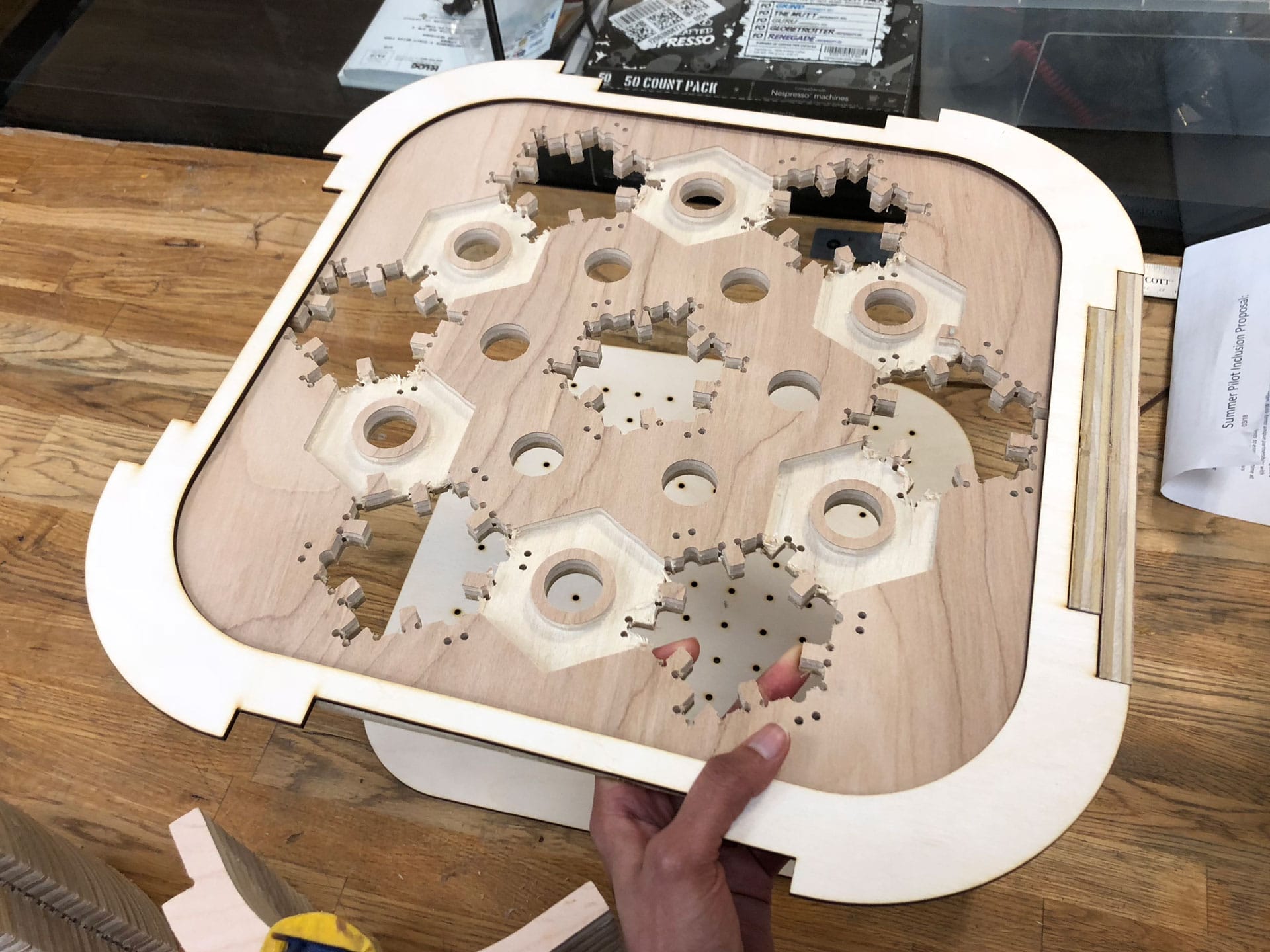
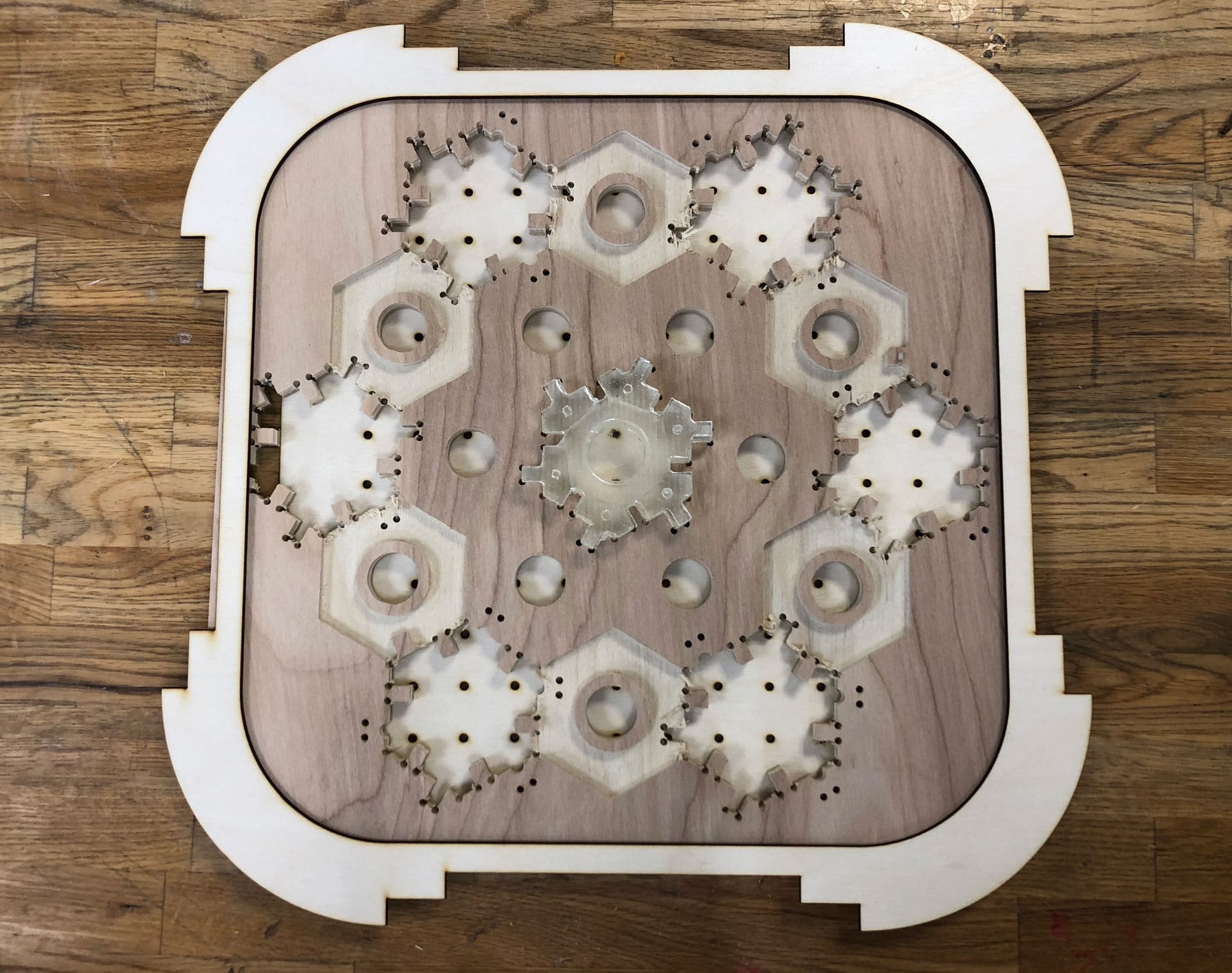
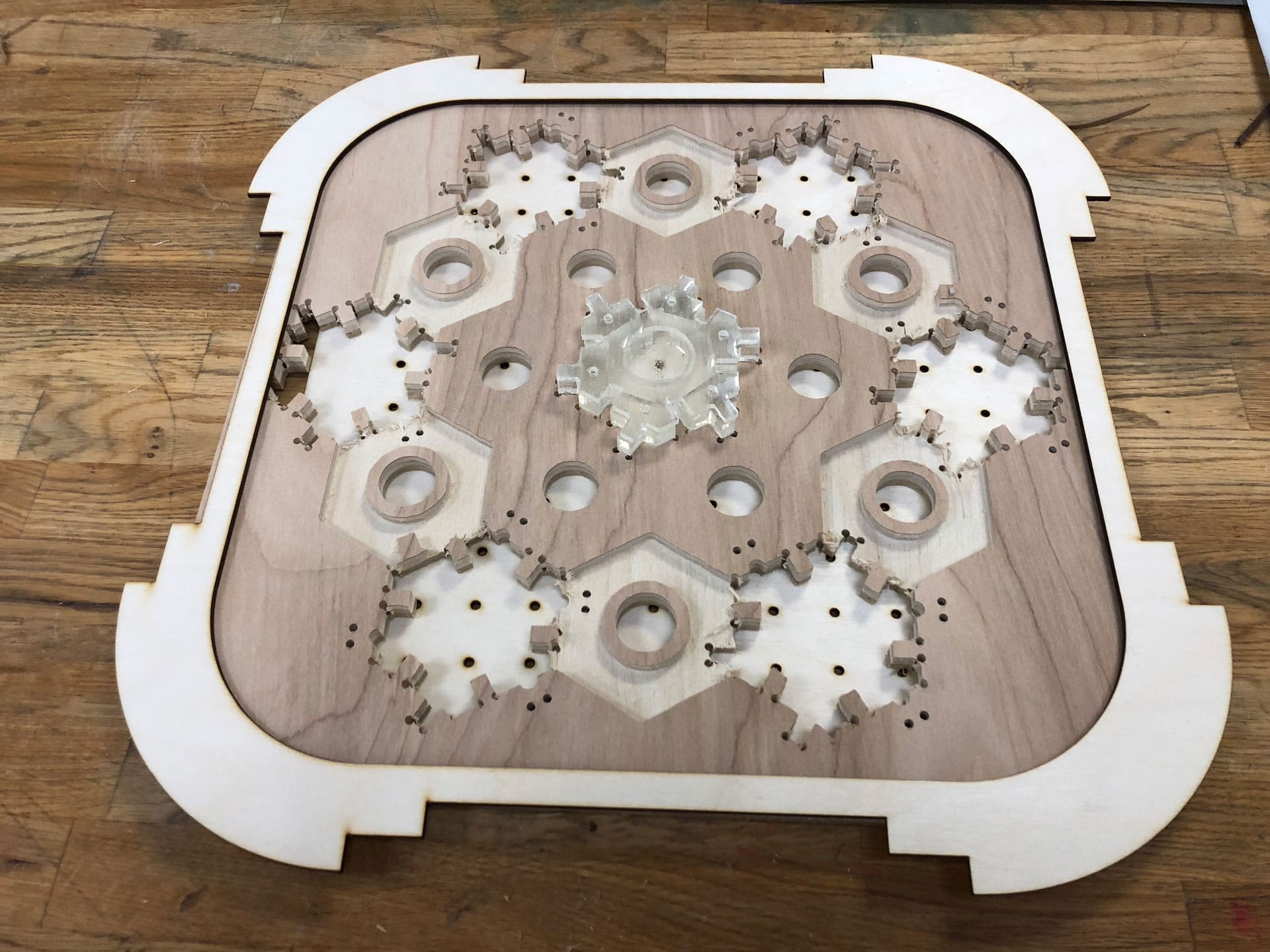
    So I discovered soon after milling all my pieces that I needed twice as many cut pieces (oh, sigh!). Back to the milling machine! I recut 50 more corner pieces, a few extra to be on the safe side. I also did a test cut of the shelf facade.

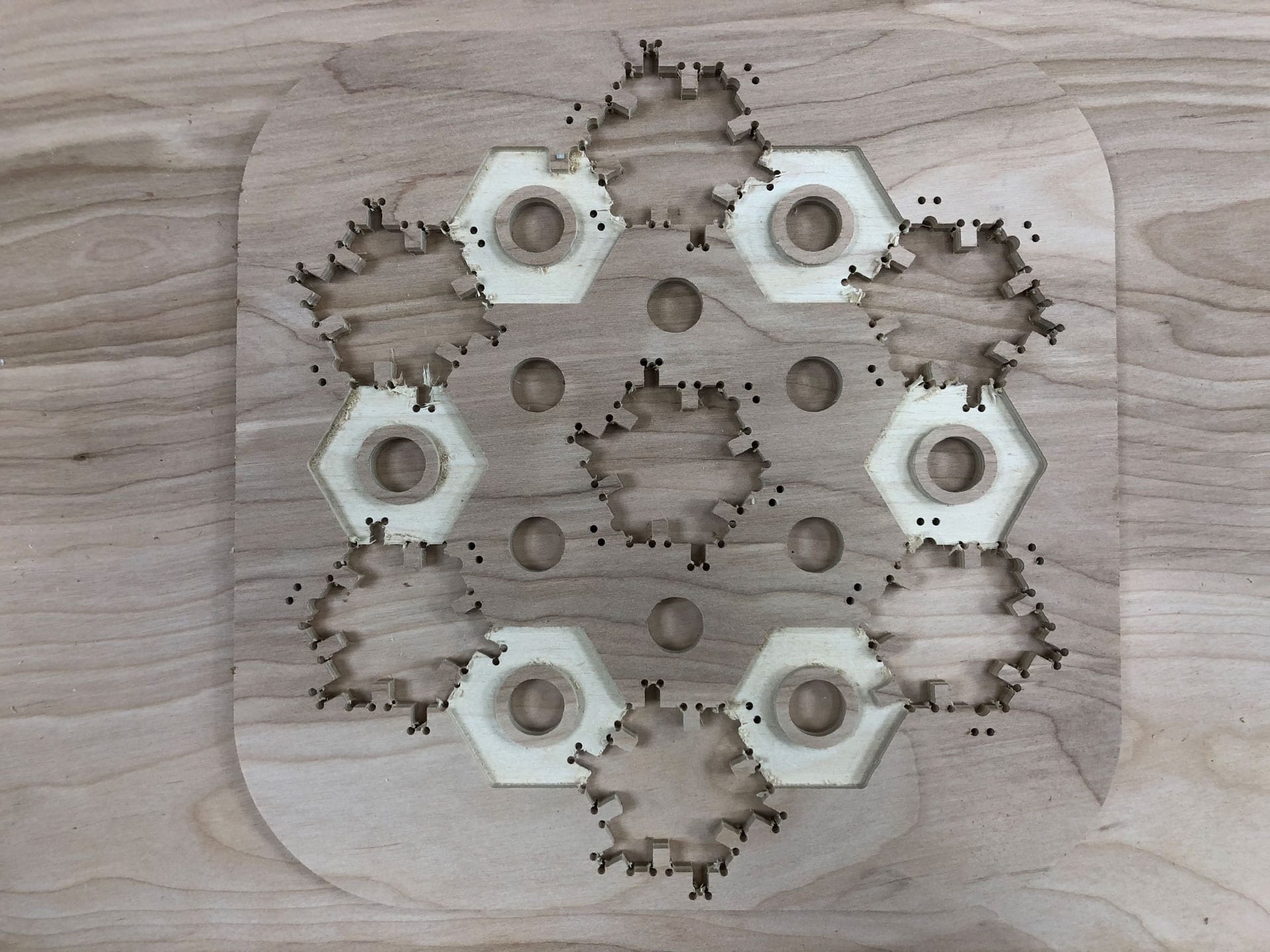
    Settings for second batch of cuts Cutting shelf facade Cutting shelf facade Cut shelf facade Cutting extra pieces Cutting extra pieces Cutting extra pieces 1/4" end mill for 2D contour toolpath and 1/8" end mill for drill toothpath for dogbogs Cutting dogbones Cutting dogbones Shelf facade (it's missing a few cuts interestingly, so will need to check the toolpath file to determine the cause)

    Assembling

    So I discovered soon after milling all my pieces that I needed twice as many cut pieces (oh, sigh!). Back to the milling machine! I recut 50 more corner pieces, a few extra to be on the safe side. I also did a test cut of the shelf facade.

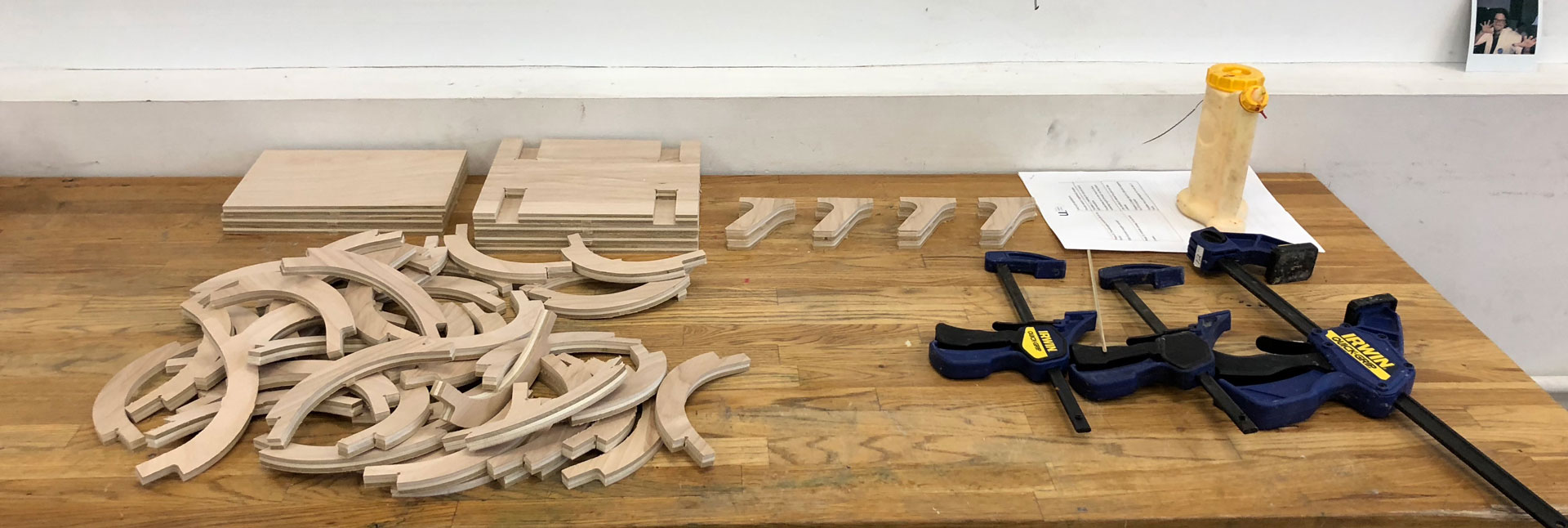
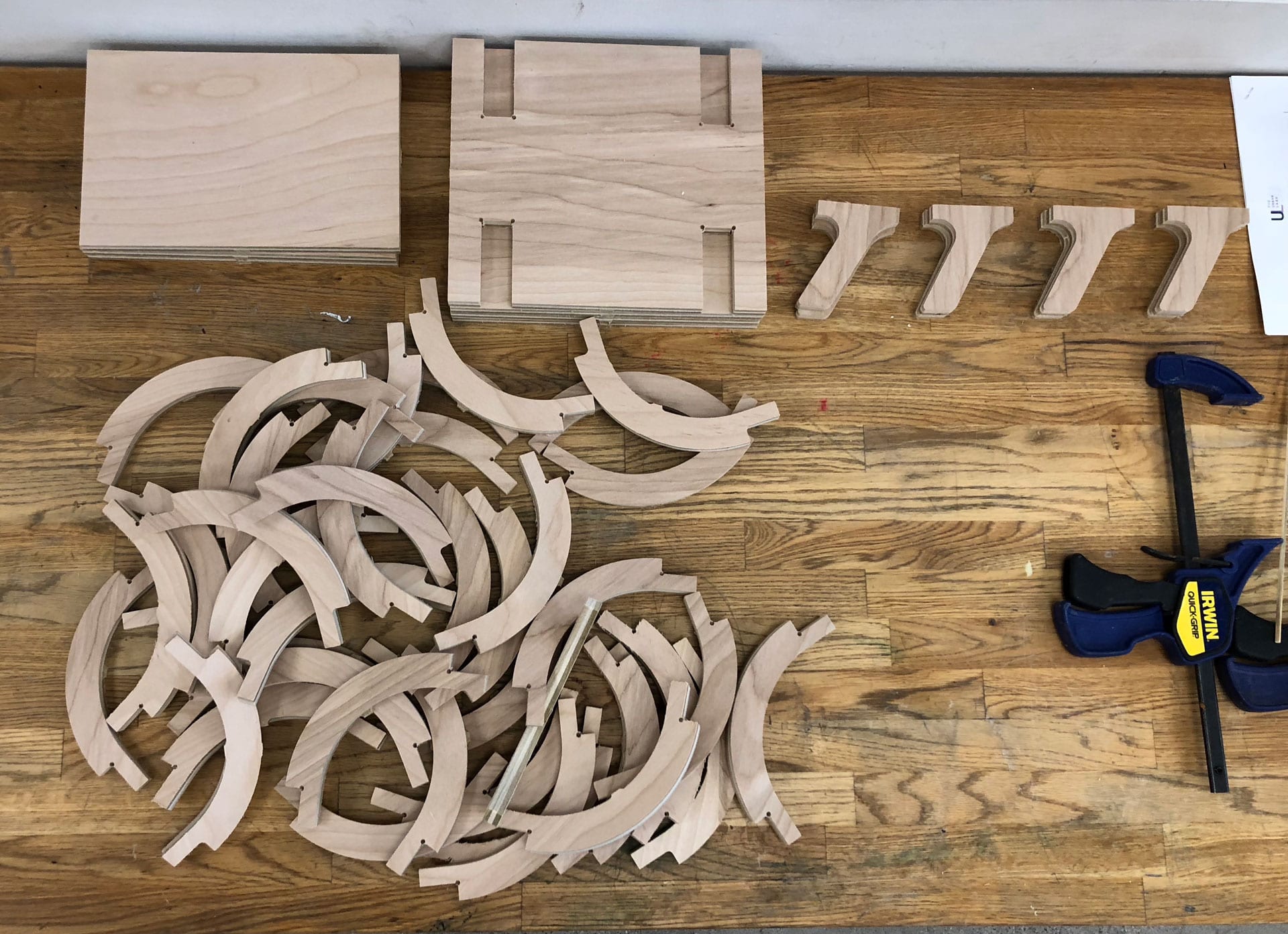
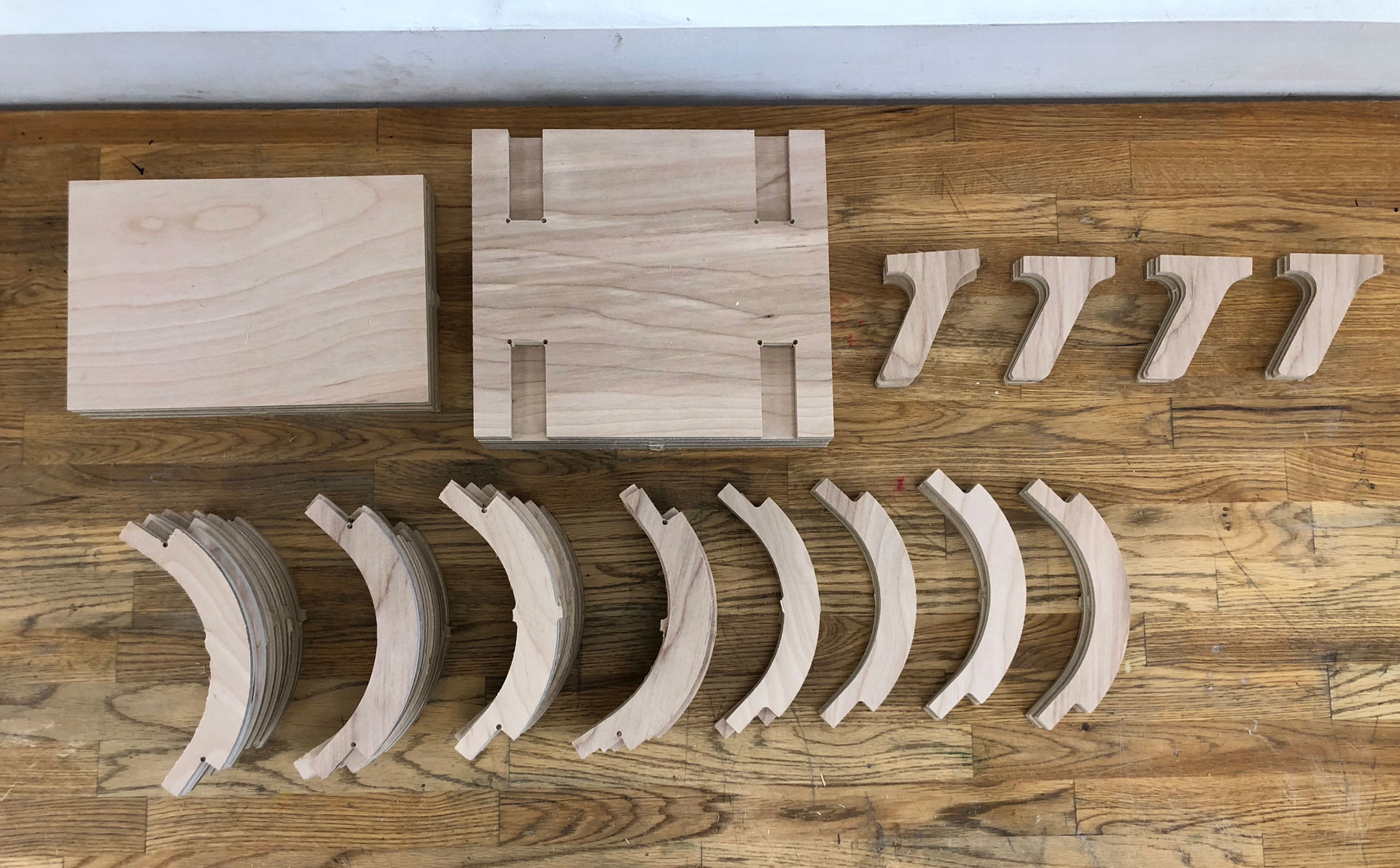
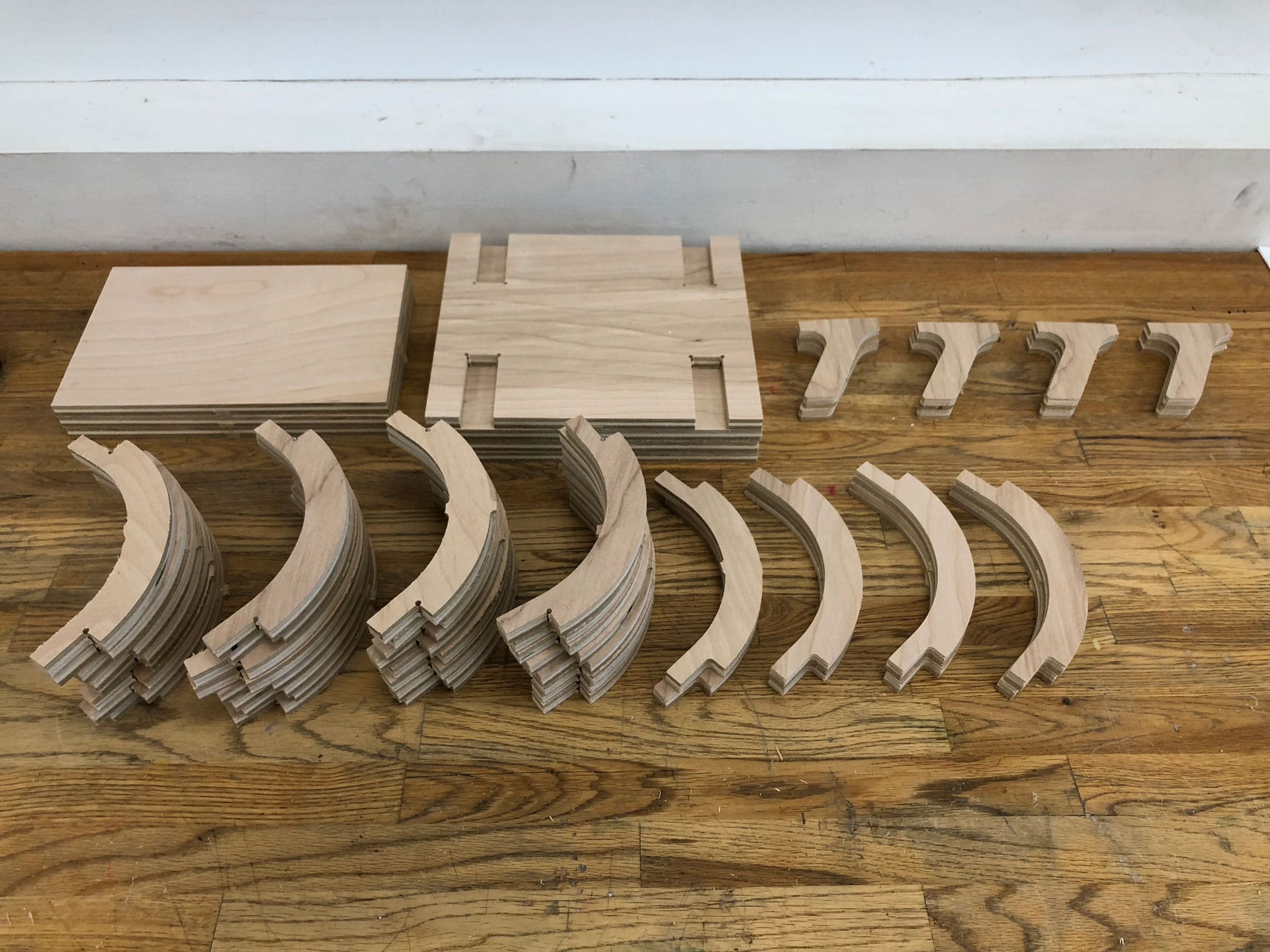
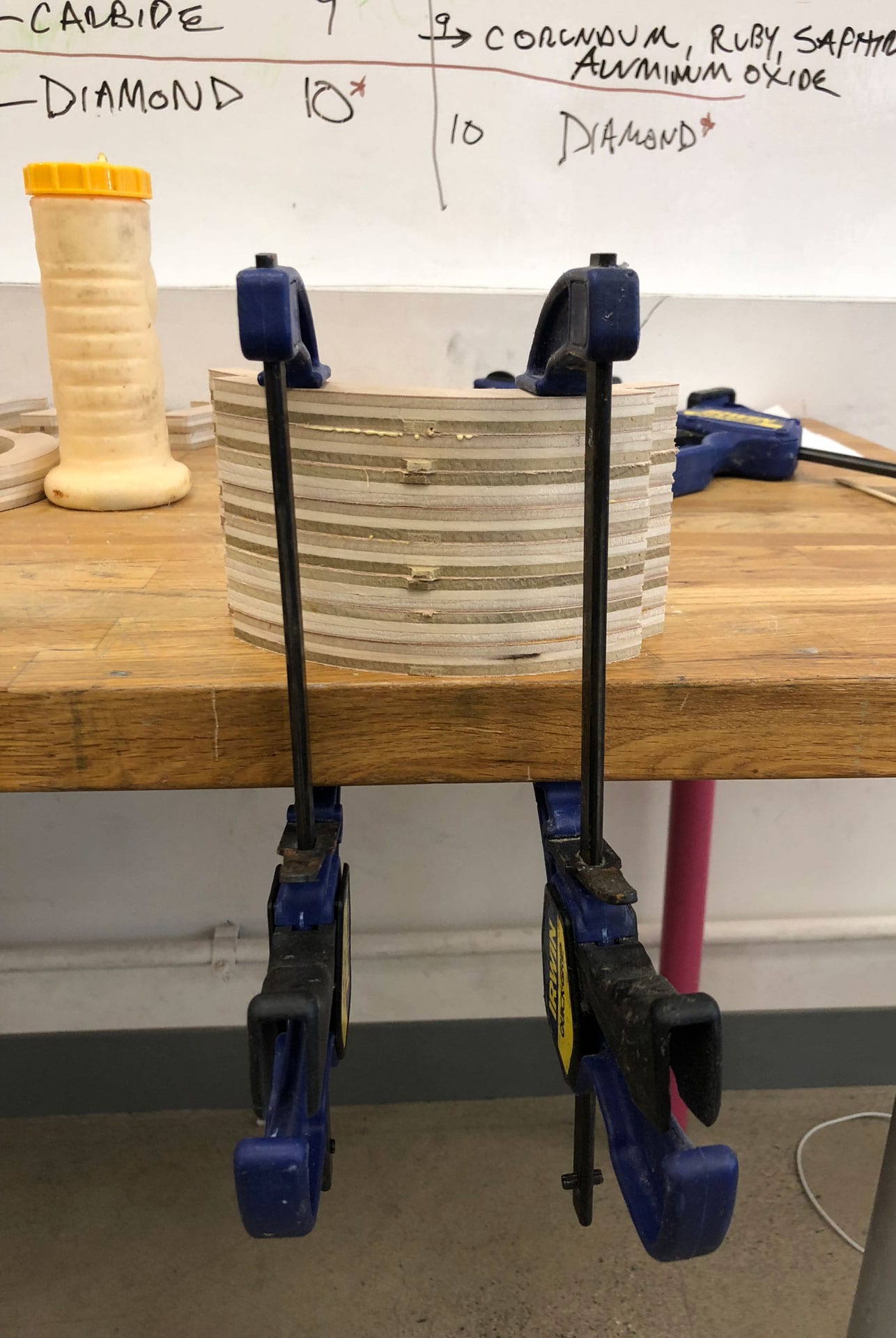
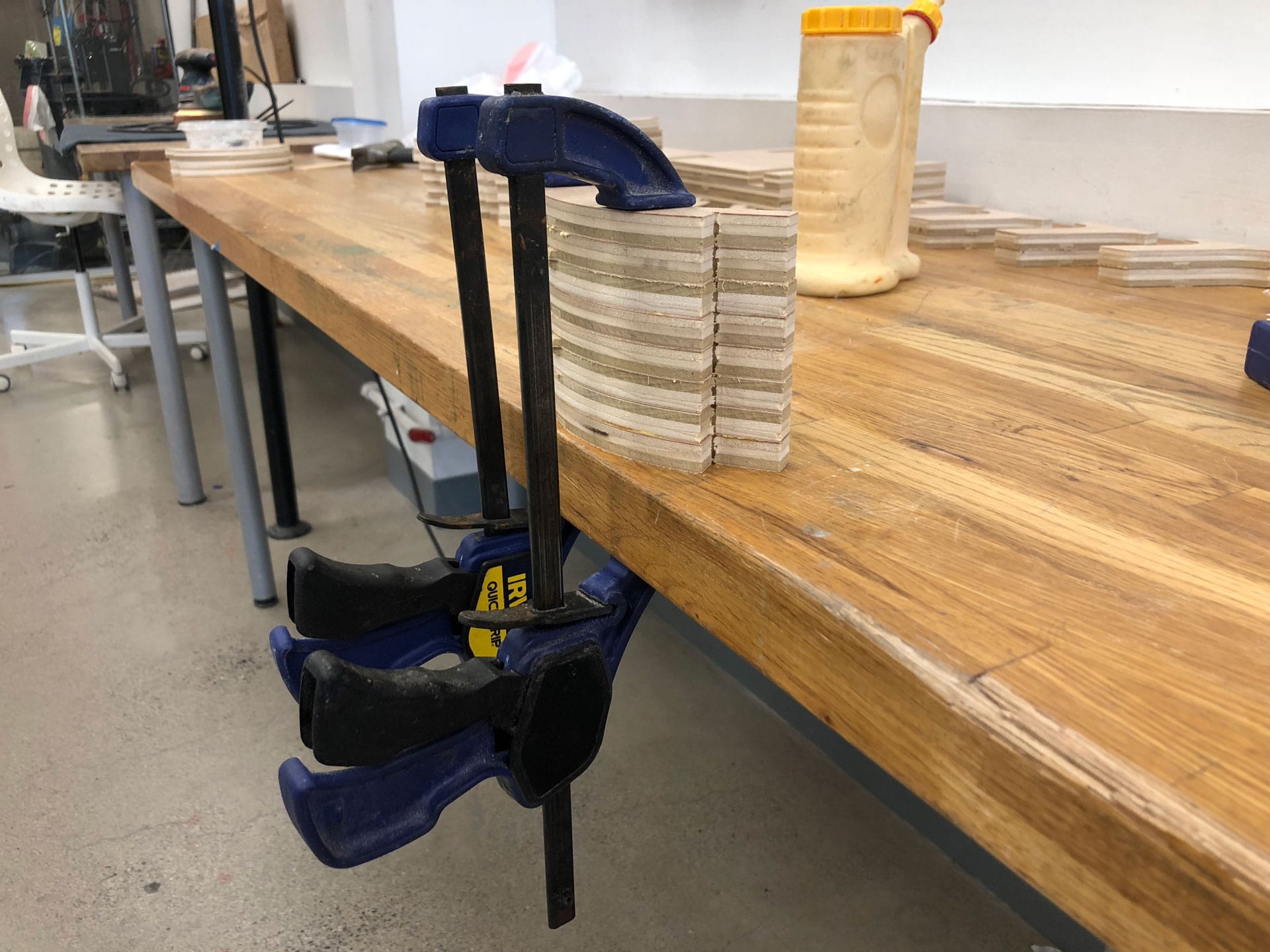
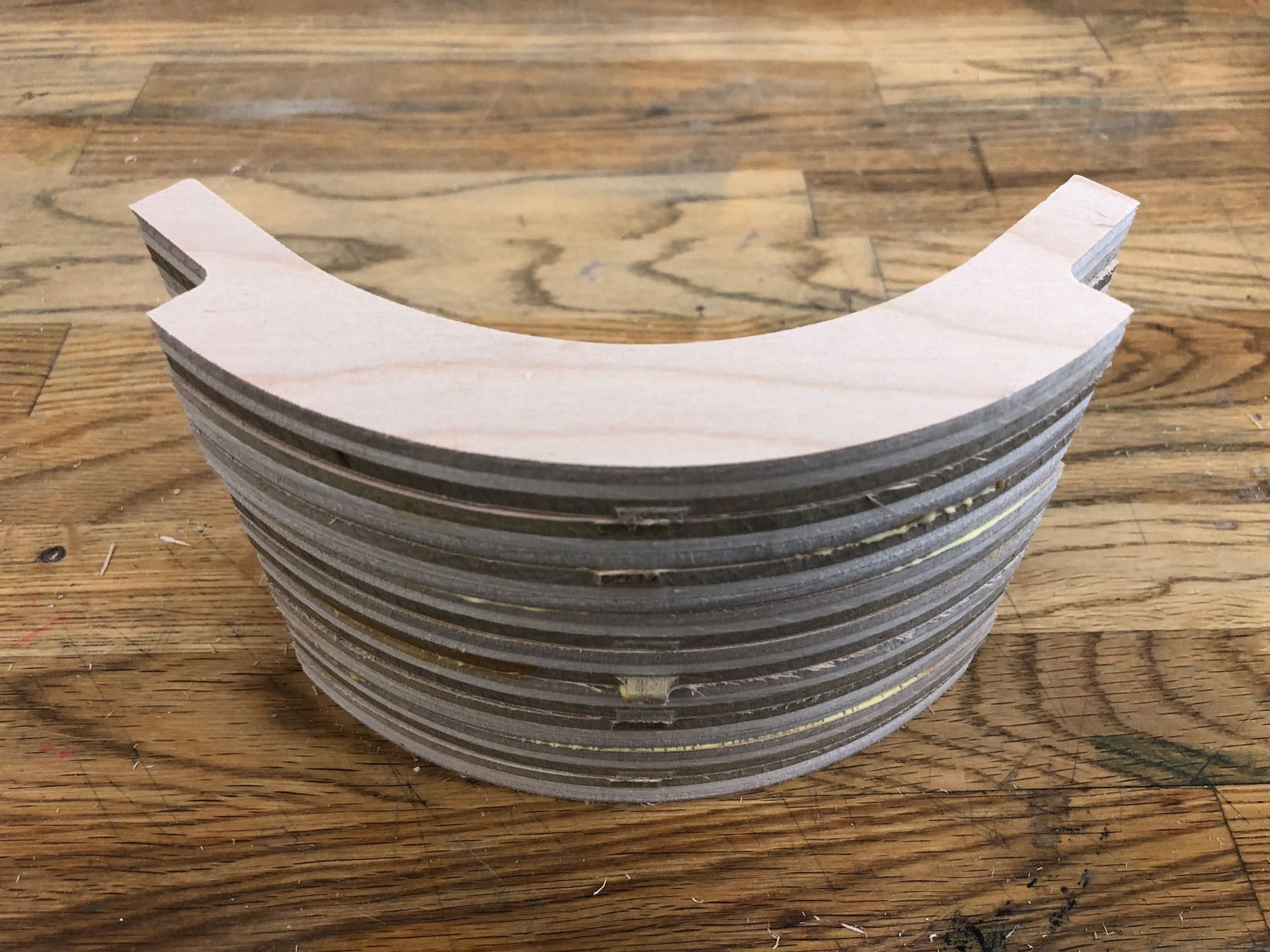
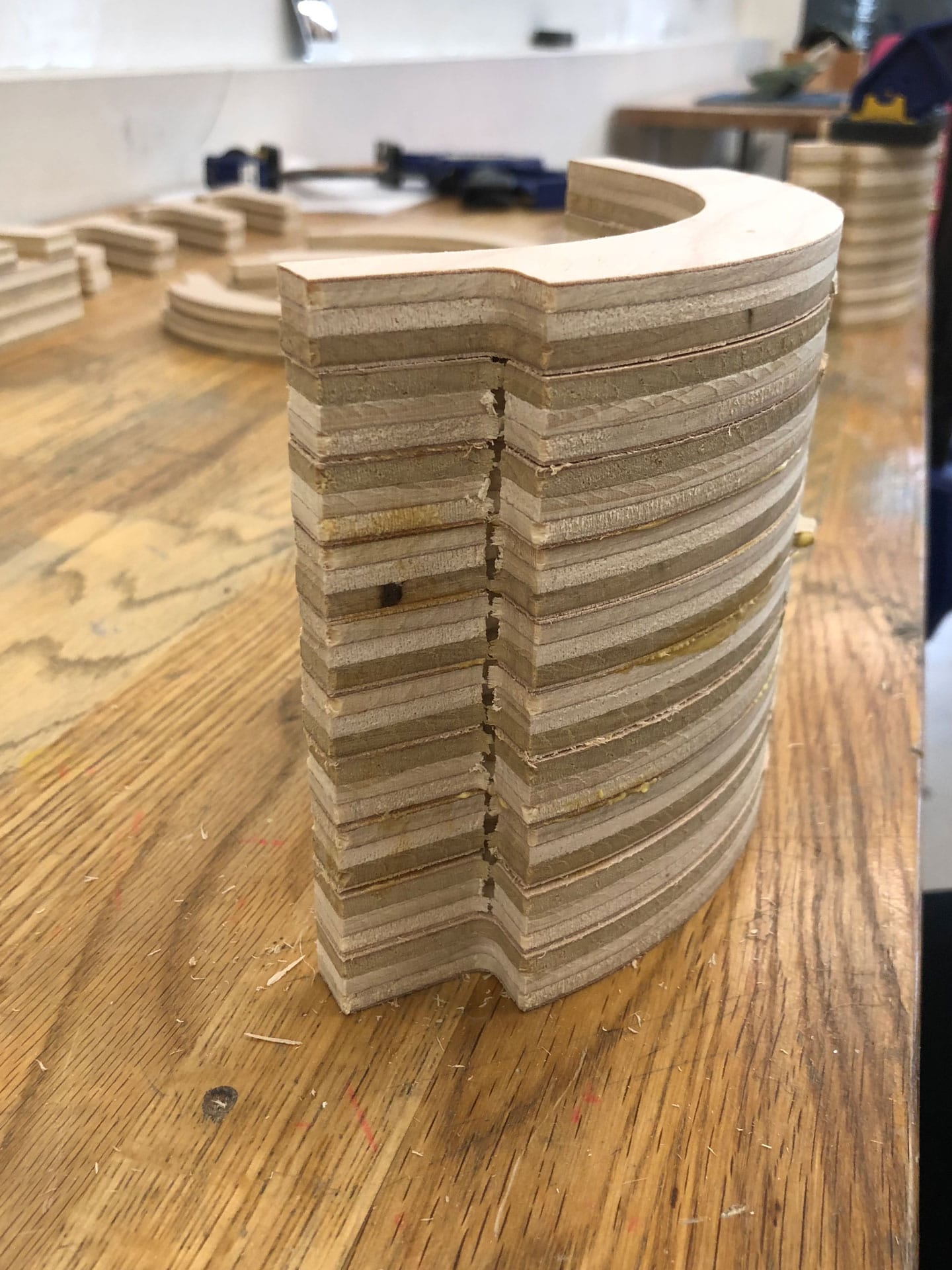
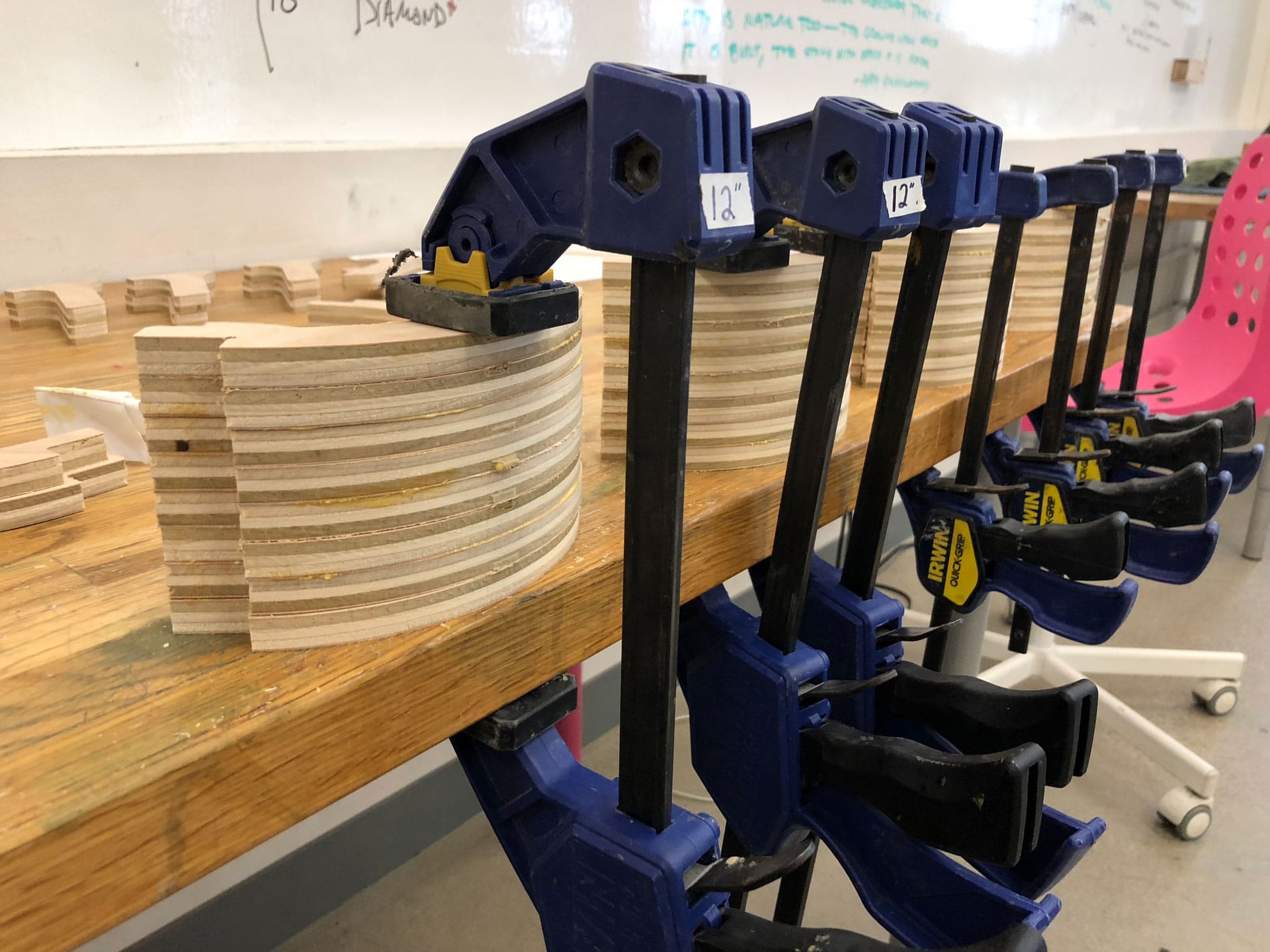
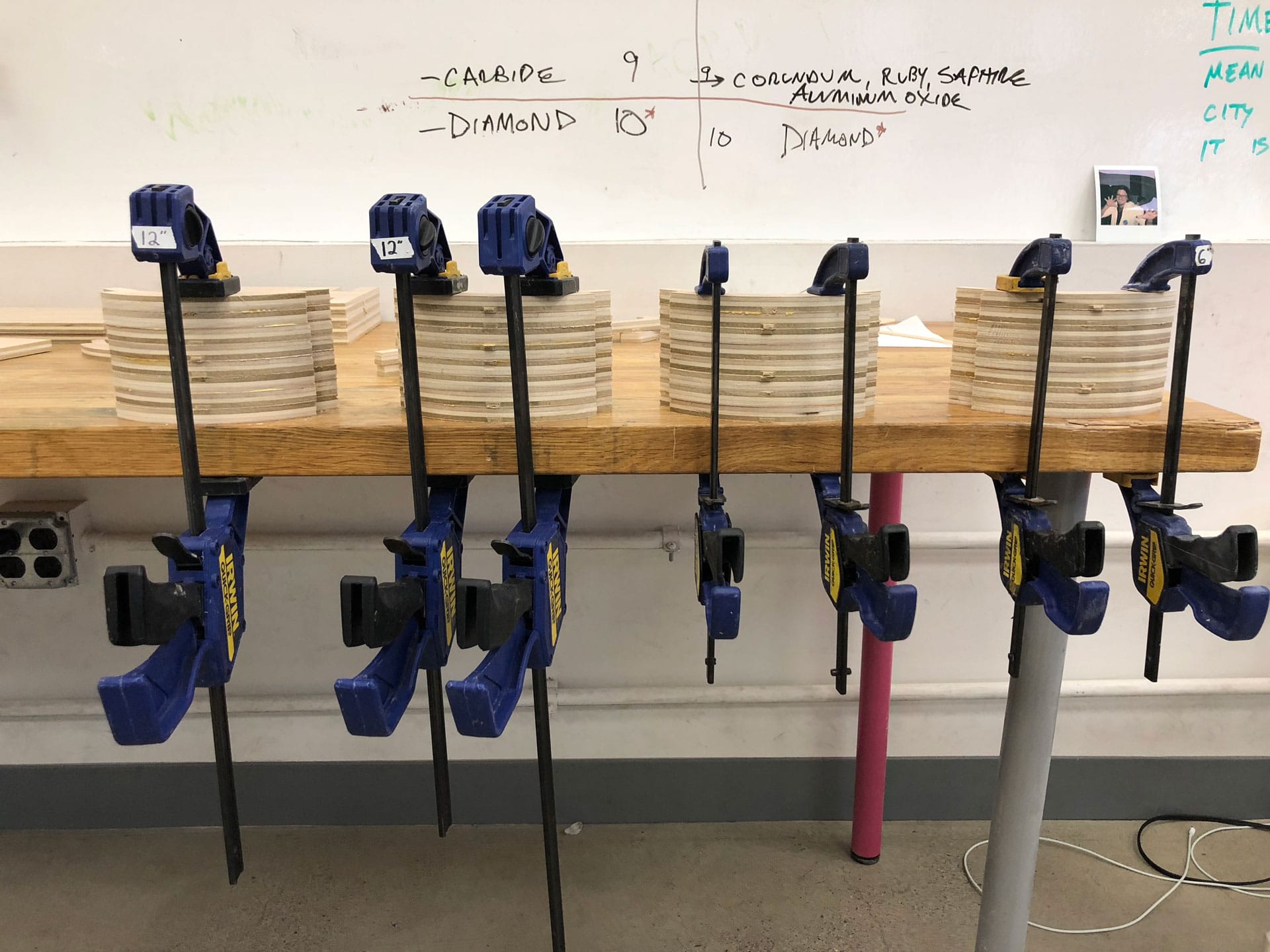
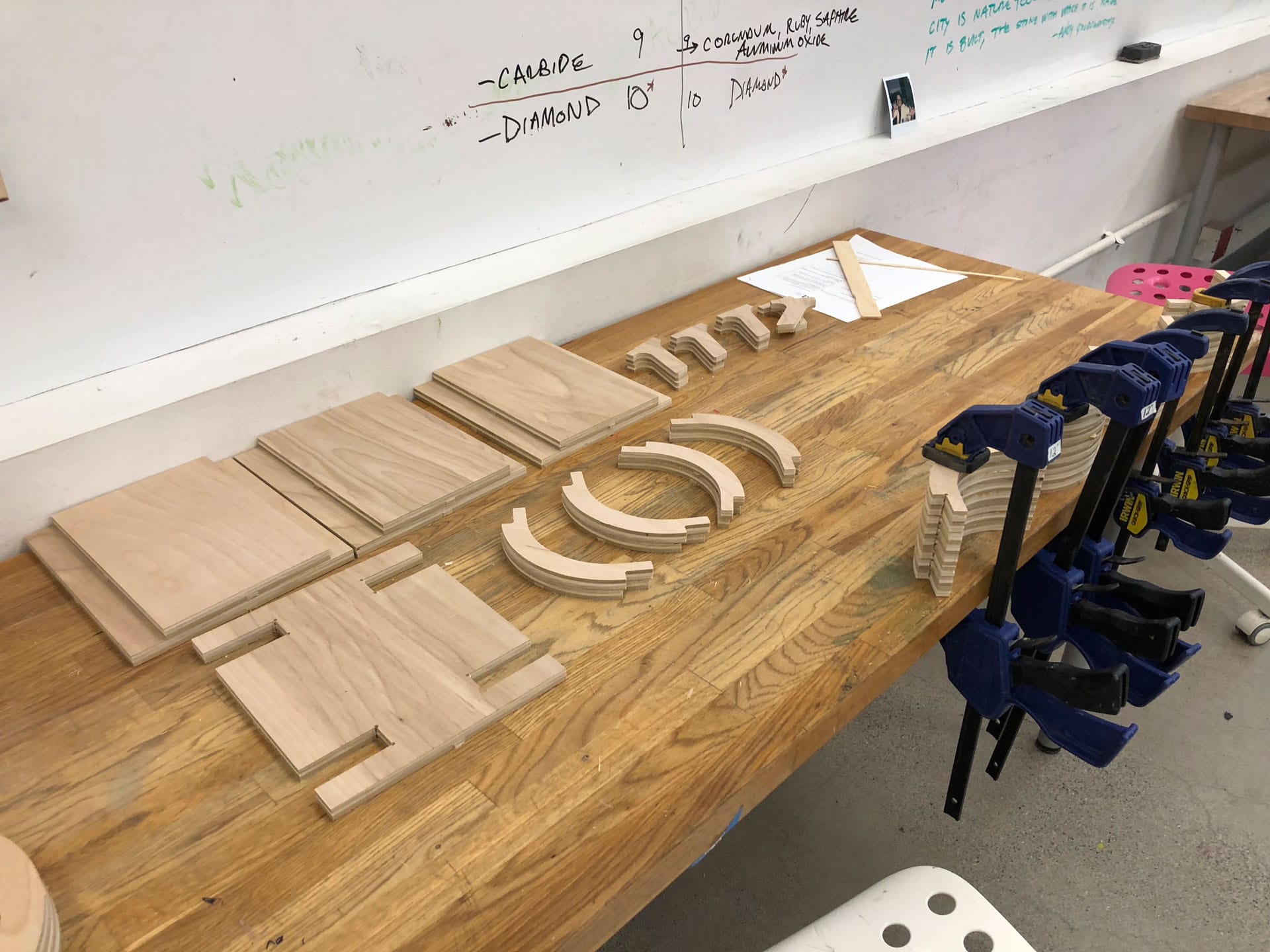
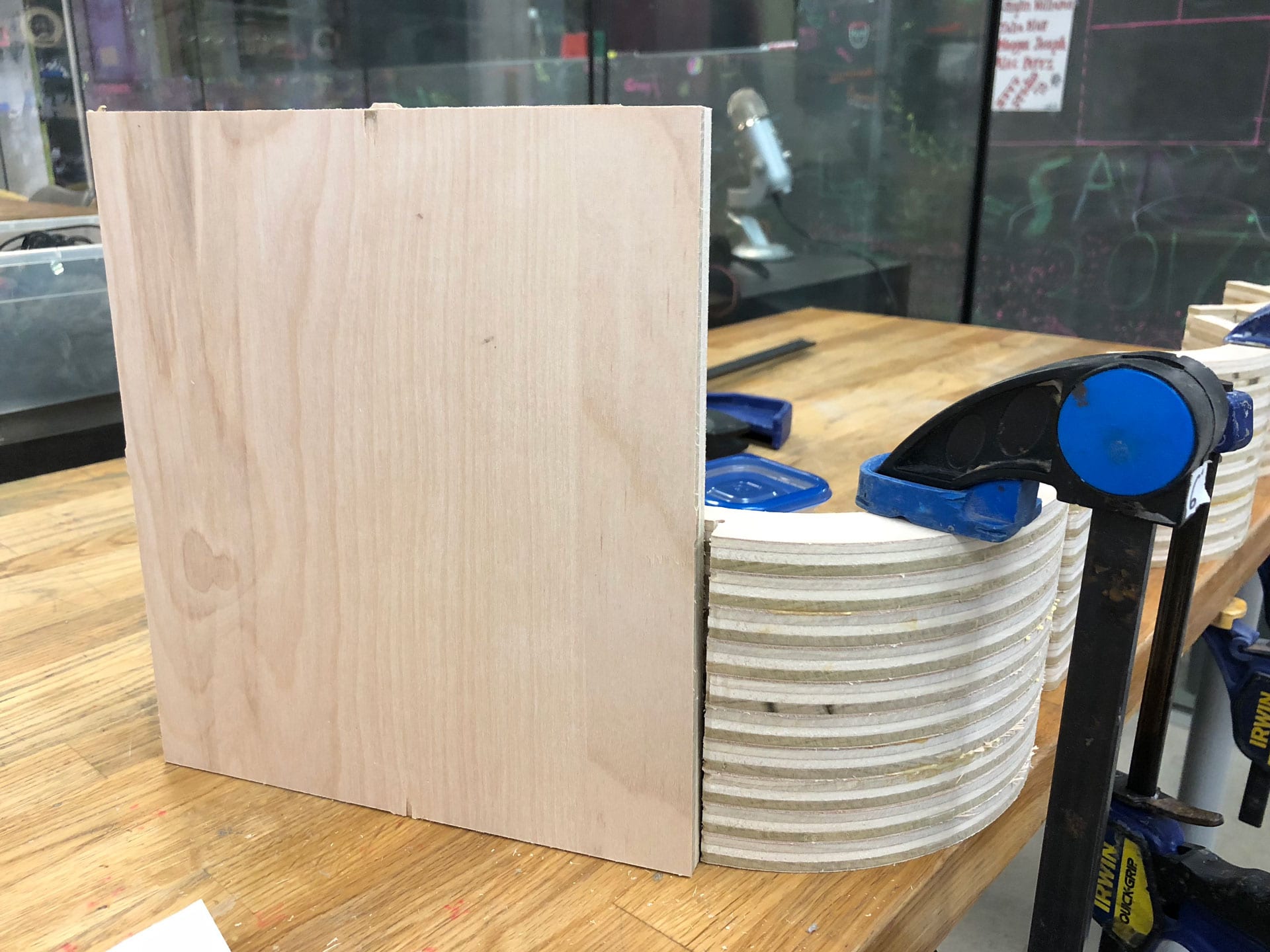
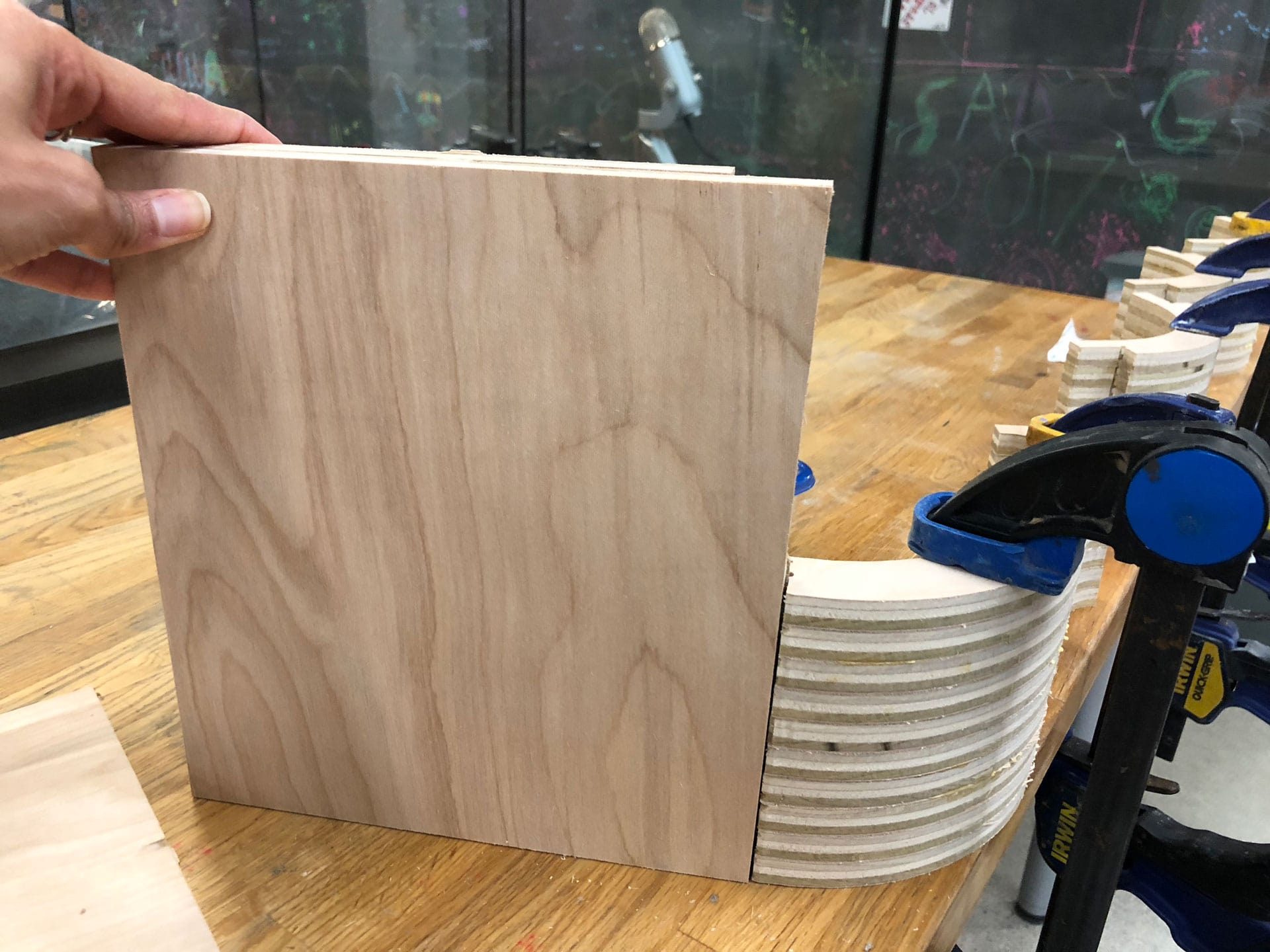
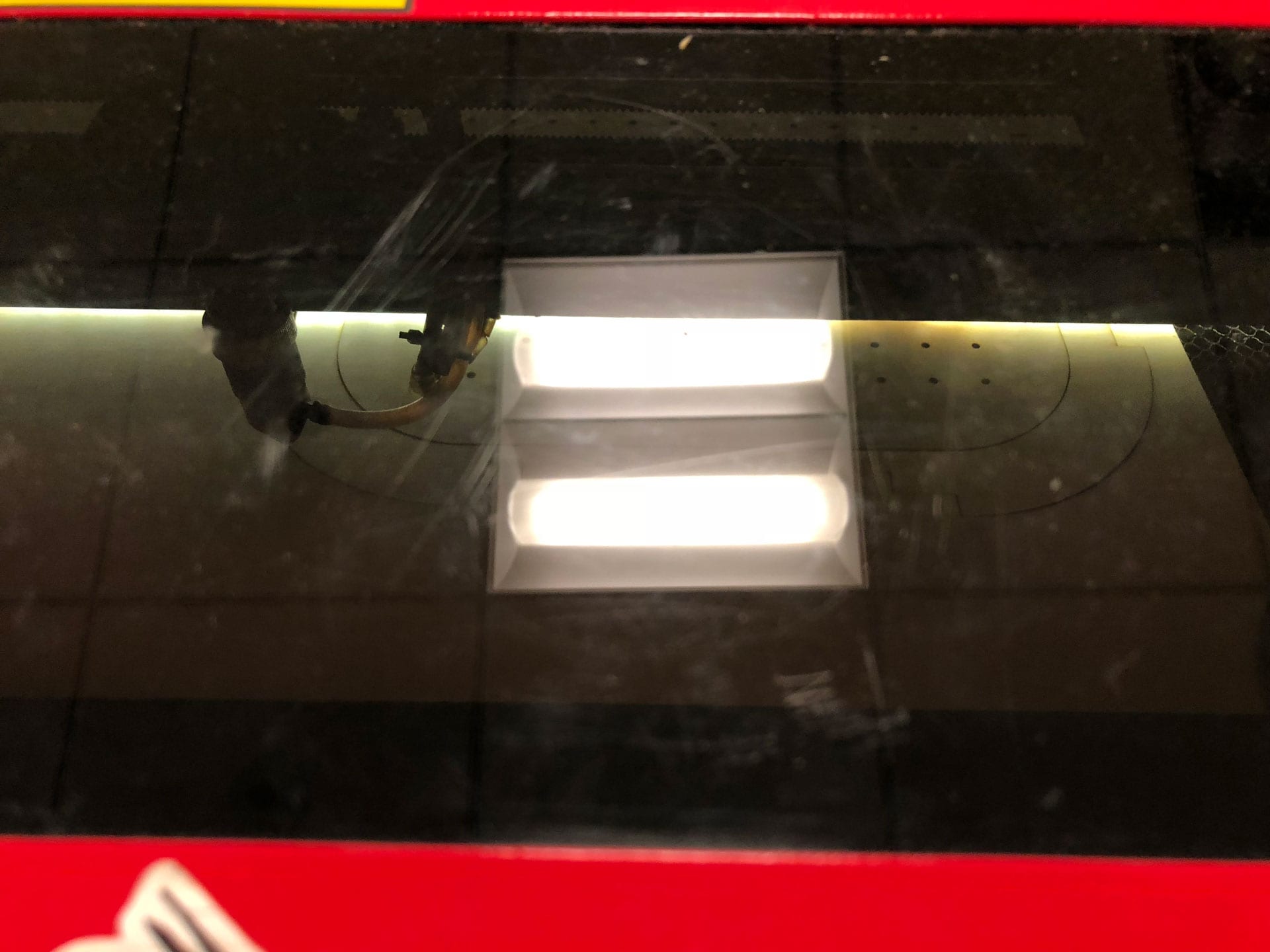
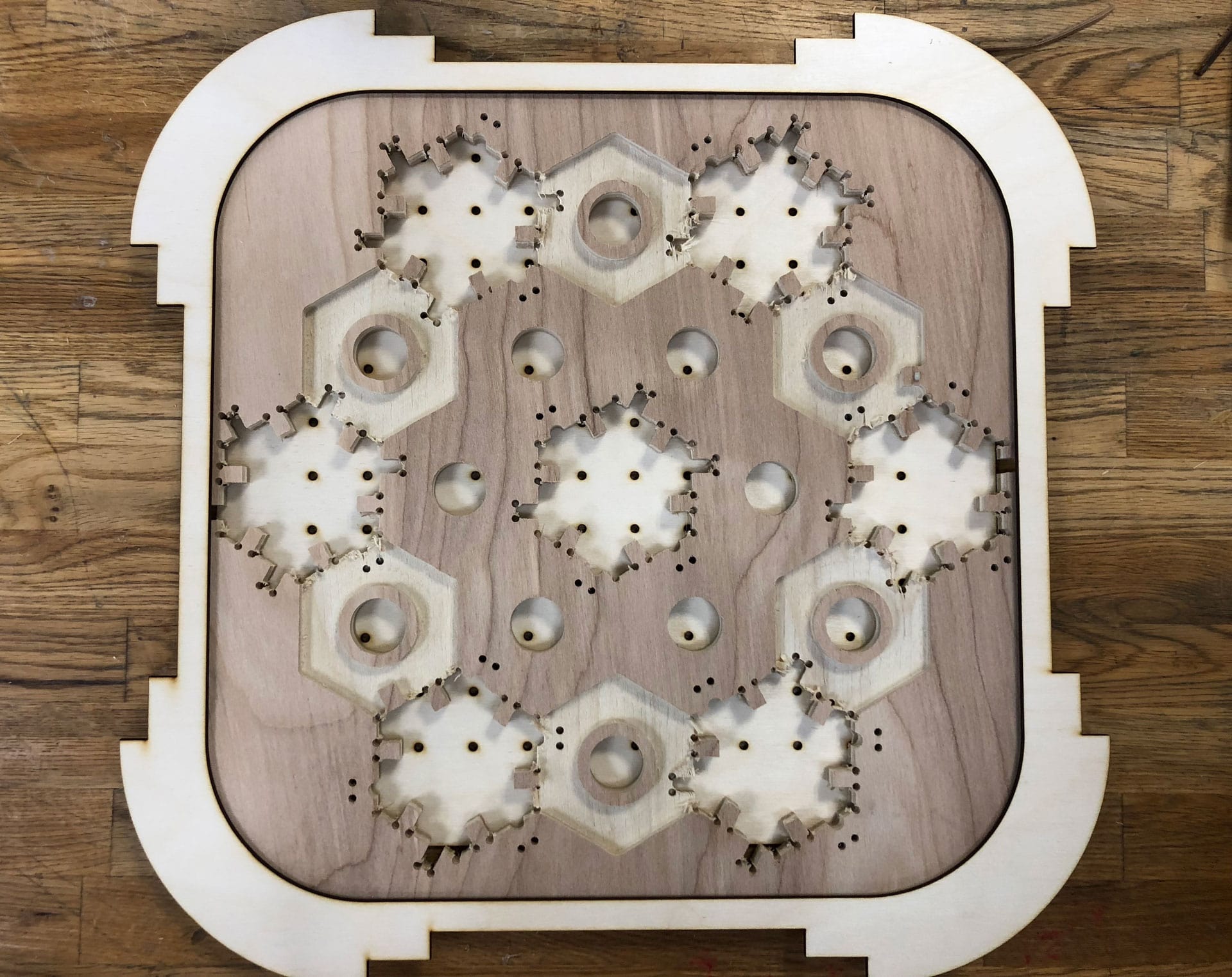
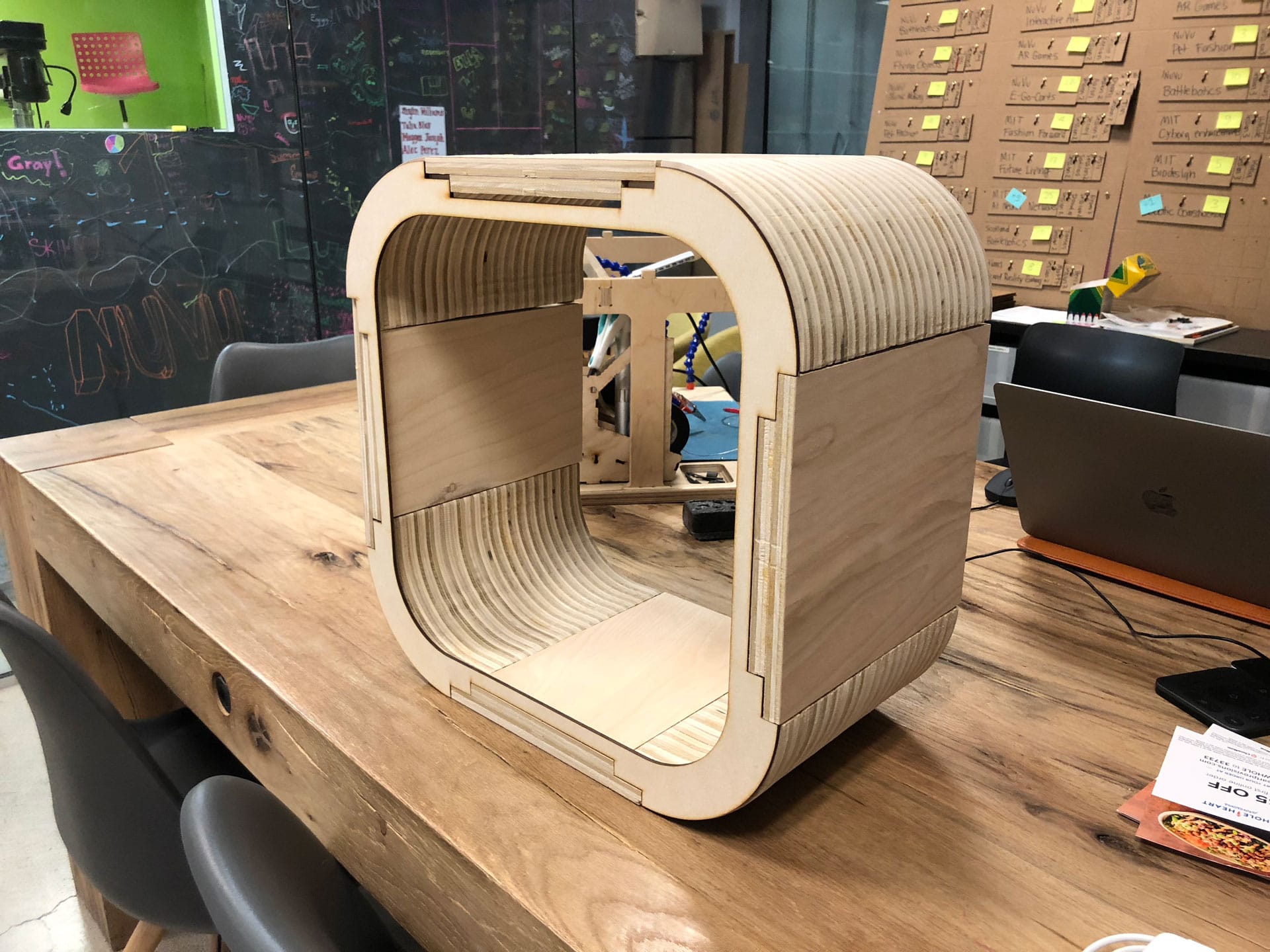
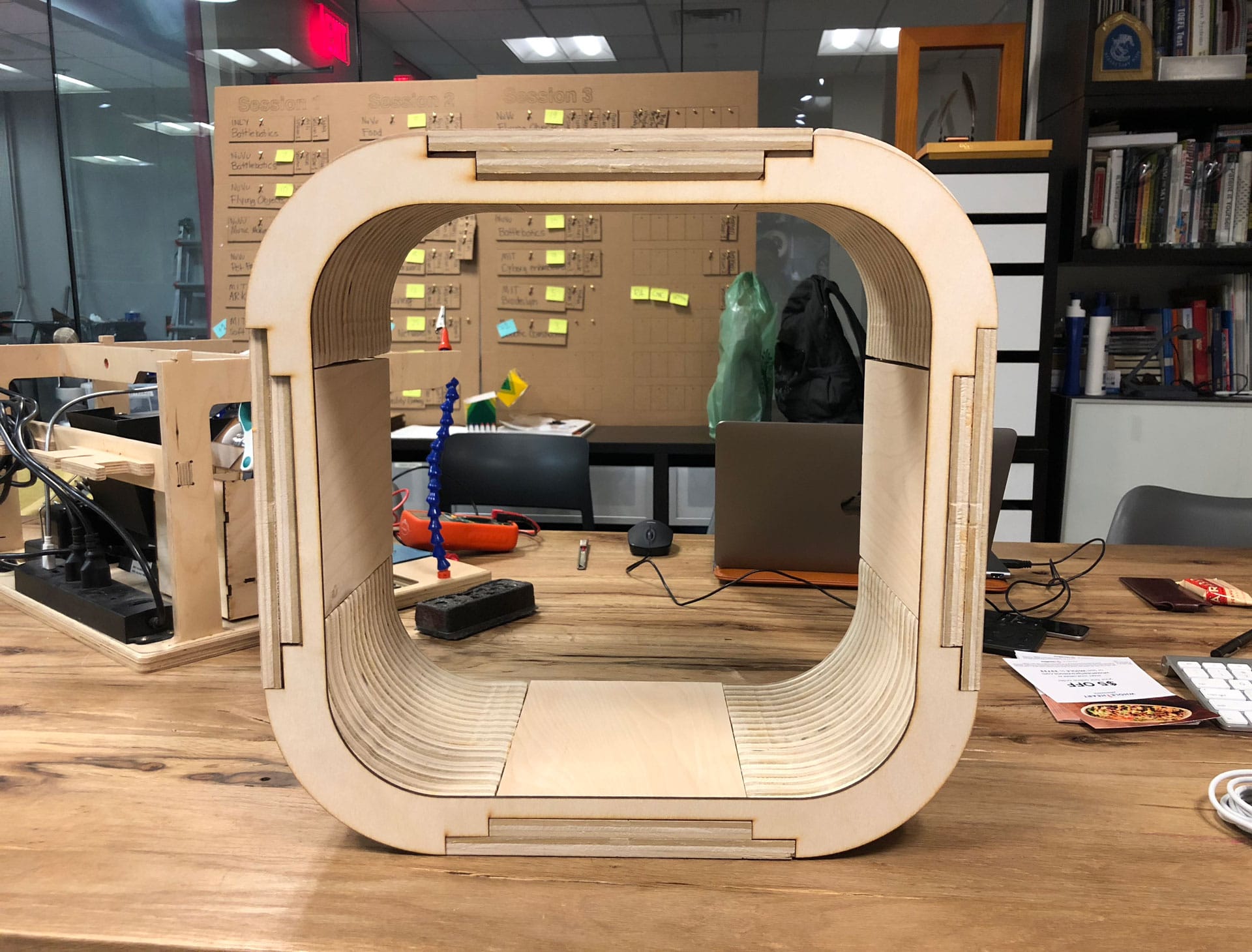
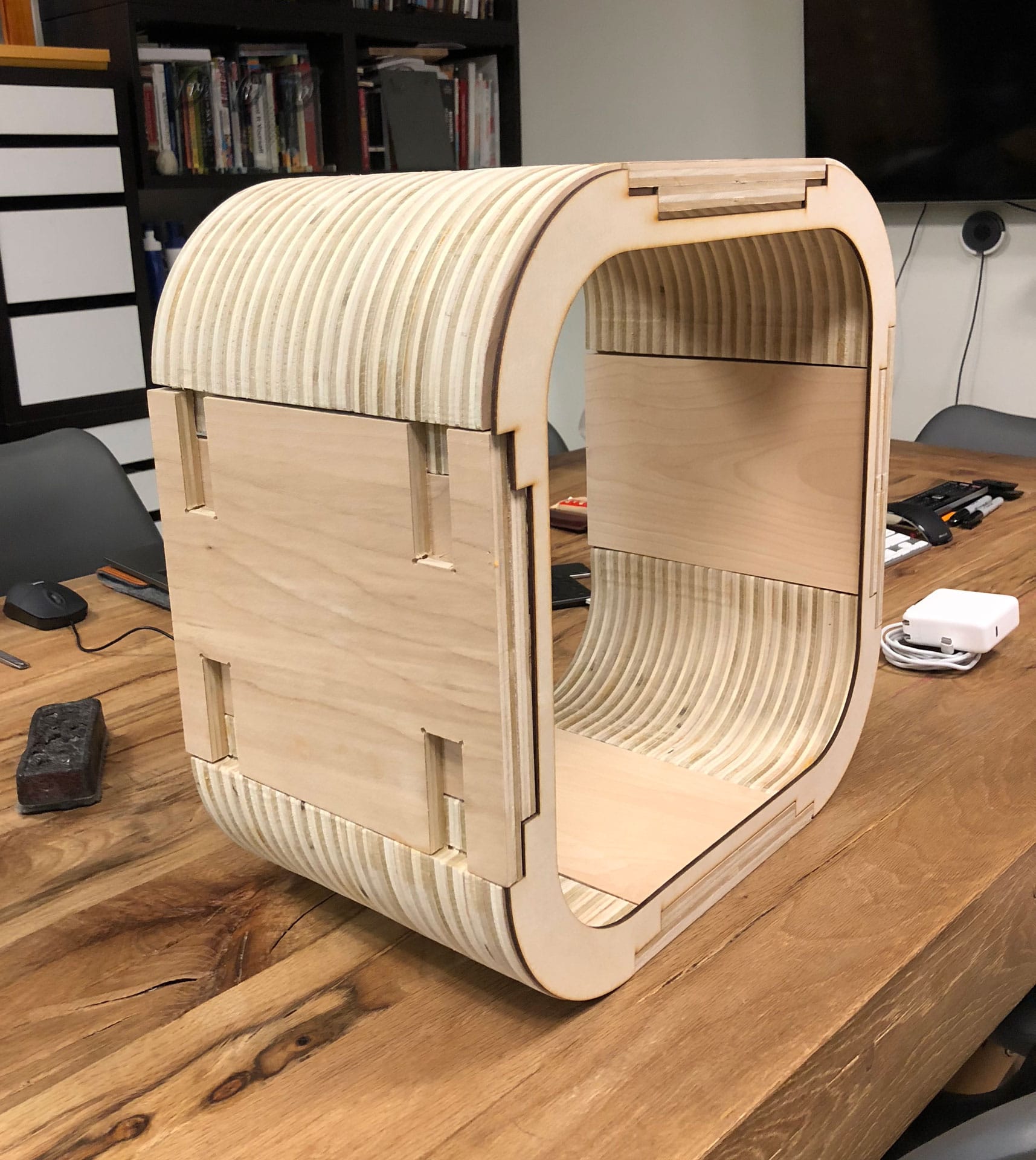
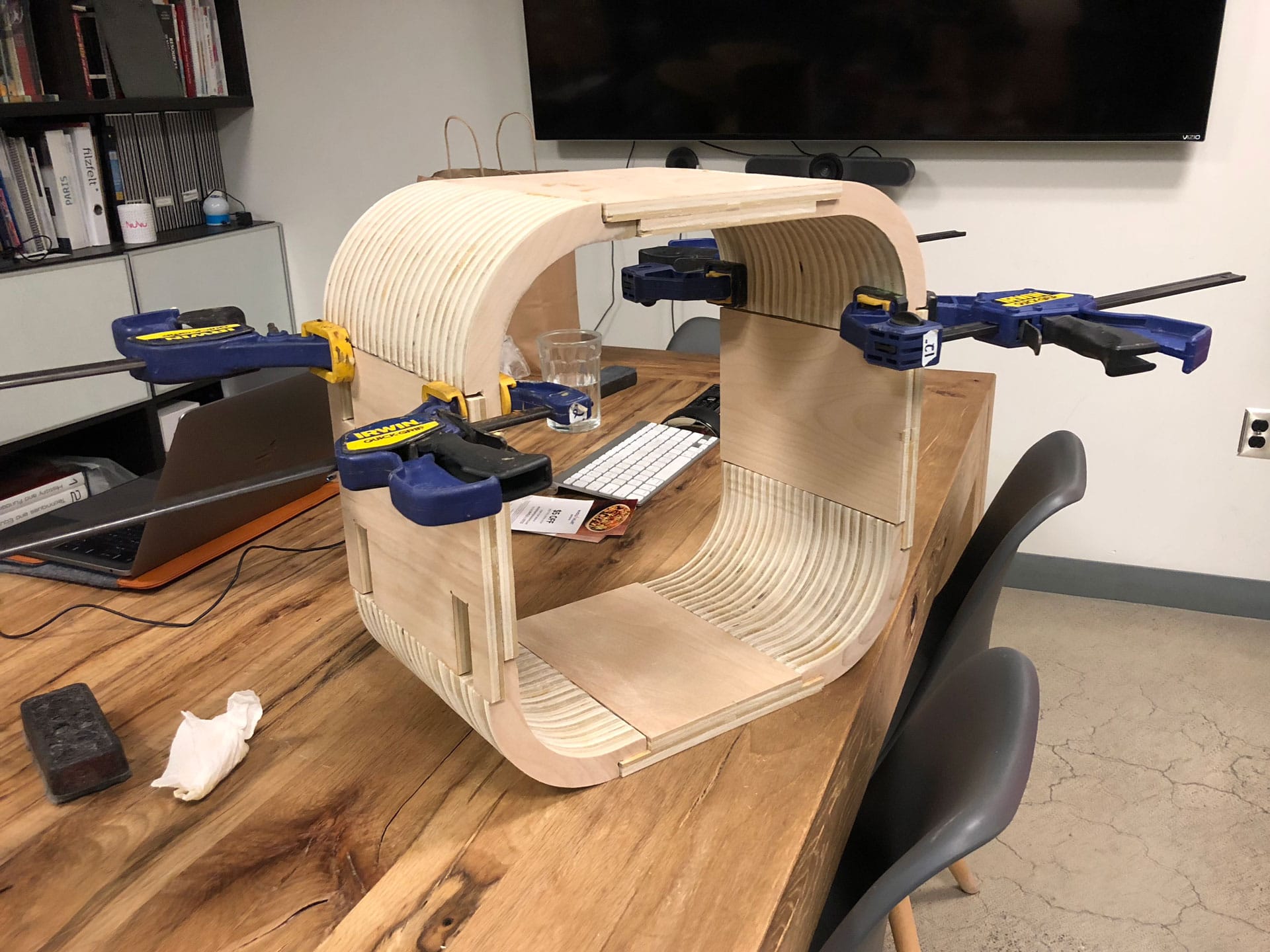
    Milled pieces: corner, side and leg pieces Milled pieces: corner, side and leg pieces Milled pieces: corner, side and leg pieces Milled pieces: corner, side and leg pieces Laminating corner pieces Laminating corner pieces Dogbones at corner pieces Laminating corner pieces Laminating corner pieces Laminating corner pieces Laminating corner pieces Laminating corner pieces Testing fitting Testing fitting Laser-cutting facade Laser-cutting facade Testing front facade Testing front facade with Hex Blocks Testing front facade with Hex Blocks Testing front facade with Hex Blocks Testing front facade with Hex Blocks Testing front facade with Hex Blocks Testing front facade with Hex Blocks Assembled top shelf Assembled top shelf Assembled top shelf Assembled top shelf

    Download the Fusion 360 3D model of the interactive shelf.
    Click to download Fusion 360 .f3d file.